Sample tables left behind in a template need cleaning up, summary rows in a report need to be copied to a given position, and data analysis calls for a table to be turned into CSV for other tools. The three operations work on different levels: deletion targets the table object itself, copying targets the row and cell collections, and export has to read every cell and cope with the column misalignment that merged cells cause.
This article uses Spire.Doc for JavaScript to perform all three operations directly in the browser. The whole process runs on WebAssembly in the browser, documents are read and written through a virtual file system (VFS), and there is no Office installation and no backend, so the file stays on the user's device the entire time.
This article covers three features:
For installation and project setup, refer to Integrating Spire.Doc for JavaScript in a React Project. The examples below assume that Spire.Doc is installed and the WebAssembly module is initialized.
Delete Tables from a Document
The body of a Spire.Doc document is a sequence of paragraphs, tables and other objects, and Body.ChildObjects gives access to them one by one. Every object carries a DocumentObjectType property, and comparing it with DocumentObjectType.Table tells whether the object is a table. There are two ways to delete a table: remove it by object, which suits the case where the target table is known, and remove it by index, which suits a batch operation such as "delete every table".
The relationship between tables, rows and cells is as follows:
| Level | How it is accessed | Common members |
|---|---|---|
| Table | Body.ChildObjects, Body.Tables |
RemoveAt, Remove, Count |
| Row | Table.Rows |
Add, Insert, RemoveAt |
| Cell | TableRow.Cells |
Insert, RemoveAt, GridSpan |
| Row copy, cell copy | TableRow.Clone(), TableCell.Clone() |
The formatting is copied along with the content |
Body.Tables counts every table in the body, including a 1×1 single-cell table; when the position in document order matters, go by Body.ChildObjects.
The specific steps are as follows:
- Get the Spire.Doc WASM module and confirm that it is ready.
- Load the sample document, create a
Documentobject and load the file. - Take the body of the first section and walk
Body.ChildObjectsbackwards. - Check the
DocumentObjectTypeof the object and callRemoveAton the tables. - Save the result with
Document.SaveToFile(), read the file from the VFS and trigger a browser download.
The code for deleting the tables in a document is as follows:
function App() {
  const deleteTables = async () => {
    // Get the Spire.Doc WASM module
    const docModule = window.wasmModule?.spiredoc;

    // Check whether the module is ready
    if (!docModule) {
      alert('Spire.Doc is not ready yet');
      return;
    }

    // Load the sample document
    await window.spire.FetchFileToVFS('QuarterlyReport.docx', '', `${process.env.PUBLIC_URL}/data/`);

    const doc = new docModule.Document();
    doc.LoadFromFile('QuarterlyReport.docx');

    const body = doc.Sections.get_Item(0).Body;

    // Delete every table backwards so that no index is skipped
    for (let i = body.ChildObjects.Count - 1; i >= 0; i--) {
      const obj = body.ChildObjects.get_Item(i);
      if (obj.DocumentObjectType === docModule.DocumentObjectType.Table) {
        body.ChildObjects.RemoveAt(i);
      }
    }

    const outputFileName = 'TablesRemoved.docx';
    doc.SaveToFile({ fileName: outputFileName, fileFormat: docModule.FileFormat.Docx2013 });
    doc.Dispose();

    // Read the result file from the VFS and trigger the download
    const fileArray = window.dotnetRuntime.Module.FS.readFile(outputFileName);
    const blob = new Blob([fileArray], {
      type: 'application/vnd.openxmlformats-officedocument.wordprocessingml.document',
    });
    const url = URL.createObjectURL(blob);
    const a = document.createElement('a');
    a.href = url;
    a.download = outputFileName;
    a.click();
    URL.revokeObjectURL(url);
  };

  return (
    <div style={{ textAlign: 'center', height: '300px' }}>
      <h1>Delete Tables in the Document</h1>
      <button onClick={deleteTables}>Delete</button>
    </div>
  );
}

export default App;
Delete tables from a document: page 1 before (left) and after all tables are removed (right):

Five tables are removed from the document, including the 1×1 summary box at the top of the page; the title, the body paragraphs, the header and the footer are all left unchanged.
Delete Only the Specified Table
When the other tables have to stay, read the text of the first cell of the first row before deleting and use it as the criterion. The first cell of the registration table in the appendix holds "Channel Name", so only that table is deleted:
// Walk backwards and pick the table to delete by the text of its first header cell
for (let i = body.ChildObjects.Count - 1; i >= 0; i--) {
  const obj = body.ChildObjects.get_Item(i);
  if (obj.DocumentObjectType !== docModule.DocumentObjectType.Table) continue;

  const cell = obj.Rows.get_Item(0).Cells.get_Item(0);
  const label = cell.ChildObjects.get_Item(0).Text || '';

  if (label.indexOf('Channel Name') >= 0) {
    body.ChildObjects.RemoveAt(i);
  }
}
When a forward loop reads and deletes at the same time, the index of every following object shifts after a deletion and an adjacent table may be skipped, so a batch deletion is better walked backwards. After a table is removed, the empty paragraph that used to sit next to it is still there; to get rid of the extra blank line, check after the deletion whether the neighbouring paragraph is empty.
Copy Table Rows and Columns
Copying rows and columns differs in one respect: a row has a ready-made method — TableRow.Clone() gives a copy of the row and Table.Rows.Insert(index, row) puts it in place. The table model has no "column object", so copying a column means cloning the cell of every row and inserting it with Cells.Insert(index, cell). The clone carries the formatting of the cell with it.
| Operation | Main calls | Notes |
|---|---|---|
| Copy a row | TableRow.Clone() + Table.Rows.Insert(index, row) |
The copy keeps the formatting inside the row |
| Append a row | TableRow.Clone() + Table.Rows.Add(row) |
The copy goes to the end of the table |
| Copy a column | TableCell.Clone() + Cells.Insert(index, cell) |
Inserted row by row; the column width has to be set separately |
The specific steps are as follows:
- Get the Spire.Doc WASM module and confirm that it is ready.
- Load the sample document, create a
Documentobject and load the file. - Take the target table, clone row 2 and insert it after the original row with
Table.Rows.Insert(). - Clone the cells of column 2 row by row and insert them as the new column 3 with
Cells.Insert(). - Save the result file, read it from the VFS and trigger a browser download.
The code for copying the table row and column is as follows:
function App() {
  const copyRowAndColumn = async () => {
    // Get the Spire.Doc WASM module
    const docModule = window.wasmModule?.spiredoc;

    // Check whether the module is ready
    if (!docModule) {
      alert('Spire.Doc is not ready yet');
      return;
    }

    await window.spire.FetchFileToVFS('QuarterlyReport.docx', '', `${process.env.PUBLIC_URL}/data/`);

    const doc = new docModule.Document();
    doc.LoadFromFile('QuarterlyReport.docx');

    const body = doc.Sections.get_Item(0).Body;

    // The first table is the 1×1 summary box, so the summary table sits at index 1
    const table = body.Tables.get_Item(1);

    // Copy row 2 (index 1) and insert it after the original row
    const rowCopy = table.Rows.get_Item(1).Clone();
    table.Rows.Insert(2, rowCopy);

    // Copy column 2 (index 1) and insert it row by row as the new column 3
    for (let r = 0; r < table.Rows.Count; r++) {
      const row = table.Rows.get_Item(r);
      row.Cells.Insert(2, row.Cells.get_Item(1).Clone());
    }

    // The new column keeps the width of the column it was copied from; set it to 120 pt cell by cell where needed
    for (let r = 0; r < table.Rows.Count; r++) {
      table.Rows.get_Item(r).Cells.get_Item(2).Width = 120;
    }

    const outputFileName = 'TableCopied.docx';
    doc.SaveToFile({ fileName: outputFileName, fileFormat: docModule.FileFormat.Docx2013 });
    doc.Dispose();

    // Read the result file from the VFS and trigger the download
    const fileArray = window.dotnetRuntime.Module.FS.readFile(outputFileName);
    const blob = new Blob([fileArray], {
      type: 'application/vnd.openxmlformats-officedocument.wordprocessingml.document',
    });
    const url = URL.createObjectURL(blob);
    const a = document.createElement('a');
    a.href = url;
    a.download = outputFileName;
    a.click();
    URL.revokeObjectURL(url);
  };

  return (
    <div style={{ textAlign: 'center', height: '300px' }}>
      <h1>Copy Table Rows and Columns</h1>
      <button onClick={copyRowAndColumn}>Copy</button>
    </div>
  );
}

export default App;
The summary table after the row and column copy: row 2 (index 1) is duplicated and a column is inserted after column 2.

Adjust the Column Width After Copying
A cloned cell keeps its own width, so the new column inherits the width of the column it was copied from. In the sample the copied second column is about 85 pt wide, while the first column is about 111 pt and the fourth about 102 pt, so the inserted column looks narrow; TableCell.Width is measured in points, and setting it cell by cell adjusts the column as needed:
// Set the new column to 120 pt; every cell has to be set separately
for (let r = 0; r < table.Rows.Count; r++) {
  table.Rows.get_Item(r).Cells.get_Item(2).Width = 120;
}
After the row copy is inserted the table goes from 5 rows to 6, and after the column copy is inserted and its width set every row goes from 5 cells to 6. After a copy it is worth re-reading Table.Rows.Count and Cells.Count to confirm that the structure is the expected one.
Export Tables to CSV
The rules for exporting a table as CSV are simple: fields are separated by commas, a field that contains a comma, a double quote or a line break is wrapped in double quotes, and a double quote inside a field is written twice. The difficulty lies in the merged cells: a horizontal merge folds several columns into one cell, a vertical merge leaves the following rows with continuation cells that hold no text, and joining the fields by Cells.Count directly misaligns the columns.
TableCell.GridSpan gives the number of columns a cell occupies (1 for an ordinary cell); accumulating the column index by the span puts every field back into its original column:
| Property | Meaning | Use in the export |
|---|---|---|
GridSpan |
Number of columns the cell occupies | Accumulate the column index and handle horizontal merges |
CellFormat.HorizontalMerge |
State of the horizontal merge | Tell the starting cell from the continuation cells |
CellFormat.VerticalMerge |
State of the vertical merge | Detect a continuation cell and take the value of the row above |
CellMerge.Continue |
Continuation state of a vertical merge | Fill the cell with the value of the same column in the row above |
The specific steps are as follows:
- Get the Spire.Doc WASM module and confirm that it is ready.
- Load the sample document and the fonts, create a
Documentobject and load the file. - Walk every section and every body object, and add up the real column count of each table by
GridSpan. - Read the text of the cells row by row, escape it by the CSV rules and write it into the right column.
- Put a UTF-8 BOM in front of the content, write the file into the VFS and trigger the download.
The code for exporting the tables to CSV is as follows:
function App() {
  const exportTablesToCsv = async () => {
    // Get the Spire.Doc WASM module
    const docModule = window.wasmModule?.spiredoc;

    // Check whether the module is ready
    if (!docModule) {
      alert('Spire.Doc is not ready yet');
      return;
    }

    await window.spire.FetchFileToVFS('QuarterlyReport.docx', '', `${process.env.PUBLIC_URL}/data/`);

    const doc = new docModule.Document();
    doc.LoadFromFile('QuarterlyReport.docx');

    // Escape a field by the CSV rules
    const csvEscape = (value) => {
      const text = String(value).replace(/"/g, '""');
      return /[",\r\n]/.test(text) ? `"${text}"` : text;
    };

    // Read the text of every paragraph in the cell
    const getCellText = (cell) => {
      let text = '';
      for (let k = 0; k < cell.ChildObjects.Count; k++) {
        const child = cell.ChildObjects.get_Item(k);
        if (child.DocumentObjectType === docModule.DocumentObjectType.Paragraph) {
          text += child.Text;
        }
      }
      return text.replace(/[\r\n]+/g, ' ').trim();
    };

    let csv = '';

    for (let s = 0; s < doc.Sections.Count; s++) {
      const body = doc.Sections.get_Item(s).Body;
      for (let i = 0; i < body.ChildObjects.Count; i++) {
        const obj = body.ChildObjects.get_Item(i);
        if (obj.DocumentObjectType !== docModule.DocumentObjectType.Table) continue;

        // Add up the real column count of each row by GridSpan
        let maxColumns = 0;
        for (let r = 0; r < obj.Rows.Count; r++) {
          const row = obj.Rows.get_Item(r);
          let columns = 0;
          for (let c = 0; c < row.Cells.Count; c++) {
            columns += row.Cells.get_Item(c).GridSpan || 1;
          }
          maxColumns = Math.max(maxColumns, columns);
        }

        // Write the fields row by row; a merged cell takes its span of slots
        for (let r = 0; r < obj.Rows.Count; r++) {
          const row = obj.Rows.get_Item(r);
          const fields = new Array(maxColumns).fill('');
          let column = 0;
          for (let c = 0; c < row.Cells.Count; c++) {
            const cell = row.Cells.get_Item(c);
            fields[column] = csvEscape(getCellText(cell));
            column += cell.GridSpan || 1;
          }
          csv += fields.join(',') + '\r\n';
        }

        // Leave a blank line between tables so that they stay apart
        csv += '\r\n';
      }
    }

    // Write a UTF-8 BOM so that Excel recognises the text correctly
    const BOM = '\uFEFF';
    window.dotnetRuntime.Module.FS.writeFile('Tables.csv', BOM + csv);

    const fileArray = window.dotnetRuntime.Module.FS.readFile('Tables.csv');
    const blob = new Blob([fileArray], { type: 'text/csv;charset=utf-8' });
    const url = URL.createObjectURL(blob);
    const a = document.createElement('a');
    a.href = url;
    a.download = 'Tables.csv';
    a.click();
    URL.revokeObjectURL(url);

    doc.Dispose();
  };

  return (
    <div style={{ textAlign: 'center', height: '300px' }}>
      <h1>Export Tables to CSV</h1>
      <button onClick={exportTablesToCsv}>Export</button>
    </div>
  );
}

export default App;
The exported Tables.csv: horizontally merged cells expand into placeholder columns and the columns stay aligned.
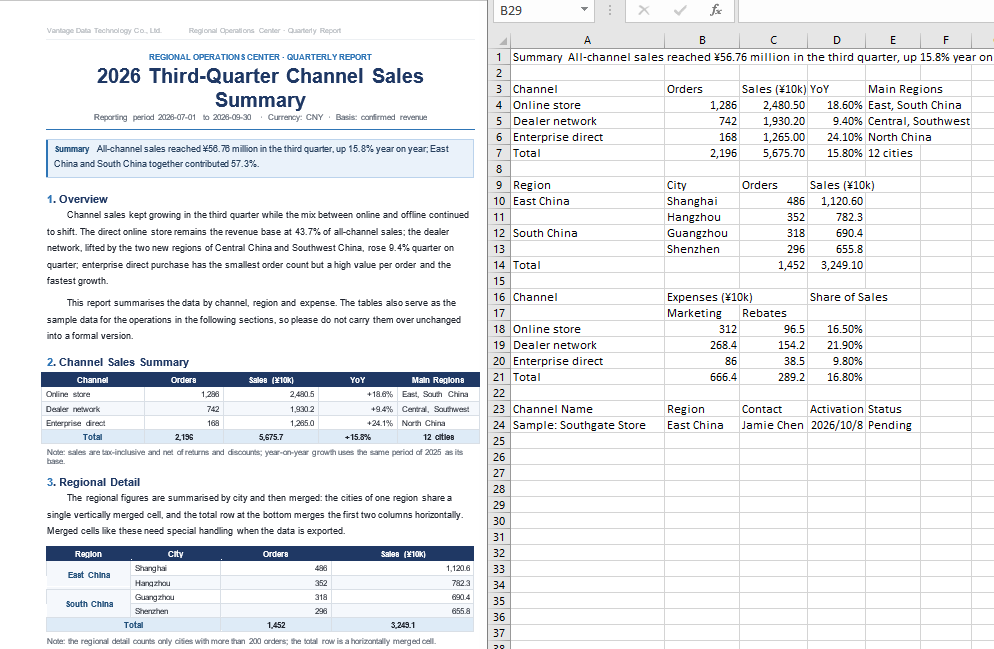
The sample document holds 5 tables and the export gives 21 rows of data. The horizontally merged Total row and the two-row header both expand into placeholder columns and the columns stay aligned; the file starts with a BOM, so the text displays correctly when it is opened directly in Excel.
Handle Merged Cells
The cell of a horizontal merge only appears in its starting column, and GridSpan gives the number of columns it occupies. In the sample the span of Expenses (¥10k) is 2, so after accumulating the column index, Share of Sales is written back to column 4 and the exported row reads Channel,Expenses (¥10k),,Share of Sales, with column 3 left empty to mark the extension of the merged area.
const cell = row.Cells.get_Item(c);
fields[column] = csvEscape(getCellText(cell));
column += cell.GridSpan || 1;
The starting cell of a vertical merge carries the text and the continuation cells are empty. To fill the value of a merged area into every row, compare CellFormat.VerticalMerge with CellMerge.Continue and take the value of the same column from the previous row:
// previousRow is the fields array of the previous row
const isContinue =
  cell.CellFormat.VerticalMerge === docModule.CellMerge.Continue;

fields[column] = isContinue ? previousRow[column] : csvEscape(getCellText(cell));
In the sample the Region column merges four cells in two groups vertically, and after the fill every row carries its region name; the vertically merged Channel and Share of Sales headers repeat on the second header row as well. Whether to fill depends on what the data is for: keeping the blanks stays closer to the original table, while the filled result is easier to import into a database or to analyse with a pivot table.
FAQ
Why Is the First Table of Body.Tables Not the One to Work On
Cause: Body.Tables counts every table in the body, including the 1×1 single-cell tables used for layout. In the sample the summary box sits at index 0, while the channel summary table actually sits at index 1.
Fix: confirm the target table by the text of its first header cell first, or walk Body.ChildObjects, filter the objects by DocumentObjectType and count the tables in document order.
Is the Text Inside a Table Kept After the Table Is Deleted
The text goes away with the table object, and the paragraphs outside the table are not affected. After all tables are deleted the title, the body and the footer are still there, and the space the tables used is released with them.
The Copied Column Width Does Not Match the Adjacent Column; How Can It Be Adjusted
The new column takes the width of the cell it was cloned from, so whether it matches the neighbouring columns depends on the width of the original column. In the sample the copied second column is about 85 pt and the first column is about 111 pt, which is why the new column looks narrower. Setting Cell.Width (in points) on every cell adjusts it as needed:
for (let r = 0; r < table.Rows.Count; r++) {
  table.Rows.get_Item(r).Cells.get_Item(2).Width = 120;
}
Why Does the Exported CSV Show Garbled Characters in Excel
Cause: a CSV file carries no encoding information of its own, and Excel parses it with the local system encoding, so text encoded in UTF-8 shows up garbled.
Fix: prepend a UTF-8 BOM ('\uFEFF') to the content before writing it; alternatively import the file in Excel through Data > From Text/CSV and choose UTF-8 during the import.
Why Are the Columns Misaligned After Merged Cells Are Exported
Cause: a horizontal merge folds several columns into a single cell, so joining the fields by Cells.Count shifts every following field to the left; the continuation cells of a vertical merge hold no text and are easily mistaken for real empty values.
Fix: accumulate the column index by GridSpan and write every field back to its original column; detect a vertical continuation cell with CellFormat.VerticalMerge === CellMerge.Continue and fill it with the value of the same column in the previous row.
Get a Free License
Spire.Doc for JavaScript offers a 30-day full-featured free trial license with no functional limitations. Apply here to evaluate before purchasing.
