A chart makes a trend visible at a glance, yet it does not give the exact numbers: the height of a column has to be read against the value axis, and the estimate drifts as more series crowd in. A data table lists the category names, series names and values directly below the chart, so readers do not have to go back to the source cells or add a data label to every point. As part of the chart, the table scales and moves with it and stays in place when the chart is exported as an image or printed. Spire.XLS for JavaScript performs these operations in the browser through WebAssembly; the input and output files are managed by a virtual file system (VFS), with no backend service required.
This article covers two feature points:
For installation and project setup, see Integrating Spire.XLS for JavaScript in a React Project. The examples below assume Spire.XLS is installed and the WebAssembly module has been initialized.
Add a data table to the chart
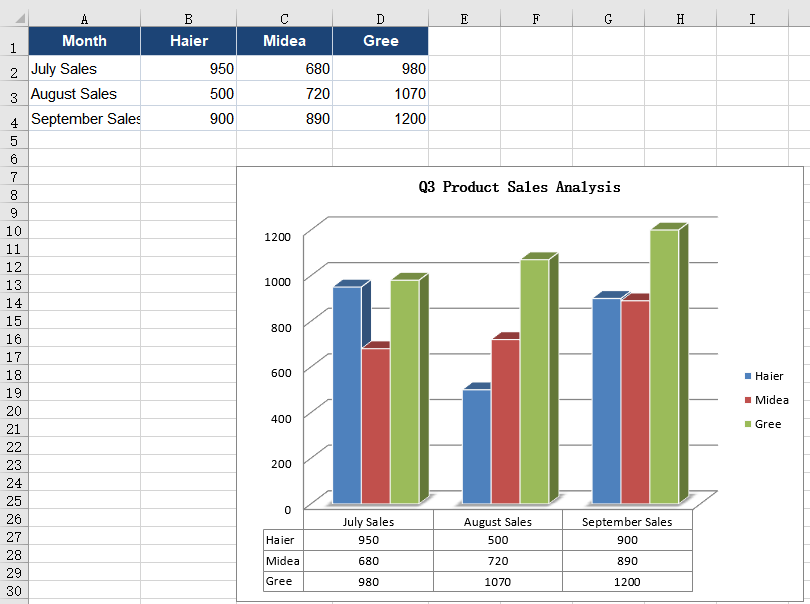
Adding a data table to a chart solves the problem of numbers living apart from the picture. A default column chart only draws the columns; the values stay in the source worksheet and the reader has to move between the two. With several series, a data table sits directly under the category axis, one row per series, its columns aligned with the categories and its rows matching the colours in the legend, so the trend and the figures appear in one place. The sample workbook already holds a quarterly sales table and a column chart; what it lacks is the table below the chart.
Turning the data table on:
| Syntax | Result |
|---|---|
workbook.Worksheets.get(0) |
Takes the first worksheet of the workbook |
sheet.Charts.get(0) |
Takes the first chart on the worksheet |
chart.HasDataTable = true |
Shows a data table below the chart with the categories, series names and values |
workbook.SaveToFile |
Saves the workbook with its data table into the VFS |
The steps are:
- Load the font file and the test data file into the VFS with
window.spire.FetchFileToVFS. - Create a workbook with
new Workbook(), load the input file withworkbook.LoadFromFile, and take the first worksheet withworkbook.Worksheets.get(0). - Take the first chart on the worksheet with
sheet.Charts.get(0). - Set
chart.HasDataTabletotrue, which adds the data table below the chart. - Save the workbook with
workbook.SaveToFileand dispose of it withworkbook.Disposeto free resources.
The full code example below shows how to add a data table to an Excel chart in React:
function App() {
  const addDataTable = async () => {
    // Get the Spire.XLS WASM module
    const xlsModule = window.wasmModule?.spirexls;

    // Check that the module is ready
    if (!xlsModule) {
      alert('Spire.Xls is not ready yet');
      return;
    }

    // Load the font and the test data file into the VFS
    await window.spire.FetchFileToVFS('ARIAL.TTF', '/Library/Fonts/', `${process.env.PUBLIC_URL}/font/`);
    const inputFileName = 'ChartSales.xlsx';
    await window.spire.FetchFileToVFS(inputFileName, '', `${process.env.PUBLIC_URL}data/`);

    // Load the workbook and take the first worksheet and its chart
    const workbook = new xlsModule.Workbook();
    workbook.LoadFromFile({ fileName: inputFileName });
    const sheet = workbook.Worksheets.get(0);
    const chart = sheet.Charts.get(0);

    // Turn on the chart's data table, which lists the categories and series values below the plot
    chart.HasDataTable = true;

    // Save the workbook
    const outputFileName = 'AddDataTable.xlsx';
    workbook.SaveToFile({ fileName: outputFileName });

    // Dispose of the workbook to release its resources
    workbook.Dispose();

    // Read the result back out of the VFS and trigger the download
    const fileArray = window.dotnetRuntime.Module.FS.readFile(outputFileName);
    const blob = new Blob([fileArray], { type: 'application/vnd.openxmlformats-officedocument.spreadsheetml.sheet' });
    const url = URL.createObjectURL(blob);
    const a = document.createElement('a');
    a.href = url;
    a.download = outputFileName;
    a.click();
    URL.revokeObjectURL(url);
  };

  return (
    <div style={{ textAlign: 'center', height: '300px' }}>
      <h1>Add a Data Table to an Excel Chart</h1>
      <button id="add-data-table" onClick={addDataTable}>Add a Data Table to the Chart</button>
    </div>
  );
}

export default App;
The sales report after turning on the chart data table:
Adjust the data table borders, legend keys and text formatting
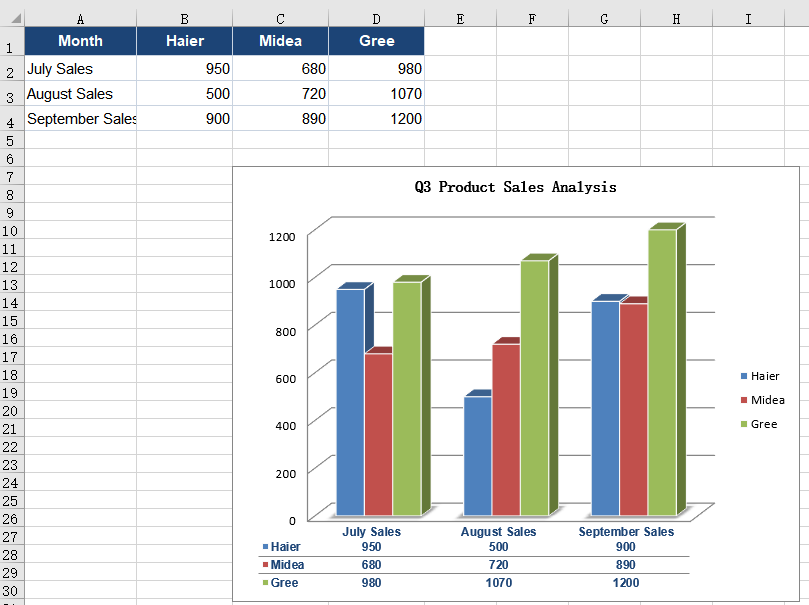
Adjusting the data table borders, legend keys and text formatting keeps the table readable when there are many series and lets it blend into the layout of a report. A newly opened data table carries an outer frame and both horizontal and vertical separators; with three rows of values stacked together it looks like a dense grid. Dropping the outer frame and the vertical lines leaves only the horizontal ones, so the eye follows a row straight to its numbers without being cut off by vertical rules. Turning on the legend keys then puts a colour swatch of the matching series in front of every series name, so readers no longer have to compare each row with the legend. By default the text draws on the chart's own settings -- ten points, black, not bold -- which does not stand out against dark columns and gridlines; dropping the size to nine points fits more numbers on a line, while bolding the text and switching it to a deeper blue ties it to the title and the header row. These settings apply to the data table alone; the chart title, axis labels and legend keep their own fonts.
Borders, legend keys and text formatting:
| Syntax | Result |
|---|---|
chart.DataTable |
Takes the data table object of the chart |
table.HasBorders = false |
Removes the outer frame of the data table |
table.HasVertBorder = false |
Removes the vertical separators between columns |
table.HasHorzBorder = true |
Keeps the horizontal separators between rows |
table.ShowSeriesKeys = true |
Shows a legend key in front of every series name |
table.FontName = 'Arial' |
Sets the data table text to Arial |
table.Size = 9 |
Sets the data table text to 9 points |
table.IsBold = true |
Bolds the data table text |
table.Color = xlsModule.Color.FromArgb(255, 28, 68, 118) |
Sets the data table text to a deep blue |
The steps are:
- Load the font and the test data file into the VFS with
window.spire.FetchFileToVFS, then load the workbook withworkbook.LoadFromFile. - Take the first worksheet with
workbook.Worksheets.get(0)and the first chart withsheet.Charts.get(0). - Set
chart.HasDataTabletotrueto open the data table, then take the object withchart.DataTable. - Set
table.HasBordersandtable.HasVertBordertofalseandtable.HasHorzBordertotrue, so only the horizontal lines remain. - Set
table.ShowSeriesKeystotrueto show the legend key before each series name. - Set
table.FontName,table.Sizeandtable.IsBoldto choose the typeface, the size and the bold weight. - Build a deep blue with
xlsModule.Color.FromArgband assign it totable.Color. - Save the workbook with
workbook.SaveToFileand dispose of it withworkbook.Disposeto free resources.
The full code example below shows how to adjust the data table borders, legend keys and text formatting in React:
function App() {
  const customizeDataTable = async () => {
    // Get the Spire.XLS WASM module
    const xlsModule = window.wasmModule?.spirexls;

    // Check that the module is ready
    if (!xlsModule) {
      alert('Spire.Xls is not ready yet');
      return;
    }

    // Load the font and the test data file into the VFS
    await window.spire.FetchFileToVFS('ARIAL.TTF', '/Library/Fonts/', `${process.env.PUBLIC_URL}/font/`);
    const inputFileName = 'ChartSales.xlsx';
    await window.spire.FetchFileToVFS(inputFileName, '', `${process.env.PUBLIC_URL}data/`);

    // Load the workbook and take the first worksheet and its chart
    const workbook = new xlsModule.Workbook();
    workbook.LoadFromFile({ fileName: inputFileName });
    const sheet = workbook.Worksheets.get(0);
    const chart = sheet.Charts.get(0);

    // Turn on the data table and take its object
    chart.HasDataTable = true;
    const table = chart.DataTable;

    // Drop the outer frame and the vertical lines, keeping only the horizontal ones
    table.HasBorders = false;
    table.HasVertBorder = false;
    table.HasHorzBorder = true;

    // Show the legend key in front of each series name
    table.ShowSeriesKeys = true;

    // Set the data table font, size, bold weight and text colour
    table.FontName = 'Arial';
    table.Size = 9;
    table.IsBold = true;
    table.Color = xlsModule.Color.FromArgb(255, 28, 68, 118);

    // Save the workbook
    const outputFileName = 'DataTableFormatting.xlsx';
    workbook.SaveToFile({ fileName: outputFileName });

    // Dispose of the workbook to release its resources
    workbook.Dispose();

    // Read the result back out of the VFS and trigger the download
    const fileArray = window.dotnetRuntime.Module.FS.readFile(outputFileName);
    const blob = new Blob([fileArray], { type: 'application/vnd.openxmlformats-officedocument.spreadsheetml.sheet' });
    const url = URL.createObjectURL(blob);
    const a = document.createElement('a');
    a.href = url;
    a.download = outputFileName;
    a.click();
    URL.revokeObjectURL(url);
  };

  return (
    <div style={{ textAlign: 'center', height: '300px' }}>
      <h1>Add a Data Table to an Excel Chart</h1>
      <button id="data-table-formatting" onClick={customizeDataTable}>Adjust the Borders, Legend Keys and Text</button>
    </div>
  );
}

export default App;
The data table after adjusting the borders, legend keys and text formatting:
FAQ
What is the difference between a data table and data labels?
Cause: Data labels sit next to each data point and show only that point's value. A data table sits below the chart, one row per series, and gives the category names and all the values together.
Solution: Use data labels when each point needs a callout without a table taking up space; use a data table when readers should take in a whole set of values at once. Both can be present on the same chart and turned on or off as needed.
How do I remove the data table from a chart?
Cause: The data table is controlled by a single switch on the chart; once it is on, it does not disappear with a change of source data or chart type.
Solution: Set chart.HasDataTable to false and save the workbook; the data table below the chart is removed.
How can the data table use a different font from the rest of the chart?
Cause: The data table carries its own text formatting. Until it is set, it follows the rest of the chart's text; once set, only the data table changes.
Solution: Set FontName, Size, IsBold and Color on chart.DataTable. These properties act on the data table only and leave the chart title, axis labels and legend untouched.
What is the legend key in a data table?
Cause: A legend key is the small colour swatch shown in front of a series name, matching the series' marker in the legend. It is off by default, so the data table shows plain text.
Solution: Set table.ShowSeriesKeys to true; a swatch then appears in front of every series name, so a reader can match a row of the data table with the legend directly.
Get a Free License
Spire.XLS for JavaScript offers a 30-day full-featured free trial license with no functional limitations. Apply here to evaluate before purchasing.
