AI-Powered Document Redaction in C#: Preserve Formatting
Table of Contents

Documents used in customer service, finance, human resources, and legal workflows often contain names, email addresses, phone numbers, home addresses, account numbers, and other sensitive information. Before these files can be shared, archived, or used for analysis, the identifying content may need to be removed or replaced.
Traditional redaction programs rely on predefined search rules and separate processing logic for each document format. An AI Agent SDK offers another approach: developers can describe the redaction requirement in natural language, allowing the agent to identify sensitive information and modify the corresponding Office document elements. This article demonstrates how to redact Word, Excel, and PowerPoint files in C# while preserving their original structure and formatting.
What Is Document Redaction?
Document redaction is the process of removing or replacing information that should not be disclosed. Common redaction targets include:
- Personal names
- Email addresses
- Phone and fax numbers
- Home or mailing addresses
- Dates of birth
- Customer and employee identifiers
- Bank and account numbers
- Other confidential or personally identifiable information
For editable Office files, redaction involves more than changing plain text. Sensitive content may appear in Word paragraphs and tables, Excel cells, PowerPoint shapes, headers, footers, or other document elements. A useful redaction workflow should remove the detected value without unnecessarily changing the surrounding layout, styles, images, charts, or document structure.
Three Ways to Redact Office Documents in C#
There are three general implementation approaches: traditional document APIs, a direct LLM integration, and an AI Agent SDK.
Traditional API-Based Redaction
A traditional implementation normally starts with exact text replacement or regular expressions. For example, Spire.Doc for .NET provides APIs for finding and replacing text in Word documents.
The following simplified pseudocode illustrates a rule-based redaction workflow. It is intentionally incomplete and only shows the main responsibilities that the application would need to handle.
Document document = new Document();
document.LoadFromFile("Input.docx");

// Patterns must be defined and maintained by the developer.
Regex emailPattern = new Regex("...");
Regex phonePattern = new Regex("...");
Regex accountPattern = new Regex("...");

document.Replace(emailPattern, "[REDACTED]");
document.Replace(phonePattern, "[REDACTED]");
document.Replace(accountPattern, "[REDACTED]");

// Additional logic may still be required for different content containers.
foreach (Section section in document.Sections)
{
    ProcessParagraphs(section);
    ProcessTables(section.Tables);
    ProcessHeadersAndFooters(section.HeadersFooters);
    ProcessTextBoxes(section);
}

document.SaveToFile("Redacted.docx", FileFormat.Docx);
This approach works well when the sensitive values follow predictable patterns. Email addresses, phone numbers, and standardized identification numbers can often be found with regular expressions.
The difficulty increases when the information depends on context. A program may need to determine whether a word is a person's name, whether a number is an account number or an invoice number, and whether a location is a private address or a public company address. Developers must also add different traversal and replacement logic for Word, Excel, and PowerPoint.
Direct LLM Integration
A large language model can understand context more effectively than a collection of regular expressions. For example, it may recognize a person's name in a sentence even when the name does not follow a predictable pattern.
However, an LLM does not automatically provide complete Office document processing. A direct integration usually requires the application to:
- Extract text from every relevant document element.
- Divide the content into suitable requests.
- Send the extracted text to the model.
- Map the model's results back to the original paragraphs, cells, or shapes.
- Replace the sensitive content without losing its formatting.
- Save the modified file in its original format.
If the document is converted to plain text before it is sent to the model, information about tables, text ranges, fonts, alignment, and other layout properties may be lost. The developer therefore remains responsible for connecting the model's semantic results to the Office document object model.
AI Agent SDK
An AI Agent SDK combines natural-language understanding with document-processing capabilities. Instead of defining every detection rule and manually coordinating every replacement step, the developer supplies the document and describes the intended result.
Spire.Agent.Office uses the underlying capabilities of Spire.Office for .NET to work with Word, Excel, and PowerPoint objects. In a Word document, for example, the processing layer can access sections, paragraphs, text ranges, tables, cells, headers, footers, images, hyperlinks, and their formatting. The model identifies the sensitive content, while the document APIs modify the corresponding elements.
This object-level processing is what makes it possible to replace text while retaining the document's surrounding structure and styles.
Traditional API vs. LLM vs. AI Agent SDK
| Approach | Contextual detection | Format preservation | Multi-format implementation | Development effort | Best suited for |
|---|---|---|---|---|---|
| Traditional API and regular expressions | Limited unless additional NLP logic is added | Strong and controllable | Separate logic is normally required | High | Fixed patterns and highly deterministic rules |
| Office API with direct LLM calls | Strong | Must be implemented by the developer | Extraction and write-back logic is required for each format | Very high | Fully customized AI pipelines |
| AI Agent SDK | Strong | Handled through document-aware processing | A common instruction can be applied to multiple Office formats | Lower | Context-aware redaction with less orchestration code |
The traditional approach remains useful when every redaction target follows a known pattern and the application requires strictly deterministic behavior. The Agent SDK approach becomes more attractive when documents contain varied, contextual information or when the same workflow must support several Office formats.
Set Up the C# Project
Create a C# console application and add Spire.Agent.Office and its required dependencies to the project. You will also need a valid SpireToken for AI processing.
The example below supports the following formats:
- Word: DOC and DOCX
- Excel: XLS and XLSX
- PowerPoint: PPT and PPTX
PDF is not included in this example.
Redact Word, Excel, and PowerPoint Documents with an AI Agent
The following code determines the source format from its extension, loads the appropriate Office document object, and passes the same redaction instruction to the AI processor.
using Spire.Agent.Office.AI;
using Spire.Agent.Office.Extensions;
using Spire.Presentation;
using Spire.Doc;
using Spire.Xls;

string inputPath = @"E:\Documents\Input.docx";
string outputPath = @"E:\Documents\Redacted.docx";
string spireToken = "your spireToken";

string instruction = """
Find personal information such as names, email addresses, phone numbers, addresses,
account numbers, and other sensitive information. Replace the detected content with
“[REDACTED]” while preserving the original document structure and formatting.
""";

// Configure the AI processing options
AIOptions options = new AIOptions();
options.SpireToken = spireToken;

// Select the appropriate document object according to the file extension
string extension = Path.GetExtension(inputPath).ToLower();

if (extension == ".doc" || extension == ".docx")
{
    using (Document document = new Document())
    {
        document.LoadFromFile(inputPath);
        AIDocumentProcessor processor = document.AI(options);
        processor.ExecuteInstruction(
            document,
            instruction,
            outputPath,
            Array.Empty<string>());
    }
}
else if (extension == ".xls" || extension == ".xlsx")
{
    using (Workbook workbook = new Workbook())
    {
        workbook.LoadFromFile(inputPath);
        AIDocumentProcessor processor = workbook.AI(options);
        processor.ExecuteInstruction(
            workbook,
            instruction,
            outputPath,
            Array.Empty<string>());
    }
}
else if (extension == ".ppt" || extension == ".pptx")
{
    using (Presentation presentation = new Presentation())
    {
        presentation.LoadFromFile(inputPath);
        AIDocumentProcessor processor = presentation.AI(options);
        processor.ExecuteInstruction(
            presentation,
            instruction,
            outputPath,
            Array.Empty<string>());
    }
}
If implicit global usings are disabled in your project, also add using System; and using System.IO; for Array and Path.
Define the Input, Output, and Instruction
inputPath specifies the source document, while outputPath specifies where the redacted file will be saved. The input and output extensions should match so the result remains in the original format.
The natural-language instruction defines both the detection scope and the required modification. In this example, the agent searches for common types of personal information and replaces them with [REDACTED].
You can adjust the instruction for a narrower workflow. For example:
Find email addresses, phone numbers, and customer account numbers. Replace each detected value with “[REDACTED]”. Do not redact company names, product names, invoice numbers, or dates. Preserve the original layout and formatting.
Adding explicit exclusions can reduce false positives when a document contains business identifiers that resemble personal account numbers.
Configure AI Processing
AIOptions stores the SpireToken used by the AI processing service:
AIOptions options = new AIOptions();
options.SpireToken = spireToken;
The same options object can be used with the Word, Excel, or PowerPoint document instance.
Select the Appropriate Document Type
The program reads the file extension and creates the corresponding object:
Documentfor Word filesWorkbookfor Excel filesPresentationfor PowerPoint files
Each object exposes the AI() extension method. This returns an AIDocumentProcessor, which executes the natural-language instruction against the loaded document.
The empty attachment array indicates that the instruction does not require any supporting files:
processor.ExecuteInstruction(
    document,
    instruction,
    outputPath,
    Array.Empty<string>());
Redaction Result
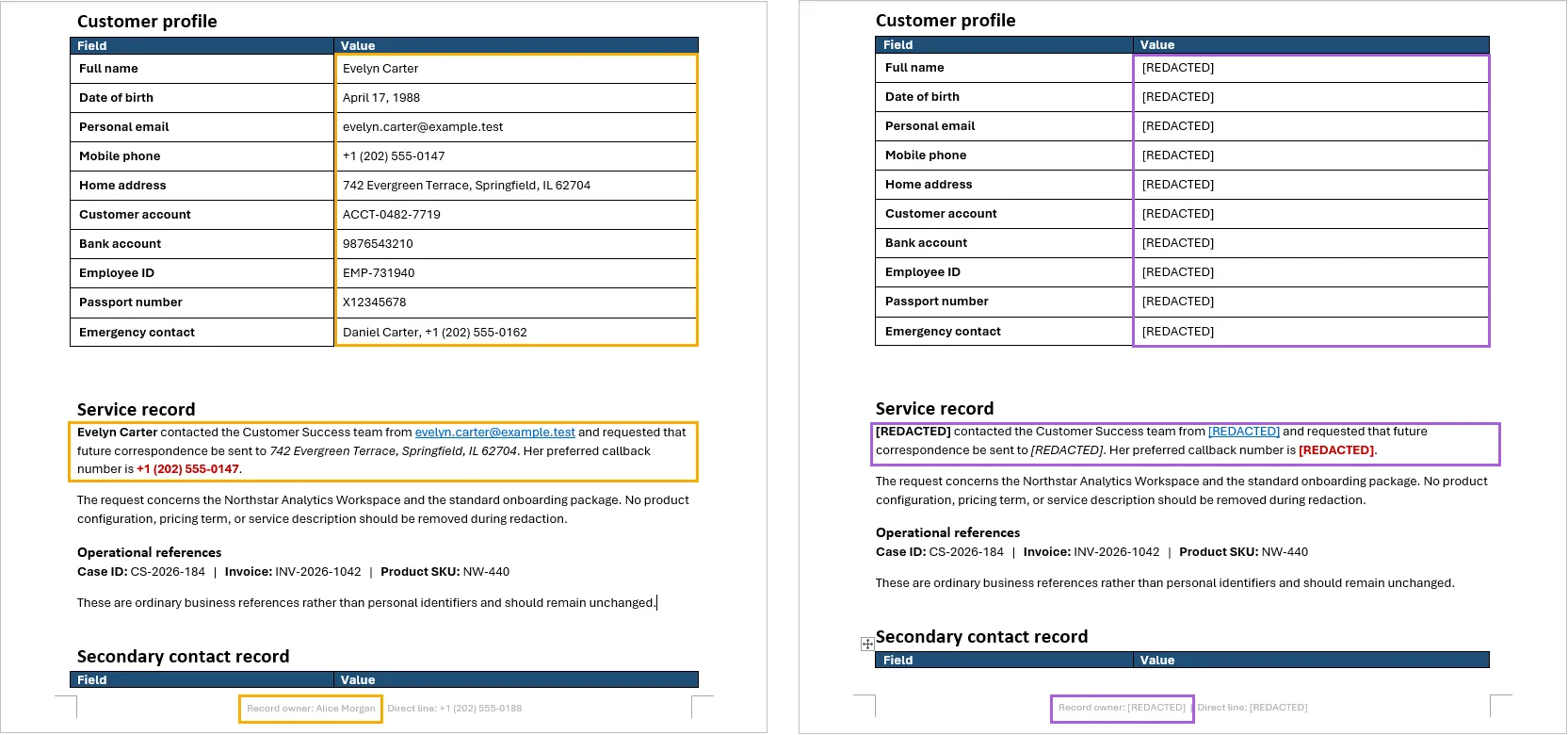
In the Word test document, sensitive information appeared in normal paragraphs, a customer-information table, and the page footer. After processing, the names, email addresses, phone numbers, addresses, and account information were replaced with [REDACTED].
The table structure, paragraph formatting, headings, colors, and footer layout remained in place. This result is important because it demonstrates that the workflow does not simply extract the document as plain text and rebuild it from scratch. It modifies the relevant document elements while retaining their surrounding structure.
Important Considerations for AI Redaction
Review the Result Before Sharing
AI redaction is not perfectly deterministic. A model may miss an uncommon identifier or incorrectly classify ordinary content as sensitive. Documents intended for external distribution should be reviewed after processing, especially in legal, financial, healthcare, or compliance-sensitive workflows.
Make the Instruction Specific
The instruction should describe both what must be removed and what must remain. If invoice numbers, company names, product codes, or public office addresses should not be redacted, state those exclusions explicitly.
Visible Replacement Is Not Always Complete Sanitization
Replacing visible text does not necessarily remove every copy of the information from the file. Sensitive data may also appear in:
- Comments and tracked changes
- Document properties and metadata
- Hidden worksheets or hidden slides
- PowerPoint speaker notes
- Embedded files and objects
- Images containing text
- Earlier versions or backup copies
For high-security workflows, these locations should be inspected separately. If a document contains scanned pages or screenshots, OCR may be required before the text inside the images can be evaluated.
Preserve the Original File
Save the redacted result to a new path instead of overwriting the source document. Keeping the files separate makes it easier to compare the output, investigate missed content, and repeat the process with an improved instruction.
Conclusion
Traditional API-based redaction provides precise control, but developers must define detection rules and maintain separate traversal logic for different document formats and content containers. Direct LLM integration improves contextual recognition, yet still requires a substantial extraction, mapping, and write-back layer to preserve Office formatting.
An AI Agent SDK brings these capabilities together. With one natural-language instruction and a small amount of C# code, the same workflow can process Word, Excel, and PowerPoint files, identify contextual sensitive information, and replace it within the original document structure. The result should still be reviewed, but the implementation is considerably simpler than building the entire detection and document-orchestration pipeline manually.
FAQs
Can the same code redact Word, Excel, and PowerPoint files?
Yes. The example selects Document, Workbook, or Presentation according to the input file extension and applies the same natural-language instruction to each format.
Does the AI Agent preserve the original formatting?
The agent works with the underlying Office document objects, allowing sensitive text to be replaced within paragraphs, cells, tables, and shapes while retaining the surrounding structure and formatting. The final output should still be checked because unusually complex layouts may require additional verification.
Can I use a different redaction label?
Yes. Change [REDACTED] in the instruction to another label, such as [PRIVATE], [REMOVED], or a category-specific value like [EMAIL REDACTED].
When is a traditional API better than AI redaction?
A traditional API may be preferable when every sensitive value follows a fixed pattern, the rules rarely change, and the result must be completely deterministic. Regular-expression replacement is often sufficient for standardized email addresses, phone numbers, or identification numbers.
Does replacing text guarantee that the document is safe to publish?
No. Visible text replacement does not automatically remove comments, tracked changes, metadata, hidden content, embedded objects, text inside images, or previous file versions. Security-sensitive documents require additional inspection and validation before publication.
See Also
Convert Text to PDF with JavaScript: Customize Pages, Fonts & Layout
Converting plain text files to PDF is useful when you need to turn text-based content into a fixed-layout document that is easier to share, archive, print, or distribute. Compared with TXT files, PDF documents also provide more control over page size, margins, fonts, text alignment, and pagination.
In this article, we will demonstrate how to convert a TXT file to PDF with JavaScript in a React application using Spire.PDF for JavaScript. We will also explore several common formatting options, including setting the PDF page size and margins, using custom fonts, changing text alignment, and controlling where the text begins on the page.
On this page:
- Set Up Spire.PDF for JavaScript in React
- Convert Text to PDF with JavaScript
- Page and Text Configuration
- Conclusion
- FAQs
Set Up Spire.PDF for JavaScript in React
Before working with PDF files, make sure that Spire.PDF for JavaScript has been integrated into your React project and that its WebAssembly module can be loaded correctly.
If you haven't completed the setup yet, refer to the tutorial How to Integrate Spire.PDF for JavaScript in a React Project for detailed instructions.
The examples below assume that the required JavaScript, WebAssembly, and supporting files have already been added to the React project's public directory and that the Spire.PDF module can be accessed through:
window.wasmModule.spirepdf
The source TXT file used in this example should also be placed in a location accessible from the application's public directory.
Convert Text to PDF with JavaScript
The basic process of converting a TXT file to PDF involves several steps.
First, load the TXT file into the WebAssembly virtual file system (VFS). The file content can then be read as bytes and decoded into a JavaScript string.
Next, create a new PDF document and add a page. A PdfTextWidget can be used to draw the text onto the PDF page. By using PdfTextLayout with pagination enabled, long text can automatically flow across multiple PDF pages instead of being limited to the first page.
Finally, save the generated PDF to the virtual file system, read the resulting PDF data, and convert it into a Blob so that users can download the file directly from the browser.
The following example demonstrates the complete process:
import React, { useEffect, useState } from 'react';

function App() {
  const [ready, setReady] = useState(false);
  const [downloadUrl, setDownloadUrl] = useState(null);
  const [downloadName, setDownloadName] = useState('');

  useEffect(() => {
    (async () => {
      const publicUrl = process.env.PUBLIC_URL || '';
      await import(/* webpackIgnore: true */ `${publicUrl}/spire.common.js`);
      const spireModule = await import(/* webpackIgnore: true */ `${publicUrl}/spire.pdf.js`);
      const rawModule = spireModule.default || spireModule;

      window.wasmModule = typeof rawModule === 'function'
        ? await rawModule({ locateFile: p => p.endsWith('.wasm') ? `${publicUrl}/${p}` : p })
        : rawModule;

      setReady(true);
    })();
  }, []);

  const textToPdf = async () => {
    const wasmModule = window.wasmModule.spirepdf;
    if (!wasmModule) return;

    // 1. Load the text file into the virtual file system (VFS)
    const inputFileName = 'TextToPdf.txt';
    await window.spire.FetchFileToVFS(inputFileName, '', `${process.env.PUBLIC_URL || ''}/`);

    // 2. Read the text from the .txt file
    const textByte = window.dotnetRuntime.Module.FS.readFile(inputFileName);
    const text = new TextDecoder('utf-8').decode(textByte);

    // 3. Create a PDF document
    const doc = new wasmModule.PdfDocument();

    // 4. Add a section to the document
    const section = doc.Sections.Add();

    // 5. Add a page to the section
    const page = section.Pages.Add();

    // 6. Create a PdfFont using Microsoft YaHei at size 12
    await window.spire.FetchFileToVFS('msyh.ttc', '/Library/Fonts/', `${process.env.PUBLIC_URL}/fonts/`);
    let font = new wasmModule.PdfTrueTypeFont({
        fontFamily:'Microsoft YaHei',
        size: 12,
        style: wasmModule.PdfFontStyle.Regular,
        unicode:true
    });

    // 7. Create a PdfStringFormat for text formatting
    const format = new wasmModule.PdfStringFormat();
    format.Alignment = wasmModule.PdfTextAlignment.Left;
    format.LineSpacing = 20;

    // 8. Create a PdfBrush for text color
    const brush = wasmModule.PdfBrushes.get_Black();

    // 9. Create a PdfTextLayout for text layout options
    const textLayout = new wasmModule.PdfTextLayout();
    textLayout.Break = wasmModule.PdfLayoutBreakType.FitPage;
    textLayout.Layout = wasmModule.PdfLayoutType.Paginate;

    // 10. Define the bounds of the text widget on the page
    const bounds = new wasmModule.RectangleF({
      location: new wasmModule.PointF(0, 0),
      size: page.Canvas.ClientSize,
    });

    // 11. Create a PdfTextWidget with the given text, font, and brush
    const textWidget = new wasmModule.PdfTextWidget({ text, font, brush });
    textWidget.StringFormat = format;

    // 12. Draw the text widget on the page using the given bounds and layout options
    const layoutWidget = new wasmModule.PdfLayoutWidget(textWidget.H);
    layoutWidget.Draw({ page, layoutRectangle: bounds, format: textLayout });

    // 13. Define the output file name
    const outputFileName = 'TextToPdf_result.pdf';

    // 14. Save the document to the specified path
    doc.SaveToFile(outputFileName);
    doc.Close();

    // 15. Read the saved file and convert it to a Blob
    const bytes = window.dotnetRuntime.Module.FS.readFile(outputFileName);
    const blob = new Blob([bytes], { type: 'application/pdf' });

    // 16. Generate the download link
    setDownloadName(outputFileName);
    setDownloadUrl(URL.createObjectURL(blob));
  };

  return (
    <div style={{ textAlign: 'center', padding: 30 }}>
      <h1>Convert Text to PDF</h1>
      <span>Click the following button to convert text to PDF document.</span>
      <div style={{ marginTop: '20px' }}>
        <button onClick={textToPdf} disabled={!ready}>Convert to PDF</button>
        {downloadUrl && (
          <div style={{ marginTop: '10px' }}>
            <a href={downloadUrl} download={downloadName}>Click here to download the generated file</a>
          </div>
        )}
      </div>
    </div>
  );
}

export default App;
In this example, TextDecoder converts the UTF-8 byte data from the TXT file into a JavaScript string.
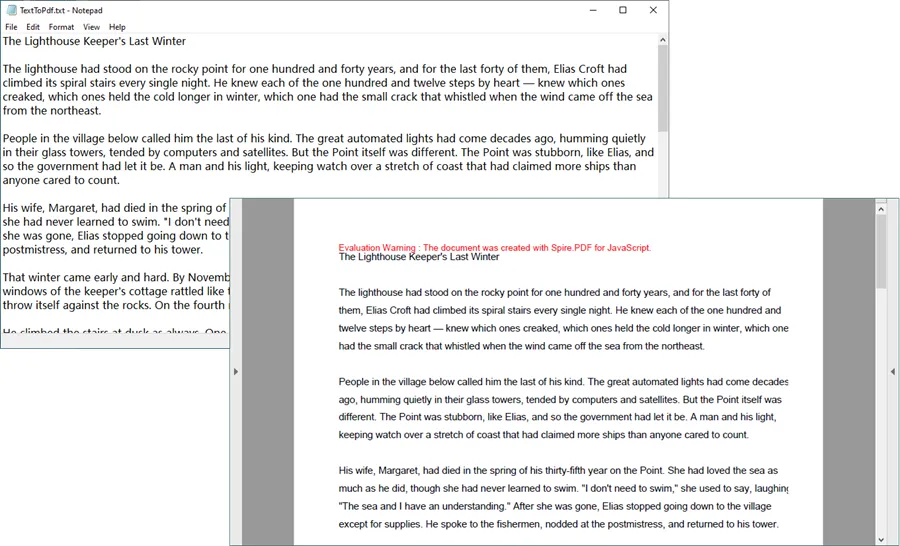
The text is then passed to PdfTextWidget, while PdfLayoutWidget.Draw() handles the actual layout process. Since PdfLayoutType.Paginate is used, text that exceeds the available space on the first page can continue onto additional pages automatically.
Output:
Page and Text Configuration
Set PDF Page Size and Margins
Page size and margins are important when converting long text documents because they determine how much content can fit on each page.
For example, you can set the page size to A4 and use 20-point margins on all four sides:
const page = section.Pages.Add();

page.PageSettings.Size = wasmModule.PdfPageSize.A4;

page.PageSettings.Margins = new wasmModule.PdfMargins({
  top: 20,
  bottom: 20,
  left: 20,
  right: 20
});
The page margins reduce the available drawing area for the text and prevent the content from being positioned too close to the edges of the PDF page.
You can adjust these values depending on the type of document being generated. Larger margins may be more appropriate for reports or printable documents, while smaller margins allow more text to fit on each page.
Use a Custom Font in the PDF
The built-in PDF fonts, such as Helvetica, are sufficient for many English documents. However, documents containing multilingual characters may require a Unicode-compatible TrueType font.
For example, you can load ARIALUNI.TTF into the virtual file system and use Arial Unicode MS when drawing text:
await window.spire.FetchFileToVFS(
  'ARIALUNI.TTF',
  '/Library/Fonts/',
  `${process.env.PUBLIC_URL}/static/font/`
);

let font = new wasmModule.PdfTrueTypeFont({
  fontFamily: 'Arial Unicode MS',
  size: 12,
  style: wasmModule.PdfFontStyle.Regular,
  unicode: true
});
In this case, the font file can be stored under:
public/static/font/
Using a Unicode-compatible font is particularly useful when the source text contains languages such as Chinese, Japanese, Korean, or other characters that are not fully covered by standard PDF fonts.
The unicode: true option enables Unicode text rendering when the TrueType font is used.
Change Text Alignment
Text alignment can be controlled through PdfStringFormat.
For example, the following code justifies the text so that it aligns with both sides of the available text area:
const format = new wasmModule.PdfStringFormat();

format.Alignment =
  wasmModule.PdfTextAlignment.Justify;
The alignment can be changed according to the layout requirements of the document.
For normal paragraphs, left alignment or justified alignment is generally the most practical choice. Other alignment options can be useful for titles, headings, or specially formatted text.
The same PdfStringFormat object can also be used to configure settings such as line spacing:
format.LineSpacing = 20;
Increasing the line spacing can improve readability, especially when converting large blocks of plain text into PDF.
Control the Starting Position of Text
When drawing text onto a PDF page, the RectangleF object determines the area in which the text is laid out.
The starting position is defined by the PointF object:
const bounds = new wasmModule.RectangleF({
  location: new wasmModule.PointF(0, y),
  size: page.Canvas.ClientSize,
});
Here, the y value determines how far the text starts from the top of the page.
For example:
location: new wasmModule.PointF(0, 30)
moves the beginning of the text downward by 30 points.
It is generally recommended to keep the x-coordinate at 0 when the drawing area uses page.Canvas.ClientSize.
Changing the x-coordinate without reducing the width of the drawing area accordingly can result in uneven left and right spacing. In some cases, text near the right edge may also extend beyond the available area and become clipped.
Therefore, when the goal is simply to create additional space above the first line of text, adjusting the y coordinate is usually the safer approach:
const bounds = new wasmModule.RectangleF({
  location: new wasmModule.PointF(0, 40),
  size: page.Canvas.ClientSize,
});
This starts the text 40 points below its default top position while preserving the full available page width.
Conclusion
Converting plain text to PDF in a React application involves more than simply changing the file extension. The text first needs to be read and decoded, after which it can be drawn onto PDF pages using appropriate fonts, formatting, and layout rules.
With Spire.PDF for JavaScript, you can create a PDF document from TXT content directly in a React application and configure important output properties such as page size, margins, fonts, text alignment, line spacing, starting position, and automatic pagination .
These options make it possible to turn basic plain-text content into a more structured and portable PDF document while keeping the entire processing workflow within the JavaScript application.
FAQs
Can JavaScript convert a TXT file to PDF in a React application?
Yes. A React application can read the contents of a TXT file and use a JavaScript PDF library such as Spire.PDF for JavaScript to create PDF pages and draw the text onto them.
How can I convert long text to multiple PDF pages?
Use PdfTextLayout together with PdfLayoutType.Paginate. This allows PdfTextWidget content to continue onto subsequent pages when the available space on the current page is exhausted.
const textLayout = new wasmModule.PdfTextLayout();

textLayout.Break =
  wasmModule.PdfLayoutBreakType.FitPage;

textLayout.Layout =
  wasmModule.PdfLayoutType.Paginate;
Can I specify the page size when converting text to PDF?
Yes. The page size can be configured through the page settings. For example, the following code creates an A4 page:
page.PageSettings.Size =
  wasmModule.PdfPageSize.A4;
You can also configure the top, bottom, left, and right margins to control the available text area.
How can I display Unicode characters in the generated PDF?
Use a Unicode-compatible TrueType font and create a PdfTrueTypeFont with Unicode support enabled:
let font = new wasmModule.PdfTrueTypeFont({
  fontFamily: 'Arial Unicode MS',
  size: 12,
  style: wasmModule.PdfFontStyle.Regular,
  unicode: true
});
The corresponding font file should also be made available to the WebAssembly virtual file system.
How can I move the text farther down from the top of the PDF page?
Change the y coordinate of the PointF used to define the text drawing area:
const bounds = new wasmModule.RectangleF({
  location: new wasmModule.PointF(0, 40),
  size: page.Canvas.ClientSize,
});
A larger y value moves the starting position of the text farther down the page.
Get a Free License
To fully experience the capabilities of Spire.PDF for JavaScript without any evaluation limitations, you can request a 30-day free trial license.
Tradutor de Documentos com IA: Traduza Arquivos do Word, Excel e PowerPoint em C#
Índice
- O que é um Tradutor de Documentos com IA?
- Configurar o Spire.Agent.Office para .NET
- Traduzir Documentos do Word com IA
- Traduzir Pastas de Trabalho do Excel com IA
- Traduzir Apresentações do PowerPoint com IA
- Lidar com Fontes e Formatação Específica de Cada Idioma
- Como a IA Preserva a Estrutura e a Formatação do Documento
- Conclusão
- Perguntas Frequentes
Traduzir um documento do Office envolve mais do que converter frases de um idioma para outro. Um arquivo do Word pode conter títulos, tabelas, imagens, hiperlinks, cabeçalhos e rodapés. Uma pasta de trabalho do Excel pode incluir fórmulas, números, gráficos e células formatadas. Uma apresentação do PowerPoint pode depender fortemente de caixas de texto, formas, temas e layouts de slides cuidadosamente organizados.
Se o texto for simplesmente extraído, traduzido e gravado novamente sem considerar essas estruturas, o documento resultante pode facilmente perder sua aparência original ou até mesmo quebrar conteúdos importantes, como fórmulas e layouts.
Este artigo demonstra como criar um tradutor de documentos com IA em C# usando o Spire.Agent.Office para .NET. Vamos traduzir arquivos do Word, Excel e PowerPoint preservando, na medida do possível, sua estrutura e formatação nativas do Office.
Os exemplos abrangem três cenários de tradução diferentes:
- Word: inglês → chinês simplificado
- Excel: inglês → francês
- PowerPoint: japonês → inglês
1. O que é um Tradutor de Documentos com IA?
Um fluxo de trabalho de tradução convencional geralmente se concentra apenas no texto. O conteúdo é extraído de um documento, traduzido para outro idioma e então devolvido como texto simples ou inserido novamente em um novo arquivo.
Essa abordagem funciona bem quando a formatação não é importante. No entanto, os documentos do Office muitas vezes contêm muito mais do que texto. Arquivos do Word podem incluir títulos, tabelas, imagens, hiperlinks, cabeçalhos e rodapés. Pastas de trabalho do Excel podem conter fórmulas, dados numéricos, células mescladas, gráficos e intervalos formatados. Apresentações do PowerPoint podem depender de caixas de texto, formas, temas e layouts de slides cuidadosamente projetados.
Um tradutor de documentos com IA vai um passo além. Em vez de tratar o arquivo como um simples contêiner de texto, ele traduz o conteúdo editável preservando, na medida do possível, a estrutura nativa e a organização visual do documento.
O diagrama a seguir ilustra a diferença entre a tradução de texto convencional e a tradução de documentos com IA:
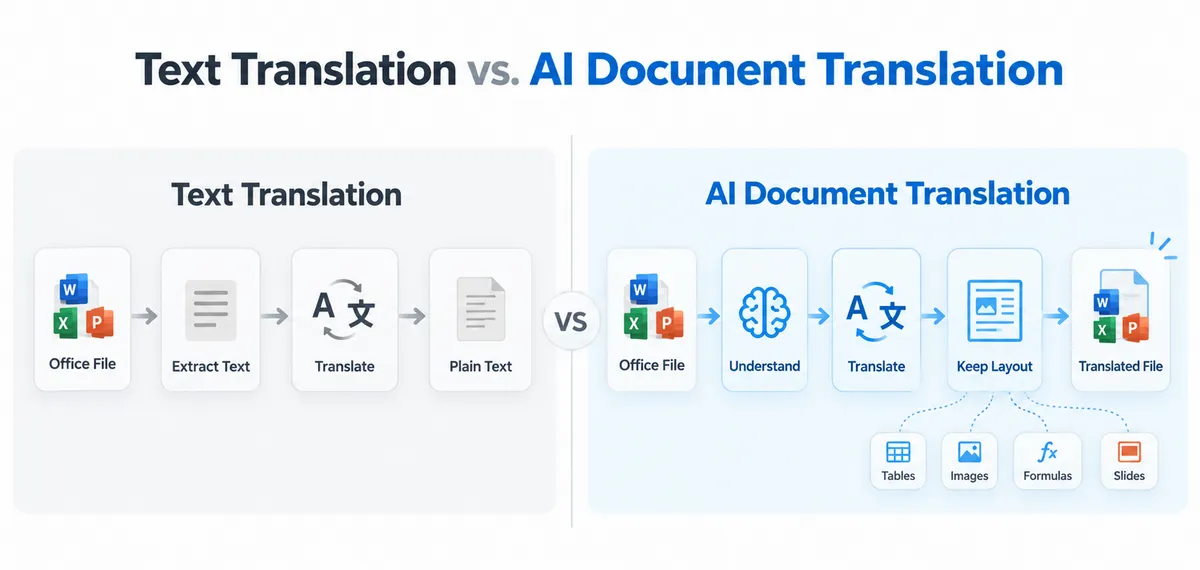
Com a tradução de documentos com IA, o resultado esperado não é apenas o texto traduzido. A saída continua sendo um arquivo do Office editável, como um .docx, .xlsx ou .pptx traduzido, com sua estrutura, formatação, tabelas, imagens, fórmulas e layout originais preservados sempre que possível.
Isso torna o fluxo de trabalho especialmente útil quando os documentos traduzidos precisam permanecer prontos para edição, compartilhamento, publicação ou processamento empresarial posterior.
2. Configurar o Spire.Agent.Office para .NET
Antes de executar os exemplos, crie um projeto .NET e instale o Spire.Agent.Office por meio do NuGet.
Você pode instalar o pacote usando a CLI do .NET:
dotnet add package Spire.Agent.Office
Os recursos de IA exigem um SpireToken. Configure uma instância de AIOptions e atribua o token:
AIOptions options = new AIOptions
{
    SpireToken = "your spireToken"
};
Um SpireToken temporário para avaliação e testes pode ser solicitado na página de licença temporária do Spire.
O padrão geral de processamento é semelhante entre Word, Excel e PowerPoint:
Load Office file
      ↓
Create AI processor
      ↓
Execute natural-language instruction
      ↓
Save translated Office file
A principal diferença entre os três exemplos é o objeto de documento do Office que está sendo processado e as regras de tradução definidas na instrução.
3. Traduzir Documentos do Word com IA
Os documentos do Word podem conter muito mais do que parágrafos comuns. Um documento comercial típico pode incluir títulos, tabelas, imagens, hiperlinks, cabeçalhos, rodapés, listas e diferentes estilos de texto.
Neste exemplo, traduzimos um documento do Word em inglês para chinês simplificado, pedindo à IA que preserve a estrutura do documento e a formatação visual.
Uma consideração adicional é a compatibilidade de fontes. As fontes comumente usadas para textos em inglês podem não conter todos os caracteres do chinês simplificado. Portanto, a instrução permite que a IA use uma fonte chinesa adequada quando a fonte original não oferecer suporte aos caracteres traduzidos.
using System;
using Spire.Agent.Office.AI;
using Spire.Agent.Office.Extensions;
using Spire.Doc;

string inputPath = @"E:\Documents\Input.docx";
string outputPath = @"E:\Documents\Translated.docx";
string spireToken = "your spireToken";

string instruction = """
Translate all English text in this Word document into Simplified Chinese.

Requirements:
1. Preserve the original document structure, layout, styles, tables, images, headers, footers, and other elements.
2. Preserve the original formatting as much as possible, including font size, color, bold, alignment, and spacing.
3. Keep the original font if it supports Simplified Chinese. Otherwise, use an appropriate Chinese font such as Microsoft YaHei or SimSun.
4. Translate text in paragraphs, headings, tables, headers, footers, and other editable text areas.
5. Do not translate URLs, email addresses, product names, API names, code, model numbers, or technical identifiers.
6. Do not add explanations, comments, or extra content.
7. Ensure the translated Chinese text displays correctly and keep the final document visually close to the original.
""";

AIOptions options = new AIOptions
{
    SpireToken = spireToken
};

using (Document doc = new Document())
{
    doc.LoadFromFile(inputPath);
    AIDocumentProcessor processor = doc.AI(options);
    AIResult result = processor.ExecuteInstruction(
        doc,
        instruction,
        outputPath
    );

    if (result.Success)
    {
        Console.WriteLine($"Translation completed: {outputPath}");
    }
    else
    {
        Console.WriteLine($"Translation failed: {result.ErrorMessage}");
    }
}
A parte importante deste exemplo é que não se pede à IA que reconstrua o documento do zero. Ela traduz o texto editável mantendo a estrutura do Word ao redor.
No teste real, o documento traduzido preservou os títulos originais, a formatação dos parágrafos, a estrutura das tabelas, as imagens, os hiperlinks, os cabeçalhos e os rodapés, substituindo o conteúdo em inglês pelo chinês simplificado.
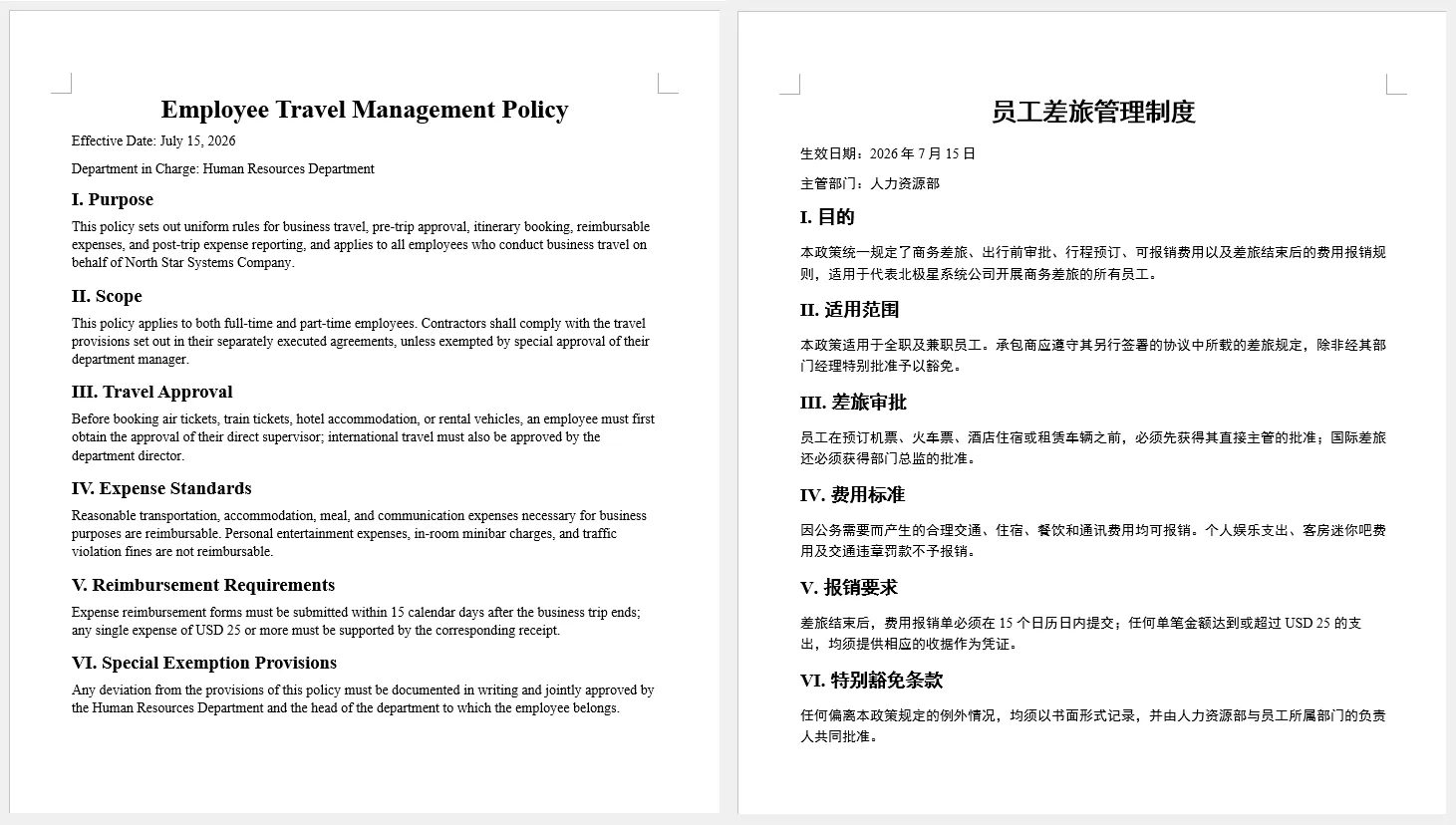
Esse tipo de fluxo de trabalho pode ser útil para traduzir relatórios, manuais, políticas, propostas, documentação interna e outros arquivos do Word formatados.
4. Traduzir Pastas de Trabalho do Excel com IA
A tradução no Excel exige uma estratégia diferente.
Uma pasta de trabalho pode conter conteúdo textual que deve ser traduzido, mas também pode conter:
- Números
- Datas
- Porcentagens
- Valores monetários
- Fórmulas
- Nomes de funções
- Gráficos
- Imagens
- Hiperlinks
Portanto, um processo de tradução deve evitar tratar cada valor de célula como texto comum.
Neste exemplo, a pasta de trabalho é traduzida de inglês para francês. Como ambos os idiomas usam principalmente o alfabeto latino, as fontes originais geralmente podem ser preservadas.
using System;
using Spire.Agent.Office.AI;
using Spire.Agent.Office.Extensions;
using Spire.Xls;

string inputPath = @"E:\Documents\Input.xlsx";
string outputPath = @"E:\Documents\Translated.xlsx";
string spireToken = "your spireToken";

string instruction = """
Translate all English text in this Excel workbook into French.

Requirements:
1. Translate textual content in cells, worksheets, tables, and other editable text areas.
2. Preserve the original workbook structure, worksheets, rows, columns, merged cells, and formatting.
3. Keep formulas, numbers, dates, percentages, currency values, and other non-text data unchanged.
4. Preserve cell formatting as much as possible, including font size, color, bold, alignment, borders, and fills.
5. Preserve the original font whenever possible, since French uses the Latin alphabet. If a font does not support required French characters, use a compatible font.
6. Preserve charts, images, hyperlinks, and other workbook elements.
7. Do not translate URLs, email addresses, person names, model numbers, formulas, function names, or technical identifiers.
8. Do not add explanations, comments, or extra content.
9. Ensure the translated French text displays correctly and keep the workbook visually close to the original.
""";

AIOptions options = new AIOptions
{
    SpireToken = spireToken
};

using (Workbook workbook = new Workbook())
{
    workbook.LoadFromFile(inputPath);
    AIDocumentProcessor processor = workbook.AI(options);
    AIResult result = processor.ExecuteInstruction(
        workbook,
        instruction,
        outputPath
    );

    if (result.Success)
    {
        Console.WriteLine($"Translation completed: {outputPath}");
    }
    else
    {
        Console.WriteLine($"Translation failed: {result.ErrorMessage}");
    }
}
A instrução separa explicitamente o texto traduzível dos dados que devem permanecer inalterados.
Por exemplo, nomes ou descrições de produtos podem ser traduzidos para o francês, enquanto um valor como:
$12,500
ou uma fórmula como:
=SUM(C2:C10)
devem permanecer funcionais.
No resultado do teste, a pasta de trabalho manteve a estrutura de suas planilhas e a formatação, enquanto o conteúdo textual em inglês foi traduzido para o francês.
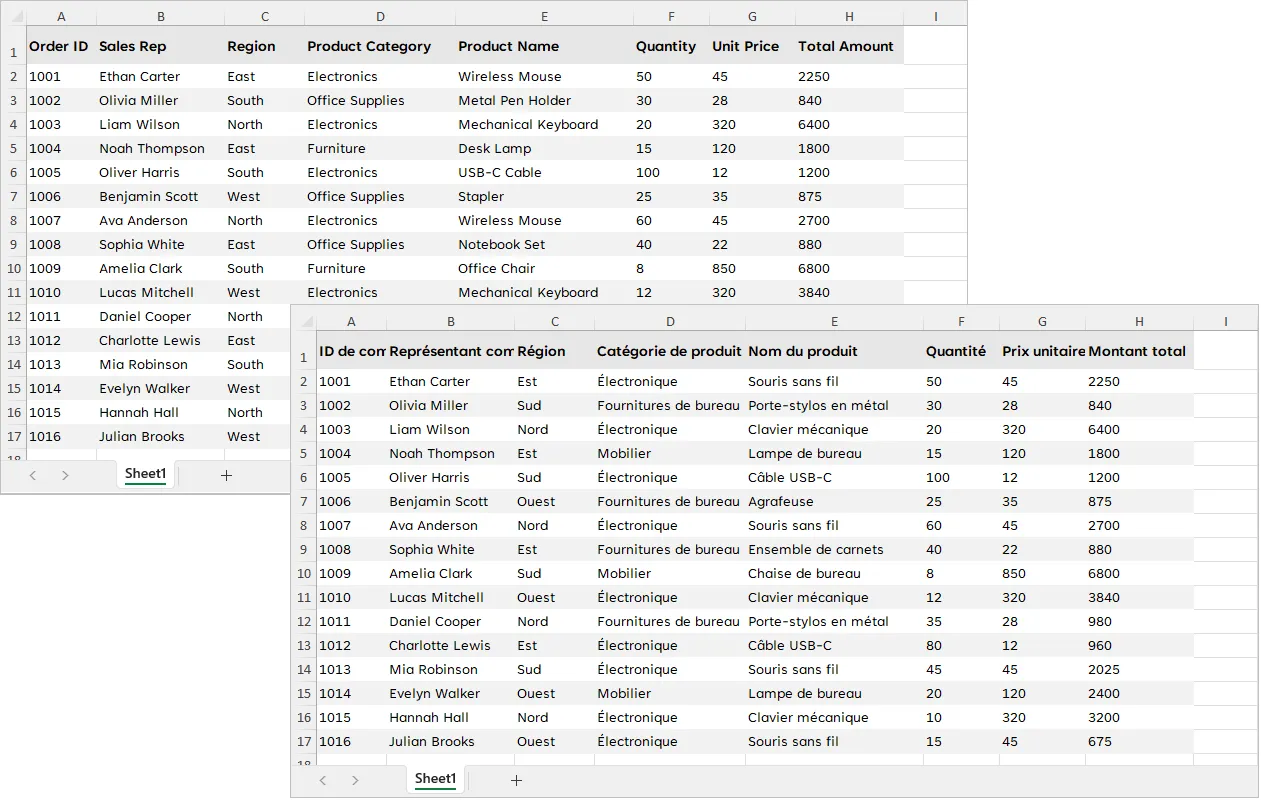
Essa abordagem é particularmente útil para catálogos de produtos multilíngues, relatórios financeiros, planilhas de estoque, relatórios de vendas, pastas de trabalho de planejamento e outros arquivos do Excel que combinam texto com dados estruturados.
5. Traduzir Apresentações do PowerPoint com IA
A tradução no PowerPoint apresenta outro desafio: o texto traduzido precisa caber de volta em um layout visual existente.
O conteúdo da apresentação pode aparecer em:
- Títulos de slides
- Caixas de texto
- Formas
- Tabelas
- Legendas
- Rótulos de diagramas
Ao mesmo tempo, o processo de tradução deve preservar os temas dos slides, os planos de fundo, as imagens, os gráficos e outros elementos visuais.
Neste exemplo, uma apresentação em japonês é traduzida para o inglês.
using System;
using Spire.Agent.Office.AI;
using Spire.Agent.Office.Extensions;
using Spire.Presentation;

string inputPath = @"E:\Documents\Input.pptx";
string outputPath = @"E:\Documents\Translated.pptx";
string spireToken = "your spireToken";

string instruction = """
Translate all Japanese text in this PowerPoint presentation into English.

Requirements:
1. Translate slide titles, body text, text boxes, table text, captions, and other editable text.
2. Preserve the original slide order, layout, theme, background, shapes, images, charts, and other elements.
3. Preserve text formatting as much as possible, including font size, color, bold, alignment, and spacing.
4. Since the target language is English, use an appropriate Latin font when the original Japanese font is not suitable for English text, while keeping the visual style as close to the original as possible.
5. Keep translated text inside its original text box or shape whenever possible, and make reasonable layout adjustments if needed.
6. Do not translate URLs, email addresses, product names, model numbers, API names, code, or technical identifiers.
7. Do not add explanations, comments, notes, or extra slides.
8. Ensure the translated English text displays correctly and keep the presentation visually close to the original.
""";

AIOptions options = new AIOptions
{
    SpireToken = spireToken
};

using (Presentation ppt = new Presentation())
{
    ppt.LoadFromFile(inputPath);
    AIDocumentProcessor processor = ppt.AI(options);
    AIResult result = processor.ExecuteInstruction(
        ppt,
        instruction,
        outputPath
    );

    if (result.Success)
    {
        Console.WriteLine($"Translation completed: {outputPath}");
    }
    else
    {
        Console.WriteLine($"Translation failed: {result.ErrorMessage}");
    }
}
Diferentemente dos documentos do Word, as apresentações costumam usar caixas de texto de tamanho fixo. Portanto, a tradução pode afetar a quebra de linha e o equilíbrio visual.
A instrução orienta a IA a manter o conteúdo traduzido dentro das formas originais sempre que possível e a fazer ajustes razoáveis quando necessário.
No teste, o texto em japonês foi traduzido com sucesso para o inglês, enquanto a estrutura original dos slides, o tema, as formas, as imagens e o layout geral da apresentação foram preservados.
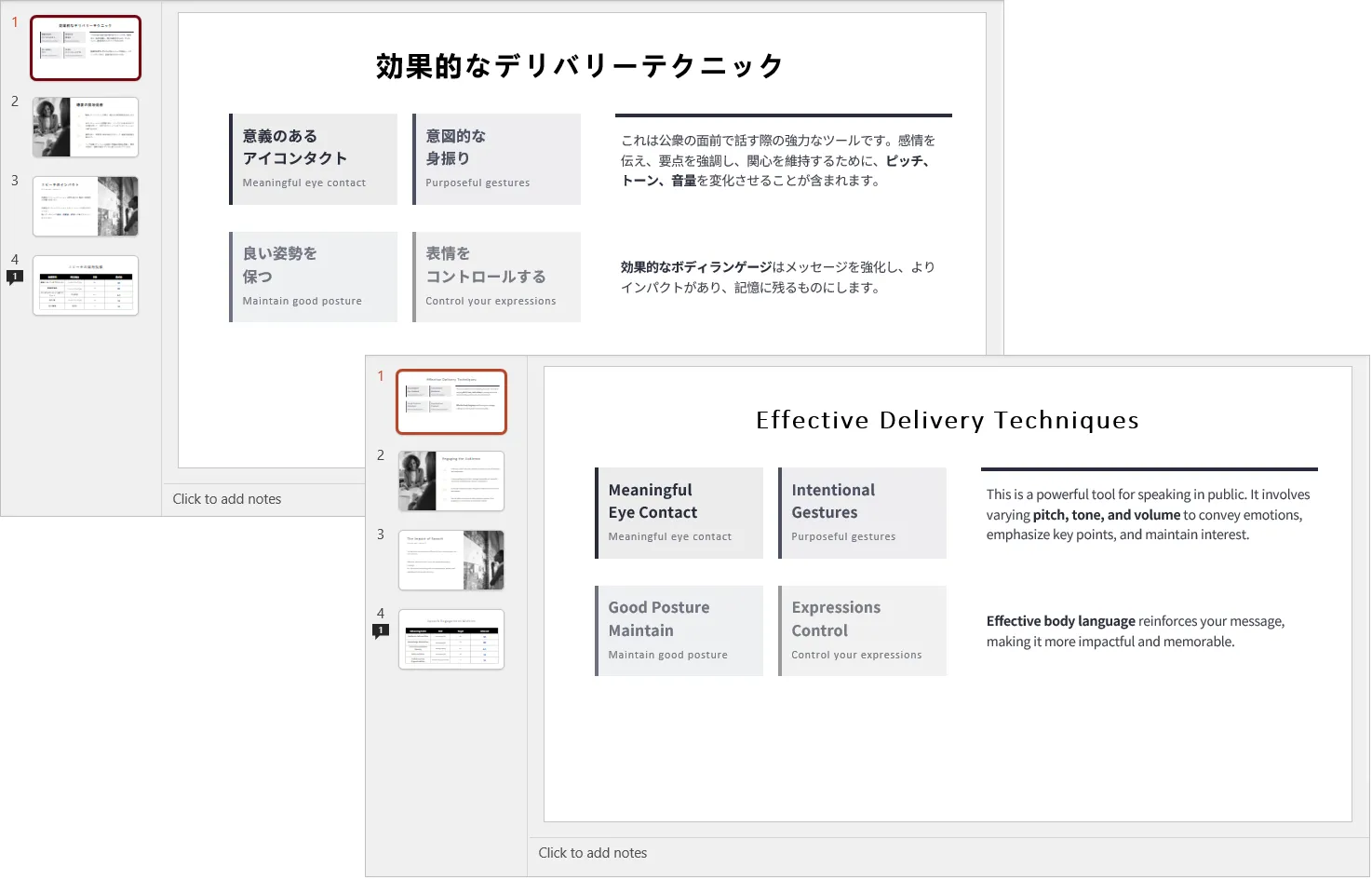
Isso torna a abordagem útil para traduzir materiais de treinamento, apresentações de produtos, decks de vendas, relatórios internos, slides de conferências e outros arquivos de apresentação.
6. Lidar com Fontes e Formatação Específica de Cada Idioma
A compatibilidade de fontes é uma consideração importante ao traduzir documentos entre diferentes sistemas de escrita.
Para traduções entre idiomas que compartilham o mesmo sistema de escrita, como:
English → French
English → German
Spanish → English
a fonte existente geralmente pode ser mantida.
No entanto, ao traduzir entre texto em latim e idiomas CJK, a fonte original pode não conter os caracteres necessários.
Por exemplo:
English → Simplified Chinese
English → Japanese
English → Korean
Nesses casos, forçar a fonte original a permanecer inalterada pode resultar em glifos ausentes, quadrados ou fontes de fallback inconsistentes.
Uma instrução mais flexível é:
Keep the original font if it supports the target language.
Otherwise, use an appropriate font that fully supports the
target-language characters.
Para o chinês simplificado, fontes como Microsoft YaHei ou SimSun podem ser usadas quando necessário.
O mesmo conceito se aplica ao contrário. Ao traduzir conteúdo do PowerPoint em japonês para o inglês, manter uma fonte japonesa pode funcionar tecnicamente, mas uma fonte latina adequada pode proporcionar uma aparência mais natural.
Portanto, a substituição de fontes deve ser tratada como uma operação condicional, e não como uma regra obrigatória.
O objetivo é preservar:
- Tamanho da fonte
- Espessura
- Cor
- Alinhamento
- Espaçamento entre parágrafos
- Hierarquia visual
permitindo que a própria família de fontes mude quando necessário para compatibilidade com o idioma.
7. Como a IA Preserva a Estrutura e a Formatação do Documento
Uma das principais diferenças entre a tradução de documentos com IA e a tradução de texto convencional é a forma como o documento é tratado durante o processo de tradução.
O Spire.Agent.Office é construído sobre o Spire.Office para .NET, que fornece APIs para trabalhar com a estrutura nativa de documentos do Office. Em vez de tratar um arquivo do Word, Excel ou PowerPoint como um bloco de texto simples, o documento pode ser processado como uma coleção de elementos estruturados.
Por exemplo, ao processar um documento do Word, o Spire.Office para .NET pode trabalhar com elementos do documento como:
- Seções
- Parágrafos e intervalos de texto
- Tabelas e células de tabela
- Imagens
- Hiperlinks
- Formatação e estilos de texto, incluindo fontes, tamanhos de fonte, cores, alinhamento e outras propriedades
Isso permite separar a estrutura do documento de o texto que precisa ser traduzido.
O fluxo de trabalho geral pode ser ilustrado da seguinte forma:
Documento do Office → Identificar Elementos do Documento → Extrair Texto Traduzível → Tradução por IA → Substituir o Texto Original → Salvar a Estrutura do Documento Existente
Por exemplo, considere um documento do Word contendo um título, vários parágrafos, uma tabela e uma imagem. O processo de tradução não precisa recriar o documento do zero. Em vez disso, os elementos existentes do documento permanecem no lugar enquanto o texto traduzível é substituído pelo conteúdo traduzido.
O modelo de IA é responsável pela transformação linguística, enquanto o Spire.Office para .NET fornece o acesso em nível de documento necessário para trabalhar com a estrutura existente do Office.
É também por isso que as instruções de tradução podem especificar tanto o que deve ser traduzido quanto o que deve permanecer inalterado. Por exemplo, uma instrução pode solicitar que o texto dos parágrafos, o conteúdo das tabelas, os cabeçalhos e os rodapés sejam traduzidos, enquanto URLs, fórmulas, imagens, identificadores técnicos e outros elementos não traduzíveis são preservados.
Como Isso Funciona nos Diversos Formatos do Office
| Formato | Conteúdo a Traduzir | Estrutura e Elementos a Preservar |
|---|---|---|
| Word | Parágrafos, títulos, tabelas, cabeçalhos e rodapés | Seções, estilos, imagens, hiperlinks, formatação |
| Excel | Texto em células, tabelas e outras áreas de texto editáveis | Planilhas, fórmulas, valores, formatação, gráficos, imagens |
| PowerPoint | Títulos, caixas de texto, tabelas e legendas | Slides, temas, formas, imagens, layouts, formatação |
O ponto importante é que a IA realiza a tradução, enquanto o modelo de documento do Office fornece a estrutura na qual a tradução ocorre. Essa combinação permite que o Spire.Agent.Office gere um arquivo do Office traduzido sem exigir que todo o documento seja reconstruído a partir de texto simples traduzido.
Como resultado, a saída pode manter a estrutura e a formatação originais do documento, substituindo o conteúdo no idioma de origem pelo texto traduzido.
8. Conclusão
Com o Spire.Agent.Office para .NET, a mesma abordagem orientada por IA pode ser aplicada a Word, Excel e PowerPoint: carregue o arquivo original do Office, descreva os requisitos de tradução em linguagem natural e gere um documento traduzido preservando, na medida do possível, sua estrutura e formatação nativas.
Os três exemplos deste artigo demonstram diferentes cenários de tradução:
- Word: inglês → chinês simplificado
- Excel: inglês → francês
- PowerPoint: japonês → inglês
Apesar das diferenças entre esses formatos de arquivo, o fluxo de trabalho subjacente permanece consistente. O agente de IA traduz o conteúdo editável respeitando elementos específicos de cada documento, como estilos e tabelas do Word, fórmulas e formatação de células do Excel, e formas e layouts de slides do PowerPoint.
A principal vantagem é que a saída continua sendo um documento do Office editável, em vez de se tornar um bloco separado de texto traduzido.
Ao combinar a compreensão de linguagem da IA com o processamento nativo de documentos do Office, o Spire.Agent.Office torna possível automatizar a tradução de documentos mantendo grande parte do layout, da formatação e do conteúdo incorporado originais.
Perguntas Frequentes
1. O Spire.Agent.Office pode traduzir arquivos do Word, Excel e PowerPoint diretamente?
Sim. O processador de IA pode operar sobre objetos Document do Word, Workbook do Excel e Presentation do PowerPoint. A instrução de tradução é aplicada ao arquivo do Office carregado, e o resultado pode ser salvo como um novo arquivo no mesmo formato do Office.
2. A formatação original do documento será preservada após a tradução?
A instrução de IA pode exigir explicitamente que a formatação e a estrutura originais sejam preservadas. Nos exemplos acima, os arquivos traduzidos mantiveram bem sua estrutura de documento e formatação visual durante os testes.
No entanto, o texto traduzido pode diferir significativamente em comprimento do texto de origem, portanto layouts complexos ainda devem ser revisados após o processamento.
3. As fórmulas e os dados numéricos do Excel podem permanecer inalterados durante a tradução?
Sim. A instrução pode orientar a IA a traduzir apenas o conteúdo textual, preservando fórmulas, números, porcentagens, valores monetários, datas e outros dados que não sejam texto.
Isso é importante ao traduzir pastas de trabalho que combinam texto comercial com cálculos ou dados estruturados.
4. Como as fontes devem ser tratadas ao traduzir entre diferentes sistemas de escrita?
Se a fonte original oferecer suporte aos caracteres do idioma de destino, ela geralmente pode ser mantida.
Se não oferecer, a instrução deve permitir que a IA escolha uma fonte compatível. Por exemplo, uma tradução de inglês para chinês pode usar Microsoft YaHei ou SimSun quando a fonte latina original não oferece suporte adequado aos caracteres chineses.
5. Posso impedir que conteúdos específicos sejam traduzidos?
Sim. A instrução pode definir conteúdos que devem permanecer inalterados, como URLs, endereços de e-mail, nomes de produtos, números de modelo, nomes de APIs, trechos de código, fórmulas e outros identificadores técnicos.
Isso é particularmente útil para documentação técnica, financeira, de engenharia e de produtos.
Veja Também
AI 문서 번역기: C#에서 Word, Excel, PowerPoint 파일 번역하기
Office 문서를 번역하는 것은 단순히 문장을 한 언어에서 다른 언어로 변환하는 것 이상을 의미합니다. Word 파일에는 제목, 표, 이미지, 하이퍼링크, 머리글, 바닥글이 포함될 수 있습니다. Excel 통합 문서에는 수식, 숫자, 차트, 서식이 지정된 셀이 포함될 수 있습니다. PowerPoint 프레젠테이션은 텍스트 상자, 도형, 테마 및 정교하게 배치된 슬라이드 레이아웃에 크게 의존할 수 있습니다.
이러한 구조를 고려하지 않고 단순히 텍스트를 추출하고 번역한 뒤 다시 작성하면, 결과 문서는 원래 모양을 쉽게 잃거나 수식 및 레이아웃과 같은 중요한 콘텐츠가 손상될 수도 있습니다.
이 문서에서는 Spire.Agent.Office for .NET을 사용하여 C#으로 AI 기반 문서 번역기를 구축하는 방법을 보여줍니다. 우리는 Word, Excel, PowerPoint 파일을 원래의 Office 구조와 서식을 최대한 유지하면서 번역할 것입니다.
예제에서는 세 가지 서로 다른 번역 시나리오를 다룹니다:
- Word: 영어 → 중국어 간체
- Excel: 영어 → 프랑스어
- PowerPoint: 일본어 → 영어
1. AI 문서 번역기란 무엇인가?
일반적인 번역 워크플로는 보통 텍스트에만 초점을 맞춥니다. 문서에서 콘텐츠를 추출하고, 다른 언어로 번역한 다음, 일반 텍스트로 반환하거나 새 파일에 다시 삽입합니다.
이 접근 방식은 서식이 중요하지 않을 때는 잘 작동합니다. 그러나 Office 문서에는 종종 텍스트보다 훨씬 많은 내용이 포함됩니다. Word 파일에는 제목, 표, 이미지, 하이퍼링크, 머리글, 바닥글이 포함될 수 있습니다. Excel 통합 문서에는 수식, 숫자 데이터, 병합된 셀, 차트 및 서식이 지정된 범위가 포함될 수 있습니다. PowerPoint 프레젠테이션은 텍스트 상자, 도형, 테마 및 세심하게 디자인된 슬라이드 레이아웃에 의존할 수 있습니다.
AI 문서 번역기는 한 단계 더 나아갑니다. 파일을 단순한 텍스트 컨테이너로 취급하는 대신, 문서의 원래 구조와 시각적 구성을 최대한 유지하면서 편집 가능한 콘텐츠를 번역합니다.
다음 다이어그램은 기존의 텍스트 번역과 AI 기반 문서 번역의 차이를 보여줍니다:
AI 기반 문서 번역에서는 기대되는 결과가 단순히 번역된 텍스트만이 아닙니다. 출력물은 번역된 .docx, .xlsx 또는 .pptx와 같이 원래 구조, 서식, 표, 이미지, 수식 및 레이아웃이 가능한 한 유지된 편집 가능한 Office 파일로 남습니다.
이로 인해 번역된 문서를 편집, 공유, 게시 또는 추가 비즈니스 처리를 위해 준비된 상태로 유지해야 할 때 이 워크플로가 특히 유용합니다.
2. .NET용 Spire.Agent.Office 설정
예제를 실행하기 전에 .NET 프로젝트를 만들고 NuGet을 통해 Spire.Agent.Office를 설치하세요.
.NET CLI를 사용하여 패키지를 설치할 수 있습니다:
dotnet add package Spire.Agent.Office
AI 기능을 사용하려면 SpireToken이 필요합니다. AIOptions 인스턴스를 구성하고 토큰을 할당하세요:
AIOptions options = new AIOptions
{
    SpireToken = "your spireToken"
};
평가 및 테스트를 위한 임시 SpireToken은 Spire 임시 라이선스 페이지에서 요청할 수 있습니다.
일반적인 처리 패턴은 Word, Excel 및 PowerPoint에서 유사합니다:
Load Office file
      ↓
Create AI processor
      ↓
Execute natural-language instruction
      ↓
Save translated Office file
세 가지 예제의 주요 차이점은 처리되는 Office 문서 개체와 명령에 정의된 번역 규칙입니다.
3. AI로 Word 문서 번역하기
Word 문서에는 일반 단락보다 훨씬 많은 내용이 포함될 수 있습니다. 일반적인 비즈니스 문서에는 제목, 표, 이미지, 하이퍼링크, 머리글, 바닥글, 목록 및 다양한 텍스트 스타일이 포함될 수 있습니다.
이 예제에서는 AI에게 문서 구조와 시각적 서식을 유지하도록 요청하면서 영어 Word 문서를 중국어 간체로 번역합니다.
추가로 고려해야 할 사항은 글꼴 호환성입니다. 영어 텍스트에 일반적으로 사용되는 글꼴에는 모든 중국어 간체 문자가 포함되어 있지 않을 수 있습니다. 따라서 명령에서는 원래 글꼴이 번역된 문자를 지원하지 않을 경우 AI가 적절한 중국어 글꼴을 사용할 수 있도록 허용합니다.
using System;
using Spire.Agent.Office.AI;
using Spire.Agent.Office.Extensions;
using Spire.Doc;

string inputPath = @"E:\Documents\Input.docx";
string outputPath = @"E:\Documents\Translated.docx";
string spireToken = "your spireToken";

string instruction = """
Translate all English text in this Word document into Simplified Chinese.

Requirements:
1. Preserve the original document structure, layout, styles, tables, images, headers, footers, and other elements.
2. Preserve the original formatting as much as possible, including font size, color, bold, alignment, and spacing.
3. Keep the original font if it supports Simplified Chinese. Otherwise, use an appropriate Chinese font such as Microsoft YaHei or SimSun.
4. Translate text in paragraphs, headings, tables, headers, footers, and other editable text areas.
5. Do not translate URLs, email addresses, product names, API names, code, model numbers, or technical identifiers.
6. Do not add explanations, comments, or extra content.
7. Ensure the translated Chinese text displays correctly and keep the final document visually close to the original.
""";

AIOptions options = new AIOptions
{
    SpireToken = spireToken
};

using (Document doc = new Document())
{
    doc.LoadFromFile(inputPath);
    AIDocumentProcessor processor = doc.AI(options);
    AIResult result = processor.ExecuteInstruction(
        doc,
        instruction,
        outputPath
    );

    if (result.Success)
    {
        Console.WriteLine($"Translation completed: {outputPath}");
    }
    else
    {
        Console.WriteLine($"Translation failed: {result.ErrorMessage}");
    }
}
이 예제의 중요한 점은 AI에게 문서를 처음부터 다시 작성하도록 요청하지 않는다는 것입니다. AI는 주변의 Word 구조를 유지하면서 편집 가능한 텍스트를 번역합니다.
실제 테스트에서 번역된 문서는 원래의 제목, 단락 서식, 표 구조, 이미지, 하이퍼링크, 머리글 및 바닥글을 유지하면서 영어 콘텐츠를 중국어 간체로 대체했습니다.
이러한 유형의 워크플로는 보고서, 매뉴얼, 정책, 제안서, 내부 문서 및 기타 서식이 지정된 Word 파일을 번역할 때 유용할 수 있습니다.
4. AI로 Excel 통합 문서 번역하기
Excel 번역에는 다른 전략이 필요합니다.
통합 문서에는 번역해야 하는 텍스트 콘텐츠가 포함될 수 있지만, 다음과 같은 내용도 포함될 수 있습니다:
- 숫자
- 날짜
- 백분율
- 통화 값
- 수식
- 함수 이름
- 차트
- 이미지
- 하이퍼링크
따라서 번역 프로세스는 모든 셀 값을 일반 텍스트로 취급하는 것을 피해야 합니다.
이 예제에서는 통합 문서를 영어에서 프랑스어로 번역합니다. 두 언어 모두 주로 라틴 알파벳을 사용하기 때문에 원래 글꼴을 일반적으로 유지할 수 있습니다.
using System;
using Spire.Agent.Office.AI;
using Spire.Agent.Office.Extensions;
using Spire.Xls;

string inputPath = @"E:\Documents\Input.xlsx";
string outputPath = @"E:\Documents\Translated.xlsx";
string spireToken = "your spireToken";

string instruction = """
Translate all English text in this Excel workbook into French.

Requirements:
1. Translate textual content in cells, worksheets, tables, and other editable text areas.
2. Preserve the original workbook structure, worksheets, rows, columns, merged cells, and formatting.
3. Keep formulas, numbers, dates, percentages, currency values, and other non-text data unchanged.
4. Preserve cell formatting as much as possible, including font size, color, bold, alignment, borders, and fills.
5. Preserve the original font whenever possible, since French uses the Latin alphabet. If a font does not support required French characters, use a compatible font.
6. Preserve charts, images, hyperlinks, and other workbook elements.
7. Do not translate URLs, email addresses, person names, model numbers, formulas, function names, or technical identifiers.
8. Do not add explanations, comments, or extra content.
9. Ensure the translated French text displays correctly and keep the workbook visually close to the original.
""";

AIOptions options = new AIOptions
{
    SpireToken = spireToken
};

using (Workbook workbook = new Workbook())
{
    workbook.LoadFromFile(inputPath);
    AIDocumentProcessor processor = workbook.AI(options);
    AIResult result = processor.ExecuteInstruction(
        workbook,
        instruction,
        outputPath
    );

    if (result.Success)
    {
        Console.WriteLine($"Translation completed: {outputPath}");
    }
    else
    {
        Console.WriteLine($"Translation failed: {result.ErrorMessage}");
    }
}
이 명령은 번역 가능한 텍스트와 변경되지 않아야 하는 데이터를 명확히 구분합니다.
예를 들어, 제품 이름이나 설명은 프랑스어로 번역될 수 있지만, 다음과 같은 값은:
$12,500
또는 다음과 같은 수식은:
=SUM(C2:C10)
제대로 작동한 상태로 유지되어야 합니다.
테스트 결과에서 통합 문서는 워크시트 구조와 서식을 유지하면서 영어 텍스트 콘텐츠가 프랑스어로 번역되었습니다.
이 접근 방식은 텍스트와 구조화된 데이터를 결합한 다국어 제품 카탈로그, 재무 보고서, 재고 시트, 판매 보고서, 계획 통합 문서 및 기타 Excel 파일에 특히 유용합니다.
5. AI로 PowerPoint 프레젠테이션 번역하기
PowerPoint 번역은 또 다른 과제를 제시합니다. 번역된 텍스트가 기존의 시각적 레이아웃 안에 다시 맞아야 한다는 점입니다.
프레젠테이션 콘텐츠는 다음과 같은 위치에 나타날 수 있습니다:
- 슬라이드 제목
- 텍스트 상자
- 도형
- 표
- 캡션
- 다이어그램 레이블
동시에 번역 프로세스는 슬라이드 테마, 배경, 이미지, 차트 및 기타 시각적 요소를 유지해야 합니다.
이 예제에서는 일본어 프레젠테이션을 영어로 번역합니다.
using System;
using Spire.Agent.Office.AI;
using Spire.Agent.Office.Extensions;
using Spire.Presentation;

string inputPath = @"E:\Documents\Input.pptx";
string outputPath = @"E:\Documents\Translated.pptx";
string spireToken = "your spireToken";

string instruction = """
Translate all Japanese text in this PowerPoint presentation into English.

Requirements:
1. Translate slide titles, body text, text boxes, table text, captions, and other editable text.
2. Preserve the original slide order, layout, theme, background, shapes, images, charts, and other elements.
3. Preserve text formatting as much as possible, including font size, color, bold, alignment, and spacing.
4. Since the target language is English, use an appropriate Latin font when the original Japanese font is not suitable for English text, while keeping the visual style as close to the original as possible.
5. Keep translated text inside its original text box or shape whenever possible, and make reasonable layout adjustments if needed.
6. Do not translate URLs, email addresses, product names, model numbers, API names, code, or technical identifiers.
7. Do not add explanations, comments, notes, or extra slides.
8. Ensure the translated English text displays correctly and keep the presentation visually close to the original.
""";

AIOptions options = new AIOptions
{
    SpireToken = spireToken
};

using (Presentation ppt = new Presentation())
{
    ppt.LoadFromFile(inputPath);
    AIDocumentProcessor processor = ppt.AI(options);
    AIResult result = processor.ExecuteInstruction(
        ppt,
        instruction,
        outputPath
    );

    if (result.Success)
    {
        Console.WriteLine($"Translation completed: {outputPath}");
    }
    else
    {
        Console.WriteLine($"Translation failed: {result.ErrorMessage}");
    }
}
Word 문서와 달리 프레젠테이션은 종종 고정 크기 텍스트 상자를 사용합니다. 따라서 번역은 줄 바꿈과 시각적 균형에 영향을 미칠 수 있습니다.
명령은 AI에게 가능한 한 번역된 콘텐츠를 원래 도형 안에 유지하고, 필요한 경우 합리적인 조정을 수행하도록 지시합니다.
테스트에서 일본어 텍스트가 영어로 성공적으로 번역되었으며 원래 슬라이드 구조, 테마, 도형, 이미지 및 전체 프레젠테이션 레이아웃이 유지되었습니다.
이로 인해 이 접근 방식은 교육 자료, 제품 프레젠테이션, 영업 자료, 내부 보고서, 컨퍼런스 슬라이드 및 기타 프레젠테이션 파일을 번역할 때 유용합니다.
6. 글꼴 및 언어별 서식 처리하기
글꼴 호환성은 서로 다른 문자 체계 간에 문서를 번역할 때 중요한 고려 사항입니다.
다음과 같이 동일한 문자 체계를 공유하는 언어 간의 번역의 경우:
English → French
English → German
Spanish → English
기존 글꼴을 일반적으로 유지할 수 있습니다.
그러나 라틴 텍스트와 CJK 언어 간에 번역할 때는 원래 글꼴에 필요한 문자가 포함되어 있지 않을 수 있습니다.
예를 들어:
English → Simplified Chinese
English → Japanese
English → Korean
이러한 경우 원래 글꼴을 강제로 유지하면 글리프 누락, 네모 상자 또는 일관되지 않은 대체 글꼴이 발생할 수 있습니다.
더 유연한 명령은 다음과 같습니다:
Keep the original font if it supports the target language.
Otherwise, use an appropriate font that fully supports the
target-language characters.
중국어 간체의 경우 필요할 때 Microsoft YaHei 또는 SimSun과 같은 글꼴을 사용할 수 있습니다.
같은 개념이 반대로도 적용됩니다. 일본어 PowerPoint 콘텐츠를 영어로 번역할 때 일본어 글꼴을 유지하는 것이 기술적으로는 작동할 수 있지만, 적절한 라틴 글꼴이 더 자연스러운 모양을 제공할 수 있습니다.
따라서 글꼴 교체는 필수 규칙이 아니라 조건부 작업으로 취급해야 합니다.
목표는 다음을 유지하는 것입니다:
- 글꼴 크기
- 굵기
- 색상
- 정렬
- 단락 간격
- 시각적 계층 구조
동시에 언어 호환성을 위해 필요할 때 글꼴 패밀리 자체가 변경되도록 허용하는 것입니다.
7. AI가 문서 구조와 서식을 유지하는 방법
AI 기반 문서 번역과 기존 텍스트 번역의 주요 차이점 중 하나는 번역 과정에서 문서가 처리되는 방식입니다.
Spire.Agent.Office는 Spire.Office for .NET을 기반으로 구축되었으며, 이는 Office 문서의 원래 구조를 다루기 위한 API를 제공합니다. Word, Excel 또는 PowerPoint 파일을 일반 텍스트 블록으로 취급하는 대신, 문서를 구조화된 요소의 모음으로 처리할 수 있습니다.
예를 들어, Word 문서를 처리할 때 Spire.Office for .NET은 다음과 같은 문서 요소를 다룰 수 있습니다:
- 섹션
- 단락 및 텍스트 범위
- 표 및 표 셀
- 이미지
- 하이퍼링크
- 글꼴, 글꼴 크기, 색상, 정렬 및 기타 속성을 포함한 텍스트 서식 및 스타일
이를 통해 문서 구조와 번역해야 하는 텍스트를 분리할 수 있습니다.
일반적인 워크플로는 다음과 같이 설명할 수 있습니다:
Office 문서 → 문서 요소 식별 → 번역 가능한 텍스트 추출 → AI 번역 → 원본 텍스트 대체 → 기존 문서 구조 저장
예를 들어, 제목, 여러 단락, 표 및 이미지가 포함된 Word 문서를 생각해 보세요. 번역 과정에서 문서를 처음부터 다시 만들 필요가 없습니다. 대신 기존 문서 요소는 그대로 유지되며 번역 가능한 텍스트가 번역된 콘텐츠로 대체됩니다.
AI 모델은 언어 변환을 담당하고, Spire.Office for .NET은 기존 Office 구조를 다루는 데 필요한 문서 수준 액세스를 제공합니다.
이 접근 방식은 또한 번역 명령이 번역해야 할 항목과 변경되지 않아야 할 항목을 모두 지정할 수 있는 이유이기도 합니다. 예를 들어, 명령은 단락 텍스트, 표 콘텐츠, 머리글 및 바닥글을 번역하도록 요청하면서 URL, 수식, 이미지, 기술 식별자 및 기타 번역 불가능한 요소는 유지하도록 할 수 있습니다.
Office 형식 전반에서 작동하는 방식
| 형식 | 번역할 콘텐츠 | 유지할 구조 및 요소 |
|---|---|---|
| Word | 단락, 제목, 표, 머리글 및 바닥글 | 섹션, 스타일, 이미지, 하이퍼링크, 서식 |
| Excel | 셀, 표 및 기타 편집 가능한 텍스트 영역의 텍스트 | 워크시트, 수식, 값, 서식, 차트, 이미지 |
| PowerPoint | 제목, 텍스트 상자, 표 및 캡션 | 슬라이드, 테마, 도형, 이미지, 레이아웃, 서식 |
중요한 점은 AI가 번역을 처리하고, Office 문서 모델이 번역이 이루어지는 구조를 제공한다는 것입니다. 이러한 조합을 통해 Spire.Agent.Office는 전체 문서를 번역된 일반 텍스트로 다시 작성할 필요 없이 번역된 Office 파일을 생성할 수 있습니다.
결과적으로 출력물은 원본 언어 콘텐츠를 번역된 텍스트로 대체하면서 원래 문서 구조와 서식을 유지할 수 있습니다.
8. 결론
Spire.Agent.Office for .NET을 사용하면 동일한 AI 기반 접근 방식을 Word, Excel 및 PowerPoint 전반에 적용할 수 있습니다. 원본 Office 파일을 로드하고, 자연어로 번역 요구 사항을 설명하고, 원래 구조와 서식을 최대한 유지하면서 번역된 문서를 생성합니다.
이 문서의 세 가지 예제는 서로 다른 번역 시나리오를 보여줍니다:
- Word: 영어 → 중국어 간체
- Excel: 영어 → 프랑스어
- PowerPoint: 일본어 → 영어
이러한 파일 형식 간의 차이에도 불구하고 기본 워크플로는 일관되게 유지됩니다. AI 에이전트는 Word 스타일과 표, Excel 수식과 셀 서식, PowerPoint 도형과 슬라이드 레이아웃과 같은 문서별 요소를 존중하면서 편집 가능한 콘텐츠를 번역합니다.
핵심 이점은 출력물이 별도의 번역된 텍스트 블록이 되는 것이 아니라 편집 가능한 Office 문서로 남는다는 것입니다.
AI 언어 이해와 원래 Office 문서 처리를 결합함으로써, Spire.Agent.Office는 원래 레이아웃, 서식 및 포함된 콘텐츠의 상당 부분을 유지하면서 문서 번역을 자동화할 수 있게 해줍니다.
FAQ
1. Spire.Agent.Office가 Word, Excel 및 PowerPoint 파일을 직접 번역할 수 있나요?
예. AI 프로세서는 Word Document, Excel Workbook 및 PowerPoint Presentation 개체에서 작동할 수 있습니다. 번역 명령이 로드된 Office 파일에 적용되며, 결과는 동일한 Office 형식의 새 파일로 저장할 수 있습니다.
2. 번역 후 원본 문서 서식이 유지되나요?
AI 명령은 원본 서식과 구조를 유지하도록 명시적으로 요구할 수 있습니다. 위의 예제에서 번역된 파일은 테스트 중에 문서 구조와 시각적 서식을 잘 유지했습니다.
그러나 번역된 텍스트는 원본 텍스트와 길이가 크게 다를 수 있으므로, 처리 후에도 복잡한 레이아웃은 검토해야 합니다.
3. 번역 중에 Excel 수식과 숫자 데이터가 변경되지 않고 유지될 수 있나요?
예. 명령은 수식, 숫자, 백분율, 통화 값, 날짜 및 기타 텍스트가 아닌 데이터를 유지하면서 텍스트 콘텐츠만 번역하도록 AI에게 지시할 수 있습니다.
이는 비즈니스 텍스트와 계산 또는 구조화된 데이터를 결합한 통합 문서를 번역할 때 중요합니다.
4. 서로 다른 문자 체계 간에 번역할 때 글꼴은 어떻게 처리해야 하나요?
원래 글꼴이 대상 언어 문자를 지원하면 일반적으로 유지할 수 있습니다.
지원하지 않으면 명령에서 AI가 호환되는 글꼴을 선택하도록 허용해야 합니다. 예를 들어, 영어-중국어 번역은 원래 라틴 글꼴이 중국어 문자를 적절히 지원하지 않을 때 Microsoft YaHei 또는 SimSun을 사용할 수 있습니다.
5. 특정 콘텐츠가 번역되지 않도록 할 수 있나요?
예. 명령은 URL, 이메일 주소, 제품 이름, 모델 번호, API 이름, 코드 조각, 수식 및 기타 기술 식별자와 같이 변경되지 않아야 할 콘텐츠를 정의할 수 있습니다.
이는 기술, 금융, 엔지니어링 및 제품 문서에 특히 유용합니다.
참고 항목
Traduttore di documenti AI: traduci file Word, Excel e PowerPoint in C#
Indice dei contenuti
- Che cos'è un traduttore di documenti basato sull'IA?
- Configurare Spire.Agent.Office per .NET
- Tradurre documenti Word con l'IA
- Tradurre cartelle di lavoro Excel con l'IA
- Tradurre presentazioni PowerPoint con l'IA
- Gestire i caratteri e la formattazione specifica per lingua
- Come l'IA preserva la struttura e la formattazione dei documenti
- Conclusione
- Domande frequenti
Tradurre un documento Office implica molto più che convertire delle frasi da una lingua all'altra. Un file Word può contenere intestazioni, tabelle, immagini, collegamenti ipertestuali, intestazioni e piè di pagina. Una cartella di lavoro Excel può includere formule, numeri, grafici e celle formattate. Una presentazione PowerPoint può basarsi fortemente su caselle di testo, forme, temi e layout di diapositiva disposti con cura.
Se il testo viene semplicemente estratto, tradotto e riscritto senza tenere conto di queste strutture, il documento risultante può facilmente perdere il suo aspetto originale o persino compromettere contenuti importanti come formule e layout.
Questo articolo mostra come creare un traduttore di documenti basato sull'IA in C# utilizzando Spire.Agent.Office for .NET. Tradurremo file Word, Excel e PowerPoint preservando il più possibile la loro struttura e formattazione nativa di Office.
Gli esempi coprono tre diversi scenari di traduzione:
- Word: inglese → cinese semplificato
- Excel: inglese → francese
- PowerPoint: giapponese → inglese
1. Che cos'è un traduttore di documenti basato sull'IA?
Un flusso di lavoro di traduzione convenzionale di solito si concentra solo sul testo. Il contenuto viene estratto da un documento, tradotto in un'altra lingua e poi restituito come testo semplice o reinserito in un nuovo file.
Questo approccio funziona bene quando la formattazione non è importante. Tuttavia, i documenti Office spesso contengono molto più del solo testo. I file Word possono includere intestazioni, tabelle, immagini, collegamenti ipertestuali, intestazioni e piè di pagina. Le cartelle di lavoro Excel possono contenere formule, dati numerici, celle unite, grafici e intervalli formattati. Le presentazioni PowerPoint possono basarsi su caselle di testo, forme, temi e layout di diapositiva progettati con cura.
Un traduttore di documenti basato sull'IA fa un passo in più. Invece di trattare il file come un semplice contenitore di testo, traduce il contenuto modificabile preservando il più possibile la struttura nativa e l'organizzazione visiva del documento.
Il diagramma seguente illustra la differenza tra la traduzione testuale convenzionale e la traduzione di documenti basata sull'IA:
Con la traduzione di documenti basata sull'IA, il risultato atteso non è solo il testo tradotto. L'output rimane un file Office modificabile, come un file .docx, .xlsx o .pptx tradotto, con la sua struttura originale, formattazione, tabelle, immagini, formule e layout mantenuti ove possibile.
Ciò rende il flusso di lavoro particolarmente utile quando i documenti tradotti devono rimanere pronti per la modifica, la condivisione, la pubblicazione o ulteriori elaborazioni aziendali.
2. Configurare Spire.Agent.Office per .NET
Prima di eseguire gli esempi, creare un progetto .NET e installare Spire.Agent.Office tramite NuGet.
È possibile installare il pacchetto utilizzando la CLI di .NET:
dotnet add package Spire.Agent.Office
Le funzionalità IA richiedono un SpireToken. Configurare un'istanza AIOptions e assegnare il token:
AIOptions options = new AIOptions
{
    SpireToken = "your spireToken"
};
Un SpireToken temporaneo per la valutazione e i test può essere richiesto dalla pagina della licenza temporanea di Spire.
Il modello di elaborazione generale è simile tra Word, Excel e PowerPoint:
Load Office file
      ↓
Create AI processor
      ↓
Execute natural-language instruction
      ↓
Save translated Office file
La differenza principale tra i tre esempi è l'oggetto documento Office elaborato e le regole di traduzione definite nell'istruzione.
3. Tradurre documenti Word con l'IA
I documenti Word possono contenere molto più dei normali paragrafi. Un tipico documento aziendale può includere intestazioni, tabelle, immagini, collegamenti ipertestuali, intestazioni, piè di pagina, elenchi e diversi stili di testo.
In questo esempio, traduciamo un documento Word inglese in cinese semplificato chiedendo all'IA di preservare la struttura del documento e la formattazione visiva.
Un'ulteriore considerazione riguarda la compatibilità dei caratteri. I caratteri comunemente utilizzati per il testo inglese potrebbero non contenere tutti i caratteri del cinese semplificato. L'istruzione consente quindi all'IA di utilizzare un carattere cinese adatto quando il carattere originale non supporta i caratteri tradotti.
using System;
using Spire.Agent.Office.AI;
using Spire.Agent.Office.Extensions;
using Spire.Doc;

string inputPath = @"E:\Documents\Input.docx";
string outputPath = @"E:\Documents\Translated.docx";
string spireToken = "your spireToken";

string instruction = """
Translate all English text in this Word document into Simplified Chinese.

Requirements:
1. Preserve the original document structure, layout, styles, tables, images, headers, footers, and other elements.
2. Preserve the original formatting as much as possible, including font size, color, bold, alignment, and spacing.
3. Keep the original font if it supports Simplified Chinese. Otherwise, use an appropriate Chinese font such as Microsoft YaHei or SimSun.
4. Translate text in paragraphs, headings, tables, headers, footers, and other editable text areas.
5. Do not translate URLs, email addresses, product names, API names, code, model numbers, or technical identifiers.
6. Do not add explanations, comments, or extra content.
7. Ensure the translated Chinese text displays correctly and keep the final document visually close to the original.
""";

AIOptions options = new AIOptions
{
    SpireToken = spireToken
};

using (Document doc = new Document())
{
    doc.LoadFromFile(inputPath);
    AIDocumentProcessor processor = doc.AI(options);
    AIResult result = processor.ExecuteInstruction(
        doc,
        instruction,
        outputPath
    );

    if (result.Success)
    {
        Console.WriteLine($"Translation completed: {outputPath}");
    }
    else
    {
        Console.WriteLine($"Translation failed: {result.ErrorMessage}");
    }
}
La parte importante di questo esempio è che all'IA non viene chiesto di ricostruire il documento da zero. Traduce il testo modificabile mantenendo la struttura Word circostante.
Nel test effettivo, il documento tradotto ha preservato le intestazioni originali, la formattazione dei paragrafi, la struttura delle tabelle, le immagini, i collegamenti ipertestuali, le intestazioni e i piè di pagina, sostituendo al contempo il contenuto inglese con il cinese semplificato.
Questo tipo di flusso di lavoro può essere utile per tradurre report, manuali, politiche, proposte, documentazione interna e altri file Word formattati.
4. Tradurre cartelle di lavoro Excel con l'IA
La traduzione di Excel richiede una strategia diversa.
Una cartella di lavoro può contenere contenuto testuale che dovrebbe essere tradotto, ma può anche contenere:
- Numeri
- Date
- Percentuali
- Valori valutari
- Formule
- Nomi di funzioni
- Grafici
- Immagini
- Collegamenti ipertestuali
Un processo di traduzione dovrebbe quindi evitare di trattare ogni valore di cella come testo ordinario.
In questo esempio, la cartella di lavoro viene tradotta dall' inglese al francese . Poiché entrambe le lingue utilizzano principalmente l'alfabeto latino, i caratteri originali possono di solito essere preservati.
using System;
using Spire.Agent.Office.AI;
using Spire.Agent.Office.Extensions;
using Spire.Xls;

string inputPath = @"E:\Documents\Input.xlsx";
string outputPath = @"E:\Documents\Translated.xlsx";
string spireToken = "your spireToken";

string instruction = """
Translate all English text in this Excel workbook into French.

Requirements:
1. Translate textual content in cells, worksheets, tables, and other editable text areas.
2. Preserve the original workbook structure, worksheets, rows, columns, merged cells, and formatting.
3. Keep formulas, numbers, dates, percentages, currency values, and other non-text data unchanged.
4. Preserve cell formatting as much as possible, including font size, color, bold, alignment, borders, and fills.
5. Preserve the original font whenever possible, since French uses the Latin alphabet. If a font does not support required French characters, use a compatible font.
6. Preserve charts, images, hyperlinks, and other workbook elements.
7. Do not translate URLs, email addresses, person names, model numbers, formulas, function names, or technical identifiers.
8. Do not add explanations, comments, or extra content.
9. Ensure the translated French text displays correctly and keep the workbook visually close to the original.
""";

AIOptions options = new AIOptions
{
    SpireToken = spireToken
};

using (Workbook workbook = new Workbook())
{
    workbook.LoadFromFile(inputPath);
    AIDocumentProcessor processor = workbook.AI(options);
    AIResult result = processor.ExecuteInstruction(
        workbook,
        instruction,
        outputPath
    );

    if (result.Success)
    {
        Console.WriteLine($"Translation completed: {outputPath}");
    }
    else
    {
        Console.WriteLine($"Translation failed: {result.ErrorMessage}");
    }
}
L'istruzione separa esplicitamente il testo traducibile dai dati che dovrebbero rimanere invariati.
Ad esempio, i nomi o le descrizioni dei prodotti possono essere tradotti in francese, mentre un valore come:
$12,500
o una formula come:
=SUM(C2:C10)
dovrebbero rimanere funzionanti.
Nel risultato del test, la cartella di lavoro ha mantenuto la struttura del foglio di lavoro e la formattazione, mentre il contenuto testuale inglese è stato tradotto in francese.
Questo approccio è particolarmente utile per cataloghi di prodotti multilingue, report finanziari, fogli di inventario, report di vendita, cartelle di lavoro di pianificazione e altri file Excel che combinano testo e dati strutturati.
5. Tradurre presentazioni PowerPoint con l'IA
La traduzione di PowerPoint presenta un'altra sfida: il testo tradotto deve adattarsi a un layout visivo esistente.
Il contenuto di una presentazione può apparire in:
- Titoli delle diapositive
- Caselle di testo
- Forme
- Tabelle
- Didascalie
- Etichette di diagrammi
Allo stesso tempo, il processo di traduzione dovrebbe preservare temi delle diapositive, sfondi, immagini, grafici e altri elementi visivi.
In questo esempio, una presentazione in giapponese viene tradotta in inglese .
using System;
using Spire.Agent.Office.AI;
using Spire.Agent.Office.Extensions;
using Spire.Presentation;

string inputPath = @"E:\Documents\Input.pptx";
string outputPath = @"E:\Documents\Translated.pptx";
string spireToken = "your spireToken";

string instruction = """
Translate all Japanese text in this PowerPoint presentation into English.

Requirements:
1. Translate slide titles, body text, text boxes, table text, captions, and other editable text.
2. Preserve the original slide order, layout, theme, background, shapes, images, charts, and other elements.
3. Preserve text formatting as much as possible, including font size, color, bold, alignment, and spacing.
4. Since the target language is English, use an appropriate Latin font when the original Japanese font is not suitable for English text, while keeping the visual style as close to the original as possible.
5. Keep translated text inside its original text box or shape whenever possible, and make reasonable layout adjustments if needed.
6. Do not translate URLs, email addresses, product names, model numbers, API names, code, or technical identifiers.
7. Do not add explanations, comments, notes, or extra slides.
8. Ensure the translated English text displays correctly and keep the presentation visually close to the original.
""";

AIOptions options = new AIOptions
{
    SpireToken = spireToken
};

using (Presentation ppt = new Presentation())
{
    ppt.LoadFromFile(inputPath);
    AIDocumentProcessor processor = ppt.AI(options);
    AIResult result = processor.ExecuteInstruction(
        ppt,
        instruction,
        outputPath
    );

    if (result.Success)
    {
        Console.WriteLine($"Translation completed: {outputPath}");
    }
    else
    {
        Console.WriteLine($"Translation failed: {result.ErrorMessage}");
    }
}
A differenza dei documenti Word, le presentazioni spesso utilizzano caselle di testo di dimensioni fisse. La traduzione può quindi influire sull'andata a capo e sull'equilibrio visivo.
L'istruzione indica all'IA di mantenere il contenuto tradotto all'interno delle forme originali ove possibile e di apportare ragionevoli adattamenti quando necessario.
Nel test, il testo giapponese è stato tradotto con successo in inglese, mentre la struttura originale delle diapositive, il tema, le forme, le immagini e il layout complessivo della presentazione sono stati preservati.
Ciò rende l'approccio utile per tradurre materiali di formazione, presentazioni di prodotti, presentazioni di vendita, report interni, diapositive per conferenze e altri file di presentazione.
6. Gestire i caratteri e la formattazione specifica per lingua
La compatibilità dei caratteri è una considerazione importante quando si traducono documenti tra sistemi di scrittura diversi.
Per le traduzioni tra lingue che condividono lo stesso sistema di scrittura, come:
English → French
English → German
Spanish → English
il carattere esistente può di solito essere mantenuto.
Tuttavia, quando si traduce tra testo latino e lingue CJK, il carattere originale potrebbe non contenere i caratteri richiesti.
Ad esempio:
English → Simplified Chinese
English → Japanese
English → Korean
In questi casi, forzare il mantenimento del carattere originale può portare a glifi mancanti, quadrati o caratteri di fallback incoerenti.
Un'istruzione più flessibile è:
Keep the original font if it supports the target language.
Otherwise, use an appropriate font that fully supports the
target-language characters.
Per il cinese semplificato, caratteri come Microsoft YaHei o SimSun possono essere utilizzati quando necessario.
Lo stesso concetto vale anche al contrario. Quando si traduce contenuto PowerPoint giapponese in inglese, mantenere un carattere giapponese può tecnicamente funzionare, ma un carattere latino adatto può fornire un aspetto più naturale.
La sostituzione dei caratteri dovrebbe quindi essere trattata come un'operazione condizionale piuttosto che come una regola obbligatoria.
L'obiettivo è preservare:
- Dimensione del carattere
- Spessore
- Colore
- Allineamento
- Spaziatura dei paragrafi
- Gerarchia visiva
consentendo al contempo alla famiglia di caratteri stessa di cambiare quando necessario per la compatibilità linguistica.
7. Come l'IA preserva la struttura e la formattazione dei documenti
Una delle differenze chiave tra la traduzione di documenti basata sull'IA e la traduzione testuale convenzionale è il modo in cui il documento viene gestito durante il processo di traduzione.
Spire.Agent.Office è basato su Spire.Office for .NET, che fornisce API per lavorare con la struttura nativa dei documenti Office. Invece di trattare un file Word, Excel o PowerPoint come un blocco di testo semplice, il documento può essere elaborato come una raccolta di elementi strutturati.
Ad esempio, durante l'elaborazione di un documento Word, Spire.Office for .NET può lavorare con elementi del documento come:
- Sezioni
- Paragrafi e intervalli di testo
- Tabelle e celle di tabella
- Immagini
- Collegamenti ipertestuali
- Formattazione del testo e stili, inclusi caratteri, dimensioni dei caratteri, colori, allineamento e altre proprietà
Ciò rende possibile separare la struttura del documento dal testo che deve essere tradotto .
Il flusso di lavoro generale può essere illustrato come segue:
Documento Office → Identificare gli elementi del documento → Estrarre il testo traducibile → Traduzione IA → Sostituire il testo originale → Salvare la struttura del documento esistente
Ad esempio, si consideri un documento Word contenente un'intestazione, diversi paragrafi, una tabella e un'immagine. Il processo di traduzione non deve ricreare il documento da zero. Invece, gli elementi del documento esistente rimangono al loro posto mentre il testo traducibile viene sostituito con il suo contenuto tradotto.
Il modello di IA è responsabile della trasformazione linguistica, mentre Spire.Office for .NET fornisce l'accesso a livello di documento necessario per lavorare con la struttura Office esistente.
Questo approccio è anche il motivo per cui le istruzioni di traduzione possono specificare sia ciò che deve essere tradotto sia ciò che deve rimanere invariato . Ad esempio, un'istruzione può richiedere che il testo dei paragrafi, il contenuto delle tabelle, le intestazioni e i piè di pagina vengano tradotti, mentre URL, formule, immagini, identificatori tecnici e altri elementi non traducibili vengono preservati.
Come funziona tra i formati Office
| Formato | Contenuto da tradurre | Struttura ed elementi da preservare |
|---|---|---|
| Word | Paragrafi, intestazioni, tabelle, intestazioni e piè di pagina | Sezioni, stili, immagini, collegamenti ipertestuali, formattazione |
| Excel | Testo nelle celle, tabelle e altre aree di testo modificabili | Fogli di lavoro, formule, valori, formattazione, grafici, immagini |
| PowerPoint | Titoli, caselle di testo, tabelle e didascalie | Diapositive, temi, forme, immagini, layout, formattazione |
Il punto importante è che l'IA gestisce la traduzione, mentre il modello di documento Office fornisce la struttura in cui avviene la traduzione . Questa combinazione consente a Spire.Agent.Office di generare un file Office tradotto senza richiedere la ricostruzione dell'intero documento a partire dal testo semplice tradotto.
Di conseguenza, l'output può mantenere la struttura e la formattazione del documento originale sostituendo il contenuto nella lingua di origine con il testo tradotto.
8. Conclusione
Con Spire.Agent.Office for .NET, lo stesso approccio guidato dall'IA può essere applicato a Word, Excel e PowerPoint: caricare il file Office originale, descrivere i requisiti di traduzione in linguaggio naturale e generare un documento tradotto preservando il più possibile la sua struttura e formattazione nativa.
I tre esempi in questo articolo mostrano diversi scenari di traduzione:
- Word: inglese → cinese semplificato
- Excel: inglese → francese
- PowerPoint: giapponese → inglese
Nonostante le differenze tra questi formati di file, il flusso di lavoro sottostante rimane coerente. L'agente IA traduce il contenuto modificabile rispettando elementi specifici del documento come stili e tabelle di Word, formule e formattazione delle celle di Excel, e forme e layout delle diapositive di PowerPoint.
Il vantaggio principale è che l'output rimane un documento Office modificabile anziché diventare un blocco separato di testo tradotto.
Combinando la comprensione linguistica dell'IA con l'elaborazione nativa dei documenti Office, Spire.Agent.Office rende possibile automatizzare la traduzione dei documenti mantenendo gran parte del layout originale, della formattazione e dei contenuti incorporati.
Domande frequenti
1. Spire.Agent.Office può tradurre direttamente file Word, Excel e PowerPoint?
Sì. Il processore IA può operare su oggetti Document di Word, Workbook di Excel e Presentation di PowerPoint. L'istruzione di traduzione viene applicata al file Office caricato e il risultato può essere salvato come nuovo file nello stesso formato Office.
2. La formattazione del documento originale verrà preservata dopo la traduzione?
L'istruzione IA può richiedere esplicitamente di preservare la formattazione e la struttura originali. Negli esempi sopra, i file tradotti hanno mantenuto bene la struttura del documento e la formattazione visiva durante i test.
Tuttavia, il testo tradotto può differire notevolmente in lunghezza dal testo di origine, quindi i layout complessi dovrebbero comunque essere rivisti dopo l'elaborazione.
3. Le formule di Excel e i dati numerici possono rimanere invariati durante la traduzione?
Sì. L'istruzione può indicare all'IA di tradurre solo il contenuto testuale preservando formule, numeri, percentuali, valori valutari, date e altri dati non testuali.
Questo è importante quando si traducono cartelle di lavoro che combinano testo aziendale con calcoli o dati strutturati.
4. Come dovrebbero essere gestiti i caratteri quando si traduce tra sistemi di scrittura diversi?
Se il carattere originale supporta i caratteri della lingua di destinazione, di solito può essere mantenuto.
In caso contrario, l'istruzione dovrebbe consentire all'IA di scegliere un carattere compatibile. Ad esempio, una traduzione dall'inglese al cinese può utilizzare Microsoft YaHei o SimSun quando il carattere latino originale non supporta adeguatamente i caratteri cinesi.
5. Posso impedire che contenuti specifici vengano tradotti?
Sì. L'istruzione può definire il contenuto che deve rimanere invariato, come URL, indirizzi email, nomi di prodotti, numeri di modello, nomi di API, frammenti di codice, formule e altri identificatori tecnici.
Ciò è particolarmente utile per la documentazione tecnica, finanziaria, ingegneristica e di prodotto.
Vedi anche
Traducteur de documents IA : traduire des fichiers Word, Excel et PowerPoint en C#
Table des matières
- Qu'est-ce qu'un traducteur de documents IA ?
- Installer Spire.Agent.Office pour .NET
- Traduire des documents Word avec l'IA
- Traduire des classeurs Excel avec l'IA
- Traduire des présentations PowerPoint avec l'IA
- Gérer les polices et la mise en forme spécifique à chaque langue
- Comment l'IA préserve la structure et la mise en forme des documents
- Conclusion
- FAQ
Traduire un document Office implique bien plus que de convertir des phrases d'une langue à une autre. Un fichier Word peut contenir des titres, des tableaux, des images, des hyperliens, des en-têtes et des pieds de page. Un classeur Excel peut inclure des formules, des nombres, des graphiques et des cellules mises en forme. Une présentation PowerPoint peut s'appuyer fortement sur des zones de texte, des formes, des thèmes et des dispositions de diapositives soigneusement agencées.
Si le texte est simplement extrait, traduit puis réinséré sans tenir compte de ces structures, le document résultant peut facilement perdre son apparence d'origine ou même endommager des contenus importants tels que les formules et les dispositions.
Cet article montre comment créer un traducteur de documents alimenté par l'IA en C# avec Spire.Agent.Office for .NET. Nous allons traduire des fichiers Word, Excel et PowerPoint tout en préservant autant que possible leur structure et leur mise en forme Office natives.
Les exemples couvrent trois scénarios de traduction différents :
- Word : anglais → chinois simplifié
- Excel : anglais → français
- PowerPoint : japonais → anglais
1. Qu'est-ce qu'un traducteur de documents IA ?
Un flux de traduction classique se concentre généralement sur le texte seul. Le contenu est extrait d'un document, traduit dans une autre langue, puis renvoyé sous forme de texte brut ou réinséré dans un nouveau fichier.
Cette approche fonctionne bien lorsque la mise en forme n'a pas d'importance. Cependant, les documents Office contiennent souvent bien plus que du texte. Les fichiers Word peuvent inclure des titres, des tableaux, des images, des hyperliens, des en-têtes et des pieds de page. Les classeurs Excel peuvent contenir des formules, des données numériques, des cellules fusionnées, des graphiques et des plages mises en forme. Les présentations PowerPoint peuvent s'appuyer sur des zones de texte, des formes, des thèmes et des dispositions de diapositives soigneusement conçues.
Un traducteur de documents IA va plus loin. Au lieu de traiter le fichier comme un simple conteneur de texte, il traduit le contenu modifiable tout en préservant autant que possible la structure native et l'organisation visuelle du document.
Le diagramme suivant illustre la différence entre la traduction de texte classique et la traduction de documents alimentée par l'IA :
Avec la traduction de documents alimentée par l'IA, le résultat attendu n'est pas simplement du texte traduit. La sortie reste un fichier Office modifiable, tel qu'un .docx, .xlsx ou .pptx traduit, dont la structure, la mise en forme, les tableaux, les images, les formules et la disposition d'origine sont conservés dans la mesure du possible.
Cela rend ce flux de travail particulièrement utile lorsque les documents traduits doivent rester prêts à être modifiés, partagés, publiés ou traités davantage dans un cadre professionnel.
2. Installer Spire.Agent.Office pour .NET
Avant d'exécuter les exemples, créez un projet .NET et installez Spire.Agent.Office via NuGet.
Vous pouvez installer le package à l'aide de la CLI .NET :
dotnet add package Spire.Agent.Office
Les fonctionnalités d'IA nécessitent un SpireToken. Configurez une instance AIOptions et attribuez le token :
AIOptions options = new AIOptions
{
    SpireToken = "your spireToken"
};
Un SpireToken temporaire pour l'évaluation et les tests peut être demandé sur la page de licence temporaire Spire.
Le schéma de traitement général est similaire pour Word, Excel et PowerPoint :
Load Office file
      ↓
Create AI processor
      ↓
Execute natural-language instruction
      ↓
Save translated Office file
La principale différence entre les trois exemples réside dans l'objet de document Office traité et dans les règles de traduction définies dans l'instruction.
3. Traduire des documents Word avec l'IA
Les documents Word peuvent contenir bien plus que des paragraphes ordinaires. Un document professionnel typique peut inclure des titres, des tableaux, des images, des hyperliens, des en-têtes, des pieds de page, des listes et différents styles de texte.
Dans cet exemple, nous traduisons un document Word anglais en chinois simplifié tout en demandant à l'IA de préserver la structure du document et la mise en forme visuelle.
Un autre élément à prendre en compte est la compatibilité des polices. Les polices couramment utilisées pour le texte anglais peuvent ne pas contenir tous les caractères chinois simplifiés. L'instruction autorise donc l'IA à utiliser une police chinoise appropriée lorsque la police d'origine ne prend pas en charge les caractères traduits.
using System;
using Spire.Agent.Office.AI;
using Spire.Agent.Office.Extensions;
using Spire.Doc;

string inputPath = @"E:\Documents\Input.docx";
string outputPath = @"E:\Documents\Translated.docx";
string spireToken = "your spireToken";

string instruction = """
Translate all English text in this Word document into Simplified Chinese.

Requirements:
1. Preserve the original document structure, layout, styles, tables, images, headers, footers, and other elements.
2. Preserve the original formatting as much as possible, including font size, color, bold, alignment, and spacing.
3. Keep the original font if it supports Simplified Chinese. Otherwise, use an appropriate Chinese font such as Microsoft YaHei or SimSun.
4. Translate text in paragraphs, headings, tables, headers, footers, and other editable text areas.
5. Do not translate URLs, email addresses, product names, API names, code, model numbers, or technical identifiers.
6. Do not add explanations, comments, or extra content.
7. Ensure the translated Chinese text displays correctly and keep the final document visually close to the original.
""";

AIOptions options = new AIOptions
{
    SpireToken = spireToken
};

using (Document doc = new Document())
{
    doc.LoadFromFile(inputPath);
    AIDocumentProcessor processor = doc.AI(options);
    AIResult result = processor.ExecuteInstruction(
        doc,
        instruction,
        outputPath
    );

    if (result.Success)
    {
        Console.WriteLine($"Translation completed: {outputPath}");
    }
    else
    {
        Console.WriteLine($"Translation failed: {result.ErrorMessage}");
    }
}
Le point important de cet exemple est que l'IA n'est pas chargée de reconstruire le document à partir de zéro. Elle traduit le texte modifiable tout en conservant la structure Word environnante.
Lors du test réel, le document traduit a conservé les titres, la mise en forme des paragraphes, la structure des tableaux, les images, les hyperliens, les en-têtes et les pieds de page d'origine, tout en remplaçant le contenu anglais par du chinois simplifié.
Ce type de flux de travail peut être utile pour traduire des rapports, des manuels, des politiques, des propositions, de la documentation interne et d'autres fichiers Word mis en forme.
4. Traduire des classeurs Excel avec l'IA
La traduction Excel nécessite une stratégie différente.
Un classeur peut contenir du contenu textuel à traduire, mais il peut aussi contenir :
- Des nombres
- Des dates
- Des pourcentages
- Des valeurs monétaires
- Des formules
- Des noms de fonctions
- Des graphiques
- Des images
- Des hyperliens
Un processus de traduction doit donc éviter de traiter chaque valeur de cellule comme du texte ordinaire.
Dans cet exemple, le classeur est traduit de l'anglais vers le français . Comme les deux langues utilisent principalement l'alphabet latin, les polices d'origine peuvent généralement être conservées.
using System;
using Spire.Agent.Office.AI;
using Spire.Agent.Office.Extensions;
using Spire.Xls;

string inputPath = @"E:\Documents\Input.xlsx";
string outputPath = @"E:\Documents\Translated.xlsx";
string spireToken = "your spireToken";

string instruction = """
Translate all English text in this Excel workbook into French.

Requirements:
1. Translate textual content in cells, worksheets, tables, and other editable text areas.
2. Preserve the original workbook structure, worksheets, rows, columns, merged cells, and formatting.
3. Keep formulas, numbers, dates, percentages, currency values, and other non-text data unchanged.
4. Preserve cell formatting as much as possible, including font size, color, bold, alignment, borders, and fills.
5. Preserve the original font whenever possible, since French uses the Latin alphabet. If a font does not support required French characters, use a compatible font.
6. Preserve charts, images, hyperlinks, and other workbook elements.
7. Do not translate URLs, email addresses, person names, model numbers, formulas, function names, or technical identifiers.
8. Do not add explanations, comments, or extra content.
9. Ensure the translated French text displays correctly and keep the workbook visually close to the original.
""";

AIOptions options = new AIOptions
{
    SpireToken = spireToken
};

using (Workbook workbook = new Workbook())
{
    workbook.LoadFromFile(inputPath);
    AIDocumentProcessor processor = workbook.AI(options);
    AIResult result = processor.ExecuteInstruction(
        workbook,
        instruction,
        outputPath
    );

    if (result.Success)
    {
        Console.WriteLine($"Translation completed: {outputPath}");
    }
    else
    {
        Console.WriteLine($"Translation failed: {result.ErrorMessage}");
    }
}
L'instruction sépare explicitement le texte traduisible des données qui doivent rester inchangées.
Par exemple, des noms ou des descriptions de produits peuvent être traduits en français, tandis qu'une valeur telle que :
$12,500
ou une formule telle que :
=SUM(C2:C10)
doivent rester fonctionnelles.
Dans le résultat du test, le classeur a conservé sa structure de feuilles de calcul et sa mise en forme, tandis que le contenu textuel anglais était traduit en français.
Cette approche est particulièrement utile pour les catalogues de produits multilingues, les rapports financiers, les feuilles d'inventaire, les rapports de ventes, les classeurs de planification et autres fichiers Excel qui combinent texte et données structurées.
5. Traduire des présentations PowerPoint avec l'IA
La traduction PowerPoint présente un autre défi : le texte traduit doit s'intégrer dans une mise en page visuelle existante.
Le contenu d'une présentation peut apparaître dans :
- Les titres de diapositives
- Les zones de texte
- Les formes
- Les tableaux
- Les légendes
- Les étiquettes de diagrammes
En même temps, le processus de traduction doit préserver les thèmes des diapositives, les arrière-plans, les images, les graphiques et autres éléments visuels.
Dans cet exemple, une présentation japonaise est traduite en anglais .
using System;
using Spire.Agent.Office.AI;
using Spire.Agent.Office.Extensions;
using Spire.Presentation;

string inputPath = @"E:\Documents\Input.pptx";
string outputPath = @"E:\Documents\Translated.pptx";
string spireToken = "your spireToken";

string instruction = """
Translate all Japanese text in this PowerPoint presentation into English.

Requirements:
1. Translate slide titles, body text, text boxes, table text, captions, and other editable text.
2. Preserve the original slide order, layout, theme, background, shapes, images, charts, and other elements.
3. Preserve text formatting as much as possible, including font size, color, bold, alignment, and spacing.
4. Since the target language is English, use an appropriate Latin font when the original Japanese font is not suitable for English text, while keeping the visual style as close to the original as possible.
5. Keep translated text inside its original text box or shape whenever possible, and make reasonable layout adjustments if needed.
6. Do not translate URLs, email addresses, product names, model numbers, API names, code, or technical identifiers.
7. Do not add explanations, comments, notes, or extra slides.
8. Ensure the translated English text displays correctly and keep the presentation visually close to the original.
""";

AIOptions options = new AIOptions
{
    SpireToken = spireToken
};

using (Presentation ppt = new Presentation())
{
    ppt.LoadFromFile(inputPath);
    AIDocumentProcessor processor = ppt.AI(options);
    AIResult result = processor.ExecuteInstruction(
        ppt,
        instruction,
        outputPath
    );

    if (result.Success)
    {
        Console.WriteLine($"Translation completed: {outputPath}");
    }
    else
    {
        Console.WriteLine($"Translation failed: {result.ErrorMessage}");
    }
}
Contrairement aux documents Word, les présentations utilisent souvent des zones de texte de taille fixe. La traduction peut donc affecter le retour à la ligne et l'équilibre visuel.
L'instruction demande à l'IA de conserver le contenu traduit à l'intérieur des formes d'origine dans la mesure du possible et d'effectuer des ajustements raisonnables lorsque cela est nécessaire.
Lors du test, le texte japonais a été traduit avec succès en anglais, tandis que la structure d'origine des diapositives, le thème, les formes, les images et la disposition générale de la présentation ont été préservés.
Cela rend l'approche utile pour traduire des supports de formation, des présentations de produits, des supports commerciaux, des rapports internes, des diapositives de conférence et autres fichiers de présentation.
6. Gérer les polices et la mise en forme spécifique à chaque langue
La compatibilité des polices est un élément important à prendre en compte lors de la traduction de documents entre différents systèmes d'écriture.
Pour les traductions entre langues partageant le même système d'écriture, telles que :
English → French
English → German
Spanish → English
la police existante peut généralement être conservée.
Cependant, lors de la traduction entre du texte latin et des langues CJK, la police d'origine peut ne pas contenir les caractères requis.
Par exemple :
English → Simplified Chinese
English → Japanese
English → Korean
Dans de tels cas, forcer la police d'origine à rester inchangée peut entraîner des glyphes manquants, des carrés ou des polices de substitution incohérentes.
Une instruction plus flexible est :
Keep the original font if it supports the target language.
Otherwise, use an appropriate font that fully supports the
target-language characters.
Pour le chinois simplifié, des polices telles que Microsoft YaHei ou SimSun peuvent être utilisées si nécessaire.
Le même concept s'applique en sens inverse. Lors de la traduction de contenu PowerPoint japonais en anglais, conserver une police japonaise peut techniquement fonctionner, mais une police latine appropriée peut offrir un rendement plus naturel.
Le remplacement de police doit donc être traité comme une opération conditionnelle plutôt que comme une règle obligatoire.
L'objectif est de préserver :
- La taille de la police
- La graisse
- La couleur
- L'alignement
- L'espacement des paragraphes
- La hiérarchie visuelle
tout en permettant à la famille de polices elle-même de changer lorsqu'une compatibilité linguistique l'exige.
7. Comment l'IA préserve la structure et la mise en forme des documents
L'une des principales différences entre la traduction de documents alimentée par l'IA et la traduction de texte classique réside dans la manière dont le document est traité pendant le processus de traduction.
Spire.Agent.Office est basé sur Spire.Office for .NET, qui fournit des API pour travailler avec la structure native des documents Office. Au lieu de traiter un fichier Word, Excel ou PowerPoint comme un bloc de texte brut, le document peut être traité comme un ensemble d'éléments structurés.
Par exemple, lors du traitement d'un document Word, Spire.Office for .NET peut travailler avec des éléments du document tels que :
- Les sections
- Les paragraphes et les plages de texte
- Les tableaux et les cellules de tableau
- Les images
- Les hyperliens
- La mise en forme et les styles du texte, notamment les polices, les tailles de police, les couleurs, l'alignement et d'autres propriétés
Cela permet de séparer la structure du document de le texte à traduire .
Le flux de travail général peut être illustré comme suit :
Document Office → Identifier les éléments du document → Extraire le texte traduisible → Traduction par l'IA → Remplacer le texte d'origine → Enregistrer la structure de document existante
Par exemple, prenons un document Word contenant un titre, plusieurs paragraphes, un tableau et une image. Le processus de traduction n'a pas besoin de recréer le document à partir de zéro. Au lieu de cela, les éléments existants du document restent en place tandis que le texte traduisible est remplacé par son contenu traduit.
Le modèle d'IA est responsable de la transformation linguistique, tandis que Spire.Office for .NET fournit l'accès au niveau du document nécessaire pour travailler avec la structure Office existante.
C'est également pour cette raison que les instructions de traduction peuvent spécifier à la fois ce qui doit être traduit et ce qui doit rester inchangé . Par exemple, une instruction peut demander que le texte des paragraphes, le contenu des tableaux, les en-têtes et les pieds de page soient traduits, tandis que les URL, les formules, les images, les identifiants techniques et autres éléments non traduisibles sont préservés.
Comment cela fonctionne à travers les formats Office
| Format | Contenu à traduire | Structure et éléments à préserver |
|---|---|---|
| Word | Paragraphes, titres, tableaux, en-têtes et pieds de page | Sections, styles, images, hyperliens, mise en forme |
| Excel | Texte dans les cellules, les tableaux et autres zones de texte modifiables | Feuilles de calcul, formules, valeurs, mise en forme, graphiques, images |
| PowerPoint | Titres, zones de texte, tableaux et légendes | Diapositives, thèmes, formes, images, dispositions, mise en forme |
Le point important est que l'IA gère la traduction, tandis que le modèle de document Office fournit la structure dans laquelle la traduction a lieu . Cette combinaison permet à Spire.Agent.Office de générer un fichier Office traduit sans nécessiter la reconstruction complète du document à partir de texte brut traduit.
Par conséquent, la sortie peut conserver la structure et la mise en forme d'origine du document tout en remplaçant le contenu en langue source par le texte traduit.
8. Conclusion
Avec Spire.Agent.Office for .NET, la même approche pilotée par l'IA peut être appliquée à Word, Excel et PowerPoint : chargez le fichier Office d'origine, décrivez les exigences de traduction en langage naturel, et générez un document traduit tout en préservant autant que possible sa structure et sa mise en forme natives.
Les trois exemples de cet article illustrent différents scénarios de traduction :
- Word : anglais → chinois simplifié
- Excel : anglais → français
- PowerPoint : japonais → anglais
Malgré les différences entre ces formats de fichiers, le flux de travail sous-jacent reste cohérent. L'agent IA traduit le contenu modifiable tout en respectant les éléments propres à chaque document tels que les styles et les tableaux Word, les formules et la mise en forme des cellules Excel, ainsi que les formes et les dispositions de diapositives PowerPoint.
Le principal avantage est que la sortie reste un document Office modifiable plutôt que de devenir un bloc de texte traduit distinct.
En combinant la compréhension linguistique de l'IA avec le traitement natif des documents Office, Spire.Agent.Office permet d'automatiser la traduction de documents tout en conservant une grande partie de la mise en page, de la mise en forme et du contenu intégré d'origine.
FAQ
1. Spire.Agent.Office peut-il traduire directement des fichiers Word, Excel et PowerPoint ?
Oui. Le processeur d'IA peut opérer sur les objets Word Document, Excel Workbook et PowerPoint Presentation. L'instruction de traduction est appliquée au fichier Office chargé, et le résultat peut être enregistré sous forme de nouveau fichier dans le même format Office.
2. La mise en forme d'origine du document sera-t-elle préservée après la traduction ?
L'instruction d'IA peut exiger explicitement que la mise en forme et la structure d'origine soient préservées. Dans les exemples ci-dessus, les fichiers traduits ont bien conservé leur structure de document et leur mise en forme visuelle lors des tests.
Cependant, le texte traduit peut différer considérablement en longueur du texte source, il convient donc de vérifier les mises en page complexes après le traitement.
3. Les formules Excel et les données numériques peuvent-elles rester inchangées pendant la traduction ?
Oui. L'instruction peut demander à l'IA de traduire uniquement le contenu textuel tout en préservant les formules, les nombres, les pourcentages, les valeurs monétaires, les dates et autres données non textuelles.
C'est important lors de la traduction de classeurs qui combinent du texte métier avec des calculs ou des données structurées.
4. Comment gérer les polices lors de la traduction entre différents systèmes d'écriture ?
Si la police d'origine prend en charge les caractères de la langue cible, elle peut généralement être conservée.
Si ce n'est pas le cas, l'instruction doit permettre à l'IA de choisir une police compatible. Par exemple, une traduction de l'anglais vers le chinois peut utiliser Microsoft YaHei ou SimSun lorsque la police latine d'origine ne prend pas suffisamment en charge les caractères chinois.
5. Puis-je empêcher la traduction de contenus spécifiques ?
Oui. L'instruction peut définir le contenu qui doit rester inchangé, comme les URL, les adresses e-mail, les noms de produits, les numéros de modèle, les noms d'API, les extraits de code, les formules et autres identifiants techniques.
Cela est particulièrement utile pour la documentation technique, financière, d'ingénierie et de produits.
Voir aussi
Traductor de Documentos con IA: Traduce archivos Word, Excel y PowerPoint en C#
Tabla de contenidos
- ¿Qué es un traductor de documentos con IA?
- Configurar Spire.Agent.Office para .NET
- Traducir documentos de Word con IA
- Traducir libros de Excel con IA
- Traducir presentaciones de PowerPoint con IA
- Gestionar fuentes y formato específico por idioma
- Cómo la IA conserva la estructura y el formato del documento
- Conclusión
- Preguntas frecuentes
Traducir un documento de Office implica más que convertir oraciones de un idioma a otro. Un archivo de Word puede contener títulos, tablas, imágenes, hipervínculos, encabezados y pies de página. Un libro de Excel puede incluir fórmulas, números, gráficos y celdas con formato. Una presentación de PowerPoint puede depender en gran medida de cuadros de texto, formas, temas y diseños de diapositivas cuidadosamente organizados.
Si el texto simplemente se extrae, se traduce y se vuelve a escribir sin tener en cuenta estas estructuras, el documento resultante puede perder fácilmente su apariencia original o incluso romper contenido importante como fórmulas y diseños.
Este artículo demuestra cómo crear un traductor de documentos impulsado por IA en C# usando Spire.Agent.Office for .NET. Traduciremos archivos de Word, Excel y PowerPoint mientras conservamos su estructura y formato nativos de Office tanto como sea posible.
Los ejemplos cubren tres escenarios de traducción diferentes:
- Word: inglés → chino simplificado
- Excel: inglés → francés
- PowerPoint: japonés → inglés
1. ¿Qué es un traductor de documentos con IA?
Un flujo de trabajo de traducción convencional suele centrarse únicamente en el texto. El contenido se extrae de un documento, se traduce a otro idioma y luego se devuelve como texto sin formato o se inserta de nuevo en un archivo nuevo.
Este enfoque funciona bien cuando el formato no es importante. Sin embargo, los documentos de Office a menudo contienen mucho más que texto. Los archivos de Word pueden incluir títulos, tablas, imágenes, hipervínculos, encabezados y pies de página. Los libros de Excel pueden contener fórmulas, datos numéricos, celdas combinadas, gráficos y rangos con formato. Las presentaciones de PowerPoint pueden depender de cuadros de texto, formas, temas y diseños de diapositivas cuidadosamente diseñados.
Un traductor de documentos con IA va un paso más allá. En lugar de tratar el archivo como un simple contenedor de texto, traduce el contenido editable mientras conserva la estructura nativa y la organización visual del documento tanto como sea posible.
El siguiente diagrama ilustra la diferencia entre la traducción de texto convencional y la traducción de documentos impulsada por IA:
Con la traducción de documentos impulsada por IA, el resultado esperado no es solo texto traducido. La salida sigue siendo un archivo de Office editable, como un .docx, .xlsx o .pptx traducido, con su estructura, formato, tablas, imágenes, fórmulas y diseño originales conservados cuando es posible.
Esto hace que el flujo de trabajo sea especialmente útil cuando los documentos traducidos deben permanecer listos para editar, compartir, publicar o para un procesamiento empresarial posterior.
2. Configurar Spire.Agent.Office para .NET
Antes de ejecutar los ejemplos, cree un proyecto .NET e instale Spire.Agent.Office a través de NuGet.
Puede instalar el paquete usando la CLI de .NET:
dotnet add package Spire.Agent.Office
Las funciones de IA requieren un SpireToken. Configure una instancia de AIOptions y asigne el token:
AIOptions options = new AIOptions
{
    SpireToken = "your spireToken"
};
Se puede solicitar un SpireToken temporal para evaluación y pruebas desde la página de licencia temporal de Spire.
El patrón general de procesamiento es similar en Word, Excel y PowerPoint:
Load Office file
      ↓
Create AI processor
      ↓
Execute natural-language instruction
      ↓
Save translated Office file
La principal diferencia entre los tres ejemplos es el objeto de documento de Office que se procesa y las reglas de traducción definidas en la instrucción.
3. Traducir documentos de Word con IA
Los documentos de Word pueden contener mucho más que párrafos comunes. Un documento empresarial típico puede incluir títulos, tablas, imágenes, hipervínculos, encabezados, pies de página, listas y diferentes estilos de texto.
En este ejemplo, traducimos un documento de Word en inglés a chino simplificado mientras pedimos a la IA que conserve la estructura del documento y el formato visual.
Una consideración adicional es la compatibilidad de fuentes. Las fuentes que se usan comúnmente para el texto en inglés pueden no contener todos los caracteres del chino simplificado. Por lo tanto, la instrucción permite que la IA utilice una fuente china adecuada cuando la fuente original no admite los caracteres traducidos.
using System;
using Spire.Agent.Office.AI;
using Spire.Agent.Office.Extensions;
using Spire.Doc;

string inputPath = @"E:\Documents\Input.docx";
string outputPath = @"E:\Documents\Translated.docx";
string spireToken = "your spireToken";

string instruction = """
Translate all English text in this Word document into Simplified Chinese.

Requirements:
1. Preserve the original document structure, layout, styles, tables, images, headers, footers, and other elements.
2. Preserve the original formatting as much as possible, including font size, color, bold, alignment, and spacing.
3. Keep the original font if it supports Simplified Chinese. Otherwise, use an appropriate Chinese font such as Microsoft YaHei or SimSun.
4. Translate text in paragraphs, headings, tables, headers, footers, and other editable text areas.
5. Do not translate URLs, email addresses, product names, API names, code, model numbers, or technical identifiers.
6. Do not add explanations, comments, or extra content.
7. Ensure the translated Chinese text displays correctly and keep the final document visually close to the original.
""";

AIOptions options = new AIOptions
{
    SpireToken = spireToken
};

using (Document doc = new Document())
{
    doc.LoadFromFile(inputPath);
    AIDocumentProcessor processor = doc.AI(options);
    AIResult result = processor.ExecuteInstruction(
        doc,
        instruction,
        outputPath
    );

    if (result.Success)
    {
        Console.WriteLine($"Translation completed: {outputPath}");
    }
    else
    {
        Console.WriteLine($"Translation failed: {result.ErrorMessage}");
    }
}
La parte importante de este ejemplo es que no se pide a la IA que reconstruya el documento desde cero. Traduce el texto editable mientras conserva la estructura de Word circundante.
En la prueba real, el documento traducido conservó los títulos originales, el formato de los párrafos, la estructura de las tablas, las imágenes, los hipervínculos, los encabezados y los pies de página, mientras reemplazaba el contenido en inglés por chino simplificado.
Este tipo de flujo de trabajo puede ser útil para traducir informes, manuales, políticas, propuestas, documentación interna y otros archivos de Word con formato.
4. Traducir libros de Excel con IA
La traducción de Excel requiere una estrategia diferente.
Un libro puede contener contenido textual que debe traducirse, pero también puede contener:
- Números
- Fechas
- Porcentajes
- Valores de moneda
- Fórmulas
- Nombres de funciones
- Gráficos
- Imágenes
- Hipervínculos
Por lo tanto, un proceso de traducción debe evitar tratar cada valor de celda como texto común.
En este ejemplo, el libro se traduce del inglés al francés. Dado que ambos idiomas usan principalmente el alfabeto latino, por lo general se pueden conservar las fuentes originales.
using System;
using Spire.Agent.Office.AI;
using Spire.Agent.Office.Extensions;
using Spire.Xls;

string inputPath = @"E:\Documents\Input.xlsx";
string outputPath = @"E:\Documents\Translated.xlsx";
string spireToken = "your spireToken";

string instruction = """
Translate all English text in this Excel workbook into French.

Requirements:
1. Translate textual content in cells, worksheets, tables, and other editable text areas.
2. Preserve the original workbook structure, worksheets, rows, columns, merged cells, and formatting.
3. Keep formulas, numbers, dates, percentages, currency values, and other non-text data unchanged.
4. Preserve cell formatting as much as possible, including font size, color, bold, alignment, borders, and fills.
5. Preserve the original font whenever possible, since French uses the Latin alphabet. If a font does not support required French characters, use a compatible font.
6. Preserve charts, images, hyperlinks, and other workbook elements.
7. Do not translate URLs, email addresses, person names, model numbers, formulas, function names, or technical identifiers.
8. Do not add explanations, comments, or extra content.
9. Ensure the translated French text displays correctly and keep the workbook visually close to the original.
""";

AIOptions options = new AIOptions
{
    SpireToken = spireToken
};

using (Workbook workbook = new Workbook())
{
    workbook.LoadFromFile(inputPath);
    AIDocumentProcessor processor = workbook.AI(options);
    AIResult result = processor.ExecuteInstruction(
        workbook,
        instruction,
        outputPath
    );

    if (result.Success)
    {
        Console.WriteLine($"Translation completed: {outputPath}");
    }
    else
    {
        Console.WriteLine($"Translation failed: {result.ErrorMessage}");
    }
}
La instrucción separa explícitamente el texto traducible de los datos que deben permanecer sin cambios.
Por ejemplo, los nombres o descripciones de productos pueden traducirse al francés, mientras que un valor como:
$12,500
o una fórmula como:
=SUM(C2:C10)
deben permanecer funcionales.
En el resultado de la prueba, el libro conservó su estructura de hojas de cálculo y su formato, mientras que el contenido textual en inglés se tradujo al francés.
Este enfoque es especialmente útil para catálogos de productos multilingües, informes financieros, hojas de inventario, informes de ventas, libros de planificación y otros archivos de Excel que combinan texto con datos estructurados.
5. Traducir presentaciones de PowerPoint con IA
La traducción de PowerPoint presenta otro desafío: el texto traducido debe encajar de nuevo en un diseño visual existente.
El contenido de la presentación puede aparecer en:
- Títulos de diapositivas
- Cuadros de texto
- Formas
- Tablas
- Leyendas
- Etiquetas de diagramas
Al mismo tiempo, el proceso de traducción debe conservar los temas de las diapositivas, los fondos, las imágenes, los gráficos y otros elementos visuales.
En este ejemplo, una presentación en japonés se traduce al inglés.
using System;
using Spire.Agent.Office.AI;
using Spire.Agent.Office.Extensions;
using Spire.Presentation;

string inputPath = @"E:\Documents\Input.pptx";
string outputPath = @"E:\Documents\Translated.pptx";
string spireToken = "your spireToken";

string instruction = """
Translate all Japanese text in this PowerPoint presentation into English.

Requirements:
1. Translate slide titles, body text, text boxes, table text, captions, and other editable text.
2. Preserve the original slide order, layout, theme, background, shapes, images, charts, and other elements.
3. Preserve text formatting as much as possible, including font size, color, bold, alignment, and spacing.
4. Since the target language is English, use an appropriate Latin font when the original Japanese font is not suitable for English text, while keeping the visual style as close to the original as possible.
5. Keep translated text inside its original text box or shape whenever possible, and make reasonable layout adjustments if needed.
6. Do not translate URLs, email addresses, product names, model numbers, API names, code, or technical identifiers.
7. Do not add explanations, comments, notes, or extra slides.
8. Ensure the translated English text displays correctly and keep the presentation visually close to the original.
""";

AIOptions options = new AIOptions
{
    SpireToken = spireToken
};

using (Presentation ppt = new Presentation())
{
    ppt.LoadFromFile(inputPath);
    AIDocumentProcessor processor = ppt.AI(options);
    AIResult result = processor.ExecuteInstruction(
        ppt,
        instruction,
        outputPath
    );

    if (result.Success)
    {
        Console.WriteLine($"Translation completed: {outputPath}");
    }
    else
    {
        Console.WriteLine($"Translation failed: {result.ErrorMessage}");
    }
}
A diferencia de los documentos de Word, las presentaciones suelen usar cuadros de texto de tamaño fijo. Por lo tanto, la traducción puede afectar el ajuste de línea y el equilibrio visual.
La instrucción indica a la IA que mantenga el contenido traducido dentro de las formas originales siempre que sea posible y que realice ajustes razonables cuando sea necesario.
En la prueba, el texto en japonés se tradujo correctamente al inglés mientras se conservaban la estructura original de las diapositivas, el tema, las formas, las imágenes y el diseño general de la presentación.
Esto hace que el enfoque sea útil para traducir materiales de formación, presentaciones de productos, presentaciones de ventas, informes internos, diapositivas de conferencias y otros archivos de presentación.
6. Gestionar fuentes y formato específico por idioma
La compatibilidad de fuentes es una consideración importante al traducir documentos entre diferentes sistemas de escritura.
Para traducciones entre idiomas que comparten el mismo sistema de escritura, como:
English → French
English → German
Spanish → English
por lo general se puede conservar la fuente existente.
Sin embargo, al traducir entre texto latino y idiomas CJK, la fuente original puede no contener los caracteres necesarios.
Por ejemplo:
English → Simplified Chinese
English → Japanese
English → Korean
En tales casos, forzar que la fuente original permanezca sin cambios puede provocar glifos faltantes, cuadros o fuentes de sustitución inconsistentes.
Una instrucción más flexible es:
Keep the original font if it supports the target language.
Otherwise, use an appropriate font that fully supports the
target-language characters.
Para el chino simplificado, se pueden usar fuentes como Microsoft YaHei o SimSun cuando sea necesario.
El mismo concepto se aplica a la inversa. Al traducir contenido de PowerPoint en japonés al inglés, conservar una fuente japonesa puede funcionar técnicamente, pero una fuente latina adecuada puede proporcionar una apariencia más natural.
Por lo tanto, el reemplazo de fuentes debe tratarse como una operación condicional en lugar de una regla obligatoria.
El objetivo es conservar:
- Tamaño de fuente
- Grosor
- Color
- Alineación
- Espaciado entre párrafos
- Jerarquía visual
permitiendo al mismo tiempo que la familia de fuentes cambie cuando sea necesario para la compatibilidad de idiomas.
7. Cómo la IA conserva la estructura y el formato del documento
Una de las diferencias clave entre la traducción de documentos impulsada por IA y la traducción de texto convencional es cómo se maneja el documento durante el proceso de traducción.
Spire.Agent.Office se basa en Spire.Office for .NET, que proporciona API para trabajar con la estructura nativa de los documentos de Office. En lugar de tratar un archivo de Word, Excel o PowerPoint como un bloque de texto sin formato, el documento puede procesarse como una colección de elementos estructurados.
Por ejemplo, al procesar un documento de Word, Spire.Office for .NET puede trabajar con elementos del documento como:
- Secciones
- Párrafos y rangos de texto
- Tablas y celdas de tablas
- Imágenes
- Hipervínculos
- Formato y estilos de texto, incluidos fuentes, tamaños de fuente, colores, alineación y otras propiedades
Esto permite separar la estructura del documento de el texto que debe traducirse.
El flujo de trabajo general se puede ilustrar de la siguiente manera:
Documento de Office → Identificar elementos del documento → Extraer texto traducible → Traducción con IA → Reemplazar el texto original → Guardar la estructura del documento existente
Por ejemplo, considere un documento de Word que contiene un título, varios párrafos, una tabla y una imagen. El proceso de traducción no necesita recrear el documento desde cero. En su lugar, los elementos existentes del documento permanecen en su lugar mientras el texto traducible se reemplaza por su contenido traducido.
El modelo de IA es responsable de la transformación del lenguaje, mientras que Spire.Office for .NET proporciona el acceso a nivel de documento necesario para trabajar con la estructura de Office existente.
Este enfoque también es la razón por la que las instrucciones de traducción pueden especificar tanto lo que debe traducirse como lo que debe permanecer sin cambios. Por ejemplo, una instrucción puede solicitar que se traduzcan el texto de los párrafos, el contenido de las tablas, los encabezados y los pies de página, mientras se conservan las URL, las fórmulas, las imágenes, los identificadores técnicos y otros elementos no traducibles.
Cómo funciona esto en los formatos de Office
| Formato | Contenido a traducir | Estructura y elementos a conservar |
|---|---|---|
| Word | Párrafos, títulos, tablas, encabezados y pies de página | Secciones, estilos, imágenes, hipervínculos, formato |
| Excel | Texto en celdas, tablas y otras áreas de texto editables | Hojas de cálculo, fórmulas, valores, formato, gráficos, imágenes |
| PowerPoint | Títulos, cuadros de texto, tablas y leyendas | Diapositivas, temas, formas, imágenes, diseños, formato |
El punto importante es que la IA se encarga de la traducción, mientras que el modelo de documento de Office proporciona la estructura en la que se realiza la traducción. Esta combinación permite que Spire.Agent.Office genere un archivo de Office traducido sin necesidad de reconstruir todo el documento a partir del texto sin formato traducido.
Como resultado, la salida puede conservar la estructura y el formato del documento original mientras reemplaza el contenido del idioma de origen por el texto traducido.
8. Conclusión
Con Spire.Agent.Office for .NET, el mismo enfoque impulsado por IA se puede aplicar en Word, Excel y PowerPoint: cargar el archivo de Office original, describir los requisitos de traducción en lenguaje natural y generar un documento traducido conservando su estructura y formato nativos tanto como sea posible.
Los tres ejemplos de este artículo demuestran diferentes escenarios de traducción:
- Word: inglés → chino simplificado
- Excel: inglés → francés
- PowerPoint: japonés → inglés
A pesar de las diferencias entre estos formatos de archivo, el flujo de trabajo subyacente sigue siendo consistente. El agente de IA traduce el contenido editable respetando elementos específicos del documento como los estilos y las tablas de Word, las fórmulas y el formato de celdas de Excel, y las formas y los diseños de diapositivas de PowerPoint.
La ventaja clave es que la salida sigue siendo un documento de Office editable en lugar de convertirse en un bloque separado de texto traducido.
Al combinar la comprensión del lenguaje de la IA con el procesamiento nativo de documentos de Office, Spire.Agent.Office hace posible automatizar la traducción de documentos conservando gran parte del diseño, el formato y el contenido incrustado originales.
Preguntas frecuentes
1. ¿Puede Spire.Agent.Office traducir archivos de Word, Excel y PowerPoint directamente?
Sí. El procesador de IA puede operar sobre objetos de Word Document, Excel Workbook y PowerPoint Presentation. La instrucción de traducción se aplica al archivo de Office cargado y el resultado se puede guardar como un nuevo archivo en el mismo formato de Office.
2. ¿Se conservará el formato del documento original después de la traducción?
La instrucción de IA puede requerir explícitamente que se conserven el formato y la estructura originales. En los ejemplos anteriores, los archivos traducidos conservaron bien su estructura de documento y su formato visual durante las pruebas.
Sin embargo, el texto traducido puede diferir significativamente en longitud respecto al texto de origen, por lo que los diseños complejos todavía deberían revisarse después del procesamiento.
3. ¿Pueden las fórmulas de Excel y los datos numéricos permanecer sin cambios durante la traducción?
Sí. La instrucción puede indicar a la IA que traduzca únicamente el contenido textual mientras conserva fórmulas, números, porcentajes, valores de moneda, fechas y otros datos que no son texto.
Esto es importante al traducir libros que combinan texto empresarial con cálculos o datos estructurados.
4. ¿Cómo deben gestionarse las fuentes al traducir entre diferentes sistemas de escritura?
Si la fuente original admite los caracteres del idioma de destino, por lo general se puede conservar.
Si no lo hace, la instrucción debería permitir que la IA elija una fuente compatible. Por ejemplo, una traducción de inglés a chino puede usar Microsoft YaHei o SimSun cuando la fuente latina original no admite adecuadamente los caracteres chinos.
5. ¿Puedo evitar que se traduzca contenido específico?
Sí. La instrucción puede definir el contenido que debe permanecer sin cambios, como URL, direcciones de correo electrónico, nombres de productos, números de modelo, nombres de API, fragmentos de código, fórmulas y otros identificadores técnicos.
Esto es especialmente útil para documentación técnica, financiera, de ingeniería y de productos.
Ver también
KI-Dokumentenübersetzer: Word-, Excel- und PowerPoint-Dateien in C# übersetzen
Inhaltsverzeichnis
- Was ist ein KI-Dokumentenübersetzer?
- Spire.Agent.Office für .NET einrichten
- Word-Dokumente mit KI übersetzen
- Excel-Arbeitsmappen mit KI übersetzen
- PowerPoint-Präsentationen mit KI übersetzen
- Umgang mit Schriftarten und sprachspezifischer Formatierung
- Wie KI die Dokumentstruktur und Formatierung beibehält
- Fazit
- Häufig gestellte Fragen
Ein Office-Dokument zu übersetzen bedeutet mehr, als nur Sätze von einer Sprache in eine andere zu übertragen. Eine Word-Datei kann Überschriften, Tabellen, Bilder, Hyperlinks, Kopf- und Fußzeilen enthalten. Eine Excel-Arbeitsmappe kann Formeln, Zahlen, Diagramme und formatierte Zellen umfassen. Eine PowerPoint-Präsentation kann stark auf Textfelder, Formen, Designs und sorgfältig angeordnete Folienlayouts angewiesen sein.
Wenn der Text einfach extrahiert, übersetzt und ohne Berücksichtigung dieser Strukturen wieder eingefügt wird, kann das resultierende Dokument leicht sein ursprüngliches Aussehen verlieren oder sogar wichtige Inhalte wie Formeln und Layouts beschädigen.
Dieser Artikel zeigt, wie man mit Spire.Agent.Office für .NET einen KI-gestützten Dokumentenübersetzer in C# erstellt. Wir werden Word-, Excel- und PowerPoint-Dateien übersetzen und dabei ihre native Office-Struktur und Formatierung so weit wie möglich beibehalten.
Die Beispiele decken drei verschiedene Übersetzungsszenarien ab:
- Word: Englisch → Vereinfachtes Chinesisch
- Excel: Englisch → Französisch
- PowerPoint: Japanisch → Englisch
1. Was ist ein KI-Dokumentenübersetzer?
Ein herkömmlicher Übersetzungs-Workflow konzentriert sich üblicherweise allein auf den Text. Der Inhalt wird aus einem Dokument extrahiert, in eine andere Sprache übersetzt und dann als reiner Text zurückgegeben oder in eine neue Datei eingefügt.
Dieser Ansatz funktioniert gut, wenn die Formatierung nicht wichtig ist. Office-Dokumente enthalten jedoch oft viel mehr als nur Text. Word-Dateien können Überschriften, Tabellen, Bilder, Hyperlinks, Kopf- und Fußzeilen enthalten. Excel-Arbeitsmappen können Formeln, numerische Daten, verbundene Zellen, Diagramme und formatierte Bereiche enthalten. PowerPoint-Präsentationen können auf Textfeldern, Formen, Designs und sorgfältig gestalteten Folienlayouts beruhen.
Ein KI-Dokumentenübersetzer geht einen Schritt weiter. Anstatt die Datei als einfachen Textcontainer zu behandeln, übersetzt er den bearbeitbaren Inhalt und bewahrt dabei die native Struktur und visuelle Organisation des Dokuments so weit wie möglich.
Das folgende Diagramm veranschaulicht den Unterschied zwischen herkömmlicher Textübersetzung und KI-gestützter Dokumentenübersetzung:
Bei der KI-gestützten Dokumentenübersetzung ist das erwartete Ergebnis nicht nur übersetzter Text. Die Ausgabe bleibt eine bearbeitbare Office-Datei, wie etwa eine übersetzte .docx, .xlsx oder .pptx, bei der die ursprüngliche Struktur, Formatierung, Tabellen, Bilder, Formeln und das Layout nach Möglichkeit erhalten bleiben.
Dies macht den Workflow besonders nützlich, wenn übersetzte Dokumente weiterhin für Bearbeitung, Weitergabe, Veröffentlichung oder weiterführende Geschäftsprozesse bereit sein müssen.
2. Spire.Agent.Office für .NET einrichten
Bevor Sie die Beispiele ausführen, erstellen Sie ein .NET-Projekt und installieren Sie Spire.Agent.Office über NuGet.
Sie können das Paket mit der .NET-CLI installieren:
dotnet add package Spire.Agent.Office
Die KI-Funktionen erfordern ein SpireToken. Konfigurieren Sie eine AIOptions-Instanz und weisen Sie das Token zu:
AIOptions options = new AIOptions
{
    SpireToken = "your spireToken"
};
Ein temporäres SpireToken für Evaluierung und Tests kann auf der Seite für die temporäre Spire-Lizenz angefordert werden.
Das allgemeine Verarbeitungsmuster ist bei Word, Excel und PowerPoint ähnlich:
Load Office file
      ↓
Create AI processor
      ↓
Execute natural-language instruction
      ↓
Save translated Office file
Der Hauptunterschied zwischen den drei Beispielen ist das verarbeitete Office-Dokumentobjekt und die in der Anweisung definierten Übersetzungsregeln.
3. Word-Dokumente mit KI übersetzen
Word-Dokumente können viel mehr als nur gewöhnliche Absätze enthalten. Ein typisches Geschäftsdokument kann Überschriften, Tabellen, Bilder, Hyperlinks, Kopf- und Fußzeilen, Listen und verschiedene Textstile enthalten.
In diesem Beispiel übersetzen wir ein englisches Word-Dokument in Vereinfachtes Chinesisch und bitten die KI dabei, die Dokumentstruktur und visuelle Formatierung beizubehalten.
Ein zusätzlicher Aspekt ist die Schriftartenkompatibilität. Schriftarten, die üblicherweise für englischen Text verwendet werden, enthalten möglicherweise nicht alle Schriftzeichen des vereinfachten Chinesischen. Die Anweisung erlaubt es der KI daher, eine geeignete chinesische Schriftart zu verwenden, wenn die Originalschriftart die übersetzten Zeichen nicht unterstützt.
using System;
using Spire.Agent.Office.AI;
using Spire.Agent.Office.Extensions;
using Spire.Doc;

string inputPath = @"E:\Documents\Input.docx";
string outputPath = @"E:\Documents\Translated.docx";
string spireToken = "your spireToken";

string instruction = """
Translate all English text in this Word document into Simplified Chinese.

Requirements:
1. Preserve the original document structure, layout, styles, tables, images, headers, footers, and other elements.
2. Preserve the original formatting as much as possible, including font size, color, bold, alignment, and spacing.
3. Keep the original font if it supports Simplified Chinese. Otherwise, use an appropriate Chinese font such as Microsoft YaHei or SimSun.
4. Translate text in paragraphs, headings, tables, headers, footers, and other editable text areas.
5. Do not translate URLs, email addresses, product names, API names, code, model numbers, or technical identifiers.
6. Do not add explanations, comments, or extra content.
7. Ensure the translated Chinese text displays correctly and keep the final document visually close to the original.
""";

AIOptions options = new AIOptions
{
    SpireToken = spireToken
};

using (Document doc = new Document())
{
    doc.LoadFromFile(inputPath);
    AIDocumentProcessor processor = doc.AI(options);
    AIResult result = processor.ExecuteInstruction(
        doc,
        instruction,
        outputPath
    );

    if (result.Success)
    {
        Console.WriteLine($"Translation completed: {outputPath}");
    }
    else
    {
        Console.WriteLine($"Translation failed: {result.ErrorMessage}");
    }
}
Der wichtige Punkt an diesem Beispiel ist, dass die KI nicht dazu aufgefordert wird, das Dokument von Grund auf neu zu erstellen. Sie übersetzt den bearbeitbaren Text und behält dabei die umgebende Word-Struktur bei.
Im tatsächlichen Test behielt das übersetzte Dokument die ursprünglichen Überschriften, die Absatzformatierung, die Tabellenstruktur, Bilder, Hyperlinks, Kopf- und Fußzeilen bei und ersetzte gleichzeitig den englischen Inhalt durch vereinfachtes Chinesisch.
Diese Art von Workflow kann nützlich sein, um Berichte, Handbücher, Richtlinien, Angebote, interne Dokumentationen und andere formatierte Word-Dateien zu übersetzen.
4. Excel-Arbeitsmappen mit KI übersetzen
Die Excel-Übersetzung erfordert eine andere Strategie.
Eine Arbeitsmappe kann textliche Inhalte enthalten, die übersetzt werden sollten, aber sie kann auch Folgendes enthalten:
- Zahlen
- Datumsangaben
- Prozentwerte
- Währungswerte
- Formeln
- Funktionsnamen
- Diagramme
- Bilder
- Hyperlinks
Ein Übersetzungsprozess sollte daher vermeiden, jeden Zellwert als gewöhnlichen Text zu behandeln.
In diesem Beispiel wird die Arbeitsmappe von Englisch nach Französisch übersetzt. Da beide Sprachen hauptsächlich das lateinische Alphabet verwenden, können die ursprünglichen Schriftarten in der Regel beibehalten werden.
using System;
using Spire.Agent.Office.AI;
using Spire.Agent.Office.Extensions;
using Spire.Xls;

string inputPath = @"E:\Documents\Input.xlsx";
string outputPath = @"E:\Documents\Translated.xlsx";
string spireToken = "your spireToken";

string instruction = """
Translate all English text in this Excel workbook into French.

Requirements:
1. Translate textual content in cells, worksheets, tables, and other editable text areas.
2. Preserve the original workbook structure, worksheets, rows, columns, merged cells, and formatting.
3. Keep formulas, numbers, dates, percentages, currency values, and other non-text data unchanged.
4. Preserve cell formatting as much as possible, including font size, color, bold, alignment, borders, and fills.
5. Preserve the original font whenever possible, since French uses the Latin alphabet. If a font does not support required French characters, use a compatible font.
6. Preserve charts, images, hyperlinks, and other workbook elements.
7. Do not translate URLs, email addresses, person names, model numbers, formulas, function names, or technical identifiers.
8. Do not add explanations, comments, or extra content.
9. Ensure the translated French text displays correctly and keep the workbook visually close to the original.
""";

AIOptions options = new AIOptions
{
    SpireToken = spireToken
};

using (Workbook workbook = new Workbook())
{
    workbook.LoadFromFile(inputPath);
    AIDocumentProcessor processor = workbook.AI(options);
    AIResult result = processor.ExecuteInstruction(
        workbook,
        instruction,
        outputPath
    );

    if (result.Success)
    {
        Console.WriteLine($"Translation completed: {outputPath}");
    }
    else
    {
        Console.WriteLine($"Translation failed: {result.ErrorMessage}");
    }
}
Die Anweisung trennt ausdrücklich übersetzbaren Text von Daten, die unverändert bleiben sollen.
Beispielsweise können Produktnamen oder Beschreibungen ins Französische übersetzt werden, während ein Wert wie:
$12,500
oder eine Formel wie:
=SUM(C2:C10)
funktionsfähig bleiben sollten.
Im Testergebnis behielt die Arbeitsmappe ihre Arbeitsblattstruktur und Formatierung bei, während der englische Textinhalt ins Französische übersetzt wurde.
Dieser Ansatz ist besonders nützlich für mehrsprachige Produktkataloge, Finanzberichte, Bestandslisten, Verkaufsberichte, Planungsarbeitsmappen und andere Excel-Dateien, die Text mit strukturierten Daten kombinieren.
5. PowerPoint-Präsentationen mit KI übersetzen
Die PowerPoint-Übersetzung stellt eine weitere Herausforderung dar: Der übersetzte Text muss in ein bestehendes visuelles Layout passen.
Präsentationsinhalte können erscheinen in:
- Folientiteln
- Textfeldern
- Formen
- Tabellen
- Bildunterschriften
- Diagrammbeschriftungen
Gleichzeitig sollte der Übersetzungsprozess Folienthemen, Hintergründe, Bilder, Diagramme und andere visuelle Elemente beibehalten.
In diesem Beispiel wird eine japanische Präsentation ins Englische übersetzt.
using System;
using Spire.Agent.Office.AI;
using Spire.Agent.Office.Extensions;
using Spire.Presentation;

string inputPath = @"E:\Documents\Input.pptx";
string outputPath = @"E:\Documents\Translated.pptx";
string spireToken = "your spireToken";

string instruction = """
Translate all Japanese text in this PowerPoint presentation into English.

Requirements:
1. Translate slide titles, body text, text boxes, table text, captions, and other editable text.
2. Preserve the original slide order, layout, theme, background, shapes, images, charts, and other elements.
3. Preserve text formatting as much as possible, including font size, color, bold, alignment, and spacing.
4. Since the target language is English, use an appropriate Latin font when the original Japanese font is not suitable for English text, while keeping the visual style as close to the original as possible.
5. Keep translated text inside its original text box or shape whenever possible, and make reasonable layout adjustments if needed.
6. Do not translate URLs, email addresses, product names, model numbers, API names, code, or technical identifiers.
7. Do not add explanations, comments, notes, or extra slides.
8. Ensure the translated English text displays correctly and keep the presentation visually close to the original.
""";

AIOptions options = new AIOptions
{
    SpireToken = spireToken
};

using (Presentation ppt = new Presentation())
{
    ppt.LoadFromFile(inputPath);
    AIDocumentProcessor processor = ppt.AI(options);
    AIResult result = processor.ExecuteInstruction(
        ppt,
        instruction,
        outputPath
    );

    if (result.Success)
    {
        Console.WriteLine($"Translation completed: {outputPath}");
    }
    else
    {
        Console.WriteLine($"Translation failed: {result.ErrorMessage}");
    }
}
Anders als Word-Dokumente verwenden Präsentationen häufig Textfelder mit fester Größe. Die Übersetzung kann daher den Zeilenumbruch und die visuelle Balance beeinflussen.
Die Anweisung weist die KI an, übersetzte Inhalte nach Möglichkeit innerhalb der ursprünglichen Formen zu belassen und bei Bedarf angemessene Anpassungen vorzunehmen.
Im Test wurde der japanische Text erfolgreich ins Englische übersetzt, während die ursprüngliche Folienstruktur, das Design, die Formen, Bilder und das Gesamtlayout der Präsentation erhalten blieben.
Dies macht den Ansatz nützlich für die Übersetzung von Schulungsmaterialien, Produktpräsentationen, Vertriebspräsentationen, internen Berichten, Konferenzfolien und anderen Präsentationsdateien.
6. Umgang mit Schriftarten und sprachspezifischer Formatierung
Die Schriftartenkompatibilität ist ein wichtiger Aspekt beim Übersetzen von Dokumenten zwischen verschiedenen Schriftsystemen.
Bei Übersetzungen zwischen Sprachen, die dasselbe Schriftsystem verwenden, wie etwa:
English → French
English → German
Spanish → English
kann die vorhandene Schriftart in der Regel beibehalten werden.
Bei der Übersetzung zwischen lateinischem Text und CJK-Sprachen enthält die Originalschriftart jedoch möglicherweise nicht die erforderlichen Zeichen.
Zum Beispiel:
English → Simplified Chinese
English → Japanese
English → Korean
In solchen Fällen kann das erzwungene Beibehalten der Originalschriftart zu fehlenden Glyphen, Kästchen oder inkonsistenten Ersatzschriftarten führen.
Eine flexiblere Anweisung lautet:
Keep the original font if it supports the target language.
Otherwise, use an appropriate font that fully supports the
target-language characters.
Für vereinfachtes Chinesisch können bei Bedarf Schriftarten wie Microsoft YaHei oder SimSun verwendet werden.
Dasselbe Konzept gilt auch umgekehrt. Beim Übersetzen japanischer PowerPoint-Inhalte ins Englische kann das Beibehalten einer japanischen Schriftart technisch funktionieren, aber eine geeignete lateinische Schriftart kann ein natürlicheres Erscheinungsbild bieten.
Der Schriftartenersatz sollte daher als bedingte Operation und nicht als zwingende Regel behandelt werden.
Das Ziel ist es, Folgendes beizubehalten:
- Schriftgröße
- Schriftschnitt
- Farbe
- Ausrichtung
- Absatzabstand
- Visuelle Hierarchie
während die Schriftartenfamilie selbst geändert werden darf, wenn dies für die Sprachkompatibilität erforderlich ist.
7. Wie KI die Dokumentstruktur und Formatierung beibehält
Einer der Hauptunterschiede zwischen KI-gestützter Dokumentenübersetzung und herkömmlicher Textübersetzung ist die Art und Weise, wie das Dokument während des Übersetzungsprozesses behandelt wird.
Spire.Agent.Office basiert auf Spire.Office für .NET, das APIs für die Arbeit mit der nativen Struktur von Office-Dokumenten bereitstellt. Anstatt eine Word-, Excel- oder PowerPoint-Datei als Block reinen Textes zu behandeln, kann das Dokument als Sammlung strukturierter Elemente verarbeitet werden.
Bei der Verarbeitung eines Word-Dokuments kann Spire.Office für .NET beispielsweise mit Dokumentelementen wie den folgenden arbeiten:
- Abschnitte
- Absätze und Textbereiche
- Tabellen und Tabellenzellen
- Bilder
- Hyperlinks
- Textformatierung und Stile, einschließlich Schriftarten, Schriftgrößen, Farben, Ausrichtung und anderer Eigenschaften
Dadurch ist es möglich, die Dokumentstruktur von dem zu übersetzenden Text zu trennen.
Der allgemeine Workflow lässt sich wie folgt veranschaulichen:
Office-Dokument → Dokumentelemente identifizieren → Übersetzbaren Text extrahieren → KI-Übersetzung → Originaltext ersetzen → Bestehende Dokumentstruktur speichern
Betrachten Sie beispielsweise ein Word-Dokument, das eine Überschrift, mehrere Absätze, eine Tabelle und ein Bild enthält. Der Übersetzungsprozess muss das Dokument nicht von Grund auf neu erstellen. Stattdessen bleiben die vorhandenen Dokumentelemente an ihrem Platz, während der übersetzbare Text durch seinen übersetzten Inhalt ersetzt wird.
Das KI-Modell ist für die sprachliche Transformation verantwortlich, während Spire.Office für .NET den Zugriff auf Dokumentebene bietet, der für die Arbeit mit der vorhandenen Office-Struktur erforderlich ist.
Aus diesem Grund können Übersetzungsanweisungen sowohl festlegen, was übersetzt werden soll, als auch, was unverändert bleiben soll. Beispielsweise kann eine Anweisung verlangen, dass Absatztext, Tabelleninhalt, Kopf- und Fußzeilen übersetzt werden, während URLs, Formeln, Bilder, technische Identifikatoren und andere nicht übersetzbare Elemente erhalten bleiben.
Wie dies über Office-Formate hinweg funktioniert
| Format | Zu übersetzender Inhalt | Beizubehaltende Struktur und Elemente |
|---|---|---|
| Word | Absätze, Überschriften, Tabellen, Kopf- und Fußzeilen | Abschnitte, Stile, Bilder, Hyperlinks, Formatierung |
| Excel | Text in Zellen, Tabellen und anderen bearbeitbaren Textbereichen | Arbeitsblätter, Formeln, Werte, Formatierung, Diagramme, Bilder |
| PowerPoint | Titel, Textfelder, Tabellen und Bildunterschriften | Folien, Designs, Formen, Bilder, Layouts, Formatierung |
Der wichtige Punkt ist, dass die KI die Übersetzung übernimmt, während das Office-Dokumentmodell die Struktur bereitstellt, in der die Übersetzung stattfindet. Diese Kombination ermöglicht es Spire.Agent.Office, eine übersetzte Office-Datei zu erzeugen, ohne dass das gesamte Dokument aus übersetztem reinem Text neu aufgebaut werden muss.
Infolgedessen kann die Ausgabe die ursprüngliche Dokumentstruktur und Formatierung beibehalten und gleichzeitig den Inhalt der Ausgangssprache durch den übersetzten Text ersetzen.
8. Fazit
Mit Spire.Agent.Office für .NET kann derselbe KI-gesteuerte Ansatz auf Word, Excel und PowerPoint angewendet werden: Laden Sie die ursprüngliche Office-Datei, beschreiben Sie die Übersetzungsanforderungen in natürlicher Sprache und erzeugen Sie ein übersetztes Dokument, wobei dessen native Struktur und Formatierung so weit wie möglich beibehalten werden.
Die drei Beispiele in diesem Artikel veranschaulichen verschiedene Übersetzungsszenarien:
- Word: Englisch → Vereinfachtes Chinesisch
- Excel: Englisch → Französisch
- PowerPoint: Japanisch → Englisch
Trotz der Unterschiede zwischen diesen Dateiformaten bleibt der zugrunde liegende Workflow konsistent. Der KI-Agent übersetzt bearbeitbare Inhalte und berücksichtigt dabei dokumentenspezifische Elemente wie Word-Stile und -Tabellen, Excel-Formeln und Zellformatierung sowie PowerPoint-Formen und Folienlayouts.
Der entscheidende Vorteil besteht darin, dass die Ausgabe ein bearbeitbares Office-Dokument bleibt und nicht zu einem separaten Block übersetzten Textes wird.
Durch die Kombination von KI-Sprachverständnis mit nativer Office-Dokumentverarbeitung ermöglicht es Spire.Agent.Office, die Dokumentenübersetzung zu automatisieren und dabei einen Großteil des ursprünglichen Layouts, der Formatierung und der eingebetteten Inhalte beizubehalten.
Häufig gestellte Fragen
1. Kann Spire.Agent.Office Word-, Excel- und PowerPoint-Dateien direkt übersetzen?
Ja. Der KI-Prozessor kann mit Word-Document-, Excel-Workbook- und PowerPoint-Presentation-Objekten arbeiten. Die Übersetzungsanweisung wird auf die geladene Office-Datei angewendet, und das Ergebnis kann als neue Datei im selben Office-Format gespeichert werden.
2. Bleibt die ursprüngliche Dokumentformatierung nach der Übersetzung erhalten?
Die KI-Anweisung kann ausdrücklich verlangen, dass die ursprüngliche Formatierung und Struktur beibehalten werden. In den obigen Beispielen behielten die übersetzten Dateien während der Tests ihre Dokumentstruktur und visuelle Formatierung gut bei.
Übersetzter Text kann jedoch in seiner Länge erheblich vom Ausgangstext abweichen, sodass komplexe Layouts nach der Verarbeitung dennoch überprüft werden sollten.
3. Können Excel-Formeln und numerische Daten während der Übersetzung unverändert bleiben?
Ja. Die Anweisung kann der KI vorgeben, nur textliche Inhalte zu übersetzen, während Formeln, Zahlen, Prozentwerte, Währungswerte, Datumsangaben und andere Nicht-Text-Daten erhalten bleiben.
Dies ist wichtig bei der Übersetzung von Arbeitsmappen, die Geschäftstext mit Berechnungen oder strukturierten Daten kombinieren.
4. Wie sollte mit Schriftarten umgegangen werden, wenn zwischen verschiedenen Schriftsystemen übersetzt wird?
Wenn die Originalschriftart die Zeichen der Zielsprache unterstützt, kann sie in der Regel beibehalten werden.
Wenn nicht, sollte die Anweisung es der KI erlauben, eine kompatible Schriftart zu wählen. Beispielsweise kann eine Übersetzung von Englisch nach Chinesisch Microsoft YaHei oder SimSun verwenden, wenn die ursprüngliche lateinische Schriftart chinesische Zeichen nicht ausreichend unterstützt.
5. Kann ich verhindern, dass bestimmte Inhalte übersetzt werden?
Ja. Die Anweisung kann Inhalte definieren, die unverändert bleiben sollen, wie URLs, E-Mail-Adressen, Produktnamen, Modellnummern, API-Namen, Codeausschnitte, Formeln und andere technische Identifikatoren.
Dies ist besonders nützlich für technische, finanzielle, technische und produktbezogene Dokumentation.
Siehe auch
ИИ-переводчик документов: перевод файлов Word, Excel и PowerPoint на C#
Содержание
- Что такое AI-переводчик документов?
- Настройка Spire.Agent.Office для .NET
- Перевод документов Word с помощью ИИ
- Перевод книг Excel с помощью ИИ
- Перевод презентаций PowerPoint с помощью ИИ
- Работа со шрифтами и форматированием для конкретных языков
- Как ИИ сохраняет структуру и форматирование документа
- Заключение
- Часто задаваемые вопросы
Перевод документа Office — это больше, чем просто преобразование предложений с одного языка на другой. Файл Word может содержать заголовки, таблицы, изображения, гиперссылки, верхние и нижние колонтитулы. Книга Excel может включать формулы, числа, диаграммы и форматированные ячейки. Презентация PowerPoint может в значительной степени опираться на текстовые поля, фигуры, темы и тщательно выстроенные макеты слайдов.
Если текст просто извлечь, перевести и записать обратно без учёта этих структур, итоговый документ может легко потерять свой первоначальный вид или даже повредить важное содержимое, такое как формулы и макеты.
В этой статье демонстрируется, как создать AI-переводчик документов на C# с помощью Spire.Agent.Office для .NET. Мы будем переводить файлы Word, Excel и PowerPoint, максимально сохраняя их нативную структуру Office и форматирование.
Примеры охватывают три различных сценария перевода:
- Word: английский → упрощённый китайский
- Excel: английский → французский
- PowerPoint: японский → английский
1. Что такое AI-переводчик документов?
Традиционный процесс перевода обычно сосредоточен только на тексте. Содержимое извлекается из документа, переводится на другой язык, а затем возвращается в виде простого текста или вставляется обратно в новый файл.
Этот подход хорошо работает, когда форматирование не важно. Однако документы Office часто содержат гораздо больше, чем просто текст. Файлы Word могут включать заголовки, таблицы, изображения, гиперссылки, верхние и нижние колонтитулы. Книги Excel могут содержать формулы, числовые данные, объединённые ячейки, диаграммы и форматированные диапазоны. Презентации PowerPoint могут опираться на текстовые поля, фигуры, темы и тщательно продуманные макеты слайдов.
AI-переводчик документов идёт дальше. Вместо того чтобы рассматривать файл как простой контейнер для текста, он переводит редактируемое содержимое, максимально сохраняя нативную структуру документа и визуальную организацию.
На следующей диаграмме показана разница между обычным переводом текста и переводом документов на основе ИИ:
При переводе документов на основе ИИ ожидаемый результат — это не просто переведённый текст. Выходной файл остаётся редактируемым файлом Office, например переведённым .docx, .xlsx или .pptx, с сохранением его исходной структуры, форматирования, таблиц, изображений, формул и макета, где это возможно.
Это делает такой подход особенно полезным, когда переведённые документы должны оставаться готовыми к редактированию, публикации, распространению или дальнейшей бизнес-обработке.
2. Настройка Spire.Agent.Office для .NET
Перед запуском примеров создайте проект .NET и установите Spire.Agent.Office через NuGet.
Вы можете установить пакет с помощью .NET CLI:
dotnet add package Spire.Agent.Office
Функции ИИ требуют SpireToken. Настройте экземпляр AIOptions и укажите токен:
AIOptions options = new AIOptions
{
    SpireToken = "your spireToken"
};
Временный SpireToken для оценки и тестирования можно запросить на странице временной лицензии Spire.
Общая схема обработки аналогична для Word, Excel и PowerPoint:
Load Office file
      ↓
Create AI processor
      ↓
Execute natural-language instruction
      ↓
Save translated Office file
Основное различие между тремя примерами заключается в объекте документа Office, который обрабатывается, и правилах перевода, определённых в инструкции.
3. Перевод документов Word с помощью ИИ
Документы Word могут содержать гораздо больше, чем обычные абзацы. Типичный деловой документ может включать заголовки, таблицы, изображения, гиперссылки, верхние и нижние колонтитулы, списки и различные стили текста.
В этом примере мы переводим документ Word с английского на упрощённый китайский, при этом прося ИИ сохранить структуру документа и визуальное форматирование.
Дополнительным аспектом является совместимость шрифтов. Шрифты, обычно используемые для английского текста, могут не содержать всех символов упрощённого китайского. Поэтому инструкция позволяет ИИ использовать подходящий китайский шрифт, когда исходный шрифт не поддерживает переведённые символы.
using System;
using Spire.Agent.Office.AI;
using Spire.Agent.Office.Extensions;
using Spire.Doc;

string inputPath = @"E:\Documents\Input.docx";
string outputPath = @"E:\Documents\Translated.docx";
string spireToken = "your spireToken";

string instruction = """
Translate all English text in this Word document into Simplified Chinese.

Requirements:
1. Preserve the original document structure, layout, styles, tables, images, headers, footers, and other elements.
2. Preserve the original formatting as much as possible, including font size, color, bold, alignment, and spacing.
3. Keep the original font if it supports Simplified Chinese. Otherwise, use an appropriate Chinese font such as Microsoft YaHei or SimSun.
4. Translate text in paragraphs, headings, tables, headers, footers, and other editable text areas.
5. Do not translate URLs, email addresses, product names, API names, code, model numbers, or technical identifiers.
6. Do not add explanations, comments, or extra content.
7. Ensure the translated Chinese text displays correctly and keep the final document visually close to the original.
""";

AIOptions options = new AIOptions
{
    SpireToken = spireToken
};

using (Document doc = new Document())
{
    doc.LoadFromFile(inputPath);
    AIDocumentProcessor processor = doc.AI(options);
    AIResult result = processor.ExecuteInstruction(
        doc,
        instruction,
        outputPath
    );

    if (result.Success)
    {
        Console.WriteLine($"Translation completed: {outputPath}");
    }
    else
    {
        Console.WriteLine($"Translation failed: {result.ErrorMessage}");
    }
}
Важно в этом примере то, что ИИ не просят перестроить документ с нуля. Он переводит редактируемый текст, сохраняя окружающую структуру Word.
В ходе фактического теста переведённый документ сохранил исходные заголовки, форматирование абзацев, структуру таблиц, изображения, гиперссылки, верхние и нижние колонтитулы, заменив английское содержимое на упрощённый китайский.
Такой подход может быть полезен для перевода отчётов, руководств, политик, предложений, внутренней документации и других форматированных файлов Word.
4. Перевод книг Excel с помощью ИИ
Перевод Excel требует другой стратегии.
Книга может содержать текстовое содержимое, которое следует перевести, но она также может содержать:
- Числа
- Даты
- Проценты
- Значения валют
- Формулы
- Имена функций
- Диаграммы
- Изображения
- Гиперссылки
Поэтому процесс перевода должен избегать обработки каждого значения ячейки как обычного текста.
В этом примере книга переводится с английского на французский. Поскольку оба языка в основном используют латинский алфавит, исходные шрифты обычно можно сохранить.
using System;
using Spire.Agent.Office.AI;
using Spire.Agent.Office.Extensions;
using Spire.Xls;

string inputPath = @"E:\Documents\Input.xlsx";
string outputPath = @"E:\Documents\Translated.xlsx";
string spireToken = "your spireToken";

string instruction = """
Translate all English text in this Excel workbook into French.

Requirements:
1. Translate textual content in cells, worksheets, tables, and other editable text areas.
2. Preserve the original workbook structure, worksheets, rows, columns, merged cells, and formatting.
3. Keep formulas, numbers, dates, percentages, currency values, and other non-text data unchanged.
4. Preserve cell formatting as much as possible, including font size, color, bold, alignment, borders, and fills.
5. Preserve the original font whenever possible, since French uses the Latin alphabet. If a font does not support required French characters, use a compatible font.
6. Preserve charts, images, hyperlinks, and other workbook elements.
7. Do not translate URLs, email addresses, person names, model numbers, formulas, function names, or technical identifiers.
8. Do not add explanations, comments, or extra content.
9. Ensure the translated French text displays correctly and keep the workbook visually close to the original.
""";

AIOptions options = new AIOptions
{
    SpireToken = spireToken
};

using (Workbook workbook = new Workbook())
{
    workbook.LoadFromFile(inputPath);
    AIDocumentProcessor processor = workbook.AI(options);
    AIResult result = processor.ExecuteInstruction(
        workbook,
        instruction,
        outputPath
    );

    if (result.Success)
    {
        Console.WriteLine($"Translation completed: {outputPath}");
    }
    else
    {
        Console.WriteLine($"Translation failed: {result.ErrorMessage}");
    }
}
Инструкция явно отделяет переводимый текст от данных, которые должны оставаться неизменными.
Например, названия или описания продуктов могут быть переведены на французский, тогда как значение, такое как:
$12,500
или формула, такая как:
=SUM(C2:C10)
должны оставаться функциональными.
В результате теста книга сохранила свою структуру листов и форматирование, а английское текстовое содержимое было переведено на французский.
Этот подход особенно полезен для многоязычных каталогов продукции, финансовых отчётов, инвентарных ведомостей, отчётов о продажах, плановых книг и других файлов Excel, которые сочетают текст со структурированными данными.
5. Перевод презентаций PowerPoint с помощью ИИ
Перевод PowerPoint представляет ещё одну сложность: переведённый текст должен уместиться обратно в существующий визуальный макет.
Содержимое презентации может появляться в:
- Заголовках слайдов
- Текстовых полях
- Фигурах
- Таблицах
- Подписях
- Метках диаграмм
В то же время процесс перевода должен сохранять темы слайдов, фоны, изображения, диаграммы и другие визуальные элементы.
В этом примере японская презентация переводится на английский.
using System;
using Spire.Agent.Office.AI;
using Spire.Agent.Office.Extensions;
using Spire.Presentation;

string inputPath = @"E:\Documents\Input.pptx";
string outputPath = @"E:\Documents\Translated.pptx";
string spireToken = "your spireToken";

string instruction = """
Translate all Japanese text in this PowerPoint presentation into English.

Requirements:
1. Translate slide titles, body text, text boxes, table text, captions, and other editable text.
2. Preserve the original slide order, layout, theme, background, shapes, images, charts, and other elements.
3. Preserve text formatting as much as possible, including font size, color, bold, alignment, and spacing.
4. Since the target language is English, use an appropriate Latin font when the original Japanese font is not suitable for English text, while keeping the visual style as close to the original as possible.
5. Keep translated text inside its original text box or shape whenever possible, and make reasonable layout adjustments if needed.
6. Do not translate URLs, email addresses, product names, model numbers, API names, code, or technical identifiers.
7. Do not add explanations, comments, notes, or extra slides.
8. Ensure the translated English text displays correctly and keep the presentation visually close to the original.
""";

AIOptions options = new AIOptions
{
    SpireToken = spireToken
};

using (Presentation ppt = new Presentation())
{
    ppt.LoadFromFile(inputPath);
    AIDocumentProcessor processor = ppt.AI(options);
    AIResult result = processor.ExecuteInstruction(
        ppt,
        instruction,
        outputPath
    );

    if (result.Success)
    {
        Console.WriteLine($"Translation completed: {outputPath}");
    }
    else
    {
        Console.WriteLine($"Translation failed: {result.ErrorMessage}");
    }
}
В отличие от документов Word, презентации часто используют текстовые поля фиксированного размера. Поэтому перевод может влиять на перенос строк и визуальный баланс.
Инструкция предписывает ИИ по возможности сохранять переведённое содержимое внутри исходных фигур и при необходимости вносить разумные корректировки.
В ходе теста японский текст был успешно переведён на английский, при этом исходная структура слайдов, тема, фигуры, изображения и общий макет презентации были сохранены.
Это делает такой подход полезным для перевода учебных материалов, презентаций продуктов, коммерческих презентаций, внутренних отчётов, слайдов конференций и других файлов презентаций.
6. Работа со шрифтами и форматированием для конкретных языков
Совместимость шрифтов — важный аспект при переводе документов между разными системами письменности.
Для переводов между языками, использующими одну и ту же систему письменности, такими как:
English → French
English → German
Spanish → English
существующий шрифт обычно можно сохранить.
Однако при переводе между латинским текстом и языками CJK исходный шрифт может не содержать необходимых символов.
Например:
English → Simplified Chinese
English → Japanese
English → Korean
В таких случаях принудительное сохранение исходного шрифта может привести к отсутствующим глифам, квадратам или несогласованным резервным шрифтам.
Более гибкая инструкция:
Keep the original font if it supports the target language.
Otherwise, use an appropriate font that fully supports the
target-language characters.
Для упрощённого китайского при необходимости можно использовать такие шрифты, как Microsoft YaHei или SimSun.
То же самое применимо и в обратном направлении. При переводе содержимого японского PowerPoint на английский сохранение японского шрифта технически может сработать, но подходящий латинский шрифт может обеспечить более естественный вид.
Поэтому замену шрифта следует рассматривать как условную операцию, а не как обязательное правило.
Цель — сохранить:
- Размер шрифта
- Насыщенность
- Цвет
- Выравнивание
- Межстрочный интервал
- Визуальную иерархию
при этом позволяя самому семейству шрифтов меняться, когда это необходимо для языковой совместимости.
7. Как ИИ сохраняет структуру и форматирование документа
Одно из ключевых различий между переводом документов на основе ИИ и обычным переводом текста заключается в том, как документ обрабатывается во время процесса перевода.
Spire.Agent.Office построен на основе Spire.Office для .NET, который предоставляет API для работы с нативной структурой документов Office. Вместо того чтобы рассматривать файл Word, Excel или PowerPoint как блок простого текста, документ можно обрабатывать как набор структурированных элементов.
Например, при обработке документа Word, Spire.Office для .NET может работать с такими элементами документа, как:
- Разделы
- Абзацы и текстовые диапазоны
- Таблицы и ячейки таблиц
- Изображения
- Гиперссылки
- Форматирование текста и стили, включая шрифты, размеры шрифтов, цвета, выравнивание и другие свойства
Это позволяет отделить структуру документа от текста, который нужно перевести.
Общий рабочий процесс можно проиллюстрировать следующим образом:
Документ Office → Определение элементов документа → Извлечение переводимого текста → Перевод ИИ → Замена исходного текста → Сохранение существующей структуры документа
Например, рассмотрим документ Word, содержащий заголовок, несколько абзацев, таблицу и изображение. Процесс перевода не требует воссоздания документа с нуля. Вместо этого существующие элементы документа остаются на месте, а переводимый текст заменяется его переведённым содержимым.
Модель ИИ отвечает за языковое преобразование, в то время как Spire.Office для .NET обеспечивает доступ на уровне документа, необходимый для работы с существующей структурой Office.
Именно поэтому инструкции по переводу могут указывать как что следует перевести, так и что должно остаться неизменным. Например, инструкция может требовать перевода текста абзацев, содержимого таблиц, верхних и нижних колонтитулов, при этом сохраняя URL-адреса, формулы, изображения, технические идентификаторы и другие непереводимые элементы.
Как это работает для разных форматов Office
| Формат | Содержимое для перевода | Структура и элементы для сохранения |
|---|---|---|
| Word | Абзацы, заголовки, таблицы, верхние и нижние колонтитулы | Разделы, стили, изображения, гиперссылки, форматирование |
| Excel | Текст в ячейках, таблицах и других редактируемых текстовых областях | Рабочие листы, формулы, значения, форматирование, диаграммы, изображения |
| PowerPoint | Заголовки, текстовые поля, таблицы и подписи | Слайды, темы, фигуры, изображения, макеты, форматирование |
Важный момент заключается в том, что ИИ выполняет перевод, а модель документа Office обеспечивает структуру, в которой происходит перевод. Такое сочетание позволяет Spire.Agent.Office создавать переведённый файл Office без необходимости полной перестройки всего документа из переведённого простого текста.
В результате выходной файл сохраняет исходную структуру и форматирование документа, заменяя содержимое исходного языка переведённым текстом.
8. Заключение
С Spire.Agent.Office для .NET один и тот же подход на основе ИИ можно применять к Word, Excel и PowerPoint: загрузить исходный файл Office, описать требования к переводу на естественном языке и создать переведённый документ, максимально сохраняя его нативную структуру и форматирование.
Три примера в этой статье демонстрируют различные сценарии перевода:
- Word: английский → упрощённый китайский
- Excel: английский → французский
- PowerPoint: японский → английский
Несмотря на различия между этими форматами файлов, основной рабочий процесс остаётся неизменным. AI-агент переводит редактируемое содержимое, учитывая специфические элементы документа, такие как стили и таблицы Word, формулы и форматирование ячеек Excel, а также фигуры и макеты слайдов PowerPoint.
Ключевое преимущество заключается в том, что результат остаётся редактируемым документом Office, а не превращается в отдельный блок переведённого текста.
Сочетая языковое понимание ИИ с нативной обработкой документов Office, Spire.Agent.Office позволяет автоматизировать перевод документов, сохраняя большую часть исходного макета, форматирования и встроенного содержимого.
Часто задаваемые вопросы
1. Может ли Spire.Agent.Office напрямую переводить файлы Word, Excel и PowerPoint?
Да. AI-процессор может работать с объектами Word Document, Excel Workbook и PowerPoint Presentation. Инструкция по переводу применяется к загруженному файлу Office, а результат можно сохранить как новый файл в том же формате Office.
2. Сохранится ли исходное форматирование документа после перевода?
Инструкция для ИИ может явно требовать сохранения исходного форматирования и структуры. В приведённых выше примерах переведённые файлы хорошо сохранили свою структуру документа и визуальное форматирование во время тестирования.
Однако переведённый текст может значительно отличаться по длине от исходного текста, поэтому сложные макеты всё равно следует проверять после обработки.
3. Могут ли формулы Excel и числовые данные оставаться неизменными во время перевода?
Да. Инструкция может указать ИИ переводить только текстовое содержимое, сохраняя формулы, числа, проценты, значения валют, даты и другие нетекстовые данные.
Это важно при переводе книг, которые сочетают деловой текст с вычислениями или структурированными данными.
4. Как следует обрабатывать шрифты при переводе между разными системами письменности?
Если исходный шрифт поддерживает символы целевого языка, его обычно можно сохранить.
Если нет, инструкция должна позволить ИИ выбрать совместимый шрифт. Например, при переводе с английского на китайский можно использовать Microsoft YaHei или SimSun, когда исходный латинский шрифт не поддерживает китайские символы в достаточной степени.
5. Могу ли я запретить перевод определённого содержимого?
Да. Инструкция может определять содержимое, которое должно оставаться неизменным, такое как URL-адреса, адреса электронной почты, названия продуктов, номера моделей, имена API, фрагменты кода, формулы и другие технические идентификаторы.
Это особенно полезно для технической, финансовой, инженерной и продуктовой документации.
См. также
AI Document Translator: Translate Word, Excel, and PowerPoint Files in C#
Table of Contents
Translating an Office document involves more than converting sentences from one language to another. A Word file may contain headings, tables, images, hyperlinks, headers, and footers. An Excel workbook may include formulas, numbers, charts, and formatted cells. A PowerPoint presentation may rely heavily on text boxes, shapes, themes, and carefully arranged slide layouts.
If the text is simply extracted, translated, and written back without considering these structures, the resulting document can easily lose its original appearance or even break important content such as formulas and layouts.
This article demonstrates how to build an AI-powered document translator in C# using Spire.Agent.Office for .NET. We will translate Word, Excel, and PowerPoint files while preserving their native Office structure and formatting as much as possible.
The examples cover three different translation scenarios:
- Word: English → Simplified Chinese
- Excel: English → French
- PowerPoint: Japanese → English
1. What Is an AI Document Translator?
A conventional translation workflow usually focuses on text alone. The content is extracted from a document, translated into another language, and then returned as plain text or inserted back into a new file.
This approach works well when formatting is not important. However, Office documents often contain much more than text. Word files may include headings, tables, images, hyperlinks, headers, and footers. Excel workbooks may contain formulas, numerical data, merged cells, charts, and formatted ranges. PowerPoint presentations may rely on text boxes, shapes, themes, and carefully designed slide layouts.
An AI document translator goes a step further. Instead of treating the file as a simple container of text, it translates the editable content while preserving the document's native structure and visual organization as much as possible.
The following diagram illustrates the difference between conventional text translation and AI-powered document translation:
With AI-powered document translation, the expected result is not just translated text. The output remains an editable Office file, such as a translated .docx, .xlsx, or .pptx, with its original structure, formatting, tables, images, formulas, and layout retained where possible.
This makes the workflow especially useful when translated documents need to remain ready for editing, sharing, publishing, or further business processing.
2. Set Up Spire.Agent.Office for .NET
Before running the examples, create a .NET project and install Spire.Agent.Office through NuGet.
You can install the package using the .NET CLI:
dotnet add package Spire.Agent.Office
The AI features require a SpireToken. Configure an AIOptions instance and assign the token:
AIOptions options = new AIOptions
{
    SpireToken = "your spireToken"
};
A temporary SpireToken for evaluation and testing can be requested from Spire temporary license page.
The general processing pattern is similar across Word, Excel, and PowerPoint:
Load Office file
      ↓
Create AI processor
      ↓
Execute natural-language instruction
      ↓
Save translated Office file
The main difference between the three examples is the Office document object being processed and the translation rules defined in the instruction.
3. Translate Word Documents with AI
Word documents can contain much more than ordinary paragraphs. A typical business document may include headings, tables, images, hyperlinks, headers, footers, lists, and different text styles.
In this example, we translate an English Word document into Simplified Chinese while asking the AI to preserve the document structure and visual formatting.
An additional consideration is font compatibility. Fonts commonly used for English text may not contain all Simplified Chinese characters. The instruction therefore allows the AI to use a suitable Chinese font when the original font does not support the translated characters.
using System;
using Spire.Agent.Office.AI;
using Spire.Agent.Office.Extensions;
using Spire.Doc;

string inputPath = @"E:\Documents\Input.docx";
string outputPath = @"E:\Documents\Translated.docx";
string spireToken = "your spireToken";

string instruction = """
Translate all English text in this Word document into Simplified Chinese.

Requirements:
1. Preserve the original document structure, layout, styles, tables, images, headers, footers, and other elements.
2. Preserve the original formatting as much as possible, including font size, color, bold, alignment, and spacing.
3. Keep the original font if it supports Simplified Chinese. Otherwise, use an appropriate Chinese font such as Microsoft YaHei or SimSun.
4. Translate text in paragraphs, headings, tables, headers, footers, and other editable text areas.
5. Do not translate URLs, email addresses, product names, API names, code, model numbers, or technical identifiers.
6. Do not add explanations, comments, or extra content.
7. Ensure the translated Chinese text displays correctly and keep the final document visually close to the original.
""";

AIOptions options = new AIOptions
{
    SpireToken = spireToken
};

using (Document doc = new Document())
{
    doc.LoadFromFile(inputPath);
    AIDocumentProcessor processor = doc.AI(options);
    AIResult result = processor.ExecuteInstruction(
        doc,
        instruction,
        outputPath
    );

    if (result.Success)
    {
        Console.WriteLine($"Translation completed: {outputPath}");
    }
    else
    {
        Console.WriteLine($"Translation failed: {result.ErrorMessage}");
    }
}
The important part of this example is that the AI is not asked to rebuild the document from scratch. It translates the editable text while retaining the surrounding Word structure.
In the actual test, the translated document preserved the original headings, paragraph formatting, table structure, images, hyperlinks, headers, and footers while replacing the English content with Simplified Chinese.
This type of workflow can be useful for translating reports, manuals, policies, proposals, internal documentation, and other formatted Word files.
4. Translate Excel Workbooks with AI
Excel translation requires a different strategy.
A workbook may contain textual content that should be translated, but it can also contain:
- Numbers
- Dates
- Percentages
- Currency values
- Formulas
- Function names
- Charts
- Images
- Hyperlinks
A translation process should therefore avoid treating every cell value as ordinary text.
In this example, the workbook is translated from English to French . Because both languages primarily use the Latin alphabet, the original fonts can usually be preserved.
using System;
using Spire.Agent.Office.AI;
using Spire.Agent.Office.Extensions;
using Spire.Xls;

string inputPath = @"E:\Documents\Input.xlsx";
string outputPath = @"E:\Documents\Translated.xlsx";
string spireToken = "your spireToken";

string instruction = """
Translate all English text in this Excel workbook into French.

Requirements:
1. Translate textual content in cells, worksheets, tables, and other editable text areas.
2. Preserve the original workbook structure, worksheets, rows, columns, merged cells, and formatting.
3. Keep formulas, numbers, dates, percentages, currency values, and other non-text data unchanged.
4. Preserve cell formatting as much as possible, including font size, color, bold, alignment, borders, and fills.
5. Preserve the original font whenever possible, since French uses the Latin alphabet. If a font does not support required French characters, use a compatible font.
6. Preserve charts, images, hyperlinks, and other workbook elements.
7. Do not translate URLs, email addresses, person names, model numbers, formulas, function names, or technical identifiers.
8. Do not add explanations, comments, or extra content.
9. Ensure the translated French text displays correctly and keep the workbook visually close to the original.
""";

AIOptions options = new AIOptions
{
    SpireToken = spireToken
};

using (Workbook workbook = new Workbook())
{
    workbook.LoadFromFile(inputPath);
    AIDocumentProcessor processor = workbook.AI(options);
    AIResult result = processor.ExecuteInstruction(
        workbook,
        instruction,
        outputPath
    );

    if (result.Success)
    {
        Console.WriteLine($"Translation completed: {outputPath}");
    }
    else
    {
        Console.WriteLine($"Translation failed: {result.ErrorMessage}");
    }
}
The instruction explicitly separates translatable text from data that should remain unchanged.
For example, product names or descriptions may be translated into French, while a value such as:
$12,500
or a formula such as:
=SUM(C2:C10)
should remain functional.
In the test result, the workbook retained its worksheet structure and formatting while the English textual content was translated into French.
This approach is particularly useful for multilingual product catalogs, financial reports, inventory sheets, sales reports, planning workbooks, and other Excel files that combine text with structured data.
5. Translate PowerPoint Presentations with AI
PowerPoint translation presents another challenge: translated text must fit back into an existing visual layout.
Presentation content may appear in:
- Slide titles
- Text boxes
- Shapes
- Tables
- Captions
- Diagram labels
At the same time, the translation process should preserve slide themes, backgrounds, images, charts, and other visual elements.
In this example, a Japanese presentation is translated into English .
using System;
using Spire.Agent.Office.AI;
using Spire.Agent.Office.Extensions;
using Spire.Presentation;

string inputPath = @"E:\Documents\Input.pptx";
string outputPath = @"E:\Documents\Translated.pptx";
string spireToken = "your spireToken";

string instruction = """
Translate all Japanese text in this PowerPoint presentation into English.

Requirements:
1. Translate slide titles, body text, text boxes, table text, captions, and other editable text.
2. Preserve the original slide order, layout, theme, background, shapes, images, charts, and other elements.
3. Preserve text formatting as much as possible, including font size, color, bold, alignment, and spacing.
4. Since the target language is English, use an appropriate Latin font when the original Japanese font is not suitable for English text, while keeping the visual style as close to the original as possible.
5. Keep translated text inside its original text box or shape whenever possible, and make reasonable layout adjustments if needed.
6. Do not translate URLs, email addresses, product names, model numbers, API names, code, or technical identifiers.
7. Do not add explanations, comments, notes, or extra slides.
8. Ensure the translated English text displays correctly and keep the presentation visually close to the original.
""";

AIOptions options = new AIOptions
{
    SpireToken = spireToken
};

using (Presentation ppt = new Presentation())
{
    ppt.LoadFromFile(inputPath);
    AIDocumentProcessor processor = ppt.AI(options);
    AIResult result = processor.ExecuteInstruction(
        ppt,
        instruction,
        outputPath
    );

    if (result.Success)
    {
        Console.WriteLine($"Translation completed: {outputPath}");
    }
    else
    {
        Console.WriteLine($"Translation failed: {result.ErrorMessage}");
    }
}
Unlike Word documents, presentations often use fixed-size text boxes. Translation can therefore affect line wrapping and visual balance.
The instruction tells the AI to keep translated content inside the original shapes whenever possible and make reasonable adjustments when necessary.
In the test, the Japanese text was successfully translated into English while the original slide structure, theme, shapes, images, and overall presentation layout were preserved.
This makes the approach useful for translating training materials, product presentations, sales decks, internal reports, conference slides, and other presentation files.
6. Handle Fonts and Language-Specific Formatting
Font compatibility is an important consideration when translating documents across different writing systems.
For translations between languages that share the same writing system, such as:
English → French
English → German
Spanish → English
the existing font can usually be retained.
However, when translating between Latin text and CJK languages, the original font may not contain the required characters.
For example:
English → Simplified Chinese
English → Japanese
English → Korean
In such cases, forcing the original font to remain unchanged may lead to missing glyphs, boxes, or inconsistent fallback fonts.
A more flexible instruction is:
Keep the original font if it supports the target language.
Otherwise, use an appropriate font that fully supports the
target-language characters.
For Simplified Chinese, fonts such as Microsoft YaHei or SimSun can be used when necessary.
The same concept applies in reverse. When translating Japanese PowerPoint content into English, retaining a Japanese font may technically work, but a suitable Latin font can provide a more natural appearance.
Font replacement should therefore be treated as a conditional operation rather than a mandatory rule.
The goal is to preserve:
- Font size
- Weight
- Color
- Alignment
- Paragraph spacing
- Visual hierarchy
while allowing the font family itself to change when required for language compatibility.
7. How AI Preserves Document Structure and Formatting
One of the key differences between AI-powered document translation and conventional text translation is how the document is handled during the translation process.
Spire.Agent.Office is built on Spire.Office for .NET, which provides APIs for working with the native structure of Office documents. Instead of treating a Word, Excel, or PowerPoint file as a block of plain text, the document can be processed as a collection of structured elements.
For example, when processing a Word document, Spire.Office for .NET can work with document elements such as:
- Sections
- Paragraphs and text ranges
- Tables and table cells
- Images
- Hyperlinks
- Text formatting and styles, including fonts, font sizes, colors, alignment, and other properties
This makes it possible to separate the document structure from the text that needs to be translated .
The general workflow can be illustrated as follows:
Office Document → Identify Document Elements → Extract Translatable Text → AI Translation → Replace Original Text → Save the Existing Document Structure
For example, consider a Word document containing a heading, several paragraphs, a table, and an image. The translation process does not need to recreate the document from scratch. Instead, the existing document elements remain in place while the translatable text is replaced with its translated content.
The AI model is responsible for the language transformation, while Spire.Office for .NET provides the document-level access needed to work with the existing Office structure.
This approach is also why translation instructions can specify both what should be translated and what should remain unchanged . For example, an instruction can request that paragraph text, table content, headers, and footers be translated while URLs, formulas, images, technical identifiers, and other non-translatable elements are preserved.
How This Works Across Office Formats
| Format | Content to Translate | Structure and Elements to Preserve |
|---|---|---|
| Word | Paragraphs, headings, tables, headers, and footers | Sections, styles, images, hyperlinks, formatting |
| Excel | Text in cells, tables, and other editable text areas | Worksheets, formulas, values, formatting, charts, images |
| PowerPoint | Titles, text boxes, tables, and captions | Slides, themes, shapes, images, layouts, formatting |
The important point is that AI handles the translation, while the Office document model provides the structure in which the translation takes place . This combination allows Spire.Agent.Office to generate a translated Office file without requiring the entire document to be rebuilt from translated plain text.
As a result, the output can retain the original document structure and formatting while replacing the source-language content with the translated text.
8. Conclusion
With Spire.Agent.Office for .NET, the same AI-driven approach can be applied across Word, Excel, and PowerPoint: load the original Office file, describe the translation requirements in natural language, and generate a translated document while preserving its native structure and formatting as much as possible.
The three examples in this article demonstrate different translation scenarios:
- Word: English → Simplified Chinese
- Excel: English → French
- PowerPoint: Japanese → English
Despite the differences between these file formats, the underlying workflow remains consistent. The AI agent translates editable content while respecting document-specific elements such as Word styles and tables, Excel formulas and cell formatting, and PowerPoint shapes and slide layouts.
The key advantage is that the output remains an editable Office document rather than becoming a separate block of translated text.
By combining AI language understanding with native Office document processing, Spire.Agent.Office makes it possible to automate document translation while retaining much of the original layout, formatting, and embedded content.
FAQs
1. Can Spire.Agent.Office translate Word, Excel, and PowerPoint files directly?
Yes. The AI processor can operate on Word Document, Excel Workbook, and PowerPoint Presentation objects. The translation instruction is applied to the loaded Office file, and the result can be saved as a new file in the same Office format.
2. Will the original document formatting be preserved after translation?
The AI instruction can explicitly require the original formatting and structure to be preserved. In the examples above, the translated files retained their document structure and visual formatting well during testing.
However, translated text can differ significantly in length from the source text, so complex layouts should still be reviewed after processing.
3. Can Excel formulas and numerical data remain unchanged during translation?
Yes. The instruction can tell the AI to translate textual content only while preserving formulas, numbers, percentages, currency values, dates, and other non-text data.
This is important when translating workbooks that combine business text with calculations or structured data.
4. How should fonts be handled when translating between different writing systems?
If the original font supports the target-language characters, it can usually be retained.
If it does not, the instruction should allow the AI to choose a compatible font. For example, an English-to-Chinese translation may use Microsoft YaHei or SimSun when the original Latin font does not adequately support Chinese characters.
5. Can I prevent specific content from being translated?
Yes. The instruction can define content that should remain unchanged, such as URLs, email addresses, product names, model numbers, API names, code snippets, formulas, and other technical identifiers.
This is particularly useful for technical, financial, engineering, and product documentation.