Come importare tabelle PDF in Excel: una guida pratica
Indice

Le tabelle PDF contengono spesso dati che devi ordinare, filtrare o analizzare in Excel. Copiare e incollare può lasciare quei dati in un'unica colonna o alterarne la struttura di righe. La funzionalità integrata Da PDF di Excel offre un modo più diretto per importare le tabelle rilevate nelle celle del foglio di lavoro.
Questa guida spiega come importare tabelle PDF con Power Query, combinare tabelle su più pagine, conservare gli zeri iniziali e verificare gli spazi nel testo a capo. Include anche un flusso di lavoro Python per estrarre tabelle da una cartella di file PDF in cartelle di lavoro Excel.
I passaggi di Power Query riportati di seguito utilizzano Excel per Windows con il connettore Da PDF disponibile. Inizia con un PDF basato su testo; le pagine scansionate richiedono un flusso di lavoro OCR prima che i dati delle loro tabelle possano essere estratti.
- Importare tabelle PDF in Excel con Power Query
- Combinare tabelle su più pagine
- Conservare gli zeri iniziali nelle colonne ID
- Verificare il testo a capo e caricare la tabella finale
- Automatizzare l'estrazione di tabelle PDF in Excel con Python
- Domande frequenti
- Conclusione
1. Importare tabelle PDF in Excel con Power Query
La funzionalità Da PDF di Excel consente di identificare le tabelle in un PDF e importarne i dati nelle celle del foglio di lavoro. Apri la tabella in Editor di Power Query per esaminarne il contenuto prima di caricarla.
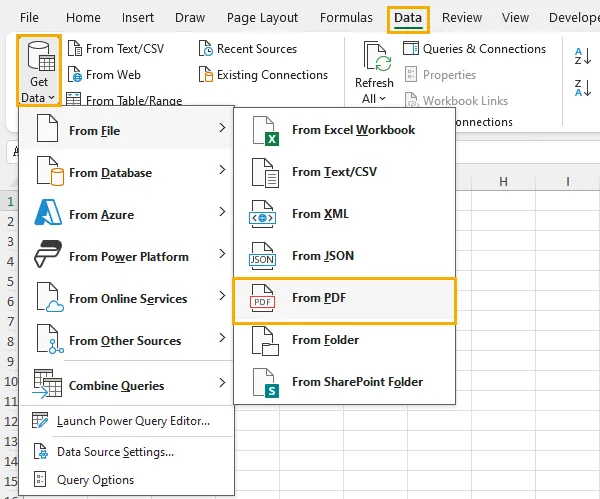
- Apri Excel e seleziona Dati → Recupera dati → Da file → Da PDF.
- Seleziona il file PDF e fai clic su Importa.
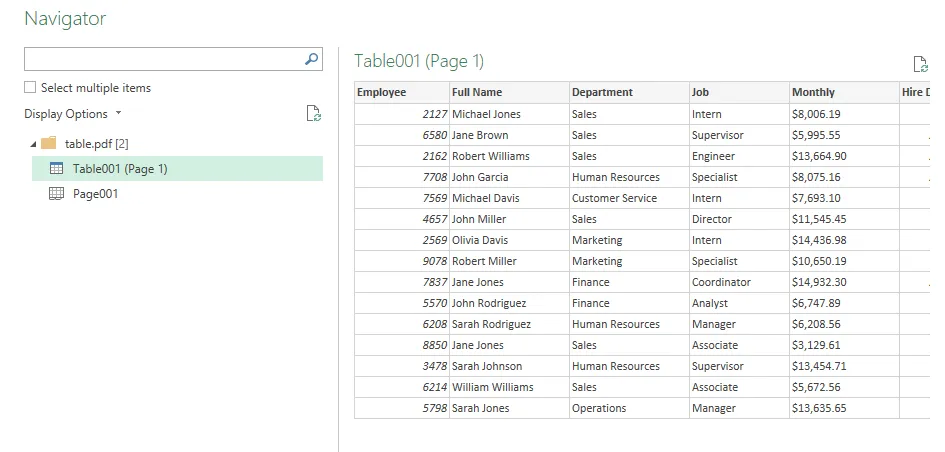
- Nella finestra Navigator, seleziona una voce Tabella rilevata per visualizzarne l'anteprima. Verifica che contenga le righe e le colonne necessarie.
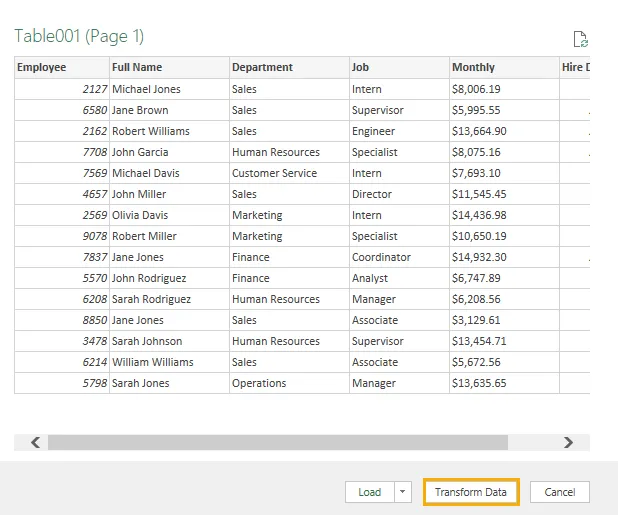
- Fai clic su Trasforma dati per aprire Editor di Power Query.
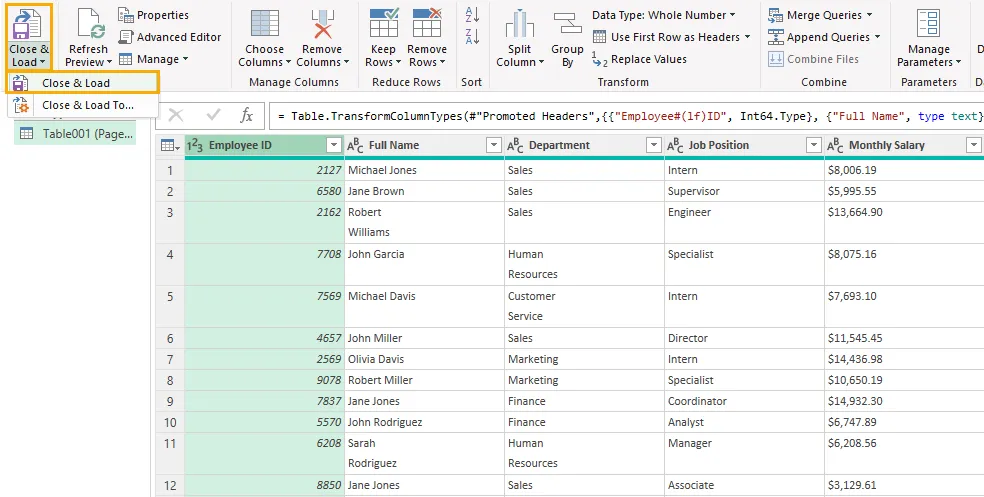
- Esamina la tabella, quindi seleziona Home → Chiudi e carica per caricarla in un foglio di lavoro Excel.
Se l'anteprima è già corretta e non sono necessarie modifiche, puoi fare clic su Carica direttamente in Navigator.
Per le tabelle che richiedono combinazione o pulizia, apporta le modifiche descritte nelle sezioni seguenti prima di caricare il risultato finale.
2. Combinare tabelle su più pagine
Power Query può riconoscere una tabella che si estende su più pagine PDF come un'unica tabella o come tabelle separate. Controlla le voci in Navigator prima di decidere se accodarle.
Quando Power Query rileva una sola tabella
Intestazioni coerenti ripetute su ogni pagina possono aiutare Power Query a riconoscere l'intera tabella. In Navigator, può apparire come un'unica voce come Tabella001 (Pagina 1–3) .
Seleziona quella voce e controlla l'anteprima. Se contiene tutti i record richiesti, fai clic su Carica , oppure scegli Trasforma dati per apportare prima le modifiche. Non è necessaria alcuna operazione di accodamento.
Quando Power Query rileva tabelle separate
Se solo la prima pagina contiene le intestazioni, Power Query può rilevare le pagine di continuazione come tabelle separate con nomi di colonna generici come Column1, Column2 e Column3.
Per combinarle:
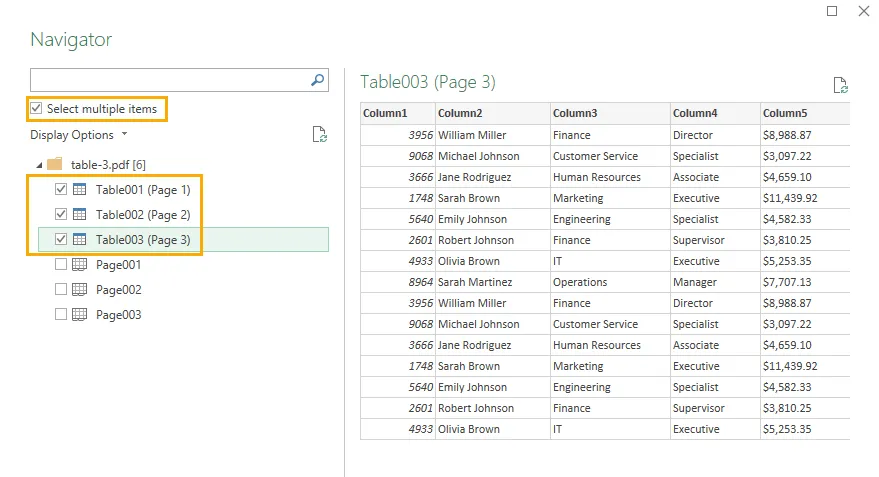
- In Navigator, abilita Seleziona più elementi.
- Seleziona le tabelle che appartengono alla stessa tabella su più pagine e controlla le relative anteprime.
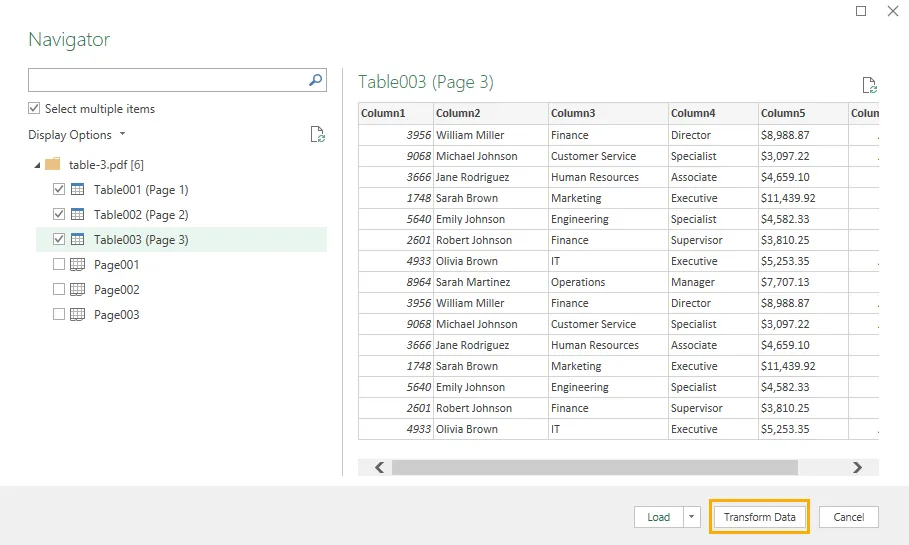
- Fai clic su Trasforma dati. Ogni tabella selezionata appare come una query separata in Editor di Power Query.
- Usa le intestazioni della prima tabella come riferimento e rinomina le colonne corrispondenti nelle tabelle di continuazione. Ad esempio, rinomina
Column1inEmployee IDeColumn2inFull Name.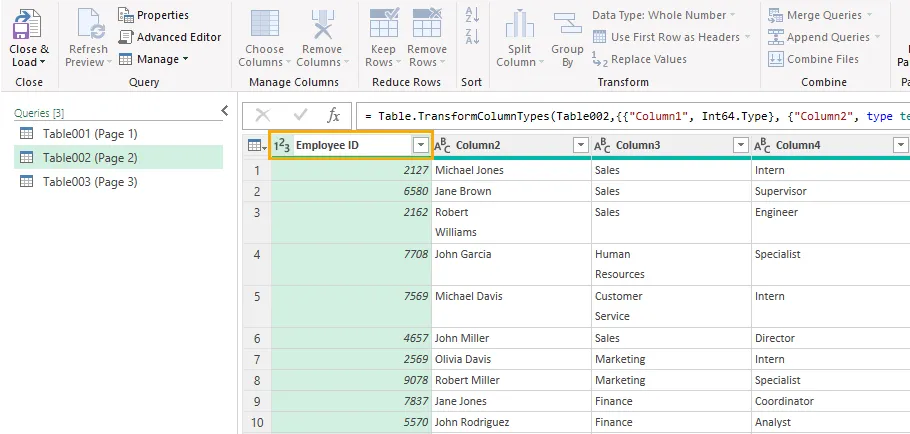
- Controlla che i nomi delle colonne corrispondenti coincidano esattamente, inclusi eventuali spazi, prima di accodare.
Le intestazioni di una sola parola come Department di solito non devono essere digitate di nuovo. Presta maggiore attenzione alle intestazioni composte da più parole, soprattutto a quelle che vanno a capo su più righe nel PDF.
Ad esempio, Employee e ID possono apparire su righe separate nella cella di origine. Navigator può visualizzare l'intestazione come Employee ID , anche se il suo nome effettivo contiene un'interruzione di riga anziché uno spazio. Rinominare la colonna di un'altra tabella in Employee ID con uno spazio normale creerebbe quindi una mancata corrispondenza.
Per un'intestazione a capo, fai clic con il pulsante destro del mouse sulla colonna nella prima query e seleziona Rinomina . Seleziona l'intero nome esistente e digita manualmente un nome su una sola riga, ad esempio Employee ID. Usa quel nome esatto per le colonne corrispondenti nelle altre query. Evita di copiare l'intestazione originale a capo, che potrebbe conservare l'interruzione di riga nascosta.
Una volta che i nomi delle colonne sono coerenti:
- Seleziona una query e scegli Home → Accoda query ▼ → Accoda query come nuova.
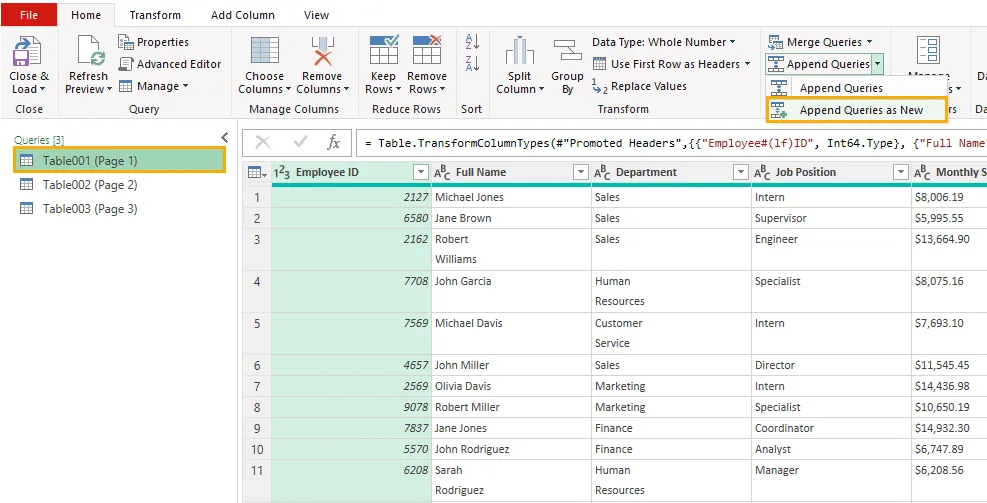
- Scegli Due tabelle o Tre o più tabelle , a seconda del numero di query.
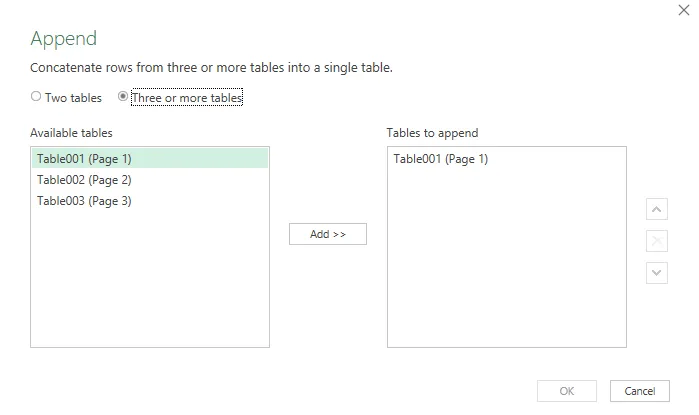
- Seleziona le tabelle da accodare. Per tre o più tabelle, aggiungile all'elenco Tabelle da accodare e disponile nell'ordine delle pagine PDF.
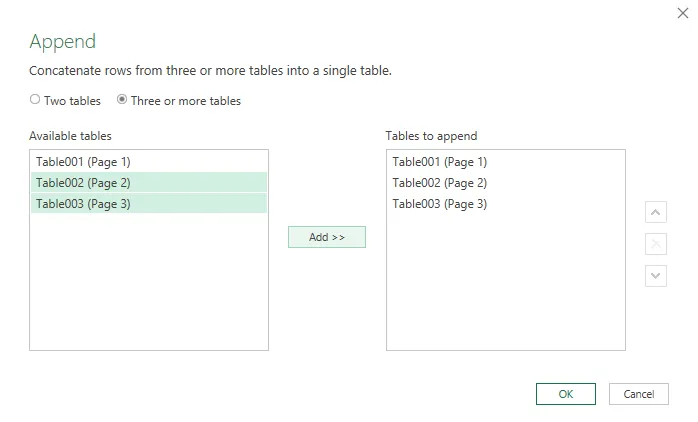
- Fai clic su OK per creare la query combinata.
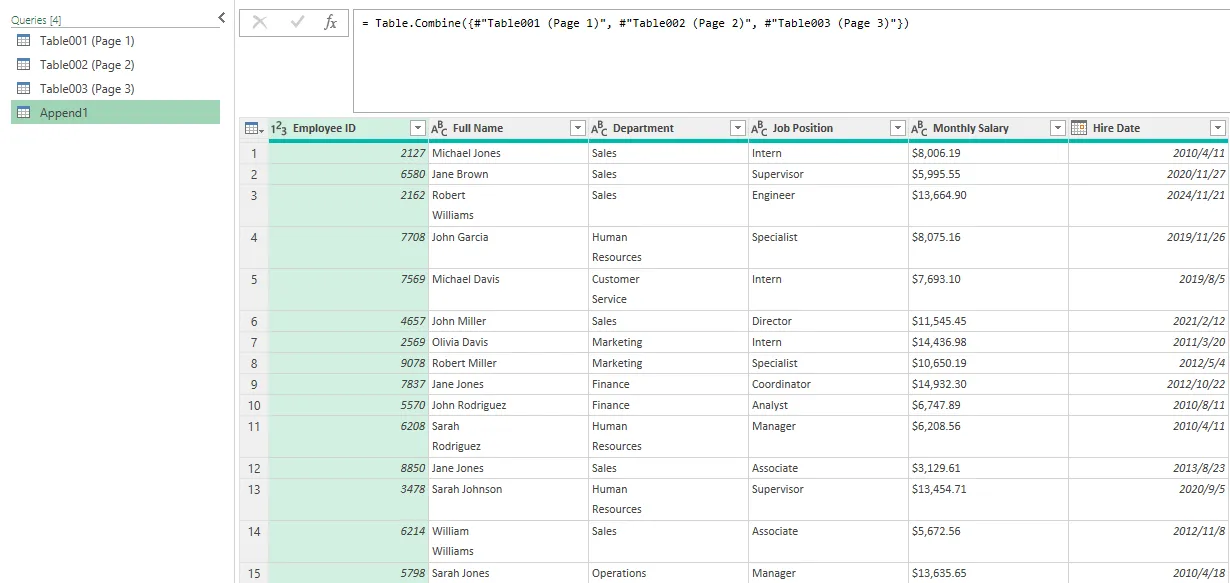
Power Query accoda i dati in base alla corrispondenza dei nomi delle colonne, non alla posizione delle colonne. Se il risultato contiene due colonne apparentemente identiche o valori null imprevisti, torna alle query di origine e controlla i loro nomi per interruzioni di riga nascoste o spazi aggiuntivi.
Infine, esamina la tabella combinata per verificare la presenza di record mancanti, righe di intestazione ripetute e testo di piè di pagina indesiderato prima di caricarla in Excel.
3. Conservare gli zeri iniziali nelle colonne ID
Gli ID dipendente, i codici prodotto e identificatori simili possono contenere zeri iniziali. Se Power Query assegna un tipo di dati numerico a questi valori, un ID come 00123 può apparire come 123.
Per conservare l'ID originale:
- In Editor di Power Query, seleziona la colonna Employee ID.
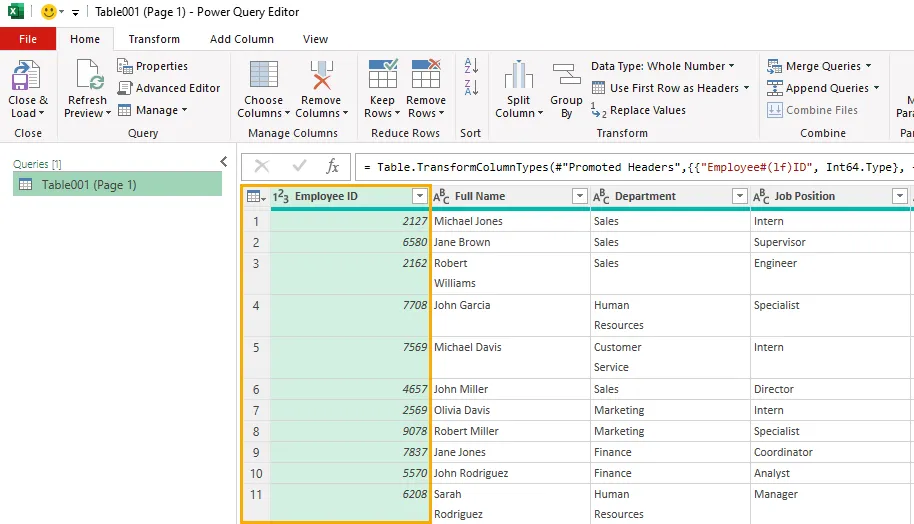
- Apri il menu Tipo di dati e cambia Numero intero in Testo.
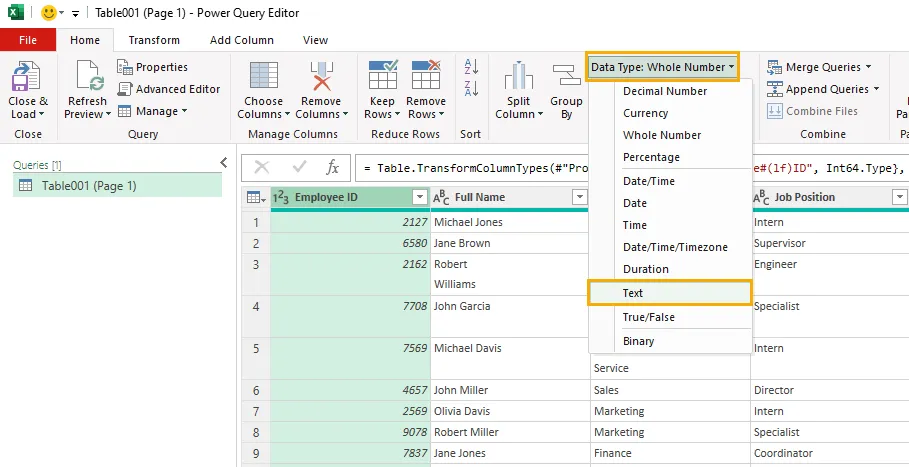
- Se viene richiesto di sostituire la conversione di tipo esistente, scegli Sostituisci corrente.
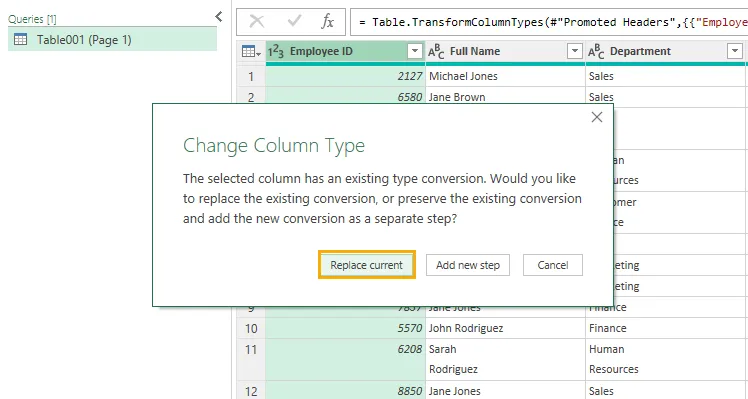
- Controlla che i valori mostrino i loro zeri iniziali, ad esempio
00123invece di123.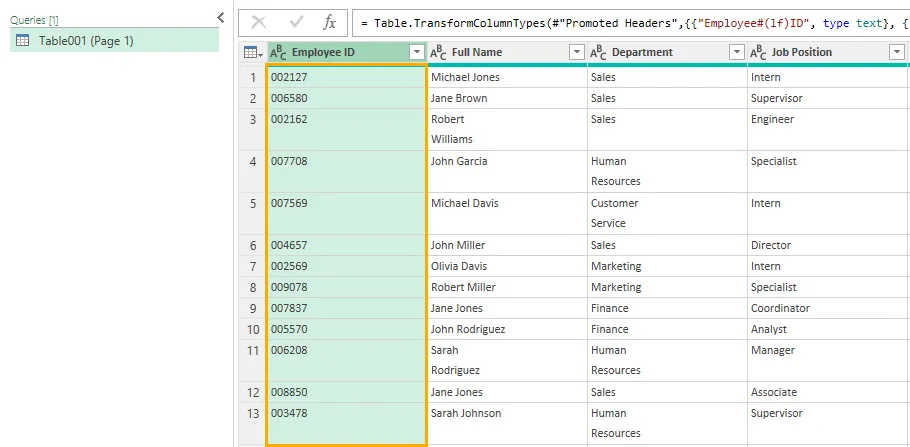
Tratta gli identificatori come testo anche quando contengono solo cifre. Il loro scopo è identificare i record, non fungere da valori per i calcoli.
Apporta questa modifica prima di caricare i dati in Excel. Se la modifica del tipo non ripristina gli zeri, confronta i valori con il PDF originale; gli zeri mancanti non possono essere dedotti in modo affidabile a meno che gli identificatori non seguano una regola nota di lunghezza fissa.
4. Verificare il testo a capo e caricare la tabella finale
Il testo che va a capo su più righe in una cella PDF può essere unito senza spazio durante l'importazione. Ad esempio, un nome visualizzato come Robert su una riga e Williams su quella successiva può diventare RobertWilliams.
Controlla le colonne contenenti nomi, indirizzi e descrizioni confrontandole con il PDF originale. Correggi individualmente gli errori di spaziatura confermati. Per un valore errato specifico, seleziona la colonna e usa Trasforma → Sostituisci valori per sostituirlo con il testo corretto.
Evita di applicare una regola generale che inserisce spazi ovunque il testo sia andato a capo. Anche una singola parola può andare a capo tra le righe: Coordinato seguito da r dovrebbe diventare Coordinator , senza spazio.
Prima di caricare la tabella finale, verifica che:
- Il numero di record corrisponda alla tabella di origine.
- I record ai confini di pagina siano completi.
- Le colonne ID conservino i loro zeri iniziali.
- Il testo a capo abbia la spaziatura corretta.
- Le colonne numeriche e data utilizzino tipi di dati appropriati.
Quindi seleziona Home → Chiudi e carica ▼ → Chiudi e carica in , scegli Tabella , e seleziona il foglio di lavoro di destinazione.
Se hai accodato diverse query a livello di pagina, carica solo la query combinata finale come tabella del foglio di lavoro. Imposta le query intermedie su Crea solo connessione in modo che rimangano disponibili per la query combinata senza creare tabelle separate nel foglio di lavoro.
5. Automatizzare l'estrazione di tabelle PDF in Excel con Python
Power Query offre un modo interattivo per importare e preparare i dati delle tabelle PDF. Quando devi elaborare più file PDF in modo ripetuto, puoi automatizzare l'estrazione con Python.
L'esempio seguente usa Spire.PDF for Python per rilevare le tabelle e leggere il contenuto delle celle, e openpyxl , una libreria Excel open source, per scrivere i dati estratti in file XLSX. Ogni PDF produce una cartella di lavoro, con ogni tabella rilevata salvata in un foglio di lavoro separato.
Installare le librerie
Installa entrambi i pacchetti:
pip install Spire.PDF openpyxl
Codice per l'estrazione in batch
Aggiorna INPUT_FOLDER e OUTPUT_FOLDER in base alle tue directory. Lo script legge i file PDF direttamente dalla cartella di input, esamina ogni pagina e salva le cartelle di lavoro risultanti nella cartella di output.
from pathlib import Path

from spire.pdf import PdfDocument, PdfTableExtractor
from openpyxl import Workbook
from openpyxl.styles import Alignment


INPUT_FOLDER = Path(r"E:\Documents\input")
OUTPUT_FOLDER = Path(r"E:\Documents\output")


def extract_pdf_tables_to_excel(pdf_path, output_path):
    doc = PdfDocument()

    try:
        doc.LoadFromFile(str(pdf_path))
        extractor = PdfTableExtractor(doc)

        workbook = Workbook()
        workbook.remove(workbook.active)
        table_count = 0

        # Extract tables from every page.
        for page_index in range(doc.Pages.Count):
            tables = extractor.ExtractTable(page_index)

            if tables is None:
                continue

            for table_index in range(len(tables)):
                table = tables[table_index]
                row_count = table.GetRowCount()
                column_count = table.GetColumnCount()

                if row_count == 0 or column_count == 0:
                    continue

                sheet = workbook.create_sheet(
                    title=f"Page{page_index + 1}_Table{table_index + 1}"
                )

                for row_index in range(row_count):
                    for column_index in range(column_count):
                        text = table.GetText(row_index, column_index)

                        cell = sheet.cell(
                            row=row_index + 1,
                            column=column_index + 1
                        )

                        # Preserve extracted values as literal text.
                        cell.value = text if text is not None else ""
                        cell.data_type = "s"
                        cell.number_format = "@"
                        cell.alignment = Alignment(
                            vertical="top",
                            wrap_text=True
                        )

                for column_cells in sheet.columns:
                    column_letter = column_cells[0].column_letter
                    sheet.column_dimensions[column_letter].width = 22

                table_count += 1

        if table_count == 0:
            print(f"Skipped: {pdf_path.name} — no tables detected.")
            return

        workbook.save(str(output_path))
        print(
            f"Saved: {output_path.name} "
            f"({table_count} tables)"
        )

    finally:
        doc.Close()


def main():
    if not INPUT_FOLDER.is_dir():
        raise FileNotFoundError(
            f"Input folder not found: {INPUT_FOLDER}"
        )

    OUTPUT_FOLDER.mkdir(parents=True, exist_ok=True)

    pdf_files = sorted(
        (
            path for path in INPUT_FOLDER.iterdir()
            if path.is_file() and path.suffix.lower() == ".pdf"
        ),
        key=lambda path: path.name.lower()
    )

    if not pdf_files:
        print("No PDF files found in the input folder.")
        return

    for pdf_path in pdf_files:
        output_path = OUTPUT_FOLDER / f"{pdf_path.stem}.xlsx"

        try:
            extract_pdf_tables_to_excel(pdf_path, output_path)
        except Exception as error:
            print(f"Failed: {pdf_path.name} — {error}")


if __name__ == "__main__":
    main()
Lo script chiama ExtractTable() per ogni pagina PDF, quindi legge ogni tabella rilevata con GetRowCount(), GetColumnCount() e GetText(). Le celle estratte vengono scritte nelle righe e colonne corrispondenti in un nuovo foglio di lavoro.
I file senza tabelle rilevate vengono saltati. Se un PDF non viene elaborato, lo script segnala l'errore e continua con i file rimanenti.
Potrebbe interessarti anche: Estrarre tabelle da PDF usando Python
Output e considerazioni
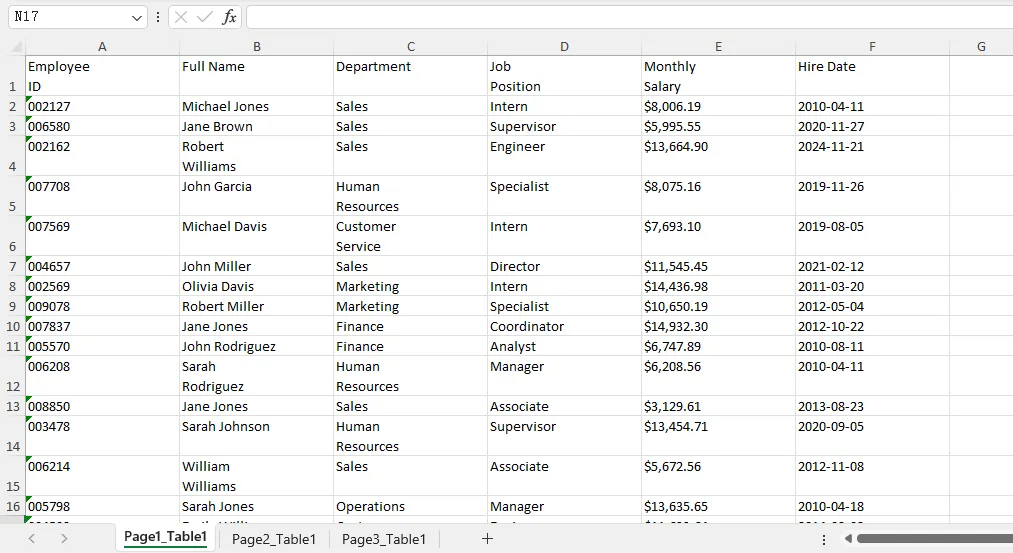
Un PDF denominato report.pdf produce una cartella di lavoro denominata report.xlsx. I nomi dei fogli di lavoro identificano la pagina e la tabella di origine, ad esempio Page1_Table1, Page1_Table2 e Page2_Table1.
Tutti i valori estratti vengono scritti come testo. Ciò preserva gli zeri iniziali presenti nel contenuto estratto, come 00123, e impedisce che il testo che inizia con = venga interpretato come formula di Excel. Anche importi e date rimangono testo e potrebbero richiedere una conversione prima di calcoli o analisi basate sulle date.
Questo esempio esporta i dati delle tabelle invece di riprodurre l'aspetto originale del PDF. Non ricrea caratteri, bordi o formattazione delle celle unite di origine e non corregge errori di estrazione come spazi mancanti. Se una tabella su più pagine viene rilevata come tabelle separate, quelle parti vengono salvate in fogli di lavoro separati anziché essere combinate automaticamente.
Esamina la cartella di lavoro generata confrontandola con il PDF di origine prima di usarne i dati. Eseguire di nuovo lo script sovrascrive i file XLSX esistenti con gli stessi nomi nella cartella di output.
6. Domande frequenti
Perché non riesco a trovare l'opzione Da PDF in Excel?
I connettori disponibili dipendono dalla versione e dalla piattaforma di Excel. Controlla Dati → Recupera dati → Da file per Da PDF . Se manca, verifica se la tua installazione supporta il connettore PDF. I passaggi di importazione di Power Query in questa guida presuppongono che l'opzione sia disponibile.
Posso importare una tabella PDF scansionata usando questi metodi?
Un PDF scansionato memorizza il contenuto delle pagine come immagini. I flussi di lavoro mostrati qui non includono l'OCR, quindi sono destinati a PDF basati su testo. Per i documenti scansionati, usa uno strumento OCR in grado di riconoscere la struttura delle tabelle ed esportare dati strutturati, quindi confronta i valori estratti con l'originale.
La tabella Excel importata avrà esattamente l'aspetto del PDF?
Questi metodi si concentrano sull'estrazione dei dati delle celle per l'uso in Excel. Non garantiscono che caratteri, colori, bordi, larghezze di colonna o celle unite del PDF vengano riprodotti. Applica la formattazione di Excel dopo l'importazione se hai bisogno di un aspetto particolare.
Posso aggiornare la tabella Power Query quando il PDF cambia?
Sì. Se il PDF di origine viene aggiornato nello stesso percorso file, usa Dati → Aggiorna tutto per rieseguire la query. Esamina il risultato successivamente, soprattutto se il numero di pagine, le tabelle rilevate o la struttura delle colonne sono cambiati. Tali modifiche potrebbero richiedere aggiustamenti alla query.
7. Conclusione
Importare tabelle PDF in Excel implica più che rilevare righe e colonne. Power Query fornisce un punto di partenza pratico, ma i passaggi successivi dipendono dal risultato: una tabella su più pagine potrebbe essere pronta per essere caricata come un'unica tabella, oppure le sue sezioni potrebbero richiedere nomi di colonna corrispondenti prima di poter essere accodate. Anche gli zeri iniziali e gli spazi nel testo a capo meritano attenzione, perché una tabella apparentemente pulita può comunque contenere valori alterati.
Per le attività ricorrenti, il flusso di lavoro Python estende questo processo a una cartella di PDF, salvando ogni file come cartella di lavoro con fogli di lavoro separati per le tabelle rilevate. Scegli il flusso di lavoro più adatto al tuo carico di lavoro, quindi confronta l'output con il PDF di origine, in particolare identificatori, testo su più righe e record ai confini di pagina. Questi controlli aiutano a garantire che i dati importati siano pronti per il filtraggio, i calcoli e ulteriori analisi.
Vedi anche
Comment importer des tableaux PDF dans Excel : un guide pratique
Table des matières
- Importer des tableaux PDF dans Excel avec Power Query
- Combiner des tableaux sur plusieurs pages
- Préserver les zéros non significatifs dans les colonnes d’ID
- Vérifier le texte renvoyé à la ligne et charger le tableau final
- Automatiser l’extraction de tableaux PDF vers Excel avec Python
- Questions fréquentes
- Conclusion
Les tableaux PDF contiennent souvent des données que vous devez trier, filtrer ou analyser dans Excel. Le copier-coller peut laisser ces données dans une seule colonne ou perturber leur structure de lignes. La fonctionnalité intégrée À partir d’un PDF d’Excel offre un moyen plus direct d’importer les tableaux détectés dans des cellules de feuille de calcul.
Ce guide explique comment importer des tableaux PDF avec Power Query, combiner des tableaux sur plusieurs pages, préserver les zéros non significatifs et vérifier les espaces dans le texte renvoyé à la ligne. Il inclut également un workflow Python pour extraire les tableaux d’un dossier de fichiers PDF vers des classeurs Excel.
Les étapes Power Query ci-dessous utilisent Excel pour Windows avec le connecteur À partir d’un PDF disponible. Commencez par un PDF texte ; les pages numérisées nécessitent un workflow OCR avant que leurs données de tableau puissent être extraites.
- Importer des tableaux PDF dans Excel avec Power Query
- Combiner des tableaux sur plusieurs pages
- Préserver les zéros non significatifs dans les colonnes d’ID
- Vérifier le texte renvoyé à la ligne et charger le tableau final
- Automatiser l’extraction de tableaux PDF vers Excel avec Python
- Questions fréquentes
- Conclusion
1. Importer des tableaux PDF dans Excel avec Power Query
La fonctionnalité À partir d’un PDF d’Excel vous permet d’identifier des tableaux dans un PDF et d’importer leurs données dans des cellules de feuille de calcul. Ouvrez le tableau dans l’Éditeur Power Query pour examiner son contenu avant de le charger.
- Ouvrez Excel et sélectionnez Données → Obtenir des données → À partir d’un fichier → À partir d’un PDF.
- Sélectionnez votre fichier PDF et cliquez sur Importer.
- Dans la fenêtre Navigateur, sélectionnez une entrée Table détectée pour prévisualiser son contenu. Vérifiez qu’elle contient les lignes et colonnes dont vous avez besoin.
- Cliquez sur Transformer les données pour ouvrir l’Éditeur Power Query.
- Examinez le tableau, puis sélectionnez Accueil → Fermer & Charger pour le charger dans une feuille de calcul Excel.
Si l’aperçu est déjà correct et qu’aucun ajustement n’est nécessaire, vous pouvez cliquer directement sur Charger dans le Navigateur.
Pour les tableaux qui nécessitent une combinaison ou un nettoyage, effectuez les ajustements décrits dans les sections suivantes avant de charger le résultat final.
2. Combiner des tableaux sur plusieurs pages
Power Query peut reconnaître un tableau s’étendant sur plusieurs pages PDF comme un seul tableau ou comme des tableaux distincts. Vérifiez les entrées dans le Navigateur avant de décider de les combiner.
Lorsque Power Query détecte un seul tableau
Des en-têtes cohérents répétés sur chaque page peuvent aider Power Query à reconnaître l’ensemble du tableau. Dans le Navigateur, il peut apparaître comme une seule entrée telle que Table001 (Page 1–3).
Sélectionnez cette entrée et vérifiez l’aperçu. Si elle contient tous les enregistrements requis, cliquez sur Charger, ou choisissez Transformer les données pour effectuer d’abord des ajustements. Aucune opération de combinaison n’est nécessaire.
Lorsque Power Query détecte des tableaux distincts
Si seule la première page contient des en-têtes, Power Query peut détecter les pages de continuation comme des tableaux distincts avec des noms de colonnes génériques tels que Column1, Column2 et Column3.
Pour les combiner :
- Dans le Navigateur, activez Sélectionner plusieurs éléments.
- Sélectionnez les tableaux appartenant au même tableau inter-pages et vérifiez leurs aperçus.
- Cliquez sur Transformer les données. Chaque tableau sélectionné apparaît comme une requête distincte dans l’Éditeur Power Query.
- Utilisez les en-têtes du premier tableau comme référence et renommez les colonnes correspondantes dans les tableaux de continuation. Par exemple, renommez
Column1enEmployee IDetColumn2enFull Name. - Vérifiez que les noms de colonnes correspondants concordent exactement, y compris les espaces éventuels, avant de les combiner.
Les en-têtes d’un seul mot tels que Department n’ont généralement pas besoin d’être ressaisis. Faites plus attention aux en-têtes de plusieurs mots, en particulier ceux qui sont renvoyés à la ligne dans le PDF.
Par exemple, Employee et ID peuvent apparaître sur des lignes séparées dans la cellule source. Le Navigateur peut afficher l’en-tête comme Employee ID, même si son nom réel contient un saut de ligne plutôt qu’un espace. Renommer la colonne d’un autre tableau en Employee ID avec un espace normal créerait alors une incohérence.
Pour un en-tête renvoyé à la ligne, cliquez avec le bouton droit sur la colonne dans la première requête et sélectionnez Renommer. Sélectionnez le nom existant en entier et saisissez manuellement un nom sur une seule ligne, tel que Employee ID. Utilisez ce nom exact pour les colonnes correspondantes dans les autres requêtes. Évitez de copier l’en-tête renvoyé à la ligne d’origine, qui peut conserver le saut de ligne masqué.
Une fois les noms de colonnes cohérents :
- Sélectionnez une requête et choisissez Accueil → Combiner des requêtes ▼ → Combiner des requêtes comme nouvelle.
- Choisissez Deux tableaux ou Trois tableaux ou plus, selon le nombre de requêtes.
- Sélectionnez les tableaux à combiner. Pour trois tableaux ou plus, ajoutez-les à la liste Tableaux à combiner et disposez-les dans l’ordre des pages PDF.
- Cliquez sur OK pour créer la requête combinée.
Power Query combine les données en faisant correspondre les noms de colonnes, plutôt que les positions des colonnes. Si le résultat contient deux colonnes apparemment identiques ou des valeurs null inattendues, revenez aux requêtes sources et vérifiez leurs noms pour détecter des sauts de ligne masqués ou des espaces supplémentaires.
Enfin, examinez le tableau combiné pour rechercher des enregistrements manquants, des lignes d’en-tête répétées et du texte de pied de page indésirable avant de le charger dans Excel.
3. Préserver les zéros non significatifs dans les colonnes d’ID
Les ID d’employé, les codes produit et les identifiants similaires peuvent contenir des zéros non significatifs. Si Power Query attribue un type de données numérique à ces valeurs, un ID tel que 00123 peut apparaître comme 123.
Pour préserver l’ID d’origine :
- Dans l’Éditeur Power Query, sélectionnez la colonne Employee ID.
- Ouvrez le menu Type de données et remplacez Nombre entier par Texte.
- Si vous êtes invité à remplacer la conversion de type existante, choisissez Remplacer l’actuel.
- Vérifiez que les valeurs affichent leurs zéros non significatifs—par exemple,
00123au lieu de123.
Traitez les identifiants comme du texte même lorsqu’ils ne contiennent que des chiffres. Leur but est d’identifier des enregistrements, plutôt que de servir de valeurs pour des calculs.
Effectuez cet ajustement avant de charger les données dans Excel. Si la modification du type ne restaure pas les zéros, comparez les valeurs avec le PDF d’origine ; les zéros manquants ne peuvent pas être déduits de manière fiable, sauf si les identifiants suivent une règle de longueur fixe connue.
4. Vérifier le texte renvoyé à la ligne et charger le tableau final
Le texte qui est renvoyé à la ligne dans une cellule PDF peut être joint sans espace lors de l’importation. Par exemple, un nom affiché comme Robert sur une ligne et Williams sur la suivante peut devenir RobertWilliams.
Vérifiez les colonnes contenant des noms, des adresses et des descriptions par rapport au PDF d’origine. Corrigez individuellement les erreurs d’espacement confirmées. Pour une valeur incorrecte spécifique, sélectionnez la colonne et utilisez Transformer → Remplacer les valeurs pour la remplacer par le texte correct.
Évitez d’appliquer une règle générale qui insère des espaces partout où le texte a été renvoyé à la ligne. Un seul mot peut également être coupé sur plusieurs lignes : Coordinato suivi de r devrait devenir Coordinator, sans espace.
Avant de charger le tableau final, vérifiez que :
- Le nombre d’enregistrements correspond au tableau source.
- Les enregistrements aux limites de page sont complets.
- Les colonnes d’ID conservent leurs zéros non significatifs.
- Le texte renvoyé à la ligne a l’espacement correct.
- Les colonnes numériques et de date utilisent des types de données appropriés.
Ensuite, sélectionnez Accueil → Fermer & Charger ▼ → Fermer & Charger vers, choisissez Tableau, puis sélectionnez la feuille de calcul de destination.
Si vous avez combiné plusieurs requêtes au niveau des pages, chargez uniquement la requête combinée finale en tant que tableau de feuille de calcul. Définissez les requêtes intermédiaires sur Créer uniquement une connexion afin qu’elles restent disponibles pour la requête combinée sans créer de tableaux de feuille de calcul séparés.
5. Automatiser l’extraction de tableaux PDF vers Excel avec Python
Power Query offre un moyen interactif d’importer et de préparer des données de tableaux PDF. Lorsque vous devez traiter plusieurs fichiers PDF de manière répétée, vous pouvez automatiser l’extraction avec Python.
L’exemple suivant utilise Spire.PDF for Python pour détecter les tableaux et lire le contenu de leurs cellules, et openpyxl, une bibliothèque Excel open source, pour écrire les données extraites dans des fichiers XLSX. Chaque PDF produit un classeur, chaque tableau détecté étant enregistré dans une feuille de calcul distincte.
Installer les bibliothèques
Installez les deux packages :
pip install Spire.PDF openpyxl
Code d’extraction par lots
Mettez à jour INPUT_FOLDER et OUTPUT_FOLDER pour qu’ils correspondent à vos répertoires. Le script lit directement les fichiers PDF du dossier d’entrée, examine chaque page et enregistre les classeurs résultants dans le dossier de sortie.
from pathlib import Path

from spire.pdf import PdfDocument, PdfTableExtractor
from openpyxl import Workbook
from openpyxl.styles import Alignment


INPUT_FOLDER = Path(r"E:\Documents\input")
OUTPUT_FOLDER = Path(r"E:\Documents\output")


def extract_pdf_tables_to_excel(pdf_path, output_path):
    doc = PdfDocument()

    try:
        doc.LoadFromFile(str(pdf_path))
        extractor = PdfTableExtractor(doc)

        workbook = Workbook()
        workbook.remove(workbook.active)
        table_count = 0

        # Extract tables from every page.
        for page_index in range(doc.Pages.Count):
            tables = extractor.ExtractTable(page_index)

            if tables is None:
                continue

            for table_index in range(len(tables)):
                table = tables[table_index]
                row_count = table.GetRowCount()
                column_count = table.GetColumnCount()

                if row_count == 0 or column_count == 0:
                    continue

                sheet = workbook.create_sheet(
                    title=f"Page{page_index + 1}_Table{table_index + 1}"
                )

                for row_index in range(row_count):
                    for column_index in range(column_count):
                        text = table.GetText(row_index, column_index)

                        cell = sheet.cell(
                            row=row_index + 1,
                            column=column_index + 1
                        )

                        # Preserve extracted values as literal text.
                        cell.value = text if text is not None else ""
                        cell.data_type = "s"
                        cell.number_format = "@"
                        cell.alignment = Alignment(
                            vertical="top",
                            wrap_text=True
                        )

                for column_cells in sheet.columns:
                    column_letter = column_cells[0].column_letter
                    sheet.column_dimensions[column_letter].width = 22

                table_count += 1

        if table_count == 0:
            print(f"Skipped: {pdf_path.name} — no tables detected.")
            return

        workbook.save(str(output_path))
        print(
            f"Saved: {output_path.name} "
            f"({table_count} tables)"
        )

    finally:
        doc.Close()


def main():
    if not INPUT_FOLDER.is_dir():
        raise FileNotFoundError(
            f"Input folder not found: {INPUT_FOLDER}"
        )

    OUTPUT_FOLDER.mkdir(parents=True, exist_ok=True)

    pdf_files = sorted(
        (
            path for path in INPUT_FOLDER.iterdir()
            if path.is_file() and path.suffix.lower() == ".pdf"
        ),
        key=lambda path: path.name.lower()
    )

    if not pdf_files:
        print("No PDF files found in the input folder.")
        return

    for pdf_path in pdf_files:
        output_path = OUTPUT_FOLDER / f"{pdf_path.stem}.xlsx"

        try:
            extract_pdf_tables_to_excel(pdf_path, output_path)
        except Exception as error:
            print(f"Failed: {pdf_path.name} — {error}")


if __name__ == "__main__":
    main()
Le script appelle ExtractTable() pour chaque page PDF, puis lit chaque tableau détecté avec GetRowCount(), GetColumnCount() et GetText(). Les cellules extraites sont écrites dans leurs lignes et colonnes correspondantes dans une nouvelle feuille de calcul.
Les fichiers sans tableau détecté sont ignorés. Si un PDF ne peut pas être traité, le script signale l’erreur et continue avec les fichiers restants.
Vous aimerez peut-être aussi : Extraire des tableaux d’un PDF avec Python
Sortie et considérations
Un PDF nommé report.pdf produit un classeur nommé report.xlsx. Les noms de feuilles de calcul identifient la page source et le tableau, tels que Page1_Table1, Page1_Table2 et Page2_Table1.
Toutes les valeurs extraites sont écrites sous forme de texte. Cela préserve les zéros non significatifs présents dans le contenu extrait, tels que 00123, et empêche le texte commençant par = d’être interprété comme une formule Excel. Les montants et les dates restent également du texte et peuvent nécessiter une conversion avant les calculs ou l’analyse basée sur les dates.
Cet exemple exporte les données de tableau plutôt que de reproduire l’apparence d’origine du PDF. Il ne recrée pas les polices, les bordures ou la mise en forme des cellules fusionnées de la source, et il ne corrige pas les erreurs d’extraction telles que les espaces manquants. Si un tableau inter-pages est détecté comme des tableaux distincts, ces parties sont enregistrées dans des feuilles de calcul distinctes plutôt que d’être automatiquement combinées.
Examinez le classeur généré par rapport au PDF source avant d’utiliser ses données. L’exécution du script à nouveau écrase les fichiers XLSX existants portant les mêmes noms dans le dossier de sortie.
6. Questions fréquentes
Pourquoi je ne trouve pas l’option À partir d’un PDF dans Excel ?
Les connecteurs disponibles dépendent de votre version et de votre plateforme Excel. Vérifiez Données → Obtenir des données → À partir d’un fichier pour À partir d’un PDF. S’il est absent, vérifiez si votre installation prend en charge le connecteur PDF. Les étapes d’importation Power Query de ce guide supposent que l’option est disponible.
Puis-je importer un tableau PDF numérisé à l’aide de ces méthodes ?
Un PDF numérisé stocke le contenu de ses pages sous forme d’images. Les workflows présentés ici n’incluent pas d’OCR, ils sont donc destinés aux PDF textuels. Pour les documents numérisés, utilisez un outil OCR capable de reconnaître la structure des tableaux et d’exporter des données structurées, puis vérifiez les valeurs extraites par rapport à la source.
Le tableau Excel importé ressemblera-t-il exactement au PDF ?
Ces méthodes se concentrent sur l’extraction des données de cellules à utiliser dans Excel. Elles ne garantissent pas que les polices, couleurs, bordures, largeurs de colonnes ou cellules fusionnées du PDF seront reproduites. Appliquez une mise en forme Excel après l’importation si vous avez besoin d’une apparence particulière.
Puis-je actualiser le tableau Power Query lorsque le PDF change ?
Oui. Si le PDF source est mis à jour au même chemin de fichier, utilisez Données → Actualiser tout pour réexécuter la requête. Examinez le résultat ensuite, surtout si le nombre de pages, les tableaux détectés ou la structure des colonnes ont changé. Ces changements peuvent nécessiter des ajustements de la requête.
7. Conclusion
L’importation de tableaux PDF dans Excel implique plus que la détection de lignes et de colonnes. Power Query fournit un point de départ pratique, mais les étapes suivantes dépendent du résultat : un tableau inter-pages peut être prêt à être chargé en un seul tableau, ou ses sections peuvent nécessiter des noms de colonnes correspondants avant de pouvoir être combinées. Les zéros non significatifs et les espaces dans le texte renvoyé à la ligne méritent également une attention particulière, car un tableau apparemment propre peut encore contenir des valeurs altérées.
Pour les tâches récurrentes, le workflow Python étend ce processus à un dossier de PDF, en enregistrant chaque fichier sous forme de classeur avec des feuilles de calcul distinctes pour ses tableaux détectés. Choisissez le workflow adapté à votre charge de travail, puis comparez la sortie avec le PDF source—en particulier les identifiants, le texte multiligne et les enregistrements aux limites de page. Ces vérifications aident à garantir que les données importées sont prêtes pour le filtrage, les calculs et l’analyse plus poussée.
Voir aussi
- Convertir un PDF en Excel gratuitement - PDF textuels et numérisés
- Comment imprimer des PDF sous Windows : 5 méthodes simples et efficaces
- Copier du texte à partir d’un PDF sécurisé : 5 méthodes gratuites et simples
- 5 méthodes efficaces pour convertir un PDF en noir et blanc
- Comment surligner du texte dans un PDF : 5 méthodes simples
Cómo importar tablas PDF a Excel: una guía práctica
Tabla de contenido
Las tablas PDF suelen contener datos que necesita ordenar, filtrar o analizar en Excel. Copiar y pegar puede dejar esos datos en una sola columna o alterar su estructura de filas. La característica integrada Desde PDF de Excel ofrece una forma más directa de importar tablas detectadas en celdas de la hoja de cálculo.
Esta guía explica cómo importar tablas PDF con Power Query, combinar tablas en varias páginas, conservar los ceros iniciales y comprobar los espacios en el texto ajustado. También incluye un flujo de trabajo con Python para extraer tablas de una carpeta de archivos PDF a libros de Excel.
Los pasos de Power Query a continuación usan Excel para Windows con el conector Desde PDF disponible. Comience con un PDF basado en texto; las páginas escaneadas requieren un flujo de trabajo de OCR antes de que se puedan extraer los datos de sus tablas.
- Importar tablas PDF a Excel con Power Query
- Combinar tablas en varias páginas
- Conservar los ceros iniciales en columnas de ID
- Verificar el texto ajustado y cargar la tabla final
- Automatizar la extracción de tablas PDF a Excel con Python
- Preguntas frecuentes
- Conclusión
1. Importar tablas PDF a Excel con Power Query
La característica Desde PDF de Excel le permite identificar tablas en un PDF e importar sus datos a celdas de la hoja de cálculo. Abra la tabla en el Editor de Power Query para revisar su contenido antes de cargarla.
- Abra Excel y seleccione Datos → Obtener datos → Desde archivo → Desde PDF.
- Seleccione su archivo PDF y haga clic en Importar.
- En la ventana Navegador, seleccione una entrada de Tabla detectada para obtener una vista previa de su contenido. Compruebe que contiene las filas y columnas que necesita.
- Haga clic en Transformar datos para abrir el Editor de Power Query.
- Revise la tabla y, después, seleccione Inicio → Cerrar y cargar para cargarla en una hoja de cálculo de Excel.
Si la vista previa ya es correcta y no se necesitan ajustes, puede hacer clic en Cargar directamente en el Navegador.
Para las tablas que requieren combinación o limpieza, realice los ajustes descritos en las secciones siguientes antes de cargar el resultado final.
2. Combinar tablas en varias páginas
Power Query puede reconocer una tabla que abarca varias páginas de PDF como una sola tabla o como tablas separadas. Revise las entradas en el Navegador antes de decidir si debe anexarlas.
Cuando Power Query detecta una sola tabla
Los encabezados consistentes repetidos en cada página pueden ayudar a Power Query a reconocer toda la tabla. En el Navegador, puede aparecer como una sola entrada, como Tabla001 (Página 1–3) .
Seleccione esa entrada y compruebe la vista previa. Si contiene todos los registros necesarios, haga clic en Cargar , o elija Transformar datos para realizar ajustes primero. No se necesita ninguna operación de anexar.
Cuando Power Query detecta tablas separadas
Si solo la primera página contiene encabezados, Power Query puede detectar las páginas de continuación como tablas separadas con nombres de columna genéricos como Column1, Column2 y Column3.
Para combinarlas:
- En el Navegador, habilite Seleccionar varios elementos.
- Seleccione las tablas que pertenecen a la misma tabla de varias páginas y compruebe sus vistas previas.
- Haga clic en Transformar datos. Cada tabla seleccionada aparece como una consulta separada en el Editor de Power Query.
- Use los encabezados de la primera tabla como referencia y cambie el nombre de las columnas correspondientes en las tablas de continuación. Por ejemplo, cambie el nombre de
Column1aEmployee IDy deColumn2aFull Name. - Compruebe que los nombres de columna correspondientes coincidan exactamente, incluidos los espacios, antes de anexar.
Los encabezados de una sola palabra, como Department, por lo general no necesitan volver a escribirse. Preste más atención a los encabezados de varias palabras, especialmente a los que se ajustan en varias líneas en el PDF.
Por ejemplo, Employee e ID pueden aparecer en líneas separadas en la celda de origen. El Navegador puede mostrar el encabezado como Employee ID , aunque su nombre real contiene un salto de línea en lugar de un espacio. Cambiar el nombre de la columna de otra tabla a Employee ID con un espacio normal crearía entonces una discrepancia.
Para un encabezado ajustado, haga clic con el botón derecho en la columna de la primera consulta y seleccione Cambiar nombre . Seleccione todo el nombre existente y escriba manualmente un nombre de una sola línea, como Employee ID. Use ese nombre exacto para las columnas correspondientes en las otras consultas. Evite copiar el encabezado ajustado original, que puede conservar el salto de línea oculto.
Una vez que los nombres de columna sean coherentes:
- Seleccione una consulta y elija Inicio → Anexar consultas ▼ → Anexar consultas como nueva.
- Elija Dos tablas o Tres o más tablas , según el número de consultas.
- Seleccione las tablas que desea anexar. Para tres o más tablas, agréguelas a la lista Tablas para anexar y ordénelas según el orden de las páginas del PDF.
- Haga clic en Aceptar para crear la consulta combinada.
Power Query anexa datos haciendo coincidir los nombres de columna, en lugar de las posiciones de columna. Si el resultado contiene dos columnas aparentemente idénticas o valores nulos inesperados, vuelva a las consultas de origen y compruebe sus nombres en busca de saltos de línea ocultos o espacios adicionales.
Por último, revise la tabla combinada en busca de registros faltantes, filas de encabezado repetidas y texto no deseado del pie de página antes de cargarla en Excel.
3. Conservar los ceros iniciales en columnas de ID
Los ID de empleado, códigos de producto e identificadores similares pueden contener ceros iniciales. Si Power Query asigna un tipo de datos numérico a estos valores, un ID como 00123 puede aparecer como 123.
Para conservar el ID original:
- En el Editor de Power Query, seleccione la columna Employee ID.
- Abra el menú Tipo de datos y cambie Número entero a Texto.
- Si se le solicita reemplazar la conversión de tipo existente, elija Reemplazar actual.
- Compruebe que los valores muestren sus ceros iniciales, por ejemplo,
00123en lugar de123.
Trate los identificadores como texto incluso cuando contengan solo dígitos. Su propósito es identificar registros, en lugar de servir como valores para cálculos.
Realice este ajuste antes de cargar los datos en Excel. Si cambiar el tipo no restaura los ceros, compare los valores con el PDF original; los ceros faltantes no se pueden inferir de forma fiable a menos que los identificadores sigan una regla conocida de longitud fija.
4. Verificar el texto ajustado y cargar la tabla final
El texto que se ajusta en varias líneas en una celda de PDF puede unirse sin un espacio durante la importación. Por ejemplo, un nombre que se muestra como Robert en una línea y Williams en la siguiente puede convertirse en RobertWilliams.
Compruebe las columnas que contienen nombres, direcciones y descripciones con el PDF original. Corrija individualmente los errores de espaciado confirmados. Para un valor incorrecto específico, seleccione la columna y use Transformar → Reemplazar valores para reemplazarlo con el texto correcto.
Evite aplicar una regla general que inserte espacios donde el texto se ajustó. Una sola palabra también puede ajustarse en varias líneas: Coordinato seguido de r debería convertirse en Coordinator , sin un espacio.
Antes de cargar la tabla final, verifique que:
- El número de registros coincide con la tabla de origen.
- Los registros en los límites de página están completos.
- Las columnas de ID conservan sus ceros iniciales.
- El texto ajustado tiene el espaciado correcto.
- Las columnas numéricas y de fecha usan tipos de datos adecuados.
Luego seleccione Inicio → Cerrar y cargar ▼ → Cerrar y cargar en , elija Tabla , y seleccione la hoja de cálculo de destino.
Si anexó varias consultas de nivel de página, cargue solo la consulta combinada final como una tabla de hoja de cálculo. Establezca las consultas intermedias en Solo crear conexión para que sigan disponibles para la consulta combinada sin crear tablas de hoja de cálculo separadas.
5. Automatizar la extracción de tablas PDF a Excel con Python
Power Query proporciona una forma interactiva de importar y preparar datos de tablas PDF. Cuando necesite procesar varios archivos PDF repetidamente, puede automatizar la extracción con Python.
El siguiente ejemplo usa Spire.PDF for Python para detectar tablas y leer el contenido de sus celdas, y openpyxl , una biblioteca de Excel de código abierto, para escribir los datos extraídos en archivos XLSX. Cada PDF produce un libro, con cada tabla detectada guardada en una hoja de cálculo separada.
Instalar las bibliotecas
Instale ambos paquetes:
pip install Spire.PDF openpyxl
Código de extracción por lotes
Actualice INPUT_FOLDER y OUTPUT_FOLDER para que coincidan con sus directorios. El script lee archivos PDF directamente desde la carpeta de entrada, examina cada página y guarda los libros resultantes en la carpeta de salida.
from pathlib import Path

from spire.pdf import PdfDocument, PdfTableExtractor
from openpyxl import Workbook
from openpyxl.styles import Alignment


INPUT_FOLDER = Path(r"E:\Documents\input")
OUTPUT_FOLDER = Path(r"E:\Documents\output")


def extract_pdf_tables_to_excel(pdf_path, output_path):
    doc = PdfDocument()

    try:
        doc.LoadFromFile(str(pdf_path))
        extractor = PdfTableExtractor(doc)

        workbook = Workbook()
        workbook.remove(workbook.active)
        table_count = 0

        # Extract tables from every page.
        for page_index in range(doc.Pages.Count):
            tables = extractor.ExtractTable(page_index)

            if tables is None:
                continue

            for table_index in range(len(tables)):
                table = tables[table_index]
                row_count = table.GetRowCount()
                column_count = table.GetColumnCount()

                if row_count == 0 or column_count == 0:
                    continue

                sheet = workbook.create_sheet(
                    title=f"Page{page_index + 1}_Table{table_index + 1}"
                )

                for row_index in range(row_count):
                    for column_index in range(column_count):
                        text = table.GetText(row_index, column_index)

                        cell = sheet.cell(
                            row=row_index + 1,
                            column=column_index + 1
                        )

                        # Preserve extracted values as literal text.
                        cell.value = text if text is not None else ""
                        cell.data_type = "s"
                        cell.number_format = "@"
                        cell.alignment = Alignment(
                            vertical="top",
                            wrap_text=True
                        )

                for column_cells in sheet.columns:
                    column_letter = column_cells[0].column_letter
                    sheet.column_dimensions[column_letter].width = 22

                table_count += 1

        if table_count == 0:
            print(f"Skipped: {pdf_path.name} — no tables detected.")
            return

        workbook.save(str(output_path))
        print(
            f"Saved: {output_path.name} "
            f"({table_count} tables)"
        )

    finally:
        doc.Close()


def main():
    if not INPUT_FOLDER.is_dir():
        raise FileNotFoundError(
            f"Input folder not found: {INPUT_FOLDER}"
        )

    OUTPUT_FOLDER.mkdir(parents=True, exist_ok=True)

    pdf_files = sorted(
        (
            path for path in INPUT_FOLDER.iterdir()
            if path.is_file() and path.suffix.lower() == ".pdf"
        ),
        key=lambda path: path.name.lower()
    )

    if not pdf_files:
        print("No PDF files found in the input folder.")
        return

    for pdf_path in pdf_files:
        output_path = OUTPUT_FOLDER / f"{pdf_path.stem}.xlsx"

        try:
            extract_pdf_tables_to_excel(pdf_path, output_path)
        except Exception as error:
            print(f"Failed: {pdf_path.name} — {error}")


if __name__ == "__main__":
    main()
El script llama a ExtractTable() para cada página del PDF, luego lee cada tabla detectada con GetRowCount(), GetColumnCount() y GetText(). Las celdas extraídas se escriben en sus filas y columnas correspondientes en una nueva hoja de cálculo.
Los archivos sin tablas detectadas se omiten. Si un PDF no se procesa, el script informa el error y continúa con los archivos restantes.
También te puede interesar: Extraer tablas de PDF con Python
Salida y consideraciones
Un PDF llamado report.pdf produce un libro llamado report.xlsx. Los nombres de las hojas de cálculo identifican la página y la tabla de origen, como Page1_Table1, Page1_Table2 y Page2_Table1.
Todos los valores extraídos se escriben como texto. Esto conserva los ceros iniciales presentes en el contenido extraído, como 00123, y evita que el texto que comienza con = se interprete como una fórmula de Excel. Los importes y las fechas también permanecen como texto y pueden necesitar conversión antes de realizar cálculos o análisis basados en fechas.
Este ejemplo exporta datos de tablas en lugar de reproducir la apariencia original del PDF. No recrea las fuentes, los bordes ni el formato de celdas combinadas de origen, y no corrige errores de extracción como espacios faltantes. Si una tabla de varias páginas se detecta como tablas separadas, esas partes se guardan en hojas de cálculo separadas en lugar de combinarse automáticamente.
Revise el libro generado con el PDF de origen antes de usar sus datos. Ejecutar el script de nuevo sobrescribe los archivos XLSX existentes con los mismos nombres en la carpeta de salida.
6. Preguntas frecuentes
¿Por qué no encuentro la opción Desde PDF en Excel?
Los conectores disponibles dependen de su versión y plataforma de Excel. Compruebe Datos → Obtener datos → Desde archivo para Desde PDF . Si no aparece, verifique si su instalación admite el conector de PDF. Los pasos de importación de Power Query de esta guía suponen que la opción está disponible.
¿Puedo importar una tabla de PDF escaneado con estos métodos?
Un PDF escaneado almacena el contenido de sus páginas como imágenes. Los flujos de trabajo mostrados aquí no incluyen OCR, por lo que están pensados para PDF basados en texto. Para documentos escaneados, use una herramienta de OCR que pueda reconocer la estructura de tablas y exportar datos estructurados, luego compare los valores extraídos con el origen.
¿La tabla de Excel importada se verá exactamente como el PDF?
Estos métodos se centran en extraer datos de celdas para usarlos en Excel. No garantizan que se reproduzcan las fuentes, los colores, los bordes, los anchos de columna ni las celdas combinadas del PDF. Aplique formato de Excel después de la importación si necesita una apariencia determinada.
¿Puedo actualizar la tabla de Power Query cuando cambia el PDF?
Sí. Si el PDF de origen se actualiza en la misma ruta de archivo, use Datos → Actualizar todo para volver a ejecutar la consulta. Revise el resultado después, especialmente si ha cambiado el número de páginas, las tablas detectadas o la estructura de columnas. Esos cambios pueden requerir ajustes en la consulta.
7. Conclusión
Importar tablas PDF en Excel implica más que detectar filas y columnas. Power Query proporciona un punto de partida práctico, pero los siguientes pasos dependen del resultado: una tabla de varias páginas puede estar lista para cargarse como una sola tabla, o sus secciones pueden necesitar nombres de columna coincidentes antes de poder anexarlas. Los ceros iniciales y los espacios en el texto ajustado también merecen atención porque una tabla aparentemente limpia aún puede contener valores alterados.
Para tareas recurrentes, el flujo de trabajo con Python amplía este proceso a una carpeta de PDF, guardando cada archivo como un libro con hojas de cálculo separadas para sus tablas detectadas. Elija el flujo de trabajo que se adapte a su carga de trabajo, luego compare la salida con el PDF de origen, en particular los identificadores, el texto de varias líneas y los registros en los límites de página. Estas comprobaciones ayudan a garantizar que los datos importados estén listos para filtrar, calcular y realizar más análisis.
Ver también
PDF-Tabellen in Excel importieren: Ein praktischer Leitfaden
Inhaltsverzeichnis
PDF-Tabellen enthalten oft Daten, die Sie in Excel sortieren, filtern oder analysieren müssen. Beim Kopieren und Einfügen können diese Daten in einer einzelnen Spalte landen oder ihre Zeilenstruktur verloren gehen. Die integrierte Funktion Aus PDF von Excel bietet einen direkteren Weg, erkannte Tabellen in Arbeitsblattzellen zu importieren.
Diese Anleitung erklärt, wie Sie PDF-Tabellen mit Power Query importieren, Tabellen über mehrere Seiten hinweg kombinieren, führende Nullen beibehalten und Leerzeichen in umgebrochenem Text prüfen. Sie enthält außerdem einen Python-Workflow zum Extrahieren von Tabellen aus einem Ordner mit PDF-Dateien in Excel-Arbeitsmappen.
Die folgenden Power Query-Schritte verwenden Excel für Windows mit dem verfügbaren Aus PDF-Connector. Beginnen Sie mit einer textbasierten PDF; gescannte Seiten erfordern einen OCR-Workflow, bevor ihre Tabellendaten extrahiert werden können.
- PDF-Tabellen mit Power Query in Excel importieren
- Tabellen über mehrere Seiten hinweg kombinieren
- Führende Nullen in ID-Spalten beibehalten
- Umgebrochenen Text prüfen und die finale Tabelle laden
- PDF-Tabellenextraktion nach Excel mit Python automatisieren
- Häufig gestellte Fragen
- Fazit
1. PDF-Tabellen mit Power Query in Excel importieren
Die Funktion Aus PDF von Excel ermöglicht es Ihnen, Tabellen in einer PDF zu identifizieren und ihre Daten in Arbeitsblattzellen zu importieren. Öffnen Sie die Tabelle im Power Query-Editor, um ihren Inhalt zu prüfen, bevor Sie sie laden.
- Öffnen Sie Excel und wählen Sie Daten → Daten abrufen → Aus Datei → Aus PDF.
- Wählen Sie Ihre PDF-Datei aus und klicken Sie auf Importieren.
- Wählen Sie im Fenster Navigator einen erkannten Eintrag Tabelle aus, um seinen Inhalt in der Vorschau anzuzeigen. Prüfen Sie, ob er die benötigten Zeilen und Spalten enthält.
- Klicken Sie auf Daten transformieren, um den Power Query-Editor zu öffnen.
- Prüfen Sie die Tabelle und wählen Sie dann Start → Schließen & laden, um sie in ein Excel-Arbeitsblatt zu laden.
Wenn die Vorschau bereits korrekt ist und keine Anpassungen erforderlich sind, können Sie im Navigator direkt auf Laden klicken.
Bei Tabellen, die kombiniert oder bereinigt werden müssen, nehmen Sie die in den folgenden Abschnitten beschriebenen Anpassungen vor, bevor Sie das Endergebnis laden.
2. Tabellen über mehrere Seiten hinweg kombinieren
Power Query erkennt eine Tabelle, die sich über mehrere PDF-Seiten erstreckt, möglicherweise als eine Tabelle oder als separate Tabellen. Prüfen Sie die Einträge im Navigator, bevor Sie entscheiden, ob Sie sie anfügen.
Wenn Power Query eine Tabelle erkennt
Konsistente Kopfzeilen, die auf jeder Seite wiederholt werden, können Power Query dabei helfen, die gesamte Tabelle zu erkennen. Im Navigator kann sie als einzelner Eintrag wie Table001 (Page 1–3) erscheinen.
Wählen Sie diesen Eintrag aus und prüfen Sie die Vorschau. Wenn er alle erforderlichen Datensätze enthält, klicken Sie auf Laden oder wählen Sie Daten transformieren, um zuerst Anpassungen vorzunehmen. Ein Anfügen-Vorgang ist nicht erforderlich.
Wenn Power Query separate Tabellen erkennt
Wenn nur die erste Seite Kopfzeilen enthält, erkennt Power Query die Fortsetzungsseiten möglicherweise als separate Tabellen mit generischen Spaltennamen wie Column1, Column2 und Column3.
So kombinieren Sie sie:
- Aktivieren Sie im Navigator die Option Mehrere Elemente auswählen.
- Wählen Sie die Tabellen aus, die zu derselben seitenübergreifenden Tabelle gehören, und prüfen Sie ihre Vorschauen.
- Klicken Sie auf Daten transformieren. Jede ausgewählte Tabelle erscheint als separate Abfrage im Power Query-Editor.
- Verwenden Sie die Kopfzeilen der ersten Tabelle als Referenz und benennen Sie die entsprechenden Spalten in den Fortsetzungstabellen um. Benennen Sie beispielsweise
Column1inEmployee IDundColumn2inFull Nameum. - Prüfen Sie, ob die entsprechenden Spaltennamen exakt übereinstimmen, einschließlich etwaiger Leerzeichen, bevor Sie anfügen.
Einwortige Kopfzeilen wie Department müssen normalerweise nicht neu eingegeben werden. Achten Sie stärker auf mehrwortige Kopfzeilen, insbesondere auf solche, die in der PDF auf mehrere Zeilen umgebrochen werden.
Beispielsweise können Employee und ID in der Quellzelle in separaten Zeilen erscheinen. Navigator kann die Kopfzeile als Employee ID anzeigen, obwohl ihr tatsächlicher Name einen Zeilenumbruch statt eines Leerzeichens enthält. Wenn Sie die Spalte einer anderen Tabelle in Employee ID mit einem normalen Leerzeichen umbenennen, entsteht dadurch eine Nichtübereinstimmung.
Bei einer umgebrochenen Kopfzeile klicken Sie mit der rechten Maustaste auf die Spalte in der ersten Abfrage und wählen Umbenennen. Wählen Sie den gesamten vorhandenen Namen aus und geben Sie manuell einen einzeiligen Namen ein, z. B. Employee ID. Verwenden Sie genau diesen Namen für die entsprechenden Spalten in den anderen Abfragen. Vermeiden Sie es, die ursprüngliche umgebrochene Kopfzeile zu kopieren, da sie den verborgenen Zeilenumbruch beibehalten kann.
Sobald die Spaltennamen konsistent sind:
- Wählen Sie eine Abfrage aus und wählen Sie Start → Abfragen anfügen ▼ → Abfragen anfügen als neu.
- Wählen Sie Zwei Tabellen oder Drei oder mehr Tabellen, je nach Anzahl der Abfragen.
- Wählen Sie die anzufügenden Tabellen aus. Fügen Sie bei drei oder mehr Tabellen sie der Liste Anzufügende Tabellen hinzu und ordnen Sie sie in der Reihenfolge der PDF-Seiten an.
- Klicken Sie auf OK, um die kombinierte Abfrage zu erstellen.
Power Query fügt Daten anhand übereinstimmender Spaltennamen an, nicht anhand der Spaltenpositionen. Wenn das Ergebnis zwei scheinbar identische Spalten oder unerwartete NULL-Werte enthält, kehren Sie zu den Quellabfragen zurück und prüfen Sie ihre Namen auf verborgene Zeilenumbrüche oder zusätzliche Leerzeichen.
Prüfen Sie abschließend die kombinierte Tabelle auf fehlende Datensätze, wiederholte Kopfzeilen und unerwünschten Seitenfußtext, bevor Sie sie in Excel laden.
3. Führende Nullen in ID-Spalten beibehalten
Mitarbeiter-IDs, Produktcodes und ähnliche Bezeichner können führende Nullen enthalten. Wenn Power Query diesen Werten einen numerischen Datentyp zuweist, kann eine ID wie 00123 als 123 angezeigt werden.
So bewahren Sie die ursprüngliche ID:
- Wählen Sie im Power Query-Editor die Spalte Employee ID aus.
- Öffnen Sie das Menü Datentyp und ändern Sie Ganze Zahl in Text.
- Wenn Sie aufgefordert werden, die vorhandene Typkonvertierung zu ersetzen, wählen Sie Aktuelles ersetzen.
- Prüfen Sie, ob die Werte ihre führenden Nullen anzeigen – zum Beispiel
00123statt123.
Behandeln Sie Bezeichner als Text, auch wenn sie nur Ziffern enthalten. Ihr Zweck besteht darin, Datensätze zu identifizieren, nicht als Werte für Berechnungen zu dienen.
Nehmen Sie diese Anpassung vor, bevor Sie die Daten in Excel laden. Wenn das Ändern des Typs die Nullen nicht wiederherstellt, vergleichen Sie die Werte mit der ursprünglichen PDF; fehlende Nullen können nicht zuverlässig abgeleitet werden, es sei denn, die Bezeichner folgen einer bekannten Regel mit fester Länge.
4. Umgebrochenen Text prüfen und die finale Tabelle laden
Text, der in einer PDF-Zelle auf mehrere Zeilen umgebrochen wird, kann beim Import ohne Leerzeichen zusammengefügt werden. Beispielsweise kann ein Name, der als Robert in einer Zeile und Williams in der nächsten angezeigt wird, zu RobertWilliams werden.
Prüfen Sie Spalten mit Namen, Adressen und Beschreibungen anhand der ursprünglichen PDF. Korrigieren Sie bestätigte Abstandsfehler einzeln. Wählen Sie für einen bestimmten falschen Wert die Spalte aus und verwenden Sie Transformieren → Werte ersetzen, um ihn durch den korrekten Text zu ersetzen.
Vermeiden Sie eine allgemeine Regel, die überall dort Leerzeichen einfügt, wo Text umgebrochen wurde. Auch ein einzelnes Wort kann über Zeilen umgebrochen werden: Coordinato gefolgt von r sollte Coordinator werden, ohne Leerzeichen.
Bevor Sie die finale Tabelle laden, prüfen Sie, ob:
- die Anzahl der Datensätze mit der Quelltabelle übereinstimmt.
- Datensätze an Seitengrenzen vollständig sind.
- ID-Spalten ihre führenden Nullen beibehalten.
- umgebrochener Text die korrekten Leerzeichen aufweist.
- numerische Spalten und Datumsspalten geeignete Datentypen verwenden.
Wählen Sie dann Start → Schließen & laden ▼ → Schließen & laden in, wählen Sie Tabelle und wählen Sie das Zielarbeitsblatt aus.
Wenn Sie mehrere Abfragen auf Seitenebene angefügt haben, laden Sie nur die finale kombinierte Abfrage als Arbeitsblatttabelle. Legen Sie die Zwischenabfragen auf Nur Verbindung erstellen fest, damit sie für die kombinierte Abfrage verfügbar bleiben, ohne separate Arbeitsblatttabellen zu erstellen.
5. PDF-Tabellenextraktion nach Excel mit Python automatisieren
Power Query bietet eine interaktive Möglichkeit, PDF-Tabellendaten zu importieren und vorzubereiten. Wenn Sie mehrere PDF-Dateien wiederholt verarbeiten müssen, können Sie die Extraktion mit Python automatisieren.
Das folgende Beispiel verwendet Spire.PDF for Python, um Tabellen zu erkennen und ihre Zellinhalte zu lesen, sowie openpyxl, eine Open-Source-Excel-Bibliothek, um die extrahierten Daten in XLSX-Dateien zu schreiben. Jede PDF erzeugt eine Arbeitsmappe, wobei jede erkannte Tabelle in einem separaten Arbeitsblatt gespeichert wird.
Bibliotheken installieren
Installieren Sie beide Pakete:
pip install Spire.PDF openpyxl
Batch-Extrahierungscode
Aktualisieren Sie INPUT_FOLDER und OUTPUT_FOLDER entsprechend Ihren Verzeichnissen. Das Skript liest PDF-Dateien direkt aus dem Eingabeordner, untersucht jede Seite und speichert die resultierenden Arbeitsmappen im Ausgabeordner.
from pathlib import Path

from spire.pdf import PdfDocument, PdfTableExtractor
from openpyxl import Workbook
from openpyxl.styles import Alignment


INPUT_FOLDER = Path(r"E:\Documents\input")
OUTPUT_FOLDER = Path(r"E:\Documents\output")


def extract_pdf_tables_to_excel(pdf_path, output_path):
    doc = PdfDocument()

    try:
        doc.LoadFromFile(str(pdf_path))
        extractor = PdfTableExtractor(doc)

        workbook = Workbook()
        workbook.remove(workbook.active)
        table_count = 0

        # Extract tables from every page.
        for page_index in range(doc.Pages.Count):
            tables = extractor.ExtractTable(page_index)

            if tables is None:
                continue

            for table_index in range(len(tables)):
                table = tables[table_index]
                row_count = table.GetRowCount()
                column_count = table.GetColumnCount()

                if row_count == 0 or column_count == 0:
                    continue

                sheet = workbook.create_sheet(
                    title=f"Page{page_index + 1}_Table{table_index + 1}"
                )

                for row_index in range(row_count):
                    for column_index in range(column_count):
                        text = table.GetText(row_index, column_index)

                        cell = sheet.cell(
                            row=row_index + 1,
                            column=column_index + 1
                        )

                        # Preserve extracted values as literal text.
                        cell.value = text if text is not None else ""
                        cell.data_type = "s"
                        cell.number_format = "@"
                        cell.alignment = Alignment(
                            vertical="top",
                            wrap_text=True
                        )

                for column_cells in sheet.columns:
                    column_letter = column_cells[0].column_letter
                    sheet.column_dimensions[column_letter].width = 22

                table_count += 1

        if table_count == 0:
            print(f"Skipped: {pdf_path.name} — no tables detected.")
            return

        workbook.save(str(output_path))
        print(
            f"Saved: {output_path.name} "
            f"({table_count} tables)"
        )

    finally:
        doc.Close()


def main():
    if not INPUT_FOLDER.is_dir():
        raise FileNotFoundError(
            f"Input folder not found: {INPUT_FOLDER}"
        )

    OUTPUT_FOLDER.mkdir(parents=True, exist_ok=True)

    pdf_files = sorted(
        (
            path for path in INPUT_FOLDER.iterdir()
            if path.is_file() and path.suffix.lower() == ".pdf"
        ),
        key=lambda path: path.name.lower()
    )

    if not pdf_files:
        print("No PDF files found in the input folder.")
        return

    for pdf_path in pdf_files:
        output_path = OUTPUT_FOLDER / f"{pdf_path.stem}.xlsx"

        try:
            extract_pdf_tables_to_excel(pdf_path, output_path)
        except Exception as error:
            print(f"Failed: {pdf_path.name} — {error}")


if __name__ == "__main__":
    main()
Das Skript ruft ExtractTable() für jede PDF-Seite auf und liest jede erkannte Tabelle mit GetRowCount(), GetColumnCount() und GetText(). Die extrahierten Zellen werden in die entsprechenden Zeilen und Spalten in einem neuen Arbeitsblatt geschrieben.
Dateien ohne erkannte Tabellen werden übersprungen. Wenn eine PDF nicht verarbeitet werden kann, meldet das Skript den Fehler und fährt mit den übrigen Dateien fort.
Das könnte Ihnen auch gefallen: Tabellen mit Python aus PDF extrahieren
Ausgabe und Überlegungen
Eine PDF mit dem Namen report.pdf erzeugt eine Arbeitsmappe mit dem Namen report.xlsx. Arbeitsblattnamen identifizieren die Quellseite und die Tabelle, z. B. Page1_Table1, Page1_Table2 und Page2_Table1.
Alle extrahierten Werte werden als Text geschrieben. Dadurch bleiben führende Nullen im extrahierten Inhalt erhalten, z. B. 00123, und es wird verhindert, dass Text, der mit = beginnt, als Excel-Formel interpretiert wird. Beträge und Datumsangaben bleiben ebenfalls Text und müssen möglicherweise vor Berechnungen oder datumsbasierten Analysen konvertiert werden.
Dieses Beispiel exportiert Tabellendaten, anstatt das ursprüngliche Erscheinungsbild der PDF zu reproduzieren. Es erstellt weder die Quellschriftarten, Rahmen oder Formatierungen verbundener Zellen neu, noch korrigiert es Extraktionsfehler wie fehlende Leerzeichen. Wenn eine seitenübergreifende Tabelle als separate Tabellen erkannt wird, werden diese Teile in separaten Arbeitsblättern gespeichert, anstatt automatisch kombiniert zu werden.
Prüfen Sie die generierte Arbeitsmappe anhand der Quell-PDF, bevor Sie ihre Daten verwenden. Beim erneuten Ausführen des Skripts werden vorhandene XLSX-Dateien mit denselben Namen im Ausgabeordner überschrieben.
6. Häufig gestellte Fragen
Warum kann ich die Option „Aus PDF“ in Excel nicht finden?
Die verfügbaren Connectors hängen von Ihrer Excel-Version und Plattform ab. Suchen Sie unter Daten → Daten abrufen → Aus Datei nach Aus PDF. Wenn sie fehlt, prüfen Sie, ob Ihre Installation den PDF-Connector unterstützt. Die Power Query-Importschritte in dieser Anleitung setzen voraus, dass die Option verfügbar ist.
Kann ich mit diesen Methoden eine gescannte PDF-Tabelle importieren?
Eine gescannte PDF speichert ihren Seiteninhalt als Bilder. Die hier gezeigten Workflows enthalten kein OCR und sind daher für textbasierte PDFs gedacht. Verwenden Sie für gescannte Dokumente ein OCR-Tool, das Tabellenstrukturen erkennen und strukturierte Daten exportieren kann, und prüfen Sie anschließend die extrahierten Werte anhand der Quelle.
Sieht die importierte Excel-Tabelle genau wie die PDF aus?
Diese Methoden konzentrieren sich darauf, Zellendaten für die Verwendung in Excel zu extrahieren. Sie garantieren nicht, dass Schriftarten, Farben, Rahmen, Spaltenbreiten oder verbundene Zellen der PDF reproduziert werden. Wenden Sie nach dem Import eine Excel-Formatierung an, wenn Sie ein bestimmtes Erscheinungsbild benötigen.
Kann ich die Power Query-Tabelle aktualisieren, wenn sich die PDF ändert?
Ja. Wenn die Quell-PDF unter demselben Dateipfad aktualisiert wird, verwenden Sie Daten → Alle aktualisieren, um die Abfrage erneut auszuführen. Prüfen Sie danach das Ergebnis, insbesondere wenn sich die Anzahl der Seiten, erkannten Tabellen oder die Spaltenstruktur geändert hat. Solche Änderungen können Anpassungen an der Abfrage erfordern.
7. Fazit
PDF-Tabellen in Excel zu importieren umfasst mehr als das Erkennen von Zeilen und Spalten. Power Query bietet einen praktischen Ausgangspunkt, aber die nächsten Schritte hängen vom Ergebnis ab: Eine seitenübergreifende Tabelle kann bereit sein, als eine Tabelle geladen zu werden, oder ihre Abschnitte müssen übereinstimmende Spaltennamen haben, bevor sie angefügt werden können. Auch führende Nullen und Leerzeichen in umgebrochenem Text verdienen Aufmerksamkeit, da eine scheinbar saubere Tabelle dennoch veränderte Werte enthalten kann.
Für wiederkehrende Aufgaben erweitert der Python-Workflow diesen Prozess auf einen Ordner mit PDFs und speichert jede Datei als Arbeitsmappe mit separaten Arbeitsblättern für ihre erkannten Tabellen. Wählen Sie den Workflow, der zu Ihrer Arbeitslast passt, und vergleichen Sie dann die Ausgabe mit der Quell-PDF – insbesondere Bezeichner, mehrzeiligen Text und Datensätze an Seitengrenzen. Diese Prüfungen helfen sicherzustellen, dass die importierten Daten für Filterung, Berechnungen und weitere Analysen bereit sind.
Siehe auch
- PDF kostenlos in Excel konvertieren – Text- und gescannte PDFs
- PDFs unter Windows drucken: 5 einfache und effektive Möglichkeiten
- Text aus einer geschützten PDF kopieren: 5 kostenlose und einfache Möglichkeiten
- 5 effiziente Möglichkeiten, PDF in Schwarzweiß zu konvertieren
- Text in einer PDF hervorheben: 5 einfache Methoden
Как импортировать таблицы из PDF в Excel: практическое руководство
Содержание
Таблицы PDF часто содержат данные, которые нужно сортировать, фильтровать или анализировать в Excel. Копирование и вставка могут оставить эти данные в одном столбце или нарушить их структуру строк. Встроенная функция Excel Из PDF предлагает более прямой способ импорта распознанных таблиц в ячейки листа.
В этом руководстве объясняется, как импортировать таблицы PDF с помощью Power Query, объединять таблицы на нескольких страницах, сохранять ведущие нули и проверять пробелы в перенесенном тексте. Оно также включает рабочий процесс на Python для извлечения таблиц из папки с PDF-файлами в книги Excel.
Приведенные ниже шаги Power Query используют Excel для Windows с доступным соединителем Из PDF. Начните с текстового PDF; отсканированные страницы требуют обработки OCR, прежде чем можно будет извлечь их табличные данные.
- Импорт таблиц PDF в Excel с помощью Power Query
- Объединение таблиц на нескольких страницах
- Сохранение ведущих нулей в столбцах идентификаторов
- Проверка перенесенного текста и загрузка итоговой таблицы
- Автоматизация извлечения таблиц PDF в Excel с помощью Python
- Часто задаваемые вопросы
- Заключение
1. Импорт таблиц PDF в Excel с помощью Power Query
Функция Excel Из PDF позволяет определять таблицы в PDF и импортировать их данные в ячейки листа. Откройте таблицу в редакторе Power Query, чтобы просмотреть ее содержимое перед загрузкой.
- Откройте Excel и выберите Данные → Получить данные → Из файла → Из PDF.
- Выберите PDF-файл и нажмите Импорт.
- В окне Навигатор выберите обнаруженную запись Таблица, чтобы просмотреть ее содержимое. Убедитесь, что она содержит нужные строки и столбцы.
- Нажмите Преобразовать данные, чтобы открыть редактор Power Query.
- Проверьте таблицу, затем выберите Главная → Закрыть и загрузить, чтобы загрузить ее на лист Excel.
Если предварительный просмотр уже корректен и корректировки не требуются, можно нажать Загрузить прямо в Навигаторе.
Для таблиц, требующих объединения или очистки, внесите изменения, описанные в следующих разделах, перед загрузкой итогового результата.
2. Объединение таблиц на нескольких страницах
Power Query может распознать таблицу, занимающую несколько страниц PDF, как одну таблицу или как отдельные таблицы. Проверьте записи в Навигаторе, прежде чем решать, добавлять ли их.
Когда Power Query обнаруживает одну таблицу
Согласованные заголовки, повторяющиеся на каждой странице, помогают Power Query распознать всю таблицу. В Навигаторе она может отображаться как одна запись, например Table001 (Страница 1–3).
Выберите эту запись и проверьте предварительный просмотр. Если она содержит все необходимые записи, нажмите Загрузить или выберите Преобразовать данные, чтобы сначала внести изменения. Операция добавления не требуется.
Когда Power Query обнаруживает отдельные таблицы
Если только первая страница содержит заголовки, Power Query может определить страницы-продолжения как отдельные таблицы с общими именами столбцов, например Column1, Column2 и Column3.
Чтобы объединить их:
- В Навигаторе включите Выбрать несколько элементов.
- Выберите таблицы, принадлежащие одной таблице, охватывающей несколько страниц, и проверьте их предварительные просмотры.
- Нажмите Преобразовать данные. Каждая выбранная таблица отображается как отдельный запрос в редакторе Power Query.
- Используйте заголовки первой таблицы как образец и переименуйте соответствующие столбцы в таблицах-продолжениях. Например, переименуйте
Column1вEmployee ID, аColumn2вFull Name. - Перед добавлением убедитесь, что соответствующие имена столбцов точно совпадают, включая пробелы.
Заголовки из одного слова, такие как Department, обычно не нужно вводить заново. Обратите особое внимание на заголовки из нескольких слов, особенно на те, которые переносятся на несколько строк в PDF.
Например, Employee и ID могут отображаться на отдельных строках в исходной ячейке. Навигатор может показать заголовок как Employee ID, даже если его фактическое имя содержит разрыв строки, а не пробел. Переименование столбца другой таблицы в Employee ID с обычным пробелом создаст несоответствие.
Для перенесенного заголовка щелкните столбец правой кнопкой мыши в первом запросе и выберите Переименовать. Выделите все существующее имя и вручную введите однострочное имя, например Employee ID. Используйте это точное имя для соответствующих столбцов в других запросах. Не копируйте исходный перенесенный заголовок, так как он может сохранить скрытый разрыв строки.
Когда имена столбцов станут согласованными:
- Выберите один запрос и выберите Главная → Добавить запросы ▼ → Добавить запросы как новый.
- Выберите Две таблицы или Три или более таблиц в зависимости от количества запросов.
- Выберите таблицы для добавления. Для трех или более таблиц добавьте их в список Таблицы для добавления и расположите их в порядке страниц PDF.
- Нажмите OK, чтобы создать объединенный запрос.
Power Query добавляет данные путем сопоставления имен столбцов, а не их позиций. Если результат содержит два внешне одинаковых столбца или неожиданные значения null, вернитесь к исходным запросам и проверьте их имена на наличие скрытых разрывов строк или лишних пробелов.
Наконец, перед загрузкой в Excel проверьте объединенную таблицу на наличие пропущенных записей, повторяющихся строк заголовков и нежелательного текста нижнего колонтитула страницы.
3. Сохранение ведущих нулей в столбцах идентификаторов
Идентификаторы сотрудников, коды продуктов и подобные идентификаторы могут содержать ведущие нули. Если Power Query назначает этим значениям числовой тип данных, идентификатор, например 00123, может отображаться как 123.
Чтобы сохранить исходный идентификатор:
- В редакторе Power Query выберите столбец Employee ID.
- Откройте меню Тип данных и измените Целое число на Текст.
- Если появится запрос на замену существующего преобразования типа, выберите Заменить текущий.
- Убедитесь, что значения отображают ведущие нули, например
00123вместо123.
Рассматривайте идентификаторы как текст, даже если они содержат только цифры. Их назначение — идентифицировать записи, а не служить значениями для вычислений.
Внесите это изменение перед загрузкой данных в Excel. Если смена типа не восстанавливает нули, сравните значения с исходным PDF; отсутствующие нули нельзя надежно восстановить, если только идентификаторы не подчиняются известному правилу фиксированной длины.
4. Проверка перенесенного текста и загрузка итоговой таблицы
Текст, который переносится на несколько строк в ячейке PDF, при импорте может быть объединен без пробела. Например, имя, отображаемое как Robert на одной строке и Williams на следующей, может стать RobertWilliams.
Сверьте столбцы, содержащие имена, адреса и описания, с исходным PDF. Исправляйте подтвержденные ошибки интервалов по отдельности. Для конкретного неверного значения выберите столбец и используйте Преобразовать → Заменить значения, чтобы заменить его правильным текстом.
Не применяйте общее правило, вставляющее пробелы везде, где текст был перенесен. Одно слово также может переноситься по строкам: Coordinato вместе с r должно стать Coordinator без пробела.
Перед загрузкой итоговой таблицы убедитесь, что:
- Количество записей совпадает с исходной таблицей.
- Записи на границах страниц полны.
- Столбцы идентификаторов сохраняют ведущие нули.
- Перенесенный текст имеет правильные интервалы.
- Числовые столбцы и столбцы дат используют подходящие типы данных.
Затем выберите Главная → Закрыть и загрузить ▼ → Закрыть и загрузить в, выберите Таблица и укажите целевой лист.
Если вы добавили несколько запросов уровня страницы, загружайте только итоговый объединенный запрос как таблицу листа. Для промежуточных запросов установите Только создать подключение, чтобы они оставались доступными для объединенного запроса без создания отдельных таблиц листа.
5. Автоматизация извлечения таблиц PDF в Excel с помощью Python
Power Query предоставляет интерактивный способ импорта и подготовки табличных данных из PDF. Когда нужно многократно обрабатывать несколько PDF-файлов, можно автоматизировать извлечение с помощью Python.
В следующем примере используется Spire.PDF for Python для обнаружения таблиц и чтения содержимого их ячеек, а также openpyxl — библиотека Excel с открытым исходным кодом — для записи извлеченных данных в файлы XLSX. Каждый PDF создает одну книгу, при этом каждая обнаруженная таблица сохраняется на отдельном листе.
Установка библиотек
Установите оба пакета:
pip install Spire.PDF openpyxl
Код пакетного извлечения
Обновите INPUT_FOLDER и OUTPUT_FOLDER в соответствии с вашими каталогами. Скрипт читает PDF-файлы непосредственно из входной папки, проверяет каждую страницу и сохраняет полученные книги в выходную папку.
from pathlib import Path

from spire.pdf import PdfDocument, PdfTableExtractor
from openpyxl import Workbook
from openpyxl.styles import Alignment


INPUT_FOLDER = Path(r"E:\Documents\input")
OUTPUT_FOLDER = Path(r"E:\Documents\output")


def extract_pdf_tables_to_excel(pdf_path, output_path):
    doc = PdfDocument()

    try:
        doc.LoadFromFile(str(pdf_path))
        extractor = PdfTableExtractor(doc)

        workbook = Workbook()
        workbook.remove(workbook.active)
        table_count = 0

        # Extract tables from every page.
        for page_index in range(doc.Pages.Count):
            tables = extractor.ExtractTable(page_index)

            if tables is None:
                continue

            for table_index in range(len(tables)):
                table = tables[table_index]
                row_count = table.GetRowCount()
                column_count = table.GetColumnCount()

                if row_count == 0 or column_count == 0:
                    continue

                sheet = workbook.create_sheet(
                    title=f"Page{page_index + 1}_Table{table_index + 1}"
                )

                for row_index in range(row_count):
                    for column_index in range(column_count):
                        text = table.GetText(row_index, column_index)

                        cell = sheet.cell(
                            row=row_index + 1,
                            column=column_index + 1
                        )

                        # Preserve extracted values as literal text.
                        cell.value = text if text is not None else ""
                        cell.data_type = "s"
                        cell.number_format = "@"
                        cell.alignment = Alignment(
                            vertical="top",
                            wrap_text=True
                        )

                for column_cells in sheet.columns:
                    column_letter = column_cells[0].column_letter
                    sheet.column_dimensions[column_letter].width = 22

                table_count += 1

        if table_count == 0:
            print(f"Skipped: {pdf_path.name} — no tables detected.")
            return

        workbook.save(str(output_path))
        print(
            f"Saved: {output_path.name} "
            f"({table_count} tables)"
        )

    finally:
        doc.Close()


def main():
    if not INPUT_FOLDER.is_dir():
        raise FileNotFoundError(
            f"Input folder not found: {INPUT_FOLDER}"
        )

    OUTPUT_FOLDER.mkdir(parents=True, exist_ok=True)

    pdf_files = sorted(
        (
            path for path in INPUT_FOLDER.iterdir()
            if path.is_file() and path.suffix.lower() == ".pdf"
        ),
        key=lambda path: path.name.lower()
    )

    if not pdf_files:
        print("No PDF files found in the input folder.")
        return

    for pdf_path in pdf_files:
        output_path = OUTPUT_FOLDER / f"{pdf_path.stem}.xlsx"

        try:
            extract_pdf_tables_to_excel(pdf_path, output_path)
        except Exception as error:
            print(f"Failed: {pdf_path.name} — {error}")


if __name__ == "__main__":
    main()
Скрипт вызывает ExtractTable() для каждой страницы PDF, затем читает каждую обнаруженную таблицу с помощью GetRowCount(), GetColumnCount() и GetText(). Извлеченные ячейки записываются в соответствующие строки и столбцы нового листа.
Файлы без обнаруженных таблиц пропускаются. Если обработка одного PDF завершается неудачно, скрипт сообщает об ошибке и продолжает работу с остальными файлами.
Вам также может понравиться: Извлечение таблиц из PDF с помощью Python
Вывод и замечания
PDF-файл с именем report.pdf создает книгу с именем report.xlsx. Имена листов указывают исходную страницу и таблицу, например Page1_Table1, Page1_Table2 и Page2_Table1.
Все извлеченные значения записываются как текст. Это сохраняет ведущие нули, присутствующие в извлеченном содержимом, например 00123, и предотвращает интерпретацию текста, начинающегося с =, как формулы Excel. Суммы и даты также остаются текстом и могут потребовать преобразования перед вычислениями или анализом на основе дат.
В этом примере экспортируются данные таблицы, а не воспроизводится исходный внешний вид PDF. Он не воссоздает исходные шрифты, границы или форматирование объединенных ячеек и не исправляет ошибки извлечения, такие как отсутствующие пробелы. Если таблица, охватывающая несколько страниц, обнаруживается как отдельные таблицы, эти части сохраняются на отдельных листах, а не объединяются автоматически.
Перед использованием данных сверьте созданную книгу с исходным PDF. Повторный запуск скрипта перезаписывает существующие XLSX-файлы с теми же именами в выходной папке.
6. Часто задаваемые вопросы
Почему я не могу найти параметр «Из PDF» в Excel?
Доступные соединители зависят от версии и платформы Excel. Проверьте Данные → Получить данные → Из файла на наличие Из PDF. Если его нет, проверьте, поддерживает ли ваша установка соединитель PDF. Шаги импорта Power Query в этом руководстве предполагают, что этот параметр доступен.
Можно ли импортировать таблицу из отсканированного PDF с помощью этих методов?
Отсканированный PDF хранит содержимое страниц в виде изображений. Показанные здесь рабочие процессы не включают OCR, поэтому они предназначены для текстовых PDF. Для отсканированных документов используйте инструмент OCR, который может распознавать структуру таблиц и экспортировать структурированные данные, затем сверьте извлеченные значения с источником.
Будет ли импортированная таблица Excel выглядеть точно так же, как PDF?
Эти методы сосредоточены на извлечении данных ячеек для использования в Excel. Они не гарантируют воспроизведение шрифтов, цветов, границ, ширины столбцов или объединенных ячеек PDF. Примените форматирование Excel после импорта, если вам нужен определенный внешний вид.
Можно ли обновить таблицу Power Query при изменении PDF?
Да. Если исходный PDF обновлен по тому же пути к файлу, используйте Данные → Обновить все, чтобы повторно запустить запрос. После этого проверьте результат, особенно если изменилось количество страниц, обнаруженных таблиц или структура столбцов. Такие изменения могут потребовать корректировки запроса.
7. Заключение
Импорт таблиц PDF в Excel включает не только обнаружение строк и столбцов. Power Query предоставляет практичную отправную точку, но следующие шаги зависят от результата: таблица, охватывающая несколько страниц, может быть готова к загрузке как одна таблица, или ее разделы могут нуждаться в согласовании имен столбцов перед добавлением. Ведущие нули и пробелы в перенесенном тексте также заслуживают внимания, поскольку внешне чистая таблица все еще может содержать измененные значения.
Для повторяющихся задач рабочий процесс на Python распространяет этот процесс на папку с PDF-файлами, сохраняя каждый файл как книгу с отдельными листами для обнаруженных таблиц. Выберите рабочий процесс, подходящий для вашей нагрузки, затем сравните вывод с исходным PDF — особенно идентификаторы, многострочный текст и записи на границах страниц. Эти проверки помогают убедиться, что импортированные данные готовы к фильтрации, вычислениям и дальнейшему анализу.
См. также
- Бесплатное преобразование PDF в Excel — текстовые и отсканированные PDF
- Как печатать PDF в Windows: 5 простых и эффективных способов
- Копирование текста из защищенного PDF: 5 бесплатных и простых способов
- 5 эффективных способов преобразовать PDF в черно-белый
- Как выделить текст в PDF: 5 простых методов
How to Import PDF Tables into Excel: A Practical Guide
Table of Contents
PDF tables often contain data you need to sort, filter, or analyze in Excel. Copying and pasting can leave that data in a single column or disrupt its row structure. Excel’s built-in From PDF feature offers a more direct way to import detected tables into worksheet cells.
This guide explains how to import PDF tables with Power Query, combine tables across multiple pages, preserve leading zeros, and check spaces in wrapped text. It also includes a Python workflow for extracting tables from a folder of PDF files into Excel workbooks.
The Power Query steps below use Excel for Windows with the From PDF connector available. Start with a text-based PDF; scanned pages require an OCR workflow before their table data can be extracted.
- Import PDF Tables into Excel with Power Query
- Combine Tables Across Multiple Pages
- Preserve Leading Zeros in ID Columns
- Verify Wrapped Text and Load the Final Table
- Automate PDF Table Extraction to Excel with Python
- Frequently Asked Questions
- Conclusion
1. Import PDF Tables into Excel with Power Query
Excel’s From PDF feature lets you identify tables in a PDF and import their data into worksheet cells. Open the table in Power Query Editor to review its contents before loading it.
- Open Excel and select Data → Get Data → From File → From PDF.
- Select your PDF file and click Import.
- In the Navigator window, select a detected Table entry to preview its contents. Check that it contains the rows and columns you need.
- Click Transform Data to open Power Query Editor.
- Review the table, then select Home → Close & Load to load it into an Excel worksheet.
If the preview is already correct and no adjustments are needed, you can click Load directly in Navigator.
For tables that require combining or cleaning, make the adjustments described in the following sections before loading the final result.
2. Combine Tables Across Multiple Pages
Power Query may recognize a table spanning several PDF pages as one table or as separate tables. Check the entries in Navigator before deciding whether to append them.
When Power Query Detects One Table
Consistent headers repeated on each page can help Power Query recognize the entire table. In Navigator, it may appear as a single entry such as Table001 (Page 1–3) .
Select that entry and check the preview. If it contains all the required records, click Load , or choose Transform Data to make adjustments first. No append operation is needed.
When Power Query Detects Separate Tables
If only the first page contains headers, Power Query may detect the continuation pages as separate tables with generic column names such as Column1, Column2, and Column3.
To combine them:
- In Navigator, enable Select multiple items.
- Select the tables belonging to the same cross-page table and check their previews.
- Click Transform Data. Each selected table appears as a separate query in Power Query Editor.
- Use the first table’s headers as a reference and rename the corresponding columns in the continuation tables. For example, rename
Column1toEmployee IDandColumn2toFull Name. - Check that corresponding column names match exactly, including any spaces, before appending.
Single-word headers such as Department usually do not need to be retyped. Pay closer attention to multi-word headers, especially those that wrap onto multiple lines in the PDF.
For example, Employee and ID may appear on separate lines in the source cell. Navigator can display the header as Employee ID , even though its actual name contains a line break rather than a space. Renaming another table’s column to Employee ID with a normal space would then create a mismatch.
For a wrapped header, right-click the column in the first query and select Rename . Select the entire existing name and manually type a single-line name, such as Employee ID. Use that exact name for the corresponding columns in the other queries. Avoid copying the original wrapped header, which may retain the hidden line break.
Once the column names are consistent:
- Select one query and choose Home → Append Queries ▼ → Append Queries as New.
- Choose Two tables or Three or more tables , depending on the number of queries.
- Select the tables to append. For three or more tables, add them to the Tables to append list and arrange them in PDF page order.
- Click OK to create the combined query.
Power Query appends data by matching column names, rather than column positions. If the result contains two apparently identical columns or unexpected null values, return to the source queries and check their names for hidden line breaks or extra spaces.
Finally, review the combined table for missing records, repeated header rows, and unwanted page-footer text before loading it into Excel.
3. Preserve Leading Zeros in ID Columns
Employee IDs, product codes, and similar identifiers may contain leading zeros. If Power Query assigns a numeric data type to these values, an ID such as 00123 may appear as 123.
To preserve the original ID:
- In Power Query Editor, select the Employee ID column.
- Open the Data Type menu and change Whole Number to Text.
- If prompted to replace the existing type conversion, choose Replace current.
- Check that the values display their leading zeros—for example,
00123instead of123.
Treat identifiers as text even when they contain only digits. Their purpose is to identify records, rather than serve as values for calculations.
Make this adjustment before loading the data into Excel. If changing the type does not restore the zeros, compare the values with the original PDF; missing zeros cannot be inferred reliably unless the identifiers follow a known fixed-length rule.
4. Verify Wrapped Text and Load the Final Table
Text that wraps onto multiple lines in a PDF cell may be joined without a space during import. For example, a name displayed as Robert on one line and Williams on the next may become RobertWilliams.
Check columns containing names, addresses, and descriptions against the original PDF. Correct confirmed spacing errors individually. For a specific incorrect value, select the column and use Transform → Replace Values to replace it with the correct text.
Avoid applying a general rule that inserts spaces wherever text was wrapped. A single word can also wrap across lines: Coordinato followed by r should become Coordinator , without a space.
Before loading the final table, verify that:
- The record count matches the source table.
- Records at page boundaries are complete.
- ID columns retain their leading zeros.
- Wrapped text has the correct spacing.
- Numeric and date columns use appropriate data types.
Then select Home → Close & Load ▼ → Close & Load To , choose Table , and select the destination worksheet.
If you appended several page-level queries, load only the final combined query as a worksheet table. Set the intermediate queries to Only Create Connection so they remain available to the combined query without creating separate worksheet tables.
5. Automate PDF Table Extraction to Excel with Python
Power Query provides an interactive way to import and prepare PDF table data. When you need to process multiple PDF files repeatedly, you can automate the extraction with Python.
The following example uses Spire.PDF for Python to detect tables and read their cell contents, and openpyxl , an open-source Excel library, to write the extracted data to XLSX files. Each PDF produces one workbook, with each detected table saved to a separate worksheet.
Install the Libraries
Install both packages:
pip install Spire.PDF openpyxl
Batch Extraction Code
Update INPUT_FOLDER and OUTPUT_FOLDER to match your directories. The script reads PDF files directly from the input folder, examines every page, and saves the resulting workbooks to the output folder.
from pathlib import Path

from spire.pdf import PdfDocument, PdfTableExtractor
from openpyxl import Workbook
from openpyxl.styles import Alignment


INPUT_FOLDER = Path(r"E:\Documents\input")
OUTPUT_FOLDER = Path(r"E:\Documents\output")


def extract_pdf_tables_to_excel(pdf_path, output_path):
    doc = PdfDocument()

    try:
        doc.LoadFromFile(str(pdf_path))
        extractor = PdfTableExtractor(doc)

        workbook = Workbook()
        workbook.remove(workbook.active)
        table_count = 0

        # Extract tables from every page.
        for page_index in range(doc.Pages.Count):
            tables = extractor.ExtractTable(page_index)

            if tables is None:
                continue

            for table_index in range(len(tables)):
                table = tables[table_index]
                row_count = table.GetRowCount()
                column_count = table.GetColumnCount()

                if row_count == 0 or column_count == 0:
                    continue

                sheet = workbook.create_sheet(
                    title=f"Page{page_index + 1}_Table{table_index + 1}"
                )

                for row_index in range(row_count):
                    for column_index in range(column_count):
                        text = table.GetText(row_index, column_index)

                        cell = sheet.cell(
                            row=row_index + 1,
                            column=column_index + 1
                        )

                        # Preserve extracted values as literal text.
                        cell.value = text if text is not None else ""
                        cell.data_type = "s"
                        cell.number_format = "@"
                        cell.alignment = Alignment(
                            vertical="top",
                            wrap_text=True
                        )

                for column_cells in sheet.columns:
                    column_letter = column_cells[0].column_letter
                    sheet.column_dimensions[column_letter].width = 22

                table_count += 1

        if table_count == 0:
            print(f"Skipped: {pdf_path.name} — no tables detected.")
            return

        workbook.save(str(output_path))
        print(
            f"Saved: {output_path.name} "
            f"({table_count} tables)"
        )

    finally:
        doc.Close()


def main():
    if not INPUT_FOLDER.is_dir():
        raise FileNotFoundError(
            f"Input folder not found: {INPUT_FOLDER}"
        )

    OUTPUT_FOLDER.mkdir(parents=True, exist_ok=True)

    pdf_files = sorted(
        (
            path for path in INPUT_FOLDER.iterdir()
            if path.is_file() and path.suffix.lower() == ".pdf"
        ),
        key=lambda path: path.name.lower()
    )

    if not pdf_files:
        print("No PDF files found in the input folder.")
        return

    for pdf_path in pdf_files:
        output_path = OUTPUT_FOLDER / f"{pdf_path.stem}.xlsx"

        try:
            extract_pdf_tables_to_excel(pdf_path, output_path)
        except Exception as error:
            print(f"Failed: {pdf_path.name} — {error}")


if __name__ == "__main__":
    main()
The script calls ExtractTable() for each PDF page, then reads each detected table with GetRowCount(), GetColumnCount(), and GetText(). The extracted cells are written to their corresponding rows and columns in a new worksheet.
Files without detected tables are skipped. If one PDF fails to process, the script reports the error and continues with the remaining files.
You May Also Like: Extract Tables from PDF Using Python
Output and Considerations
A PDF named report.pdf produces a workbook named report.xlsx. Worksheet names identify the source page and table, such as Page1_Table1, Page1_Table2, and Page2_Table1.
All extracted values are written as text. This preserves leading zeros present in the extracted content, such as 00123, and prevents text beginning with = from being interpreted as an Excel formula. Amounts and dates also remain text and may need conversion before calculations or date-based analysis.
This example exports table data rather than reproducing the PDF’s original appearance. It does not recreate source fonts, borders, or merged-cell formatting, and it does not correct extraction errors such as missing spaces. If a cross-page table is detected as separate tables, those parts are saved to separate worksheets rather than automatically combined.
Review the generated workbook against the source PDF before using its data. Running the script again overwrites existing XLSX files with the same names in the output folder.
6. Frequently Asked Questions
Why can’t I find the From PDF option in Excel?
The available connectors depend on your Excel version and platform. Check Data → Get Data → From File for From PDF . If it is missing, verify whether your installation supports the PDF connector. The Power Query import steps in this guide assume that the option is available.
Can I import a scanned PDF table using these methods?
A scanned PDF stores its page content as images. The workflows shown here do not include OCR, so they are intended for text-based PDFs. For scanned documents, use an OCR tool that can recognize table structure and export structured data, then check the extracted values against the source.
Will the imported Excel table look exactly like the PDF?
These methods focus on extracting cell data for use in Excel. They do not guarantee that the PDF’s fonts, colors, borders, column widths, or merged cells will be reproduced. Apply Excel formatting after import if you need a particular appearance.
Can I refresh the Power Query table when the PDF changes?
Yes. If the source PDF is updated at the same file path, use Data → Refresh All to rerun the query. Review the result afterward, especially if the number of pages, detected tables, or column structure has changed. Those changes may require adjustments to the query.
7. Conclusion
Importing PDF tables into Excel involves more than detecting rows and columns. Power Query provides a practical starting point, but the next steps depend on the result: a cross-page table may be ready to load as one table, or its sections may need matching column names before they can be appended. Leading zeros and spaces in wrapped text also deserve attention because an apparently clean table can still contain altered values.
For recurring tasks, the Python workflow extends this process to a folder of PDFs, saving each file as a workbook with separate worksheets for its detected tables. Choose the workflow that suits your workload, then compare the output with the source PDF—particularly identifiers, multi-line text, and records at page boundaries. These checks help ensure that the imported data is ready for filtering, calculations, and further analysis.
See Also
Convert JSON to Excel with JavaScript: Handle Nested Data

JSON is widely used to exchange data between web applications and APIs, but it is not always the most convenient format for reviewing or sharing records. Exporting JSON to Excel turns that data into a worksheet that users can sort, edit, and use in reports.
This tutorial explains how to convert JSON to Excel in a React application using JavaScript and Spire.XLS for JavaScript. It covers both a simple array of employee records and nested JSON that must be flattened before export. You will also learn how to preserve basic data types, format the worksheet, and download the resulting XLSX file in the browser.
Table of Contents:
- Set Up Spire.XLS for JavaScript in React
- Convert a Simple JSON Array to Excel in React
- Convert Nested JSON to Excel in React
- Common Issues and Solutions
- FAQs
- Conclusion
1. Set Up Spire.XLS for JavaScript in React
Spire.XLS for JavaScript provides APIs for creating workbooks, writing cell values, applying styles, and saving Excel files. In this workflow, JavaScript parses and prepares the JSON data, while Spire.XLS builds the Excel workbook.
In your React project, install the package:
npm i spire.office
Copy the corresponding runtime files from the package into your project's public folder: spire.xls.js, Spire.Xls.Wasm.zip, spire.common.js, Spire.Common.Wasm.zip, and the _framework folder. Keep these files from the same package version. For detailed setup instructions, see How to Integrate Spire.XLS for JavaScript in a React Project.
Place the JSON input files in public as well. The examples below use employees.json and employees_nested.json.
The React component loads spire.xls.js inside useEffect() and keeps the initialized module in state. The conversion button remains disabled until initialization completes.
Project configuration: These examples follow the process.env.PUBLIC_URL and webpack-based loading convention in the supplied React component. If your project uses Vite or another build tool, adapt the public asset URL and dynamic import configuration to that environment.
2. Convert a Simple JSON Array to Excel in React
A flat array of objects maps naturally to a worksheet: property names become column headers, and each object becomes one data row.
Prepare the JSON File
Save the following content as public/employees.json:
[
  {
    "employee_id": "E001",
    "name": "Jane Doe",
    "department": "HR",
    "salary": 85000.5,
    "active": true,
    "hire_date": "2022-03-15"
  },
  {
    "employee_id": "E002",
    "name": "Michael Smith",
    "department": "IT",
    "salary": 96000,
    "active": true,
    "hire_date": "2021-07-01"
  },
  {
    "employee_id": "E003",
    "name": "Sara Lin",
    "department": "Finance",
    "salary": 92000.75,
    "active": false,
    "hire_date": "2023-01-12"
  },
  {
    "employee_id": "E004",
    "name": "李伟",
    "department": "Operations",
    "salary": 81500,
    "active": true,
    "hire_date": "2020-11-30"
  },
  {
    "employee_id": "E005",
    "name": "Anna Petrova",
    "department": "Marketing",
    "salary": 78000,
    "active": true,
    "hire_date": "2019-08-19"
  },
  {
    "employee_id": "E006",
    "name": "David Chen",
    "department": null,
    "salary": 0,
    "active": false
  }
]
This example includes strings, numbers, Boolean values, Chinese characters, a null value, and a missing property. These cases illustrate how the export handles different values without losing zero or false.
Convert JSON to Excel
The conversion follows these steps:
- Load the JSON file into the virtual file system (VFS), decode its UTF-8 content, and parse it with
JSON.parse(). - Create a workbook, remove its default worksheets, and add an
Employeesworksheet. - Write the first object's keys into the header row.
- Write each record to a new row, using
NumberValue,BooleanValue, orTextaccording to the JavaScript value type. - Style the headers, estimate column widths from the content, and add thin borders.
- Save the workbook to the VFS, read the generated bytes, and download them as an XLSX file.
Complete React Example
Replace the contents of App.js with the following component:
import React, { useState, useEffect } from 'react';

function App() {
  const [wasmModule, setWasmModule] = useState(null);

  // Load Spire.XLS
  useEffect(() => {
    (async () => {
      try {
        const publicUrl = process.env.PUBLIC_URL || '';
        const spireModule = await import(/* webpackIgnore: true */ `${publicUrl}/spire.xls.js`);
        const rawModule = spireModule.default || spireModule;
        window.wasmModule = typeof rawModule === 'function'
          ? await rawModule({ locateFile: p => p.endsWith('.wasm') ? `${publicUrl}/${p}` : p })
          : rawModule;
        setWasmModule(window.wasmModule);
      } catch (error) {
        console.error('Failed to load spire.xls.js WASM module:', error);
      }
    })();
  }, []);

  // Convert JSON data to an Excel file
  const JsonToExcel = async () => {
    const spirexls = wasmModule?.spirexls;
    if (!spirexls) {
      console.error('Spire.XLS is not initialized.');
      return;
    }

    let workbook;

    try {
      // 1. Load the JSON file into the Virtual File System (VFS)
      const inputFileName = 'employees.json';
      const inputVfsPath = await window.spire.FetchFileToVFS(
        inputFileName,
        '/',
        `${process.env.PUBLIC_URL || ''}/`
      );

      // 2. Read it back as UTF-8 text and parse it into JS objects
      const jsonBytes = window.dotnetRuntime.Module.FS.readFile(inputVfsPath);
      const jsonText = new TextDecoder('utf-8').decode(jsonBytes);
      const data = JSON.parse(jsonText);

      // Guard against empty / invalid input
      if (!Array.isArray(data) || data.length === 0) {
        throw new Error('JSON must be a non-empty array of objects.');
      }

      // 3. Create a new workbook and worksheet
      workbook = new spirexls.Workbook();
      workbook.Worksheets.Clear();
      const sheet = workbook.Worksheets.Add('Employees');

      // 4. Write headers (row 1) from the keys of the first record
      const headers = Object.keys(data[0]);
      headers.forEach((header, col) => {
        const cell = sheet.get(1, col + 1); // 1-based
        cell.Text = header;
        cell.Style.Font.IsBold = true;
        cell.Style.Font.Size = 12;
        cell.Style.Font.Color = spirexls.Color.get_White();
        cell.Style.Color = spirexls.Color.get_DarkBlue();
      });

      // 5. Write data rows (from row 2), keeping the correct cell types
      data.forEach((record, rowIdx) => {
        headers.forEach((key, colIdx) => {
          const cell = sheet.get(rowIdx + 2, colIdx + 1);
          const value = record[key];
          if (typeof value === 'number') {
            cell.NumberValue = value;
          } else if (typeof value === 'boolean') {
            cell.BooleanValue = value;
          } else {
            cell.Text = value == null ? '' : String(value);
          }
        });
      });

      // 6. Set column widths explicitly
      const widths = headers.map((header) => {
        let maxLen = header.length;
        data.forEach(record => {
          const v = record[header];
          maxLen = Math.max(maxLen, v == null ? 0 : String(v).length);
        });
        return Math.min(Math.max(maxLen + 4, 10), 40);
      });
      const columns = sheet.Columns;
      widths.forEach((w, i) => { columns[i].ColumnWidth = w; }); // 0-based

      // 7. Add thin borders to the used range
      const usedRange = sheet.get(1, 1, data.length + 1, headers.length);
      usedRange.Borders.LineStyle = spirexls.LineStyleType.Thin;
      usedRange.Borders.Color = spirexls.Color.get_LightSteelBlue();

      // 8. Save the workbook to the VFS
      const outputFileName = 'employees.xlsx';
      workbook.SaveToFile({
        fileName: outputFileName,
        version: spirexls.ExcelVersion.Version2016
      });

      // 9. Read the saved file, convert to a Blob and trigger download
      const modifiedFileArray = window.dotnetRuntime.Module.FS.readFile(outputFileName);
      const modifiedFile = new Blob([modifiedFileArray], {
        type: 'application/vnd.openxmlformats-officedocument.spreadsheetml.sheet'
      });
      const url = URL.createObjectURL(modifiedFile);
      const a = document.createElement('a');
      a.href = url;
      a.download = outputFileName;
      document.body.appendChild(a);
      a.click();
      document.body.removeChild(a);
      URL.revokeObjectURL(url);

    } catch (error) {
      console.error('Failed to convert JSON to Excel:', error);
    } finally {
      // Clean up resources even when conversion fails part-way through.
      try {
        workbook?.Dispose();
      } catch (cleanupError) {
        console.warn('Failed to dispose workbook:', cleanupError);
      }
    }
  };

  return (
    <div style={{ textAlign: 'center', height: '300px' }}>
      <h1>Convert JSON to Excel Using JavaScript in React</h1>
      <button onClick={JsonToExcel} disabled={!wasmModule}>
        Convert
      </button>
    </div>
  );
}

export default App;
The code uses 1-based row and column indexes for sheet.get(), while the sheet.Columns collection is accessed with a 0-based index. Column widths are estimated from string length and capped at 40; this is a simple sizing rule rather than an exact measurement of rendered text.
Output:
The screenshot below shows the generated employees.xlsx file, with a styled header row and six employee records. Numbers and Boolean values retain their cell types, Chinese characters are preserved, and null or missing values appear as blank cells. Date strings remain in their original YYYY-MM-DD text format.
JSON has no native date type, and this code does not convert date strings into Excel dates. Also, the headers come from the first record: properties found only in later records are not included. The next example collects fields across all records to address that limitation.
3. Convert Nested JSON to Excel in React
Nested objects do not map directly to individual worksheet cells. Before exporting them, flatten their properties into a single level and decide how arrays should appear in the worksheet.
For this example, nested object paths become dot-separated column names, and arrays of simple values become comma-separated text. Each employee remains on one row.
Prepare a Nested JSON Example
Save the following content as public/employees_nested.json:
[
  {
    "employee_id": "E001",
    "name": "Jane Doe",
    "salary": 85000.5,
    "active": true,
    "address": {
      "city": "Seattle",
      "country": "USA"
    },
    "skills": ["Recruitment", "Training"]
  },
  {
    "employee_id": "E002",
    "name": "Michael Smith",
    "salary": 96000,
    "active": true,
    "address": {
      "city": "London",
      "country": "UK",
      "postal_code": "SW1A 1AA"
    },
    "skills": ["JavaScript", "React"]
  },
  {
    "employee_id": "E004",
    "name": "李伟",
    "salary": 81500,
    "active": false,
    "address": {
      "city": "Shanghai",
      "country": "China"
    },
    "skills": []
  }
]
The postal_code property appears only in the second employee's address. The export must therefore gather the column names from all flattened records, rather than using only the first one.
Flatten Nested Objects and Handle Arrays
Add these helper functions above function App() in the existing App.js file:
function isRecord(value) {
  return value !== null && typeof value === 'object' && !Array.isArray(value);
}

function flattenRecord(record) {
  // A null-prototype object safely holds arbitrary JSON property names.
  const result = Object.create(null);

  const visit = (value, path) => {
    if (Array.isArray(value)) {
      const containsComplexValues = value.some(
        item => item !== null && typeof item === 'object'
      );

      // Preserve complex arrays as JSON text; join simple arrays for readability.
      result[path] = containsComplexValues
        ? JSON.stringify(value)
        : value.map(item => item == null ? '' : String(item)).join(', ');
    } else if (isRecord(value)) {
      const entries = Object.entries(value);
      if (entries.length === 0 && path) {
        result[path] = '';
      } else {
        entries.forEach(([key, child]) => {
          visit(child, path ? `${path}.${key}` : key);
        });
      }
    } else {
      result[path] = value;
    }
  };

  visit(record, '');
  return result;
}
For the first employee, the resulting object is equivalent to:
{
  "employee_id": "E001",
  "name": "Jane Doe",
  "salary": 85000.5,
  "active": true,
  "address.city": "Seattle",
  "address.country": "USA",
  "skills": "Recruitment, Training"
}
Numbers and Boolean values remain unchanged outside arrays. Empty arrays become empty text. If an array contains objects or other arrays, the helper stores it as JSON text instead of producing an unhelpful [object Object] string.
This dot-separated naming convention assumes that the original property names do not contain dots. If your data includes literal keys such as "address.city", use an escaped path convention or an explicit column mapping to avoid collisions. Array-to-text conversion is intended for readable export, not lossless reconstruction of the original JSON.
Export the Flattened Data to Excel
Keep the module initialization and component layout from the simple example. Replace its JsonToExcel handler with the following handler. It loads the nested JSON file, flattens each record, collects every available field, and exports the resulting table:
const JsonToExcel = async () => {
  const spirexls = wasmModule?.spirexls;
  if (!spirexls) {
    console.error('Spire.XLS is not initialized.');
    return;
  }

  let workbook;

  try {
    // 1. Load and parse the nested JSON file
    const inputVfsPath = await window.spire.FetchFileToVFS(
      'employees_nested.json',
      '/',
      `${process.env.PUBLIC_URL || ''}/`
    );
    const bytes = window.dotnetRuntime.Module.FS.readFile(inputVfsPath);
    const data = JSON.parse(new TextDecoder('utf-8').decode(bytes));

    if (!Array.isArray(data) || data.length === 0 || !data.every(isRecord)) {
      throw new Error('JSON must be a non-empty array of objects.');
    }

    // 2. Flatten records and collect fields from every record
    const flatData = data.map(flattenRecord);
    const headers = [...new Set(flatData.flatMap(record => Object.keys(record)))];
    if (headers.length === 0) {
      throw new Error('JSON records contain no exportable fields.');
    }

    // 3. Create a workbook and worksheet
    workbook = new spirexls.Workbook();
    workbook.Worksheets.Clear();
    const sheet = workbook.Worksheets.Add('Employees');

    // 4. Write and style the headers
    headers.forEach((header, col) => {
      const cell = sheet.get(1, col + 1);
      cell.Text = header;
      cell.Style.Font.IsBold = true;
      cell.Style.Font.Size = 12;
      cell.Style.Font.Color = spirexls.Color.get_White();
      cell.Style.Color = spirexls.Color.get_DarkBlue();
    });

    // 5. Write flattened values, preserving scalar types
    flatData.forEach((record, row) => {
      headers.forEach((key, col) => {
        const cell = sheet.get(row + 2, col + 1);
        const value = record[key];
        if (typeof value === 'number') {
          cell.NumberValue = value;
        } else if (typeof value === 'boolean') {
          cell.BooleanValue = value;
        } else {
          cell.Text = value == null ? '' : String(value);
        }
      });
    });

    // 6. Estimate column widths and add borders
    const columns = sheet.Columns;
    headers.forEach((header, col) => {
      let maxLen = header.length;
      flatData.forEach(record => {
        const value = record[header];
        maxLen = Math.max(maxLen, value == null ? 0 : String(value).length);
      });
      columns[col].ColumnWidth = Math.min(Math.max(maxLen + 4, 10), 40);
    });

    const usedRange = sheet.get(1, 1, flatData.length + 1, headers.length);
    usedRange.Borders.LineStyle = spirexls.LineStyleType.Thin;
    usedRange.Borders.Color = spirexls.Color.get_LightSteelBlue();

    // 7. Save and download the workbook
    const outputFileName = 'employees_nested.xlsx';
    workbook.SaveToFile({
      fileName: outputFileName,
      version: spirexls.ExcelVersion.Version2016
    });

    const outputBytes = window.dotnetRuntime.Module.FS.readFile(outputFileName);
    const blob = new Blob([outputBytes], {
      type: 'application/vnd.openxmlformats-officedocument.spreadsheetml.sheet'
    });
    const url = URL.createObjectURL(blob);
    const link = document.createElement('a');
    link.href = url;
    link.download = outputFileName;
    document.body.appendChild(link);
    link.click();
    link.remove();
    URL.revokeObjectURL(url);

  } catch (error) {
    console.error('Failed to convert nested JSON to Excel:', error);
  } finally {
    try {
      workbook?.Dispose();
    } catch (cleanupError) {
      console.warn('Failed to dispose workbook:', cleanupError);
    }
  }
};
Output:
The generated worksheet includes address.city, address.country, and address.postal_code as separate columns. Skills appear as readable text in one cell, and employees without a postal code have an empty cell in that column. Header order follows the first appearance of each field across the records.
For arrays of objects that need to be analyzed as individual items, a separate worksheet or an explicitly defined one-to-many row expansion is usually more useful than storing JSON text. That approach requires deciding which parent fields to repeat and how related records should be linked.
4. Common Issues and Solutions
| Issue | Solution |
|---|---|
| The conversion button stays disabled | Check the browser console and Network panel for module-loading errors. Verify that the runtime files are accessible and come from the same package version. |
| The JSON file cannot be loaded | Confirm that it is in public and that the public URL points to the correct location. An HTML error page returned instead of JSON can also cause a parse error. |
JSON.parse() throws an error |
Check for malformed JSON, comments, trailing commas, or an unexpected response body. |
| Input is empty or has the wrong structure | Provide a non-empty array of objects. For API responses wrapped in an object, select the array property before exporting. |
| Some columns are missing | Collect the union of keys from all records, as shown in the nested example, instead of reading only data[0]. |
A cell contains [object Object] |
Flatten nested objects before writing them, or deliberately serialize complex values with JSON.stringify(). |
| Dates behave like text in Excel | The examples write date strings as text. Add explicit date parsing and Excel date formatting if date calculations are required. |
The simple example validates that the input is a non-empty array but does not verify each member's type. For less predictable input, use the stronger data.every(isRecord) validation from the nested example and reject records with no usable fields.
5. FAQs
Can I convert JSON from an API response to Excel?
Yes. Use fetch() and response.json() to obtain the data, then pass the resulting array through the same worksheet-writing process. If the response has a wrapper such as { "employees": [...] }, select responseData.employees first. Loading a static JSON file into the VFS is not necessary when the data is already available as JavaScript objects.
How do I handle records with different fields?
Build the column list from every record's keys. The nested example uses Set to collect unique field names in their first-seen order. When a record does not contain a column's field, the code writes empty text to that cell.
How can I export nested objects and arrays?
Flatten nested objects into path-based columns, such as address.city. For simple arrays, joining values into one cell keeps each parent record on one row. Arrays of objects can be stored as JSON text, expanded into multiple rows, or exported to a separate worksheet, depending on how users need to work with the data.
Are numbers and Boolean values preserved in Excel?
Yes. These examples assign JavaScript numbers to NumberValue and Boolean values to BooleanValue. Strings remain text, including numeric-looking identifiers and date strings. The null check uses value == null, so valid values such as 0 and false are not replaced with blanks.
6. Conclusion
Converting JSON to Excel in React involves preparing the data, writing it to a worksheet, and downloading the generated workbook. Flat JSON arrays can be exported directly, while nested data needs a defined flattening strategy. With type-aware cell assignments and consistent field collection, both workflows produce readable Excel files for sharing and further analysis.
Traduza um arquivo Excel sem quebrar fórmulas ou formatação
Índice

Uma pasta de trabalho do Excel é mais do que uma coleção de textos. Ela também pode conter fórmulas, números e formatação que tornam os dados utilizáveis. Uma tradução bem-sucedida altera as palavras de que os leitores precisam, mantendo essas outras partes intactas.
A abordagem correta depende de quanto texto você tem e de onde ele aparece. Este guia apresenta três opções: uma fórmula no Google Sheets para colunas de texto, o ChatGPT para traduzir uma pasta de trabalho por meio de um prompt e o Spire.Agent.Office para desenvolvedores que criam um fluxo de trabalho repetível em C#.
Navegação rápida:
- Método 1. Traduzir colunas de texto no Google Sheets
- Método 2. Traduzir a pasta de trabalho com o ChatGPT
- Método 3. Automatizar a tradução em C# com o Spire.Agent.Office
Método 1. Traduzir colunas de texto no Google Sheets
Se o texto estiver organizado em colunas, o Google Sheets permite traduzi-lo junto com os dados originais usando GOOGLETRANSLATE. Você pode revisar cada resultado antes de colocá-lo de volta na pasta de trabalho.
Etapa 1. Faça upload de uma cópia do arquivo do Excel para o Google Drive e abra-o no Google Sheets. Se necessário, salve-o como um arquivo do Google Sheets para usar a função; mantenha o arquivo original do Excel para comparação.
Etapa 2. Suponha que os nomes dos produtos estejam na coluna E. Insira uma coluna auxiliar ao lado dela e digite =GOOGLETRANSLATE(E1,"en","fr") na célula adjacente. Aqui, en significa inglês e fr significa francês.
Etapa 3. Arraste a alça de preenchimento ou copie a fórmula para as linhas restantes. Cada tradução fará referência à célula de origem correspondente.
Etapa 4. Revise as traduções e, em seguida, copie os resultados e cole-os nas células originais correspondentes usando Colar especial → Somente valores. Isso substitui o texto sem colar fórmulas de tradução. Exclua a coluna auxiliar depois disso.
Etapa 5. Repita o processo para outras colunas de texto, como regiões e categorias, e traduza os cabeçalhos individualmente. Baixe o resultado como um arquivo .xlsx e abra-o no Excel para verificar as fórmulas e o layout.
O Microsoft 365 oferece uma função semelhante, =TRANSLATE(E1,"en","fr"), caso você prefira permanecer no Excel. O fluxo de trabalho com coluna auxiliar e colagem de valores é essencialmente o mesmo.
Essa abordagem é simples para algumas colunas de texto regulares. Ela se torna repetitiva quando o texto está espalhado por várias planilhas, e a exportação a partir do Sheets exige uma verificação extra de compatibilidade no Excel.
Método 2. Traduzir a pasta de trabalho com o ChatGPT
Quando o texto aparece em vários lugares, o ChatGPT pode trabalhar a partir do arquivo .xlsx enviado e retornar uma cópia traduzida. O ponto principal é especificar qual conteúdo deve mudar e quais elementos da pasta de trabalho devem permanecer intactos.
Etapa 1. Faça upload de uma cópia da pasta de trabalho .xlsx para o ChatGPT.

Etapa 2. Forneça um prompt que especifique o idioma de destino, o texto a ser traduzido e o que deve permanecer inalterado. Por exemplo:
Traduza para o francês o texto em inglês desta pasta de trabalho do Excel. Traduza os cabeçalhos das colunas, os nomes das regiões, as categorias de produtos e os nomes dos produtos em suas células originais. Mantenha inalterados os nomes dos representantes de vendas, os IDs de pedido, os números, os preços e todas as fórmulas. Preserve a estrutura da planilha e a formatação das células. Retorne um arquivo
.xlsxeditável.

Etapa 3. Baixe a pasta de trabalho traduzida, abra-a no Excel e compare as traduções, as fórmulas e a formatação com o original.
Por exemplo, em uma pasta de trabalho de vendas contendo 16 células com fórmulas, a cópia traduzida manteve as fórmulas e os estilos de célula originais, ao mesmo tempo que traduziu cabeçalhos, regiões, categorias e nomes de produtos. O resultado mostra o que esse fluxo de trabalho pode realizar em um arquivo simples. Recursos mais complexos, como macros, tabelas dinâmicas, gráficos ou formatação condicional, devem ser verificados separadamente.
O ChatGPT é prático quando você quer um arquivo atualizado sem criar colunas auxiliares nem escrever código. Como em qualquer tradução, revise o texto e verifique a pasta de trabalho resultante antes de compartilhá-la.
Método 3. Automatizar a tradução em C# com o Spire.Agent.Office
Se a tradução de Excel faz parte de um aplicativo ou de um processo recorrente, um desenvolvedor pode automatizar a mesma tarefa em C#. O Spire.Agent.Office aceita um Workbook do Excel e uma instrução em linguagem natural e, em seguida, salva o arquivo processado como um novo .xlsx. Seu exemplo publicado de tradução de documentos também aborda Word e PowerPoint; aqui é mostrado apenas o fluxo de trabalho do Excel.
Etapa 1. Instale o pacote.
dotnet add package Spire.Agent.Office
Etapa 2. Carregue o arquivo do Excel, especifique as regras de tradução e execute a instrução.
using System;
using Spire.Agent.Office.AI;
using Spire.Agent.Office.Extensions;
using Spire.Xls;

string inputPath = @"C:\Documents\input.xlsx";
string outputPath = @"C:\Documents\translated-fr.xlsx";
string spireToken = "your spireToken";

string instruction = """
Translate the English text in this Excel workbook into French.
Translate column headings, region names, product categories, and product names.
Keep people's names, order IDs, URLs, and technical identifiers unchanged.
Do not change any formulas, numbers, dates, quantities, or prices.
Preserve the original worksheets, cell positions, merged cells, and formatting,
including fonts, fills, borders, alignment, and number formats.
Do not add worksheets, notes, or explanations to the workbook.
""";

AIOptions options = new AIOptions { SpireToken = spireToken };

using Workbook workbook = new Workbook();
workbook.LoadFromFile(inputPath);

AIDocumentProcessor processor = workbook.AI(options);
AIResult result = processor.ExecuteInstruction(
    workbook, instruction, outputPath);

if (!result.Success)
    throw new InvalidOperationException(result.ErrorMessage);

Console.WriteLine({BODY_CONTENT}quot;Translated workbook saved to: {outputPath}");
Etapa 3. Compare o texto das fórmulas e as posições das células com fórmulas entre a entrada e a saída. Verifique os nomes das planilhas, os intervalos mesclados, os formatos de número e os estilos de célula importantes. Abra o arquivo no Excel para detectar textos que não cabem mais em suas células. A instrução define o resultado pretendido; essas verificações confirmam o que foi salvo.
Essa distinção é importante quando as fórmulas usam texto como condição. Por exemplo, =COUNTIF(C2:C17,"East") pode permanecer textualmente idêntica, mas retornar um resultado diferente depois que East se torna Est. Decida se esses rótulos de origem devem permanecer em inglês ou se as fórmulas dependentes devem ser deliberadamente atualizadas e testadas. Para pastas de trabalho críticas para o negócio, trate isso como uma decisão de modelo de dados, e não como um detalhe de tradução.
Esse método é adequado para desenvolvedores que processam várias pastas de trabalho ou que adicionam tradução a um aplicativo. Ele exige configuração, credenciais e validação adequadas aos arquivos que estão sendo processados.
Resumo: Qual método você deve escolher?
| Método | Facilidade de uso | Melhor uso | Como as traduções são retornadas | Principal verificação |
|---|---|---|---|---|
| Fórmula do Google Sheets | Fácil para uma coluna; manual para muitas áreas | Algumas colunas de texto regulares | Copiar os resultados e colar os valores nas células originais | Alinhamento das células e compatibilidade de exportação do Excel |
| ChatGPT | Mais fácil de começar | Texto espalhado por uma pasta de trabalho | Baixar um arquivo .xlsx atualizado |
Traduções, fórmulas e formatação |
| SDK de Agente de IA em C# | Requer configuração de desenvolvimento | Fluxos de trabalho repetíveis ou em lote | Salvar uma nova pasta de trabalho a partir do C# | Comparações automatizadas e revisão visual |
Para uma planilha pequena e organizada, uma fórmula de tradução oferece controle direto. O ChatGPT é uma escolha prática quando você quer o arquivo inteiro atualizado com menos trabalho manual. O fluxo de trabalho em C# faz mais sentido quando a tradução precisa ser executada repetidamente ou dentro de um aplicativo. Qualquer que seja o caminho escolhido, mantenha o original e inspecione tanto o texto traduzido quanto o comportamento da pasta de trabalho.
Perguntas frequentes
Posso traduzir uma pasta de trabalho inteira do Excel com GOOGLETRANSLATE?
Não com uma única fórmula. O GOOGLETRANSLATE traduz o texto fornecido a ele, geralmente uma referência de célula. Você pode preencher uma fórmula por toda uma coluna, mas ainda precisa lidar com outras colunas, cabeçalhos e planilhas, e depois devolver as traduções revisadas às células corretas. Para texto espalhado, o fluxo de trabalho com ChatGPT ou C# pode exigir menos trabalho manual.
Traduzir o texto das células manterá todas as fórmulas funcionando?
Deixar as expressões das fórmulas inalteradas é necessário, mas pode não ser suficiente. Uma fórmula como =COUNTIF(C2:C17,"East") depende de um rótulo específico em inglês; traduzir os valores da coluna C para Est altera seu resultado. Verifique tanto o texto da fórmula quanto os resultados calculados, especialmente para pesquisas, contagens condicionais e referências a rótulos de texto.
Colar o texto traduzido como valores preserva a formatação original?
Colar somente valores em células existentes normalmente mantém a formatação dessas células. Ainda assim, verifique se frases traduzidas mais longas ficam cortadas ou transbordam visualmente para as células adjacentes. Quando uma pasta de trabalho do Excel foi editada no Google Sheets, inspecione também o arquivo .xlsx exportado no Excel.
O ChatGPT ou um Agente de IA podem garantir que recursos complexos do Excel permaneçam intactos?
Não. Uma pasta de trabalho com macros, tabelas dinâmicas, gráficos, links externos ou formatação complexa precisa de suas próprias verificações de antes e depois. Mantenha o arquivo original e teste os cálculos importantes antes de usar a versão traduzida.
Veja também
수식과 서식을 깨뜨리지 않고 Excel 파일을 번역하는 방법
Excel 통합 문서는 단순한 텍스트 모음이 아닙니다. 수식, 숫자, 서식도 포함되어 데이터를 사용할 수 있게 합니다. 성공적인 번역은 독자에게 필요한 단어를 바꾸면서 다른 부분은 그대로 유지합니다.
올바른 접근 방식은 텍스트의 양과 위치에 따라 달라집니다. 이 가이드에서는 세 가지 옵션을 살펴봅니다: 텍스트 열을 위한 Google Sheets의 수식, 프롬프트를 통해 통합 문서를 번역하는 ChatGPT, 반복 가능한 C# 워크플로를 구축하는 개발자를 위한 Spire.Agent.Office입니다.
빠른 탐색:
방법 1. Google Sheets에서 텍스트 열 번역
텍스트가 열로 정리되어 있다면, Google Sheets에서 GOOGLETRANSLATE를 사용하여 원본 데이터와 나란히 번역할 수 있습니다. 각 결과를 검토한 후 통합 문서에 다시 넣을 수 있습니다.
1단계. Excel 파일 사본을 Google Drive에 업로드하고 Google Sheets에서 엽니다. 필요한 경우 함수를 사용하려면 Google Sheets 파일로 저장하세요. 비교를 위해 원본 Excel 파일은 보관하세요.
2단계. 제품 이름이 E열에 있다고 가정합니다. 옆에 도우미 열을 삽입하고 인접한 셀에 =GOOGLETRANSLATE(E1,"en","fr")를 입력합니다. 여기서 en은 영어, fr은 프랑스어를 의미합니다.
3단계. 채우기 핸들을 끌거나 수식을 나머지 행에 복사합니다. 각 번역은 해당 원본 셀을 참조합니다.
4단계. 번역을 검토한 다음 결과를 복사하여 선택하여 붙여넣기 → 값만을 사용해 해당 원본 셀에 붙여넣습니다. 이렇게 하면 번역 수식을 붙여넣지 않고 텍스트를 대체합니다. 이후 도우미 열을 삭제합니다.
5단계. 지역 및 카테고리와 같은 다른 텍스트 열에 대해 반복하고, 제목은 개별적으로 번역합니다. 결과를 .xlsx 파일로 다운로드하고 Excel에서 열어 수식과 레이아웃을 확인합니다.
Microsoft 365는 Excel에 그대로 머물고 싶다면 유사한 함수 =TRANSLATE(E1,"en","fr")를 제공합니다. 도우미 열 및 값 붙여넣기 워크플로는 기본적으로 동일합니다.
이 접근 방식은 몇 개의 일반 텍스트 열에는 간단합니다. 텍스트가 여러 시트에 흩어져 있으면 반복 작업이 되며, Sheets에서 내보내려면 Excel에서 추가 호환성 확인이 필요합니다.
방법 2. ChatGPT로 통합 문서 번역
텍스트가 여러 위치에 나타나는 경우, ChatGPT는 업로드된 .xlsx 파일에서 작업하고 번역된 사본을 반환할 수 있습니다. 핵심은 변경해야 할 콘텐츠와 그대로 유지해야 할 통합 문서 요소를 지정하는 것입니다.
1단계. .xlsx 통합 문서 사본을 ChatGPT에 업로드합니다.
2단계. 대상 언어, 번역할 텍스트, 변경하지 않아야 할 항목을 지정하는 프롬프트를 제공합니다. 예를 들어:
이 Excel 통합 문서의 영어 텍스트를 프랑스어로 번역하세요. 열 제목, 지역 이름, 제품 카테고리, 제품 이름을 원래 셀에서 번역하세요. 영업 담당자 이름, 주문 ID, 숫자, 가격, 모든 수식은 변경하지 마세요. 워크시트 구조와 셀 서식을 유지하세요. 편집 가능한
.xlsx파일을 반환하세요.
3단계. 번역된 통합 문서를 다운로드하고 Excel에서 열어 번역, 수식, 서식을 원본과 비교합니다.
예를 들어, 16개의 수식 셀이 포함된 판매 통합 문서에서 번역된 사본은 제목, 지역, 카테고리, 제품 이름을 번역하면서 원래 수식과 셀 스타일을 유지했습니다. 이 결과는 이 워크플로가 단순한 파일에서 무엇을 달성할 수 있는지 보여줍니다. 매크로, 피벗 테이블, 차트, 조건부 서식과 같은 더 복잡한 기능은 별도로 확인해야 합니다.
ChatGPT는 도우미 열을 만들거나 코드를 작성하지 않고 업데이트된 파일을 원할 때 편리합니다. 모든 번역과 마찬가지로 문구를 검토하고 공유하기 전에 결과 통합 문서를 확인하세요.
방법 3. Spire.Agent.Office를 사용하여 C#에서 번역 자동화
Excel 번역이 애플리케이션이나 반복 프로세스의 일부라면 개발자는 C#에서 동일한 작업을 자동화할 수 있습니다. Spire.Agent.Office는 Excel Workbook과 자연어 지침을 받은 다음 처리된 파일을 새 .xlsx로 저장합니다. 게시된 문서 번역 예제는 Word와 PowerPoint도 다루며, 여기서는 Excel 워크플로만 보여줍니다.
1단계. 패키지를 설치합니다.
dotnet add package Spire.Agent.Office
2단계. Excel 파일을 로드하고 번역 규칙을 지정한 다음 지침을 실행합니다.
using System;
using Spire.Agent.Office.AI;
using Spire.Agent.Office.Extensions;
using Spire.Xls;

string inputPath = @"C:\Documents\input.xlsx";
string outputPath = @"C:\Documents\translated-fr.xlsx";
string spireToken = "your spireToken";

string instruction = """
Translate the English text in this Excel workbook into French.
Translate column headings, region names, product categories, and product names.
Keep people's names, order IDs, URLs, and technical identifiers unchanged.
Do not change any formulas, numbers, dates, quantities, or prices.
Preserve the original worksheets, cell positions, merged cells, and formatting,
including fonts, fills, borders, alignment, and number formats.
Do not add worksheets, notes, or explanations to the workbook.
""";

AIOptions options = new AIOptions { SpireToken = spireToken };

using Workbook workbook = new Workbook();
workbook.LoadFromFile(inputPath);

AIDocumentProcessor processor = workbook.AI(options);
AIResult result = processor.ExecuteInstruction(
    workbook, instruction, outputPath);

if (!result.Success)
    throw new InvalidOperationException(result.ErrorMessage);

Console.WriteLine({BODY_CONTENT}quot;Translated workbook saved to: {outputPath}");
3단계. 입력과 출력 간의 수식 텍스트와 수식 셀 위치를 비교합니다. 워크시트 이름, 병합된 범위, 숫자 형식, 중요한 셀 스타일을 확인합니다. Excel에서 파일을 열어 셀에 더 이상 맞지 않는 텍스트를 확인합니다. 지침은 의도한 결과를 정의하며, 이러한 확인은 저장된 내용을 검증합니다.
수식이 텍스트를 조건으로 사용할 때 이 구분이 중요합니다. 예를 들어, =COUNTIF(C2:C17,"East")는 텍스트상 동일하게 유지될 수 있지만 East가 Est가 된 후 다른 결과를 반환할 수 있습니다. 해당 원본 레이블을 영어로 유지할지, 아니면 종속 수식을 의도적으로 업데이트하고 테스트할지 결정하세요. 비즈니스에 중요한 통합 문서의 경우 이를 번역 세부 사항이 아니라 데이터 모델 결정으로 취급하세요.
이 방법은 여러 통합 문서를 처리하거나 애플리케이션에 번역을 추가하는 개발자에게 적합합니다. 처리되는 파일에 맞는 설정, 자격 증명, 검증이 필요합니다.
요약: 어떤 방법을 선택해야 할까요?
| 방법 | 사용 용이성 | 최적의 용도 | 번역 결과가 반환되는 방식 | 주요 확인 사항 |
|---|---|---|---|---|
| Google Sheets 수식 | 한 열에는 쉬움, 여러 영역에는 수동 작업 필요 | 몇 개의 일반 텍스트 열 | 결과를 복사하고 값을 원본 셀에 붙여넣기 | 셀 정렬 및 Excel 내보내기 호환성 |
| ChatGPT | 시작하기 가장 쉬움 | 통합 문서 전체에 흩어진 텍스트 | 업데이트된 .xlsx 파일 다운로드 |
번역, 수식, 서식 |
| C# AI 에이전트 SDK | 개발 설정 필요 | 반복 가능 또는 일괄 워크플로 | C#에서 새 통합 문서 저장 | 자동 비교 및 시각적 검토 |
작고 정돈된 시트의 경우 번역 수식이 직접적인 제어를 제공합니다. 전체 파일을 더 적은 수동 작업으로 업데이트하려면 ChatGPT가 실용적인 선택입니다. 번역을 반복적으로 실행해야 하거나 애플리케이션 내에서 실행해야 하는 경우 C# 워크플로가 더 적합합니다. 어떤 경로를 선택하든 원본을 보관하고 번역된 텍스트와 통합 문서의 동작을 모두 검사하세요.
자주 묻는 질문
GOOGLETRANSLATE로 전체 Excel 통합 문서를 번역할 수 있나요?
단일 수식으로는 안 됩니다. GOOGLETRANSLATE는 전달된 텍스트, 일반적으로 셀 참조를 번역합니다. 수식을 열 아래로 채울 수 있지만 다른 열, 제목, 시트를 처리한 다음 검토한 번역을 올바른 셀에 반환해야 합니다. 흩어진 텍스트의 경우 ChatGPT 또는 C# 워크플로가 수동 작업을 덜 필요로 할 수 있습니다.
셀 텍스트를 번역하면 모든 수식이 계속 작동하나요?
수식 표현을 변경하지 않는 것은 필요하지만 충분하지 않을 수 있습니다. =COUNTIF(C2:C17,"East")와 같은 수식은 특정 영어 레이블에 의존합니다. C열의 값을 Est로 번역하면 결과가 변경됩니다. 특히 조회, 조건부 개수, 텍스트 레이블 참조에 대해 수식 텍스트와 계산된 결과를 모두 확인하세요.
번역된 텍스트를 값으로 붙여넣으면 원래 서식이 유지되나요?
값만 기존 셀에 붙여넣으면 일반적으로 해당 셀의 서식이 유지됩니다. 그래도 더 긴 번역 문구가 잘리거나 인접 셀로 시각적으로 넘치는지 확인하세요. Excel 통합 문서를 Google Sheets에서 편집한 경우 Excel에서 내보낸 .xlsx 파일도 검사하세요.
ChatGPT 또는 AI 에이전트가 복잡한 Excel 기능이 그대로 유지된다고 보장할 수 있나요?
아니요. 매크로, 피벗 테이블, 차트, 외부 링크 또는 복잡한 서식이 있는 통합 문서는 자체적인 전후 확인이 필요합니다. 원본 파일을 보관하고 번역된 버전을 사용하기 전에 중요한 계산을 테스트하세요.
참고 항목
Tradurre un file Excel senza alterare formule o formattazione
Una cartella di lavoro Excel è più di una semplice raccolta di testo. Può contenere anche formule, numeri e formattazione che rendono i dati utilizzabili. Una traduzione efficace modifica le parole necessarie ai lettori mantenendo intatte le altre parti.
L'approccio giusto dipende da quanto testo hai e da dove appare. Questa guida illustra tre opzioni: una formula in Google Sheets per le colonne di testo, ChatGPT per tradurre una cartella di lavoro tramite un prompt e Spire.Agent.Office per gli sviluppatori che creano un flusso di lavoro C# ripetibile.
Navigazione rapida:
- Metodo 1. Tradurre colonne di testo in Google Sheets
- Metodo 2. Tradurre la cartella di lavoro con ChatGPT
- Metodo 3. Automatizzare la traduzione in C# con Spire.Agent.Office
Metodo 1. Tradurre colonne di testo in Google Sheets
Se il testo è organizzato in colonne, Google Sheets ti consente di tradurlo accanto ai dati originali con GOOGLETRANSLATE. Puoi rivedere ogni risultato prima di reinserirlo nella cartella di lavoro.
Passaggio 1. Carica una copia del file Excel su Google Drive e aprila in Google Sheets. Se necessario, salvala come file di Google Sheets per usare la funzione; conserva il file Excel originale per il confronto.
Passaggio 2. Supponiamo che i nomi dei prodotti siano nella colonna E. Inserisci una colonna di appoggio accanto e digita =GOOGLETRANSLATE(E1,"en","fr") nella cella adiacente. Qui en indica l'inglese e fr il francese.
Passaggio 3. Trascina il quadratino di riempimento o copia la formula nelle righe rimanenti. Ogni traduzione farà riferimento alla cella di origine corrispondente.
Passaggio 4. Rivedi le traduzioni, poi copia i risultati e incollali nelle celle originali corrispondenti usando Incolla speciale → Solo valori. In questo modo si sostituisce il testo senza incollare le formule di traduzione. Elimina la colonna di appoggio in seguito.
Passaggio 5. Ripeti per altre colonne di testo, come regioni e categorie, e traduci le intestazioni singolarmente. Scarica il risultato come file .xlsx e aprilo in Excel per controllare le formule e il layout.
Microsoft 365 offre una funzione simile, =TRANSLATE(E1,"en","fr"), se preferisci rimanere in Excel. Il flusso di lavoro con colonna di appoggio e incolla valori è essenzialmente lo stesso.
Questo approccio è semplice per alcune colonne di testo regolari. Diventa ripetitivo quando il testo è sparso su più fogli, e l'esportazione da Sheets richiede un ulteriore controllo di compatibilità in Excel.
Metodo 2. Tradurre la cartella di lavoro con ChatGPT
Quando il testo compare in più punti, ChatGPT può lavorare dal file .xlsx caricato e restituire una copia tradotta. La chiave è specificare quali contenuti devono cambiare e quali elementi della cartella di lavoro devono rimanere intatti.
Passaggio 1. Carica una copia della cartella di lavoro .xlsx su ChatGPT.
Passaggio 2. Fornisci un prompt che specifichi la lingua di destinazione, il testo da tradurre e ciò che deve rimanere invariato. Ad esempio:
Traduci in francese il testo inglese in questa cartella di lavoro Excel. Traduci le intestazioni di colonna, i nomi delle regioni, le categorie di prodotti e i nomi dei prodotti nelle loro celle originali. Mantieni invariati i nomi dei rappresentanti di vendita, gli ID ordine, i numeri, i prezzi e tutte le formule. Conserva la struttura del foglio di lavoro e la formattazione delle celle. Restituisci un file
.xlsxmodificabile.
Passaggio 3. Scarica la cartella di lavoro tradotta, aprila in Excel e confronta traduzioni, formule e formattazione con l'originale.
Ad esempio, in una cartella di lavoro delle vendite contenente 16 celle con formule, la copia tradotta ha mantenuto le formule e gli stili di cella originali traducendo intestazioni, regioni, categorie e nomi dei prodotti. Il risultato mostra ciò che questo flusso di lavoro può ottenere per un file semplice. Le funzionalità più complesse, come macro, tabelle pivot, grafici o formattazione condizionale, devono essere controllate separatamente.
ChatGPT è comodo quando vuoi un file aggiornato senza creare colonne di appoggio o scrivere codice. Come per qualsiasi traduzione, rivedi la formulazione e verifica la cartella di lavoro risultante prima di condividerla.
Metodo 3. Automatizzare la traduzione in C# con Spire.Agent.Office
Se la traduzione di Excel fa parte di un'applicazione o di un processo ricorrente, uno sviluppatore può automatizzare la stessa attività in C#. Spire.Agent.Office accetta un Workbook Excel e un'istruzione in linguaggio naturale, quindi salva il file elaborato come nuovo .xlsx. Il suo esempio pubblicato di traduzione di documenti copre anche Word e PowerPoint; qui viene mostrato solo il flusso di lavoro Excel.
Passaggio 1. Installa il pacchetto.
dotnet add package Spire.Agent.Office
Passaggio 2. Carica il file Excel, specifica le regole di traduzione ed esegui l'istruzione.
using System;
using Spire.Agent.Office.AI;
using Spire.Agent.Office.Extensions;
using Spire.Xls;

string inputPath = @"C:\Documents\input.xlsx";
string outputPath = @"C:\Documents\translated-fr.xlsx";
string spireToken = "your spireToken";

string instruction = """
Translate the English text in this Excel workbook into French.
Translate column headings, region names, product categories, and product names.
Keep people's names, order IDs, URLs, and technical identifiers unchanged.
Do not change any formulas, numbers, dates, quantities, or prices.
Preserve the original worksheets, cell positions, merged cells, and formatting,
including fonts, fills, borders, alignment, and number formats.
Do not add worksheets, notes, or explanations to the workbook.
""";

AIOptions options = new AIOptions { SpireToken = spireToken };

using Workbook workbook = new Workbook();
workbook.LoadFromFile(inputPath);

AIDocumentProcessor processor = workbook.AI(options);
AIResult result = processor.ExecuteInstruction(
    workbook, instruction, outputPath);

if (!result.Success)
    throw new InvalidOperationException(result.ErrorMessage);

Console.WriteLine({BODY_CONTENT}quot;Translated workbook saved to: {outputPath}");
Passaggio 3. Confronta il testo delle formule e le posizioni delle celle con formule tra input e output. Controlla i nomi dei fogli di lavoro, gli intervalli uniti, i formati numerici e gli stili di cella importanti. Apri il file in Excel per individuare il testo che non entra più nelle celle. L'istruzione definisce il risultato previsto; questi controlli confermano ciò che è stato salvato.
La distinzione è importante quando le formule usano il testo come condizione. Ad esempio, =COUNTIF(C2:C17,"East") può rimanere testualmente identico ma restituire un risultato diverso dopo che East diventa Est. Decidi se quelle etichette di origine devono rimanere in inglese o se le formule dipendenti devono essere aggiornate e testate di proposito. Per cartelle di lavoro critiche per l'azienda, trattala come una decisione sul modello dati piuttosto che come un dettaglio di traduzione.
Questo metodo è adatto agli sviluppatori che elaborano più cartelle di lavoro o aggiungono la traduzione a un'applicazione. Richiede configurazione, credenziali e convalida adeguate ai file elaborati.
Riepilogo: quale metodo scegliere?
| Metodo | Facilità d'uso | Uso migliore | Come vengono restituite le traduzioni | Controllo principale |
|---|---|---|---|---|
| Formula di Google Sheets | Facile per una colonna; manuale per molte aree | Alcune colonne di testo regolari | Copia i risultati e incolla i valori nelle celle originali | Allineamento delle celle e compatibilità con l'esportazione in Excel |
| ChatGPT | Il più facile per iniziare | Testo distribuito in una cartella di lavoro | Scarica un file .xlsx aggiornato |
Traduzioni, formule e formattazione |
| SDK AI Agent per C# | Richiede configurazione di sviluppo | Flussi di lavoro ripetibili o in batch | Salva una nuova cartella di lavoro da C# | Confronti automatizzati e revisione visiva |
Per un foglio piccolo e ordinato, una formula di traduzione offre un controllo diretto. ChatGPT è una scelta pratica quando vuoi aggiornare l'intero file con meno lavoro manuale. Il flusso di lavoro C# ha più senso quando la traduzione deve essere eseguita ripetutamente o all'interno di un'applicazione. Qualunque strada scegli, conserva l'originale e controlla sia il testo tradotto sia il comportamento della cartella di lavoro.
FAQ
Posso tradurre un'intera cartella di lavoro Excel con GOOGLETRANSLATE?
Non con una singola formula. GOOGLETRANSLATE traduce il testo fornito, di solito un riferimento di cella. Puoi copiare una formula verso il basso in una colonna, ma devi comunque gestire altre colonne, intestazioni e fogli, quindi restituire le traduzioni riviste alle celle giuste. Per il testo sparso, il flusso di lavoro ChatGPT o C# può richiedere meno lavoro manuale.
Tradurre il testo delle celle manterrà funzionanti tutte le formule?
Lasciare invariate le espressioni delle formule è necessario, ma potrebbe non essere sufficiente. Una formula come =COUNTIF(C2:C17,"East") dipende da un'etichetta inglese specifica; tradurre i valori nella colonna C in Est ne cambia il risultato. Controlla sia il testo della formula sia i risultati calcolati, specialmente per ricerche, conteggi condizionali e riferimenti a etichette di testo.
Incollare il testo tradotto come valori preserva la formattazione originale?
Incollare solo valori nelle celle esistenti normalmente mantiene la formattazione di quelle celle. Tuttavia, controlla se le frasi tradotte più lunghe vengono tagliate o si sovrappongono visivamente alle celle adiacenti. Quando una cartella di lavoro Excel è stata modificata in Google Sheets, ispeziona anche il file .xlsx esportato in Excel.
ChatGPT o un AI Agent possono garantire che le funzionalità complesse di Excel rimangano intatte?
No. Una cartella di lavoro con macro, tabelle pivot, grafici, collegamenti esterni o formattazione intricata richiede controlli prima e dopo specifici. Conserva il file originale e testa i calcoli importanti prima di usare la versione tradotta.