KI-gestütztes Excel-Audit in C#: Fehler und Datenanomalien erkennen
Inhaltsverzeichnis
- Was ist ein KI-gestütztes Excel-Audit?
- C#-Projekt einrichten
- Excel-Arbeitsmappe für das Audit vorbereiten
- Einen KI-Agenten zum Auditieren von Excel-Arbeitsmappen erstellen
- Erkannte Probleme hervorheben und einen Auditbericht generieren
- Best Practices für KI-gestütztes Excel-Auditing
- Fazit
- Häufig gestellte Fragen
Excel-Arbeitsmappen können fehlende Werte, doppelte Datensätze, ungewöhnliche Zahlen und inkonsistente Formeln enthalten, die manuell schwer zu erkennen sind, insbesondere bei der Arbeit mit großen Datenmengen.
Mit einem KI-Agenten können diese Probleme durch natürlichsprachliche Audit-Anweisungen identifiziert werden, anstatt sich vollständig auf hartcodierte Validierungsregeln zu verlassen. In diesem Artikel wird gezeigt, wie Sie Spire.Agent.Office in C# verwenden, um eine Excel-Arbeitsmappe zu auditieren, potenzielle Daten- und Formelprobleme zu identifizieren, verdächtige Zellen hervorzuheben und einen strukturierten Auditbericht zu generieren.
1. Was ist ein KI-gestütztes Excel-Audit?
Ein traditionelles Excel-Audit stützt sich normalerweise auf vordefinierte Validierungsregeln, Formeln oder benutzerdefinierten Code. Beispielsweise kann ein Programm prüfen, ob eine erforderliche Zelle leer ist, ob ein Wert einen festen Schwellenwert überschreitet oder ob doppelte IDs in einer Spalte vorhanden sind.
Ein KI-gestütztes Excel-Audit fügt diesem Prozess eine kontextbezogene Analyse hinzu. Anstatt jede mögliche Bedingung im Code zu definieren, können Sie die Audit-Anforderungen in natürlicher Sprache beschreiben und den KI-Agenten die Arbeitsmappe auf Muster und Inkonsistenzen untersuchen lassen.
Beispielsweise kann ein KI-Agent angewiesen werden, nach Folgendem zu suchen:
- Fehlende oder unvollständige Daten
- Doppelte oder verdächtige Datensätze
- Ungewöhnliche numerische Werte oder Ausreißer
- Inkonsistente Datenmuster
- Fehlende Formeln
- Formeln, die unerwartet von benachbarten Zeilen abweichen
- Verdächtige Berechnungsergebnisse oder Zellbezüge
Dies ist besonders nützlich für Probleme, die sich nur schwer als einfache feste Regeln ausdrücken lassen. Ein Wert kann innerhalb eines akzeptablen numerischen Bereichs liegen und im Vergleich zu umgebenden Datensätzen dennoch ungewöhnlich erscheinen, während eine Formel ein gültiges Ergebnis liefern, aber ein Muster verwenden kann, das von benachbarten Zellen abweicht.
KI-generierte Audit-Ergebnisse sollten im Allgemeinen als potenzielle Probleme und nicht als definitive Fehler behandelt werden. Die Ergebnisse können dann in der Arbeitsmappe hervorgehoben und in einem Auditbericht zur weiteren Überprüfung zusammengefasst werden.
2. C#-Projekt einrichten
Erstellen Sie eine neue C#-Konsolenanwendung und fügen Sie dem Projekt das erforderliche Paket Spire.Agent.Office hinzu.
Das Beispiel verwendet die folgenden Namespaces:
using Spire.Agent.Office.AI;
using Spire.Agent.Office.Extensions;
using Spire.Xls;
Der Zugriff auf KI-Funktionen erfordert ein gültiges Spire-Token. Sie können ein temporäres Testtoken über die temporäre Spire-Lizenzseite beantragen.
Die grundlegende Konfiguration lautet:
AIOptions options = new AIOptions();
options.SpireToken = "YOUR_SPIRE_TOKEN";
Die folgenden Beispiele verwenden eine Excel-Arbeitsmappe mit dem Namen:
SalesData.xlsx
Die Arbeitsmappe kann ein oder mehrere Arbeitsblätter mit Verkaufsdatensätzen, Formeln, Datumsangaben, Mengen, Preisen, Rabatten oder anderen Geschäftsdaten enthalten.
3. Excel-Arbeitsmappe für das Audit vorbereiten
Der erste Schritt besteht darin, die Arbeitsmappe mit Workbook zu laden.
Workbook workbook = new Workbook();
workbook.LoadFromFile("SalesData.xlsx");
Da die Arbeitsmappe direkt an den KI-fähigen Dokumentprozessor übergeben wird, ist es nicht erforderlich, jedes Arbeitsblatt, jeden Zellwert oder jede Formel manuell in reinen Text umzuwandeln.
Der Agent kann mit der Tabellenkalkulation als strukturiertes Office-Dokument arbeiten und Informationen wie die folgenden prüfen:
- Arbeitsblattinhalte
- Zellwerte
- Formeln
- Zeilen und Spalten
- Datenmuster
- Beziehungen zwischen benachbarten Zellen
Beispielsweise könnte ein Verkaufsarbeitsblatt Daten ähnlich den folgenden enthalten:
| Bestell-ID | Datum | Produkt | Menge | Stückpreis | Rabatt | Gesamt |
|---|---|---|---|---|---|---|
| ORD-1001 | 2026-08-01 | Laptop | 2 | 850 | 0.10 | 1530 |
| ORD-1002 | 2026-08-02 | Monitor | 5 | 260 | 0.05 | 1235 |
| ORD-1003 | 2026-08-03 | Keyboard | 10 | 45 | 0.10 | 405 |
| ORD-1004 | 2026-08-04 | Laptop | 3 | 850 | 0.80 | 510 |
Die letzte Zeile könnte Aufmerksamkeit verdienen, da ein Rabatt von 80 % deutlich von den umgebenden Datensätzen abweicht.
Weitere potenzielle Probleme könnten doppelte Bestell-IDs, fehlende Datumsangaben, ungewöhnliche Mengen oder eine Formel sein, die von den in benachbarten Zeilen verwendeten Formeln abweicht.
4. Einen KI-Agenten zum Auditieren von Excel-Arbeitsmappen erstellen
Der Hauptteil des Workflows ist die Definition der Audit-Aufgabe.
Anstatt für jeden möglichen Fehler manuell separate C#-Bedingungen zu schreiben, können die Anforderungen durch eine natürlichsprachliche Anweisung beschrieben werden.
Audit-Regeln und Anweisungen definieren
Zum Beispiel:
string instruction = @"
Audit this Excel workbook for potential data quality and formula issues.

Check for:
- Missing or incomplete values
- Duplicate records
- Unusual or suspicious numeric values
- Inconsistent data patterns
- Missing formulas
- Formulas that differ unexpectedly from nearby rows
- Suspicious cell references or calculation results

Do not modify valid source data.

For every detected issue, record:
- Worksheet name
- Cell or range
- Issue type
- Explanation

Highlight problematic cells and create a new worksheet named
'Audit Report' containing the audit results.
";
Die Anweisung definiert sowohl was der Agent prüfen soll als auch wie die Ergebnisse präsentiert werden sollen .
Dies ist nützlich, da die Prüfung von Tabellenkalkulationen oft kontextabhängig ist. Ein Wert von 80 kann in einer Spalte völlig normal, in einer anderen jedoch höchst ungewöhnlich sein. Der Agent kann den Wert zusammen mit benachbarten Datensätzen und der Bedeutung der Daten bewerten.
Daten- und Formelmuster analysieren
Nachdem Sie die Arbeitsmappe geladen und die KI-Optionen konfiguriert haben, erstellen Sie einen KI-Dokumentprozessor aus der Arbeitsmappe:
AIDocumentProcessor processor = workbook.AI(options);
Senden Sie dann die Audit-Anweisung an den Agenten:
processor.ExecuteInstruction(
    workbook,
    instruction,
    "AuditedSalesData.xlsx",
    Array.Empty<string>()
);
Der vollständige Kerncode ist daher sehr kurz:
using Spire.Agent.Office.AI;
using Spire.Agent.Office.Extensions;
using Spire.Xls;

string inputPath = "SalesData.xlsx";
string outputPath = "AuditedSalesData.xlsx";
string spireToken = "YOUR_SPIRE_TOKEN";

Workbook workbook = new Workbook();
workbook.LoadFromFile(inputPath);

AIOptions options = new AIOptions();
options.SpireToken = spireToken;

string instruction = @"
Audit this Excel workbook for potential data quality and formula issues.

Check for missing values, duplicate records, unusual numeric values,
inconsistent data patterns, missing formulas, formulas that differ
unexpectedly from nearby rows, and suspicious calculation results.

Do not modify valid source data.

Highlight cells containing potential issues and create a worksheet named
'Audit Report' with the following columns:

Worksheet | Cell | Issue | Explanation
";

AIDocumentProcessor processor = workbook.AI(options);

processor.ExecuteInstruction(
    workbook,
    instruction,
    outputPath,
    Array.Empty<string>()
);
Im Vergleich zu einem herkömmlichen Excel-Validierungsprogramm wird der größte Teil der Audit-Logik durch die Anweisung ausgedrückt und nicht durch eine lange Reihe von if-Anweisungen.
Strukturierte Audit-Ergebnisse zurückgeben
Es ist wichtig, dem Agenten mitzuteilen, wie die Audit-Ergebnisse organisiert werden sollen.
Zum Beispiel:
Worksheet | Cell | Issue | Explanation
Ein generierter Auditbericht könnte wie folgt aussehen:
| Arbeitsblatt | Zelle | Problem | Erklärung |
|---|---|---|---|
| Sales | F5 | Ungewöhnlicher Wert | Rabatt von 80 % ist deutlich höher als bei umgebenden Datensätzen. |
| Sales | A12 | Doppelter Datensatz | Die Bestell-ID erscheint auch in einer anderen Zeile. |
| Sales | B18 | Fehlender Wert | Das Bestelldatum ist leer. |
| Sales | G24 | Formelinkonsistenz | Die Formel weicht vom Formelmuster in benachbarten Zeilen ab. |
Strukturierte Ergebnisse erleichtern die Überprüfung des Audits und können auch für die anschließende automatisierte Verarbeitung verwendet werden.
5. Erkannte Probleme hervorheben und einen Auditbericht generieren
Die bloße Rückgabe einer Textbeschreibung von Tabellenkalkulationsproblemen ist nützlich, aber ein Audit lässt sich viel leichter überprüfen, wenn die Ergebnisse in die Arbeitsmappe selbst zurückgeschrieben werden.
Die Anweisung kann den Agenten auffordern, zwei Aktionen auszuführen:
string outputInstruction = @"
Highlight every cell that contains a potential issue.

Create an 'Audit Report' worksheet and list every issue using these columns:

Worksheet | Cell | Issue | Explanation

Do not change cells that do not contain an identified issue.
";
Dies erzeugt zwei Ausgabeebenen: hervorgehobene Ergebnisse im ursprünglichen Arbeitsblatt und einen zentralisierten Bericht mit detaillierten Erklärungen.
Hervorgehobene Probleme im ursprünglichen Arbeitsblatt überprüfen
Im ursprünglichen Arbeitsblatt hebt der Agent Zellen hervor, die potenzielle Probleme enthalten. Ergebnisse desselben Typs verwenden dieselbe Hervorhebungsfarbe, wodurch sich fehlende Werte, doppelte Datensätze, ungewöhnliche Zahlen, inkonsistente Daten und formelbezogene Probleme leichter unterscheiden lassen.
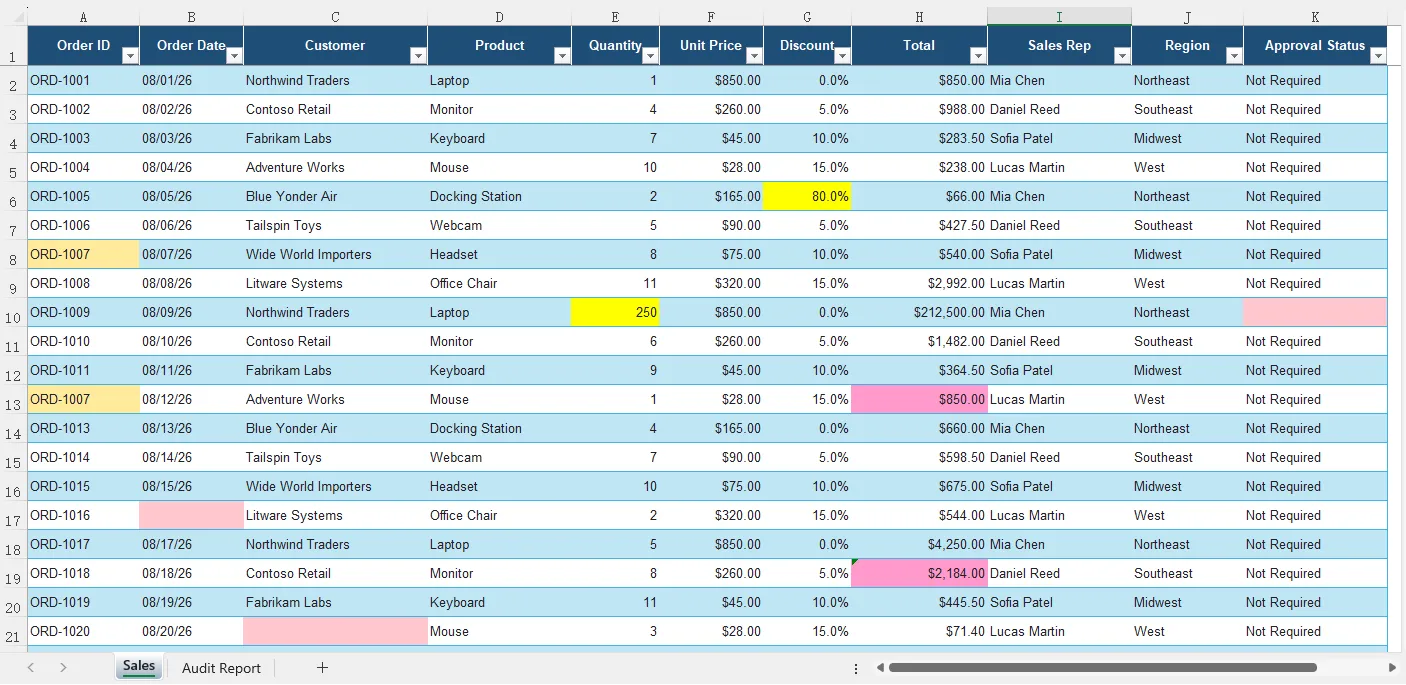
Abbildung 1. Potenzielle Probleme, die im ursprünglichen Arbeitsblatt hervorgehoben sind. Für Ergebnisse desselben Typs wird dieselbe Farbe verwendet.
In diesem Beispiel hat der Agent mehrere Arten von Problemen identifiziert, darunter den ungewöhnlich hohen Rabatt in G6, den Mengenausreißer in E10, das fehlende Bestelldatum in B17, den negativen Stückpreis in F23 und formelbezogene Probleme in der Spalte „Gesamt“.
Indem der Agent die Ergebnisse an ihre ursprünglichen Positionen zurückschreibt, können Benutzer verdächtige Werte im Kontext überprüfen, anstatt sie manuell zu suchen.
Den detaillierten Auditbericht überprüfen
Zusätzlich zum Hervorheben der Quelldaten erstellt der Agent ein Arbeitsblatt Audit Report, das für jeden Befund die betroffene Zelle, den Problemtyp und eine Erklärung auflistet.
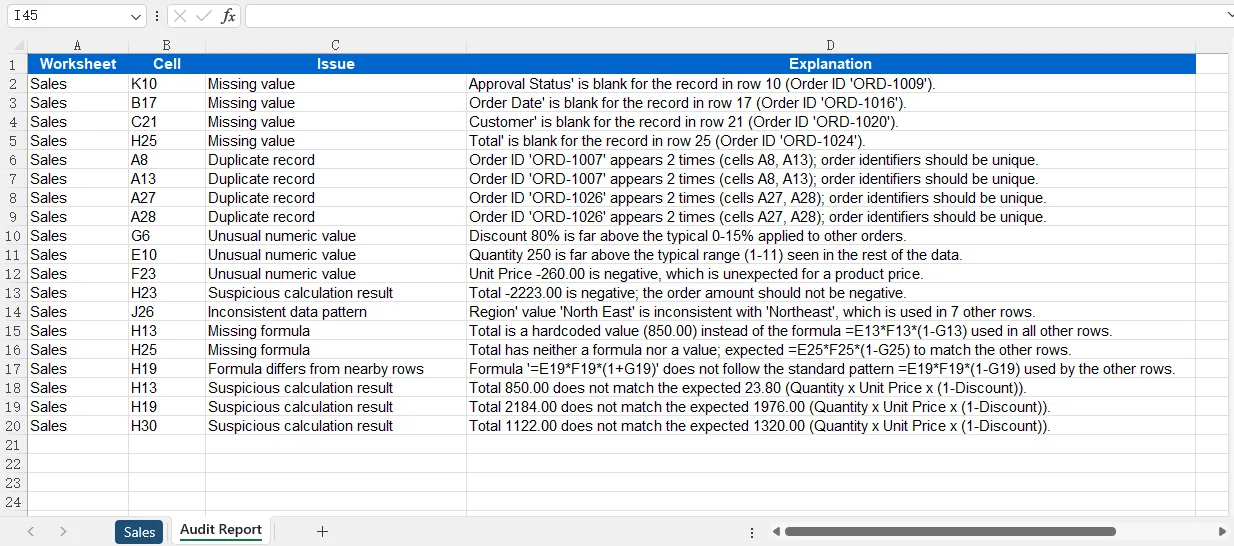
Abbildung 2. Der generierte Audit Report enthält den Ort, den Typ und die Erklärung jedes erkannten Problems.
Der Bericht enthält Befunde wie fehlende Werte, doppelte Bestell-IDs, ungewöhnliche numerische Werte, inkonsistente Datenmuster, fehlende Formeln und verdächtige Berechnungsergebnisse.
Beispielsweise hat der Agent erkannt, dass:
A8undA13dieselbe Bestell-ID enthalten.G6einen Rabatt von 80 % enthält, der deutlich höher ist als die anderen Rabatte.H13einen fest codierten Wert anstelle des in benachbarten Zeilen verwendeten Formelmusters enthält.H19bei der Anwendung des Rabatts eine Addition anstelle einer Subtraktion verwendet.H30eine Summe erzeugt, die nicht der erwarteten Berechnung entspricht.
Eine einzelne Zelle kann mehr als einmal im Bericht erscheinen, wenn sie mehrere Audit-Dimensionen betrifft. Beispielsweise kann H25 sowohl als fehlender Wert als auch als fehlende Formel gemeldet werden.
KI-generierte Befunde sollten als potenzielle Probleme und nicht als definitive Fehler behandelt werden. Einige ungewöhnliche Werte können legitime geschäftliche Ausnahmen darstellen. Das hervorgehobene Arbeitsblatt und der Auditbericht bieten daher einen strukturierten Ausgangspunkt für die menschliche Überprüfung, anstatt die zugrunde liegenden Daten automatisch zu ändern.
6. Best Practices für KI-gestütztes Excel-Auditing
KI-basiertes Auditing funktioniert besonders gut, wenn es zusammen mit klaren Audit-Anforderungen verwendet wird.
Erstens: Geben Sie genügend Kontext in der Anweisung an. Anstatt den Agenten einfach zu bitten, "Fehler zu finden", geben Sie die Arten von Problemen an, die relevant sind, wie doppelte Datensätze, abnormale Werte, fehlende Formeln oder inkonsistente Berechnungen.
Zweitens: Unterscheiden Sie zwischen deterministischen Regeln und kontextbezogener Analyse. Bedingungen wie "Die Menge darf niemals negativ sein" können mit herkömmlichen Regeln zuverlässig geprüft werden. KI ist nützlicher für Situationen wie das Identifizieren eines Werts, der mit umgebenden Datensätzen inkonsistent erscheint, oder das Erkennen eines unerwarteten Formelmusters.
Drittens: Vermeiden Sie es, den Agenten zu bitten, jedes erkannte Problem automatisch zu korrigieren. Ein verdächtiger Wert ist nicht unbedingt ein falscher Wert. Das Hervorheben der Zelle und die Erklärung des Grundes geben Benutzern die Möglichkeit, den Befund zu überprüfen, bevor Änderungen vorgenommen werden.
Bei großen Arbeitsmappen kann das Audit auch auf bestimmte Arbeitsblätter oder Problemkategorien beschränkt werden. Dadurch wird die Aufgabe fokussierter und unnötige Verarbeitung kann reduziert werden.
Schließlich sollten Sie die Ausgabe strukturiert gestalten. Die Angabe von Arbeitsblatt, Zellposition, Problemtyp und Erklärung erleichtert die Überprüfung KI-generierter Befunde und deren Integration in nachfolgende Workflows.
7. Fazit
Das Auditieren von Tabellenkalkulationen umfasst oft mehr als die Prüfung, ob Zellen leer sind oder Formeln Fehler zurückgeben. Viele Probleme werden erst sichtbar, wenn Werte, Formeln und umgebende Datenmuster gemeinsam betrachtet werden.
Mit einem KI-Agent-SDK können diese Audit-Anforderungen in natürlicher Sprache beschrieben werden, anstatt vollständig durch hartcodierte Validierungsregeln implementiert zu werden.
Bei Verwendung von Spire.Agent.Office in C# kann der Workflow relativ einfach bleiben: Excel-Arbeitsmappe laden, Audit-Anforderungen definieren, die Anweisung ausführen und eine neue Arbeitsmappe mit hervorgehobenen Problemen und einem strukturierten Auditbericht generieren.
Dieser Ansatz ist besonders nützlich, um potenzielle Anomalien, inkonsistente Formeln, duplizierte Datensätze, fehlende Informationen und andere Tabellenkalkulationsprobleme zu erkennen, die eine kontextbezogene Analyse erfordern könnten.
8. Häufig gestellte Fragen
Kann KI falsche Formeln in Excel erkennen?
KI kann Formeln identifizieren, die mit benachbarten Formeln inkonsistent erscheinen, verdächtige Bezüge enthalten oder Ergebnisse liefern, die nicht den erwarteten Datenmustern entsprechen. Ob eine Formel logisch korrekt ist, kann jedoch von den Geschäftsregeln hinter der Arbeitsmappe abhängen, sodass erkannte Probleme dennoch überprüft werden sollten.
Können die Audit-Regeln angepasst werden?
Ja. Die Audit-Anforderungen werden in erster Linie durch die an den Agenten gesendete Anweisung definiert. Sie können Regeln für bestimmte Spalten, Arbeitsblätter, Wertebereiche, Formeln oder Geschäftsbedingungen hinzufügen.
Zum Beispiel:
"Flag discounts above 50% and orders with a missing customer ID."
Kann KI doppelte Excel-Datensätze erkennen?
Ja. Der Agent kann angewiesen werden, duplizierte IDs, wiederholte Zeilen oder potenziell duplizierte Datensätze anhand mehrerer Felder zu identifizieren.
Für eine deterministischere Duplikaterkennung kann herkömmliche Excel- oder C#-Logik auch mit dem KI-Audit kombiniert werden.
Kann KI die erkannten Fehler automatisch beheben?
Der Agent kann angewiesen werden, den Inhalt der Arbeitsmappe zu ändern, aber die automatische Korrektur jeder erkannten Anomalie wird normalerweise nicht empfohlen. Einige ungewöhnliche Werte können gültige geschäftliche Ausnahmen sein.
Ein sicherer Workflow besteht darin, verdächtige Zellen hervorzuheben, zu erklären, warum sie markiert wurden, und Benutzer die Befunde überprüfen zu lassen, bevor Korrekturen angewendet werden.
Kann derselbe Ansatz für verschiedene Arten von Excel-Dateien verwendet werden?
Ja. Derselbe Workflow kann an Verkaufsberichte, Finanztabellen, Bestandsdatensätze, Betriebsberichte, Umfragedaten und andere strukturierte Excel-Arbeitsmappen angepasst werden. In den meisten Fällen muss nur die Audit-Anweisung an die spezifischen Daten und Geschäftsregeln angepasst werden.
Siehe auch
Аудит Excel с помощью ИИ на C#: обнаружение ошибок и аномалий данных
Содержание
Книги Excel могут содержать пропущенные значения, дублирующиеся записи, необычные числа и противоречивые формулы, которые трудно обнаружить вручную, особенно при работе с большими наборами данных.
С помощью ИИ-агента такие проблемы можно выявлять посредством инструкций по аудиту на естественном языке, вместо того чтобы полностью полагаться на жестко заданные правила проверки. В этой статье показано, как использовать Spire.Agent.Office в C# для аудита книги Excel, выявления потенциальных проблем с данными и формулами, выделения подозрительных ячеек и создания структурированного отчета об аудите.
1. Что такое аудит Excel на основе ИИ?
Традиционный аудит Excel обычно опирается на заранее заданные правила проверки, формулы или пользовательский код. Например, программа может проверять, пуста ли обязательная ячейка, превышает ли значение фиксированный порог или есть ли в столбце дублирующиеся идентификаторы.
Аудит Excel на основе ИИ добавляет к этому процессу контекстный анализ. Вместо того чтобы определять в коде каждое возможное условие, вы можете описать требования к аудиту на естественном языке и позволить ИИ-агенту исследовать книгу на предмет закономерностей и несоответствий.
Например, ИИ-агенту можно поручить искать:
- Отсутствующие или неполные данные
- Дублирующиеся или подозрительные записи
- Необычные числовые значения или выбросы
- Несогласованные шаблоны данных
- Отсутствующие формулы
- Формулы, которые неожиданно отличаются от соседних строк
- Подозрительные результаты вычислений или ссылки на ячейки
Это особенно полезно для проблем, которые сложно выразить в виде простых фиксированных правил. Значение может находиться в допустимом числовом диапазоне, но все равно выглядеть необычно по сравнению с окружающими записями, а формула может давать корректный результат, но использовать шаблон, отличающийся от соседних ячеек.
Результаты аудита, сгенерированные ИИ, как правило, следует рассматривать как потенциальные проблемы, а не как окончательные ошибки. Затем результаты можно выделить в книге и обобщить в отчете об аудите для дальнейшей проверки.
2. Настройка проекта C#
Создайте новое консольное приложение C# и добавьте в проект необходимый пакет Spire.Agent.Office.
В примере используются следующие пространства имен:
using Spire.Agent.Office.AI;
using Spire.Agent.Office.Extensions;
using Spire.Xls;
Для доступа к функциональности ИИ требуется действующий токен Spire. Вы можете запросить временный тестовый токен на странице временной лицензии Spire.
Базовая конфигурация выглядит так:
AIOptions options = new AIOptions();
options.SpireToken = "YOUR_SPIRE_TOKEN";
В приведенных ниже примерах используется книга Excel с именем:
SalesData.xlsx
Книга может содержать один или несколько листов с записями о продажах, формулами, датами, количеством, ценами, скидками или другими бизнес-данными.
3. Подготовка книги Excel к аудиту
Первый шаг — загрузить книгу с помощью Workbook.
Workbook workbook = new Workbook();
workbook.LoadFromFile("SalesData.xlsx");
Поскольку книга передается непосредственно в обработчик документов с поддержкой ИИ, нет необходимости вручную преобразовывать каждый лист, значение ячейки или формулу в обычный текст.
Агент может работать с электронной таблицей как со структурированным документом Office и проверять такую информацию, как:
- Содержимое листов
- Значения ячеек
- Формулы
- Строки и столбцы
- Шаблоны данных
- Связи между соседними ячейками
Например, лист с продажами может содержать данные, подобные следующим:
| Номер заказа | Дата | Товар | Количество | Цена за единицу | Скидка | Итого |
|---|---|---|---|---|---|---|
| ORD-1001 | 2026-08-01 | Ноутбук | 2 | 850 | 0.10 | 1530 |
| ORD-1002 | 2026-08-02 | Монитор | 5 | 260 | 0.05 | 1235 |
| ORD-1003 | 2026-08-03 | Клавиатура | 10 | 45 | 0.10 | 405 |
| ORD-1004 | 2026-08-04 | Ноутбук | 3 | 850 | 0.80 | 510 |
Последняя строка может заслуживать внимания, поскольку скидка 80 % существенно отличается от окружающих записей.
Другие потенциальные проблемы могут включать дублирующиеся номера заказов, отсутствующие даты, необычные количества или формулу, отличающуюся от формул, используемых в соседних строках.
4. Создание ИИ-агента для аудита книг Excel
Основная часть рабочего процесса — определение задачи аудита.
Вместо того чтобы вручную писать отдельные условия на C# для каждой возможной ошибки, требования можно описать с помощью инструкции на естественном языке.
Определение правил и инструкций аудита
Например:
string instruction = @"
Audit this Excel workbook for potential data quality and formula issues.

Check for:
- Missing or incomplete values
- Duplicate records
- Unusual or suspicious numeric values
- Inconsistent data patterns
- Missing formulas
- Formulas that differ unexpectedly from nearby rows
- Suspicious cell references or calculation results

Do not modify valid source data.

For every detected issue, record:
- Worksheet name
- Cell or range
- Issue type
- Explanation

Highlight problematic cells and create a new worksheet named
'Audit Report' containing the audit results.
";
Инструкция определяет как то, что агент должен проверить, так и то, как следует представить результаты.
Это полезно, поскольку аудит электронных таблиц часто зависит от контекста. Значение 80 может быть совершенно нормальным в одном столбце, но крайне необычным в другом. Агент может оценить значение вместе с окружающими записями и смыслом данных.
Анализ данных и шаблонов формул
После загрузки книги и настройки параметров ИИ создайте обработчик документов ИИ на основе книги:
AIDocumentProcessor processor = workbook.AI(options);
Затем отправьте агенту инструкцию по аудиту:
processor.ExecuteInstruction(
    workbook,
    instruction,
    "AuditedSalesData.xlsx",
    Array.Empty<string>()
);
Таким образом, полный основной код получается очень коротким:
using Spire.Agent.Office.AI;
using Spire.Agent.Office.Extensions;
using Spire.Xls;

string inputPath = "SalesData.xlsx";
string outputPath = "AuditedSalesData.xlsx";
string spireToken = "YOUR_SPIRE_TOKEN";

Workbook workbook = new Workbook();
workbook.LoadFromFile(inputPath);

AIOptions options = new AIOptions();
options.SpireToken = spireToken;

string instruction = @"
Audit this Excel workbook for potential data quality and formula issues.

Check for missing values, duplicate records, unusual numeric values,
inconsistent data patterns, missing formulas, formulas that differ
unexpectedly from nearby rows, and suspicious calculation results.

Do not modify valid source data.

Highlight cells containing potential issues and create a worksheet named
'Audit Report' with the following columns:

Worksheet | Cell | Issue | Explanation
";

AIDocumentProcessor processor = workbook.AI(options);

processor.ExecuteInstruction(
    workbook,
    instruction,
    outputPath,
    Array.Empty<string>()
);
По сравнению с обычной программой проверки Excel большая часть логики аудита выражается через инструкцию, а не через длинную последовательность операторов if.
Получение структурированных результатов аудита
Важно сообщить агенту, как следует организовать результаты аудита.
Например:
Worksheet | Cell | Issue | Explanation
Сгенерированный отчет об аудите может выглядеть так:
| Лист | Ячейка | Проблема | Пояснение |
|---|---|---|---|
| Sales | F5 | Необычное значение | Скидка 80 % значительно выше, чем в окружающих записях. |
| Sales | A12 | Дублирующаяся запись | Этот номер заказа также встречается в другой строке. |
| Sales | B18 | Отсутствующее значение | Дата заказа не заполнена. |
| Sales | G24 | Несогласованность формул | Формула отличается от шаблона формул, используемого в соседних строках. |
Структурированные результаты упрощают проверку аудита и могут также использоваться для последующей автоматизированной обработки.
5. Выделение обнаруженных проблем и создание отчета об аудите
Простое возвращение текстового описания проблем электронной таблицы полезно, но аудит становится гораздо удобнее проверять, когда результаты записываются обратно в саму книгу.
В инструкции можно попросить агента выполнить два действия:
string outputInstruction = @"
Highlight every cell that contains a potential issue.

Create an 'Audit Report' worksheet and list every issue using these columns:

Worksheet | Cell | Issue | Explanation

Do not change cells that do not contain an identified issue.
";
Это дает два уровня результата: выделенные находки на исходном листе и централизованный отчет с подробными пояснениями.
Просмотр выделенных проблем на исходном листе
На исходном листе агент выделяет ячейки, содержащие потенциальные проблемы. Находки одного типа выделяются одним и тем же цветом, что позволяет легче различать пропущенные значения, дублирующиеся записи, необычные числа, несогласованные данные и проблемы, связанные с формулами.
Рисунок 1. Потенциальные проблемы, выделенные на исходном листе. Для находок одного типа используется один и тот же цвет.
В этом примере агент выявил несколько типов проблем, включая необычно высокую скидку в G6, выброс по количеству в E10, отсутствующую дату заказа в B17, отрицательную цену за единицу в F23 и проблемы, связанные с формулами, в столбце «Итого».
Записывая находки обратно в их исходные места, агент позволяет пользователям проверять подозрительные значения в контексте, а не искать их вручную.
Просмотр подробного отчета об аудите
Помимо выделения исходных данных, агент создает лист Audit Report, в котором для каждой находки указаны затронутая ячейка, тип проблемы и пояснение.
Рисунок 2. Сгенерированный отчет об аудите содержит расположение, тип и пояснение для каждой обнаруженной проблемы.
Отчет включает такие находки, как пропущенные значения, дублирующиеся номера заказов, необычные числовые значения, несогласованные шаблоны данных, отсутствующие формулы и подозрительные результаты вычислений.
Например, агент обнаружил, что:
A8иA13содержат одинаковый номер заказа.G6содержит скидку 80 %, которая значительно выше остальных скидок.H13содержит жестко заданное значение вместо шаблона формулы, используемого в соседних строках.H19использует сложение вместо вычитания при применении скидки.H30дает итог, не соответствующий ожидаемому вычислению.
Одна и та же ячейка может встречаться в отчете несколько раз, если она затрагивает несколько измерений аудита. Например, H25 может быть указана как с пропущенным значением, так и с отсутствующей формулой.
Находки, сгенерированные ИИ, следует рассматривать как потенциальные проблемы, а не как окончательные ошибки. Некоторые необычные значения могут представлять собой законные бизнес-исключения. Поэтому лист с выделениями и отчет об аудите служат структурированной отправной точкой для проверки человеком, а не автоматически изменяют исходные данные.
6. Лучшие практики аудита Excel на основе ИИ
Аудит на основе ИИ работает особенно хорошо, когда он применяется вместе с четкими требованиями к аудиту.
Во-первых, обеспечьте достаточный контекст в инструкции. Вместо того чтобы просто просить агента «найти ошибки», укажите типы проблем, которые имеют значение, например дублирующиеся записи, аномальные значения, отсутствующие формулы или несогласованные вычисления.
Во-вторых, различайте детерминированные правила и контекстный анализ. Такие условия, как «Количество никогда не должно быть отрицательным», можно надежно проверять с помощью обычных правил. ИИ более полезен в ситуациях, например, когда нужно выявить значение, которое выглядит несоответствующим окружающим записям, или распознать неожиданный шаблон формулы.
В-третьих, не просите агента автоматически исправлять каждую обнаруженную проблему. Подозрительное значение не обязательно является неправильным. Выделение ячейки и пояснение причины дает пользователям возможность проверить находку, прежде чем вносить изменения.
Для больших книг аудит также можно ограничить конкретными листами или категориями проблем. Это делает задачу более целенаправленной и может сократить ненужную обработку.
Наконец, делайте вывод структурированным. Включение листа, расположения ячейки, типа проблемы и пояснения облегчает проверку находок, сгенерированных ИИ, и их интеграцию в последующие рабочие процессы.
7. Заключение
Аудит электронных таблиц часто включает не только проверку того, пусты ли ячейки или возвращают ли формулы ошибки. Многие проблемы становятся заметными только при совместном рассмотрении значений, формул и окружающих шаблонов данных.
С помощью AI Agent SDK такие требования к аудиту можно описать на естественном языке, вместо того чтобы полностью реализовывать их через жестко заданные правила проверки.
Используя Spire.Agent.Office в C#, рабочий процесс может оставаться относительно простым: загрузить книгу Excel, определить требования к аудиту, выполнить инструкцию и создать новую книгу с выделенными проблемами и структурированным отчетом об аудите.
Этот подход особенно полезен для обнаружения потенциальных аномалий, несогласованных формул, дублирующихся записей, отсутствующей информации и других проблем электронных таблиц, которые могут требовать контекстного анализа.
8. Часто задаваемые вопросы
Может ли ИИ обнаруживать неправильные формулы в Excel?
ИИ может выявлять формулы, которые выглядят несогласованными с соседними формулами, содержат подозрительные ссылки или дают результаты, не соответствующие ожидаемым шаблонам данных. Однако то, является ли формула логически правильной, может зависеть от бизнес-правил, лежащих в основе книги, поэтому обнаруженные проблемы все равно следует проверять.
Можно ли настраивать правила аудита?
Да. Требования к аудиту в первую очередь определяются через инструкцию, отправляемую агенту. Вы можете добавлять правила для конкретных столбцов, листов, диапазонов значений, формул или бизнес-условий.
Например:
"Flag discounts above 50% and orders with a missing customer ID."
Может ли ИИ обнаруживать дублирующиеся записи Excel?
Да. Агенту можно поручить выявлять дублирующиеся идентификаторы, повторяющиеся строки или потенциально дублирующиеся записи на основе нескольких полей.
Для более детерминированного обнаружения дубликатов обычную логику Excel или C# также можно объединить с ИИ-аудитом.
Может ли ИИ автоматически исправлять обнаруженные ошибки?
Агенту можно поручить изменять содержимое книги, но автоматическое исправление каждой обнаруженной аномалии обычно не рекомендуется. Некоторые необычные значения могут быть допустимыми бизнес-исключениями.
Более безопасный рабочий процесс — выделить подозрительные ячейки, объяснить, почему они были отмечены, и позволить пользователям проверить находки, прежде чем вносить исправления.
Можно ли использовать тот же подход для разных типов файлов Excel?
Да. Тот же рабочий процесс можно адаптировать для отчетов о продажах, финансовых таблиц, записей об инвентаризации, операционных отчетов, данных опросов и других структурированных книг Excel. В большинстве случаев нужно скорректировать только инструкцию по аудиту с учетом конкретных данных и бизнес-правил.
Смотрите также
AI-Powered Excel Audit in C#: Detect Errors and Data Anomalies
Table of Contents
Excel workbooks can contain missing values, duplicate records, unusual numbers, and inconsistent formulas that are difficult to detect manually, especially when working with large datasets.
With an AI agent, these issues can be identified through natural-language audit instructions instead of relying entirely on hard-coded validation rules. This article shows how to use Spire.Agent.Office in C# to audit an Excel workbook, identify potential data and formula issues, highlight suspicious cells, and generate a structured audit report.
1. What Is an AI-Powered Excel Audit?
A traditional Excel audit usually relies on predefined validation rules, formulas, or custom code. For example, a program may check whether a required cell is empty, whether a value exceeds a fixed threshold, or whether duplicate IDs exist in a column.
An AI-powered Excel audit adds contextual analysis to this process. Instead of defining every possible condition in code, you can describe the auditing requirements in natural language and let the AI agent examine the workbook for patterns and inconsistencies.
For example, an AI agent can be instructed to look for:
- Missing or incomplete data
- Duplicate or suspicious records
- Unusual numeric values or outliers
- Inconsistent data patterns
- Missing formulas
- Formulas that differ unexpectedly from nearby rows
- Suspicious calculation results or cell references
This is particularly useful for issues that are difficult to express as simple fixed rules. A value may fall within an acceptable numeric range but still appear unusual compared with surrounding records, while a formula may produce a valid result but use a pattern that differs from neighboring cells.
AI-generated audit findings should generally be treated as potential issues rather than definitive errors. The results can then be highlighted in the workbook and summarized in an audit report for further review.
2. Set Up the C# Project
Create a new C# console application and add the required Spire.Agent.Office package to the project.
The example uses the following namespaces:
using Spire.Agent.Office.AI;
using Spire.Agent.Office.Extensions;
using Spire.Xls;
Access to AI functionality requires a valid Spire token. You may apply for a temporary test token via the Spire temporary license page.
The basic configuration is:
AIOptions options = new AIOptions();
options.SpireToken = "YOUR_SPIRE_TOKEN";
The examples below use an Excel workbook named:
SalesData.xlsx
The workbook can contain one or multiple worksheets with sales records, formulas, dates, quantities, prices, discounts, or other business data.
3. Prepare the Excel Workbook for Auditing
The first step is to load the workbook with Workbook.
Workbook workbook = new Workbook();
workbook.LoadFromFile("SalesData.xlsx");
Because the workbook is passed directly to the AI-enabled document processor, there is no need to manually convert every worksheet, cell value, or formula into plain text.
The agent can work with the spreadsheet as a structured Office document and inspect information such as:
- Worksheet contents
- Cell values
- Formulas
- Rows and columns
- Data patterns
- Relationships between nearby cells
For example, a sales worksheet might contain data similar to the following:
| Order ID | Date | Product | Quantity | Unit Price | Discount | Total |
|---|---|---|---|---|---|---|
| ORD-1001 | 2026-08-01 | Laptop | 2 | 850 | 0.10 | 1530 |
| ORD-1002 | 2026-08-02 | Monitor | 5 | 260 | 0.05 | 1235 |
| ORD-1003 | 2026-08-03 | Keyboard | 10 | 45 | 0.10 | 405 |
| ORD-1004 | 2026-08-04 | Laptop | 3 | 850 | 0.80 | 510 |
The last row may deserve attention because an 80% discount is significantly different from the surrounding records.
Other potential problems could include duplicate order IDs, missing dates, unusual quantities, or a formula that differs from the formulas used in neighboring rows.
4. Build an AI Agent to Audit Excel Workbooks
The main part of the workflow is defining the audit task.
Instead of manually writing separate C# conditions for every possible error, the requirements can be described through a natural-language instruction.
Define Audit Rules and Instructions
For example:
string instruction = @"
Audit this Excel workbook for potential data quality and formula issues.

Check for:
- Missing or incomplete values
- Duplicate records
- Unusual or suspicious numeric values
- Inconsistent data patterns
- Missing formulas
- Formulas that differ unexpectedly from nearby rows
- Suspicious cell references or calculation results

Do not modify valid source data.

For every detected issue, record:
- Worksheet name
- Cell or range
- Issue type
- Explanation

Highlight problematic cells and create a new worksheet named
'Audit Report' containing the audit results.
";
The instruction defines both what the agent should inspect and how the results should be presented .
This is useful because spreadsheet auditing is often context-dependent. A value of 80 may be completely normal in one column but highly unusual in another. The agent can evaluate the value together with nearby records and the meaning of the data.
Analyze Data and Formula Patterns
After loading the workbook and configuring the AI options, create an AI document processor from the workbook:
AIDocumentProcessor processor = workbook.AI(options);
Then send the audit instruction to the agent:
processor.ExecuteInstruction(
    workbook,
    instruction,
    "AuditedSalesData.xlsx",
    Array.Empty<string>()
);
The complete core code is therefore very short:
using Spire.Agent.Office.AI;
using Spire.Agent.Office.Extensions;
using Spire.Xls;

string inputPath = "SalesData.xlsx";
string outputPath = "AuditedSalesData.xlsx";
string spireToken = "YOUR_SPIRE_TOKEN";

Workbook workbook = new Workbook();
workbook.LoadFromFile(inputPath);

AIOptions options = new AIOptions();
options.SpireToken = spireToken;

string instruction = @"
Audit this Excel workbook for potential data quality and formula issues.

Check for missing values, duplicate records, unusual numeric values,
inconsistent data patterns, missing formulas, formulas that differ
unexpectedly from nearby rows, and suspicious calculation results.

Do not modify valid source data.

Highlight cells containing potential issues and create a worksheet named
'Audit Report' with the following columns:

Worksheet | Cell | Issue | Explanation
";

AIDocumentProcessor processor = workbook.AI(options);

processor.ExecuteInstruction(
    workbook,
    instruction,
    outputPath,
    Array.Empty<string>()
);
Compared with a conventional Excel validation program, most of the auditing logic is expressed through the instruction rather than a long series of if statements.
Return Structured Audit Results
It is important to tell the agent how the audit results should be organized.
For example:
Worksheet | Cell | Issue | Explanation
A generated audit report may look like this:
| Worksheet | Cell | Issue | Explanation |
|---|---|---|---|
| Sales | F5 | Unusual Value | Discount of 80% is significantly higher than surrounding records. |
| Sales | A12 | Duplicate Record | The order ID also appears in another row. |
| Sales | B18 | Missing Value | The order date is empty. |
| Sales | G24 | Formula Inconsistency | The formula differs from the formula pattern used in adjacent rows. |
Structured results make the audit easier to review and can also be used for subsequent automated processing.
5. Highlight Detected Issues and Generate an Audit Report
Simply returning a text description of spreadsheet problems is useful, but an audit becomes much easier to review when the findings are written back to the workbook itself.
The instruction can ask the agent to perform two actions:
string outputInstruction = @"
Highlight every cell that contains a potential issue.

Create an 'Audit Report' worksheet and list every issue using these columns:

Worksheet | Cell | Issue | Explanation

Do not change cells that do not contain an identified issue.
";
This produces two levels of output: highlighted findings in the original worksheet and a centralized report containing detailed explanations.
Review Highlighted Issues in the Original Worksheet
In the original worksheet, the agent highlights cells containing potential issues. Findings of the same type use the same highlight color, making it easier to distinguish missing values, duplicate records, unusual numbers, inconsistent data, and formula-related problems.
Figure 1. Potential issues highlighted in the original worksheet. The same color is used for findings of the same type.
In this example, the agent identified several types of issues, including the unusually high discount in G6, the quantity outlier in E10, the missing order date in B17, the negative unit price in F23, and formula-related problems in the Total column.
By writing the findings back to their original locations, the agent allows users to review suspicious values in context instead of searching for them manually.
Review the Detailed Audit Report
In addition to highlighting the source data, the agent creates an Audit Report worksheet that lists the affected cell, issue type, and explanation for every finding.
Figure 2. The generated Audit Report provides the location, type, and explanation of each detected issue.
The report includes findings such as missing values, duplicate order IDs, unusual numeric values, inconsistent data patterns, missing formulas, and suspicious calculation results.
For example, the agent detected that:
A8andA13contain the same order ID.G6contains an 80% discount, which is significantly higher than the other discounts.H13contains a hardcoded value instead of the formula pattern used in nearby rows.H19uses addition instead of subtraction when applying the discount.H30produces a total that does not match the expected calculation.
A single cell may appear more than once in the report when it involves multiple audit dimensions. For example, H25 can be reported both as a missing value and as a missing formula.
AI-generated findings should be treated as potential issues rather than definitive errors. Some unusual values may represent legitimate business exceptions. The highlighted worksheet and audit report therefore provide a structured starting point for human review rather than automatically changing the underlying data.
6. Best Practices for AI-Powered Excel Auditing
AI-based auditing works particularly well when it is used together with clear audit requirements.
First, provide enough context in the instruction. Instead of asking the agent to simply "find errors," specify the types of issues that matter, such as duplicate records, abnormal values, missing formulas, or inconsistent calculations.
Second, distinguish between deterministic rules and contextual analysis. Conditions such as "Quantity must never be negative" can be checked reliably with conventional rules. AI is more useful for situations such as identifying a value that appears inconsistent with surrounding records or recognizing an unexpected formula pattern.
Third, avoid asking the agent to automatically correct every detected issue. A suspicious value is not necessarily an incorrect value. Highlighting the cell and explaining the reason gives users an opportunity to verify the finding before making changes.
For large workbooks, the audit can also be narrowed to specific worksheets or categories of problems. This makes the task more focused and can reduce unnecessary processing.
Finally, make the output structured. Including the worksheet, cell location, issue type, and explanation makes AI-generated findings easier to verify and integrate into subsequent workflows.
7. Conclusion
Spreadsheet auditing often involves more than checking whether cells are empty or formulas return errors. Many problems only become visible when values, formulas, and surrounding data patterns are considered together.
With an AI Agent SDK, these auditing requirements can be described in natural language instead of being implemented entirely through hard-coded validation rules.
Using Spire.Agent.Office in C#, the workflow can remain relatively simple: load the Excel workbook, define the auditing requirements, execute the instruction, and generate a new workbook containing highlighted issues and a structured audit report.
This approach is particularly useful for detecting potential anomalies, inconsistent formulas, duplicated records, missing information, and other spreadsheet issues that may require contextual analysis.
8. FAQs
Can AI detect incorrect formulas in Excel?
AI can identify formulas that appear inconsistent with nearby formulas, contain suspicious references, or produce results that do not match expected data patterns. However, whether a formula is logically correct may depend on the business rules behind the workbook, so detected issues should still be reviewed.
Can the audit rules be customized?
Yes. The auditing requirements are primarily defined through the instruction sent to the agent. You can add rules for specific columns, worksheets, value ranges, formulas, or business conditions.
For example:
"Flag discounts above 50% and orders with a missing customer ID."
Can AI detect duplicate Excel records?
Yes. The agent can be instructed to identify duplicated IDs, repeated rows, or potentially duplicated records based on multiple fields.
For more deterministic duplicate detection, conventional Excel or C# logic can also be combined with the AI audit.
Can AI automatically fix the detected errors?
The agent can be instructed to modify workbook content, but automatically correcting every detected anomaly is usually not recommended. Some unusual values may be valid business exceptions.
A safer workflow is to highlight suspicious cells, explain why they were flagged, and let users review the findings before applying corrections.
Can the same approach be used for different types of Excel files?
Yes. The same workflow can be adapted to sales reports, financial spreadsheets, inventory records, operational reports, survey data, and other structured Excel workbooks. In most cases, only the audit instruction needs to be adjusted for the specific data and business rules.
See Also
Redação de Documentos com IA em C#: Preserve a Formatação
Índice
- O que é Redação de Documentos?
- Três Maneiras de Redigir Documentos do Office em C#
- API Tradicional vs. LLM vs. SDK de Agente de IA
- Configurar o Projeto C#
- Redigir Documentos do Word, Excel e PowerPoint com um Agente de IA
- Resultado da Redação
- Considerações Importantes para Redação com IA
- Conclusão
- Perguntas Frequentes
Documentos usados em atendimento ao cliente, finanças, recursos humanos e fluxos de trabalho jurídicos frequentemente contêm nomes, endereços de e-mail, números de telefone, endereços residenciais, números de contas e outras informações sensíveis. Antes que esses arquivos possam ser compartilhados, arquivados ou usados para análise, o conteúdo identificador pode precisar ser removido ou substituído.
Programas tradicionais de redação dependem de regras de pesquisa predefinidas e lógica de processamento separada para cada formato de documento. Um SDK de Agente de IA oferece outra abordagem: os desenvolvedores podem descrever o requisito de redação em linguagem natural, permitindo que o agente identifique informações sensíveis e modifique os elementos correspondentes do documento do Office. Este artigo demonstra como redigir arquivos do Word, Excel e PowerPoint em C# preservando sua estrutura e formatação originais.
O que é Redação de Documentos?
A redação de documentos é o processo de remover ou substituir informações que não devem ser divulgadas. Alvos comuns de redação incluem:
- Nomes pessoais
- Endereços de e-mail
- Números de telefone e fax
- Endereços residenciais ou de correspondência
- Datas de nascimento
- Identificadores de clientes e funcionários
- Números bancários e de contas
- Outras informações confidenciais ou de identificação pessoal
Para arquivos editáveis do Office, a redação envolve mais do que alterar texto simples. Conteúdo sensível pode aparecer em parágrafos e tabelas do Word, células do Excel, formas do PowerPoint, cabeçalhos, rodapés ou outros elementos do documento. Um fluxo de trabalho de redação útil deve remover o valor detectado sem alterar desnecessariamente o layout, os estilos, as imagens, os gráficos ou a estrutura do documento ao redor.
Três Maneiras de Redigir Documentos do Office em C#
Existem três abordagens gerais de implementação: APIs tradicionais de documentos, uma integração direta com LLM e um SDK de Agente de IA.
Redação Tradicional Baseada em API
Uma implementação tradicional normalmente começa com substituição exata de texto ou expressões regulares. Por exemplo, o Spire.Doc for .NET fornece APIs para localizar e substituir texto em documentos do Word.
O pseudocódigo simplificado a seguir ilustra um fluxo de trabalho de redação baseado em regras. Ele é intencionalmente incompleto e mostra apenas as principais responsabilidades que a aplicação precisaria tratar.
Document document = new Document();
document.LoadFromFile("Input.docx");

// Patterns must be defined and maintained by the developer.
Regex emailPattern = new Regex("...");
Regex phonePattern = new Regex("...");
Regex accountPattern = new Regex("...");

document.Replace(emailPattern, "[REDACTED]");
document.Replace(phonePattern, "[REDACTED]");
document.Replace(accountPattern, "[REDACTED]");

// Additional logic may still be required for different content containers.
foreach (Section section in document.Sections)
{
    ProcessParagraphs(section);
    ProcessTables(section.Tables);
    ProcessHeadersAndFooters(section.HeadersFooters);
    ProcessTextBoxes(section);
}

document.SaveToFile("Redacted.docx", FileFormat.Docx);
Esta abordagem funciona bem quando os valores sensíveis seguem padrões previsíveis. Endereços de e-mail, números de telefone e números de identificação padronizados geralmente podem ser encontrados com expressões regulares.
A dificuldade aumenta quando a informação depende do contexto. Um programa pode precisar determinar se uma palavra é o nome de uma pessoa, se um número é um número de conta ou um número de fatura, e se um local é um endereço privado ou um endereço público de empresa. Os desenvolvedores também devem adicionar lógica diferente de travessia e substituição para Word, Excel e PowerPoint.
Integração Direta com LLM
Um modelo de linguagem de grande porte pode compreender o contexto de forma mais eficaz do que uma coleção de expressões regulares. Por exemplo, ele pode reconhecer o nome de uma pessoa em uma frase mesmo quando o nome não segue um padrão previsível.
No entanto, um LLM não fornece automaticamente o processamento completo de documentos do Office. Uma integração direta geralmente exige que a aplicação:
- Extraia texto de cada elemento relevante do documento.
- Divida o conteúdo em solicitações adequadas.
- Envie o texto extraído para o modelo.
- Mapeie os resultados do modelo de volta para os parágrafos, células ou formas originais.
- Substitua o conteúdo sensível sem perder sua formatação.
- Salve o arquivo modificado em seu formato original.
Se o documento for convertido em texto simples antes de ser enviado ao modelo, informações sobre tabelas, intervalos de texto, fontes, alinhamento e outras propriedades de layout podem ser perdidas. O desenvolvedor, portanto, permanece responsável por conectar os resultados semânticos do modelo ao modelo de objetos do documento do Office.
SDK de Agente de IA
Um SDK de Agente de IA combina compreensão de linguagem natural com recursos de processamento de documentos. Em vez de definir cada regra de detecção e coordenar manualmente cada etapa de substituição, o desenvolvedor fornece o documento e descreve o resultado pretendido.
O Spire.Agent.Office usa os recursos subjacentes do Spire.Office for .NET para trabalhar com objetos do Word, Excel e PowerPoint. Em um documento do Word, por exemplo, a camada de processamento pode acessar seções, parágrafos, intervalos de texto, tabelas, células, cabeçalhos, rodapés, imagens, hiperlinks e sua formatação. O modelo identifica o conteúdo sensível, enquanto as APIs de documento modificam os elementos correspondentes.
Esse processamento em nível de objeto é o que torna possível substituir texto mantendo a estrutura e os estilos ao redor do documento.
API Tradicional vs. LLM vs. SDK de Agente de IA
| Abordagem | Detecção contextual | Preservação de formato | Implementação multiformato | Esforço de desenvolvimento | Mais adequado para |
|---|---|---|---|---|---|
| API tradicional e expressões regulares | Limitada, a menos que lógica adicional de NLP seja adicionada | Forte e controlável | Normalmente é necessária lógica separada | Alto | Padrões fixos e regras altamente determinísticas |
| API do Office com chamadas diretas a LLM | Forte | Deve ser implementada pelo desenvolvedor | É necessária lógica de extração e gravação de volta para cada formato | Muito alto | Pipelines de IA totalmente personalizados |
| SDK de Agente de IA | Forte | Tratada por meio de processamento ciente do documento | Uma instrução comum pode ser aplicada a vários formatos do Office | Menor | Redação sensível ao contexto com menos código de orquestração |
A abordagem tradicional continua útil quando cada alvo de redação segue um padrão conhecido e a aplicação exige comportamento estritamente determinístico. A abordagem do SDK de Agente torna-se mais atraente quando os documentos contêm informações variadas e contextuais ou quando o mesmo fluxo de trabalho deve suportar vários formatos do Office.
Configurar o Projeto C#
Crie um aplicativo de console em C# e adicione o Spire.Agent.Office e suas dependências necessárias ao projeto. Você também precisará de um SpireToken válido para processamento de IA.
O exemplo abaixo oferece suporte aos seguintes formatos:
- Word: DOC e DOCX
- Excel: XLS e XLSX
- PowerPoint: PPT e PPTX
PDF não está incluído neste exemplo.
Redigir Documentos do Word, Excel e PowerPoint com um Agente de IA
O código a seguir determina o formato de origem a partir de sua extensão, carrega o objeto de documento do Office apropriado e passa a mesma instrução de redação ao processador de IA.
using Spire.Agent.Office.AI;
using Spire.Agent.Office.Extensions;
using Spire.Presentation;
using Spire.Doc;
using Spire.Xls;

string inputPath = @"E:\Documents\Input.docx";
string outputPath = @"E:\Documents\Redacted.docx";
string spireToken = "your spireToken";

string instruction = """
Find personal information such as names, email addresses, phone numbers, addresses,
account numbers, and other sensitive information. Replace the detected content with
“[REDACTED]” while preserving the original document structure and formatting.
""";

// Configure the AI processing options
AIOptions options = new AIOptions();
options.SpireToken = spireToken;

// Select the appropriate document object according to the file extension
string extension = Path.GetExtension(inputPath).ToLower();

if (extension == ".doc" || extension == ".docx")
{
    using (Document document = new Document())
    {
        document.LoadFromFile(inputPath);
        AIDocumentProcessor processor = document.AI(options);
        processor.ExecuteInstruction(
            document,
            instruction,
            outputPath,
            Array.Empty<string>());
    }
}
else if (extension == ".xls" || extension == ".xlsx")
{
    using (Workbook workbook = new Workbook())
    {
        workbook.LoadFromFile(inputPath);
        AIDocumentProcessor processor = workbook.AI(options);
        processor.ExecuteInstruction(
            workbook,
            instruction,
            outputPath,
            Array.Empty<string>());
    }
}
else if (extension == ".ppt" || extension == ".pptx")
{
    using (Presentation presentation = new Presentation())
    {
        presentation.LoadFromFile(inputPath);
        AIDocumentProcessor processor = presentation.AI(options);
        processor.ExecuteInstruction(
            presentation,
            instruction,
            outputPath,
            Array.Empty<string>());
    }
}
Se os usings globais implícitos estiverem desabilitados em seu projeto, adicione também using System; e using System.IO; para Array e Path.
Definir a Entrada, a Saída e a Instrução
inputPath especifica o documento de origem, enquanto outputPath especifica onde o arquivo redigido será salvo. As extensões de entrada e saída devem corresponder para que o resultado permaneça no formato original.
A instrução em linguagem natural define tanto o escopo de detecção quanto a modificação necessária. Neste exemplo, o agente procura tipos comuns de informações pessoais e os substitui por [REDACTED].
Você pode ajustar a instrução para um fluxo de trabalho mais restrito. Por exemplo:
Find email addresses, phone numbers, and customer account numbers. Replace each detected value with “[REDACTED]”. Do not redact company names, product names, invoice numbers, or dates. Preserve the original layout and formatting.
Adicionar exclusões explícitas pode reduzir falsos positivos quando um documento contém identificadores comerciais que se assemelham a números de contas pessoais.
Configurar o Processamento de IA
AIOptions armazena o SpireToken usado pelo serviço de processamento de IA:
AIOptions options = new AIOptions();
options.SpireToken = spireToken;
O mesmo objeto de opções pode ser usado com a instância de documento do Word, Excel ou PowerPoint.
Selecionar o Tipo de Documento Apropriado
O programa lê a extensão do arquivo e cria o objeto correspondente:
Documentpara arquivos do WordWorkbookpara arquivos do ExcelPresentationpara arquivos do PowerPoint
Cada objeto expõe o método de extensão AI(). Isso retorna um AIDocumentProcessor, que executa a instrução em linguagem natural no documento carregado.
A matriz de anexos vazia indica que a instrução não requer nenhum arquivo de suporte:
processor.ExecuteInstruction(
    document,
    instruction,
    outputPath,
    Array.Empty<string>());
Resultado da Redação
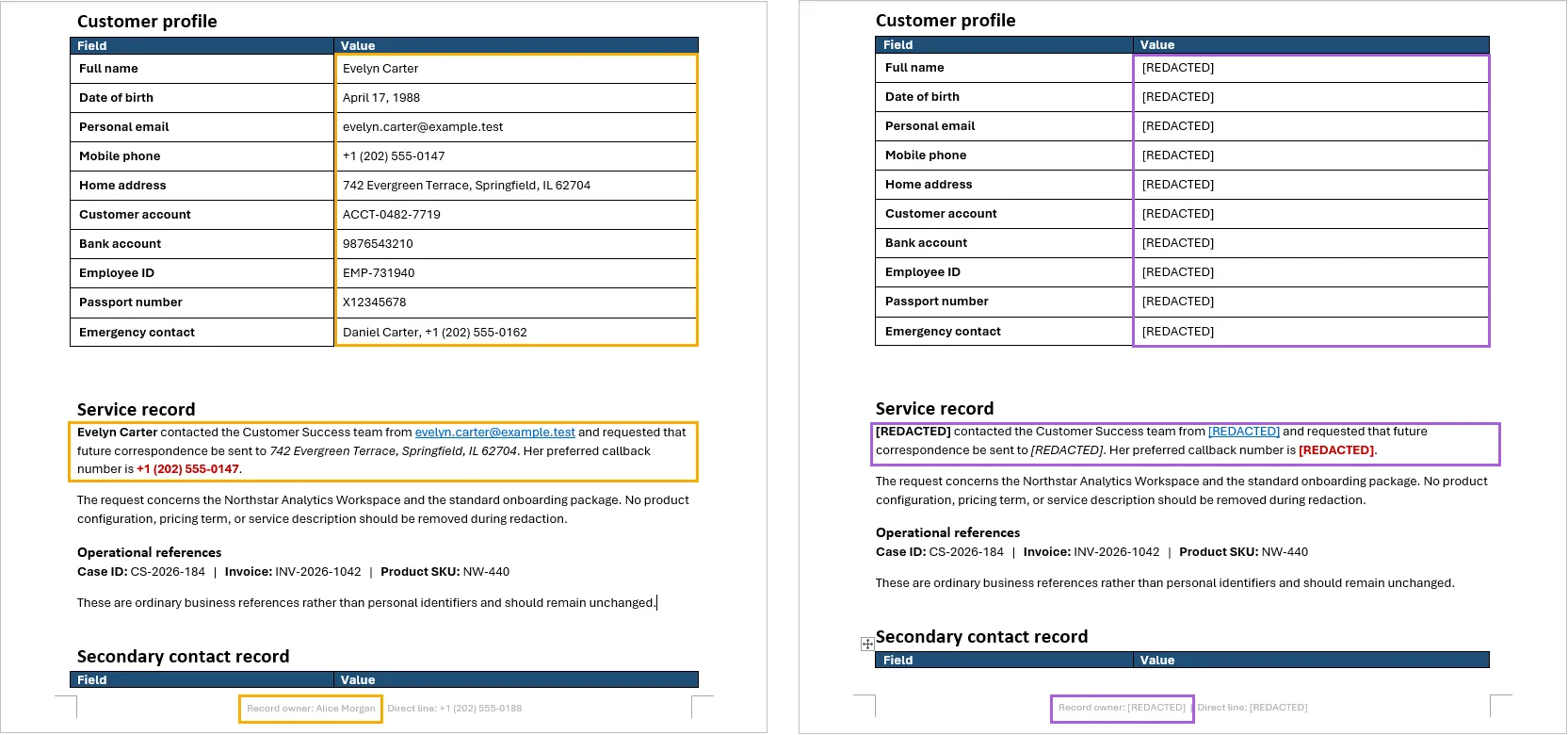
No documento de teste do Word, informações sensíveis apareceram em parágrafos normais, em uma tabela de informações do cliente e no rodapé da página. Após o processamento, os nomes, endereços de e-mail, números de telefone, endereços e informações de conta foram substituídos por [REDACTED].
A estrutura da tabela, a formatação dos parágrafos, os títulos, as cores e o layout do rodapé permaneceram no lugar. Esse resultado é importante porque demonstra que o fluxo de trabalho não simplesmente extrai o documento como texto simples e o reconstrói do zero. Ele modifica os elementos relevantes do documento enquanto mantém sua estrutura ao redor.
Considerações Importantes para Redação com IA
Revise o Resultado Antes de Compartilhar
A redação com IA não é perfeitamente determinística. Um modelo pode deixar passar um identificador incomum ou classificar incorretamente conteúdo comum como sensível. Documentos destinados à distribuição externa devem ser revisados após o processamento, especialmente em fluxos de trabalho jurídicos, financeiros, de saúde ou sensíveis à conformidade.
Torne a Instrução Específica
A instrução deve descrever tanto o que deve ser removido quanto o que deve permanecer. Se números de fatura, nomes de empresas, códigos de produtos ou endereços públicos de escritórios não devem ser redigidos, declare essas exclusões explicitamente.
A Substituição Visível Nem Sempre é uma Sanitização Completa
Substituir o texto visível não remove necessariamente todas as cópias da informação do arquivo. Dados sensíveis também podem aparecer em:
- Comentários e alterações controladas
- Propriedades do documento e metadados
- Planilhas ocultas ou slides ocultos
- Notas do orador do PowerPoint
- Arquivos e objetos incorporados
- Imagens contendo texto
- Versões anteriores ou cópias de backup
Para fluxos de trabalho de alta segurança, esses locais devem ser inspecionados separadamente. Se um documento contiver páginas digitalizadas ou capturas de tela, pode ser necessário OCR antes que o texto dentro das imagens possa ser avaliado.
Preserve o Arquivo Original
Salve o resultado redigido em um novo caminho em vez de sobrescrever o documento de origem. Manter os arquivos separados facilita comparar a saída, investigar conteúdo não detectado e repetir o processo com uma instrução aprimorada.
Conclusão
A redação tradicional baseada em API oferece controle preciso, mas os desenvolvedores devem definir regras de detecção e manter lógica de travessia separada para diferentes formatos de documento e contêineres de conteúdo. A integração direta com LLM melhora o reconhecimento contextual, mas ainda exige uma camada substancial de extração, mapeamento e gravação de volta para preservar a formatação do Office.
Um SDK de Agente de IA reúne essas capacidades. Com uma única instrução em linguagem natural e uma pequena quantidade de código C#, o mesmo fluxo de trabalho pode processar arquivos do Word, Excel e PowerPoint, identificar informações sensíveis contextuais e substituí-las dentro da estrutura do documento original. O resultado ainda deve ser revisado, mas a implementação é consideravelmente mais simples do que construir manualmente todo o pipeline de detecção e orquestração de documentos.
Perguntas Frequentes
O mesmo código pode redigir arquivos do Word, Excel e PowerPoint?
Sim. O exemplo seleciona Document, Workbook ou Presentation de acordo com a extensão do arquivo de entrada e aplica a mesma instrução em linguagem natural a cada formato.
O Agente de IA preserva a formatação original?
O agente trabalha com os objetos subjacentes do documento do Office, permitindo que o texto sensível seja substituído em parágrafos, células, tabelas e formas, mantendo a estrutura e a formatação ao redor. A saída final ainda deve ser verificada, pois layouts extraordinariamente complexos podem exigir verificação adicional.
Posso usar um rótulo de redação diferente?
Sim. Altere [REDACTED] na instrução para outro rótulo, como [PRIVATE], [REMOVED] ou um valor específico de categoria como [EMAIL REDACTED].
Quando uma API tradicional é melhor que a redação com IA?
Uma API tradicional pode ser preferível quando cada valor sensível segue um padrão fixo, as regras raramente mudam e o resultado deve ser completamente determinístico. A substituição por expressões regulares geralmente é suficiente para endereços de e-mail padronizados, números de telefone ou números de identificação.
A substituição de texto garante que o documento é seguro para publicação?
Não. A substituição de texto visível não remove automaticamente comentários, alterações controladas, metadados, conteúdo oculto, objetos incorporados, texto dentro de imagens ou versões anteriores do arquivo. Documentos sensíveis à segurança exigem inspeção e validação adicionais antes da publicação.
Veja Também
C#에서 AI 기반 문서 수정: 서식 유지
고객 서비스, 금융, 인사 및 법무 워크플로에서 사용되는 문서에는 이름, 이메일 주소, 전화번호, 집 주소, 계좌 번호 및 기타 민감한 정보가 포함되는 경우가 많습니다. 이러한 파일을 공유, 보관 또는 분석에 사용하기 전에 식별 가능한 콘텐츠를 제거하거나 교체해야 할 수 있습니다.
전통적인 마스킹 프로그램은 미리 정의된 검색 규칙과 각 문서 형식에 대한 별도의 처리 로직에 의존합니다. AI 에이전트 SDK는 또 다른 접근 방식을 제공합니다. 개발자는 자연어로 마스킹 요구 사항을 설명할 수 있으며, 에이전트가 민감한 정보를 식별하고 해당 Office 문서 요소를 수정할 수 있습니다. 이 문서에서는 원래 구조와 서식을 유지하면서 C#에서 Word, Excel 및 PowerPoint 파일을 마스킹하는 방법을 보여 줍니다.
문서 마스킹이란 무엇인가?
문서 마스킹은 공개해서는 안 되는 정보를 제거하거나 교체하는 프로세스입니다. 일반적인 마스킹 대상은 다음과 같습니다.
- 개인 이름
- 이메일 주소
- 전화 및 팩스 번호
- 집 또는 우편 주소
- 생년월일
- 고객 및 직원 식별자
- 은행 및 계좌 번호
- 기타 기밀 정보 또는 개인 식별 정보
편집 가능한 Office 파일의 경우 마스킹은 단순 텍스트 변경 이상을 포함합니다. 민감한 콘텐츠는 Word 단락과 표, Excel 셀, PowerPoint 도형, 머리글, 바닥글 또는 기타 문서 요소에 나타날 수 있습니다. 유용한 마스킹 워크플로는 주변 레이아웃, 스타일, 이미지, 차트 또는 문서 구조를 불필요하게 변경하지 않으면서 탐지된 값을 제거해야 합니다.
C#에서 Office 문서를 마스킹하는 세 가지 방법
일반적인 구현 접근 방식에는 전통적인 문서 API, 직접 LLM 통합, AI 에이전트 SDK의 세 가지가 있습니다.
전통적인 API 기반 마스킹
전통적인 구현은 일반적으로 정확한 텍스트 교체 또는 정규식으로 시작합니다. 예를 들어, Spire.Doc for .NET은 Word 문서에서 텍스트 찾기 및 바꾸기를 위한 API를 제공합니다.
다음의 단순화된 의사 코드는 규칙 기반 마스킹 워크플로를 보여 줍니다. 의도적으로 불완전하며 애플리케이션이 처리해야 하는 주요 책임만 보여 줍니다.
Document document = new Document();
document.LoadFromFile("Input.docx");

// Patterns must be defined and maintained by the developer.
Regex emailPattern = new Regex("...");
Regex phonePattern = new Regex("...");
Regex accountPattern = new Regex("...");

document.Replace(emailPattern, "[REDACTED]");
document.Replace(phonePattern, "[REDACTED]");
document.Replace(accountPattern, "[REDACTED]");

// Additional logic may still be required for different content containers.
foreach (Section section in document.Sections)
{
    ProcessParagraphs(section);
    ProcessTables(section.Tables);
    ProcessHeadersAndFooters(section.HeadersFooters);
    ProcessTextBoxes(section);
}

document.SaveToFile("Redacted.docx", FileFormat.Docx);
이 접근 방식은 민감한 값이 예측 가능한 패턴을 따를 때 잘 작동합니다. 이메일 주소, 전화번호 및 표준화된 식별 번호는 종종 정규식으로 찾을 수 있습니다.
정보가 컨텍스트에 의존할 때 난이도가 높아집니다. 프로그램은 단어가 사람 이름인지, 숫자가 계좌 번호인지 송장 번호인지, 위치가 개인 주소인지 공개 회사 주소인지 판단해야 할 수 있습니다. 또한 개발자는 Word, Excel 및 PowerPoint에 대해 서로 다른 순회 및 교체 로직을 추가해야 합니다.
직접 LLM 통합
대규모 언어 모델은 정규식 모음보다 컨텍스트를 더 효과적으로 이해할 수 있습니다. 예를 들어, 이름이 예측 가능한 패턴을 따르지 않더라도 문장에서 사람 이름을 인식할 수 있습니다.
그러나 LLM은 완전한 Office 문서 처리를 자동으로 제공하지 않습니다. 직접 통합은 일반적으로 애플리케이션이 다음을 수행해야 합니다.
- 모든 관련 문서 요소에서 텍스트를 추출합니다.
- 콘텐츠를 적절한 요청으로 나눕니다.
- 추출된 텍스트를 모델로 보냅니다.
- 모델의 결과를 원래 단락, 셀 또는 도형에 다시 매핑합니다.
- 서식을 잃지 않고 민감한 콘텐츠를 교체합니다.
- 수정된 파일을 원래 형식으로 저장합니다.
문서가 모델로 전송되기 전에 일반 텍스트로 변환되면 표, 텍스트 범위, 글꼴, 정렬 및 기타 레이아웃 속성에 대한 정보가 손실될 수 있습니다. 따라서 개발자는 모델의 의미론적 결과를 Office 문서 개체 모델에 연결할 책임이 있습니다.
AI 에이전트 SDK
AI 에이전트 SDK는 자연어 이해와 문서 처리 기능을 결합합니다. 모든 탐지 규칙을 정의하고 모든 교체 단계를 수동으로 조정하는 대신, 개발자는 문서를 제공하고 원하는 결과를 설명합니다.
Spire.Agent.Office는 Spire.Office for .NET의 기본 기능을 사용하여 Word, Excel 및 PowerPoint 개체와 작업합니다. 예를 들어 Word 문서에서 처리 계층은 섹션, 단락, 텍스트 범위, 표, 셀, 머리글, 바닥글, 이미지, 하이퍼링크 및 해당 서식에 액세스할 수 있습니다. 모델은 민감한 콘텐츠를 식별하고 문서 API는 해당 요소를 수정합니다.
이러한 개체 수준 처리를 통해 문서의 주변 구조와 스타일을 유지하면서 텍스트를 교체할 수 있습니다.
전통적 API vs. LLM vs. AI 에이전트 SDK
| 접근 방식 | 컨텍스트 탐지 | 서식 보존 | 다중 형식 구현 | 개발 노력 | 적합한 용도 |
|---|---|---|---|---|---|
| 전통적 API 및 정규식 | 추가 NLP 로직을 추가하지 않으면 제한적 | 강력하고 제어 가능 | 일반적으로 별도 로직 필요 | 높음 | 고정 패턴 및 매우 결정적인 규칙 |
| 직접 LLM 호출을 사용하는 Office API | 강력함 | 개발자가 구현해야 함 | 각 형식에 대해 추출 및 쓰기 되돌리기 로직 필요 | 매우 높음 | 완전히 사용자 지정된 AI 파이프라인 |
| AI 에이전트 SDK | 강력함 | 문서 인식 처리를 통해 처리됨 | 공통 지침을 여러 Office 형식에 적용 가능 | 낮음 | 적은 오케스트레이션 코드로 컨텍스트 인식 마스킹 |
전통적인 접근 방식은 모든 마스킹 대상이 알려진 패턴을 따르고 애플리케이션이 엄격하게 결정적인 동작을 요구할 때 여전히 유용합니다. Agent SDK 접근 방식은 문서에 다양하고 상황에 맞는 정보가 포함되어 있거나 동일한 워크플로가 여러 Office 형식을 지원해야 할 때 더 매력적입니다.
C# 프로젝트 설정
C# 콘솔 애플리케이션을 만들고 Spire.Agent.Office 및 필요한 종속성을 프로젝트에 추가합니다. 또한 AI 처리를 위한 유효한 SpireToken이 필요합니다.
아래 예제는 다음 형식을 지원합니다.
- Word: DOC 및 DOCX
- Excel: XLS 및 XLSX
- PowerPoint: PPT 및 PPTX
PDF는 이 예제에 포함되지 않습니다.
AI 에이전트로 Word, Excel 및 PowerPoint 문서 마스킹
다음 코드는 확장자에서 원본 형식을 확인하고 적절한 Office 문서 개체를 로드한 후 동일한 마스킹 지침을 AI 프로세서에 전달합니다.
using Spire.Agent.Office.AI;
using Spire.Agent.Office.Extensions;
using Spire.Presentation;
using Spire.Doc;
using Spire.Xls;

string inputPath = @"E:\Documents\Input.docx";
string outputPath = @"E:\Documents\Redacted.docx";
string spireToken = "your spireToken";

string instruction = """
Find personal information such as names, email addresses, phone numbers, addresses,
account numbers, and other sensitive information. Replace the detected content with
“[REDACTED]” while preserving the original document structure and formatting.
""";

// Configure the AI processing options
AIOptions options = new AIOptions();
options.SpireToken = spireToken;

// Select the appropriate document object according to the file extension
string extension = Path.GetExtension(inputPath).ToLower();

if (extension == ".doc" || extension == ".docx")
{
    using (Document document = new Document())
    {
        document.LoadFromFile(inputPath);
        AIDocumentProcessor processor = document.AI(options);
        processor.ExecuteInstruction(
            document,
            instruction,
            outputPath,
            Array.Empty<string>());
    }
}
else if (extension == ".xls" || extension == ".xlsx")
{
    using (Workbook workbook = new Workbook())
    {
        workbook.LoadFromFile(inputPath);
        AIDocumentProcessor processor = workbook.AI(options);
        processor.ExecuteInstruction(
            workbook,
            instruction,
            outputPath,
            Array.Empty<string>());
    }
}
else if (extension == ".ppt" || extension == ".pptx")
{
    using (Presentation presentation = new Presentation())
    {
        presentation.LoadFromFile(inputPath);
        AIDocumentProcessor processor = presentation.AI(options);
        processor.ExecuteInstruction(
            presentation,
            instruction,
            outputPath,
            Array.Empty<string>());
    }
}
프로젝트에서 암시적 전역 using이 비활성화된 경우 Array 및 Path를 위해 using System; 및 using System.IO;도 추가하세요.
입력, 출력 및 지침 정의
inputPath는 원본 문서를 지정하고, outputPath는 마스킹된 파일이 저장될 위치를 지정합니다. 결과가 원래 형식으로 유지되도록 입력 및 출력 확장자가 일치해야 합니다.
자연어 지침은 탐지 범위와 필요한 수정 사항을 모두 정의합니다. 이 예제에서 에이전트는 일반적인 유형의 개인 정보를 검색하고 이를 [REDACTED]로 교체합니다.
더 좁은 워크플로에 맞게 지침을 조정할 수 있습니다. 예를 들어:
Find email addresses, phone numbers, and customer account numbers. Replace each detected value with “[REDACTED]”. Do not redact company names, product names, invoice numbers, or dates. Preserve the original layout and formatting.
문서에 개인 계좌 번호와 유사한 비즈니스 식별자가 포함된 경우 명시적 제외를 추가하면 오탐을 줄일 수 있습니다.
AI 처리 구성
AIOptions는 AI 처리 서비스에서 사용하는 SpireToken을 저장합니다:
AIOptions options = new AIOptions();
options.SpireToken = spireToken;
동일한 옵션 개체를 Word, Excel 또는 PowerPoint 문서 인스턴스와 함께 사용할 수 있습니다.
적절한 문서 유형 선택
프로그램은 파일 확장자를 읽고 해당 개체를 만듭니다:
- Word 파일의 경우
Document - Excel 파일의 경우
Workbook - PowerPoint 파일의 경우
Presentation
각 개체는 AI() 확장 메서드를 노출합니다. 이는 로드된 문서에 대해 자연어 지침을 실행하는 AIDocumentProcessor를 반환합니다.
빈 첨부 파일 배열은 지침에 지원 파일이 필요하지 않음을 나타냅니다:
processor.ExecuteInstruction(
    document,
    instruction,
    outputPath,
    Array.Empty<string>());
마스킹 결과
Word 테스트 문서에서 민감한 정보는 일반 단락, 고객 정보 표 및 페이지 바닥글에 나타났습니다. 처리 후 이름, 이메일 주소, 전화번호, 주소 및 계좌 정보가 [REDACTED]로 교체되었습니다.
표 구조, 단락 서식, 제목, 색상 및 바닥글 레이아웃은 그대로 유지되었습니다. 이 결과는 워크플로가 문서를 단순히 일반 텍스트로 추출한 후 처음부터 다시 작성하는 것이 아님을 보여 주기 때문에 중요합니다. 주변 구조를 유지하면서 관련 문서 요소를 수정합니다.
AI 마스킹 시 중요한 고려 사항
공유하기 전에 결과 검토
AI 마스킹은 완벽하게 결정적이지 않습니다. 모델이 드문 식별자를 놓치거나 일반 콘텐츠를 민감한 정보로 잘못 분류할 수 있습니다. 외부 배포용 문서는 처리 후 검토해야 하며, 특히 법률, 금융, 의료 또는 규정 준수에 민감한 워크플로에서는 더욱 그렇습니다.
지침을 구체적으로 작성
지침은 제거해야 할 항목과 유지해야 할 항목을 모두 설명해야 합니다. 송장 번호, 회사 이름, 제품 코드 또는 공공 기관 주소를 마스킹하지 않아야 한다면 해당 제외 항목을 명시적으로 기재하세요.
표시되는 교체가 항상 완전한 정리인 것은 아님
표시되는 텍스트를 교체한다고 해서 파일에서 해당 정보의 모든 복사본이 반드시 제거되는 것은 아닙니다. 민감한 데이터는 다음에도 나타날 수 있습니다.
- 주석 및 변경 내용 추적
- 문서 속성 및 메타데이터
- 숨겨진 워크시트 또는 숨겨진 슬라이드
- PowerPoint 발표자 노트
- 포함된 파일 및 개체
- 텍스트가 포함된 이미지
- 이전 버전 또는 백업 복사본
고보안 워크플로의 경우 이러한 위치를 별도로 검사해야 합니다. 문서에 스캔한 페이지나 스크린샷이 포함된 경우 이미지 내부의 텍스트를 평가하기 전에 OCR이 필요할 수 있습니다.
원본 파일 보존
원본 문서를 덮어쓰지 말고 마스킹된 결과를 새 경로에 저장하세요. 파일을 별도로 유지하면 출력을 비교하고, 누락된 콘텐츠를 조사하고, 개선된 지침으로 프로세스를 반복하기가 더 쉽습니다.
결론
전통적인 API 기반 마스킹은 정밀한 제어를 제공하지만, 개발자는 탐지 규칙을 정의하고 다양한 문서 형식과 콘텐츠 컨테이너에 대해 별도의 순회 로직을 유지해야 합니다. 직접 LLM 통합은 컨텍스트 인식을 개선하지만, Office 서식을 보존하기 위해 상당한 추출, 매핑 및 쓰기 되돌리기 계층이 여전히 필요합니다.
AI 에이전트 SDK는 이러한 기능을 하나로 모읍니다. 하나의 자연어 지침과 소량의 C# 코드로 동일한 워크플로가 Word, Excel 및 PowerPoint 파일을 처리하고, 컨텍스트에 맞는 민감한 정보를 식별하며, 원래 문서 구조 내에서 이를 교체할 수 있습니다. 결과는 여전히 검토해야 하지만, 전체 탐지 및 문서 오케스트레이션 파이프라인을 수동으로 구축하는 것보다 구현이 훨씬 간단합니다.
자주 묻는 질문
동일한 코드로 Word, Excel 및 PowerPoint 파일을 마스킹할 수 있나요?
예. 예제는 입력 파일 확장자에 따라 Document, Workbook 또는 Presentation을 선택하고 각 형식에 동일한 자연어 지침을 적용합니다.
AI 에이전트가 원본 서식을 보존하나요?
에이전트는 기본 Office 문서 개체와 함께 작동하므로 주변 구조와 서식을 유지하면서 단락, 셀, 표 및 도형 내의 민감한 텍스트를 교체할 수 있습니다. 매우 복잡한 레이아웃은 추가 확인이 필요할 수 있으므로 최종 출력은 여전히 확인해야 합니다.
다른 마스킹 레이블을 사용할 수 있나요?
예. 지침의 [REDACTED]를 [PRIVATE], [REMOVED] 또는 [EMAIL REDACTED]와 같은 범주별 값으로 변경하세요.
전통적인 API가 AI 마스킹보다 더 나은 경우는 언제인가요?
모든 민감한 값이 고정 패턴을 따르고, 규칙이 거의 변경되지 않으며, 결과가 완전히 결정적이어야 할 때 전통적인 API가 더 바람직할 수 있습니다. 정규식 교체는 표준화된 이메일 주소, 전화번호 또는 식별 번호에 종종 충분합니다.
텍스트를 교체하면 문서를 게시해도 안전한가요?
아니요. 표시되는 텍스트 교체는 주석, 변경 내용 추적, 메타데이터, 숨겨진 콘텐츠, 포함된 개체, 이미지 내부 텍스트 또는 이전 파일 버전을 자동으로 제거하지 않습니다. 보안에 민감한 문서는 게시 전에 추가 검사와 검증이 필요합니다.
참고 항목
Oscuramento di documenti basato su AI in C#: preservare la formattazione
Indice dei contenuti
- Che cos'è l'oscuramento dei documenti?
- Tre modi per oscurare documenti Office in C#
- API tradizionale vs. LLM vs. AI Agent SDK
- Configurare il progetto C#
- Oscurare documenti Word, Excel e PowerPoint con un AI Agent
- Risultato dell'oscuramento
- Considerazioni importanti sull'oscuramento tramite AI
- Conclusione
- Domande frequenti
I documenti utilizzati nei flussi di lavoro dell'assistenza clienti, della finanza, delle risorse umane e del settore legale contengono spesso nomi, indirizzi email, numeri di telefono, indirizzi di casa, numeri di conto e altre informazioni sensibili. Prima che questi file possano essere condivisi, archiviati o utilizzati per l'analisi, potrebbe essere necessario rimuovere o sostituire i contenuti identificativi.
I programmi di oscuramento tradizionali si basano su regole di ricerca predefinite e su una logica di elaborazione separata per ogni formato di documento. Un AI Agent SDK offre un approccio diverso: gli sviluppatori possono descrivere il requisito di oscuramento in linguaggio naturale, consentendo all'agente di identificare le informazioni sensibili e modificare i corrispondenti elementi del documento Office. Questo articolo mostra come oscurare file Word, Excel e PowerPoint in C# preservandone la struttura e la formattazione originali.
Che cos'è l'oscuramento dei documenti?
L'oscuramento dei documenti è il processo di rimozione o sostituzione delle informazioni che non devono essere divulgate. Tra gli obiettivi di oscuramento più comuni vi sono:
- Nomi di persona
- Indirizzi email
- Numeri di telefono e fax
- Indirizzi di casa o postali
- Date di nascita
- Identificativi di clienti e dipendenti
- Numeri bancari e di conto
- Altre informazioni riservate o di identificazione personale
Per i file Office modificabili, l'oscuramento comporta più che la semplice modifica del testo normale. I contenuti sensibili possono comparire in paragrafi e tabelle di Word, celle di Excel, forme di PowerPoint, intestazioni, piè di pagina o altri elementi del documento. Un flusso di lavoro di oscuramento utile dovrebbe rimuovere il valore rilevato senza modificare inutilmente il layout circostante, gli stili, le immagini, i grafici o la struttura del documento.
Tre modi per oscurare documenti Office in C#
Esistono tre approcci generali di implementazione: le API tradizionali per i documenti, un'integrazione diretta con un LLM e un AI Agent SDK.
Oscuramento tradizionale basato su API
Un'implementazione tradizionale inizia normalmente con la sostituzione esatta del testo o con espressioni regolari. Ad esempio, Spire.Doc for .NET fornisce API per trovare e sostituire testo nei documenti Word.
Il seguente pseudocodice semplificato illustra un flusso di lavoro di oscuramento basato su regole. È volutamente incompleto e mostra solo le responsabilità principali che l'applicazione dovrebbe gestire.
Document document = new Document();
document.LoadFromFile("Input.docx");

// Patterns must be defined and maintained by the developer.
Regex emailPattern = new Regex("...");
Regex phonePattern = new Regex("...");
Regex accountPattern = new Regex("...");

document.Replace(emailPattern, "[REDACTED]");
document.Replace(phonePattern, "[REDACTED]");
document.Replace(accountPattern, "[REDACTED]");

// Additional logic may still be required for different content containers.
foreach (Section section in document.Sections)
{
    ProcessParagraphs(section);
    ProcessTables(section.Tables);
    ProcessHeadersAndFooters(section.HeadersFooters);
    ProcessTextBoxes(section);
}

document.SaveToFile("Redacted.docx", FileFormat.Docx);
Questo approccio funziona bene quando i valori sensibili seguono schemi prevedibili. Gli indirizzi email, i numeri di telefono e i numeri di identificazione standardizzati possono spesso essere individuati con espressioni regolari.
La difficoltà aumenta quando le informazioni dipendono dal contesto. Un programma potrebbe dover determinare se una parola è il nome di una persona, se un numero è un numero di conto o un numero di fattura e se una località è un indirizzo privato o l'indirizzo pubblico di un'azienda. Gli sviluppatori devono inoltre aggiungere logiche di scansione e sostituzione diverse per Word, Excel e PowerPoint.
Integrazione diretta con un LLM
Un modello linguistico di grandi dimensioni può comprendere il contesto in modo più efficace di un insieme di espressioni regolari. Ad esempio, può riconoscere il nome di una persona in una frase anche quando il nome non segue uno schema prevedibile.
Tuttavia, un LLM non fornisce automaticamente un'elaborazione completa dei documenti Office. Un'integrazione diretta richiede di solito che l'applicazione:
- Estragga il testo da ogni elemento rilevante del documento.
- Divida il contenuto in richieste adeguate.
- Invii il testo estratto al modello.
- Riporti i risultati del modello ai paragrafi, alle celle o alle forme originali.
- Sostituisca il contenuto sensibile senza perdere la sua formattazione.
- Salvi il file modificato nel suo formato originale.
Se il documento viene convertito in testo normale prima di essere inviato al modello, le informazioni su tabelle, intervalli di testo, caratteri, allineamento e altre proprietà di layout potrebbero andare perse. Lo sviluppatore rimane quindi responsabile di collegare i risultati semantici del modello al modello a oggetti del documento Office.
AI Agent SDK
Un AI Agent SDK combina la comprensione del linguaggio naturale con le capacità di elaborazione dei documenti. Invece di definire ogni regola di rilevamento e coordinare manualmente ogni fase di sostituzione, lo sviluppatore fornisce il documento e descrive il risultato desiderato.
Spire.Agent.Office utilizza le capacità di base di Spire.Office for .NET per lavorare con oggetti Word, Excel e PowerPoint. In un documento Word, ad esempio, il livello di elaborazione può accedere a sezioni, paragrafi, intervalli di testo, tabelle, celle, intestazioni, piè di pagina, immagini, collegamenti ipertestuali e alla loro formattazione. Il modello identifica il contenuto sensibile, mentre le API dei documenti modificano gli elementi corrispondenti.
Questa elaborazione a livello di oggetto è ciò che rende possibile sostituire il testo mantenendo la struttura e gli stili circostanti del documento.
API tradizionale vs. LLM vs. AI Agent SDK
| Approccio | Rilevamento contestuale | Conservazione del formato | Implementazione multi-formato | Impegno di sviluppo | Ideale per |
|---|---|---|---|---|---|
| API tradizionale ed espressioni regolari | Limitato a meno che non venga aggiunta una logica NLP aggiuntiva | Solida e controllabile | Di norma è richiesta una logica separata | Elevato | Schemi fissi e regole altamente deterministiche |
| API Office con chiamate dirette a LLM | Elevato | Deve essere implementata dallo sviluppatore | Sono necessarie logiche di estrazione e riscrittura per ogni formato | Molto elevato | Pipeline AI completamente personalizzate |
| AI Agent SDK | Elevato | Gestita tramite un'elaborazione consapevole del documento | Un'istruzione comune può essere applicata a più formati Office | Inferiore | Oscuramento sensibile al contesto con meno codice di orchestrazione |
L'approccio tradizionale rimane utile quando ogni obiettivo di oscuramento segue uno schema noto e l'applicazione richiede un comportamento strettamente deterministico. L'approccio con Agent SDK diventa più interessante quando i documenti contengono informazioni varie e contestuali o quando lo stesso flusso di lavoro deve supportare diversi formati Office.
Configurare il progetto C#
Create un'applicazione console C# e aggiungete al progetto Spire.Agent.Office e le sue dipendenze richieste. Avrete anche bisogno di un SpireToken valido per l'elaborazione AI.
L'esempio seguente supporta i seguenti formati:
- Word: DOC e DOCX
- Excel: XLS e XLSX
- PowerPoint: PPT e PPTX
Il PDF non è incluso in questo esempio.
Oscurare documenti Word, Excel e PowerPoint con un AI Agent
Il codice seguente determina il formato di origine dall'estensione, carica l'oggetto documento Office appropriato e passa la stessa istruzione di oscuramento al processore AI.
using Spire.Agent.Office.AI;
using Spire.Agent.Office.Extensions;
using Spire.Presentation;
using Spire.Doc;
using Spire.Xls;

string inputPath = @"E:\Documents\Input.docx";
string outputPath = @"E:\Documents\Redacted.docx";
string spireToken = "your spireToken";

string instruction = """
Find personal information such as names, email addresses, phone numbers, addresses,
account numbers, and other sensitive information. Replace the detected content with
“[REDACTED]” while preserving the original document structure and formatting.
""";

// Configure the AI processing options
AIOptions options = new AIOptions();
options.SpireToken = spireToken;

// Select the appropriate document object according to the file extension
string extension = Path.GetExtension(inputPath).ToLower();

if (extension == ".doc" || extension == ".docx")
{
    using (Document document = new Document())
    {
        document.LoadFromFile(inputPath);
        AIDocumentProcessor processor = document.AI(options);
        processor.ExecuteInstruction(
            document,
            instruction,
            outputPath,
            Array.Empty<string>());
    }
}
else if (extension == ".xls" || extension == ".xlsx")
{
    using (Workbook workbook = new Workbook())
    {
        workbook.LoadFromFile(inputPath);
        AIDocumentProcessor processor = workbook.AI(options);
        processor.ExecuteInstruction(
            workbook,
            instruction,
            outputPath,
            Array.Empty<string>());
    }
}
else if (extension == ".ppt" || extension == ".pptx")
{
    using (Presentation presentation = new Presentation())
    {
        presentation.LoadFromFile(inputPath);
        AIDocumentProcessor processor = presentation.AI(options);
        processor.ExecuteInstruction(
            presentation,
            instruction,
            outputPath,
            Array.Empty<string>());
    }
}
Se nel vostro progetto gli using globali impliciti sono disabilitati, aggiungete anche using System; e using System.IO; per Array e Path.
Definire input, output e istruzione
inputPath specifica il documento di origine, mentre outputPath specifica dove verrà salvato il file oscurato. Le estensioni di input e output dovrebbero corrispondere, in modo che il risultato rimanga nel formato originale.
L'istruzione in linguaggio naturale definisce sia l'ambito di rilevamento sia la modifica richiesta. In questo esempio, l'agente cerca i tipi più comuni di informazioni personali e li sostituisce con [REDACTED].
Potete adattare l'istruzione per un flusso di lavoro più ristretto. Ad esempio:
Find email addresses, phone numbers, and customer account numbers. Replace each detected value with “[REDACTED]”. Do not redact company names, product names, invoice numbers, or dates. Preserve the original layout and formatting.
Aggiungere esclusioni esplicite può ridurre i falsi positivi quando un documento contiene identificatori aziendali che assomigliano a numeri di conto personali.
Configurare l'elaborazione AI
AIOptions memorizza lo SpireToken utilizzato dal servizio di elaborazione AI:
AIOptions options = new AIOptions();
options.SpireToken = spireToken;
Lo stesso oggetto options può essere utilizzato con l'istanza di documento Word, Excel o PowerPoint.
Selezionare il tipo di documento appropriato
Il programma legge l'estensione del file e crea l'oggetto corrispondente:
Documentper i file WordWorkbookper i file ExcelPresentationper i file PowerPoint
Ogni oggetto espone il metodo di estensione AI(). Questo restituisce un AIDocumentProcessor, che esegue l'istruzione in linguaggio naturale sul documento caricato.
L'array di allegati vuoto indica che l'istruzione non richiede alcun file di supporto:
processor.ExecuteInstruction(
    document,
    instruction,
    outputPath,
    Array.Empty<string>());
Risultato dell'oscuramento
Nel documento Word di test, le informazioni sensibili comparivano in paragrafi normali, in una tabella di informazioni sul cliente e nel piè di pagina. Dopo l'elaborazione, i nomi, gli indirizzi email, i numeri di telefono, gli indirizzi e le informazioni sul conto sono stati sostituiti con [REDACTED].
La struttura della tabella, la formattazione dei paragrafi, i titoli, i colori e il layout del piè di pagina sono rimasti invariati. Questo risultato è importante perché dimostra che il flusso di lavoro non si limita a estrarre il documento come testo normale e a ricostruirlo da zero. Modifica gli elementi rilevanti del documento mantenendone la struttura circostante.
Considerazioni importanti sull'oscuramento tramite AI
Esaminate il risultato prima di condividerlo
L'oscuramento tramite AI non è perfettamente deterministico. Un modello può tralasciare un identificatore insolito o classificare erroneamente contenuti ordinari come sensibili. I documenti destinati alla distribuzione esterna dovrebbero essere esaminati dopo l'elaborazione, soprattutto nei flussi di lavoro legali, finanziari, sanitari o sensibili alla conformità.
Rendete l'istruzione specifica
L'istruzione dovrebbe descrivere sia ciò che deve essere rimosso sia ciò che deve rimanere. Se i numeri di fattura, i nomi delle aziende, i codici prodotto o gli indirizzi di uffici pubblici non devono essere oscurati, indicate esplicitamente tali esclusioni.
La sostituzione visibile non è sempre una sanificazione completa
Sostituire il testo visibile non rimuove necessariamente ogni copia dell'informazione dal file. I dati sensibili possono comparire anche in:
- Commenti e modifiche tracciate
- Proprietà e metadati del documento
- Fogli di lavoro nascosti o diapositive nascoste
- Note del relatore di PowerPoint
- File e oggetti incorporati
- Immagini contenenti testo
- Versioni precedenti o copie di backup
Per i flussi di lavoro ad alta sicurezza, queste posizioni dovrebbero essere ispezionate separatamente. Se un documento contiene pagine scansionate o screenshot, potrebbe essere necessario l'OCR prima che il testo all'interno delle immagini possa essere valutato.
Preservate il file originale
Salvate il risultato oscurato in un nuovo percorso invece di sovrascrivere il documento di origine. Mantenere i file separati facilita il confronto dell'output, l'indagine sui contenuti mancanti e la ripetizione del processo con un'istruzione migliorata.
Conclusione
L'oscuramento tradizionale basato su API offre un controllo preciso, ma gli sviluppatori devono definire regole di rilevamento e mantenere logiche di scansione separate per i diversi formati di documento e contenitori di contenuto. L'integrazione diretta con un LLM migliora il riconoscimento contestuale, ma richiede comunque un livello sostanziale di estrazione, mappatura e riscrittura per preservare la formattazione di Office.
Un AI Agent SDK riunisce queste capacità. Con una singola istruzione in linguaggio naturale e una piccola quantità di codice C#, lo stesso flusso di lavoro può elaborare file Word, Excel e PowerPoint, identificare informazioni sensibili contestuali e sostituirle all'interno della struttura originale del documento. Il risultato dovrebbe comunque essere esaminato, ma l'implementazione è notevolmente più semplice rispetto alla costruzione manuale dell'intera pipeline di rilevamento e orchestrazione dei documenti.
Domande frequenti
Lo stesso codice può oscurare file Word, Excel e PowerPoint?
Sì. L'esempio seleziona Document, Workbook o Presentation in base all'estensione del file di input e applica la stessa istruzione in linguaggio naturale a ciascun formato.
L'AI Agent preserva la formattazione originale?
L'agente lavora con gli oggetti sottostanti del documento Office, consentendo di sostituire il testo sensibile all'interno di paragrafi, celle, tabelle e forme mantenendo la struttura e la formattazione circostanti. Il risultato finale dovrebbe comunque essere verificato, poiché layout particolarmente complessi potrebbero richiedere una verifica aggiuntiva.
Posso usare un'etichetta di oscuramento diversa?
Sì. Cambiate [REDACTED] nell'istruzione con un'altra etichetta, ad esempio [PRIVATE], [REMOVED] o un valore specifico per categoria come [EMAIL REDACTED].
Quando un'API tradizionale è preferibile all'oscuramento tramite AI?
Un'API tradizionale può essere preferibile quando ogni valore sensibile segue uno schema fisso, le regole cambiano raramente e il risultato deve essere completamente deterministico. La sostituzione con espressioni regolari è spesso sufficiente per indirizzi email, numeri di telefono o numeri di identificazione standardizzati.
La sostituzione del testo garantisce che il documento sia sicuro da pubblicare?
No. La sostituzione del testo visibile non rimuove automaticamente commenti, modifiche tracciate, metadati, contenuti nascosti, oggetti incorporati, testo all'interno di immagini o versioni precedenti del file. I documenti sensibili alla sicurezza richiedono ispezioni e convalide aggiuntive prima della pubblicazione.
Vedi anche
Caviardage de documents par IA en C# : préserver la mise en forme
Table des matières
- Qu'est-ce que le caviardage de documents ?
- Trois façons de caviarder des documents Office en C#
- API traditionnelle vs LLM vs SDK d'agent IA
- Configurer le projet C#
- Caviarder des documents Word, Excel et PowerPoint avec un agent IA
- Résultat du caviardage
- Considérations importantes pour le caviardage par IA
- Conclusion
- FAQ
Les documents utilisés dans les workflows du service client, de la finance, des ressources humaines et du juridique contiennent souvent des noms, des adresses e-mail, des numéros de téléphone, des adresses personnelles, des numéros de compte et d'autres informations sensibles. Avant que ces fichiers puissent être partagés, archivés ou utilisés pour analyse, le contenu identifiant peut devoir être supprimé ou remplacé.
Les programmes de caviardage traditionnels s'appuient sur des règles de recherche prédéfinies et une logique de traitement distincte pour chaque format de document. Un SDK d'agent IA offre une autre approche : les développeurs peuvent décrire l'exigence de caviardage en langage naturel, ce qui permet à l'agent d'identifier les informations sensibles et de modifier les éléments correspondants du document Office. Cet article montre comment caviarder des fichiers Word, Excel et PowerPoint en C# tout en préservant leur structure et leur mise en forme d'origine.
Qu'est-ce que le caviardage de documents ?
Le caviardage de documents est le processus consistant à supprimer ou remplacer des informations qui ne doivent pas être divulguées. Les cibles de caviardage courantes comprennent :
- Noms de personnes
- Adresses e-mail
- Numéros de téléphone et de fax
- Adresses personnelles ou postales
- Dates de naissance
- Identifiants de clients et d'employés
- Numéros bancaires et de compte
- Autres informations confidentielles ou personnellement identifiables
Pour les fichiers Office modifiables, le caviardage implique davantage qu'une simple modification du texte brut. Le contenu sensible peut apparaître dans les paragraphes et les tableaux Word, les cellules Excel, les formes PowerPoint, les en-têtes, les pieds de page ou d'autres éléments du document. Un flux de travail de caviardage utile doit supprimer la valeur détectée sans modifier inutilement la mise en page environnante, les styles, les images, les graphiques ou la structure du document.
Trois façons de caviarder des documents Office en C#
Il existe trois approches d'implémentation générales : les API documentaires traditionnelles, une intégration directe de LLM, et un SDK d'agent IA.
Caviardage traditionnel basé sur les API
Une implémentation traditionnelle commence normalement par un remplacement de texte exact ou par des expressions régulières. Par exemple, Spire.Doc for .NET fournit des API pour rechercher et remplacer du texte dans des documents Word.
Le pseudocode simplifié suivant illustre un flux de travail de caviardage basé sur des règles. Il est volontairement incomplet et ne montre que les principales responsabilités que l'application devrait gérer.
Document document = new Document();
document.LoadFromFile("Input.docx");

// Patterns must be defined and maintained by the developer.
Regex emailPattern = new Regex("...");
Regex phonePattern = new Regex("...");
Regex accountPattern = new Regex("...");

document.Replace(emailPattern, "[REDACTED]");
document.Replace(phonePattern, "[REDACTED]");
document.Replace(accountPattern, "[REDACTED]");

// Additional logic may still be required for different content containers.
foreach (Section section in document.Sections)
{
    ProcessParagraphs(section);
    ProcessTables(section.Tables);
    ProcessHeadersAndFooters(section.HeadersFooters);
    ProcessTextBoxes(section);
}

document.SaveToFile("Redacted.docx", FileFormat.Docx);
Cette approche fonctionne bien lorsque les valeurs sensibles suivent des motifs prévisibles. Les adresses e-mail, les numéros de téléphone et les numéros d'identification standardisés peuvent souvent être trouvés à l'aide d'expressions régulières.
La difficulté augmente lorsque l'information dépend du contexte. Un programme peut devoir déterminer si un mot est un nom de personne, si un numéro est un numéro de compte ou un numéro de facture, et si un emplacement est une adresse privée ou l'adresse publique d'une entreprise. Les développeurs doivent également ajouter une logique de parcours et de remplacement différente pour Word, Excel et PowerPoint.
Intégration directe d'un LLM
Un grand modèle de langage peut comprendre le contexte plus efficacement qu'un ensemble d'expressions régulières. Par exemple, il peut reconnaître le nom d'une personne dans une phrase même lorsque ce nom ne suit pas un schéma prévisible.
Cependant, un LLM ne fournit pas automatiquement un traitement complet des documents Office. Une intégration directe nécessite généralement que l'application :
- Extrait le texte de chaque élément de document pertinent.
- Divise le contenu en requêtes appropriées.
- Envoie le texte extrait au modèle.
- Fasse correspondre les résultats du modèle aux paragraphes, cellules ou formes d'origine.
- Remplace le contenu sensible sans perdre sa mise en forme.
- Enregistre le fichier modifié dans son format d'origine.
Si le document est converti en texte brut avant d'être envoyé au modèle, les informations sur les tableaux, les plages de texte, les polices, l'alignement et d'autres propriétés de mise en page peuvent être perdues. Le développeur reste donc responsable de la liaison entre les résultats sémantiques du modèle et le modèle objet du document Office.
SDK d'agent IA
Un SDK d'agent IA combine la compréhension du langage naturel avec des capacités de traitement de documents. Au lieu de définir chaque règle de détection et de coordonner manuellement chaque étape de remplacement, le développeur fournit le document et décrit le résultat souhaité.
Spire.Agent.Office s'appuie sur les capacités sous-jacentes de Spire.Office for .NET pour travailler avec les objets Word, Excel et PowerPoint. Dans un document Word, par exemple, la couche de traitement peut accéder aux sections, aux paragraphes, aux plages de texte, aux tableaux, aux cellules, aux en-têtes, aux pieds de page, aux images, aux hyperliens et à leur mise en forme. Le modèle identifie le contenu sensible, tandis que les API documentaires modifient les éléments correspondants.
C'est ce traitement au niveau des objets qui permet de remplacer du texte tout en conservant la structure et les styles environnants du document.
API traditionnelle vs LLM vs SDK d'agent IA
| Approche | Détection contextuelle | Préservation de la mise en forme | Implémentation multi-format | Effort de développement | Idéal pour |
|---|---|---|---|---|---|
| API traditionnelle et expressions régulières | Limitée, sauf si une logique NLP supplémentaire est ajoutée | Robuste et contrôlable | Une logique distincte est normalement requise | Élevé | Motifs fixes et règles hautement déterministes |
| API Office avec appels directs à un LLM | Forte | Doit être implémentée par le développeur | Une logique d'extraction et de réécriture est requise pour chaque format | Très élevé | Pipelines IA entièrement personnalisés |
| SDK d'agent IA | Forte | Gérée grâce à un traitement conscient du document | Une instruction commune peut être appliquée à plusieurs formats Office | Plus faible | Caviardage contextuel avec moins de code d'orchestration |
L'approche traditionnelle reste utile lorsque chaque cible de caviardage suit un motif connu et que l'application exige un comportement strictement déterministe. L'approche du SDK d'agent devient plus intéressante lorsque les documents contiennent des informations variées et contextuelles, ou lorsque le même flux de travail doit prendre en charge plusieurs formats Office.
Configurer le projet C#
Créez une application console C# et ajoutez Spire.Agent.Office ainsi que ses dépendances requises au projet. Vous aurez également besoin d'un SpireToken valide pour le traitement IA.
L'exemple ci-dessous prend en charge les formats suivants :
- Word : DOC et DOCX
- Excel : XLS et XLSX
- PowerPoint : PPT et PPTX
PDF n'est pas inclus dans cet exemple.
Caviarder des documents Word, Excel et PowerPoint avec un agent IA
Le code suivant détermine le format source à partir de son extension, charge l'objet de document Office approprié et transmet la même instruction de caviardage au processeur IA.
using Spire.Agent.Office.AI;
using Spire.Agent.Office.Extensions;
using Spire.Presentation;
using Spire.Doc;
using Spire.Xls;

string inputPath = @"E:\Documents\Input.docx";
string outputPath = @"E:\Documents\Redacted.docx";
string spireToken = "your spireToken";

string instruction = """
Find personal information such as names, email addresses, phone numbers, addresses,
account numbers, and other sensitive information. Replace the detected content with
“[REDACTED]” while preserving the original document structure and formatting.
""";

// Configure the AI processing options
AIOptions options = new AIOptions();
options.SpireToken = spireToken;

// Select the appropriate document object according to the file extension
string extension = Path.GetExtension(inputPath).ToLower();

if (extension == ".doc" || extension == ".docx")
{
    using (Document document = new Document())
    {
        document.LoadFromFile(inputPath);
        AIDocumentProcessor processor = document.AI(options);
        processor.ExecuteInstruction(
            document,
            instruction,
            outputPath,
            Array.Empty<string>());
    }
}
else if (extension == ".xls" || extension == ".xlsx")
{
    using (Workbook workbook = new Workbook())
    {
        workbook.LoadFromFile(inputPath);
        AIDocumentProcessor processor = workbook.AI(options);
        processor.ExecuteInstruction(
            workbook,
            instruction,
            outputPath,
            Array.Empty<string>());
    }
}
else if (extension == ".ppt" || extension == ".pptx")
{
    using (Presentation presentation = new Presentation())
    {
        presentation.LoadFromFile(inputPath);
        AIDocumentProcessor processor = presentation.AI(options);
        processor.ExecuteInstruction(
            presentation,
            instruction,
            outputPath,
            Array.Empty<string>());
    }
}
Si les using globaux implicites sont désactivés dans votre projet, ajoutez également using System; et using System.IO; pour Array et Path.
Définir l'entrée, la sortie et l'instruction
inputPath spécifie le document source, tandis que outputPath spécifie où le fichier caviardé sera enregistré. Les extensions d'entrée et de sortie doivent correspondre afin que le résultat reste dans le format d'origine.
L'instruction en langage naturel définit à la fois la portée de la détection et la modification requise. Dans cet exemple, l'agent recherche les types courants d'informations personnelles et les remplace par [REDACTED].
Vous pouvez ajuster l'instruction pour un flux de travail plus restreint. Par exemple :
Find email addresses, phone numbers, and customer account numbers. Replace each detected value with “[REDACTED]”. Do not redact company names, product names, invoice numbers, or dates. Preserve the original layout and formatting.
L'ajout d'exclusions explicites peut réduire les faux positifs lorsqu'un document contient des identifiants d'entreprise qui ressemblent à des numéros de compte personnels.
Configurer le traitement IA
AIOptions stocke le SpireToken utilisé par le service de traitement IA :
AIOptions options = new AIOptions();
options.SpireToken = spireToken;
Le même objet d'options peut être utilisé avec l'instance de document Word, Excel ou PowerPoint.
Sélectionner le type de document approprié
Le programme lit l'extension du fichier et crée l'objet correspondant :
Documentpour les fichiers WordWorkbookpour les fichiers ExcelPresentationpour les fichiers PowerPoint
Chaque objet expose la méthode d'extension AI(). Celle-ci renvoie un AIDocumentProcessor, qui exécute l'instruction en langage naturel sur le document chargé.
Le tableau de pièces jointes vide indique que l'instruction ne nécessite aucun fichier de support :
processor.ExecuteInstruction(
    document,
    instruction,
    outputPath,
    Array.Empty<string>());
Résultat du caviardage
Dans le document Word de test, les informations sensibles apparaissaient dans des paragraphes normaux, dans un tableau d'informations client et dans le pied de page. Après traitement, les noms, adresses e-mail, numéros de téléphone, adresses et informations de compte ont été remplacés par [REDACTED].
La structure du tableau, la mise en forme des paragraphes, les titres, les couleurs et la mise en page du pied de page sont restés en place. Ce résultat est important car il démontre que le flux de travail n'extrait pas simplement le document sous forme de texte brut pour le reconstruire de zéro. Il modifie les éléments pertinents du document tout en conservant leur structure environnante.
Considérations importantes pour le caviardage par IA
Vérifier le résultat avant de le partager
Le caviardage par IA n'est pas parfaitement déterministe. Un modèle peut manquer un identifiant peu courant ou classer à tort un contenu ordinaire comme sensible. Les documents destinés à une diffusion externe doivent être vérifiés après traitement, en particulier dans les flux de travail juridiques, financiers, de santé ou sensibles à la conformité.
Rendre l'instruction précise
L'instruction doit décrire à la fois ce qui doit être supprimé et ce qui doit être conservé. Si les numéros de facture, les noms d'entreprise, les codes produit ou les adresses de bureaux publics ne doivent pas être caviardés, indiquez explicitement ces exclusions.
Le remplacement visible n'est pas toujours une anonymisation complète
Le remplacement du texte visible ne supprime pas nécessairement toutes les copies de l'information du fichier. Les données sensibles peuvent également apparaître dans :
- Les commentaires et les modifications suivies
- Les propriétés et métadonnées du document
- Les feuilles de calcul ou les diapositives masquées
- Les notes du présentateur PowerPoint
- Les fichiers et objets incorporés
- Les images contenant du texte
- Les versions antérieures ou les copies de sauvegarde
Pour les flux de travail à haute sécurité, ces emplacements doivent être inspectés séparément. Si un document contient des pages numérisées ou des captures d'écran, une OCR peut être nécessaire avant que le texte contenu dans les images puisse être évalué.
Préserver le fichier d'origine
Enregistrez le résultat caviardé dans un nouveau chemin au lieu d'écraser le document source. Le fait de conserver les fichiers séparés facilite la comparaison du résultat, l'examen du contenu manqué et la répétition du processus avec une instruction améliorée.
Conclusion
Le caviardage traditionnel basé sur les API offre un contrôle précis, mais les développeurs doivent définir des règles de détection et maintenir une logique de parcours distincte pour différents formats de documents et conteneurs de contenu. L'intégration directe d'un LLM améliore la reconnaissance contextuelle, mais nécessite toujours une couche substantielle d'extraction, de mise en correspondance et de réécriture pour préserver la mise en forme Office.
Un SDK d'agent IA réunit ces capacités. Avec une seule instruction en langage naturel et une petite quantité de code C#, le même flux de travail peut traiter des fichiers Word, Excel et PowerPoint, identifier des informations sensibles contextuelles et les remplacer au sein de la structure d'origine du document. Le résultat doit toujours être vérifié, mais l'implémentation est bien plus simple que la construction manuelle de l'ensemble du pipeline de détection et d'orchestration documentaire.
FAQ
Le même code peut-il caviarder des fichiers Word, Excel et PowerPoint ?
Oui. L'exemple sélectionne Document, Workbook ou Presentation en fonction de l'extension du fichier d'entrée et applique la même instruction en langage naturel à chaque format.
L'agent IA préserve-t-il la mise en forme d'origine ?
L'agent travaille avec les objets de document Office sous-jacents, ce qui permet de remplacer le texte sensible dans les paragraphes, les cellules, les tableaux et les formes tout en conservant la structure et la mise en forme environnantes. Le résultat final doit tout de même être vérifié, car les mises en page particulièrement complexes peuvent nécessiter une vérification supplémentaire.
Puis-je utiliser une autre étiquette de caviardage ?
Oui. Remplacez [REDACTED] dans l'instruction par une autre étiquette, telle que [PRIVATE], [REMOVED], ou une valeur spécifique à une catégorie comme [EMAIL REDACTED].
Quand une API traditionnelle est-elle préférable au caviardage par IA ?
Une API traditionnelle peut être préférable lorsque chaque valeur sensible suit un motif fixe, que les règles changent rarement et que le résultat doit être complètement déterministe. Le remplacement par expressions régulières est souvent suffisant pour les adresses e-mail, les numéros de téléphone ou les numéros d'identification standardisés.
Le remplacement du texte garantit-il que le document peut être publié en toute sécurité ?
Non. Le remplacement du texte visible ne supprime pas automatiquement les commentaires, les modifications suivies, les métadonnées, le contenu masqué, les objets incorporés, le texte présent dans les images ou les versions antérieures du fichier. Les documents sensibles sur le plan de la sécurité nécessitent une inspection et une validation supplémentaires avant leur publication.
Voir aussi
Censura de documentos con IA en C#: conserva el formato
Tabla de contenido
- ¿Qué es la censura de documentos?
- Tres formas de censurar documentos de Office en C#
- API tradicional vs. LLM vs. SDK de agente de IA
- Configurar el proyecto de C#
- Censurar documentos de Word, Excel y PowerPoint con un agente de IA
- Resultado de la censura
- Consideraciones importantes para la censura con IA
- Conclusión
- Preguntas frecuentes
Los documentos utilizados en servicio al cliente, finanzas, recursos humanos y flujos de trabajo legales suelen contener nombres, direcciones de correo electrónico, números de teléfono, direcciones particulares, números de cuenta y otra información confidencial. Antes de que estos archivos puedan compartirse, archivarse o utilizarse para su análisis, es posible que sea necesario eliminar o reemplazar el contenido identificativo.
Los programas de censura tradicionales se basan en reglas de búsqueda predefinidas y en una lógica de procesamiento independiente para cada formato de documento. Un SDK de agente de IA ofrece otro enfoque: los desarrolladores pueden describir el requisito de censura en lenguaje natural, lo que permite al agente identificar la información confidencial y modificar los elementos correspondientes del documento de Office. Este artículo demuestra cómo censurar archivos de Word, Excel y PowerPoint en C# conservando su estructura y formato originales.
¿Qué es la censura de documentos?
La censura de documentos es el proceso de eliminar o reemplazar información que no debe divulgarse. Los objetivos de censura más habituales incluyen:
- Nombres de personas
- Direcciones de correo electrónico
- Números de teléfono y fax
- Direcciones particulares o postales
- Fechas de nacimiento
- Identificadores de clientes y empleados
- Números de banco y de cuenta
- Otra información confidencial o de identificación personal
Para los archivos de Office editables, la censura implica más que cambiar texto sin formato. El contenido confidencial puede aparecer en párrafos y tablas de Word, celdas de Excel, formas de PowerPoint, encabezados, pies de página u otros elementos del documento. Un flujo de trabajo de censura útil debe eliminar el valor detectado sin modificar innecesariamente el diseño circundante, los estilos, las imágenes, los gráficos ni la estructura del documento.
Tres formas de censurar documentos de Office en C#
Existen tres enfoques generales de implementación: las API de documentos tradicionales, una integración directa con un LLM y un SDK de agente de IA.
Censura tradicional basada en API
Una implementación tradicional normalmente comienza con el reemplazo exacto de texto o con expresiones regulares. Por ejemplo, Spire.Doc for .NET proporciona API para buscar y reemplazar texto en documentos de Word.
El siguiente pseudocódigo simplificado ilustra un flujo de trabajo de censura basado en reglas. Es intencionalmente incompleto y solo muestra las responsabilidades principales que la aplicación tendría que gestionar.
Document document = new Document();
document.LoadFromFile("Input.docx");

// Patterns must be defined and maintained by the developer.
Regex emailPattern = new Regex("...");
Regex phonePattern = new Regex("...");
Regex accountPattern = new Regex("...");

document.Replace(emailPattern, "[REDACTED]");
document.Replace(phonePattern, "[REDACTED]");
document.Replace(accountPattern, "[REDACTED]");

// Additional logic may still be required for different content containers.
foreach (Section section in document.Sections)
{
    ProcessParagraphs(section);
    ProcessTables(section.Tables);
    ProcessHeadersAndFooters(section.HeadersFooters);
    ProcessTextBoxes(section);
}

document.SaveToFile("Redacted.docx", FileFormat.Docx);
Este enfoque funciona bien cuando los valores confidenciales siguen patrones predecibles. Las direcciones de correo electrónico, los números de teléfono y los números de identificación estandarizados a menudo pueden encontrarse con expresiones regulares.
La dificultad aumenta cuando la información depende del contexto. Un programa puede necesitar determinar si una palabra es el nombre de una persona, si un número es un número de cuenta o un número de factura, y si una ubicación es una dirección privada o la dirección pública de una empresa. Los desarrolladores también deben añadir una lógica diferente de recorrido y reemplazo para Word, Excel y PowerPoint.
Integración directa con un LLM
Un modelo de lenguaje de gran tamaño puede comprender el contexto de manera más eficaz que un conjunto de expresiones regulares. Por ejemplo, puede reconocer el nombre de una persona en una oración incluso cuando el nombre no sigue un patrón predecible.
Sin embargo, un LLM no proporciona automáticamente un procesamiento completo de documentos de Office. Una integración directa normalmente requiere que la aplicación:
- Extraiga texto de cada elemento relevante del documento.
- Divida el contenido en solicitudes adecuadas.
- Envie el texto extraído al modelo.
- Asigne los resultados del modelo de vuelta a los párrafos, celdas o formas originales.
- Reemplace el contenido confidencial sin perder su formato.
- Guarde el archivo modificado en su formato original.
Si el documento se convierte a texto sin formato antes de enviarlo al modelo, se puede perder información sobre tablas, rangos de texto, fuentes, alineación y otras propiedades de diseño. Por lo tanto, el desarrollador sigue siendo responsable de conectar los resultados semánticos del modelo con el modelo de objetos del documento de Office.
SDK de agente de IA
Un SDK de agente de IA combina la comprensión del lenguaje natural con capacidades de procesamiento de documentos. En lugar de definir cada regla de detección y coordinar manualmente cada paso de reemplazo, el desarrollador proporciona el documento y describe el resultado deseado.
Spire.Agent.Office utiliza las capacidades subyacentes de Spire.Office for .NET para trabajar con objetos de Word, Excel y PowerPoint. En un documento de Word, por ejemplo, la capa de procesamiento puede acceder a secciones, párrafos, rangos de texto, tablas, celdas, encabezados, pies de página, imágenes, hipervínculos y su formato. El modelo identifica el contenido confidencial, mientras que las API de documentos modifican los elementos correspondientes.
Este procesamiento a nivel de objeto es lo que hace posible reemplazar texto conservando la estructura y los estilos que rodean el documento.
API tradicional vs. LLM vs. SDK de agente de IA
| Enfoque | Detección contextual | Conservación del formato | Implementación multiformato | Esfuerzo de desarrollo | Más adecuado para |
|---|---|---|---|---|---|
| API tradicional y expresiones regulares | Limitada a menos que se añada lógica NLP adicional | Sólida y controlable | Normalmente se requiere lógica independiente | Alto | Patrones fijos y reglas altamente deterministas |
| API de Office con llamadas directas a un LLM | Sólida | Debe ser implementada por el desarrollador | Se requiere lógica de extracción y reescritura para cada formato | Muy alto | Flujos de trabajo de IA totalmente personalizados |
| SDK de agente de IA | Sólida | Gestionada mediante un procesamiento consciente del documento | Se puede aplicar una instrucción común a varios formatos de Office | Menor | Censura contextual con menos código de orquestación |
El enfoque tradicional sigue siendo útil cuando cada objetivo de censura sigue un patrón conocido y la aplicación requiere un comportamiento estrictamente determinista. El enfoque del SDK de agente resulta más atractivo cuando los documentos contienen información variada y contextual, o cuando el mismo flujo de trabajo debe admitir varios formatos de Office.
Configurar el proyecto de C#
Cree una aplicación de consola de C# y añada Spire.Agent.Office y sus dependencias necesarias al proyecto. También necesitará un SpireToken válido para el procesamiento con IA.
El ejemplo siguiente admite los siguientes formatos:
- Word: DOC y DOCX
- Excel: XLS y XLSX
- PowerPoint: PPT y PPTX
PDF no se incluye en este ejemplo.
Censurar documentos de Word, Excel y PowerPoint con un agente de IA
El siguiente código determina el formato de origen a partir de su extensión, carga el objeto de documento de Office adecuado y pasa la misma instrucción de censura al procesador de IA.
using Spire.Agent.Office.AI;
using Spire.Agent.Office.Extensions;
using Spire.Presentation;
using Spire.Doc;
using Spire.Xls;

string inputPath = @"E:\Documents\Input.docx";
string outputPath = @"E:\Documents\Redacted.docx";
string spireToken = "your spireToken";

string instruction = """
Find personal information such as names, email addresses, phone numbers, addresses,
account numbers, and other sensitive information. Replace the detected content with
“[REDACTED]” while preserving the original document structure and formatting.
""";

// Configure the AI processing options
AIOptions options = new AIOptions();
options.SpireToken = spireToken;

// Select the appropriate document object according to the file extension
string extension = Path.GetExtension(inputPath).ToLower();

if (extension == ".doc" || extension == ".docx")
{
    using (Document document = new Document())
    {
        document.LoadFromFile(inputPath);
        AIDocumentProcessor processor = document.AI(options);
        processor.ExecuteInstruction(
            document,
            instruction,
            outputPath,
            Array.Empty<string>());
    }
}
else if (extension == ".xls" || extension == ".xlsx")
{
    using (Workbook workbook = new Workbook())
    {
        workbook.LoadFromFile(inputPath);
        AIDocumentProcessor processor = workbook.AI(options);
        processor.ExecuteInstruction(
            workbook,
            instruction,
            outputPath,
            Array.Empty<string>());
    }
}
else if (extension == ".ppt" || extension == ".pptx")
{
    using (Presentation presentation = new Presentation())
    {
        presentation.LoadFromFile(inputPath);
        AIDocumentProcessor processor = presentation.AI(options);
        processor.ExecuteInstruction(
            presentation,
            instruction,
            outputPath,
            Array.Empty<string>());
    }
}
Si los usings globales implícitos están deshabilitados en su proyecto, añada también using System; y using System.IO; para Array y Path.
Definir la entrada, la salida y la instrucción
inputPath especifica el documento de origen, mientras que outputPath especifica dónde se guardará el archivo censurado. Las extensiones de entrada y salida deben coincidir para que el resultado permanezca en el formato original.
La instrucción en lenguaje natural define tanto el alcance de la detección como la modificación requerida. En este ejemplo, el agente busca tipos comunes de información personal y los reemplaza por [REDACTED].
Puede ajustar la instrucción para un flujo de trabajo más específico. Por ejemplo:
Find email addresses, phone numbers, and customer account numbers. Replace each detected value with “[REDACTED]”. Do not redact company names, product names, invoice numbers, or dates. Preserve the original layout and formatting.
Añadir exclusiones explícitas puede reducir los falsos positivos cuando un documento contiene identificadores comerciales que se asemejan a números de cuenta personales.
Configurar el procesamiento con IA
AIOptions almacena el SpireToken utilizado por el servicio de procesamiento de IA:
AIOptions options = new AIOptions();
options.SpireToken = spireToken;
El mismo objeto de opciones se puede utilizar con la instancia de documento de Word, Excel o PowerPoint.
Seleccionar el tipo de documento adecuado
El programa lee la extensión del archivo y crea el objeto correspondiente:
Documentpara archivos de WordWorkbookpara archivos de ExcelPresentationpara archivos de PowerPoint
Cada objeto expone el método de extensión AI(). Este devuelve un AIDocumentProcessor, que ejecuta la instrucción en lenguaje natural sobre el documento cargado.
La matriz de archivos adjuntos vacía indica que la instrucción no requiere ningún archivo de apoyo:
processor.ExecuteInstruction(
    document,
    instruction,
    outputPath,
    Array.Empty<string>());
Resultado de la censura
En el documento de prueba de Word, la información confidencial aparecía en párrafos normales, en una tabla de información de clientes y en el pie de página. Tras el procesamiento, los nombres, las direcciones de correo electrónico, los números de teléfono, las direcciones y la información de cuentas se reemplazaron por [REDACTED].
La estructura de la tabla, el formato de los párrafos, los encabezados, los colores y el diseño del pie de página se mantuvieron en su lugar. Este resultado es importante porque demuestra que el flujo de trabajo no se limita a extraer el documento como texto sin formato y reconstruirlo desde cero. Modifica los elementos relevantes del documento conservando su estructura circundante.
Consideraciones importantes para la censura con IA
Revisar el resultado antes de compartirlo
La censura con IA no es perfectamente determinista. Un modelo puede pasar por alto un identificador poco común o clasificar incorrectamente contenido común como confidencial. Los documentos destinados a su distribución externa deben revisarse después del procesamiento, especialmente en flujos de trabajo legales, financieros, sanitarios o sensibles al cumplimiento normativo.
Hacer que la instrucción sea específica
La instrucción debe describir tanto lo que debe eliminarse como lo que debe permanecer. Si los números de factura, los nombres de empresas, los códigos de producto o las direcciones de oficinas públicas no deben censurarse, indique esas exclusiones de forma explícita.
El reemplazo visible no siempre es una sanitización completa
Reemplazar el texto visible no elimina necesariamente todas las copias de la información del archivo. Los datos confidenciales también pueden aparecer en:
- Comentarios y cambios registrados
- Propiedades del documento y metadatos
- Hojas de cálculo u diapositivas ocultas
- Notas del orador de PowerPoint
- Archivos y objetos incrustados
- Imágenes que contienen texto
- Versiones anteriores o copias de seguridad
Para flujos de trabajo de alta seguridad, estas ubicaciones deben inspeccionarse por separado. Si un documento contiene páginas escaneadas o capturas de pantalla, puede ser necesario aplicar OCR antes de poder evaluar el texto que contienen las imágenes.
Preservar el archivo original
Guarde el resultado censurado en una nueva ruta en lugar de sobrescribir el documento de origen. Mantener los archivos separados facilita la comparación del resultado, la investigación del contenido no detectado y la repetición del proceso con una instrucción mejorada.
Conclusión
La censura tradicional basada en API ofrece un control preciso, pero los desarrolladores deben definir reglas de detección y mantener una lógica de recorrido independiente para los distintos formatos de documento y contenedores de contenido. La integración directa con un LLM mejora el reconocimiento contextual, pero aún requiere una capa considerable de extracción, asignación y reescritura para conservar el formato de Office.
Un SDK de agente de IA reúne estas capacidades. Con una sola instrucción en lenguaje natural y una pequeña cantidad de código C#, el mismo flujo de trabajo puede procesar archivos de Word, Excel y PowerPoint, identificar información confidencial contextual y reemplazarla dentro de la estructura del documento original. El resultado aún debe revisarse, pero la implementación es considerablemente más sencilla que construir manualmente todo el proceso de detección y orquestación de documentos.
Preguntas frecuentes
¿Puede el mismo código censurar archivos de Word, Excel y PowerPoint?
Sí. El ejemplo selecciona Document, Workbook o Presentation según la extensión del archivo de entrada y aplica la misma instrucción en lenguaje natural a cada formato.
¿El agente de IA conserva el formato original?
El agente trabaja con los objetos subyacentes del documento de Office, lo que permite reemplazar el texto confidencial dentro de párrafos, celdas, tablas y formas conservando la estructura y el formato circundantes. El resultado final debe verificarse de todos modos, ya que los diseños inusualmente complejos pueden requerir una verificación adicional.
¿Puedo usar una etiqueta de censura diferente?
Sí. Cambie [REDACTED] en la instrucción por otra etiqueta, como [PRIVATE], [REMOVED] o un valor específico de categoría como [EMAIL REDACTED].
¿Cuándo es mejor una API tradicional que la censura con IA?
Una API tradicional puede ser preferible cuando cada valor confidencial sigue un patrón fijo, las reglas rara vez cambian y el resultado debe ser completamente determinista. El reemplazo con expresiones regulares suele ser suficiente para direcciones de correo electrónico, números de teléfono o números de identificación estandarizados.
¿Reemplazar el texto garantiza que el documento sea seguro para publicar?
No. El reemplazo del texto visible no elimina automáticamente los comentarios, los cambios registrados, los metadatos, el contenido oculto, los objetos incrustados, el texto dentro de las imágenes ni las versiones anteriores del archivo. Los documentos sensibles desde el punto de vista de la seguridad requieren una inspección y validación adicionales antes de su publicación.
Véase también
KI-gestützte Dokumentenschwärzung in C#: Formatierung beibehalten
Inhaltsverzeichnis
Dokumente, die im Kundenservice, im Finanzwesen, im Personalwesen und in rechtlichen Arbeitsabläufen verwendet werden, enthalten häufig Namen, E-Mail-Adressen, Telefonnummern, Wohnadressen, Kontonummern und andere sensible Informationen. Bevor diese Dateien weitergegeben, archiviert oder für Analysen verwendet werden können, müssen die identifizierenden Inhalte möglicherweise entfernt oder ersetzt werden.
Traditionelle Schwärzungsprogramme basieren auf vordefinierten Suchregeln und separater Verarbeitungslogik für jedes Dokumentformat. Ein KI-Agent-SDK bietet einen anderen Ansatz: Entwickler können die Schwärzungsanforderung in natürlicher Sprache beschreiben, sodass der Agent sensible Informationen identifizieren und die entsprechenden Office-Dokumentelemente ändern kann. Dieser Artikel zeigt, wie Sie Word-, Excel- und PowerPoint-Dateien in C# schwärzen und dabei ihre ursprüngliche Struktur und Formatierung beibehalten.
Was ist Dokumentenschwärzung?
Dokumentenschwärzung ist der Prozess des Entfernens oder Ersetzens von Informationen, die nicht offengelegt werden dürfen. Häufige Ziele einer Schwärzung sind:
- Persönliche Namen
- E-Mail-Adressen
- Telefon- und Faxnummern
- Wohn- oder Postanschriften
- Geburtsdaten
- Kunden- und Mitarbeiterkennungen
- Bank- und Kontonummern
- Sonstige vertrauliche oder personenbezogene Informationen
Bei bearbeitbaren Office-Dateien umfasst die Schwärzung mehr als nur das Ändern von reinem Text. Sensible Inhalte können in Word-Absätzen und -Tabellen, Excel-Zellen, PowerPoint-Formen, Kopf- und Fußzeilen oder anderen Dokumentelementen vorkommen. Ein brauchbarer Schwärzungs-Workflow sollte den erkannten Wert entfernen, ohne das umgebende Layout, die Formatvorlagen, Bilder, Diagramme oder die Dokumentstruktur unnötig zu verändern.
Drei Möglichkeiten, Office-Dokumente in C# zu schwärzen
Es gibt drei allgemeine Implementierungsansätze: traditionelle Dokument-APIs, eine direkte LLM-Integration und ein KI-Agent-SDK.
Traditionelle API-basierte Schwärzung
Eine traditionelle Implementierung beginnt normalerweise mit exaktem Textersatz oder regulären Ausdrücken. Beispielsweise bietet Spire.Doc for .NET APIs zum Suchen und Ersetzen von Text in Word-Dokumenten.
Der folgende vereinfachte Pseudocode veranschaulicht einen regelbasierten Schwärzungs-Workflow. Er ist absichtlich unvollständig und zeigt nur die wesentlichen Aufgaben, die die Anwendung übernehmen müsste.
Document document = new Document();
document.LoadFromFile("Input.docx");

// Patterns must be defined and maintained by the developer.
Regex emailPattern = new Regex("...");
Regex phonePattern = new Regex("...");
Regex accountPattern = new Regex("...");

document.Replace(emailPattern, "[REDACTED]");
document.Replace(phonePattern, "[REDACTED]");
document.Replace(accountPattern, "[REDACTED]");

// Additional logic may still be required for different content containers.
foreach (Section section in document.Sections)
{
    ProcessParagraphs(section);
    ProcessTables(section.Tables);
    ProcessHeadersAndFooters(section.HeadersFooters);
    ProcessTextBoxes(section);
}

document.SaveToFile("Redacted.docx", FileFormat.Docx);
Dieser Ansatz funktioniert gut, wenn die sensiblen Werte vorhersehbaren Mustern folgen. E-Mail-Adressen, Telefonnummern und standardisierte Identifikationsnummern lassen sich oft mit regulären Ausdrücken finden.
Die Schwierigkeit nimmt zu, wenn die Informationen vom Kontext abhängen. Ein Programm muss möglicherweise feststellen, ob ein Wort ein Personenname ist, ob eine Zahl eine Kontonummer oder eine Rechnungsnummer ist und ob ein Ort eine private Adresse oder eine öffentliche Firmenadresse ist. Entwickler müssen außerdem unterschiedliche Durchlauf- und Ersetzungslogik für Word, Excel und PowerPoint hinzufügen.
Direkte LLM-Integration
Ein großes Sprachmodell kann Kontexte effektiver verstehen als eine Sammlung regulärer Ausdrücke. Beispielsweise kann es einen Personennamen in einem Satz erkennen, auch wenn der Name keinem vorhersehbaren Muster folgt.
Ein LLM bietet jedoch nicht automatisch eine vollständige Verarbeitung von Office-Dokumenten. Eine direkte Integration erfordert in der Regel, dass die Anwendung:
- Text aus jedem relevanten Dokumentelement extrahiert.
- Den Inhalt in geeignete Anfragen aufteilt.
- Den extrahierten Text an das Modell sendet.
- Die Ergebnisse des Modells den ursprünglichen Absätzen, Zellen oder Formen zuordnet.
- Die sensiblen Inhalte ersetzt, ohne deren Formatierung zu verlieren.
- Die geänderte Datei im ursprünglichen Format speichert.
Wenn das Dokument vor dem Senden an das Modell in reinen Text umgewandelt wird, können Informationen über Tabellen, Textbereiche, Schriftarten, Ausrichtung und andere Layout-Eigenschaften verloren gehen. Der Entwickler bleibt daher dafür verantwortlich, die semantischen Ergebnisse des Modells mit dem Office-Dokumentobjektmodell zu verbinden.
KI-Agent-SDK
Ein KI-Agent-SDK kombiniert natürlichsprachliches Verständnis mit Dokumentverarbeitungsfunktionen. Anstatt jede Erkennungsregel zu definieren und jeden Ersetzungsschritt manuell zu koordinieren, stellt der Entwickler das Dokument bereit und beschreibt das gewünschte Ergebnis.
Spire.Agent.Office nutzt die zugrunde liegenden Funktionen von Spire.Office for .NET, um mit Word-, Excel- und PowerPoint-Objekten zu arbeiten. In einem Word-Dokument kann die Verarbeitungsschicht beispielsweise auf Abschnitte, Absätze, Textbereiche, Tabellen, Zellen, Kopf- und Fußzeilen, Bilder, Hyperlinks und deren Formatierung zugreifen. Das Modell identifiziert die sensiblen Inhalte, während die Dokument-APIs die entsprechenden Elemente ändern.
Diese Verarbeitung auf Objektebene ermöglicht es, Text zu ersetzen und gleichzeitig die umgebende Struktur und die Formatvorlagen des Dokuments beizubehalten.
Traditionelle API vs. LLM vs. KI-Agent-SDK
| Ansatz | Kontextbezogene Erkennung | Formaterhalt | Implementierung für mehrere Formate | Entwicklungsaufwand | Am besten geeignet für |
|---|---|---|---|---|---|
| Traditionelle API und reguläre Ausdrücke | Begrenzt, sofern keine zusätzliche NLP-Logik hinzugefügt wird | Stark und kontrollierbar | In der Regel ist eine separate Logik erforderlich | Hoch | Feste Muster und hochgradig deterministische Regeln |
| Office-API mit direkten LLM-Aufrufen | Stark | Muss vom Entwickler implementiert werden | Extraktions- und Rückschreiblogik ist für jedes Format erforderlich | Sehr hoch | Vollständig angepasste KI-Pipelines |
| KI-Agent-SDK | Stark | Wird durch dokumentbewusste Verarbeitung gehandhabt | Eine gemeinsame Anweisung kann auf mehrere Office-Formate angewendet werden | Geringer | Kontextbewusste Schwärzung mit weniger Orchestrierungscode |
Der traditionelle Ansatz bleibt nützlich, wenn jedes Schwärzungsziel einem bekannten Muster folgt und die Anwendung ein streng deterministisches Verhalten erfordert. Der Ansatz mit dem Agent-SDK wird attraktiver, wenn Dokumente vielfältige, kontextabhängige Informationen enthalten oder wenn derselbe Workflow mehrere Office-Formate unterstützen muss.
Einrichten des C#-Projekts
Erstellen Sie eine C#-Konsolenanwendung und fügen Sie dem Projekt Spire.Agent.Office sowie die erforderlichen Abhängigkeiten hinzu. Außerdem benötigen Sie ein gültiges SpireToken für die KI-Verarbeitung.
Das folgende Beispiel unterstützt die folgenden Formate:
- Word: DOC und DOCX
- Excel: XLS und XLSX
- PowerPoint: PPT und PPTX
PDF ist in diesem Beispiel nicht enthalten.
Word-, Excel- und PowerPoint-Dokumente mit einem KI-Agenten schwärzen
Der folgende Code ermittelt das Quellformat anhand seiner Dateiendung, lädt das entsprechende Office-Dokumentobjekt und übergibt dieselbe Schwärzungsanweisung an den KI-Prozessor.
using Spire.Agent.Office.AI;
using Spire.Agent.Office.Extensions;
using Spire.Presentation;
using Spire.Doc;
using Spire.Xls;

string inputPath = @"E:\Documents\Input.docx";
string outputPath = @"E:\Documents\Redacted.docx";
string spireToken = "your spireToken";

string instruction = """
Find personal information such as names, email addresses, phone numbers, addresses,
account numbers, and other sensitive information. Replace the detected content with
“[REDACTED]” while preserving the original document structure and formatting.
""";

// Configure the AI processing options
AIOptions options = new AIOptions();
options.SpireToken = spireToken;

// Select the appropriate document object according to the file extension
string extension = Path.GetExtension(inputPath).ToLower();

if (extension == ".doc" || extension == ".docx")
{
    using (Document document = new Document())
    {
        document.LoadFromFile(inputPath);
        AIDocumentProcessor processor = document.AI(options);
        processor.ExecuteInstruction(
            document,
            instruction,
            outputPath,
            Array.Empty<string>());
    }
}
else if (extension == ".xls" || extension == ".xlsx")
{
    using (Workbook workbook = new Workbook())
    {
        workbook.LoadFromFile(inputPath);
        AIDocumentProcessor processor = workbook.AI(options);
        processor.ExecuteInstruction(
            workbook,
            instruction,
            outputPath,
            Array.Empty<string>());
    }
}
else if (extension == ".ppt" || extension == ".pptx")
{
    using (Presentation presentation = new Presentation())
    {
        presentation.LoadFromFile(inputPath);
        AIDocumentProcessor processor = presentation.AI(options);
        processor.ExecuteInstruction(
            presentation,
            instruction,
            outputPath,
            Array.Empty<string>());
    }
}
Wenn implizite globale using-Direktiven in Ihrem Projekt deaktiviert sind, fügen Sie außerdem using System; und using System.IO; für Array und Path hinzu.
Eingabe, Ausgabe und Anweisung definieren
inputPath gibt das Quelldokument an, während outputPath angibt, wo die geschwärzte Datei gespeichert wird. Die Dateiendungen von Ein- und Ausgabe sollten übereinstimmen, damit das Ergebnis im ursprünglichen Format bleibt.
Die Anweisung in natürlicher Sprache legt sowohl den Erkennungsumfang als auch die erforderliche Änderung fest. In diesem Beispiel sucht der Agent nach gängigen Arten personenbezogener Informationen und ersetzt sie durch [REDACTED].
Sie können die Anweisung für einen enger gefassten Workflow anpassen. Zum Beispiel:
Find email addresses, phone numbers, and customer account numbers. Replace each detected value with “[REDACTED]”. Do not redact company names, product names, invoice numbers, or dates. Preserve the original layout and formatting.
Das Hinzufügen ausdrücklicher Ausschlüsse kann Fehlalarme reduzieren, wenn ein Dokument Geschäftskennungen enthält, die personenbezogenen Kontonummern ähneln.
KI-Verarbeitung konfigurieren
AIOptions speichert das SpireToken, das vom KI-Verarbeitungsdienst verwendet wird:
AIOptions options = new AIOptions();
options.SpireToken = spireToken;
Dasselbe Optionsobjekt kann mit der Word-, Excel- oder PowerPoint-Dokumentinstanz verwendet werden.
Den passenden Dokumenttyp auswählen
Das Programm liest die Dateiendung und erstellt das entsprechende Objekt:
Documentfür Word-DateienWorkbookfür Excel-DateienPresentationfür PowerPoint-Dateien
Jedes Objekt stellt die Erweiterungsmethode AI() bereit. Diese gibt einen AIDocumentProcessor zurück, der die Anweisung in natürlicher Sprache auf das geladene Dokument anwendet.
Das leere Anlagen-Array zeigt an, dass die Anweisung keine unterstützenden Dateien erfordert:
processor.ExecuteInstruction(
    document,
    instruction,
    outputPath,
    Array.Empty<string>());
Ergebnis der Schwärzung
Im Word-Testdokument erschienen sensible Informationen in normalen Absätzen, einer Kundendaten-Tabelle und der Seitenfußzeile. Nach der Verarbeitung wurden die Namen, E-Mail-Adressen, Telefonnummern, Adressen und Kontoinformationen durch [REDACTED] ersetzt.
Die Tabellenstruktur, die Absatzformatierung, die Überschriften, die Farben und das Layout der Fußzeile blieben erhalten. Dieses Ergebnis ist wichtig, weil es zeigt, dass der Workflow das Dokument nicht einfach als reinen Text extrahiert und von Grund auf neu aufbaut. Er ändert die relevanten Dokumentelemente und behält dabei deren umgebende Struktur bei.
Wichtige Überlegungen zur KI-Schwärzung
Ergebnis vor der Weitergabe prüfen
Die KI-Schwärzung ist nicht vollkommen deterministisch. Ein Modell kann eine ungewöhnliche Kennung übersehen oder gewöhnliche Inhalte fälschlicherweise als sensibel einstufen. Dokumente, die für die externe Weitergabe bestimmt sind, sollten nach der Verarbeitung geprüft werden, insbesondere in rechtlichen, finanziellen, gesundheitsbezogenen oder compliance-sensiblen Workflows.
Die Anweisung präzise formulieren
Die Anweisung sollte sowohl beschreiben, was entfernt werden muss, als auch, was erhalten bleiben muss. Wenn Rechnungsnummern, Firmennamen, Produktcodes oder öffentliche Büroadressen nicht geschwärzt werden sollen, geben Sie diese Ausschlüsse ausdrücklich an.
Sichtbarer Ersatz ist nicht immer eine vollständige Bereinigung
Das Ersetzen von sichtbarem Text entfernt nicht unbedingt jede Kopie der Information aus der Datei. Sensible Daten können auch vorkommen in:
- Kommentaren und nachverfolgten Änderungen
- Dokumenteigenschaften und Metadaten
- Ausgeblendeten Arbeitsblättern oder ausgeblendeten Folien
- Notizen des PowerPoint-Referenten
- Eingebetteten Dateien und Objekten
- Bildern, die Text enthalten
- Früheren Versionen oder Sicherungskopien
Bei Workflows mit hohen Sicherheitsanforderungen sollten diese Stellen separat geprüft werden. Wenn ein Dokument gescannte Seiten oder Screenshots enthält, ist möglicherweise OCR erforderlich, bevor der Text in den Bildern ausgewertet werden kann.
Die Originaldatei erhalten
Speichern Sie das geschwärzte Ergebnis unter einem neuen Pfad, anstatt das Quelldokument zu überschreiben. Wenn die Dateien getrennt bleiben, ist es einfacher, die Ausgabe zu vergleichen, übersehene Inhalte zu untersuchen und den Vorgang mit einer verbesserten Anweisung zu wiederholen.
Fazit
Die traditionelle API-basierte Schwärzung bietet präzise Kontrolle, aber Entwickler müssen Erkennungsregeln definieren und eine separate Durchlauflogik für verschiedene Dokumentformate und Inhaltscontainer pflegen. Die direkte LLM-Integration verbessert die kontextbezogene Erkennung, erfordert jedoch weiterhin eine umfangreiche Ebene für Extraktion, Zuordnung und Rückschreiben, um die Office-Formatierung zu erhalten.
Ein KI-Agent-SDK führt diese Fähigkeiten zusammen. Mit einer Anweisung in natürlicher Sprache und wenig C#-Code kann derselbe Workflow Word-, Excel- und PowerPoint-Dateien verarbeiten, kontextbezogene sensible Informationen identifizieren und sie innerhalb der ursprünglichen Dokumentstruktur ersetzen. Das Ergebnis sollte dennoch geprüft werden, aber die Implementierung ist erheblich einfacher, als die gesamte Erkennungs- und Dokumentorchestrierungs-Pipeline manuell aufzubauen.
FAQs
Kann derselbe Code Word-, Excel- und PowerPoint-Dateien schwärzen?
Ja. Das Beispiel wählt je nach Dateiendung der Eingabe Document, Workbook oder Presentation aus und wendet auf jedes Format dieselbe Anweisung in natürlicher Sprache an.
Behält der KI-Agent die ursprüngliche Formatierung bei?
Der Agent arbeitet mit den zugrunde liegenden Office-Dokumentobjekten, sodass sensibler Text in Absätzen, Zellen, Tabellen und Formen ersetzt werden kann, während die umgebende Struktur und Formatierung erhalten bleibt. Die endgültige Ausgabe sollte dennoch überprüft werden, da ungewöhnlich komplexe Layouts eine zusätzliche Verifizierung erfordern können.
Kann ich eine andere Schwärzungsbezeichnung verwenden?
Ja. Ändern Sie [REDACTED] in der Anweisung in eine andere Bezeichnung, z. B. [PRIVATE], [REMOVED] oder einen kategoriespezifischen Wert wie [EMAIL REDACTED].
Wann ist eine traditionelle API besser als eine KI-Schwärzung?
Eine traditionelle API kann vorzuziehen sein, wenn jeder sensible Wert einem festen Muster folgt, sich die Regeln selten ändern und das Ergebnis vollständig deterministisch sein muss. Der Ersatz durch reguläre Ausdrücke ist für standardisierte E-Mail-Adressen, Telefonnummern oder Identifikationsnummern oft ausreichend.
Garantiert das Ersetzen von Text, dass das Dokument sicher veröffentlicht werden kann?
Nein. Das Ersetzen von sichtbarem Text entfernt nicht automatisch Kommentare, nachverfolgte Änderungen, Metadaten, ausgeblendete Inhalte, eingebettete Objekte, Text innerhalb von Bildern oder frühere Dateiversionen. Sicherheitssensible Dokumente erfordern vor der Veröffentlichung eine zusätzliche Prüfung und Validierung.
Siehe auch
Редактирование документов с помощью ИИ в C#: сохранение форматирования
Содержание
- Что такое редактирование документов?
- Три способа редактирования документов Office на C#
- Традиционный API против LLM против AI Agent SDK
- Настройка проекта C#
- Редактирование документов Word, Excel и PowerPoint с помощью AI-агента
- Результат редактирования
- Важные соображения по AI-редактированию
- Заключение
- Часто задаваемые вопросы
Документы, используемые в сфере обслуживания клиентов, финансов, управления персоналом и юридических процессах, часто содержат имена, адреса электронной почты, номера телефонов, домашние адреса, номера счетов и другую конфиденциальную информацию. Прежде чем такие файлы можно будет передать, заархивировать или использовать для анализа, идентифицирующую информацию, возможно, потребуется удалить или заменить.
Традиционные программы редактирования полагаются на предопределённые правила поиска и отдельную логику обработки для каждого формата документа. AI Agent SDK предлагает другой подход: разработчики могут описать требование редактирования на естественном языке, позволяя агенту выявить конфиденциальную информацию и изменить соответствующие элементы документа Office. В этой статье демонстрируется, как редактировать файлы Word, Excel и PowerPoint на C#, сохраняя их исходную структуру и форматирование.
Что такое редактирование документов?
Редактирование документов — это процесс удаления или замены информации, которая не должна быть раскрыта. К распространённым объектам редактирования относятся:
- Личные имена
- Адреса электронной почты
- Номера телефонов и факсов
- Домашние или почтовые адреса
- Даты рождения
- Идентификаторы клиентов и сотрудников
- Банковские номера и номера счетов
- Другая конфиденциальная или личная идентифицирующая информация
Для редактируемых файлов Office редактирование — это больше, чем просто изменение обычного текста. Конфиденциальное содержимое может присутствовать в абзацах и таблицах Word, ячейках Excel, фигурах PowerPoint, колонтитулах или других элементах документа. Полезный рабочий процесс редактирования должен удалять обнаруженное значение, не изменяя без необходимости окружающую разметку, стили, изображения, диаграммы или структуру документа.
Три способа редактирования документов Office на C#
Существует три общих подхода к реализации: традиционные API для работы с документами, прямая интеграция с LLM и AI Agent SDK.
Традиционное редактирование на основе API
Традиционная реализация обычно начинается с точной замены текста или регулярных выражений. Например, Spire.Doc for .NET предоставляет API для поиска и замены текста в документах Word.
Следующий упрощённый псевдокод иллюстрирует рабочий процесс редактирования на основе правил. Он намеренно неполон и показывает лишь основные задачи, которые должно решать приложение.
Document document = new Document();
document.LoadFromFile("Input.docx");

// Patterns must be defined and maintained by the developer.
Regex emailPattern = new Regex("...");
Regex phonePattern = new Regex("...");
Regex accountPattern = new Regex("...");

document.Replace(emailPattern, "[REDACTED]");
document.Replace(phonePattern, "[REDACTED]");
document.Replace(accountPattern, "[REDACTED]");

// Additional logic may still be required for different content containers.
foreach (Section section in document.Sections)
{
    ProcessParagraphs(section);
    ProcessTables(section.Tables);
    ProcessHeadersAndFooters(section.HeadersFooters);
    ProcessTextBoxes(section);
}

document.SaveToFile("Redacted.docx", FileFormat.Docx);
Этот подход хорошо работает, когда конфиденциальные значения следуют предсказуемым шаблонам. Адреса электронной почты, номера телефонов и стандартизированные идентификационные номера часто можно найти с помощью регулярных выражений.
Сложность возрастает, когда информация зависит от контекста. Программе может потребоваться определить, является ли слово именем человека, является ли число номером счёта или номером счёта-фактуры, а также является ли местоположение частным адресом или публичным адресом компании. Разработчикам также необходимо добавить различную логику обхода и замены для Word, Excel и PowerPoint.
Прямая интеграция с LLM
Большая языковая модель может понимать контекст более эффективно, чем набор регулярных выражений. Например, она может распознать имя человека в предложении, даже если имя не следует предсказуемому шаблону.
Однако LLM не обеспечивает автоматически полную обработку документов Office. Прямая интеграция обычно требует, чтобы приложение:
- Извлекало текст из каждого соответствующего элемента документа.
- Разделяло содержимое на подходящие запросы.
- Отправляло извлечённый текст модели.
- Сопоставляло результаты модели с исходными абзацами, ячейками или фигурами.
- Заменяло конфиденциальное содержимое, не теряя его форматирование.
- Сохраняло изменённый файл в исходном формате.
Если документ преобразуется в обычный текст перед отправкой модели, информация о таблицах, текстовых диапазонах, шрифтах, выравнивании и других свойствах разметки может быть потеряна. Поэтому разработчик по-прежнему отвечает за связывание семантических результатов модели с объектной моделью документа Office.
AI Agent SDK
AI Agent SDK сочетает понимание естественного языка с возможностями обработки документов. Вместо определения каждого правила обнаружения и ручной координации каждого шага замены разработчик предоставляет документ и описывает желаемый результат.
Spire.Agent.Office использует базовые возможности Spire.Office for .NET для работы с объектами Word, Excel и PowerPoint. В документе Word, например, уровень обработки может получать доступ к разделам, абзацам, текстовым диапазонам, таблицам, ячейкам, колонтитулам, изображениям, гиперссылкам и их форматированию. Модель выявляет конфиденциальное содержимое, а API документов изменяют соответствующие элементы.
Именно такая обработка на уровне объектов позволяет заменять текст, сохраняя окружающую структуру и стили документа.
Традиционный API против LLM против AI Agent SDK
| Подход | Контекстное обнаружение | Сохранение форматирования | Реализация для нескольких форматов | Трудозатраты на разработку | Лучше всего подходит для |
|---|---|---|---|---|---|
| Традиционный API и регулярные выражения | Ограничено, если не добавлена дополнительная логика NLP | Надёжное и контролируемое | Обычно требуется отдельная логика | Высокие | Фиксированные шаблоны и высокодетерминированные правила |
| Office API с прямыми вызовами LLM | Сильное | Должно быть реализовано разработчиком | Для каждого формата требуется логика извлечения и обратной записи | Очень высокие | Полностью настраиваемые AI-конвейеры |
| AI Agent SDK | Сильное | Обеспечивается за счёт обработки с учётом документа | Общая инструкция может применяться к нескольким форматам Office | Ниже | Контекстно-зависимое редактирование с меньшим объёмом кода оркестрации |
Традиционный подход остаётся полезным, когда каждый объект редактирования следует известному шаблону и приложение требует строго детерминированного поведения. Подход с Agent SDK становится более привлекательным, когда документы содержат разнообразную контекстную информацию или когда один и тот же рабочий процесс должен поддерживать несколько форматов Office.
Настройка проекта C#
Создайте консольное приложение C# и добавьте в проект Spire.Agent.Office и его необходимые зависимости. Вам также потребуется действующий SpireToken для AI-обработки.
Приведённый ниже пример поддерживает следующие форматы:
- Word: DOC и DOCX
- Excel: XLS и XLSX
- PowerPoint: PPT и PPTX
PDF не включён в этот пример.
Редактирование документов Word, Excel и PowerPoint с помощью AI-агента
Следующий код определяет исходный формат по его расширению, загружает соответствующий объект документа Office и передаёт одну и ту же инструкцию по редактированию AI-процессору.
using Spire.Agent.Office.AI;
using Spire.Agent.Office.Extensions;
using Spire.Presentation;
using Spire.Doc;
using Spire.Xls;

string inputPath = @"E:\Documents\Input.docx";
string outputPath = @"E:\Documents\Redacted.docx";
string spireToken = "your spireToken";

string instruction = """
Find personal information such as names, email addresses, phone numbers, addresses,
account numbers, and other sensitive information. Replace the detected content with
“[REDACTED]” while preserving the original document structure and formatting.
""";

// Configure the AI processing options
AIOptions options = new AIOptions();
options.SpireToken = spireToken;

// Select the appropriate document object according to the file extension
string extension = Path.GetExtension(inputPath).ToLower();

if (extension == ".doc" || extension == ".docx")
{
    using (Document document = new Document())
    {
        document.LoadFromFile(inputPath);
        AIDocumentProcessor processor = document.AI(options);
        processor.ExecuteInstruction(
            document,
            instruction,
            outputPath,
            Array.Empty<string>());
    }
}
else if (extension == ".xls" || extension == ".xlsx")
{
    using (Workbook workbook = new Workbook())
    {
        workbook.LoadFromFile(inputPath);
        AIDocumentProcessor processor = workbook.AI(options);
        processor.ExecuteInstruction(
            workbook,
            instruction,
            outputPath,
            Array.Empty<string>());
    }
}
else if (extension == ".ppt" || extension == ".pptx")
{
    using (Presentation presentation = new Presentation())
    {
        presentation.LoadFromFile(inputPath);
        AIDocumentProcessor processor = presentation.AI(options);
        processor.ExecuteInstruction(
            presentation,
            instruction,
            outputPath,
            Array.Empty<string>());
    }
}
Если в вашем проекте отключены неявные глобальные using-директивы, также добавьте using System; и using System.IO; для Array и Path.
Определение входных данных, выходных данных и инструкции
inputPath указывает исходный документ, а outputPath определяет, куда будет сохранён отредактированный файл. Расширения входного и выходного файлов должны совпадать, чтобы результат оставался в исходном формате.
Инструкция на естественном языке определяет как область обнаружения, так и требуемое изменение. В этом примере агент ищет распространённые типы личной информации и заменяет их на [REDACTED].
Вы можете скорректировать инструкцию для более узкого рабочего процесса. Например:
Find email addresses, phone numbers, and customer account numbers. Replace each detected value with “[REDACTED]”. Do not redact company names, product names, invoice numbers, or dates. Preserve the original layout and formatting.
Добавление явных исключений может уменьшить количество ложных срабатываний, когда документ содержит деловые идентификаторы, похожие на номера личных счетов.
Настройка AI-обработки
AIOptions хранит SpireToken, используемый службой AI-обработки:
AIOptions options = new AIOptions();
options.SpireToken = spireToken;
Один и тот же объект параметров можно использовать с экземпляром документа Word, Excel или PowerPoint.
Выбор подходящего типа документа
Программа считывает расширение файла и создаёт соответствующий объект:
Documentдля файлов WordWorkbookдля файлов ExcelPresentationдля файлов PowerPoint
Каждый объект предоставляет метод расширения AI(). Он возвращает AIDocumentProcessor, который выполняет инструкцию на естественном языке для загруженного документа.
Пустой массив вложений указывает на то, что инструкция не требует никаких вспомогательных файлов:
processor.ExecuteInstruction(
    document,
    instruction,
    outputPath,
    Array.Empty<string>());
Результат редактирования
В тестовом документе Word конфиденциальная информация присутствовала в обычных абзацах, таблице с информацией о клиенте и нижнем колонтитуле страницы. После обработки имена, адреса электронной почты, номера телефонов, адреса и информация о счетах были заменены на [REDACTED].
Структура таблицы, форматирование абзацев, заголовки, цвета и разметка нижнего колонтитула остались на месте. Этот результат важен, поскольку он демонстрирует, что рабочий процесс не просто извлекает документ как обычный текст и пересобирает его с нуля. Он изменяет соответствующие элементы документа, сохраняя окружающую их структуру.
Важные соображения по AI-редактированию
Проверьте результат перед передачей
AI-редактирование не является абсолютно детерминированным. Модель может пропустить необычный идентификатор или ошибочно классифицировать обычное содержимое как конфиденциальное. Документы, предназначенные для внешнего распространения, следует проверять после обработки, особенно в юридических, финансовых, медицинских процессах или процессах, чувствительных к соблюдению требований.
Сделайте инструкцию конкретной
Инструкция должна описывать как то, что необходимо удалить, так и то, что должно остаться. Если номера счетов-фактур, названия компаний, коды продуктов или публичные адреса офисов не должны редактироваться, укажите эти исключения явно.
Видимая замена — не всегда полная очистка
Замена видимого текста не обязательно удаляет каждую копию информации из файла. Конфиденциальные данные также могут присутствовать в:
- Комментариях и отслеживаемых изменениях
- Свойствах документа и метаданных
- Скрытых листах или скрытых слайдах
- Заметках докладчика PowerPoint
- Встроенных файлах и объектах
- Изображениях, содержащих текст
- Более ранних версиях или резервных копиях
Для рабочих процессов с высокими требованиями к безопасности эти места следует проверять отдельно. Если документ содержит отсканированные страницы или скриншоты, перед оценкой текста внутри изображений может потребоваться OCR.
Сохраните исходный файл
Сохраняйте отредактированный результат по новому пути, а не перезаписывайте исходный документ. Раздельное хранение файлов упрощает сравнение результата, исследование пропущенного содержимого и повторение процесса с улучшенной инструкцией.
Заключение
Традиционное редактирование на основе API обеспечивает точный контроль, но разработчики должны определять правила обнаружения и поддерживать отдельную логику обхода для разных форматов документов и контейнеров содержимого. Прямая интеграция с LLM улучшает контекстное распознавание, однако всё ещё требует существенного слоя извлечения, сопоставления и обратной записи для сохранения форматирования Office.
AI Agent SDK объединяет эти возможности. С помощью одной инструкции на естественном языке и небольшого объёма кода на C# один и тот же рабочий процесс может обрабатывать файлы Word, Excel и PowerPoint, выявлять контекстную конфиденциальную информацию и заменять её в рамках исходной структуры документа. Результат всё равно следует проверять, но реализация значительно проще, чем ручное построение всего конвейера обнаружения и оркестрации документов.
Часто задаваемые вопросы
Может ли один и тот же код редактировать файлы Word, Excel и PowerPoint?
Да. В примере выбирается Document, Workbook или Presentation в зависимости от расширения входного файла, и к каждому формату применяется одна и та же инструкция на естественном языке.
Сохраняет ли AI-агент исходное форматирование?
Агент работает с базовыми объектами документа Office, что позволяет заменять конфиденциальный текст в абзацах, ячейках, таблицах и фигурах, сохраняя окружающую структуру и форматирование. Итоговый результат всё же следует проверять, поскольку необычно сложные макеты могут потребовать дополнительной проверки.
Могу ли я использовать другую метку редактирования?
Да. Измените [REDACTED] в инструкции на другую метку, например [PRIVATE], [REMOVED] или значение, специфичное для категории, например [EMAIL REDACTED].
Когда традиционный API лучше AI-редактирования?
Традиционный API может быть предпочтительнее, когда каждое конфиденциальное значение следует фиксированному шаблону, правила редко меняются и результат должен быть полностью детерминированным. Замены с помощью регулярных выражений часто достаточно для стандартизированных адресов электронной почты, номеров телефонов или идентификационных номеров.
Гарантирует ли замена текста, что документ безопасен для публикации?
Нет. Замена видимого текста не удаляет автоматически комментарии, отслеживаемые изменения, метаданные, скрытое содержимое, встроенные объекты, текст внутри изображений или предыдущие версии файлов. Документы, чувствительные к безопасности, требуют дополнительной проверки и валидации перед публикацией.