Как удалить страницы из PDF с Adobe Acrobat или без него
Оглавление
Установка через Nuget
PM> Install-Package Spire.PDF
Похожие ссылки
Введение:
PDF-файлы отлично подходят для обмена и сохранения форматирования документов, но иногда они содержат ненужные страницы. Будь то пустая страница в конце отчета или устаревший контент в контракте, знание того, как быстро и эффективно удалять страницы из PDF, может сэкономить ваше время и улучшить рабочий процесс.
В этом руководстве мы рассмотрим три простых метода удаления страниц из PDF на Windows и Mac с использованием Adobe Acrobat, онлайн-инструмента и даже автоматизированных решений с помощью кода для разработчиков или пакетных задач. В следующей таблице приведена основная информация о трех методах. Вы можете ознакомиться с ними и перейти к соответствующему руководству.
| Метод | Лучше всего подходит для | Плюсы | Минусы |
| Adobe Acrobat | Нерегулярных пользователей с подпиской | Надежный, точный | платный метод |
| Онлайн-инструмент | Быстрых, одноразовых правок | Не требует установки, прост в использовании | Нет гарантий безопасности файлов |
| Код (Spire.PDF) | Разработчиков и бизнеса | Полностью автоматизированный, масштабируемый | Требует знаний программирования |
Метод 1. Удаление страниц из PDF на Windows и Mac с помощью Adobe Acrobat
Если у вас уже установлен Adobe Acrobat, это один из самых надежных и профессиональных инструментов для управления PDF-файлами. Независимо от того, работаете ли вы с большими документами или вам нужно удалить всего несколько ненужных страниц, Acrobat предлагает простое решение.
Давайте начнем с изучения того, как удалять страницы из PDF с помощью Adobe Acrobat.
Для пользователей Windows:
- Шаг 1. Откройте ваш PDF-файл в Adobe Acrobat.
- Шаг 2. Перейдите на вкладку «Инструменты» и выберите «Организовать страницы».
- Шаг 3. Появятся миниатюры всех страниц — щелкните по странице (страницам), которую хотите удалить.
- Шаг 4. Щелкните значок корзины или щелкните правой кнопкой мыши и выберите «Удалить страницы».
- Шаг 5. Сохраните обновленный PDF-файл.
Для пользователей Mac:
- Шаг 1. Запустите Adobe Acrobat и откройте ваш PDF.
- Шаг 2. Нажмите «Вид» > «Инструменты» > «Организовать страницы».
- Шаг 3. Выберите страницы, которые хотите удалить.
- Шаг 4. Нажмите значок удаления или щелкните правой кнопкой мыши и выберите «Удалить страницы».
- Шаг 5. Сохраните изменения, и вы можете сохранить PDF-файл как новый.
Метод 2. Удаление страниц PDF с помощью онлайн-инструмента
Если у вас нет подписки на Adobe Acrobat, а удаление срочное, как можно удалить страницы из PDF-файла без Adobe Acrobat? Поищите в Google и попробуйте онлайн-инструмент для удаления страниц вашего PDF. Преимущество использования онлайн-инструмента в том, что не требуется дополнительная загрузка и установка. Это очень удобно и бесплатно, если вам нужно удалить всего несколько страниц.
В этом разделе я возьму SmallPDF в качестве примера, чтобы показать вам, как это сделать.
Следуйте приведенным ниже шагам и посмотрите, как использовать онлайн-инструмент для удаления страниц из PDF-файла:
Шаг 1. Поищите в Google и перейдите на официальный сайт SmallPDF. Найдите раздел «Инструменты» в верхнем меню и перейдите к функции «Удалить страницы PDF».
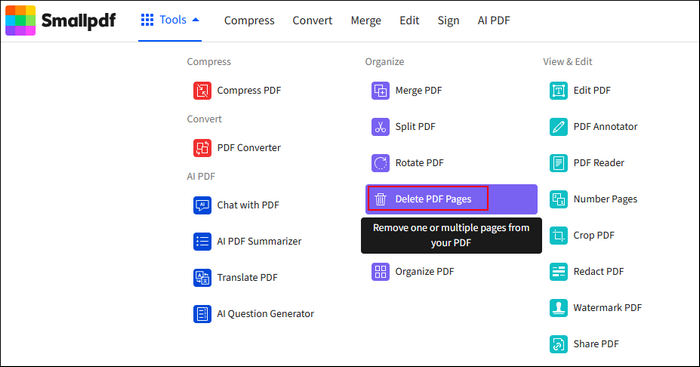
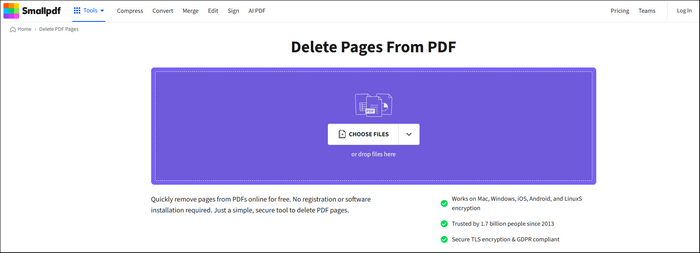
Шаг 2. Вы можете загрузить свои PDF-файлы с помощью функции обзора или просто перетащить файл в основной интерфейс.
Шаг 3. SmallPDF автоматически начнет анализ вашего PDF-файла. Вы увидите PDF-файл в формате ниже. Для каждой страницы есть кнопка корзины. Просто найдите страницу, которую хотите удалить, и нажмите кнопку корзины.
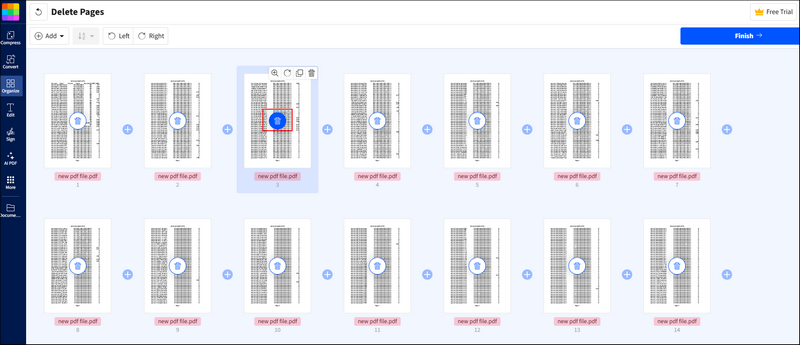
Шаг 4. Затем нажмите кнопку завершения и дождитесь завершения процесса.
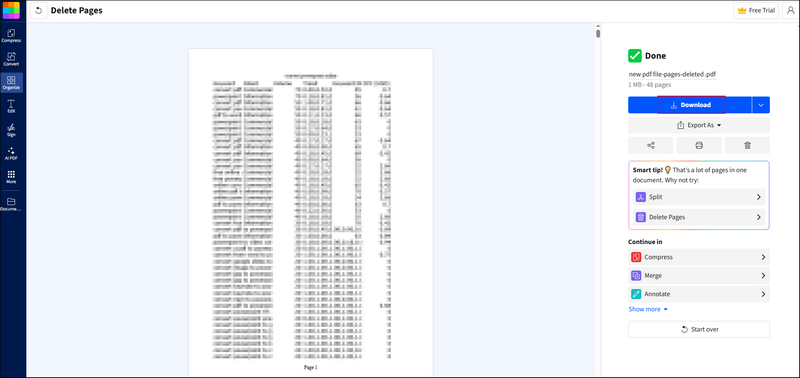
Шаг 5. После удаления вы можете нажать кнопку «Скачать», чтобы сохранить ваш PDF-файл.
Метод 3. Автоматическое удаление страниц из PDF-файла с помощью кода
Для разработчиков или продвинутых пользователей, которым необходимо программно удалить большое количество страниц из нескольких PDF-файлов, использование кода является наиболее эффективным вариантом. С мощным Code API вам не нужно вручную удалять страницы одну за другой.
Прежде чем предоставить пример кода, вы также должны знать, что выбор мощной библиотеки кода также играет важную роль для гладкого процесса. Позвольте мне представить вам Spire.PDF for .NET, универсальную библиотеку PDF, разработанную для .NET-разработчиков, чтобы легко создавать, читать, редактировать, конвертировать и защищать PDF-документы в своих приложениях. Она полностью независима и не требует Adobe Acrobat или внешних инструментов, поддерживая широкий спектр задач с PDF — от создания динамических PDF-отчетов до преобразования PDF в Word, Excel, HTML и форматы изображений.
Вот шаги по использованию Spire.PDF for .NET для удаления страниц из PDF-файла:
Шаг 1. Установите Spire.PDF for .NET в вашей среде C#. Вы можете скачать Code API со страницы официальной загрузки или установить с помощью NuGet, используя следующий код:
PM> Install-Package Spire.PDF
- Совет: Если вы хотите удалить оценочное сообщение из сгенерированных документов или избавиться от ограничений функций, пожалуйста, запросите 30-дневную пробную лицензию для себя.
Шаг 2. Скопируйте приведенный ниже пример кода и не забудьте настроить расположение и имя файла в соответствии с вашей конкретной ситуацией.
Пример кода на C# с Spire.PDF for .NET:
using Spire.Pdf;

namespace RemovePage
{
    class Program
    {
        static void Main(string[] args)
        {
            //Создать объект PdfDocument
            PdfDocument document = new PdfDocument();

            //Загрузить образец PDF-документа
            document.LoadFromFile(@"E:\Files\input.pdf");

            //Удалить вторую страницу
            document.Pages.RemoveAt(1);

            //Сохранить итоговый документ
            document.SaveToFile("RemovePDFPage.pdf");
        }
    }
}
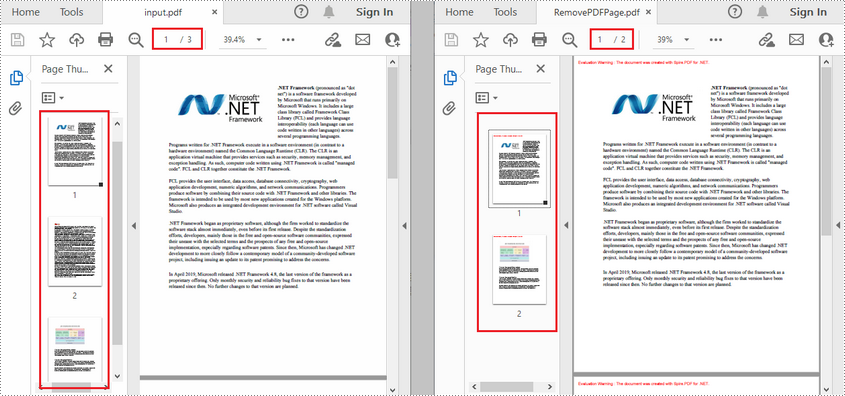
РЕЗУЛЬТАТ:
Ищете более подробное руководство? Следующий пост вам поможет:
C#/VB.NET: Удаление страниц из PDF
Резюме
Не существует универсального метода для удаления страниц из PDF. Лучшее решение зависит от ваших конкретных потребностей, устройств и уровня технического комфорта.
Теперь, когда вы знаете, как удалять страницы из PDF, вы можете выбрать метод, который лучше всего подходит для вашего рабочего процесса. Независимо от того, работаете ли вы над быстрым исправлением документа или создаете полный процесс автоматизации, эти инструменты делают удаление страниц простым и беззаботным.
Также читайте:
How to Delete Pages from PDF with/Without Adobe Acrobat
Table of Contents
Install with Nuget
PM> Install-Package Spire.PDF
Related Links
Introduction:
PDFs are great for sharing and preserving document formatting—but sometimes they contain unnecessary pages you don’t need. Whether it's a blank page at the end of a report or outdated content in a contract, knowing how to delete pages from a PDF quickly and efficiently can save you time and improve your workflow.
In this guide, we'll walk you through three easy methods to remove pages from a PDF on Windows and Mac using Adobe Acrobat, an online tool, and even automated code solutions for developers or batch tasks. The following table contains some basic information of the three methods. You can get a preview and jump to the corresponding tutorial.
| Method | Best For | Pros | Cons |
| Adobe Acrobat | Occasional users with a subscription | Reliable, precise | paid method |
| Online Tool | Fast, one-off edits | No installation, easy to use | No idea about file security |
| Code (Spire.PDF) | Developers and businesses | Fully automated, scalable | Requires programming knowledge |
Method 1. Delete Pages from PDF on Windows & Mac with Adobe Acrobat
If you already have Adobe Acrobat installed, it's one of the most reliable and professional tools for managing PDF files. Whether you're working with large documents or need to remove just a few unwanted pages, Acrobat offers a straightforward solution.
Let's begin by exploring how to delete pages from a PDF using Adobe Acrobat.
For Windows Users:
- Step 1. Open your PDF file with Adobe Acrobat.
- Step 2. Go to the "Tools" tab and select "Organize Pages."
- Step 3. Thumbnails of all pages will appear—click on the page(s) you want to delete.
- Step 4. Click the trash bin icon or right-click and choose "Delete Pages."
- Step 5. Save your updated PDF file.
For Mac Users:
- Step 1. Launch Adobe Acrobat and open your PDF.
- Step 2. Click on "View" > "Tools" > "Organize Pages."
- Step 3. Select the pages you want to remove.
- Step 4. Hit the delete icon or right-click and choose "Delete Pages."
- Step 5. Save your changes and you can choose to save the PDF file as a new one.
Method 2. Delete PDF Pages with Online Tool
If you have no Adobe Acrobat subscription and the deletion is urgent, how can you delete pages from a PDF file without Adobe Acrobat? Search on Google and try an online tool to delete your PDF pages. The benefit of using an online tool is that there is no extra download and installation. It is quite convenient and free of cost if you have only a few pages to delete.
In this section, I will take SmallPDF as an example to show you how.
Follow the steps below and see how to use an online tool to delete pages from a PDF file:
Step 1. Search on Google and go to the official site of SmallPDF. Find the "Tools" part from the top menu and go to "Delete PDF Pages" function.
Step 2. You can upload your PDF files through the browsing function or directly drag the file to the main interface.
Step 3. SmallPDF will automatically begin analyzing your PDF file. You will see the PDF file in the format below. There is a trash button for each page. Just find the page you'd like to delete and click the trash button.
Step 4. Then, click the finish button and wait for the process.
Step 5. After deletion, you can click the "Download" button to save your PDF file.
Method 3. Delete Pages from a PDF File Automatically with Code
For developers or advanced users who need to delete a large number of pages from multiple PDF files programmatically, using code is the most efficient option. With the powerful Code API, you have no need to manually delete pages one by one.
Before providing the sample code, you should also learn that choosing a powerful code library also plays an important role for a smooth process. Let me introduce Spire.PDF for .NET to you, a versatile PDF library designed for .NET developers to easily create, read, edit, convert, and secure PDF documents within their applications. It is fully independent and requires no Adobe Acrobat or external tools, supporting a wide range of PDF tasks — from generating dynamic PDF reports to converting PDFs to Word, Excel, HTML, and image formats.
Here are the steps of using Spire.PDF for .NET to delete pages from a PDF file:
Step 1. Install the Spire.PDF for .NET on your C# environment. You can download the code API from the official download page or install with NuGet with the following code:
PM> Install-Package Spire.PDF
- Tip: If you'd like to remove the evaluation message from the generated documents, or to get rid of the function limitations, please request a 30-day trial license for yourself.
Step 2. Copy the sample code below and don't forget to configurate the file location and name according to your specific situation.
Sample code in C# with Spire.PDF for .NET:
using Spire.Pdf;

namespace RemovePage
{
    class Program
    {
        static void Main(string[] args)
        {
            //Create a PdfDocument object
            PdfDocument document = new PdfDocument();

            //Load a sample PDF document
            document.LoadFromFile(@"E:\Files\input.pdf");

            //Remove the second page
            document.Pages.RemoveAt(1);

            //Save the result document
            document.SaveToFile("RemovePDFPage.pdf");
        }
    }
}
RESULT:
Looking for a more detailed tutorial? The following post will give you some help:
C#/VB.NET: Delete Pages from PDF
Summary
There's no one-size-fits-all method for deleting pages from a PDF. The best solution depends on your specific needs, devices, and technical comfort level.
Now that you know how to delete pages from a PDF, you can choose the method that best fits your workflow. Whether you're working on a quick document fix or building a full automation process, these tools make page deletion straightforward and stress-free.
Also Read:
Spire.PDF 11.7.14 supports XlsxLineLayoutOptions.TextRecognizer to improve the conversion from PDF to Excel
We're pleased to announce the release of Spire.PDF 11.7.14. The latest version supports XlsxLineLayoutOptions.TextRecognizer to enhance the PDF-to-Excel conversion using OCR libraries. Moreover, some known bugs are fixed in the new version, such as the issue that the content was incorrect when converting XPS to PDF. More details are listed below.
Here is a list of changes made in this release
| Category | ID | Description |
| New feature | SPIREPDF-7430 SPIREPDF-7427 |
Supports XlsxLineLayoutOptions.TextRecognizer to enhance the PDF-to-Excel conversion using OCR libraries.
PdfDocument doc = new PdfDocument();
doc.LoadFromFile("in.pdf");
XlsxLineLayoutOptions options = new XlsxLineLayoutOptions(false, false, false, true);
options.TextRecognizer = new TextRecognizer();
doc.ConvertOptions.SetPdfToXlsxOptions(options);
doc.SaveToFile("out.xlsx", Spire.Pdf.FileFormat.XLSX);

// niget install PaddleOCRSharp lib
using PaddleOCRSharp;
using Spire.Pdf.Conversion;

public class TextRecognizer : ITextRecognizer
{
    private static readonly PaddleOCREngine _engine;

    static TextRecognizer()


{         _engine = new PaddleOCREngine(null, “”);     }
    public string RecognizeGlyph(Stream glyphImageStream)

{
       var image = new System.Drawing.Bitmap(glyphImageStream);
        // paint glyph in image center
        var fixImage = new System.Drawing.Bitmap(160, 240);
        using (Graphics g = Graphics.FromImage(fixImage))


{             g.DrawImage(image, new RectangleF(20, 20, fixImage.Width - 40, fixImage.Height - 40), new RectangleF(0, 0, image.Width, image.Height), GraphicsUnit.Pixel);         }
        var unicodeResult = _engine.DetectText(fixImage).Text;
        return unicodeResult;
}

}
|
| Bug | SPIREPDF-2800 | Fixes the issue that the content was incorrect when converting XPS to PDF. |
| Bug | SPIREPDF-3727 SPIREPDF-3984 SPIREPDF-5085 |
Optimizes performance for PDF-to-image conversion to reduce processing time. |
| Bug | SPIREPDF-3818 | Improves PDF printing performance. |
| Bug | SPIREPDF-7004 | Fixes the issue where content was missing during PDF-to-image conversion. |
| Bug | SPIREPDF-7043 | Fixes the issue that the content was incorrect when converting PDF to PDF/A. |
| Bug | SPIREPDF-7399 | Fixes the issue where PDF content could not be extracted. |
| Bug | SPIREPDF-7463 | Fixes the issue where content overlapped during PDF-to-image conversion. |
| Bug | SPIREPDF-7574 SPIREPDF-7575 SPIREPDF-7576 SPIREPDF-7577 SPIREPDF-7578 |
Fixes the issue that the content was incorrect when converting OFD to PDF or images. |
| Bug | SPIREPDF-7598 | Fixes the issue that duplicate "Indirect reference" entries were caused by Attachments.Add(). |
| Bug | SPIREPDF-7609 | Fixes the issue where the program threw System.NullReferenceException error when releasing pdfTextFinder objects. |
Reading PowerPoint Files in Python: Extract Text, Images & More

PowerPoint (PPT & PPTX) files are rich with diverse content, including text, images, tables, charts, shapes, and metadata. Extracting these elements programmatically can unlock a wide range of use cases, from automating repetitive tasks to performing in-depth data analysis or migrating content across platforms.
In this tutorial, we'll explore how to read PowerPoint documents in Python using Spire.Presentation for Python, a powerful library for processing PowerPoint files.
Table of Contents:
- Python Library to Read PowerPoint Files
- Extracting Text from Slides
- Saving Images from Slides
- Accessing Metadata (Document Properties)
- Conclusion
- FAQs
1. Python Library to Read PowerPoint Files
To work with PowerPoint files in Python, we'll use Spire.Presentation for Python. This feature-rich library enables developers to create, edit, and read content from PowerPoint presentations efficiently. It allows for the extraction of text, images, tables, SmartArt, and metadata with minimal coding effort.
Before we begin, install the library using pip:
pip install spire.presentation
Now, let's dive into different ways to extract content from PowerPoint files.
2. Extracting Text from Slides in Python
PowerPoint slides contain text in various forms—shapes, tables, SmartArt, and more. We'll explore how to extract text from each of these elements.
2.1 Extract Text from Shapes
Most text in PowerPoint slides resides within shapes (text boxes, labels, etc.). Here’s how to extract text from shapes:
Steps-by-Step Guide
- Initialize the Presentation object and load your PowerPoint file.
- Iterate through each slide and its shapes.
- Check if a shape is an IAutoShape (a standard text container).
- Extract text from each paragraph in the shape.
Code Example
from spire.presentation import *
from spire.presentation.common import *

# Create an object of Presentation class
presentation = Presentation()

# Load a PowerPoint presentation
presentation.LoadFromFile("C:\\Users\\Administrator\\Desktop\\Input.pptx")

# Create a list
text = []

# Loop through the slides in the document
for slide_index, slide in enumerate(presentation.Slides):
    # Add slide marker
    text.append(f"====slide {slide_index + 1}====")

    # Loop through the shapes in the slide
    for shape in slide.Shapes:
        # Check if the shape is an IAutoShape object
        if isinstance(shape, IAutoShape):
            # Loop through the paragraphs in the shape
            for paragraph in shape.TextFrame.Paragraphs:
                # Get the paragraph text and append it to the list
                text.append(paragraph.Text)

# Write the text to a txt file
with open("output/ExtractAllText.txt", "w", encoding='utf-8') as f:
    for s in text:
        f.write(s + "\n")

# Dispose resources
presentation.Dispose()
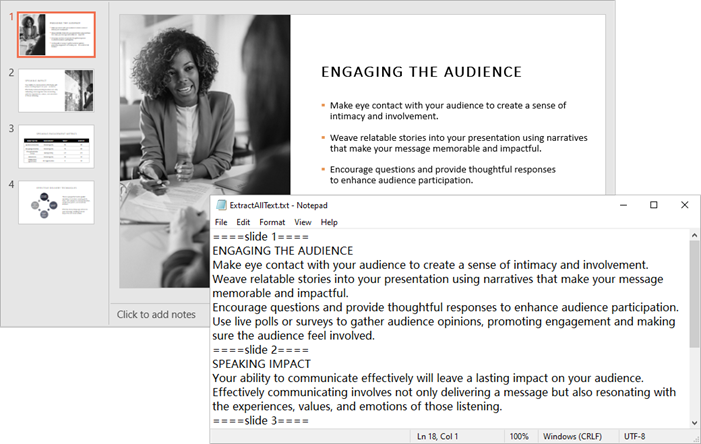
Output:
2.2 Extract Text from Tables
Tables in PowerPoint store structured data. Extracting this data requires iterating through each cell to maintain the table’s structure.
Step-by-Step Guide
- Initialize the Presentation object and load your PowerPoint file.
- Iterate through each slide to access its shapes.
- Identify table shapes (ITable objects).
- Loop through rows and cells to extract text.
Code Example
from spire.presentation import *
from spire.presentation.common import *

# Create a Presentation object
presentation = Presentation()

# Load a PowerPoint file
presentation.LoadFromFile("C:\\Users\\Administrator\\Desktop\\Input.pptx")

# Create a list for tables
tables = []

# Loop through the slides
for slide in presentation.Slides:
    # Loop through the shapes in the slide
    for shape in slide.Shapes:
        # Check whether the shape is a table
        if isinstance(shape, ITable):
            tableData = "

            # Loop through the rows in the table
            for row in shape.TableRows:
                rowData = "

                # Loop through the cells in the row
                for i in range(row.Count):
                    # Get the cell value
                    cellValue = row[i].TextFrame.Text
                    # Add cell value with spaces for better readability
                    rowData += (cellValue + "  |  " if i < row.Count - 1 else cellValue)
                tableData += (rowData + "\n")
            tables.append(tableData)

# Write the tables to text files
for idx, table in enumerate(tables, start=1):
    fileName = f"output/Table-{idx}.txt"
    with open(fileName, "w", encoding='utf-8') as f:
        f.write(table)

# Dispose resources
presentation.Dispose()
Output:

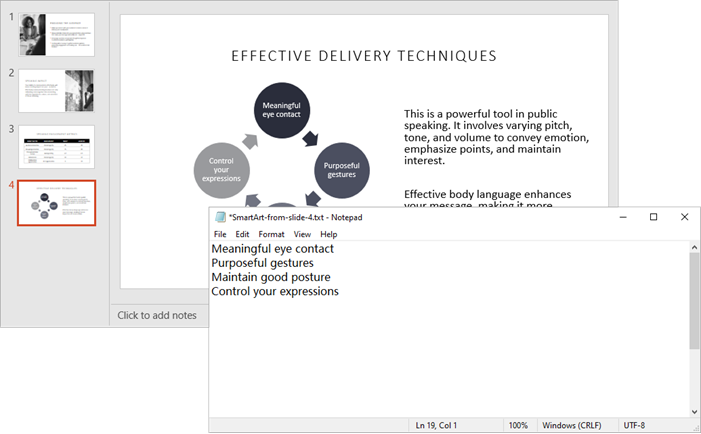
2.3 Extract Text from SmartArt
SmartArt is a unique feature in PowerPoint used for creating diagrams. Extracting text from SmartArt involves accessing its nodes and retrieving the text from each node.
Step-by-Step Guide
- Load the PowerPoint file into a Presentation object.
- Iterate through each slide and its shapes.
- Identify ISmartArt shapes in slides.
- Loop through each node in the SmartArt.
- Extract and save the text from each node.
Code Example
from spire.presentation.common import *
from spire.presentation import *

# Create a Presentation object
presentation = Presentation()

# Load a PowerPoint file
presentation.LoadFromFile("C:\\Users\\Administrator\\Desktop\\Input.pptx")

# Iterate through each slide in the presentation
for slide_index, slide in enumerate(presentation.Slides):

    # Create a list to store the extracted text for the current slide
    extracted_text = []

    # Loop through the shapes on the slide and find the SmartArt shapes
    for shape in slide.Shapes:
        if isinstance(shape, ISmartArt):
            smartArt = shape

            # Extract text from the SmartArt nodes and append to the list
            for node in smartArt.Nodes:
                extracted_text.append(node.TextFrame.Text)

    # Write the extracted text to a separate text file for each slide
    if extracted_text:  # Only create a file if there's text extracted
        file_name = f"output/SmartArt-from-slide-{slide_index + 1}.txt"
        with open(file_name, "w", encoding="utf-8") as text_file:
            for text in extracted_text:
                text_file.write(text + "\n")

# Dispose resources
presentation.Dispose()
Output:
You might also be interested in: Read Speaker Notes in PowerPoint in Python
3. Saving Images from Slides in Python
In addition to text, slides often contain images that may be important for your analysis. This section will show you how to save images from the slides.
Step-by-Step Guide
- Initialize the Presentation object and load your PowerPoint file.
- Access the Images collection in the presentation.
- Iterate through each image and save it in a desired format (e.g., PNG).
Code Example
from spire.presentation.common import *
from spire.presentation import *

# Create a Presentation object
presentation = Presentation()

# Load a PowerPoint document
presentation.LoadFromFile("C:\\Users\\Administrator\\Desktop\\Input.pptx")

# Get the images in the document
images = presentation.Images

# Iterate through the images in the document
for i, image in enumerate(images):

    # Save a certain image in the specified path
    ImageName = "Output/Images_"+str(i)+".png"
    image_data = (IImageData)(image)
    image_data.Image.Save(ImageName)

# Dispose resources
presentation.Dispose()
Output:

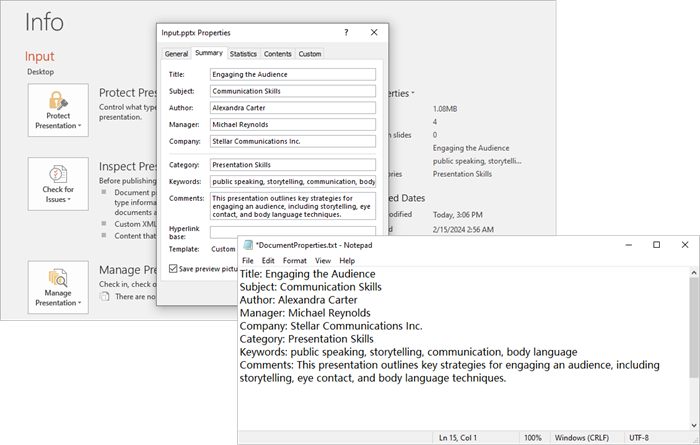
4. Accessing Metadata (Document Properties) in Python
Extracting metadata provides insights into the presentation, such as its title, author, and keywords. This section will guide you on how to access and save this metadata.
Step-by-Step Guide
- Create and load your PowerPoint file into a Presentation object.
- Access the DocumentProperty object.
- Extract properties like Title , Author , and Keywords .
Code Example
from spire.presentation.common import *
from spire.presentation import *

# Create a Presentation object
presentation = Presentation()

# Load a PowerPoint document
presentation.LoadFromFile("C:\\Users\\Administrator\\Desktop\\Input.pptx")

# Get the DocumentProperty object
documentProperty = presentation.DocumentProperty

# Prepare the content for the text file
properties = [
    f"Title: {documentProperty.Title}",
    f"Subject: {documentProperty.Subject}",
    f"Author: {documentProperty.Author}",
    f"Manager: {documentProperty.Manager}",
    f"Company: {documentProperty.Company}",
    f"Category: {documentProperty.Category}",
    f"Keywords: {documentProperty.Keywords}",
    f"Comments: {documentProperty.Comments}",
]

# Write the properties to a text file
with open("output/DocumentProperties.txt", "w", encoding="utf-8") as text_file:
    for line in properties:
        text_file.write(line + "\n")

# Dispose resources
presentation.Dispose()
Output:
You might also be interested in: Add Document Properties to a PowerPoint File in Python
5. Conclusion
With Spire.Presentation for Python, you can effortlessly read and extract various elements from PowerPoint files—such as text, images, tables, and metadata. This powerful library streamlines automation tasks, content analysis, and data migration, allowing for efficient management of PowerPoint files. Whether you're developing an analytics tool, automating document processing, or managing presentation content, Spire.Presentation offers a robust and seamless solution for programmatically handling PowerPoint files.
6. FAQs
Q1. Can Spire.Presentation handle password-protected PowerPoint files?
Yes, Spire.Presentation can open and process password-protected PowerPoint files. To access an encrypted file, use the LoadFromFile() method with the password parameter:
presentation.LoadFromFile("encrypted.pptx", "yourpassword")
Q2. How can I read comments from PowerPoint slides?
You can read comments from PowerPoint slides using the Spire.Presentation library. Here’s how:
from spire.presentation import *

presentation = Presentation()
presentation.LoadFromFile("Input.pptx")

with open("PowerPoint_Comments.txt", "w", encoding="utf-8") as file:
    for slide_idx, slide in enumerate(presentation.Slides):
        slide = (ISlide)(slide)
        if len(slide.Comments) > 0:
            for comment_idx, comment in enumerate(slide.Comments):
                file.write(f"Comment {comment_idx + 1} from Slide {slide_idx + 1}: {comment.Text}\n")
Q3. Does Spire.Presentation preserve formatting when extracting text?
Basic text extraction retrieves raw text content. For formatted text (fonts, colors), you would need to access additional properties like TextRange.LatinFont and TextRange.Fill .
Q4. Are there any limitations on file size when reading PowerPoint files in Python?
While Spire.Presentation can handle most standard presentations, extremely large files (hundreds of MB) may require optimization for better performance.
Q5. Can I create or modify PowerPoint documents using Spire.Presentation?
Yes, you can create PowerPoint documents and modify existing ones using Spire.Presentation. The library provides a range of features that allow you to add new slides, insert text, images, tables, and shapes, as well as edit existing content.
Get a Free License
To fully experience the capabilities of Spire.Presentation for Python without any evaluation limitations, you can request a free 30-day trial license.
Converter e-mail para PDF – Métodos universais e de programação
Índice
Instalar com Nuget
Install-Package Spire.Email
Install-Package Spire.Doc
Os e-mails frequentemente contêm informações cruciais: contratos, recibos, itinerários de viagem, atualizações de projetos ou mensagens emocionantes que você deseja guardar para sempre. Mas confiar apenas na sua caixa de entrada para armazenamento a longo prazo é arriscado. Contas são hackeadas, serviços mudam e e-mails podem ser excluídos acidentalmente. Converter e-mails para PDF resolve isso criando documentos universalmente acessíveis, perfeitos para registros, provas legais ou compartilhamento com clientes.
Este guia explora abordagens tanto amigáveis ao usuário quanto programáticas para salvar arquivos de e-mail (MSG, EML) como arquivos PDF.
- Como Converter E-mail para PDF: Métodos Universais
- Converter E-mail para PDF em C#: Focado em Desenvolvedores
- Qual Método Você Deve Escolher?
- Conclusão
Como Converter E-mail para PDF: Métodos Universais
Métodos universais são ideais para usuários que не querem escrever código. Aqui estão as abordagens mais comuns para a conversão de e-mail para PDF:
Método 1: Função "Imprimir" Integrada
Este é o método mais confiável e amplamente aplicável em desktops (Windows, macOS, Linux) e clientes de e-mail (Webmail, Outlook, Apple Mail).
1. Abra o E-mail
2. Encontre a Opção de Impressão:
- Webmail (Gmail, Outlook.com, Yahoo): Procure o ícone da impressora ou clique no menu de três pontos e selecione "Imprimir".
- Clientes de Desktop (Outlook, Apple Mail): Vá para “Arquivo > Imprimir”, ou use o atalho de teclado “Ctrl+P” (Windows) / “Cmd+P” (Mac).
3. Escolha a Impressora PDF:
- "Salvar como PDF" (comum no Mac, navegador Chrome)
- "Microsoft Print to PDF" (padrão do Windows)
- "Adobe PDF" (se o Adobe Acrobat estiver instalado)
4. Configure as Definições (Opcional):
- Defina o tamanho da página, orientação, margens, etc.
- Desative cabeçalhos/rodapés para uma aparência mais limpa, contendo apenas o conteúdo do e-mail.
5. Salve em PDF:
- Clique em "Imprimir", "Salvar" ou similar.
- Nomeie seu arquivo, escolha um local para salvar e clique em "Salvar".

Método 2: Conversores Online Gratuitos (Use com Cautela)
Precisa converter e-mails para PDFs sem instalar software? Você pode usar o Zamzar, um conversor gratuito que permite converter arquivos .msg/.eml:
Passos:
- Visite Zamzar.
- Carregue seu arquivo de e-mail.
- Selecione PDF como formato de saída e clique em Converter.
Nota de Segurança: Evite carregar e-mails confidenciais em ferramentas online. Use métodos offline para dados sensíveis.
Converter E-mail para PDF em C#: Focado em Desenvolvedores
Para desenvolvedores que necessitam de automação, processamento em lote ou integração em fluxos de trabalho .NET, use o Spire.Doc for .NET em conjunto com a biblioteca Spire.Email for .NET para realizar sem esforço a conversão de MSG ou EML para PDF em C#.
Configuração:
Instale os pacotes NuGet:
Install-Package Spire.Email
Install-Package Spire.Doc
Abaixo está o código C# para converter um arquivo msg do Outlook para PDF.
using Spire.Doc;
using Spire.Doc.Documents;
using Spire.Email;

namespace EmailToPdf
{
    class Program
    {
        static void Main(string[] args)
        {

            // Carregar um arquivo de e-mail (.msg ou .eml)
            MailMessage mail = MailMessage.Load("sample.msg", MailMessageFormat.Msg);

            // Analisar o conteúdo do e-mail e retorná-lo em formato HTML
            string htmlBody = mail.BodyHtml;

            // Criar um documento do Word
            Document doc = new Document();
            Section section = doc.AddSection();
            Paragraph paragraph = section.AddParagraph();

            // Adicionar o conteúdo HTML ao documento
            paragraph.AppendHTML(htmlBody);

            // Converter para o formato PDF
            doc.SaveToFile("EmailToPdf.pdf", FileFormat.PDF);
        }
    }
}
Passos Chave:
- Carregar o E-mail: O método MailMessage.Load() lê um arquivo de e-mail (.msg ou .eml) para um objeto MailMessage.
- Extrair Conteúdo HTML: O corpo HTML do e-mail é recuperado através da propriedade MailMessage.BodyHtml.
- Criar um Documento: Um documento do Word é instanciado usando o Spire.Doc.
- Adicionar HTML ao Documento: O conteúdo HTML é anexado ao documento usando Paragraph.AppendHTML().
- Salvar como PDF: O documento é salvo como PDF usando Document.SaveToFile().
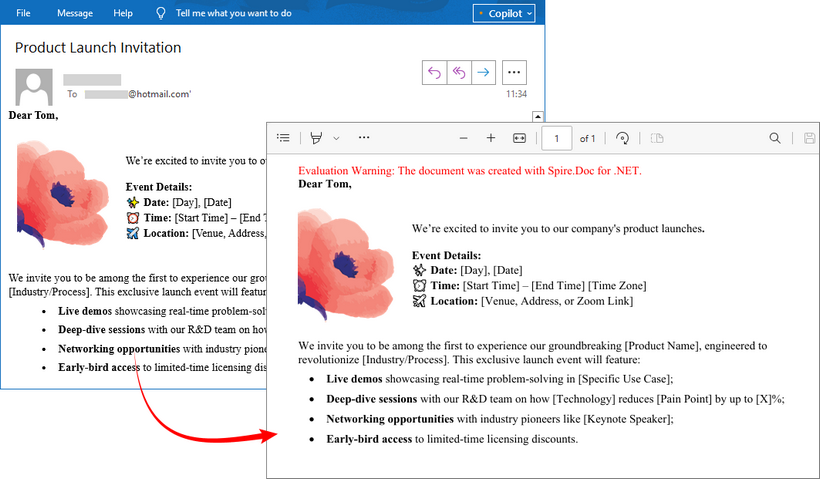
Saída:
Qual Método Você Deve Escolher?
| Cenário | Abordagem Recomendada |
| Conversões únicas | Função integrada Imprimir para PDF |
| Trabalhos em lote não sensíveis | Ferramentas online confiáveis |
| Fluxos de trabalho automatizados/ e-mails sensíveis | Bibliotecas Spire (C#/.NET) |
Conclusão
Quer você precise de uma conversão manual rápida ou de uma solução automatizada para sua aplicação, converter e-mails para PDF é simples com as ferramentas certas. Os métodos universais são ótimos para conversões pontuais, enquanto a programação em C# oferece escalabilidade e capacidades de integração para desenvolvedores. Escolha a abordagem que melhor se adapta às suas necessidades para garantir que seus e-mails importantes sejam preservados de forma eficaz.
LEIA TAMBÉM:
Convertire e-mail in PDF – Metodi universali e programmati
Indice
Installa con Nuget
Install-Package Spire.Email
Install-Package Spire.Doc
Le e-mail contengono spesso informazioni cruciali: contratti, ricevute, itinerari di viaggio, aggiornamenti di progetto o messaggi sentiti che vuoi conservare per sempre. Ma affidarsi esclusivamente alla tua casella di posta per l'archiviazione a lungo termine è rischioso. Gli account vengono violati, i servizi cambiano e le e-mail possono essere eliminate accidentalmente. La conversione delle e-mail in PDF risolve questo problema creando documenti universalmente accessibili, perfetti per registrazioni, prove legali o condivisione con i clienti.
Questa guida esplora approcci sia user-friendly che programmatici per salvare file di posta elettronica (MSG, EML) come file PDF.
- Come convertire un'e-mail in PDF: Metodi universali
- Convertire un'e-mail in PDF in C#: Focalizzato sugli sviluppatori
- Quale metodo dovresti scegliere?
- Conclusione
Come convertire un'e-mail in PDF: Metodi universali
I metodi universali sono ideali per gli utenti che non vogliono scrivere codice. Ecco gli approcci più comuni per la conversione da e-mail a PDF:
Metodo 1: Funzione "Stampa" integrata
Questo è il metodo più affidabile e ampiamente applicabile su desktop (Windows, macOS, Linux) e client di posta elettronica (Webmail, Outlook, Apple Mail).
1. Apri l'e-mail
2. Trova l'opzione di stampa:
- Webmail (Gmail, Outlook.com, Yahoo): Cerca l'icona della stampante o fai clic sul menu con tre punti e seleziona "Stampa".
- Client desktop (Outlook, Apple Mail): Vai su “File > Stampa”, o usa la scorciatoia da tastiera “Ctrl+P” (Windows) / “Cmd+P” (Mac).
3. Scegli la stampante PDF:
- "Salva come PDF" (comune su Mac, browser Chrome)
- "Microsoft Print to PDF" (predefinito di Windows)
- "Adobe PDF" (se è installato Adobe Acrobat)
4. Configura le impostazioni (opzionale):
- Imposta le dimensioni della pagina, l'orientamento, i margini, ecc.
- Disabilita intestazioni/piè di pagina per un aspetto più pulito, contenente solo il contenuto dell'e-mail.
5. Salva in PDF:
- Fai clic su "Stampa", "Salva" o simile.
- Dai un nome al tuo file, scegli una posizione di salvataggio e fai clic su "Salva".
Metodo 2: Convertitori online gratuiti (usare con cautela)
Devi convertire le e-mail in PDF senza installare software? Puoi usare Zamzar, un convertitore gratuito che ti permette di convertire file .msg/.eml:
Passaggi:
- Visita Zamzar.
- Carica il tuo file di posta elettronica.
- Seleziona PDF come formato di output e fai clic su Converti.
Nota sulla sicurezza: evita di caricare e-mail riservate su strumenti online. Utilizza metodi offline per i dati sensibili.
Convertire un'e-mail in PDF in C#: Focalizzato sugli sviluppatori
Per gli sviluppatori che necessitano di automazione, elaborazione batch o integrazione nei flussi di lavoro .NET, utilizzare Spire.Doc for .NET in combinazione con la libreria Spire.Email for .NET per ottenere senza sforzo la conversione da MSG o EML a PDF in C#.
Configurazione:
Installa i pacchetti NuGet:
Install-Package Spire.Email
Install-Package Spire.Doc
Di seguito è riportato il codice C# per convertire un file msg di Outlook in PDF.
using Spire.Doc;
using Spire.Doc.Documents;
using Spire.Email;

namespace EmailToPdf
{
    class Program
    {
        static void Main(string[] args)
        {

            // Carica un file di posta elettronica (.msg o .eml)
            MailMessage mail = MailMessage.Load("sample.msg", MailMessageFormat.Msg);

            // Analizza il contenuto dell'e-mail e lo restituisce in formato HTML
            string htmlBody = mail.BodyHtml;

            // Crea un documento di Word
            Document doc = new Document();
            Section section = doc.AddSection();
            Paragraph paragraph = section.AddParagraph();

            // Aggiungi il contenuto HTML al documento
            paragraph.AppendHTML(htmlBody);

            // Converti in formato PDF
            doc.SaveToFile("EmailToPdf.pdf", FileFormat.PDF);
        }
    }
}
Passaggi chiave:
- Carica l'e-mail: il metodo MailMessage.Load() legge un file di posta elettronica (.msg o .eml) in un oggetto MailMessage.
- Estrai il contenuto HTML: il corpo HTML dell'e-mail viene recuperato tramite la proprietà MailMessage.BodyHtml.
- Crea un documento: un documento di Word viene istanziato utilizzando Spire.Doc.
- Aggiungi HTML al documento: il contenuto HTML viene aggiunto al documento utilizzando Paragraph.AppendHTML().
- Salva come PDF: il documento viene salvato come PDF utilizzando Document.SaveToFile().
Output:
Quale metodo dovresti scegliere?
| Scenario | Approccio consigliato |
| Conversioni singole | Funzione integrata Stampa su PDF |
| Lavori in batch non sensibili | Strumenti online affidabili |
| Flussi di lavoro automatizzati/e-mail sensibili | Librerie Spire (C#/.NET) |
Conclusione
Che tu abbia bisogno di una rapida conversione manuale o di una soluzione automatizzata per la tua applicazione, convertire le e-mail in PDF è semplice con gli strumenti giusti. I metodi universali sono ottimi per le conversioni una tantum, mentre la programmazione in C# offre scalabilità e capacità di integrazione per gli sviluppatori. Scegli l'approccio che meglio si adatta alle tue esigenze per garantire che le tue e-mail importanti vengano conservate in modo efficace.
LEGGI ANCHE:
이메일을 PDF로 변환 – 범용 및 프로그래밍 방식
목차
Nuget으로 설치
Install-Package Spire.Email
Install-Package Spire.Doc
이메일에는 종종 계약서, 영수증, 여행 일정, 프로젝트 업데이트 또는 영원히 보관하고 싶은 진심 어린 메시지와 같은 중요한 정보가 포함됩니다. 그러나 장기 보관을 위해 받은 편지함에만 의존하는 것은 위험합니다. 계정이 해킹당하고, 서비스가 변경되며, 이메일이 실수로 삭제될 수 있습니다. 이메일을 PDF로 변환하면 기록, 법적 증거 또는 고객 공유에 완벽한 보편적으로 접근 가능한 문서를 만들어 이 문제를 해결할 수 있습니다.
이 가이드에서는 이메일 파일(MSG, EML)을 PDF 파일로 저장하는 사용자 친화적인 방법과 프로그래밍 방식의 접근법을 모두 살펴봅니다.
이메일을 PDF로 변환하는 방법: 보편적인 방법
보편적인 방법은 코드를 작성하고 싶지 않은 사용자에게 이상적입니다. 다음은 가장 일반적인 이메일-PDF 변환 방법입니다.
방법 1: 내장된 "인쇄" 기능
이것은 데스크톱(Windows, macOS, Linux) 및 이메일 클라이언트(웹메일, Outlook, Apple Mail)에서 가장 신뢰할 수 있고 널리 적용 가능한 방법입니다.
1. 이메일 열기
2. 인쇄 옵션 찾기:
- 웹메일(Gmail, Outlook.com, Yahoo): 프린터 아이콘을 찾거나 세 점 메뉴를 클릭하고 "인쇄"를 선택합니다.
- 데스크톱 클라이언트(Outlook, Apple Mail): "파일 > 인쇄"로 이동하거나 "Ctrl+P"(Windows) / "Cmd+P"(Mac) 키보드 단축키를 사용합니다.
3. PDF 프린터 선택:
- "PDF로 저장" (Mac, Chrome 브라우저에서 일반적)
- "Microsoft Print to PDF" (Windows 기본값)
- "Adobe PDF" (Adobe Acrobat이 설치된 경우)
4. 설정 구성(선택 사항):
- 페이지 크기, 방향, 여백 등을 설정합니다.
- 이메일 내용만 포함된 더 깔끔한 모양을 위해 머리글/바닥글을 비활성화합니다.
5. PDF로 저장:
- "인쇄", "저장" 또는 유사한 버튼을 클릭합니다.
- 파일 이름을 지정하고 저장 위치를 선택한 다음 "저장"을 클릭합니다.
방법 2: 무료 온라인 변환기 (주의해서 사용)
소프트웨어를 설치하지 않고 이메일을 PDF로 변환해야 합니까? .msg/.eml 파일을 변환할 수 있는 무료 변환기인 Zamzar를 사용할 수 있습니다.
단계:
- Zamzar를 방문합니다.
- 이메일 파일을 업로드합니다.
- 출력 형식으로 PDF를 선택하고 변환을 클릭합니다.
보안 참고: 기밀 이메일을 온라인 도구에 업로드하지 마십시오. 민감한 데이터는 오프라인 방법을 사용하십시오.
C#에서 이메일을 PDF로 변환: 개발자 중심
.NET 워크플로에 자동화, 일괄 처리 또는 통합이 필요한 개발자의 경우 Spire.Doc for .NET을 Spire.Email for .NET 라이브러리와 함께 사용하여 C#에서 MSG 또는 EML을 PDF로 손쉽게 변환할 수 있습니다.
설정:
NuGet 패키지 설치:
Install-Package Spire.Email
Install-Package Spire.Doc
아래는 Outlook msg 파일을 PDF로 변환하는 C# 코드입니다.
using Spire.Doc;
using Spire.Doc.Documents;
using Spire.Email;

namespace EmailToPdf
{
    class Program
    {
        static void Main(string[] args)
        {

            // 이메일 파일(.msg 또는 .eml) 로드
            MailMessage mail = MailMessage.Load("sample.msg", MailMessageFormat.Msg);

            // 이메일 내용을 구문 분석하여 HTML 형식으로 반환
            string htmlBody = mail.BodyHtml;

            // Word 문서 생성
            Document doc = new Document();
            Section section = doc.AddSection();
            Paragraph paragraph = section.AddParagraph();

            // 문서에 HTML 콘텐츠 추가
            paragraph.AppendHTML(htmlBody);

            // PDF 형식으로 변환
            doc.SaveToFile("EmailToPdf.pdf", FileFormat.PDF);
        }
    }
}
주요 단계:
- 이메일 로드: MailMessage.Load() 메서드는 이메일 파일(.msg 또는 .eml)을 MailMessage 객체로 읽습니다.
- HTML 콘텐츠 추출: 이메일의 HTML 본문은 MailMessage.BodyHtml 속성을 통해 검색됩니다.
- 문서 생성: Spire.Doc를 사용하여 Word 문서가 인스턴스화됩니다.
- 문서에 HTML 추가: HTML 콘텐츠는 Paragraph.AppendHTML()을 사용하여 문서에 추가됩니다.
- PDF로 저장: 문서는 Document.SaveToFile()을 사용하여 PDF로 저장됩니다.
출력:
어떤 방법을 선택해야 할까요?
| 시나리오 | 권장 접근 방식 |
| 단일 변환 | 내장된 PDF로 인쇄 기능 |
| 민감하지 않은 일괄 작업 | 신뢰할 수 있는 온라인 도구 |
| 자동화된 워크플로/민감한 이메일 | Spire 라이브러리 (C#/.NET) |
결론
빠른 수동 변환이 필요하든 애플리케이션을 위한 자동화된 솔루션이 필요하든, 올바른 도구를 사용하면 이메일을 PDF로 변환하는 것이 간단합니다. 보편적인 방법은 일회성 변환에 적합하며, C# 프로그래밍은 개발자를 위한 확장성과 통합 기능을 제공합니다. 중요한 이메일이 효과적으로 보존되도록 필요에 가장 적합한 접근 방식을 선택하십시오.
또한 읽기:
Convertir un e-mail en PDF – Méthodes universelles et programmatiques
Table des matières
Installer avec Nuget
Install-Package Spire.Email
Install-Package Spire.Doc
Les e-mails contiennent souvent des informations cruciales : contrats, reçus, itinéraires de voyage, mises à jour de projets ou messages sincères que vous souhaitez conserver pour toujours. Mais compter uniquement sur votre boîte de réception pour un stockage à long terme est risqué. Les comptes sont piratés, les services changent et les e-mails peuvent être supprimés accidentellement. La conversion des e-mails en PDF résout ce problème en créant des documents universellement accessibles, parfaits pour les archives, les preuves juridiques ou le partage avec les clients.
Ce guide explore des approches à la fois conviviales et programmatiques pour enregistrer des fichiers d'e-mail (MSG, EML) en tant que fichiers PDF.
- Comment convertir un e-mail en PDF : Méthodes universelles
- Convertir un e-mail en PDF en C# : Axé sur les développeurs
- Quelle méthode choisir ?
- Conclusion
Comment convertir un e-mail en PDF : Méthodes universelles
Les méthodes universelles sont idéales pour les utilisateurs qui ne veulent pas écrire de code. Voici les approches de conversion d'e-mail en PDF les plus courantes :
Méthode 1 : Fonction "Imprimer" intégrée
C'est la méthode la plus fiable et la plus largement applicable sur les ordinateurs de bureau (Windows, macOS, Linux) et les clients de messagerie (Webmail, Outlook, Apple Mail).
1. Ouvrez l'e-mail
2. Trouvez l'option d'impression :
- Webmail (Gmail, Outlook.com, Yahoo) : Cherchez l'icône de l'imprimante ou cliquez sur le menu à trois points et sélectionnez « Imprimer ».
- Clients de bureau (Outlook, Apple Mail) : Allez dans « Fichier > Imprimer », ou utilisez le raccourci clavier « Ctrl+P » (Windows) / « Cmd+P » (Mac).
3. Choisissez l'imprimante PDF :
- « Enregistrer en PDF » (courant sur Mac, navigateur Chrome)
- « Microsoft Print to PDF » (par défaut sur Windows)
- « Adobe PDF » (si Adobe Acrobat est installé)
4. Configurez les paramètres (facultatif) :
- Définissez la taille de la page, l'orientation, les marges, etc.
- Désactivez les en-têtes/pieds de page pour un aspect plus propre, ne contenant que le contenu de l'e-mail.
5. Enregistrez en PDF :
- Cliquez sur « Imprimer », « Enregistrer » ou similaire.
- Nommez votre fichier, choisissez un emplacement de sauvegarde et cliquez sur « Enregistrer ».
Méthode 2 : Convertisseurs en ligne gratuits (à utiliser avec prudence)
Besoin de convertir des e-mails en PDF sans installer de logiciel ? Vous pouvez utiliser Zamzar, un convertisseur gratuit qui vous permet de convertir des fichiers .msg/.eml :
Étapes :
- Visitez Zamzar.
- Téléchargez votre fichier d'e-mail.
- Sélectionnez PDF comme format de sortie et cliquez sur Convertir.
Note de sécurité : Évitez de télécharger des e-mails confidentiels sur des outils en ligne. Utilisez des méthodes hors ligne pour les données sensibles.
Convertir un e-mail en PDF en C# : Axé sur les développeurs
Pour les développeurs ayant besoin d'automatisation, de traitement par lots ou d'intégration dans des flux de travail .NET, utilisez Spire.Doc for .NET en conjonction avec la bibliothèque Spire.Email for .NET pour réaliser sans effort la conversion de MSG ou EML en PDF en C#.
Configuration :
Installez les paquets NuGet :
Install-Package Spire.Email
Install-Package Spire.Doc
Voici le code C# pour convertir un fichier msg d'Outlook en PDF.
using Spire.Doc;
using Spire.Doc.Documents;
using Spire.Email;

namespace EmailToPdf
{
    class Program
    {
        static void Main(string[] args)
        {

            // Charger un fichier e-mail (.msg ou .eml)
            MailMessage mail = MailMessage.Load("sample.msg", MailMessageFormat.Msg);

            // Analyser le contenu de l'e-mail et le retourner au format HTML
            string htmlBody = mail.BodyHtml;

            // Créer un document Word
            Document doc = new Document();
            Section section = doc.AddSection();
            Paragraph paragraph = section.AddParagraph();

            // Ajouter le contenu HTML au document
            paragraph.AppendHTML(htmlBody);

            // Convertir au format PDF
            doc.SaveToFile("EmailToPdf.pdf", FileFormat.PDF);
        }
    }
}
Étapes clés :
- Charger l'e-mail : La méthode MailMessage.Load() lit un fichier d'e-mail (.msg ou .eml) dans un objet MailMessage.
- Extraire le contenu HTML : Le corps HTML de l'e-mail est récupéré via la propriété MailMessage.BodyHtml.
- Créer un document : Un document Word est instancié à l'aide de Spire.Doc.
- Ajouter du HTML au document : Le contenu HTML est ajouté au document à l'aide de Paragraph.AppendHTML().
- Enregistrer en PDF : Le document est enregistré en tant que PDF à l'aide de Document.SaveToFile().
Sortie :
Quelle méthode choisir ?
| Scénario | Approche recommandée |
| Conversions uniques | Fonction intégrée Imprimer en PDF |
| Tâches par lots non sensibles | Outils en ligne de confiance |
| Flux de travail automatisés/ e-mails sensibles | Bibliothèques Spire (C#/.NET) |
Conclusion
Que vous ayez besoin d'une conversion manuelle rapide ou d'une solution automatisée pour votre application, la conversion d'e-mails en PDF est simple avec les bons outils. Les méthodes universelles sont idéales pour les conversions ponctuelles, tandis que la programmation en C# offre des capacités d'évolutivité et d'intégration pour les développeurs. Choisissez l'approche qui correspond le mieux à vos besoins pour vous assurer que vos e-mails importants sont préservés efficacement.
LIRE AUSSI :
Convertir correo electrónico a PDF: métodos universales y de programación
Tabla de contenidos
Instalar con Nuget
Install-Package Spire.Email
Install-Package Spire.Doc
Los correos electrónicos a menudo contienen información crucial: contratos, recibos, itinerarios de viaje, actualizaciones de proyectos o mensajes emotivos que desea conservar para siempre. Pero depender únicamente de su bandeja de entrada para el almacenamiento a largo plazo es arriesgado. Las cuentas son hackeadas, los servicios cambian y los correos electrónicos pueden eliminarse accidentalmente. Convertir correos electrónicos a PDF resuelve esto creando documentos universalmente accesibles, perfectos para registros, pruebas legales o para compartir con clientes.
Esta guía explora enfoques tanto fáciles de usar como programáticos para guardar archivos de correo electrónico (MSG, EML) como archivos PDF.
- Cómo convertir un correo electrónico a PDF: Métodos universales
- Convertir correo electrónico a PDF en C#: Enfocado en desarrolladores
- ¿Qué método debería elegir?
- Conclusión
Cómo convertir un correo electrónico a PDF: Métodos universales
Los métodos universales son ideales para usuarios que no quieren escribir código. Aquí están los enfoques más comunes de conversión de correo electrónico a PDF:
Método 1: Función integrada "Imprimir"
Este es el método más fiable y ampliamente aplicable en computadoras de escritorio (Windows, macOS, Linux) y clientes de correo electrónico (Webmail, Outlook, Apple Mail).
1. Abra el correo electrónico
2. Encuentre la opción de Imprimir:
- Webmail (Gmail, Outlook.com, Yahoo): Busque el icono de la impresora o haga clic en el menú de tres puntos y seleccione "Imprimir".
- Clientes de escritorio (Outlook, Apple Mail): Vaya a “Archivo > Imprimir”, o use el atajo de teclado “Ctrl+P” (Windows) / “Cmd+P” (Mac).
3. Elija la impresora PDF:
- "Guardar como PDF" (común en Mac, navegador Chrome)
- "Microsoft Print to PDF" (predeterminado de Windows)
- "Adobe PDF" (si Adobe Acrobat está instalado)
4. Configure los ajustes (opcional):
- Establezca el tamaño de página, la orientación, los márgenes, etc.
- Desactive los encabezados/pies de página para una apariencia más limpia, que contenga solo el contenido del correo electrónico.
5. Guarde en PDF:
- Haga clic en "Imprimir", "Guardar" o similar.
- Nombre su archivo, elija una ubicación para guardarlo y haga clic en "Guardar".
Método 2: Convertidores en línea gratuitos (usar con precaución)
¿Necesita convertir correos electrónicos a PDF sin instalar software? Puede usar Zamzar, un convertidor gratuito que le permite convertir archivos .msg/.eml:
Pasos:
- Visite Zamzar.
- Cargue su archivo de correo electrónico.
- Seleccione PDF como formato de salida y haga clic en Convertir.
Nota de seguridad: Evite cargar correos electrónicos confidenciales en herramientas en línea. Utilice métodos sin conexión para datos sensibles.
Convertir correo electrónico a PDF en C#: Enfocado en desarrolladores
Para los desarrolladores que necesitan automatización, procesamiento por lotes o integración en flujos de trabajo de .NET, use Spire.Doc for .NET junto con la biblioteca Spire.Email for .NET para lograr sin esfuerzo la conversión de MSG o EML a PDF en C#.
Configuración:
Instale los paquetes de NuGet:
Install-Package Spire.Email
Install-Package Spire.Doc
A continuación se muestra el código C# para convertir un archivo msg de Outlook a PDF.
using Spire.Doc;
using Spire.Doc.Documents;
using Spire.Email;

namespace EmailToPdf
{
    class Program
    {
        static void Main(string[] args)
        {

            // Cargar un archivo de correo electrónico (.msg o .eml)
            MailMessage mail = MailMessage.Load("sample.msg", MailMessageFormat.Msg);

            // Analizar el contenido del correo electrónico y devolverlo en formato HTML
            string htmlBody = mail.BodyHtml;

            // Crear un documento de Word
            Document doc = new Document();
            Section section = doc.AddSection();
            Paragraph paragraph = section.AddParagraph();

            // Agregar el contenido HTML al documento
            paragraph.AppendHTML(htmlBody);

            // Convertir al formato PDF
            doc.SaveToFile("EmailToPdf.pdf", FileFormat.PDF);
        }
    }
}
Pasos clave:
- Cargar el correo electrónico: El método MailMessage.Load() lee un archivo de correo electrónico (.msg o .eml) en un objeto MailMessage.
- Extraer contenido HTML: El cuerpo HTML del correo electrónico se recupera a través de la propiedad MailMessage.BodyHtml.
- Crear un documento: Se crea una instancia de un documento de Word usando Spire.Doc.
- Agregar HTML al documento: El contenido HTML se agrega al documento usando Paragraph.AppendHTML().
- Guardar como PDF: El documento se guarda como PDF usando Document.SaveToFile().
Salida:
¿Qué método debería elegir?
| Escenario | Enfoque recomendado |
| Conversiones únicas | Función integrada Imprimir a PDF |
| Trabajos por lotes no sensibles | Herramientas en línea de confianza |
| Flujos de trabajo automatizados/ correos electrónicos sensibles | Bibliotecas Spire (C#/.NET) |
Conclusión
Ya sea que necesite una conversión manual rápida o una solución automatizada para su aplicación, convertir correos electrónicos a PDF es sencillo con las herramientas adecuadas. Los métodos universales son excelentes para conversiones únicas, mientras que la programación en C# proporciona escalabilidad y capacidades de integración para los desarrolladores. Elija el enfoque que mejor se adapte a sus necesidades para asegurarse de que sus correos electrónicos importantes se conserven de manera efectiva.
LEA TAMBIÉN:
E-Mail in PDF umwandeln – Universelle und programmatische Methoden
Inhaltsverzeichnis
Installation mit Nuget
Install-Package Spire.Email
Install-Package Spire.Doc
E-Mails enthalten oft wichtige Informationen: Verträge, Quittungen, Reisepläne, Projektaktualisierungen oder herzliche Nachrichten, die Sie für immer aufbewahren möchten. Sich jedoch ausschließlich auf Ihren Posteingang für die langfristige Speicherung zu verlassen, ist riskant. Konten werden gehackt, Dienste ändern sich und E-Mails können versehentlich gelöscht werden. Das Konvertieren von E-Mails in PDF löst dieses Problem, indem universell zugängliche Dokumente erstellt werden, die sich perfekt für Aufzeichnungen, rechtliche Beweise oder die Weitergabe an Kunden eignen.
Diese Anleitung untersucht sowohl benutzerfreundliche als auch programmatische Ansätze zum Speichern von E-Mail-Dateien (MSG, EML) als PDF-Dateien.
- Wie man E-Mails in PDF konvertiert: Universelle Methoden
- E-Mail in PDF in C# konvertieren: Entwicklerfokus
- Welche Methode sollten Sie wählen?
- Fazit
Wie man E-Mails in PDF konvertiert: Universelle Methoden
Universelle Methoden sind ideal für Benutzer, die keinen Code schreiben möchten. Hier sind die gängigsten Ansätze zur Konvertierung von E-Mails in PDF:
Methode 1: Integrierte „Drucken“-Funktion
Dies ist die zuverlässigste und am weitesten verbreitete Methode auf Desktops (Windows, macOS, Linux) und in E-Mail-Clients (Webmail, Outlook, Apple Mail).
1. Öffnen Sie die E-Mail
2. Finden Sie die Druckoption:
- Webmail (Gmail, Outlook.com, Yahoo): Suchen Sie nach dem Druckersymbol oder klicken Sie auf das Drei-Punkte-Menü und wählen Sie „Drucken“.
- Desktop-Clients (Outlook, Apple Mail): Gehen Sie zu „Datei > Drucken“ oder verwenden Sie die Tastenkombination „Strg+P“ (Windows) / „Cmd+P“ (Mac).
3. Wählen Sie den PDF-Drucker:
- „Als PDF speichern“ (üblich auf Mac, Chrome-Browser)
- „Microsoft Print to PDF“ (Windows-Standard)
- „Adobe PDF“ (wenn Adobe Acrobat installiert ist)
4. Einstellungen konfigurieren (optional):
- Stellen Sie Seitengröße, Ausrichtung, Ränder usw. ein.
- Deaktivieren Sie Kopf-/Fußzeilen für ein saubereres Erscheinungsbild, das nur den E-Mail-Inhalt enthält.
5. Als PDF speichern:
- Klicken Sie auf „Drucken“, „Speichern“ oder Ähnliches.
- Benennen Sie Ihre Datei, wählen Sie einen Speicherort und klicken Sie auf „Speichern“.
Methode 2: Kostenlose Online-Konverter (mit Vorsicht verwenden)
Müssen Sie E-Mails in PDFs konvertieren, ohne Software zu installieren? Sie können Zamzar verwenden, einen kostenlosen Konverter, mit dem Sie .msg/.eml-Dateien konvertieren können:
Schritte:
- Besuchen Sie Zamzar.
- Laden Sie Ihre E-Mail-Datei hoch.
- Wählen Sie PDF als Ausgabeformat und klicken Sie auf Konvertieren.
Sicherheitshinweis: Vermeiden Sie das Hochladen vertraulicher E-Mails auf Online-Tools. Verwenden Sie Offline-Methoden für sensible Daten.
E-Mail in PDF in C# konvertieren: Entwicklerfokus
Für Entwickler, die Automatisierung, Stapelverarbeitung oder Integration in .NET-Workflows benötigen, verwenden Sie Spire.Doc for .NET in Verbindung mit der Bibliothek Spire.Email for .NET, um mühelos eine MSG- oder EML-zu-PDF-Konvertierung in C# zu erreichen.
Einrichtung:
Installieren Sie NuGet-Pakete:
Install-Package Spire.Email
Install-Package Spire.Doc
Unten finden Sie den C#-Code zum Konvertieren einer Outlook-MSG-Datei in PDF.
using Spire.Doc;
using Spire.Doc.Documents;
using Spire.Email;

namespace EmailToPdf
{
    class Program
    {
        static void Main(string[] args)
        {

            // Eine E-Mail-Datei laden (.msg oder .eml)
            MailMessage mail = MailMessage.Load("sample.msg", MailMessageFormat.Msg);

            // E-Mail-Inhalt analysieren und im HTML-Format zurückgeben
            string htmlBody = mail.BodyHtml;

            // Ein Word-Dokument erstellen
            Document doc = new Document();
            Section section = doc.AddSection();
            Paragraph paragraph = section.AddParagraph();

            // Den HTML-Inhalt zum Dokument hinzufügen
            paragraph.AppendHTML(htmlBody);

            // In das PDF-Format konvertieren
            doc.SaveToFile("EmailToPdf.pdf", FileFormat.PDF);
        }
    }
}
Wichtige Schritte:
- E-Mail laden: Die Methode MailMessage.Load() liest eine E-Mail-Datei (.msg oder .eml) in ein MailMessage-Objekt.
- HTML-Inhalt extrahieren: Der HTML-Body der E-Mail wird über die Eigenschaft MailMessage.BodyHtml abgerufen.
- Dokument erstellen: Ein Word-Dokument wird mit Spire.Doc instanziiert.
- HTML zum Dokument hinzufügen: Der HTML-Inhalt wird mit Paragraph.AppendHTML() an das Dokument angehängt.
- Als PDF speichern: Das Dokument wird mit Document.SaveToFile() als PDF gespeichert.
Ausgabe:
Welche Methode sollten Sie wählen?
| Szenario | Empfohlener Ansatz |
| Einzelne Konvertierungen | Integrierte Druck-zu-PDF-Funktion |
| Nicht sensible Stapelaufträge | Vertrauenswürdige Online-Tools |
| Automatisierte Workflows/ sensible E-Mails | Spire-Bibliotheken (C#/.NET) |
Fazit
Egal, ob Sie eine schnelle manuelle Konvertierung oder eine automatisierte Lösung für Ihre Anwendung benötigen, das Konvertieren von E-Mails in PDF ist mit den richtigen Werkzeugen unkompliziert. Universelle Methoden eignen sich hervorragend für einmalige Konvertierungen, während die C#-Programmierung Skalierbarkeits- und Integrationsmöglichkeiten für Entwickler bietet. Wählen Sie den Ansatz, der am besten zu Ihren Bedürfnissen passt, um sicherzustellen, dass Ihre wichtigen E-Mails effektiv erhalten bleiben.
AUCH LESEN: