5 Smart Ways to Extract Text from PowerPoint (No Copy-Paste Required)
Table of Contents
Install with Pypi
pip install Spire.Presentation
Related Links

Overview
PowerPoint presentations are widely used for business meetings, educational purposes, and conferences. However, extracting text from these presentations can sometimes be a tedious task, especially when dealing with multiple slides.
Fortunately, there are several methods available to extract text from PowerPoint without resorting to the traditional copy-paste method. In this blog post, we will explore five smart ways to extract text, including methods using Microsoft PowerPoint , DeepSeek , online converters , VBA , and Python .
Extracting Text Using MS PowerPoint
One of the most straightforward ways to extract text from a PowerPoint presentation is by using the software itself. Microsoft PowerPoint has built-in features that allow users to save presentations in different formats, including RTF (Rich Text Format). This method is particularly useful for those who prefer not to use any additional tools or services. By following a few simple steps, you can quickly convert your presentation into a text-friendly format.
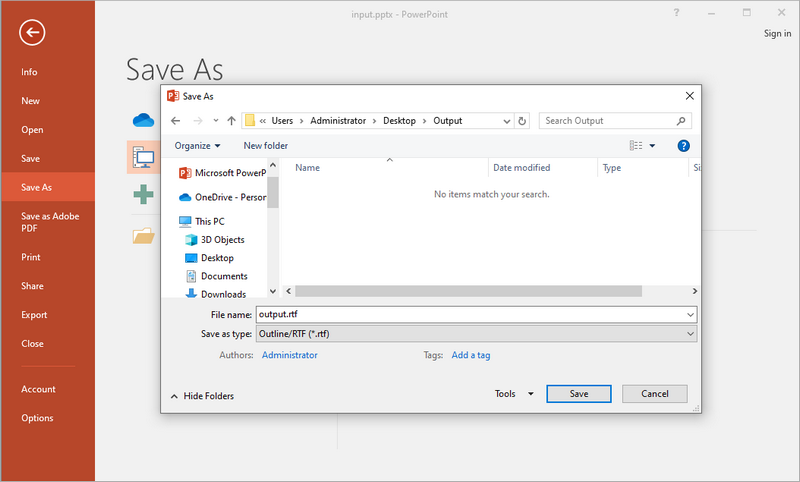
Steps to Save PPT(X) File as RTF:
- Open your PPT(X) file with MS PowerPoint .
- Go to File > Save As .
- Choose Outline/RTF from the file type dropdown menu.
- Change the file name and location (optional), and then click Save .
Pros:
- Built-in feature—no additional software required.
- Preserves basic text structure (headings, bullet points).
Cons:
- Loses non-text elements such as images and tables.
When to Use this Method:
This method is ideal for users who already have MS Office installed on their machines and want to work with confidential documents without using any third-party tools.
Extracting Text Using DeepSeek
Nowadays, AI chat tools have become indispensable office software, and an increasing number of people prefer using AI tools for text-related tasks. Among them, DeepSeek is an AI-driven tool that helps you extract text from PowerPoint presentations efficiently. This tool not only provides a clean output but also offers additional features like summarization, analysis, translation, and polishing.

Steps to Extract Text from PowerPoint Using DeepSeek:
- Visit DeepSeek Chat.
- Click the attachment button to upload your PPT/PPTX file.
- Enter a prompt like: “extract text from it”.
- The AI will process and return structured text.
Pros:
- Provides clean, structured text output with bullet points intact.
- Offers option to translate, summarize, or analyze the extracted text.
Cons:
- Only text is extracted; images and tables are not included.
- Requires network connection.
When to Use this Method:
DeepSeek is best utilized when you need AI-enhanced text extraction with translation, summarization, or analysis. It’s a great option for research or documentation purposes.
Extracting Text Using an Online Converter
Online converters, such as Cloudxdocs.com, offer a quick and convenient way to extract text from PowerPoint files without the need for installation. These tools are particularly useful for users who may not have access to PowerPoint or prefer a simple web-based solution. By uploading your presentation to an online converter, you can swiftly extract the text and download it in a plain text format, making it easy to work with.
While this website offers tons of file format converters, you can directly visit its PowerPoint to TXT converter:

Steps to Convert PowerPoint to TXT Using CloudXDocs Online Converter:
- Go to PowerPoint to TXT converter.
- Upload your PPT/PPTX file.
- The tool will extract text automatically.
- Download the TXT file containing the extracted content.
Pros:
- No software installation—works directly in the browser.
- Preserves table content but loses structure.
- Works on various platforms such as Mac, Windows, and Linux.
Cons:
- May cause privacy concerns for sensitive files.
- Requires network connection.
When to Use this Method:
This method is perfect for users who need a quick solution and do not want to install additional tools.
Extracting Text Using VBA
For users comfortable with coding, Visual Basic for Applications (VBA) offers a powerful way to automate the extraction process. By writing a simple macro, you can quickly extract text from multiple slides, saving you time and effort. This method is particularly useful for those who frequently work with PowerPoint presentations and need a more tailored solution that can handle specific extraction needs.
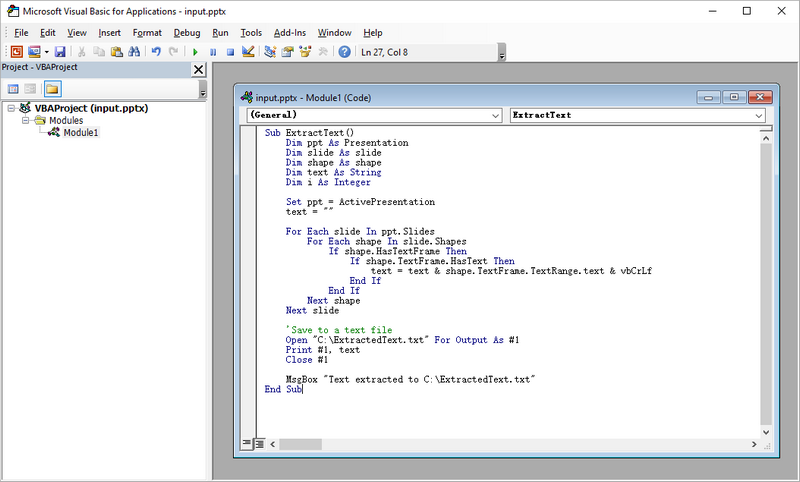
Steps to Extract Text from PowerPoint Using VBA Macro:
- Launch MS PowerPoint on your computer.
- press Alt + F11 to open VBA editor.
- Right-click on any of the itemsin the Project window. Select Insert , and then Module .
- Write VBA code in the module to perform text extraction.
- Close the VBA editor.
- Press Alt + F8 , select the Macro name you just created, and click Run .
Sample VBA Code for Extracting Text from PowerPoint:
Sub ExtractText()
    Dim ppt As Presentation
    Dim slide As slide
    Dim shape As shape
    Dim text As String
    Dim i As Integer

    Set ppt = ActivePresentation
    text = ""

    For Each slide In ppt.Slides
        For Each shape In slide.Shapes
            If shape.HasTextFrame Then
                If shape.TextFrame.HasText Then
                    text = text & shape.TextFrame.TextRange.text & vbCrLf
                End If
            End If
        Next shape
    Next slide

    'Save to a text file
    Open "C:\ExtractedText.txt" For Output As #1
    Print #1, text
    Close #1

    MsgBox "Text extracted to C:\ExtractedText.txt"
End Sub
Pros:
- Highly customizable – modify code for specific needs.
Cons:
- Requires enabling macros, which can pose security risks.
- May require some programming knowledge.
When to Use this Method:
VBA is best suited for users who are familiar with programming and want to automate the extraction process for multiple presentations. This method allows for greater flexibility and customization.
Extracting Text Using Python
Python is a versatile programming language that can be used for various automation tasks, including extracting text from PowerPoint presentations. With libraries like Spire.Presentation, Python enables users to write scripts that can handle complex presentations and automate the extraction process. This method is ideal for tech-savvy individuals who require a robust solution for data manipulation or further processing.
Steps to Extract Text from PowerPoint Using Python:
- Install and configure Python on your computer.
- Create a Python project your IDE, such as Visual Studio Code.
- Install Spire.Presentation by running the pip command: pip install spire.presentation
- Write code (provided below) to preform text extraction on the slides.
- Run the Python script.
Sample Python Code Snippet:
from spire.presentation import *
from spire.presentation.common import *

# Create an object of Presentation class
presentation = Presentation()

# Load a PowerPoint presentation
presentation.LoadFromFile("C:\\Users\\Administrator\\Desktop\\Input.pptx")

# Create a list
text = []

# Loop through the slides in the document
for slide in presentation.Slides:

    # Loop through the shapes in the slide
    for shape in slide.Shapes:

        # Check if the shape is an IAutoShape object
        if isinstance(shape, IAutoShape):

            # Loop through the paragraphs in the shape
            for paragraph in (shape if isinstance(shape, IAutoShape) else None).TextFrame.Paragraphs:

                # Get the paragraph text and append it to list
                text.append(paragraph.Text)

# Write the text to a txt file
f = open("output/ExtractText.txt","w", encoding = 'utf-8')
for s in text:
    f.write(s + "\n")
f.close()

# Dispose resources
presentation.Dispose()
This code extracts text only from PowerPoint. Spire.Presentation allows for the extraction of tables while preserving their structure. For more details, refer to the guide: How to Extract Tables from PowerPoint in Python.
Pros:
- Batch processing—ideal for multiple files.
- Can be integrated into larger workflows.
- Highly customizable with extensive libraries available for further processing.
Cons:
- No formatting - output is plain text.
- Requires programming knowledge and environment setup.
When to Use this Method:
Python is ideal for developers who need to integrate text extraction into larger workflows or projects. This method is particularly useful when dealing with complex presentations or when further data processing is required.
Final Words
When it comes to extracting text from PowerPoint presentations, the best method depends on your specific needs and technical skills. For quick and straightforward tasks, using Microsoft PowerPoint or an online converter is often the best choice. If you require more control or have repetitive extraction tasks, consider using VBA or Python. For AI-enhanced extraction with added functionality, DeepSeek is the optimal choice.
In conclusion, there are several smart ways to extract text from PowerPoint presentations without using the copy-paste method. Each method has its pros and cons, and the right choice will depend on your individual requirements and comfort level with technology. Whether you choose a simple built-in feature or a more advanced programming approach, you can efficiently extract the text you need from your PowerPoint files.
ALSO READ:
Spire.Presentation for Java 10.7.1 fixes the issue occurred when splitting PowerPoint documents
We’re pleased to announce the release of Spire.Presentation for Java 10.7.1. This version fixed the issue occurred when splitting PowerPoint documents. More details are listed below.
Here is a list of changes made in this release:
| Category | ID | Description |
| Bug | SPIREPPT-2922 | Fixed the issue where the program threw 'java. lang. OutOfCacheError: Java heap space' when splitting PowerPoint documents. |
Convert JSON to/from Excel in Python – Full Guide with Examples

In many Python projects, especially those that involve APIs, data analysis, or business reporting, developers often need to convert Excel to JSON or JSON to Excel using Python code. These formats serve different but complementary roles: JSON is ideal for structured data exchange and storage, while Excel is widely used for sharing, editing, and presenting data in business environments.
This tutorial provides a complete, developer-focused guide to converting between JSON and Excel in Python. You'll learn how to handle nested data, apply Excel formatting, and resolve common conversion or encoding issues. We’ll use Python’s built-in json module to handle JSON data, and Spire.XLS for Python to read and write Excel files in .xlsx, .xls, and .csv formats — all without requiring Microsoft Excel or other third-party software.
Topics covered include:
- Install Spire.XLS for Python
- Why Choose Spire.XLS over General-Purpose Libraries?
- Convert JSON to Excel in Python
- Convert Excel to JSON in Python
- Real-World Example: Handling Nested JSON and Complex Excel Formats
- Common Errors and Fixes
- FAQ
- Conclusion
Install Spire.XLS for Python
This library is used in this tutorial to generate and parse Excel files (.xlsx, .xls, .csv) as part of the JSON–Excel conversion workflow.
To get started, install the Spire.XLS for Python package from PyPI:
pip install spire.xls
You can also choose Free Spire.XLS for Python in smaller projects:
pip install spire.xls.free
Spire.XLS for Python runs on Windows, Linux, and macOS. It does not require Microsoft Excel or any COM components to be installed.
Why Choose Spire.XLS over Open-Source Libraries?
Many open-source Python libraries are great for general Excel tasks like simple data export or basic formatting. If your use case only needs straightforward table output, these tools often get the job done quickly.
However, when your project requires rich Excel formatting, multi-sheet reports, or an independent solution without Microsoft Office, Spire.XLS for Python stands out by offering a complete Excel feature set.
| Capability | Open-Source Libraries | Spire.XLS for Python |
|---|---|---|
| Advanced Excel formatting | Basic styling | Full styling API for reports |
| No Office/COM dependency | Fully standalone | Fully standalone |
| Supports .xls, .xlsx, .csv | .xlsx and .csv mostly; .xls may need extra packages | Full support for .xls, .xlsx, .csv |
| Charts, images, shapes | Limited or none | Built-in full support |
For developer teams that need polished Excel files — with complex layouts, visuals, or business-ready styling — Spire.XLS is an efficient, all-in-one alternative.
Convert JSON to Excel in Python
In this section, we’ll walk through how to convert structured JSON data into an Excel file using Python. This is especially useful when exporting API responses or internal data into .xlsx reports for business users or analysts.
Step 1: Prepare JSON Data
We’ll start with a JSON list of employee records:
[
  {"employee_id": "E001", "name": "Jane Doe", "department": "HR"},
  {"employee_id": "E002", "name": "Michael Smith", "department": "IT"},
  {"employee_id": "E003", "name": "Sara Lin", "department": "Finance"}
]
This is a typical structure returned by APIs or stored in log files. For more complex nested structures, see the real-world example section.
Step 2: Convert JSON to Excel in Python with Spire.XLS
from spire.xls import Workbook, FileFormat
import json

# Load JSON data from file
with open("employees.json", "r", encoding="utf-8") as f:
    data = json.load(f)

# Create a new Excel workbook and access the first worksheet
workbook = Workbook()
sheet = workbook.Worksheets[0]

# Write headers to the first row
headers = list(data[0].keys())
for col, header in enumerate(headers):
    sheet.Range[1, col + 1].Text = header

# Write data rows starting from the second row
for row_idx, row in enumerate(data, start=2):
    for col_idx, key in enumerate(headers):
        sheet.Range[row_idx, col_idx + 1].Text = str(row.get(key, ""))

# Auto-fit the width of all used columns
for i in range(1, sheet.Range.ColumnCount + 1):
    sheet.AutoFitColumn(i)

# Save the Excel file and release resources
workbook.SaveToFile("output/employees.xlsx", FileFormat.Version2016)
workbook.Dispose()
Code Explanation:
- Workbook() initializes the Excel file with three default worksheets.
- workbook.Worksheets[] accesses the specified worksheet.
- sheet.Range(row, col).Text writes string data to a specific cell (1-indexed).
- The first row contains column headers based on JSON keys, and each JSON object is written to a new row beneath it.
- workbook.SaveToFile() saves the Excel workbook to disk. You can specify the format using the FileFormat enum — for example, Version97to2003 saves as .xls, Version2007 and newer save as .xlsx, and CSV saves as .csv.
The generated Excel file (employees.xlsx) with columns employee_id, name, and department.
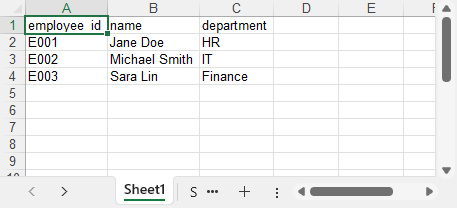
You can also convert the Excel worksheet to a CSV file using Spire.XLS for Python if you need a plain text output format.
Convert Excel to JSON in Python
This part explains how to convert Excel data back into structured JSON using Python. This is a common need when importing .xlsx files into web apps, APIs, or data pipelines that expect JSON input.
Step 1: Load the Excel File
First, we use Workbook.LoadFromFile() to load the Excel file, and then select the worksheet using workbook.Worksheets[0]. This gives us access to the data we want to convert into JSON format.
from spire.xls import Workbook

# Load the Excel file
workbook = Workbook()
workbook.LoadFromFile("products.xlsx")
sheet = workbook.Worksheets[0]
Step 2: Extract Excel Data and Write to JSON
import json

# Get the index of the last row and column
rows = sheet.LastRow
cols = sheet.LastColumn

# Extract headers from the first row
headers = [sheet.Range[1, i + 1].Text for i in range(cols)]
data = []

# Map each row to a dictionary using headers
for r in range(2, rows + 1):
    row_data = {}
    for c in range(cols):
        value = sheet.Range[r, c + 1].Text
        row_data[headers[c]] = value
    data.append(row_data)

# Write JSON output
with open("products_out.json", "w", encoding="utf-8") as f:
    json.dump(data, f, indent=2, ensure_ascii=False)
Code Explanation:
- sheet.LastRow and sheet.LastColumn detect actual used cell range.
- The first row is used to extract field names (headers).
- Each row is mapped to a dictionary, forming a list of JSON objects.
- sheet.Range[row, col].Text returns the cell’s displayed text, including any formatting (like date formats or currency symbols). If you need the raw numeric value or a real date object, you can use .Value, .NumberValue, or .DateTimeValue instead.
The JSON file generated from the Excel data using Python:
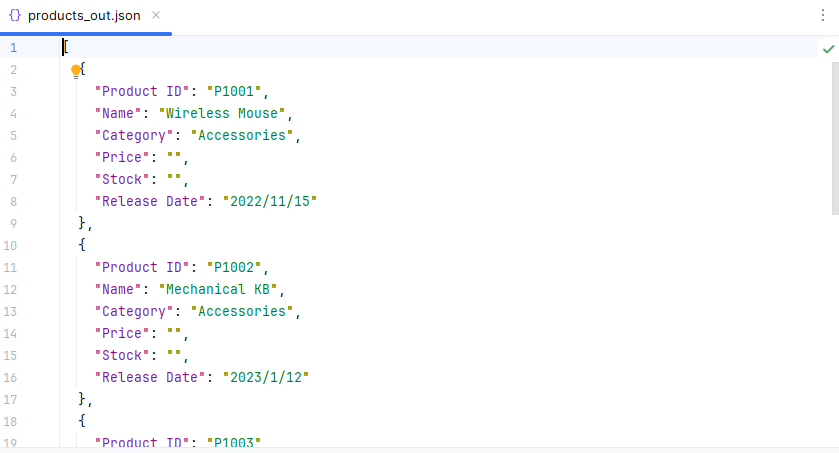
If you’re not yet familiar with how to read Excel files in Python, see our full guide: How to Read Excel Files in Python Using Spire.XLS.
Real-World Example: Handling Nested JSON and Formatting Excel
In real-world Python applications, JSON data often contains nested dictionaries or lists, such as contact details, configuration groups, or progress logs. At the same time, the Excel output is expected to follow a clean, readable layout suitable for business or reporting purposes.
In this section, we'll demonstrate how to flatten nested JSON data and format the resulting Excel sheet using Python and Spire.XLS. This includes merging cells, applying styles, and auto-fitting columns — all features that help present complex data in a clear tabular form.
Let’s walk through the process using a sample file: projects_nested.json.
Step 1: Flatten Nested JSON
Sample JSON file (projects_nested.json):
[
  {
    "project_id": "PRJ001",
    "title": "AI Research",
    "manager": {
      "name": "Dr. Emily Wang",
      "email": "emily@lab.org"
    },
    "phases": [
      {"phase": "Design", "status": "Completed"},
      {"phase": "Development", "status": "In Progress"}
    ]
  },
  {
    "project_id": "PRJ002",
    "title": "Cloud Migration",
    "manager": {
      "name": "Mr. John Lee",
      "email": "john@infra.net"
    },
    "phases": [
      {"phase": "Assessment", "status": "Completed"}
    ]
  }
]
We'll flatten all nested structures, including objects like manager, and summarize lists like phases into string fields. Each JSON record becomes a single flat row, with even complex nested data compactly represented in columns using readable summaries.
import json

# Helper: Flatten nested data and summarize list of dicts into strings
# e.g., [{"a":1},{"a":2}] → "a: 1; a: 2"
def flatten(data, parent_key='', sep='.'):
    items = {}
    for k, v in data.items():
        new_key = f"{parent_key}{sep}{k}" if parent_key else k
        if isinstance(v, dict):
            items.update(flatten(v, new_key, sep=sep))
        elif isinstance(v, list):
            if all(isinstance(i, dict) for i in v):
                items[new_key] = "; ".join(
                    ", ".join(f"{ik}: {iv}" for ik, iv in i.items()) for i in v
                )
            else:
                items[new_key] = ", ".join(map(str, v))
        else:
            items[new_key] = v
    return items

# Load and flatten JSON
with open("projects_nested.json", "r", encoding="utf-8") as f:
    raw_data = json.load(f)

flat_data = [flatten(record) for record in raw_data]

# Collect all unique keys from flattened data as headers
all_keys = set()
for item in flat_data:
    all_keys.update(item.keys())
headers = list(sorted(all_keys))  # Consistent, sorted column order
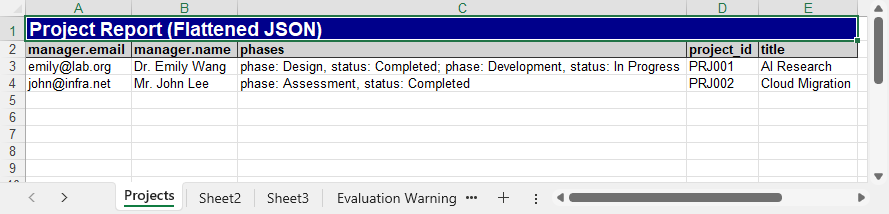
This version of flatten() converts lists of dictionaries into concise summary strings (e.g., "phase: Design, status: Completed; phase: Development, status: In Progress"), making complex structures more compact for Excel output.
Step 2: Format and Export Excel with Spire.XLS
Now we’ll export the flattened project data to Excel, and use formatting features in Spire.XLS for Python to improve the layout and readability. This includes setting fonts, colors, merging cells, and automatically adjusting column widths for a professional report look.
from spire.xls import Workbook, Color, FileFormat

# Create workbook and worksheet
workbook = Workbook()
sheet = workbook.Worksheets[0]
sheet.Name = "Projects"

# Title row: merge and style
col_count = len(headers)
sheet.Range[1, 1, 1, col_count].Merge()
sheet.Range[1, 1].Text = "Project Report (Flattened JSON)"
title_style = sheet.Range["A1"].Style
title_style.Font.IsBold = True
title_style.Font.Size = 14
title_style.Font.Color = Color.get_White()
title_style.Color = Color.get_DarkBlue()

# Header row from flattened keys
for col, header in enumerate(headers):
    cell = sheet.Range[2, col + 1]
    cell.BorderAround() # Add outside borders to a cell or cell range
    #cell.BorderInside() # Add inside borders to a cell range
    cell.Text = header
    style = cell.Style
    style.Font.IsBold = True
    style.Color = Color.get_LightGray()

# Data rows
for row_idx, row in enumerate(flat_data, start=3):
    for col_idx, key in enumerate(headers):
        sheet.Range[row_idx, col_idx + 1].Text = str(row.get(key, ""))

# Auto-fit columns and rows
for col in range(len(headers)):
    sheet.AutoFitColumn(col + 1)
for row in range(len(flat_data)):
    sheet.AutoFitRow(row + 1)

# Save Excel file
workbook.SaveToFile("output/projects_formatted.xlsx", FileFormat.Version2016)
workbook.Dispose()
This produces a clean, styled Excel sheet from a nested JSON file, making your output suitable for reports, stakeholders, or dashboards.
Code Explanation
- sheet.Range[].Merge(): merges a range of cells into one. Here we use it for the report title row (A1:F1).
- .Style.Font / .Style.Color: allow customizing font properties (bold, size, color) and background fill of a cell.
- .BorderAround() / .BorderInside(): add outside/inside borders to a cell range.
- AutoFitColumn(n): automatically adjusts the width of column
nto fit its content.
The Excel file generated after flattening the JSON data using Python:
Common Errors and Fixes in JSON ↔ Excel Conversion
Converting between JSON and Excel may sometimes raise formatting, encoding, or data structure issues. Here are some common problems and how to fix them:
| Error | Fix |
|---|---|
| JSONDecodeError or malformed input | Ensure valid syntax; avoid using eval(); use json.load() and flatten nested objects. |
| TypeError: Object of type ... is not JSON serializable | Use json.dump(data, f, default=str) to convert non-serializable values. |
| Excel file not loading or crashing | Ensure the file is not open in Excel; use the correct extension (.xlsx or .xls). |
| UnicodeEncodeError or corrupted characters | Set encoding="utf-8" and ensure_ascii=False in json.dump(). |
Conclusion
With Spire.XLS for Python, converting between JSON and Excel becomes a streamlined and reliable process. You can easily transform JSON data into well-formatted Excel files, complete with headers and styles, and just as smoothly convert Excel sheets back into structured JSON. The library helps you avoid common issues such as encoding errors, nested data complications, and Excel file format pitfalls.
Whether you're handling data exports, generating reports, or processing API responses, Spire.XLS provides a consistent and efficient way to work with .json and .xlsx formats in both directions.
Want to unlock all features without limitations? Request a free temporary license for full access to Spire.XLS for Python.
FAQ
Q1: How to convert JSON into Excel using Python?
You can use the json module in Python to load structured JSON data, and then use a library like Spire.XLS to export it to .xlsx. Spire.XLS allows writing headers, formatting Excel cells, and handling nested JSON via flattening. See the JSON to Excel section above for step-by-step examples.
Q2: How do I parse JSON data in Python?
Parsing JSON in Python is straightforward with the built-in json module. Use json.load() to parse JSON from a file, or json.loads() to parse a JSON string. After parsing, the result is usually a list of dictionaries, which can be iterated and exported to Excel or other formats.
Q3: Can I export Excel to JSON with Spire.XLS in Python?
Yes. Spire.XLS for Python lets you read Excel files and convert worksheet data into a list of dictionaries, which can be written to JSON using json.dump(). The process includes extracting headers, detecting used rows and columns, and optionally handling formatting. See Excel to JSON for detailed implementation.
Spire.PDF for C++ 11.7.0 fixes an error when retrieving PDF font properties
We're pleased to announce the release of Spire.PDF for C++ 11.7.0. This release upgrades the dependent SkiaSharp version and fixes two issues occurred when converting OFD to PDF and retrieving font properties. Details are shown below.
Here is a list of all changes made in this release
| Category | ID | Description |
| Optimization | - | Upgrades the dependent SkiaSharp version to 3.116.1. |
| Bug | - | Fixes an "Arg_NullReferenceException" error occurred when converting OFD to PDF. |
| Bug | - | Fixes an error occurred when retrieving PDF font properties. |
How to Generate QR Codes in Python (Full Tutorial with Examples)

QR codes have transformed how we bridge physical and digital experiences—from marketing campaigns to secure data sharing. For developers looking to generate QR codes in Python , Spire.Barcode for Python provides a complete toolkit for seamless QR code generation, offering both simplicity for basic needs and advanced customization for professional applications.
This step-by-step guide walks you through the entire QR code generation process in Python. You'll learn to programmatically create scannable codes, customize their appearance, embed logos, and optimize error correction - everything needed to implement robust QR code generation solutions for any business or technical requirement.
Table of Contents
- Introduction to Spire.Barcode for Python
- Setting Up the Environment
- Basic Example: Generating QR Codes in Python
- Customizing QR Code Appearance
- Generating QR Code with Logo
- Wrapping up
- FAQs
1. Introduction to Spire.Barcode for Python
Spire.Barcode for Python is a powerful library that enables developers to generate and read various barcode types, including QR codes, in Python applications. This robust solution supports multiple barcode symbologies while offering extensive customization options for appearance and functionality.
Key features of Spire.Barcode include:
- Support for QR Code generation with customizable error correction levels
- Flexible data encoding options (numeric, alphanumber, byte/binary)
- Comprehensive appearance customization (colors, sizes, fonts)
- High-resolution output capabilities
- Logo integration within QR codes
2. Setting Up the Environment
Before we dive into generating QR codes, you need to set up your Python environment. Ensure you have Python installed, and then install the Spire.Barcode library using pip:
pip install spire.barcode
For the best results, obtain a free temporary license from our website. This will allow you to create professional QR code images without evaluation messages, enhancing both user experience and quality of the generated codes.
3. Basic Example: Generating QR Codes in Python
Now that we have everything set up, let's generate our first QR code. Below is the step-by-step process:
-
Initial Setup :
- Import the Spire.Barcode library.
- Activate the library with a valid license key to remove the
-
Configure Barcode Settings :
- Create a BarcodeSettings object to control QR code properties.
- Set barcode type to QR code.
- Configure settings such as data mode and error correction level.
- Define the content to encode.
- Configure visual aspects like module width and text display options.
-
Generate Barcode Image :
- Create a BarCodeGenerator object with the configured settings.
- Convert the configured QR code into an image object in memory.
-
Save Image to File :
- Write the generated QR code image to a specified file path in PNG format.
The following code snippet demonstrates how to generate QR codes in Python:
from spire.barcode import *

# Function to write all bytes to a file
def WriteAllBytes(fname: str, data):
    with open(fname, "wb") as fp:
        fp.write(data)
    fp.close()

# Apply license key for the barcode generation library
License.SetLicenseKey("your license key")

# Create a BarcodeSettings object to configure barcode properties
barcodeSettings = BarcodeSettings()

# Set the type of barcode to QR code
barcodeSettings.Type = BarCodeType.QRCode

# Set the data mode for QR code (automatic detection of data type)
barcodeSettings.QRCodeDataMode = QRCodeDataMode.Auto

# Set the error correction level (M means medium level of error correction)
barcodeSettings.QRCodeECL = QRCodeECL.M

# Set the data that will be encoded in the QR code
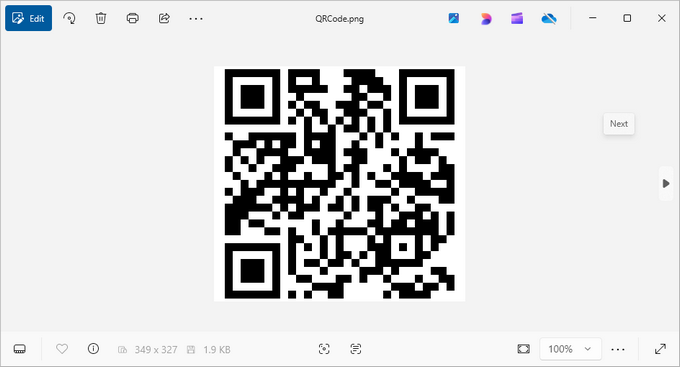
barcodeSettings.Data2D = "visit us at www.e-iceblue.com"

# Set the width of each module (the square bars) in the barcode
barcodeSettings.X = 3

# Hide the text that typically accompanies the barcode
barcodeSettings.ShowText = False

# Create a BarCodeGenerator object with the specified settings
barCodeGenerator = BarCodeGenerator(barcodeSettings)

# Generate the image for the barcode based on the settings
image = barCodeGenerator.GenerateImage()

# Write the generated PNG image to disk at the specified path
WriteAllBytes("output/QRCode.png", image)
Key Concepts:
A. QRCodeDataMode (Data Encoding Scheme)
Controls how the input data is encoded in the QR code:
| Mode | Best For | Example Use Cases |
|---|---|---|
| Auto | Let library detect automatically | General purpose (default choice) |
| Numeric | Numbers only (0-9) | Product codes, phone numbers |
| AlphaNumber | A-Z, 0-9, and some symbols | URLs, simple messages |
| Byte | Binary/Unicode data | Complex text, special characters |
Why it matters:
- Different modes have different storage capacities.
- Numeric mode can store more digits than other modes.
- Auto mode is safest for mixed content.
B. QRCodeECL (Error Correction Level)
Determines how much redundancy is built into the QR code:
| Level | Recovery Capacity | Use Case |
|---|---|---|
| L (Low) | 7% damage recovery | Small codes, short URLs |
| M (Medium) | 15% damage recovery | General purpose (recommended) |
| Q (Quartile) | 25% damage recovery | Codes with logos or decorations |
| H (High) | 30% damage recovery | Critical applications |
Visual Impact:
Higher ECLs:
- Increase QR code complexity (more modules/squares).
- Make the code more scannable when damaged.
- Are essential when adding logos (use at least Q or H).
Output:
4. Customizing QR Code Appearance
Once you've generated a basic QR code, you can further customize its appearance to make it more visually appealing or to fit your brand. Here are some customization options:
4.1 Adjusting DPI Settings
The DPI (dots per inch) settings control the image quality of the QR code. Higher DPI values result in sharper images suitable for printing, while lower values (72-150) are typically sufficient for digital use.
barcodeSettings.DpiX = 150
barcodeSettings.DpiY = 150
4.2 Changing Foreground and Background Colors
You can customize your QR code’s color scheme. The ForeColor determines the color of the QR code modules (squares), while BackColor sets the background color. Ensure sufficient contrast for reliable scanning.
barcodeSettings.BackColor = Color.get_GhostWhite()
barcodeSettings.ForeColor = Color.get_Purple()
4.3 Displaying the Encoded Data
If you want users to see the encoded information without scanning, set the following properties:
barcodeSettings.ShowTextOnBottom = True
barcodeSettings.TextColor = Color.get_Purple()
barcodeSettings.SetTextFont("Arial", 13, FontStyle.Bold)
4.4 Adding Text Under QR Code
You can also add custom text under the QR code, which could be a call-to-action or instructions.
barcodeSettings.ShowBottomText = True
barcodeSettings.BottomText = "Scan Me"
barcodeSettings.SetBottomTextFont("Arial", 13, FontStyle.Bold)
barcodeSettings.BottomTextColor = Color.get_Black()
4.5 Setting Margins and Border
Defining margins and border styles enhances the presentation of the QR code. Here’s how to do it:
barcodeSettings.LeftMargin = 2
barcodeSettings.RightMargin = 2
barcodeSettings.TopMargin = 2
barcodeSettings.BottomMargin = 2

barcodeSettings.HasBorder = True
barcodeSettings.BorderWidth = 0.5
barcodeSettings.BorderColor = Color.get_Black()
5. Generating QR Code with Logo
For branding purposes, you might want to add a logo to your QR code. Spire.Barcode makes this process seamless while maintaining scannability. Here’s how:
barcodeSettings.SetQRCodeLogoImage("C:\\Users\\Administrator\\Desktop\\logo.png")
When adding a logo:
- Use a simple, high-contrast logo for best results.
- Test the scannability after adding the logo.
- The QR code's error correction (set earlier) helps compensate for the obscured area.
The logo will be centered within the QR code, and Spire.Barcode will automatically resize it to ensure the QR code remains scannable.
Output:

6. Wrapping up
Generating QR codes in Python using Spire.Barcode is a straightforward process that offers extensive customization options. From basic QR codes to branded versions with logos and custom styling, the library provides all the tools needed for professional barcode generation.
Key Benefits:
- Spire.Barcode simplifies QR code generation with a clean API.
- Extensive customization options allow for branded, visually appealing QR codes.
- Error correction ensures reliability even with added logos.
- High-resolution output supports both digital and print use cases.
Whether you're building an inventory system, creating marketing materials, or developing a mobile app integration, Spire.Barcode provides a robust solution for all your QR code generation needs in Python.
7. FAQs
Q1: What is a QR code?
A QR code (Quick Response code) is a type of matrix barcode that can store URLs and other information. It is widely used for quickly linking users to websites, apps, and digital content through mobile devices.
Q2: Can I generate QR codes without a license key?
Yes, you can generate QR codes without a license key; however, the generated barcode will display an evaluation message along with our company logo, which may detract from the user experience.
Q3: Can I generate different types of barcodes with Spire.Barcode?
Yes, Spire.Barcode supports various barcode types, not just QR codes. Detailed documentation can be found here: How to Generate Barcode in Python
Q4: How can I implement a QR code generator in Python using Spire.Barcode?
To implement a QR code generator in Python with Spire.Barcode, create a BarcodeSettings object to configure the QR code properties. Then, use the BarCodeGenerator class to generate the QR code image by calling the GenerateImage() method.
Q5: Can I scan or read QR code using Spire.Barcode?
Yes, you can scan and read QR codes using Spire.Barcode for Python. The library provides functionality for both generating and decoding QR codes. Follow this guide: How to Read Barcode Using Python
Get a Free License
To fully experience the capabilities of Spire.Barcode for Python without any evaluation limitations, you can request a free 30-day trial license.
Spire.Barcode for C++ 7.2.2 optimizes the scanning effect of QR codes
We're pleased to announce the release of Spire.Barcode for C++ 7.2.2. The latest version optimizes the scanning effect of QR codes. Besides, the SkiaSharp dependency version has been upgraded to 3.116.1 in the new version. Details are shown below.
Here is a list of changes made in this release
| Category | ID | Description |
| Adjustment | - | Upgrades the SkiaSharp dependency to version 3.116.1. |
| Bug | - | Optimizes the scanning effect of QR codes. |
Spire.Presentation for C++ 10.7.1 enhances the conversion from PowerPoint to images
We are delighted to announce the release of Spire.Presentation for C++ 10.7.1. This version enhances the PowerPoint to image conversion. Besides, some known issues are fixed successfully in this version, such as the issue where setting shape.TextFrame.AutofitType = TextAutofitType.Normal did not work correctly. More details are listed below.
Here is a list of changes made in this release
| Category | ID | Description |
| Adjustment | - | Upgrades the SkiaSharp dependency to version 3.116.1. |
| Bug | - | Fixes the issue where the content format was incorrect after converting PowerPoint to images. |
| Bug | - | Fixes the issue where setting shape.TextFrame.AutofitType = TextAutofitType.Normal did not work correctly. |
Spire.PDF 11.7.10 enhances the conversion from EMF to PDF
We’re pleased to announce the release of Spire.PDF 11.7.10. This version improves the conversion result from EMF to PDF. More details are listed below.
Here is a list of changes made in this release:
| Category | ID | Description |
| Bug | SPIREPDF-6991 | Fixed the issue where Arabic text did not display correctly when converting an EMF file to PDF. |
Spire.PDF for Python 11.7.0 supports removing PdfWatermarkAnnotationWidget objects
We're pleased to announce the release of Spire.PDF for Python 11.7.0. This version supports removing PdfWatermarkAnnotationWidget objects, and also fixes two issues that occurred when converting OFD to PDF and retrieving PDF font properties. More details are listed below.
Here is a list of all changes made in this release
| Category | ID | Description |
| Optimization | - | Optimizes and modularizes the namespace structures. |
| New feature | SPIREPDF-7230 | Supports removing PdfWatermarkAnnotationWidget objects.
# Create a PdfDocument object
pdfDocument = PdfDocument()

# Load PDF document from file
pdfDocument.LoadFromFile(inputFile_add)

# Define watermark text
id = "NO_01"

# Iterate through the pages in the document
for i in range(pdfDocument.Pages.Count):
    # Get all annotations on the current page
    annotationWidget = pdfDocument.Pages[i].Annotations
    # Iterate backwards through annotations (to allow safe removal)
    for j in range(len(annotationWidget)-1, -1, -1):
        if isinstance(annotationWidget[j], PdfWatermarkAnnotationWidget):
            if annotationWidget[j].Text == id:
                # Remove the matching watermark annotation
                annotationWidget.Remove(annotationWidget[j])

# Save the modified PDF document to a new file
pdfDocument.SaveToFile(outputFile_del)

# Release resources of the PdfDocument object
pdfDocument.Dispose()
|
| New feature | SPIREPDF-7274 | Supports inserting PdfSignatureField.
from spire.pdf import *

# Create a PDF document
doc = PdfDocument()
page = doc.Pages.Add()
signatureField=PdfSignatureField(page,"mysignaturefield")
signatureField.Bounds=RectangleF(20.0,50.0,100.0,100.0)
signatureField.HighlightMode=PdfHighlightMode.Outline
signatureField.ToolTip="signature"
doc.Form.Fields.Add(signatureField)
doc.Form.NeedAppearances=True

doc.SaveToFile("CreateField.pdf")
|
| Bug | SPIREPDF-7123 | Fixes the "Arg_NullReferenceException" error occurred when converting OFD to PDF. |
| Bug | SPIREPDF-7273 | Fixes an error occurred when retrieving PDF font properties. |
Eliminare una casella di testo in Word — passaggi manuali e automazione in C#
Indice
Installa con Nuget
PM> Install-Package Spire.Doc
Link correlati
Le caselle di testo sono comunemente utilizzate durante la creazione di documenti di Word. Aiutano a evidenziare il contenuto, a visualizzare citazioni o a migliorare il design del layout. Tuttavia, quando è necessario ripulire o riformattare un documento, queste caselle di testo potrebbero non essere più necessarie. In questo articolo, imparerai come eliminare una casella di testo in Word, sia manualmente che utilizzando il codice C# per rimuovere una o tutte le caselle di testo automaticamente.
- Eliminare le caselle di testo nei documenti di Word manualmente
- Eliminare una casella di testo nei file di Word con C#
- Eliminare una singola casella di testo
- Eliminare tutte le caselle di testo
- FAQ
Eliminare le caselle di testo nei documenti di Word manualmente con Microsoft Word
Innanzitutto, vediamo come eliminare manualmente le caselle di testo nei documenti di Word. Essendo uno degli strumenti di elaborazione testi più utilizzati, Microsoft Word facilita l'inserimento e la rimozione delle caselle di testo. L'eliminazione di una casella di testo è un processo semplice in due passaggi: seleziona la casella di testo che desideri rimuovere, quindi premi il tasto Canc. Di seguito, ti guideremo attraverso questi passaggi in dettaglio.
1. Passaggi per eliminare una casella di testo in un file di Word:
- Apri il documento di Word e individua la casella di testo che desideri rimuovere.
- Fai clic sulla casella di testo per selezionarla.
- Premi il tasto Backspace per eliminarla, oppure usa la scorciatoia Ctrl + X per tagliarla dal documento.
2. Passaggi per eliminare in blocco le caselle di testo nei documenti di Word:
- Tieni premuto il tasto Ctrl sulla tastiera.
- Tenendo premuto Ctrl, fai clic con il pulsante sinistro del mouse su ogni casella di testo che desideri eliminare per selezionarle tutte.
- Una volta selezionate, premi il tasto Backspace per rimuovere tutte le caselle di testo selezionate contemporaneamente.
Nota: Assicurati di fare clic sul bordo di ogni casella di testo durante la selezione, non sul testo al suo interno.
Leggi anche: Come inserire una casella di testo in Word usando C# >>
Eliminare una casella di testo nei file di Word con C# automaticamente
Eliminare manualmente una casella di testo in Word è facile, ma cosa succede se il tuo documento ne contiene dozzine? Anche l'uso del tasto Ctrl per selezionare più caselle può richiedere tempo ed essere soggetto a errori. Fortunatamente, con C#, puoi automatizzare questa attività. Che tu debba rimuovere una singola casella di testo o eliminarle tutte in blocco, C# rende il processo veloce e senza sforzo.
In questo tutorial, useremo Spire.Doc for .NET per dimostrare come eliminare rapidamente le caselle di testo nei documenti di Word tramite codice. Puoi installare questa potente libreria scaricandola dal sito ufficiale o tramite NuGet. Supporta tutte le funzionalità principali disponibili in Microsoft Word, come la modifica del testo, la formattazione e il layout, e offre anche funzionalità avanzate aggiuntive per gli sviluppatori.
1. Eliminare una casella di testo specifica in Word con C#
Rimuovere una casella di testo specifica in Word usando C# è semplice. Il processo prevede tre passaggi principali: caricare il documento, individuare la casella di testo di destinazione e rimuoverla. Di seguito è riportato l'esempio di codice completo. Analizzeremo il funzionamento di ogni parte subito dopo lo snippet.
Esempio di codice: eliminare la prima casella di testo in Word:
using Spire.Doc;

namespace Removetextbox
{
    class Program
    {
        static void Main(string[] args)
        {
            // Crea un'istanza di Document
            Document Doc = new Document();

            // Carica un documento di Word
            Doc.LoadFromFile("E:/Administrator/Python1/input/textbox.docx");

            // Rimuovi la casella di testo inserita per prima (l'ultima nella raccolta)
            if (Doc.TextBoxes.Count > 0)
            {
                Doc.TextBoxes.RemoveAt(Doc.TextBoxes.Count - 1);
            }

            // Salva il documento modificato
            Doc.SaveToFile("E:/Administrator/Python1/output/removefirsttextbox.docx", FileFormat.Docx);
        }
    }
}
Anteprima del risultato: 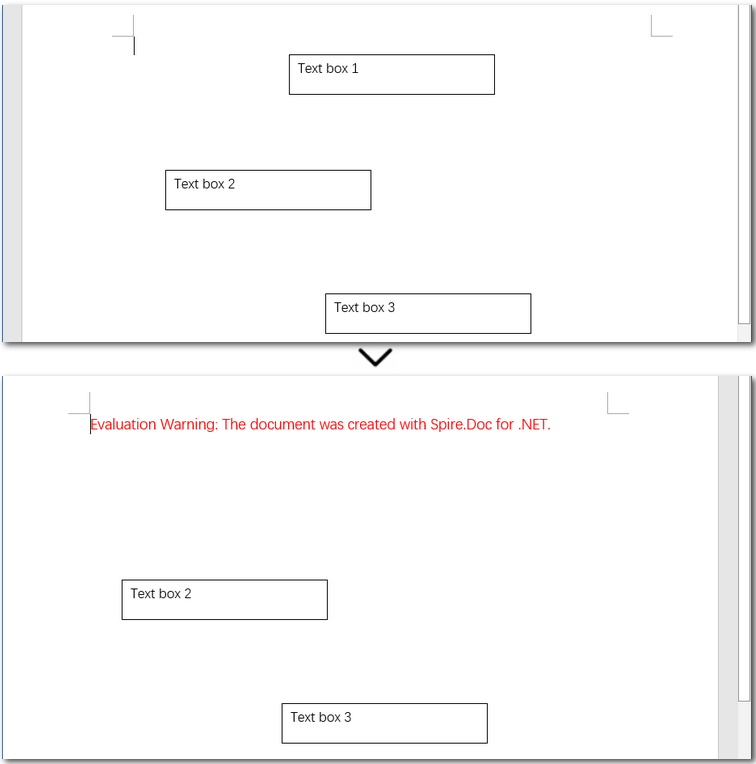
Spiegazione dettagliata dei passaggi:
- Crea un oggetto della classe Document e carica un documento di Word.
- Rimuovi la prima casella di testo usando il metodo Document.TextBoxes.RemoveAt().
- Salva il file di Word modificato come un nuovo file.
Nota: A causa del modo in cui Word archivia internamente le caselle di testo, l'ultima inserita appare per prima nella raccolta TextBoxes. Questo non è specifico di Spire.Doc, ma piuttosto un risultato della struttura dei documenti di Word. Di conseguenza, questo esempio utilizza l'indicizzazione inversa per mirare alla casella di testo inserita per prima.
2. Eliminare in blocco tutte le caselle di testo in Word con C#
Rispetto all'eliminazione di una casella di testo specifica, rimuovere tutte le caselle di testo in un documento di Word con C# è molto più semplice. Non è necessario preoccuparsi degli indici: basta chiamare il metodo Document.TextBoxes.Clear() per rimuoverle tutte in una volta.
Esempio di codice: eliminare tutte le caselle di testo nei file di Word in una volta:
using Spire.Doc;

namespace Removetextbox
{
    class Program
    {
        static void Main(string[] args)
        {
            // Crea un'istanza di Document
            Document Doc = new Document();

            // Carica un documento di Word
            Doc.LoadFromFile("E:/Administrator/Python1/input/textbox.docx");

            // Elimina tutte le caselle di testo
            Doc.TextBoxes.Clear();

            // Salva il documento modificato
            Doc.SaveToFile("E:/Administrator/Python1/output/removealltextbox.docx", FileFormat.Docx);
        }
    }
}
Conclusione
In questo articolo, abbiamo esplorato come eliminare le caselle di testo nei documenti di Word, sia manualmente che programmaticamente usando C#. Che tu abbia bisogno di rimuovere una singola casella di testo o di eliminarle tutte, questa guida fa al caso tuo. Per i documenti con poche caselle di testo, l'eliminazione manuale funziona benissimo. Ma se hai a che fare con un gran numero di esse, automatizzare l'attività con C# è una soluzione molto più efficiente.
FAQ sull'eliminazione delle caselle di testo in Word
Q1: Come rimuovo una casella di testo da un documento di Word?
Per rimuovere manualmente una casella di testo, fai clic sul suo bordo per selezionarla, quindi premi il tasto Backspace o Canc sulla tastiera. Puoi anche fare clic con il pulsante destro del mouse e scegliere "Taglia" o usare la scorciatoia Ctrl + X.
Q2: Posso eliminare tutte le caselle di testo in un documento di Word contemporaneamente usando C#?
Sì. Se stai lavorando con più caselle di testo, usare C# è un modo efficiente per eliminarle tutte contemporaneamente. Con la libreria Spire.Doc for .NET, puoi semplicemente chiamare Document.TextBoxes.Clear() per rimuovere programmaticamente ogni casella di testo nel documento.
Q3: Come rimuovo una casella di testo ancorata in Word?
Le caselle di testo ancorate sono collegate a un paragrafo o a una posizione specifica nel documento. Puoi eliminarle allo stesso modo delle normali caselle di testo: basta fare clic sul bordo della casella (non sul testo all'interno), quindi premere Canc. Per un controllo preciso, puoi anche usare C# per localizzarle e rimuoverle programmaticamente.
LEGGI ANCHE: