HTML to RTF Conversion in C# (Full Code Examples)
Converting HTML to RTF in C# is a key task for developers working with web content that needs to be transformed into editable, universally compatible documents. HTML excels at web display with dynamic styles and structure, while RTF is ideal for shareable, editable files in tools like Word or WordPad.
For .NET developers, using libraries like Spire.Doc can streamline the process. In this tutorial, we'll explore how to use C# to convert HTML to RTF, covering everything from basic implementations to advanced scenarios such as handling HTML images, batch conversion.
- Why Use Spire.Doc for HTML to RTF Conversion?
- Getting Started
- Convert HTML to RTF (C# Code Examples)
- Advanced Conversion Scenarios
- Final Thoughts
- Common Questions
Why Use Spire.Doc for HTML to RTF Conversion?
Spire.Doc for .NET is a lightweight, feature-rich library for creating, editing, and converting Word and RTF documents in .NET applications (supports .NET Framework, .NET Core, and .NET 5+). For HTML to rich text conversion, it offers key benefits:
- Preserves HTML formatting (fonts, colors, links, lists, tables).
- Supports loading HTML from strings or local files.
- No dependency on Microsoft Word or other third-party software.
- Intuitive API with minimal code required.
Getting Started
1. Create a C# Project
If you’re starting from scratch, create a new Console App (.NET Framework/.NET Core) project in Visual Studio. This example uses a console app for simplicity, but the code works in WinForms, WPF, or ASP.NET projects too.
2. Install Spire.Doc via NuGet
The fastest way to add Spire.Doc to your C# project is through NuGet Package Manager:
- Open your C# project in Visual Studio.
- Right-click the project in the Solution Explorer → Select Manage NuGet Packages.
- Search for Spire.Doc and click Install to add the latest version to your project.
Alternatively, use the NuGet Package Manager Console with this command:
Install-Package Spire.Doc
Convert HTML to RTF (C# Code Examples)
Spire.Doc’s Document class handles HTML loading and RTF saving. Below are two common scenarios:
Scenario 1: Convert HTML String to RTF in C#
Use this when HTML content is dynamic (e.g., from user input, APIs, or databases).
using Spire.Doc;
using Spire.Doc.Documents;

namespace HtmlToRtfConverter
{
    class Program
    {
        static void Main(string[] args)
        {
            // Create a Document object
            Document doc = new Document();

            // Define your HTML content
            string htmlString = @"
                    <html>
                        <body>
                            <h1 style='color: #00BFFF; font-family: Arial'>HTML to RTF Conversion</h1>
                            <p>This is a <b>bold paragraph</b> with a <a href='https://www.e-iceblue.com'>link</a>.</p>
                            <ul>
                                <li>Item 1 </li>
                                <li>Item 2</li>
                            </ul>
                            <table border='1' cellpadding='5'>
                                <tr><td>Name</td><td>Gender</td><td>Age</td></tr>
                                <tr><td>John</td><td>Male</td><td>30</td></tr>
                                <tr><td>Kate</td><td>Female</td><td>26</td></tr>
                            </table>
                        </body>
                    </html>";

            // Add a paragraph in Word
            Paragraph para = doc.AddSection().AddParagraph();

            // Append the HTML string to the paragraph
            para.AppendHTML(htmlString);

            // Save the document as RTF
            doc.SaveToFile("HtmlStringToRtf.rtf", FileFormat.Rtf);
            doc.Dispose();

        }
    }
}
In this code:
- Document Object: Represents an empty document.
- HTML String: You can customize this to include any valid HTML (styles, media, or dynamic content from databases/APIs).
- AppendHTML(): Parses HTML tags (e.g.,
<h1>,<table>,<a>) and inserts them into a paragraph. - SaveToFile(): Writes the converted content to an RTF file.
Output:
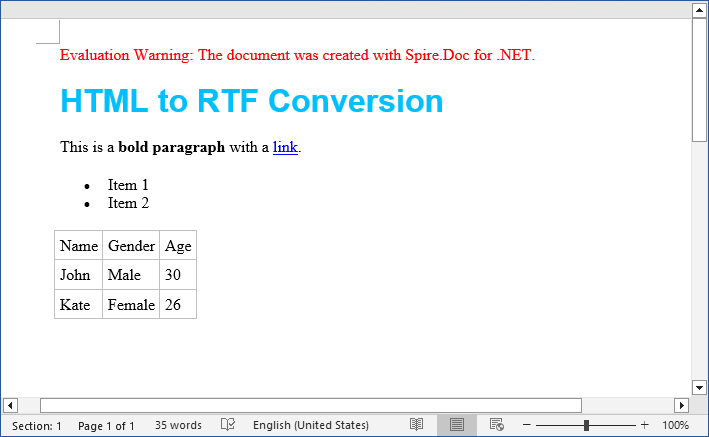
The SaveToFile method accepts different FileFormat parameters. You can change it to implement HTML to Word conversion in C#.
Scenario 2: Convert HTML File to RTF File
For static HTML files (e.g., templates or saved web pages), use LoadFromFile with parameter FileFormat.Html:
using Spire.Doc;

namespace ConvertHtmlToRTF
{
    class Program
    {
        static void Main()
        {
            // Create a Document object
            Document doc = new Document();

            // Load an HTML file
            doc.LoadFromFile("Test.html", FileFormat.Html);

            // Save the HTML file as rtf format
            doc.SaveToFile("HTMLtoRTF.rtf", FileFormat.Rtf);
            doc.Dispose();
        }
    }
}
This code simplifies HTML-to-RTF conversion into three core steps:
- Creates a Document object.
- Loads an existing HTML file using LoadFromFile() with the FileFormat.Html parameter.
- Saves the loaded HTML as an RTF format using SaveToFile() with the FileFormat.Rtf parameter.
Output:
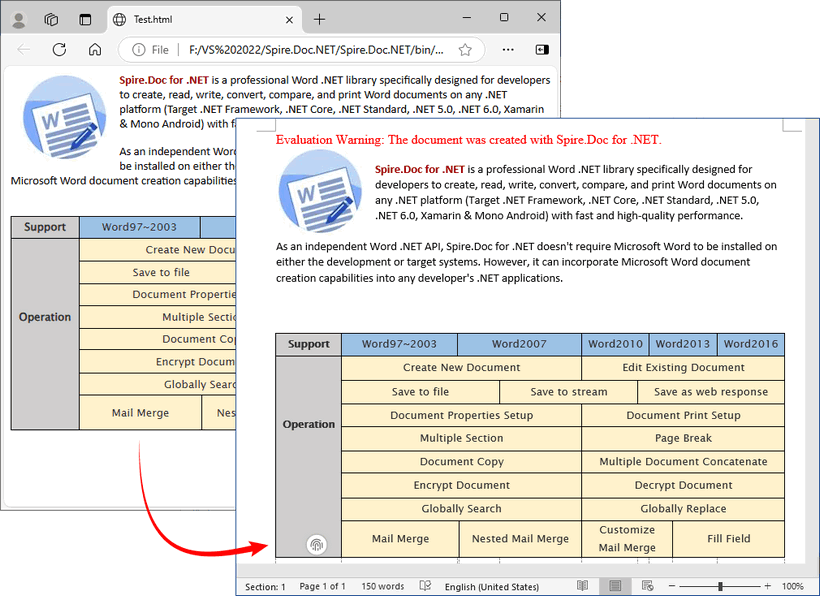
Spire.Doc supports bidirectional conversion, so you can convert the RTF file back to HTML in C# when needed.
Advanced Conversion Scenarios
1. Handling Images in HTML
Spire.Doc preserves images embedded in HTML (via <img> tags). For local images, ensure the src path is correct. For remote images (URLs), Spire.Doc automatically downloads and embeds them.
// HTML with local and remote images
string htmlWithImages = @"<html>
    <body>
        <h3>HTML with Images</h3>
        <p>Local image: <img src='https://cdn.e-iceblue.com/C:\Users\Administrator\Desktop\HelloWorld.png' alt='Sample Image' width='200'></p>
        <p>Remote image: <img src='https://www.e-iceblue.com/images/art_images/csharp-html-to-rtf.png' alt='Online Image'></p>
    </body>
    </html>";

// Append the HTML string to a paragraph
Paragraph para = doc.AddSection().AddParagraph();
para.AppendHTML(htmlWithImages);

// Save the document as RTF
doc.SaveToFile("HtmlWithImage.rtf", FileFormat.Rtf);
2. Batch Conversion of Multiple HTML Files
Process an entire directory of HTML files with a loop:
string inputDir = @"C:\Input\HtmlFiles";
string outputDir = @"C:\Output\RtfFiles";

// Create output directory if it doesn't exist
Directory.CreateDirectory(outputDir);

// Get all .html files in input directory
foreach (string htmlFile in Directory.EnumerateFiles(inputDir, "*.html"))
{
   using (Document doc = new Document())
   {
      doc.LoadFromFile(htmlFile, FileFormat.Html, XHTMLValidationType.None);

      // Use the same filename but with .rtf extension
      string fileName = Path.GetFileNameWithoutExtension(htmlFile) + ".rtf";
      string outputPath = Path.Combine(outputDir, fileName);

      doc.SaveToFile(outputPath, FileFormat.Rtf);
Final Thoughts
Converting HTML to RTF in C# is straightforward with Spire.Doc for .NET. This library eliminates the need for manual parsing and ensures consistent formatting across outputs. Whether you’re working with HTML strings or files, this article provides practical code examples to handle both scenarios.
For further exploration, refer to the Spire.Doc documentation.
Common Questions
Q1: Is Spire.Doc free to use?
A: For large-scale projects, you can request a free 30-day trial license to fully evaluate it. Alternatively, Spire.Doc offers a free community edition without any watermarks (but with certain page/functionality limits).
Q2: Does Spire.Doc preserve HTML hyperlinks, images, and tables in the RTF output?
A: Yes. Spire.Doc retains most HTML elements:
- Hyperlinks:
<a>tags are converted to clickable links in RTF. - Images: Local (
<img src="/path">) and remote (<img src="/URL">) images are embedded in the RTF. - Tables: HTML tables (with border, cellpadding, etc.) are converted to RTF tables with preserved structure.
Q3: Can I style the RTF output further after loading the HTML?
A: Absolutely. After loading the HTML content into the Document object, you can use the full Spire.Doc API to programmatically modify the document before saving it as RTF.
Q4: Can I convert HTML to other formats with Spire.Doc?
A: Yes. Apart from converting to RTF, the library also supports converting HTML to Word, HTML to XML, and HTML to images, etc.
Working with Data in C#: Exporting DataSet to Excel Made Easy
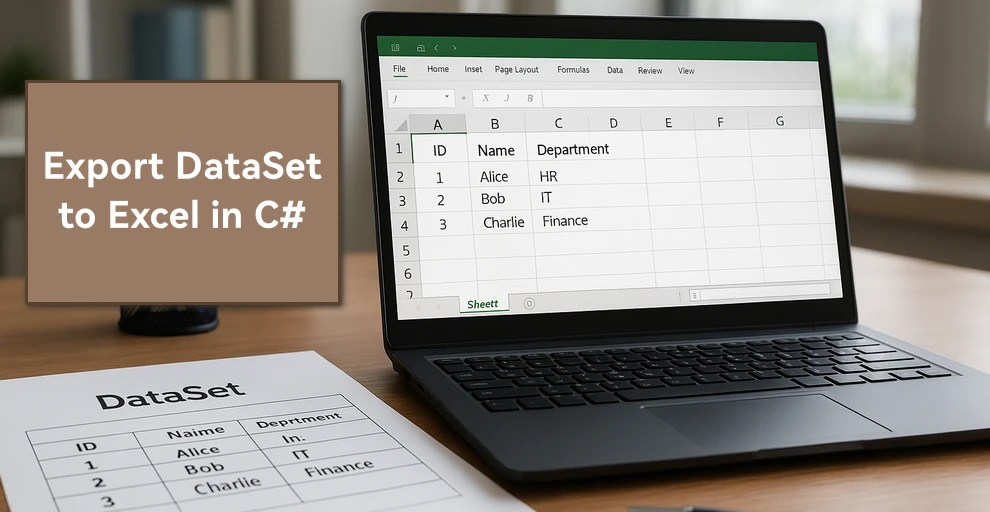
In C# development, DataSet is widely used to manage in-memory data, often as a result of database queries or integration processes. There are many scenarios where you may need to create Excel files from DataSet in C# — for example, generating reports, sharing structured data with non-developers, or archiving records for future reference.
In this guide, we’ll walk through different approaches to export DataSet to Excel in C# using Spire.XLS for .NET, including creating an Excel file, writing multiple DataTables into separate sheets, applying formatting, and handling large data volumes.
Here's what's covered in this guide:
- DataSet Basics and Environment Setup
- Creating an Excel File from DataSet in C#
- Adding Formatting to Excel Sheets Using C#
- Handling Large DataSet Exports
- Read Excel into DataSet in C#
- Conclusion
- FAQ
1. DataSet Basics and Environment Setup for Excel Export
What is a DataSet?
A DataSet in C# is an in-memory representation of structured data. It can hold multiple DataTables, including their rows, columns, and relationships, making it useful for working with relational-style data without direct database connections.
Why Export DataSet to Excel?
- Data exchange – Excel is widely supported and easy to share across teams.
- Data analysis – Analysts can manipulate Excel data directly using formulas, pivot tables, and charts.
- Archiving – Storing query results or processed data in a readable, portable format.
Compared to raw text or CSV, Excel supports rich formatting, multiple sheets, and better readability.
Environment Setup
To export a DataSet to an Excel file in C#, we will use Spire.XLS for .NET, which provides APIs for handling Excel files. Install Spire.XLS via NuGet:
Install-Package Spire.XLS
Add the required namespaces:
using Spire.Xls;
using System.Data;
using System.Drawing; // for Color
2. Creating an Excel File from DataSet in C#
Exporting a DataSet to Excel involves two key steps: preparing the data and writing it into a workbook. In practice, the DataSet may come from queries or APIs, but for clarity, we’ll demonstrate with a simple example. First, we’ll build a DataSet in memory, then show how to export it into an Excel file where each DataTable becomes its own worksheet.
2.1 Initialize a DataSet with Sample Data
First, we’ll build a DataSet using C#. The following sample DataSet contains multiple business-style tables and a variety of column types (int, string, DateTime, decimal).
using System;
using System.Data;

class Program
{
    static DataSet CreateSampleDataSet()
    {
        DataSet ds = new DataSet("CompanyData");

        // Employees
        DataTable employees = new DataTable("Employees");
        employees.Columns.Add("ID", typeof(int));
        employees.Columns.Add("Name", typeof(string));
        employees.Columns.Add("DepartmentID", typeof(int));
        employees.Columns.Add("HireDate", typeof(DateTime));
        employees.Columns.Add("Salary", typeof(decimal));

        employees.Rows.Add(1, "Alice", 101, new DateTime(2020, 5, 12), 5500.00m);
        employees.Rows.Add(2, "Bob", 102, new DateTime(2019, 3, 8), 7200.50m);
        employees.Rows.Add(3, "Charlie", 103, new DateTime(2021, 11, 20), 4800.75m);

        // Departments
        DataTable departments = new DataTable("Departments");
        departments.Columns.Add("DepartmentID", typeof(int));
        departments.Columns.Add("DepartmentName", typeof(string));
        departments.Rows.Add(101, "HR");
        departments.Rows.Add(102, "IT");
        departments.Rows.Add(103, "Finance");

        // Projects
        DataTable projects = new DataTable("Projects");
        projects.Columns.Add("ProjectID", typeof(int));
        projects.Columns.Add("ProjectName", typeof(string));
        projects.Columns.Add("OwnerID", typeof(int));
        projects.Columns.Add("StartDate", typeof(DateTime));
        projects.Rows.Add(1001, "Recruitment System", 1, new DateTime(2023, 1, 15));
        projects.Rows.Add(1002, "ERP Upgrade", 2, new DateTime(2023, 4, 10));
        projects.Rows.Add(1003, "Budget Planning", 3, new DateTime(2023, 7, 5));

        ds.Tables.Add(employees);
        ds.Tables.Add(departments);
        ds.Tables.Add(projects);

        return ds;
    }
}
2.2 Export DataSet to Excel File
With the DataSet prepared, the next step is generating the Excel file. This involves creating a Workbook, iterating through the DataTables, inserting them into worksheets, and saving the workbook to an Excel file.
using Spire.Xls;
using System.Data;

class Program
{
    static void Main()
    {
        DataSet ds = CreateSampleDataSet();

        Workbook workbook = new Workbook();

        // Export each DataTable as a separate worksheet
        for (int i = 0; i < ds.Tables.Count; i++)
        {
            Worksheet sheet = (i == 0)
                ? workbook.Worksheets[0]
                : workbook.Worksheets.Add(ds.Tables[i].TableName);

            sheet.InsertDataTable(ds.Tables[i], true, 1, 1);
            sheet.Name = ds.Tables[i].TableName; // ensure sheet is named after the table
        }

        workbook.SaveToFile("DatasetToExcel.xlsx", ExcelVersion.Version2016);
    }
}
About the Exporting Process
- Each DataTable is written into a separate worksheet.
- InsertDataTable(DataTable table, bool columnHeaders, int row, int column) inserts data starting from a specific cell.
- SaveToFile() writes the workbook to disk in the specified format.
In addition to creating separate worksheets for each DataTable, you can also insert multiple DataTables into the same worksheet by adjusting the starting row and column parameters of the InsertDataTable method.
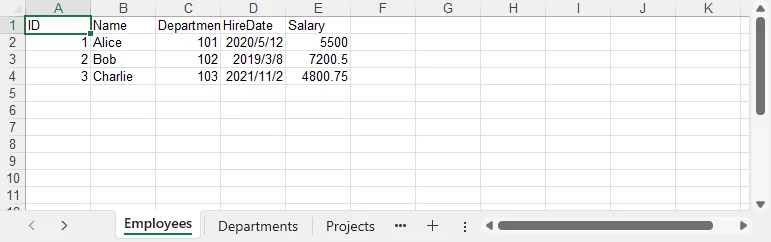
Result preview
Below is a quick preview of the output workbook showing three sheets populated from the DataSet.
For a practical example of exporting data directly from a database to Excel, see our guide on Export Database to Excel in C#.
3. Adding Formatting to Excel Sheets Using C#
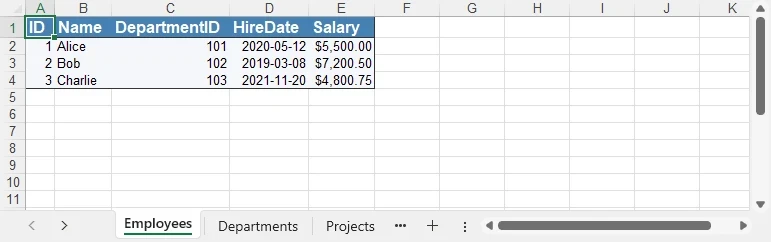
Raw data often isn’t enough for reporting. Formatting improves readability and makes the Excel file more professional. With Spire.XLS, you can style fonts, apply background colors, add borders, and format numbers and dates.
using System.Drawing;
using Spire.Xls;

// Get the first sheet
Worksheet sheet1 = workbook.Worksheets["Employees"];

// 1) Header styling (A1:E1)
CellRange header = sheet1.AllocatedRange.Rows[0];
header.Style.Font.IsBold = true;
header.Style.Font.Size = 12;
header.Style.Font.Color = Color.White;
header.Style.Color = Color.SteelBlue;

// Borders around the header row
header.BorderAround(LineStyleType.Thin);

// 2) Number formats for entire columns (D: HireDate, E: Salary)
sheet1.AllocatedRange.Columns[3].Style.NumberFormat = "yyyy-mm-dd";
sheet1.AllocatedRange.Columns[4].Style.NumberFormat = "$#,##0.00";

// 3) Optional: zebra stripes for data area (A2:E4 here as example)
CellRange data = sheet1.Range["A2:E4"];
// CellRange data = sheet1.Range[2, 1, 4, 5];
data.Style.Color = Color.FromArgb(245, 247, 250);
data.BorderAround(LineStyleType.Thin);

// Auto-fit after formatting
sheet1.AllocatedRange.AutoFitColumns();
sheet1.AllocatedRange.AutoFitRows();
How Formatting Works
- Style.Font — font properties such as IsBold, Size, Color.
- Style.Color — background fill color for the selected range.
- Borders / BorderAround — draw borders on edges/around ranges with LineStyleType.
- NumberFormat — Excel-native formats (e.g., dates, currency, percentages).
- AutoFitColumns() / AutoFitRows() — adjust column widths / row heights to fit content.
For more formatting options, refer to the API reference for CellRange and CellStyle.
Formatting preview
The following image shows styled headers, borders, and proper date/currency formats applied.
4. Handling Large DataSet Exports
When exporting large datasets, performance and memory become critical. Consider:
- Split across sheets — When rows approach Excel/version limits or for logical separation.
- Batch writing — Insert data in segments (e.g., table-by-table or range-by-range).
- Lightweight formatting — Minimize heavy styling to reduce file size and processing time.
- Streaming (where applicable) — Prefer APIs that avoid loading everything into memory at once.
5. Bonus: Read Excel into DataSet in C#
In addition to exporting, the reverse workflow is equally important: reading Excel data back into a DataSet for processing or migration. This is useful when importing data from external reports, integrating spreadsheets with applications, or performing preprocessing before database insertion.
using System.Data;
using Spire.Xls;

class Program
{
    static DataSet ReadExcelIntoDataSet(string filePath)
    {
        DataSet ds = new DataSet();
        Workbook workbook = new Workbook();
        workbook.LoadFromFile(filePath);

        foreach (Worksheet sheet in workbook.Worksheets)
        {
            DataTable dt = sheet.ExportDataTable();
            dt.TableName = sheet.Name;
            ds.Tables.Add(dt);
        }

        return ds;
    }
}
The ExportDataTable method allows each worksheet to be converted into a DataTable object, preserving both the structure and the cell values. By assigning the sheet name to TableName and adding it into a DataSet, you can combine multiple sheets into a single in-memory data container that is ready for further processing.
For a complete workflow on persisting Excel data into a database, see our guide on Import Excel into Database in C#.
Conclusion
Exporting a DataSet to Excel in C# allows you to generate reports, share data, and make information easier to analyze or present. With Spire.XLS for .NET, you can create Excel files directly from DataSet objects, apply formatting, manage multiple sheets, and handle large datasets efficiently. You can also import Excel data back into a DataSet for integration with applications or databases.
To explore more advanced features, you may request a free temporary license or use Free Spire.XLS for .NET for smaller projects.
FAQ: C# DataSet and Excel Integration
Q1: How can I export multiple DataTables from a DataSet into different Excel sheets?
Loop through ds.Tables and call InsertDataTable for each one, creating a new worksheet per DataTable.
Q2: Can I export a DataSet to a specific worksheet in an existing Excel file?
Yes. Load the file using Workbook.LoadFromFile(), then choose the worksheet and use InsertDataTable.
Q3: Does exporting DataSet to Excel preserve column formatting and data types?
Values are exported with the same data types as in the DataSet. You can also apply formatting (date, currency, alignment, etc.) after inserting.
Q4: How do I handle very large DataSet exports (over 100,000 rows)?
Split into multiple sheets, use batch inserts, and reduce complex formatting to improve performance.
Read CSV Files in C#: Basic Parsing & DataTable Conversion
CSV (Comma-Separated Values) files remain one of the most widely used formats for data exchange between applications. Whether you’re processing financial data, user records, or analytics reports, efficiently reading CSV files in C# is a common task in .NET development.
In this comprehensive guide, we'll explore how to parse CSV files in C# using Spire.XLS for .NET, covering both direct reading and converting CSV to DataTable.
- Install the C# CSV File Reader Library
- Read a CSV File in C#
- Read CSV into a DataTable in C#
- When to Use Each Method
- Conclusion
- FAQs
Install the C# CSV File Reader Library
While primarily designed for Excel files, Spire.XLS can also be used as a .NET CSV reader. It provides excellent support for CSV files, offering a range of features that make CSV processing efficient and straightforward.
The first step is to install the Spire.XLS package in your project. Here's how:
- Open your project in Visual Studio
- Right-click on your project in the Solution Explorer
- Select "Manage NuGet Packages"
- In the NuGet Package Manager, search for "Spire.XLS"
- Click "Install" to add the package to your project
Alternatively, you can install it using the Package Manager Console:
PM> Install-Package Spire.XLS
This will add the necessary dependencies to your project, allowing you to use Spire.XLS classes.
Read a CSV File in C#
Let's start with the fundamentals: reading a simple CSV file and extracting its data. The C# code example below loads a CSV file, accesses its data, and prints the contents to the console in a tabular format.
using Spire.Xls;

namespace ReadCSV
{
    class Program
    {
        static void Main(string[] args)
        {
            // Create a workbook instance
            Workbook workbook = new Workbook();

            // Load the CSV file
            workbook.LoadFromFile("sample.csv", ",");

            // Get the first worksheet
            Worksheet sheet = workbook.Worksheets[0];

            // Get the used range
            CellRange range = sheet.AllocatedRange;

            // Iterate through rows and columns
            for (int row = 1; row <= range.RowCount; row++)
            {
                for (int col = 1; col <= range.ColumnCount; col++)
                {
                    // Get cell value
                    string cellValue = range[row, col].Value;
                    Console.Write(cellValue + "\t");
                }
                Console.WriteLine();
            }

            Console.ReadLine();
        }
    }
}
Explanation:
- Workbook class: Acts as a "container" for your CSV file in memory. Even though CSV isn’t a full Excel file, Spire.Xls treats it as a single-sheet workbook for consistency.
- Workbook.LoadFromFile(): Loads the CSV file. The parameters are:
- File path: "sample.csv".
- Delimiter: "," (comma, default for CSV).
- Worksheet.AllocatedRange: Retrieves only the cells that contain data.
- CellRange[row, col].Value: Retrieves the value of a specific cell.
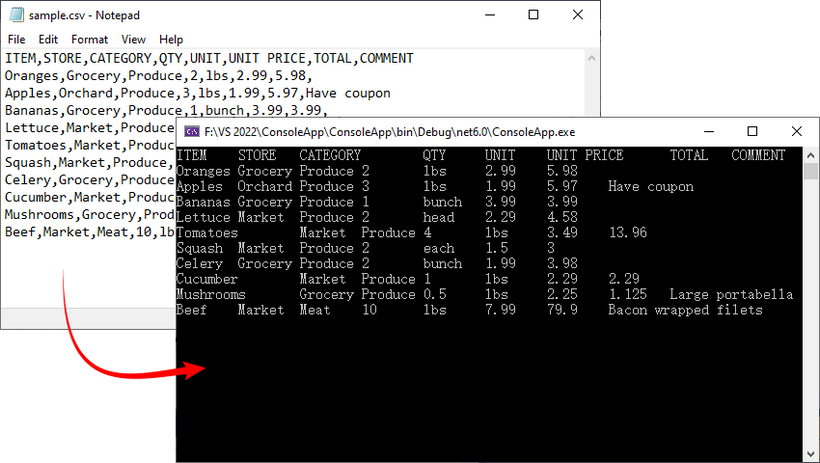
Result: CSV data printed in a clean, tab-separated format.
If you need a demo for reading CSV files in VB.NET, convert the code directly using the C# to VB.NET converter.
Read CSV into a DataTable in C#
A DataTable is a versatile in-memory data structure in .NET that simplifies data manipulation (e.g., filtering, sorting, or binding to UI components). Here’s how to load CSV data into a DataTable using Spire.XLS:
using Spire.Xls;
using System.Data;

namespace ReadCSV
{
    class Program
    {
        static void Main(string[] args)
        {
            // Create a workbook instance
            Workbook workbook = new Workbook();

            // Load the CSV file
            workbook.LoadFromFile("sample.csv", ",");

            // Get the first worksheet
            Worksheet worksheet = workbook.Worksheets[0];

            // Export data from the worksheet to a DataTable
            DataTable dataTable = worksheet.ExportDataTable();

            // Get row and column count
            Console.WriteLine("\nConversion complete! DataTable information:");
            Console.WriteLine($"Number of columns: {dataTable.Columns.Count}");
            Console.WriteLine($"Number of rows: {dataTable.Rows.Count}");
            Console.WriteLine();

            // Print column names
            for (int i = 0; i < dataTable.Columns.Count; i++)
            {
                Console.Write(dataTable.Columns[i].ColumnName + "  | ");
            }
            Console.WriteLine();
            Console.WriteLine("----------------------------------------------------------");

            // Print row data
            for (int i = 0; i < dataTable.Rows.Count; i++)
            {
                for (int j = 0; j < dataTable.Columns.Count; j++)
                {
                    string value = dataTable.Rows[i][j].ToString();

                    Console.Write(value + "\t");
                }
                Console.WriteLine();
            }
        }
    }
}
Explanation:
- Worksheet.ExportDataTable(): Converts the entire CSV worksheet into a DataTable.
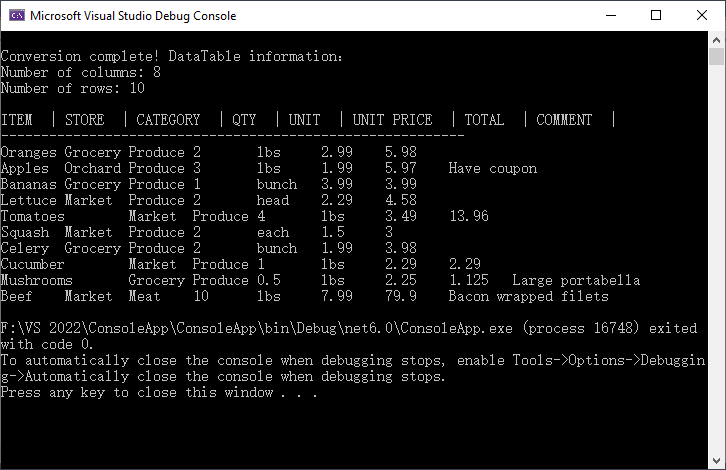
- Metadata Access: DataTable.Columns.Count and DataTable.Rows.Count shows the size of your dataset, helping you verify that the import was successful.
- Column Headers and Data Output: Iterates through to display column names and row data.
Result: Structured output with metadata, headers, and rows:
To analyze, calculate, or format the data, you can convert CSV to Excel in C#.
When to Use Each Method
Choose the right approach based on your goal:
| Method | Best For | Use Case Example |
|---|---|---|
| Direct CSV Reading | Quick data verification | Checking if a CSV is loaded correctly. |
| Convert to DataTable | Advanced data processing | Filtering rows, sorting, or saving to SQL Server. |
Conclusion
Reading CSV files in C# is streamlined with Spire.XLS for .NET, and converting CSV data to a DataTable adds flexibility for data manipulation. Whether you’re working with small datasets or large files, Spire.XLS offers flexible options to meet your requirements.
The code examples in this guide are ready to use - just copy, paste, and adjust for your CSV file path. For more advanced features, refer to Spire.XLS’s official documentation.
FAQs (Common Questions)
Q1: Why choose Spire.XLS for CSV reading?
A: While the .NET Framework offers built-in StreamReader for CSV handling, Spire.XLS provides several distinct advantages:
- No dependencies: Doesn't require Microsoft Excel or Office to be installed
- High performance: Optimized for handling large CSV files efficiently
- Flexibility: Multiple ways to read CSV data based on your needs
- Cross-platform: Works with .NET Framework, .NET Core, .NET Standard, and Mono
Q2: Can I use a different delimiter (e.g., semicolon or tab)?
A: Yes. Replace the second parameter of LoadFromFile() method with your delimiter:
// For tab-delimited files
workbook.LoadFromFile("data.txt", "\t");

// For semicolon-delimited files
workbook.LoadFromFile("data.csv", ";");

// For pipe-delimited files
workbook.LoadFromFile("data.csv", "|");
Q3: Can I read specified rows or columns from a CSV file?
A: Yes. You can target a precise subset of your data by defining exact row and column boundaries. This is useful for extracting specific information (e.g., skipping headers, focusing on relevant columns) without processing the entire file.
For example:
// Define the specific range
int startRow = 2;   // Start from row 2 (skip header)
int endRow = 4;     // End at row 4
int startCol = 2;   // Start from column 2
int endCol = 6;     // End at column 6


// Loop through rows and columns
for (int row = startRow; row <= endRow; row++)
{
   for (int col = startCol; col <= endCol; col++)
   {
      // Get cell value
      string cellValue = worksheet.Range[row, col].Value;
      Console.Write(cellValue + "\t");
Note: Spire.Xls uses 1-based indexing (like Excel), so the first row/column is numbered 1 (not 0).
XLS to XLSX Conversion: Manual, Online, and Batch Methods
Table of Contents
Install with Maven
pip install Spire.Xls
Related Links
XLS is an older spreadsheet file format developed by Microsoft Excel, and it is still used by some users today. Since Excel 2007, Microsoft has adopted the newer XLSX format. Due to differences between these formats, opening an XLS file in a newer version of Excel can sometimes cause compatibility issues, affecting editing and data processing. As a result, performing an XLS to XLSX conversion has become a common task in spreadsheet management. Fortunately, this article introduces three simple and effective methods to help you convert XLS files to XLSX quickly and easily.
- XLS to XLSX Conversion: Manually
- Convert XLS to XLSX Online
- Batch Convert XLS to XLSX Automatically
- FAQs
Perform XLS-to-XLSX Conversion Manually
The first and most straightforward way to convert XLS to XLSX is manual conversion, which works best when you only have a small number of files. This method does not require any special software or programming knowledge, making it ideal for users who need a quick solution. There are two common approaches for manual conversion:
- Change the file extension
Locate the XLS file you want to convert, right-click it, and select Rename. Replace the file extension from .xls to .xlsx.
- Save As
Open the source file in Excel, click the File tab in the top menu, then select Save As from the left panel. In the Save as type dropdown, choose XLSX, and finally click Save.

Convert XLS to XLSX Online
If you find manual operations too time-consuming, since they require repeated clicks, you can use an online XLS to XLSX converter instead. One example is CloudConvert, a free online file conversion tool. It not only converts spreadsheet files but also supports text documents, images, audio, and video formats. Using it is straightforward—just follow these steps:
-
Navigate to the website and click the red Select File button to choose the file you want to convert, or simply drag and drop it onto the button.
-
Once the file is uploaded, click the red button on the right to start the conversion.
-
Wait a few seconds. When you see the Finished status, click the green Download button to save the converted XLSX file to your computer.
This method is ideal when you only need to convert a few XLS files to XLSX quickly without installing any software.
Batch Convert XLS to XLSX Safely
If you need to convert hundreds or even thousands of files, manual or online conversion methods are no longer practical. Similarly, if data security is a top priority, the best option is to perform batch conversions locally with code. This approach ensures that your file data remains completely safe, as it does not rely on any online service.
For this purpose, we recommend using Spire.XLS, a professional third-party Excel library that can be integrated into enterprise systems or automated workflows, enabling large-scale XLS to XLSX conversions.

The following example demonstrates how this can be achieved in Python:
from spire.xls import *
from spire.xls.common import *
import os

# Specify the input and output folders
inputFolder = "/input/XLS SAMPLES/"
outputFolder = "/output/TO XLSX/"

# Loop through all .xls files in the input folder
for file in os.listdir(inputFolder):
    if file.endswith(".xls"):
        # Build full file paths
        inputFile = os.path.join(inputFolder, file)
        outputFile = os.path.join(outputFolder, os.path.splitext(file)[0] + ".xlsx")

        # Create a Workbook object
        workbook = Workbook()
        # Load the XLS file
        workbook.LoadFromFile(inputFile)

        # Save as XLSX format
        workbook.SaveToFile(outputFile, ExcelVersion.Version2016)
        workbook.Dispose()

print("Batch conversion completed successfully!")
Here is a preview comparing the source files with the converted ones:
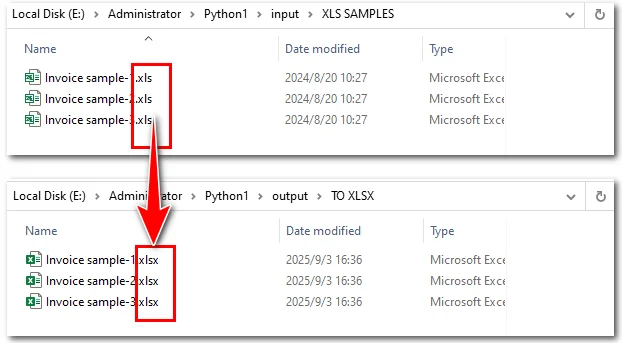
Steps explained:
- Import Spire.XLS and Python modules.
- Loop through all .xls files in the input folder.
- Load each file into a Workbook object.
- Convert XLS to XLSX by saving it in .xlsx format through the Workbook.saveToFile() method.
If you want to convert an XLSX file back to XLS, you can also use the Workbook.saveToFile() method. Spire.XLS also supports using this method to convert Excel files into PDF, images, and more.
FAQs about XLS to XLSX Conversion
- How do I save my Excel file as XLSX?
You can save an Excel file as XLSX by using the Save As feature in Excel or by using online or programmatic conversion tools, depending on the number of files and your needs.
- When did Excel switch from XLS to XLSX?
Microsoft introduced the XLSX format starting with Excel 2007 to replace the older XLS format. XLSX offers better performance, reduced file size, and improved compatibility with modern Excel features.
- Is XLS the same as XLSX?
No. XLS is the older binary file format used in Excel 97-2003, while XLSX is the newer XML-based format introduced in Excel 2007. They differ in structure, compatibility, and supported features.
- Can online tools convert XLS to XLSX?
Yes, many online tools allow you to convert XLS files to XLSX. They are convenient for small numbers of files but may not be suitable for large batches or sensitive data.
- What’s the best way to convert a large number of XLS files to XLSX safely?
For hundreds or thousands of files, or when data security is important, using code with a library like Spire.XLS for batch conversion on your local machine is the most efficient and secure method.
The Conclusion
In summary, XLS to XLSX conversion can be handled in different ways depending on your needs. For a handful of files, Excel or online tools may be sufficient. But for large-scale or sensitive files, automation with code is the best choice. By leveraging Spire.XLS, you can integrate bulk conversions directly into your workflow, ensuring both speed and safety. Whether you need to upgrade legacy files, streamline internal processes, or prepare data for modern systems, Spire.XLS offers a professional and flexible solution.
ALSO READ
Convert Excel (XLSX/XLS) to CSV in Python
Python: Convert Excel to PDF Easily and Quickly
How to Convert PDF to CSV in Java (Easily Extract PDF Tables)
When working with reports, invoices, or datasets stored in PDF format, developers often need a way to reuse the tabular data in spreadsheets, databases, or analytical tools. A common solution is to convert PDF to CSV using Java, since CSV is lightweight, structured, and compatible with almost every platform.
Unlike text or image export, a PDF-to-CSV conversion is mainly about extracting tables from PDF and saving them as CSV. With the help of Spire.PDF for Java, you can detect table structures in PDFs and export them programmatically with just a few lines of code.
In this article, you’ll learn step by step how to perform a PDF to CSV conversion in Java—from setting up the environment, to extracting tables, and even handling more complex scenarios like multi-page documents or multiple tables per page.
Overview of This Tutorial
Environment Setup for PDF to CSV Conversion in Java
Before extracting tables and converting PDF to CSV using Java, you need to set up the development environment. This involves choosing a suitable library and adding it to your project.
Why Choose Spire.PDF for Java
Since PDF files do not provide a built-in export to CSV, extracting tables programmatically is the practical approach. Spire.PDF for Java offers APIs to detect table structures in PDF documents and save them directly as CSV files, making the conversion process simple and efficient.
Install Spire.PDF for Java
Add Spire.PDF for Java to your project using Maven:
<repositories>
    <repository>
        <id>com.e-iceblue</id>
        <name>e-iceblue</name>
        <url>https://repo.e-iceblue.com/nexus/content/groups/public/</url>
    </repository>
</repositories>
<dependencies>
    <dependency>
        <groupId>e-iceblue</groupId>
        <artifactId>spire.pdf</artifactId>
        <version>12.5.1</version>
    </dependency>
</dependencies>
If you are not using Maven, you can download the Spire.PDF for Java package and add the JAR files to your project’s classpath.
Extract Tables from PDF and Save as CSV
The most practical way to perform PDF to CSV conversion is by extracting tables. With Spire.PDF for Java, this can be done with just a few steps:
- Load the PDF document.
- Use PdfTableExtractor to find tables on each page.
- Collect cell values row by row.
- Write the output into a CSV file.
Here is a Java example that shows the process from start to finish:
Java Code Example for PDF to CSV Conversion
import com.spire.pdf.*;
import com.spire.pdf.utilities.*;

import java.io.*;

public class PdfToCsvExample {
    public static void main(String[] args) throws Exception {
        // Load the PDF document
        PdfDocument pdf = new PdfDocument();
        pdf.loadFromFile("Sample.pdf");

        // Create a StringBuilder to store extracted text
        StringBuilder sb = new StringBuilder();

        // Iterate through each page
        for (int i = 0; i < pdf.getPages().getCount(); i++) {
            PdfTableExtractor extractor = new PdfTableExtractor(pdf);
            PdfTable[] tableLists = extractor.extractTable(i);

            if (tableLists != null) {
                for (PdfTable table : tableLists) {
                    for (int row = 0; row < table.getRowCount(); row++) {
                        for (int col = 0; col < table.getColumnCount(); col++) {
                            // Escape the cell text safely
                            String cellText = escapeCsvField(table.getText(row, col));
                            sb.append(cellText);

                            if (col < table.getColumnCount() - 1) {
                                sb.append(",");
                            }
                        }
                        sb.append("\n");
                    }
                }
            }
        }

        // Write the output to a CSV file
        FileWriter writer = new FileWriter("output/PDFTable.csv");
        writer.write(sb.toString());
        writer.close();

        pdf.close();
        System.out.println("PDF tables successfully exported to CSV.");
    }

    // Utility method to escape CSV fields
    private static String escapeCsvField(String text) {
        if (text == null) return "";

        // Remove line breaks
        text = text.replaceAll("[\\n\\r]", "");

        // Escape if contains special characters
        if (text.contains(",") || text.contains(";") || text.contains("\"") || text.contains("\n")) {
            text = text.replace("\"", "\"\"");  // Escape double quotes
            text = "\"" + text + "\"";          // Wrap with quotes
        }

        return text;
    }
}
Code Walkthrough
- PdfDocument loads the PDF file into memory.
- PdfTableExtractor checks each page for tables.
- PdfTable provides access to rows and columns.
- escapeCsvField() removes line breaks and safely quotes/escapes text if needed.
- StringBuilder accumulates cell text, separated by commas.
- The result is written into Output.csv, which you can open in Excel or any editor.
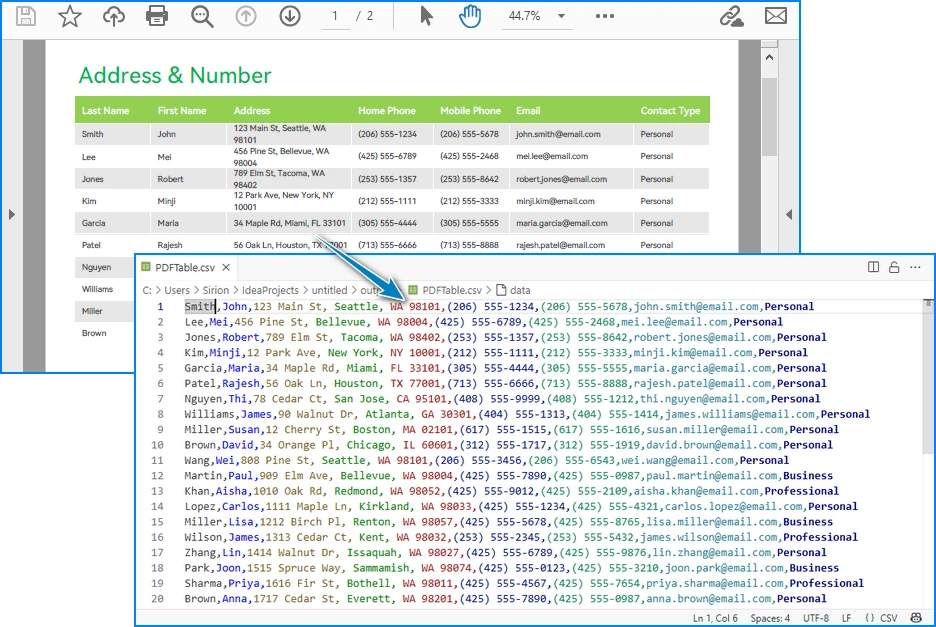
CSV file generated from a PDF table after running the Java code.
Handling Complex PDF-to-CSV Conversion Cases
In practice, PDFs often contain multiple tables, span multiple pages, or have irregular structures. Let’s see how to extend the solution to handle these scenarios.
1. Multiple Tables per Page
The PdfTable[] returned by extractTable(i) contains all tables detected on a page. You can process each one separately. For example, to save each table as a different CSV file:
for (int i = 0; i < pdf.getPages().getCount(); i++) {
    PdfTableExtractor extractor = new PdfTableExtractor(pdf);
    PdfTable[] tableLists = extractor.extractTable(i);

    if (tableLists != null) {
        for (int t = 0; t < tableLists.length; t++) {
            PdfTable table = tableLists[t];
            StringBuilder tableContent = new StringBuilder();

            for (int row = 0; row < table.getRowCount(); row++) {
                for (int col = 0; col < table.getColumnCount(); col++) {
                    tableContent.append(escapeCsvField(table.getText(row, col)));
                    if (col < table.getColumnCount() - 1) {
                        tableContent.append(",");
                    }
                }
                tableContent.append("\n");
            }

            FileWriter writer = new FileWriter("Table_Page" + i + "_Index" + t + ".csv");
            writer.write(tableContent.toString());
            writer.close();
        }
    }
}
Example of multiple tables in one PDF page exported into separate CSV files.
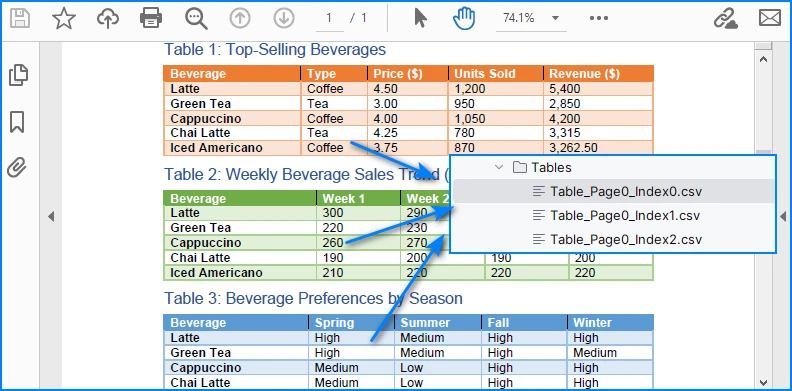
This way, every table is saved as an independent CSV file for better organization.
2. Multi-page or Large Tables
If a table spans across multiple pages, iterating page by page ensures that all data is collected. The key is to append data instead of overwriting:
StringBuilder sb = new StringBuilder();

for (int i = 0; i < pdf.getPages().getCount(); i++) {
    PdfTableExtractor extractor = new PdfTableExtractor(pdf);
    PdfTable[] tables = extractor.extractTable(i);

    if (tables != null) {
        for (PdfTable table : tables) {
            for (int row = 0; row < table.getRowCount(); row++) {
                for (int col = 0; col < table.getColumnCount(); col++) {
                    sb.append(escapeCsvField(table.getText(row, col)));
                    if (col < table.getColumnCount() - 1) sb.append(",");
                }
                sb.append("\n");
            }
        }
    }
}

FileWriter writer = new FileWriter("MergedTables.csv");
writer.write(sb.toString());
writer.close();
Example of a large table across multiple PDF pages merged into one CSV file.
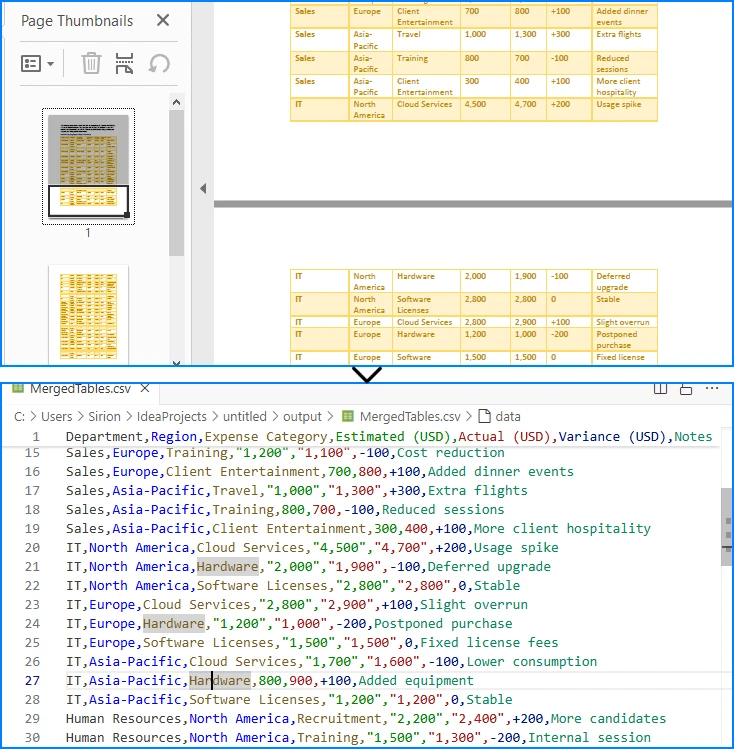
Here, all tables across pages are merged into one CSV file, useful when dealing with continuous reports.
3. Limitations with Formatting
CSV only stores plain text values. Elements like merged cells, fonts, or images are discarded. If preserving styling is critical, exporting to Excel (.xlsx) is a better alternative, which the same library also supports. See How to Export PDF Table to Excel in Java for more details.
4. CSV Special Characters Handling
When writing tables to CSV, certain characters like commas, semicolons, double quotes, or line breaks can break the file structure if not handled properly.
In the Java examples above, the escapeCsvField method removes line breaks and safely quotes or escapes text when needed.
For more advanced scenarios, you can also use Spire.XLS for Java to write data into worksheets and then save as CSV, which automatically handles special characters and ensures correct CSV formatting without manual processing.
Alternatively, for open-source options, libraries like OpenCSV or Apache Commons CSV also automatically handle special characters and CSV formatting, reducing potential issues and simplifying code.
Conclusion
Converting PDF to CSV in Java essentially means extracting tables and saving them in a structured format. CSV is widely supported, lightweight, and ideal for storing and analyzing tabular data. By setting up Spire.PDF for Java and following the code example, you can automate this process, saving time and reducing manual effort.
If you want to explore more advanced features of Spire.PDF for Java, please apply for a free trial license. You can also use Free Spire.PDF for Java for small projects.
FAQ
Q: Can I turn a PDF into a CSV file? A: Yes. While images and styled text cannot be exported, you can extract tables and save them as CSV files using Java.
Q: How to extract data from a PDF file in Java? A: Use a PDF library like Spire.PDF for Java to parse the document, detect tables, and export them to CSV or Excel.
Q: What is the best PDF to CSV converter? A: For Java developers, programmatic solutions such as Spire.PDF for Java offer more flexibility and automation than manual converters.
Q: How to convert PDF to Excel using Java code? A: The process is similar to CSV export. Instead of writing data as comma-separated text, you can export tables into Excel format for richer features.
Convert PDF and Byte Array in C# (Load, Edit, Save in Memory)
Working with PDFs as byte arrays is common in C# development. Developers often need to store PDF documents in a database, transfer them through an API, or process them entirely in memory without touching the file system. In such cases, converting between PDF and bytes using C# becomes essential.
This tutorial explains how to perform these operations step by step using Spire.PDF for .NET. You will learn how to convert a byte array to PDF, convert a PDF back into a byte array, and even edit a PDF directly from memory with C# code.
Jump right where you need
- Why Work with Byte Arrays and PDFs in C#?
- Convert Byte Array to PDF in C#
- Convert PDF to Byte Array in C#
- Create and Edit PDF Directly from a Byte Array
- Advantages of Using Spire.PDF for .NET
- Conclusion
- FAQ
Why Work with Byte Arrays and PDFs in C#?
Using byte[] as the transport format lets you avoid temporary files and makes your code friendlier to cloud and container environments.
- Database storage (BLOB): Persist PDFs as raw bytes; hydrate only when needed.
- Web APIs: Send/receive PDFs over HTTP without touching disk.
- In-memory processing: Transform or watermark PDFs entirely in streams.
- Security & isolation: Limit file I/O, reduce temp-file risks.
Getting set up: before running the examples, add the NuGet package of Spire.PDF for .NET so the API surface is available in your project.
Install-Package Spire.PDF
Once installed, you can load from byte[] or Stream, edit pages, and write outputs back to memory or disk—no extra converters required.
Convert Byte Array to PDF in C#
When an upstream service (e.g., an API or message queue) hands you a byte[] that represents a PDF, you often need to materialize it as a document for further processing or for a one-time save to disk. With Spire.PDF for .NET, this is a direct load operation—no intermediate temp file.
Scenario & approach: we’ll accept a byte[] (from DB/API), construct a PdfDocument in memory, optionally validate basic metadata, and then save the document.
using Spire.Pdf;
using System.IO;

class Program
{
    static void Main()
    {
        // Example source: byte[] retrieved from DB/API
        byte[] pdfBytes = File.ReadAllBytes("Sample.pdf"); // substitute with your source

        // 1) Load PDF from raw bytes (in memory)
        PdfDocument doc = new PdfDocument();
        doc.LoadFromBytes(pdfBytes);

        // 2) (Optional) inspect basic info before saving or further processing
        // int pageCount = doc.Pages.Count;

        // 3) Save to a file
        doc.SaveToFile("Output.pdf");
        doc.Close();
    }
}
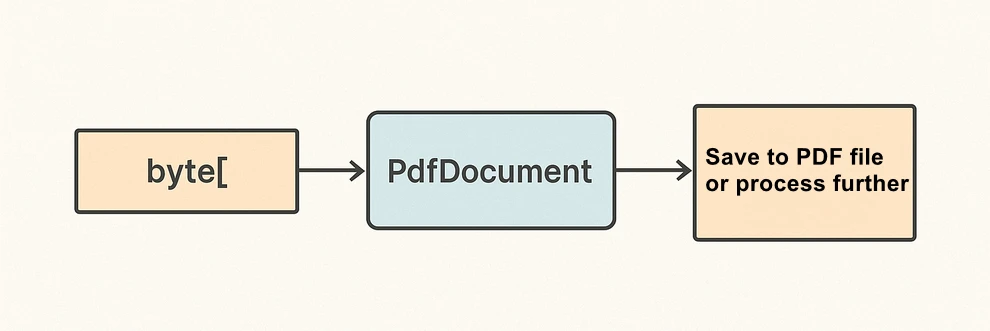
The diagram below illustrates the byte[] to PDF conversion workflow:
What the code is doing & why it matters:
- LoadFromBytes(byte[]) initializes the PDF entirely in memory—perfect for services without write access.
- You can branch after loading: validate pages, redact, stamp, or route elsewhere.
- SaveToFile(string) saves the document to disk for downstream processing or storing.
Convert PDF to Byte Array in C#
In the reverse direction, converting a PDF to a byte[] enables database writes, caching, or streaming the file through an HTTP response. Spire.PDF for .NET writes directly to a MemoryStream, which you can convert to a byte array with ToArray().
Scenario & approach: load an existing PDF, push the document into a MemoryStream, then extract the byte[]. This pattern is especially useful when returning PDFs from APIs or persisting them to databases.
using Spire.Pdf;
using System.IO;

class Program
{
    static void Main()
    {
        // 1) Load a PDF from disk, network share, or embedded resource
        PdfDocument doc = new PdfDocument();
        doc.LoadFromFile("Input.pdf");

        // 2) Save to a MemoryStream for fileless output
        byte[] pdfBytes;
        using (var ms = new MemoryStream())
        {
            doc.SaveToStream(ms);
            pdfBytes = ms.ToArray();
        }

        doc.Close();

        // pdfBytes now contains the full document (ready for DB/API)
        // e.g., return File(pdfBytes, "application/pdf");
    }
}
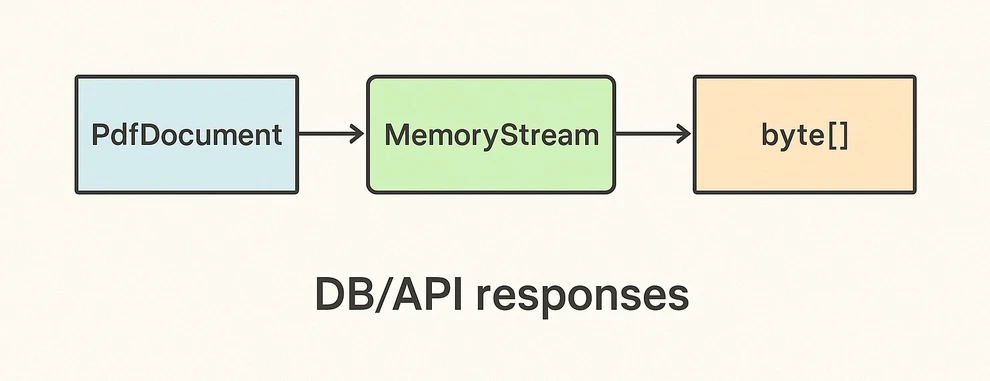
The diagram below shows the PDF to byte[] conversion workflow:
Key takeaways after the code:
- SaveToStream → ToArray is the standard way to obtain a PDF as bytes in C# without creating temp files.
- This approach scales for large PDFs; the only limit is available memory.
- Great for ASP.NET: return the byte array directly in your controller or minimal API endpoint.
If you want to learn more about working with streams, check out our guide on loading and saving PDF documents via streams in C#.
Create and Edit PDF Directly from a Byte Array
The real power comes from editing PDFs fully in memory. You can load from byte[], add text or images, stamp a watermark, fill form fields, and save the edited result back into a new byte[]. This enables fileless pipelines and is well-suited for microservices.
Scenario & approach: we’ll load a PDF from bytes, draw a small text annotation on page 1 (stand-in for any edit operation), and emit the edited document as a fresh byte array.
using Spire.Pdf;
using Spire.Pdf.Graphics;
using System.Drawing;
using System.IO;

class Program
{
    static void Main()
    {
        // Source could be DB, API, or file — represented as byte[]
        byte[] inputBytes = File.ReadAllBytes("Input.pdf");

        // 1) Load in memory
        var doc = new PdfDocument();
        doc.LoadFromBytes(inputBytes);

        // 2) Edit: write a small marker on the first page
        PdfPageBase page = doc.Pages[0];
        page.Canvas.DrawString(
            "Edited in memory",
            new PdfFont(PdfFontFamily.Helvetica, 12f),
            PdfBrushes.DarkBlue,
            new PointF(100, page.Size.Height - 100)
        );

        // 3) Save the edited PDF back to byte[]
        byte[] editedBytes;
        using (var ms = new MemoryStream())
        {
            doc.SaveToStream(ms);
            editedBytes = ms.ToArray();
        }

        doc.Close();

        // editedBytes can now be persisted or returned by an API
    }
}
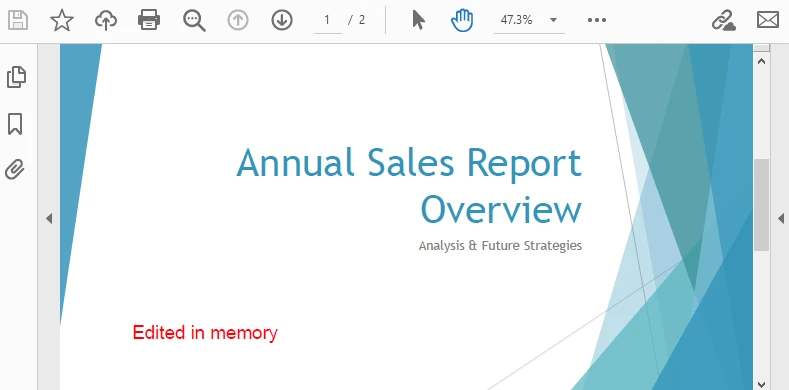
The image below shows the edited PDF page:
After-code insights:
- The same pattern works for text, images, watermarks, annotations, and form fields.
- Keep edits idempotent (e.g., check if you already stamped a page) for safe reprocessing.
- For ASP.NET, this is ideal for on-the-fly stamping or conditional redaction before returning the response.
For a step-by-step tutorial on building a PDF from scratch, see our article on creating PDF documents in C#.
Advantages of Using Spire.PDF for .NET
A concise view of why this API pairs well with byte-array workflows:
| Concern | What you get with Spire.PDF for .NET |
|---|---|
| I/O flexibility | Load/save from file path, Stream, or byte[] with the same PdfDocument API. |
| In-memory editing | Draw text/images, manage annotations/forms, watermark, and more—no temp files. |
| Service-friendly | Clean integration with ASP.NET endpoints and background workers. |
| Scales to real docs | Handles multi-page PDFs; you control memory via streams. |
| Straightforward code | Minimal boilerplate; avoids manual byte fiddling and fragile interop. |
Conclusion
You’ve seen how to convert byte array to PDF in C#, how to convert PDF to byte array, and how to edit a PDF directly from memory—all with concise code. Keeping everything in streams and byte[] simplifies API design, accelerates response times, and plays nicely with databases and cloud hosting. Spire.PDF for .NET gives you a consistent, fileless workflow that’s easy to extend from quick conversions to full in-memory document processing.
If you want to try these features without limitations, you can request a free 30-day temporary license. Alternatively, you can explore Free Spire.PDF for .NET for lightweight PDF tasks.
FAQ
Can I create a PDF from a byte array in C# without saving to disk?
Yes. Load from byte[] with LoadFromBytes, then either save to a MemoryStream or return it directly from an API—no disk required.
How do I convert PDF to byte array in C# for database storage?
Use SaveToStream on PdfDocument and call ToArray() on the MemoryStream. Store that byte[] as a BLOB (or forward it to another service).
Can I edit a PDF that only exists as a byte array?
Absolutely. Load from bytes, apply edits (text, images, watermarks, annotations, form fill), then save the result back to a new byte[].
Any tips for performance and reliability?
Dispose streams promptly, reuse buffers when appropriate, and create a new PdfDocument per operation/thread. For large files, stream I/O keeps memory usage predictable.
Read CSV Files in Java Efficiently: Step-by-Step Examples
CSV (Comma-Separated Values) remains a universal format for data exchange due to its simplicity, readability, and wide compatibility across platforms. If you're looking for a robust and efficient method to read CSV in Java, the Spire.XLS for Java library offers a powerful and straightforward solution.
This guide will walk you through how to use Java to load and read CSV files, as well as convert them into structured DataTables for seamless data manipulation and analysis in your applications.
- Why Choose Spire.XLS for Java to Parse CSV Files?
- Step-by-Step: Read a CSV File in Java
- Advanced: Read CSV into DataTable in Java
- Frequently Asked Questions
- Conclusion
Why Choose Spire.XLS for Java to Parse CSV Files?
Compared with other CSV parser in Java, Spire.XLS offers several advantages for CSV processing:
- Simplified API for reading CSV files
- Support for custom delimiters (not just commas)
- Built-in range detection to avoid empty rows/columns
- Natively converts CSV data to DataTable
- Seamlessly switch between CSV, XLS, and XLSX formats
Step-by-Step: Read a CSV File in Java
Spire.XLS for Java provides the Workbook class to load CSV files and the Worksheet class to access data. Below are the steps to read CSV files line by line with automatic delimiter detection:
1. Setup and Dependencies
First, ensure you have Spire.XLS for Java included in your project. You can add it via Maven by including the following dependency:
<repositories>
    <repository>
        <id>com.e-iceblue</id>
        <name>e-iceblue</name>
        <url>https://repo.e-iceblue.com/nexus/content/groups/public/</url>
    </repository>
</repositories>
<dependencies>
    <dependency>
        <groupId>e-iceblue</groupId>
        <artifactId>spire.xls</artifactId>
        <version>16.4.1</version>
    </dependency>
</dependencies>
2. Load the CSV File
Spire.XLS for Java loads CSV files into a Workbook object, where each CSV row becomes a worksheet row.
import com.spire.xls.*;

public class ReadCSV {
    public static void main(String[] args) {
        // Create Workbook instance
        Workbook workbook = new Workbook();

        // Load CSV file (specify delimiter)
        workbook.loadFromFile("sample.csv", ",", 1, 1);
    }
}
Parameters:
The loadFromFile() method accepts four parameters:
- "sample.csv": The input CSV file path.
- ", ": Custom delimiter (e.g."," ";" or "\t").
- 1: Start row index.
- 1: Start column index.
3. Access Worksheet & Read CSV Data
Spire.XLS treats CSV files as single-worksheet workbooks, so we access the first worksheet and then iterate through rows/columns:
// Get the first worksheet
Worksheet sheet = workbook.getWorksheets().get(0);

// Get the used range (avoids iterating over empty rows/columns)
CellRange dataRange = sheet.getAllocatedRange();

//Iterate through the rows
for (int i = 0; i < dataRange.getRowCount(); i++) {

    //Iterate through the columns
    for (int j = 0; j < dataRange.getColumnCount(); j++) {
        // Get cell text
        CellRange cell = dataRange.get(i+1,j+1);
        System.out.print(cell.getText() + "\t"); // Use tab to separate columns
    }
    System.out.println(); // New line per row
Output: Read data from a CSV file and print out with tab separation for readability.

Advanced: Read CSV into DataTable in Java
For structured data manipulation, converting CSV to a DataTable is invaluable. A DataTable organizes data into rows and columns, making it easy to query, filter, or integrate with databases.
Java code to read a CSV file and export to a DataTable:
import com.spire.xls.*;
import com.spire.xls.data.table.DataTable;

public class CSVtoDataTable {
    public static void main(String[] args) {

        // Create a workbook and load a csv file
        Workbook workbook = new Workbook();
        workbook.loadFromFile("sample.csv", ",", 1, 1);

        // Get the first worksheet
        Worksheet sheet = workbook.getWorksheets().get(0);

        // Export to DataTable
        DataTable dataTable = sheet.exportDataTable();

        // Get row and column count
        System.out.println("Total columns: " + dataTable.getColumns().size());
        System.out.println("Total rows: " + dataTable.getRows().size());
        System.out.println();

        // Print column names
        for (int i = 0; i < dataTable.getColumns().size(); i++) {
            System.out.print(dataTable.getColumns().get(i).getColumnName() + "  | ");
        }
        System.out.println();
        System.out.println("----------------------------------------------------------");
        // Print rows
        for (int i = 0; i < dataTable.getRows().size(); i++) {
            for (int j = 0; j < dataTable.getColumns().size(); j++) {
                System.out.print(dataTable.getRows().get(i).getString(j) + "\t");
            }
            System.out.println();
        }
    }
}
Key Explanations:
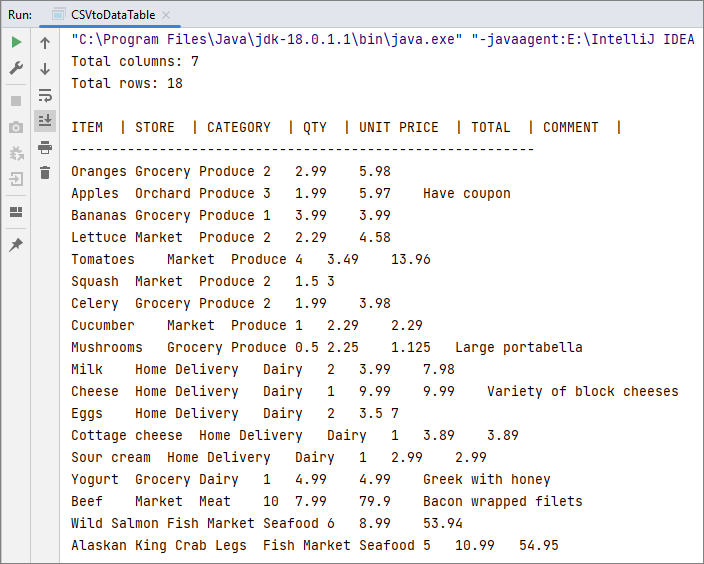
- exportDataTable(): convert CSV data into a DataTable directly, no manual row/column mapping required.
- DataTable Benefits: Easily access basic information such as column count, row count, column names, and row data etc.
Output:
You may also read: Convert CSV to Excel in Java
Frequently Asked Questions
Q1: How do I handle CSV files with different delimiters (semicolon, tab, etc.)?
A: Specify the delimiter in the loadFromFile() method:
// For semicolon-delimited files
workbook.loadFromFile("sample.csv", ";", 0, 0);

// For tab-delimited files
workbook.loadFromFile("sample.csv", "\t", 0, 0);

// For pipe-delimited files
workbook.loadFromFile("sample.csv", "|", 0, 0);
Q2: How do I skip header rows in a CSV file?
A: You can skip header rows by iterating from the second row. For example, if your CSV has 2 header rows (rows 1 and 2) and data starts at row 3:
// Start reading from the third row
for (int i = 2; i < dataRange.getRowCount(); i++) {
    for (int j = 0; j < dataRange.getColumnCount(); j++) {
        // Convert 0-based loop index to Spire.XLS's 1-based cell index
        CellRange cell = dataRange.get(i + 1, j + 1);
        System.out.print(cell.getText() + "\t");
Q3. Can I export a specific range of a CSV to a DataTable?
A: Yes. Spire.XLS lets you define a precise cell range and export it to a DataTable with the exportDataTable(CellRange range, boolean exportColumnNames) method.
Conclusion
Spire.XLS for Java simplifies CSV file reading in Java, offering a robust alternative to manual parsing or basic libraries. Whether you need to read a simple CSV, or convert it to a structured DataTable, this guide provides the corresponding examples to help you implement CSV parsing efficiently.
For more advanced features (e.g., exporting to PDF), check the Spire.XLS for Java Documentation.
Spire.XLS for Java 15.8.3 supports converting Excel to HTML while preserving comments
We're pleased to announce the release of Spire.XLS for Java 15.8.3. This version adds support for converting Excel files to HTML while preserving comments. Additionally, it includes several bug fixes related to Excel-to-PDF conversion, column widths, and HTML conversion. See the details below.
Here is a list of changes made in this release
| Category | ID | Description |
| New feature | SPIREXLS-5879 | Supports converting Excel to HTML while preserving comments.
HTMLOptions options = new HTMLOptions(); options.isSaveComment(true); |
| Bug | SPIREXLS-5820 | Fixes incorrect checkboxes when converting Excel to PDF. |
| Bug | SPIREXLS-5887 | Fixes the issue where non-compliant defaultColWidthPt attribute was added when saving Excel documents according to the OpenXML specification. |
| Bug | SPIREXLS-5897 | Fixes incorrect conversion of plain text to `<a>` tag content when converting a worksheet to HTML. |
| Bug | SPIREXLS-5901 | Fixes incorrect text alignment when converting Excel to PDF. |
| Bug | SPIREXLS-5905 | Fixes text truncation issues when converting Excel to PDF. |
| Bug | SPIREXLS-5906 | Fixes incorrect column widths when converting XLSX to XLSM. |
| Bug | SPIREXLS-5916 | Fixes "NullPointerException" thrown when saving Excel documents. |
How to Read CSV Files in Python: A Comprehensive Guide
In development, reading CSV files in Python is a common task in data processing, analytics, and backend integration. While Python offers built-in modules like csv and pandas for handling CSV files, Spire.XLS for Python provides a powerful, feature-rich alternative for working with CSV and Excel files programmatically.
In this article, you’ll learn how to use Python to read CSV files, from basic CSV parsing to advanced techniques.
- Getting Started with Spire.XLS for Python
- Basic Example: Read a CSV in Python
- Advanced CSV Reading Techniques
- Conclusion
Getting Started with Spire.XLS for Python
Spire.XLS for Python is a feature-rich library for processing Excel and CSV files. Unlike basic CSV parsers in Python, it offers advanced capabilities such as:
- Simple API to load, read, and manipulate CSV data.
- Reading/writing CSV files with support for custom delimiters.
- Converting CSV files to Excel formats (XLSX, XLS) and vice versa.
These features make Spire.XLS ideal for data analysts, developers, and anyone working with structured data in CSV format.
Install via pip
Before getting started, install the library via pip. It works with Python 3.6+ on Windows, macOS, and Linux:
pip install Spire.XLS
Basic Example: Read a CSV in Python
Let’s start with a simple example: parsing a CSV file and extracting its data. Suppose we have a CSV file named “input.csv” with the following content:
Name,Age,City,Salary
Alice,30,New York,75000
Bob,28,Los Angeles,68000
Charlie,35,San Francisco,90000
Python Code to Read the CSV File
Here’s how to load and get data from the CSV file with Python:
from spire.xls import *
from spire.xls.common import *

# Create a Workbook object
workbook = Workbook()

# Load a CSV file
workbook.LoadFromFile("input.csv", ",", 1, 1)

# Get the first worksheet (CSV files are loaded as a single sheet)
worksheet = workbook.Worksheets[0]

# Get the number of rows and columns with data
row_count = worksheet.LastRow
col_count = worksheet.LastColumn

# Iterate through rows and columns to print data
print("CSV Data:")
for row in range(row_count):
    for col in range(col_count):
        # Get cell value
        cell_value = worksheet.Range[row+1, col+1].Value
        print(cell_value, end="\t")
    print()  # New line after each row

# Close the workbook
workbook.Dispose()
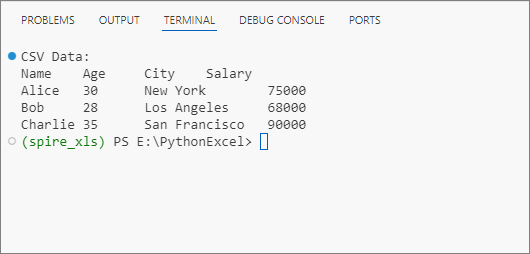
Explanation:
-
Workbook Initialization: The Workbook class is the core object for handling Excel files.
-
Load CSV File: LoadFromFile() imports the CSV data. Its parameters are:
- fileName: The CSV file to read.
- separator: Specified delimiter (e.g., “,”).
- row/column: The starting row/column index.
-
Access Worksheet: The CSV data is loaded into the first worksheet.
-
Read Data: Iterate through rows and columns to extract cell values via worksheet.Range[].Value.
Output: Get data from a CSV file and print in a tabular format.
Advanced CSV Reading Techniques
1. Read CSV with Custom Delimiters
Not all CSVs use commas. If your CSV file uses a different delimiter (e.g., ;), specify it during loading:
# Load a CSV file
workbook.LoadFromFile("input.csv", ";", 1, 1)
2. Skip Header Rows
If your CSV has headers, skip them by adjusting the row iteration to start from the second row instead of the first.
for row in range(1, row_count):
    for col in range(col_count):
        # Get cell value (row+1 because Spire.XLS uses 1-based indexing)
        cell_value = worksheet.Range[row+1, col+1].Value
        print(cell_value, end="\t")
3. Convert CSV to Excel in Python
One of the most powerful features of Spire.XLS is the ability to convert a CSV file into a native Excel format effortlessly. For example, you can read a CSV and then:
- Apply Excel formatting (e.g., set cell colors, borders).
- Create charts (e.g., a bar chart for sales by region).
- Save the data as an Excel file (.xlsx) for sharing.
Code Example: Convert CSV to Excel (XLSX) in Python – Single & Batch
Conclusion
Reading CSV files in Python with Spire.XLS simplifies both basic and advanced data processing tasks. Whether you need to extract CSV data, convert it to Excel, or handle advanced scenarios like custom delimiters, the examples outlined in this guide enables you to implement robust CSV reading capabilities in your projects with minimal effort.
Try the examples above, and explore the online documentation for more advanced features!
Base64 a PDF e PDF a Base64 in Java (solo JDK + Pro)
Tabla de contenidos
Instalar con Maven
<dependency>
    <groupId>e-iceblue</groupId>
    <artifactId>spire.pdf</artifactId>
    <version>11.8.3</version>
</dependency>
Enlaces relacionados
Al trabajar con archivos PDF en Java, a menudo es necesario convertir entre datos binarios y formatos basados en texto. La codificación Base64 permite que el contenido de un PDF se represente como texto sin formato, lo cual es útil al transmitir documentos en JSON, enviarlos a través de envíos de formularios o almacenarlos en sistemas basados en texto. La biblioteca estándar de Java proporciona java.util.Base64, lo que facilita la implementación de conversiones tanto de Base64 a PDF como de PDF a Base64 sin dependencias adicionales.
En este tutorial, exploraremos cómo manejar estas conversiones usando solo el JDK, así como cómo trabajar con imágenes Base64 e incrustarlas en archivos PDF. Para operaciones más avanzadas, como editar un PDF recibido como Base64 y exportarlo de nuevo, demostraremos el uso de Free Spire.PDF for Java.
Tabla de contenidos
- Convertir Base64 a PDF en Java (solo JDK)
- Convertir PDF a Base64 en Java (solo JDK)
- Consejos de validación y seguridad
- Guardar imágenes Base64 como PDF en Java
- Cargar PDF Base64, modificar y guardar de nuevo como Base64
- Consideraciones de rendimiento y memoria
- Preguntas frecuentes
Convertir Base64 a PDF en Java (solo JDK)
El enfoque más simple es leer una cadena Base64 en la memoria, eliminar cualquier prefijo opcional (como data:application/pdf;base64,) y luego decodificarla en un PDF. Esto funciona bien para archivos de tamaño pequeño a mediano.
import java.nio.file.*;
import java.nio.charset.StandardCharsets;
import java.util.Base64;

public class Base64ToPdf {
    public static void main(String[] args) throws Exception {
        // Leer texto Base64 de un archivo (o cualquier otra fuente)
        String base64 = Files.readString(Paths.get("sample.pdf.b64"), StandardCharsets.UTF_8);

        // Eliminar prefijos comunes de URI de datos si están presentes
        base64 = stripDataPrefix(base64);

        // Decodificar Base64 en bytes de PDF sin procesar
        // El decodificador MIME tolera saltos de línea y texto ajustado
        byte[] pdfBytes = Base64.getMimeDecoder().decode(base64);

        // Escribir los bytes decodificados en un archivo PDF
        Files.write(Paths.get("output.pdf"), pdfBytes);
    }

    /** Utilidad para eliminar "data:application/pdf;base64," si está incluido */
    private static String stripDataPrefix(String src) {
        String s = src.trim();
        int comma = s.indexOf(',');
        if (comma > 0 && s.substring(0, comma).toLowerCase().contains("base64")) {
            return s.substring(comma + 1).trim();
        }
        return s;
    }
}
Explicación Este ejemplo es sencillo y fiable para contenido Base64 que cabe cómodamente en la memoria. Se elige Base64.getMimeDecoder() porque maneja con elegancia los saltos de línea, que son comunes en el texto Base64 exportado desde sistemas de correo electrónico o API. Si sabe que su cadena Base64 no contiene saltos de línea, también podría usar Base64.getDecoder().
Asegúrese de eliminar cualquier prefijo de URI de datos (data:application/pdf;base64,) antes de decodificar, ya que no forma parte de la carga útil de Base64. El método de ayuda stripDataPrefix() lo hace automáticamente.
Variante de transmisión (sin la cadena completa en memoria)
Para archivos PDF grandes, es mejor procesar Base64 de forma continua. Esto evita cargar toda la cadena Base64 en la memoria de una sola vez.
import java.io.*;
import java.nio.file.*;
import java.util.Base64;

public class Base64ToPdfStreamed {
    public static void main(String[] args) throws Exception {
        // Entrada: archivo de texto que contiene PDF codificado en Base64
        Path in = Paths.get("sample.pdf.b64");

        // Salida: archivo PDF decodificado
        Path out = Paths.get("output.pdf");

        // Envolver el decodificador Base64 alrededor del flujo de entrada
        try (InputStream b64In = Base64.getMimeDecoder().wrap(Files.newInputStream(in));
             OutputStream pdfOut = Files.newOutputStream(out)) {

            // Transmitir los bytes decodificados directamente a la salida del PDF
            b64In.transferTo(pdfOut);
        }
    }
}
Explicación Este enfoque basado en la transmisión es más eficiente en cuanto a la memoria, ya que decodifica los datos sobre la marcha en lugar de almacenar en búfer toda la cadena. Es el método recomendado para archivos grandes o flujos continuos (por ejemplo, sockets de red).
- Se utiliza Base64.getMimeDecoder() para tolerar los saltos de línea en la entrada.
- El método transferTo() copia eficientemente los bytes decodificados de la entrada a la salida sin manejo manual del búfer.
- En el uso en el mundo real, considere agregar manejo de excepciones para gestionar errores de acceso a archivos o escrituras parciales.
Convertir PDF a Base64 en Java (solo JDK)
Codificar un PDF en Base64 es igual de simple. Para archivos más pequeños, leer todo el PDF en la memoria está bien:
import java.nio.file.*;
import java.util.Base64;

public class PdfToBase64 {
    public static void main(String[] args) throws Exception {
        // Leer el archivo PDF en un array de bytes
        byte[] pdfBytes = Files.readAllBytes(Paths.get("input.pdf"));

        // Codificar los bytes del PDF como una cadena Base64
        String base64 = Base64.getEncoder().encodeToString(pdfBytes);

        // Escribir la cadena Base64 en un archivo de texto
        Files.writeString(Paths.get("output.pdf.b64"), base64);
    }
}
Explicación Este enfoque es simple y funciona bien para archivos de tamaño pequeño o mediano. Todo el PDF se lee en un array de bytes y se codifica como una única cadena Base64. Esta cadena se puede almacenar, transmitir en JSON o incrustar en un URI de datos.
Codificador de transmisión (maneja archivos grandes de manera eficiente)
Para archivos PDF grandes, puede evitar la sobrecarga de memoria codificando directamente como un flujo:
import java.io.*;
import java.nio.file.*;
import java.util.Base64;

public class PdfToBase64Streamed {
    public static void main(String[] args) throws Exception {
        // Entrada: archivo PDF binario
        try (InputStream pdfIn = Files.newInputStream(Paths.get("input.pdf"));
             // Flujo de salida sin procesar para el archivo de texto Base64
             OutputStream rawOut = Files.newOutputStream(Paths.get("output.pdf.b64"));
             // Envolver el flujo de salida con el codificador Base64
             OutputStream b64Out = Base64.getEncoder().wrap(rawOut)) {

            // Transmitir los bytes del PDF directamente a la salida codificada en Base64
            pdfIn.transferTo(b64Out);
        }
    }
}
Explicación El codificador de transmisión maneja eficientemente archivos grandes codificando datos de forma incremental en lugar de cargar todo en la memoria. El método Base64.getEncoder().wrap() convierte un flujo de salida regular en uno que escribe texto Base64 automáticamente.
Este diseño se escala mejor para archivos PDF grandes, flujos de red o servicios que deben manejar muchos documentos simultáneamente sin sufrir presión de memoria.
Consejos de validación y seguridad
- Detectar URIs de datos: los usuarios pueden enviar prefijos data:application/pdf;base64,. Elimínelos antes de decodificar.
- Saltos de línea: al decodificar texto que puede contener líneas ajustadas (correos electrónicos, registros), use Base64.getMimeDecoder().
- Comprobación rápida de cordura: después de decodificar, los primeros bytes de un PDF válido generalmente comienzan con %PDF-. Puede afirmar esto para una detección temprana de fallas.
- Codificación de caracteres: trate el texto Base64 como UTF-8 (o US-ASCII) al leer/escribir archivos .b64.
- Manejo de errores: envuelva la decodificación/codificación en try/catch y muestre mensajes procesables (por ejemplo, tamaño, discrepancia de encabezado).
Guardar imágenes Base64 como PDF en Java
A veces recibe imágenes (por ejemplo, PNG o JPEG) como cadenas Base64 y necesita envolverlas en un PDF. Si bien la biblioteca estándar de Java no tiene API de PDF, Free Spire.PDF for Java lo hace sencillo.
Puede descargar Free Spire.PDF for Java y agregarlo a su proyecto o instalar Free Spire.PDF for Java desde el repositorio de Maven.
Conceptos clave de Spire.PDF
- PdfDocument: el contenedor de una o más páginas PDF.
- PdfPageBase: representa una página en la que se puede dibujar.
- PdfImage.fromImage(): carga una BufferedImage o un flujo en una imagen PDF dibujable.
- drawImage(): coloca la imagen en las coordenadas y el tamaño especificados.
- Sistema de coordenadas: Spire.PDF utiliza un sistema de coordenadas donde (0,0) es la esquina superior izquierda.
Ejemplo: Convertir imagen Base64 a PDF usando Java
import com.spire.pdf.PdfDocument;
import com.spire.pdf.PdfPageBase;
import com.spire.pdf.graphics.PdfImage;

import java.io.*;
import java.nio.charset.StandardCharsets;
import java.nio.file.*;
import java.util.Base64;

public class Base64ImageToPdf {
    public static void main(String[] args) throws Exception {
        // 1) Leer archivo Base64 y decodificar (eliminar prefijo de URI de datos si existe)
        String base64Image = Files.readString(Paths.get("G:/Document/image.b64"), StandardCharsets.UTF_8).trim();
        int comma = base64Image.indexOf(',');
        if (comma > 0 && base64Image.substring(0, comma).toLowerCase().contains("base64")) {
            base64Image = base64Image.substring(comma + 1).trim();
        }
        byte[] imageBytes = Base64.getMimeDecoder().decode(base64Image);

        // 2) Crear PDF e insertar la imagen
        PdfDocument pdf = new PdfDocument();
        try (ByteArrayInputStream in = new ByteArrayInputStream(imageBytes)) {
            PdfImage img = PdfImage.fromStream(in);
            pdf.getPageSettings().setWidth(img.getWidth());
            pdf.getPageSettings().setHeight(img.getHeight());
            pdf.getPageSettings().setMargins(0, 0, 0, 0);
            PdfPageBase page = pdf.getPages().add();
            page.getCanvas().drawImage(img, 0, 0);
        }

        // 3) Guardar archivo PDF
        pdf.saveToFile("output/image.pdf");
    }
}
El siguiente ejemplo decodifica una imagen Base64 y la incrusta en una página PDF. El resultado se ve así:

Este flujo de trabajo es ideal para incrustar documentos escaneados o firmas que llegan como Base64.
Para gráficos vectoriales, también puede consultar nuestra guía sobre conversión de SVG a PDF en Java.
Cargar PDF Base64, modificar y guardar de nuevo como Base64
En muchas API, un PDF llega como Base64. Con Spire.PDF puede cargarlo, dibujar en las páginas (texto/marcas de agua) y devolverlo de nuevo como Base64, ideal para funciones sin servidor o microservicios.
Conceptos clave de Spire.PDF utilizados aquí
- PdfDocument.loadFromBytes(byte[]): construye un documento directamente a partir de bytes decodificados.
- PdfPageBase#getCanvas(): obtiene una superficie de dibujo para colocar texto, formas o imágenes.
- Fuentes y pinceles: por ejemplo, PdfTrueTypeFont o fuentes integradas a través de PdfFont, con PdfSolidBrush para colorear.
- Guardar en memoria: pdf.saveToStream(ByteArrayOutputStream) produce bytes sin procesar, que puede volver a codificar con Base64.
Ejemplo: Cargar, modificar y guardar PDF Base64 en Java
import com.spire.pdf.*;
import com.spire.pdf.graphics.*;

import java.awt.*;
import java.io.*;
import java.util.Base64;

public class EditBase64Pdf {
    public static void main(String[] args) throws Exception {
        String base64Pdf = "..."; // cadena de PDF Base64 entrante

        // Decodificar a bytes
        byte[] pdfBytes = Base64.getDecoder().decode(base64Pdf);

        // Cargar PDF
        PdfDocument pdf = new PdfDocument();
        pdf.loadFromBytes(pdfBytes);

        // Agregar sello en cada página
        for (PdfPageBase page : (Iterable<PdfPageBase>) pdf.getPages()) {
            PdfTrueTypeFont font = new PdfTrueTypeFont(new Font("Arial", Font.BOLD, 36));
            PdfSolidBrush brush = new PdfSolidBrush(new PdfRGBColor(Color.BLUE));
            page.getCanvas().drawString("Procesado", font, brush, 100, 100);
        }

        // Guardar en memoria y volver a codificar a Base64
        ByteArrayOutputStream output = new ByteArrayOutputStream();
        pdf.saveToStream(output);
        pdf.close();

        String resultBase64 = Base64.getEncoder().encodeToString(output.toByteArray());
        System.out.println(resultBase64);
    }
}
En este ejemplo, se agrega una marca de agua azul "Procesado" a cada página del PDF antes de volver a codificarlo en Base64. El resultado se ve así:
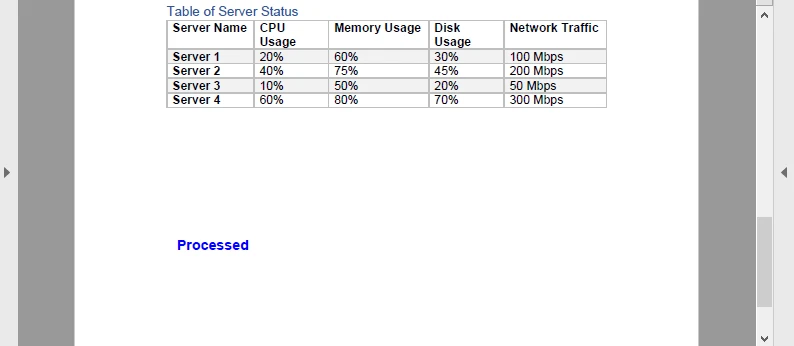
Este viaje de ida y vuelta (Base64 → PDF → Base64) es útil para pipelines de documentos, como sellar facturas o agregar firmas dinámicas en un servicio en la nube.
Tutoriales relacionados:
Extraer texto de PDF en Java | Crear documentos PDF en Java
Consideraciones de rendimiento y memoria
- Transmisión frente a E/S de archivos: al tratar con Base64, prefiera ByteArrayInputStream y ByteArrayOutputStream para evitar archivos temporales innecesarios.
- PDF con muchas imágenes: la decodificación de imágenes Base64 puede aumentar el uso de la memoria; considere escalar o comprimir antes de incrustar.
- PDF grandes: Spire.PDF maneja PDF de varios MB, pero para documentos muy grandes considere el procesamiento página por página.
- Funciones sin servidor: los flujos de trabajo de Base64 encajan bien porque se evita la dependencia del sistema de archivos y se devuelven los resultados directamente a través de las respuestas de la API.
Preguntas frecuentes
P: ¿Puedo convertir Base64 a PDF usando solo el JDK?
Sí. Java SE proporciona utilidades de Base64 y E/S de archivos, por lo que puede manejar la conversión sin bibliotecas adicionales.
P: ¿Puedo editar un PDF con la biblioteca estándar de Java?
No. Java SE no admite el análisis ni la representación de la estructura de PDF. Para editar, use una biblioteca dedicada como Spire.PDF for Java.
P: ¿Es suficiente Free Spire.PDF for Java?
Sí. Free Spire.PDF for Java tiene un tamaño de documento limitado, pero es suficiente para pruebas o proyectos a pequeña escala.
P: ¿Necesito guardar los PDF en el disco?
No siempre. La conversión también se puede ejecutar en memoria usando flujos, lo que a menudo se prefiere para API y aplicaciones en la nube.