Sharing confidential documents as PDFs can put sensitive information at risk if they are not properly secured. Adding password protection helps control who can open, edit, copy, or print your files. Fortunately, you don't need expensive software or an Adobe Acrobat subscription to encrypt a PDF. In this guide, you'll learn five ways to password protect a PDF for free, including online tools, built-in applications, desktop software, Python automation, and Microsoft Word.
- How to Password Protect a PDF for Free Online
- Password Protect a PDF on Mac for Free Using Preview
- How to Encrypt a PDF for Free with Desktop Applications
- Password Protect PDFs Automatically with Free Spire.PDF
- How to Password Protect a PDF When Exporting from Word
- PDF Encryption Methods Comparison
- FAQs
How to Password Protect a PDF for Free Online
If you need to lock a PDF document right away without installing new software, online tools are the quickest method. They work across Windows, macOS, iOS, and Android. Popular platforms like Adobe Acrobat Online Free Tool, iLovePDF, and Smallpdf allow you to set strong passwords in just a few clicks.
Here's how to encrypt a PDF file for free using Smallpdf:
- Step 1. Navigate to Smallpdf's Protect PDF tool in a browser.
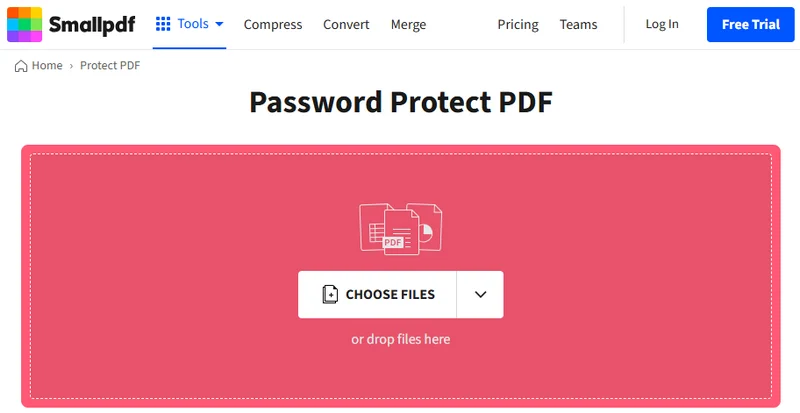
- Step 2. Upload a PDF document and type in a password.
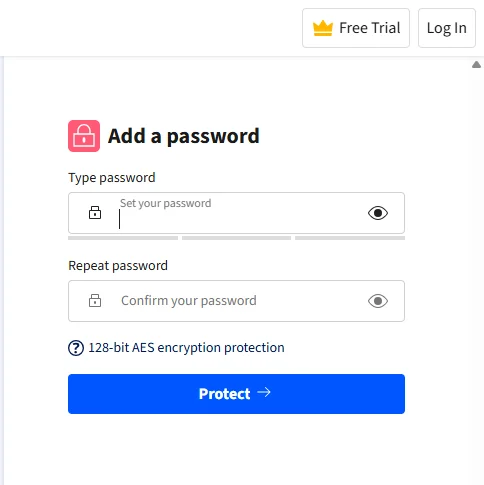
- Step 3. Tap on the Protect button and download the encrypted PDF.
Note: Most online PDF editors claim to delete uploaded files within 24 hours. However, avoid uploading sensitive personal or business documents. For confidential files, choose an offline method instead.
Password Protect a PDF on Mac for Free Using Preview
If you use macOS, you already have a powerful, built-in PDF editor on your computer. The Preview app allows you to encrypt PDF files instantly without connecting to the internet.
Follow these steps to lock PDF documents on Mac:
- Step 1. Double-click your PDF file to open it in the Preview app.
- Step 2. Click File in the top menu bar and select Export... (or Edit Permissions... depending on your macOS version).
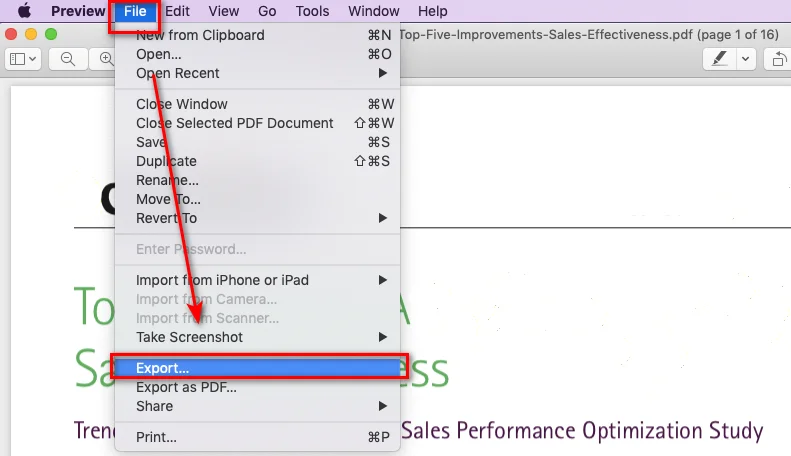
- Step 3. Click the Permissions... button at the bottom of the export window.
- Step 4. Check Require Password To Open Document, type your password, and re-enter it to confirm. But the available options may vary depending on your macOS version.
- Step 5. Click Apply, then click Save.
How to Encrypt a PDF for Free with Desktop Applications
If you are using Windows, the operating system does not include a built-in tool for directly password protecting existing PDF files. In this case, a free desktop PDF application can help you encrypt files locally without uploading them to online services. Tools like PDFEncrypt provide an easy way to add password protection and encryption to PDF documents.
Here is how to lock your file using PDFEncrypt on Windows:
- Step 1. Download, install, and launch PDFEncrypt.
- Step 2. Click Source File to select the target PDF document, and set the destination of the locked PDF.
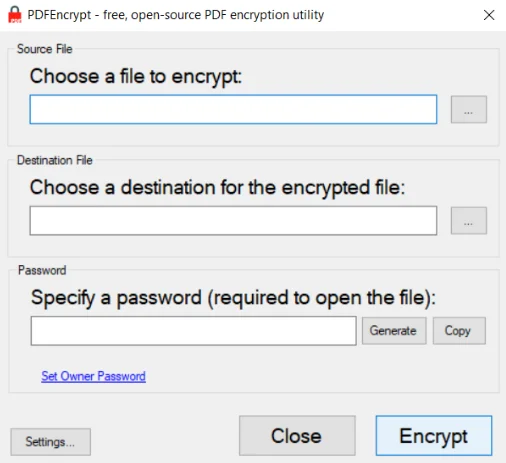
- Step 3. Enter an opening password. You can also set an owner password to restrict printing or copying content.
- Step 4. Click Encrypt to protect the PDF.
Password Protect PDFs Automatically with Free Spire.PDF
While the above tools are great for single PDFs, manually locking dozens of PDFs one by one is inefficient. This is when Free Spire.PDF for Python comes to help by automating PDF encryption. It allows developers to apply open and permission passwords to PDF files with just a few lines of code.
Code Example
With the help of Free Spire.PDF, securing PDF files takes just three simple steps:
- Load the PDF file.
- Call Security.Encrypt() to apply password protection.
- Save the encrypted PDF.
Here is the complete code snippet:
from spire.pdf import *

# Initialize the PdfDocument object
doc = PdfDocument()

# Load the target PDF file
doc.LoadFromFile("/input/Sample.pdf")

# Encrypt the PDF with user and owner passwords
doc.Security.Encrypt("openPsd", "permissionPsd", PdfPermissionsFlags.Print, PdfEncryptionKeySize.Key128Bit)

# Save the password-protected PDF to a new file
doc.SaveToFile("/output/protected_sample.pdf")
doc.Close()
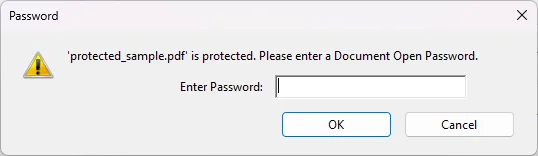
Opening the output PDF will now display a password prompt, indicating successful encryption:
You may like: How to Make a PDF Read Only in 2025 (A Complete Guide)
How to Password Protect a PDF When Exporting from Word
What if you haven't created the PDF file yet? If you are preparing your document in Microsoft Word, you don't need a separate PDF encryption tool. Word allows you to save the document as a PDF and add password protection during the export process.
- Step 1. Open your document in Microsoft Word.
- Step 2. Go to File > Save As and choose PDF as the file format.
- Step 3. Click the Options... button near the format selector.
- Step 4. Check Encrypt the document with a password at the bottom of the pop-up window.
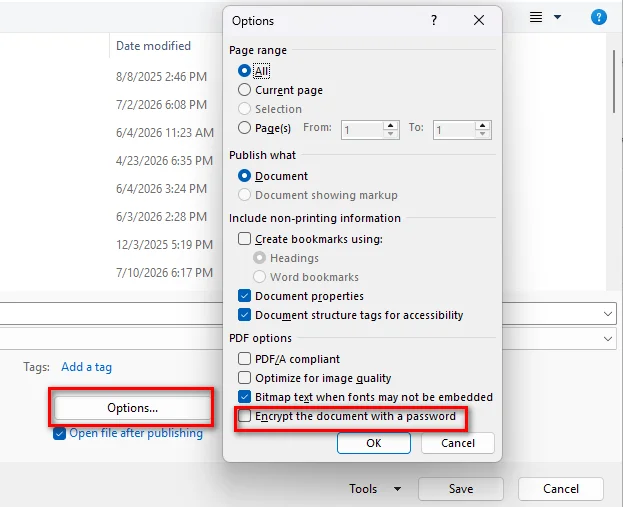
- Step 5. Click OK, enter your password, and save the secured PDF.
PDF Encryption Methods Comparison
To help you choose the right method, the following table compares each option based on privacy, supported platforms, and setup requirements:
| Method | Best For | Privacy Level | Platform | Setup Required |
|---|---|---|---|---|
| Online Tools | Quick protection for one-time PDF tasks | Moderate (cloud upload) | All Browsers | None |
| Mac Preview | Mac users needing offline PDF protection | High (local processing) | macOS | Built-in |
| Windows Desktop App | Protecting sensitive files on Windows | High (local processing) | Windows | Free Download |
| Free Spire.PDF for Python | Developers and batch PDF encryption | High (local processing) | Cross-platform | pip install |
| Microsoft Word Export | Creating password-protected PDFs while exporting | High (local processing) | Windows | Microsoft Office |
FAQs about Password Protecting PDFs
What is the difference between an Open Password and a Permission Password?
An open password (user password) prevents anyone from opening and viewing the file without entering the code. A permission password (owner password) allows users to open and read the document, but stops them from making changes, printing pages, or copying text.
Can I password protect a PDF without downloading extra software?
Yes, Mac users can rely on Preview, while users on any platform can choose online PDF protection tools. If you need offline protection on Windows, a free desktop application is also available.
Is it safe to encrypt a PDF online?
Generally, it is safe, but uploading sensitive or personal data to web tools is not recommended. If your PDF contains critical information, try offline desktop software or Free Spire.PDF for Python instead.
Conclusion
This guide covered five free ways to password protect a PDF, from quick online tools and built-in applications to desktop software, Python automation, and Microsoft Word export options. Each method is suitable for different situations: online tools work well for quick tasks, offline solutions provide better privacy, and automation is ideal for processing multiple files. Choose the method that best matches your security needs and workflow.