.NET (1327)
Children categories
An Excel file can contain dozens of sheets, and sometimes you may need to rename these sheets to make the whole workbook more organized. Meanwhile, setting different tab colors also seems to be a good way to highlight certain important sheets. This article will introduce how to programmatically rename Excel sheets and set tab colors using Spire.XLS for .NET.
Install Spire.XLS for.NET
To begin with, you need to add the DLL files included in the Spire.XLS for .NET package as references in your .NET project. The DLL files can be either downloaded from this link or installed via NuGet.
PM> Install-Package Spire.XLS
Rename Excel Sheets and Set Tab Colors
Spire.XLS for .NET offers a simple solution for you to rename sheets and set tab colors in Excel. The detailed steps are as follows.
- Create a Workbook object.
- Load a sample Excel file using Workbook.LoadFromFile() method.
- Get a specified worksheet using Workbook.Worksheets[int] property.
- Rename the specified worksheet using Worksheet.Name property.
- Set tab color for the specified worksheet using Worksheet.TabColor property.
- Save the document to another file using Workbook.SaveToFile() method.
- C#
- VB.NET
using Spire.Xls;
using System.Drawing;

namespace RenameWorksheet
{
    class Program
    {
        static void Main(string[] args)
        {
            //Create a Workbook object
            Workbook workbook = new Workbook();

            //Load a sample Excel file
            workbook.LoadFromFile(@"C:\Users\Administrator\Desktop\input.xlsx");

            //Get the specified worksheet
            Worksheet worksheet = workbook.Worksheets[0];
            Worksheet worksheet1 = workbook.Worksheets[1];
            Worksheet worksheet2 = workbook.Worksheets[2];

            //Rename Excel worksheet
            worksheet.Name = "Data";
            worksheet1.Name = "Chart";
            worksheet2.Name = "Summary";

            //Set tab color
            worksheet.TabColor = Color.DarkGreen;
            worksheet1.TabColor = Color.Gold;
            worksheet2.TabColor = Color.Blue;

            //Save to file
            workbook.SaveToFile("Rename.xlsx", ExcelVersion.Version2010);
        }
    }
}

Apply for a Temporary License
If you'd like to remove the evaluation message from the generated documents, or to get rid of the function limitations, please request a 30-day trial license for yourself.
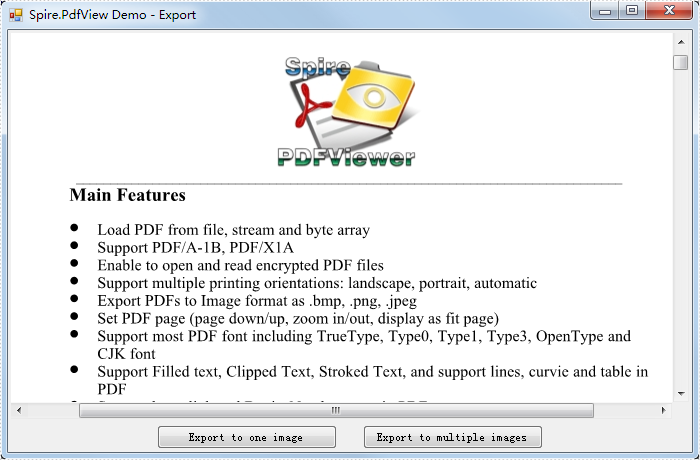
The sample demonstrates how to export PDF pages as images by PdfDocumentViewer Component.
C#/VB.NET: Create, Fill, or Remove Fillable Forms in PDF
2022-06-17 05:46:00 Written by AdministratorThe ability to create fillable PDF forms that end users can fill out (without having to print) can be a real benefit to making your business efficient. With these documents, users can download them, fill them out, save them, and send them back to you. No more printing and scanning. In this article, you will learn how to create, fill, or remove fillable forms in PDF in C# and VB.NET by using Spire.PDF for .NET.
- Create Fillable Form Fields in a PDF Document
- Fill Form Fields in an Existing PDF Document
- Remove a Particular Field or All Fields from an Existing PDF Document
Spire.PDF for .NET offers a series of useful classes under the Spire.Pdf.Fields namespace, allowing programmers to create and edit various types of form fields including text box, check box, combo box, list box, and radio button. The table below lists some of the core classes involved in this tutorial.
| Class | Description |
| PdfForm | Represents interactive form of the PDF document. |
| PdfField | Represents field of the PDF document's interactive form. |
| PdfTextBoxField | Represents text box field in the PDF form. |
| PdfCheckBoxField | Represents check box field in the PDF form. |
| PdfComboBoxField | Represents combo box field in the PDF Form. |
| PdfListBoxField | Represents list box field of the PDF form. |
| PdfListFieldItem | Represents an item of a list field. |
| PdfRadioButtonListField | Represents radio button field in the PDF form. |
| PdfRadioButtonListItem | Represents an item of a radio button list. |
| PdfButtonField | Represents button field in the PDF form. |
| PdfSignatureField | Represents signature field in the PDF form. |
Install Spire.PDF for .NET
To begin with, you need to add the DLL files included in the Spire.PDF for.NET package as references in your .NET project. The DLLs files can be either downloaded from this link or installed via NuGet.
PM> Install-Package Spire.PDF
Create Fillable Form Fields in a PDF Document
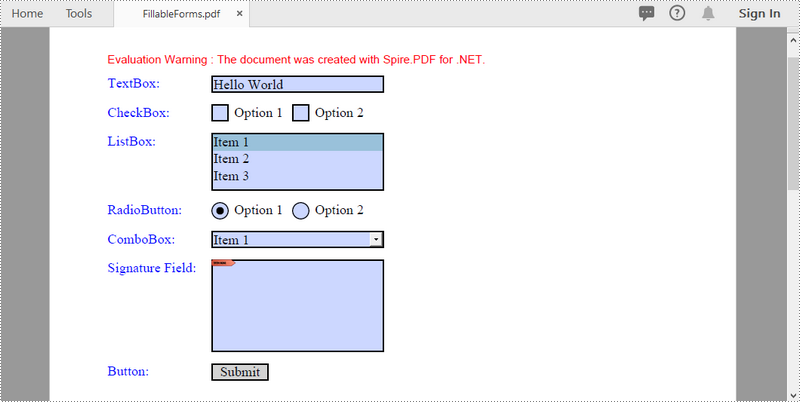
To create a PDF form, initialize an instance of the corresponding field class. Set its size and position in the document through the Bounds property, and then add it to PDF using PdfFormFieldCollection.Add() method. The following are the main steps to create various types of form fields in a PDF document using Spire.PDF for .NET.
- Create a PdfDocument object.
- Add a page using PdfDocuemnt.Pages.Add() method.
- Create a PdfTextBoxField object, set the properties of the field including Bounds, Font and Text, and then add it to the document using PdfFormFieldCollection.Add() method.
- Repeat the step 3 to add check box, combo box, list box, radio button, signature field and button to the document.
- Save the document to a PDF file using PdfDocument.SaveToFile() method.
- C#
- VB.NET
using Spire.Pdf;
using Spire.Pdf.Actions;
using Spire.Pdf.Fields;
using Spire.Pdf.Graphics;
using System.Drawing;

namespace CreateFillableFormsInPdf
{
    class Program
    {
        static void Main(string[] args)
        {
            //Create a PdfDocument object
            PdfDocument doc = new PdfDocument();

            //Add a page
            PdfPageBase page = doc.Pages.Add();

            //Initialize x and y coordinates
            float baseX = 100;
            float baseY = 30;

            //Create two brush objects
            PdfSolidBrush brush1 = new PdfSolidBrush(new PdfRGBColor(Color.Blue));
            PdfSolidBrush brush2 = new PdfSolidBrush(new PdfRGBColor(Color.Black));

            //Create a font
            PdfFont font = new PdfFont(PdfFontFamily.TimesRoman, 12f, PdfFontStyle.Regular);

            //Add a textbox
            page.Canvas.DrawString("TextBox:", font, brush1, new PointF(10, baseY));
            RectangleF tbxBounds = new RectangleF(baseX, baseY, 150, 15);
            PdfTextBoxField textBox = new PdfTextBoxField(page, "textbox");
            textBox.Bounds = tbxBounds;
            textBox.Text = "Hello World";
            textBox.Font = font;
            doc.Form.Fields.Add(textBox);
            baseY += 25;

            //add two checkboxes
            page.Canvas.DrawString("CheckBox:", font, brush1, new PointF(10, baseY));
            RectangleF checkboxBound1 = new RectangleF(baseX, baseY, 15, 15);
            PdfCheckBoxField checkBoxField1 = new PdfCheckBoxField(page, "checkbox1");
            checkBoxField1.Bounds = checkboxBound1;
            checkBoxField1.Checked = false;
            page.Canvas.DrawString("Option 1", font, brush2, new PointF(baseX + 20, baseY));

            RectangleF checkboxBound2 = new RectangleF(baseX + 70, baseY, 15, 15);
            PdfCheckBoxField checkBoxField2 = new PdfCheckBoxField(page, "checkbox2");
            checkBoxField2.Bounds = checkboxBound2;
            checkBoxField2.Checked = false;
            page.Canvas.DrawString("Option 2", font, brush2, new PointF(baseX + 90, baseY));
            doc.Form.Fields.Add(checkBoxField1);
            doc.Form.Fields.Add(checkBoxField2);
            baseY += 25;

            //Add a listbox
            page.Canvas.DrawString("ListBox:", font, brush1, new PointF(10, baseY));
            RectangleF listboxBound = new RectangleF(baseX, baseY, 150, 50);
            PdfListBoxField listBoxField = new PdfListBoxField(page, "listbox");
            listBoxField.Items.Add(new PdfListFieldItem("Item 1", "item1"));
            listBoxField.Items.Add(new PdfListFieldItem("Item 2", "item2"));
            listBoxField.Items.Add(new PdfListFieldItem("Item 3", "item3")); ;
            listBoxField.Bounds = listboxBound;
            listBoxField.Font = font;
            listBoxField.SelectedIndex = 0;
            doc.Form.Fields.Add(listBoxField);
            baseY += 60;

            //Add two radio buttons
            page.Canvas.DrawString("RadioButton:", font, brush1, new PointF(10, baseY));
            PdfRadioButtonListField radioButtonListField = new PdfRadioButtonListField(page, "radio");
            PdfRadioButtonListItem radioItem1 = new PdfRadioButtonListItem("option1");
            RectangleF radioBound1 = new RectangleF(baseX, baseY, 15, 15);
            radioItem1.Bounds = radioBound1;
            page.Canvas.DrawString("Option 1", font, brush2, new PointF(baseX + 20, baseY));

            PdfRadioButtonListItem radioItem2 = new PdfRadioButtonListItem("option2");
            RectangleF radioBound2 = new RectangleF(baseX + 70, baseY, 15, 15);
            radioItem2.Bounds = radioBound2;
            page.Canvas.DrawString("Option 2", font, brush2, new PointF(baseX + 90, baseY));
            radioButtonListField.Items.Add(radioItem1);
            radioButtonListField.Items.Add(radioItem2);
            radioButtonListField.SelectedIndex = 0;
            doc.Form.Fields.Add(radioButtonListField);
            baseY += 25;

            //Add a combobox
            page.Canvas.DrawString("ComboBox:", font, brush1, new PointF(10, baseY));
            RectangleF cmbBounds = new RectangleF(baseX, baseY, 150, 15);
            PdfComboBoxField comboBoxField = new PdfComboBoxField(page, "combobox");
            comboBoxField.Bounds = cmbBounds;
            comboBoxField.Items.Add(new PdfListFieldItem("Item 1", "item1"));
            comboBoxField.Items.Add(new PdfListFieldItem("Item 2", "itme2"));
            comboBoxField.Items.Add(new PdfListFieldItem("Item 3", "item3"));
            comboBoxField.Items.Add(new PdfListFieldItem("Item 4", "item4"));
            comboBoxField.SelectedIndex = 0;
            comboBoxField.Font = font;
            doc.Form.Fields.Add(comboBoxField);
            baseY += 25;

            //Add a signature field
            page.Canvas.DrawString("Signature Field:", font, brush1, new PointF(10, baseY));
            PdfSignatureField sgnField = new PdfSignatureField(page, "sgnField");
            RectangleF sgnBounds = new RectangleF(baseX, baseY, 150, 80);
            sgnField.Bounds = sgnBounds;
            doc.Form.Fields.Add(sgnField);
            baseY += 90;

            //Add a button
            page.Canvas.DrawString("Button:", font, brush1, new PointF(10, baseY));
            RectangleF btnBounds = new RectangleF(baseX, baseY, 50, 15);
            PdfButtonField buttonField = new PdfButtonField(page, "button");
            buttonField.Bounds = btnBounds;
            buttonField.Text = "Submit";
            buttonField.Font = font;
            PdfSubmitAction submitAction = new PdfSubmitAction("https://www.e-iceblue.com/getformvalues.php");
            submitAction.DataFormat = SubmitDataFormat.Html;
            buttonField.Actions.MouseDown = submitAction;
            doc.Form.Fields.Add(buttonField);

            //Save to file
            doc.SaveToFile("FillableForms.pdf", FileFormat.PDF);
        }
    }
}
Fill Form Fields in an Existing PDF Document
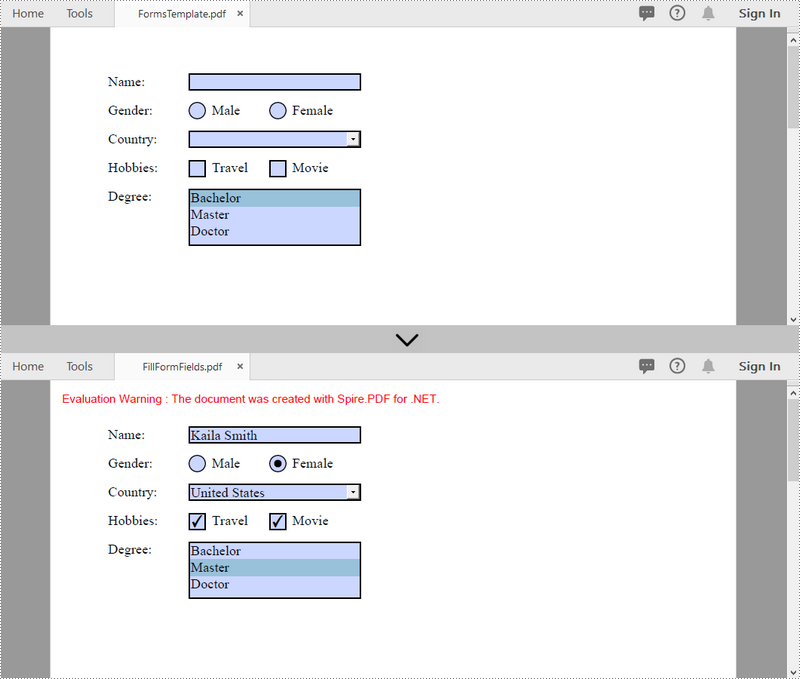
In order to fill out a form, we must first get all the form fields from the PDF document, determine the type of a certain field, and then input a value or select a value from a predefined list. The following are the steps to fill form fields in an existing PDF document using Spire.PDF for .NET.
- Create a PdfDocument object.
- Load a sample PDF document using PdfDocument.LoadFromFile() method.
- Get the form from the document through PdfDocument.Form property.
- Get the form widget collection through PdfFormWidget.FieldsWidget property.
- Loop through the form widget collection to get a specific PdfField.
- Determine if the PdfField is a certain field type such as text box. If yes, set the text of the text box through PdfTextBoxFieldWidget.Text property.
- Repeat the sixth step to fill radio button, check box, combo box, and list box with values.
- Save the document to a PDF file using PdfDocument.SaveToFile() method.
- C#
- VB.NET
using Spire.Pdf;
using Spire.Pdf.Fields;
using Spire.Pdf.Widget;

namespace FillFormFields
{
    class Program
    {
        static void Main(string[] args)
        {
            //Create a PdfDocument object
            PdfDocument doc = new PdfDocument();

            //Load a template containing forms
            doc.LoadFromFile(@"C:\Users\Administrator\Desktop\FormsTemplate.pdf");

            //Get the form from the document
            PdfFormWidget form = (PdfFormWidget)doc.Form;

            //Get the form widget collection
            PdfFormFieldWidgetCollection formWidgetCollection = form.FieldsWidget;

            //Loop through the widgets
            for (int i = 0; i < formWidgetCollection.Count; i++)
            {
                //Get a specific field
                PdfField field = formWidgetCollection[i];

                //Determine if the field is a text box
                if (field is PdfTextBoxFieldWidget)
                {
                    if (field.Name == "name")
                    {
                        //Set the text of text box
                        PdfTextBoxFieldWidget textBoxField = (PdfTextBoxFieldWidget)field;
                        textBoxField.Text = "Kaila Smith";
                    }
                }

                //Determine if the field is a radio button
                if (field is PdfRadioButtonListFieldWidget)
                {
                    if (field.Name == "gender")
                    {
                        //Set the selected index of radio button
                        PdfRadioButtonListFieldWidget radioButtonListField = (PdfRadioButtonListFieldWidget)field;
                        radioButtonListField.SelectedIndex = 1;
                    }
                }

                //Determine if the field is a combo box
                if (field is PdfComboBoxWidgetFieldWidget)
                {
                    if (field.Name == "country")
                    {
                        //Set the selected index of combo box
                        PdfComboBoxWidgetFieldWidget comboBoxField = (PdfComboBoxWidgetFieldWidget)field;
                        int[] index = { 0 };
                        comboBoxField.SelectedIndex = index;
                    }
                }

                //Determine if the field is a check box
                if (field is PdfCheckBoxWidgetFieldWidget)
                {
                    //Set the "Checked" status of check box
                    PdfCheckBoxWidgetFieldWidget checkBoxField = (PdfCheckBoxWidgetFieldWidget)field;
                    switch (checkBoxField.Name)
                    {
                        case "travel":
                            checkBoxField.Checked = true;
                            break;
                        case "movie":
                            checkBoxField.Checked = true;
                            break;
                    }
                }

                //Determine if the field is a list box
                if (field is PdfListBoxWidgetFieldWidget)
                {
                    if (field.Name == "degree")
                    {
                        //Set the selected index of list box
                        PdfListBoxWidgetFieldWidget listBox = (PdfListBoxWidgetFieldWidget)field;
                        int[] index = { 1 };
                        listBox.SelectedIndex = index;
                    }
                }
            }

            //Save to file
            doc.SaveToFile("FillFormFields.pdf", FileFormat.PDF);
        }
    }
}
Remove a Particular Field or All Fields from an Existing PDF Document
A form field in a PDF document can be accessed by its index or name and removed by PdfFieldCollection.Remove() method. The following are the steps to remove a particular field or all fields from an existing PDF document using Sprie.PDF for .NET.
- Create a PdfDocument object.
- Load a PDF document using PdfDocument.LoadFromFile() method.
- Get the form widget collection from the document.
- Loop through the widget collection to get a specific PdfField. Remove the field one by one using PdfFieldCollection.Remove() method.
- To remove a certain form field, get it from the document through PdfFormWidget.FieldsWidget["fieldName"] property and then call the PdfFieldCollectiont.Remove() method.
- Save the document to a PDF file using PdfDocument.SaveToFile() method.
- C#
- VB.NET
using Spire.Pdf;
using Spire.Pdf.Fields;
using Spire.Pdf.Widget;

namespace RemoveFormFields
{
    class Program
    {
        static void Main(string[] args)
        {
            //Create a PdfDocument object
            PdfDocument doc = new PdfDocument();

            //Load a PDF file
            doc.LoadFromFile(@"C:\Users\Administrator\Desktop\FormsTemplate.pdf");

            //Get the form fields from the document
            PdfFormWidget formWidget = doc.Form as PdfFormWidget;

            //Loop through the widgets
            for (int i = formWidget.FieldsWidget.List.Count - 1; i >= 0; i--)
            {
                //Get a specific field
                PdfField field = formWidget.FieldsWidget.List[i] as PdfField;

                //Remove the field
                formWidget.FieldsWidget.Remove(field);
            }

            //Get a specific field by its name
            //PdfField field = formWidget.FieldsWidget["name"];
            //Remove the field
            //formWidget.FieldsWidget.Remove(field);

            //Save to file
            doc.SaveToFile("DeleteAllFields.pdf");
        }
    }
}
Apply for a Temporary License
If you'd like to remove the evaluation message from the generated documents, or to get rid of the function limitations, please request a 30-day trial license for yourself.
The sample demonstrates how to set PDF Page Label in Silverlight.

The sample demonstrates how to Insert Image into Word in Silverlight.

The sample demonstrates how to Design Excel Cell Borders in Silverlight via Spire.XLS.
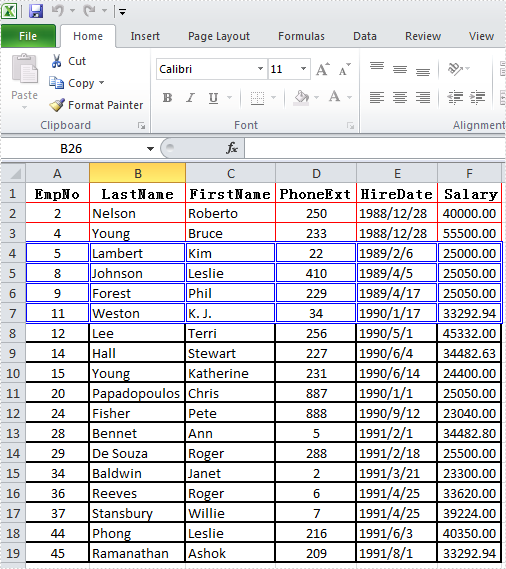
The sample demonstrates how to create PDF Header and Footer in Silverlight via Spire.PDF.


PDF pagination not only enables users to add page numbers in PDF file but also can divide PDF document into sections so that some additional information such as PDF file cover, introduction or reference can be added. So PDF pagination provides great convenience for managing large files or organizing books. This section will show you a solution to paginate PDF pages via a .NET PDF component in C#, VB.NET.
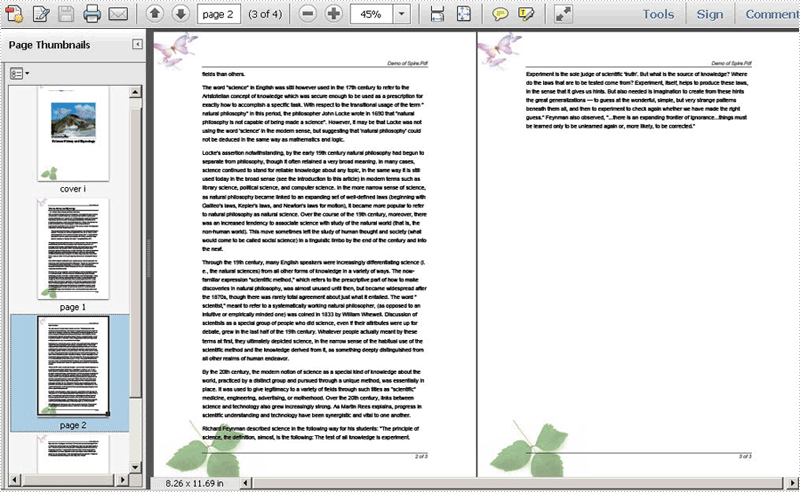
Spire.PDF for .NET, a PDF component for managing PDF files, enables you to paginate PDF pages quickly with C#, VB.NET. Before expounding the main code, I want to show the screenshot of the output PDF file as below:
Here you can download Spire.PDF for .NET and install it on your system. After adding Spire.Pdf dll, let us start to paginate PDF file together.
In the whole solution, there are three main steps to paginate PDF file. One is to draw page number; another is to draw content; the last one is to draw PDF cover so that you can add additional information. Let us see them one by one.
Paginate PDF - Draw PDF Page Number
When drawing page number, page label is also set in below method. By calling this method: DrawString(string s, PdfFontBase font, PdfBrush brush, float x, float y, PdfStringFormat format). You can not only set page label font, color, position and format. Please see detail code below:
            foreach (PdfPageBase page in section.Pages)
            {
                page.Canvas.SetTransparency(0.5f);
                PdfBrush brush = PdfBrushes.Black;
                PdfPen pen = new PdfPen(brush, 0.75f);
                PdfTrueTypeFont font = new PdfTrueTypeFont(new Font("Arial", 9f, FontStyle.Italic), true);
                PdfStringFormat format = new PdfStringFormat(PdfTextAlignment.Right);
                format.MeasureTrailingSpaces = true;
                float space = font.Height * 0.75f;
                float x = margin.Left;
                float width = page.Canvas.ClientSize.Width - margin.Left - margin.Right;
                float y = page.Canvas.ClientSize.Height - margin.Bottom + space;
                page.Canvas.DrawLine(pen, x, y, x + width, y);
                y = y + 1;
                String numberLabel
                    = String.Format("{0} of {1}", startNumber++, pageCount);
                page.Canvas.DrawString(numberLabel, font, brush, x + width, y, format);
                page.Canvas.SetTransparency(1);
            }
         For Each page As PdfPageBase In section.Pages
            page.Canvas.SetTransparency(0.5!)
            Dim brush As PdfBrush = PdfBrushes.Black
            Dim pen As PdfPen = New PdfPen(brush, 0.75!)
            Dim font As PdfTrueTypeFont = New PdfTrueTypeFont(New Font("Arial", 9!, FontStyle.Italic), true)
            Dim format As PdfStringFormat = New PdfStringFormat(PdfTextAlignment.Right)
            format.MeasureTrailingSpaces = true
            Dim space As Single = (font.Height * 0.75!)
            Dim x As Single = margin.Left
            Dim width As Single = (page.Canvas.ClientSize.Width  _
                        - (margin.Left - margin.Right))
            Dim y As Single = ((page.Canvas.ClientSize.Height - margin.Bottom)  _
                        + space)
            page.Canvas.DrawLine(pen, x, y, (x + width), y)
            y = (y + 1)
            Dim numberLabel As String = String.Format("{0} of {1}", startNumber++, pageCount)
            page.Canvas.DrawString(numberLabel, font, brush, (x + width), y, format)
            page.Canvas.SetTransparency(1)
        Next
Paginate PDF - Draw PDF Content
PDF content depends on your own like, so here I avoid coding them in detail.
Paginate PDF - Draw PDF Cover
Cover page is always the best place for adding additional information about this PDF file. In below method, I ignore adding reference content and document title, you can add cover image a class PdfImage in the PDF cover page. Please see code below:
            //cover
            PdfBrush brush3 = PdfBrushes.Black;
            PdfBrush brush4 = new PdfSolidBrush(new PdfRGBColor(0xf9, 0xf9, 0xf9));
            PdfImage image
                = PdfImage.FromFile(@"..\potala palace1.jpg");
            String text = paginate_PDF.Properties.Resources.ImageDescription;
            float r = image.PhysicalDimension.Height / image.Height;
            PdfPen pen = new PdfPen(brush1, r);
            SizeF size = font1.MeasureString(text, image.PhysicalDimension.Width - 2);
            PdfTemplate template
                = new PdfTemplate(image.PhysicalDimension.Width + 4 * r + 4,
                    image.PhysicalDimension.Height + 4 * r + 7 + size.Height);
            template.Graphics.DrawRectangle(pen, brush4, 0, 0, template.Width, template.Height);
        'cover
        Dim brush3 As PdfBrush = PdfBrushes.Black
        Dim brush4 As PdfBrush = New PdfSolidBrush(New PdfRGBColor(249, 249, 249))
        Dim image As PdfImage = PdfImage.FromFile("..\potala palace1.jpg")
        Dim text As String = paginate_PDF.Properties.Resources.ImageDescription
        Dim r As Single = (image.PhysicalDimension.Height / image.Height)
        Dim pen As PdfPen = New PdfPen(brush1, r)
        Dim size As SizeF = font1.MeasureString(text, (image.PhysicalDimension.Width - 2))
        Dim template As PdfTemplate = New PdfTemplate((image.PhysicalDimension.Width  _
                        + ((4 * r)  _
                        + 4)), (image.PhysicalDimension.Height  _
                        + ((4 * r) + (7 + size.Height))))
        template.Graphics.DrawRectangle(pen, brush4, 0, 0, template.Width, template.Height)
Spire.PDF for .NET is a professional PDF component to generate, edit, read, and manipulate PDF documents in your .NET applications with C#, VB.NET.
In a PDF document, the background refers to the overall visual appearance behind the content of the pages. The background can be a simple solid color or an image of your choice. Adding backgrounds to PDFs can help you add visual interest to your documents and also enhance readability. In this article, you will learn how to programmatically set the background color or image for PDF using Spire.PDF for .NET.
Install Spire.PDF for .NET
To begin with, you need to add the DLL files included in the Spire.PDF for.NET package as references in your .NET project. The DLL files can be either downloaded from this link or installed via NuGet.
PM> Install-Package Spire.PDF
Add Background Color to PDF Documents in C# and VB.NET
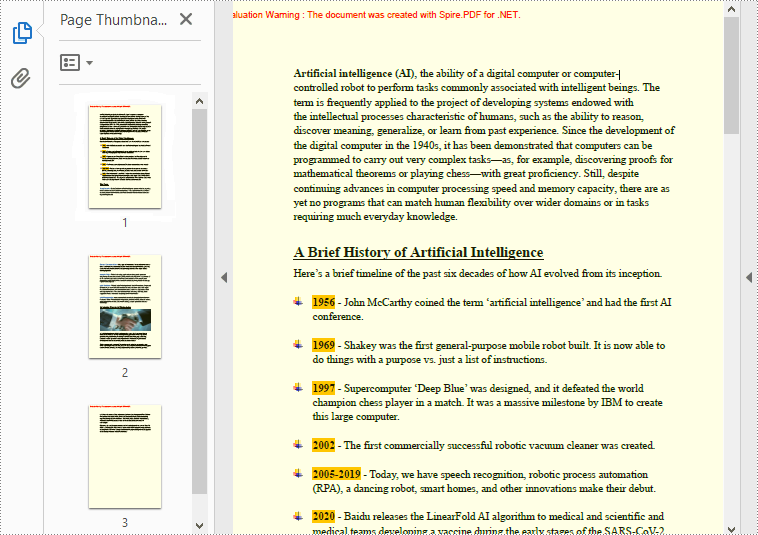
The PdfPageBase.BackgroundColor property offered by Spire.PDF for .NET allows you to set a solid color as the PDF background. The following are the detailed steps.
- Create a PdfDocument instance.
- Load a sample PDF file using PdfDocument.LoadFromFile() method.
- Loop through all the PDF pages and add a background color to each page using PdfPageBase.BackgroundColor property.
- Set the opacity of the background using PdfPageBase.BackgroudOpacity property.
- Save the result document using PdfDocument.SaveToFile() method.
- C#
- VB.NET
using Spire.Pdf;
using System.Drawing;

namespace PDFBackgroundColor
{
    class Program
    {
        static void Main(string[] args)
        {
            //Create a PdfDocument instance
            PdfDocument pdf = new PdfDocument();

            //Load a sample PDF file from disk
            pdf.LoadFromFile("input.pdf");

            //Loop through the pages in the PDF file
            foreach (PdfPageBase page in pdf.Pages)
            {
                //Set the background color for each page
                page.BackgroundColor = Color.Yellow;

                //Set the opacity of the background
                page.BackgroudOpacity = 0.1f;
            }

            //Save the result PDF file
            pdf.SaveToFile("BackgroundColor.pdf");
            pdf.Close();

        }
    }
}
Add Background Images to PDF Documents C# and VB.NET
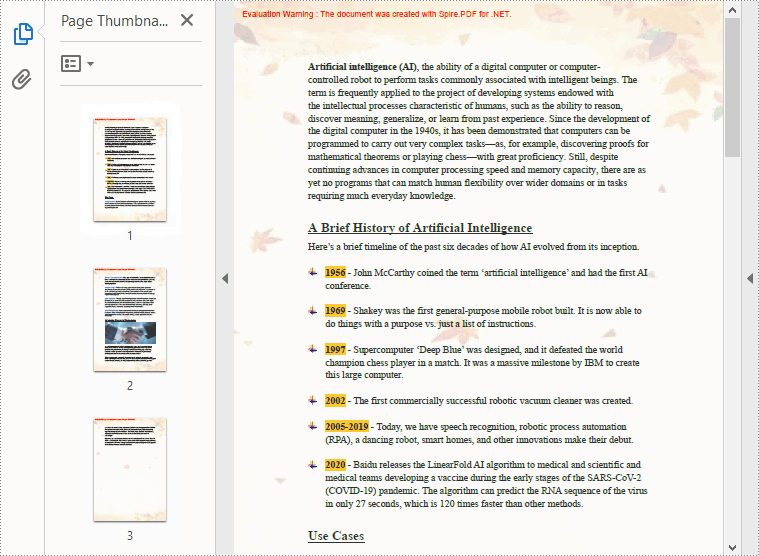
If you want to add an image as a background to match the document theme, you can use the PdfPageBase.BackgroundImage property. The following are the detailed steps.
- Create a PdfDocument instance.
- Load a sample PDF file using PdfDocument.LoadFromFile() method.
- Loop through all the PDF pages and add a background picture to each page using PdfPageBase.BackgroundImage property.
- Set the opacity of the background using PdfPageBase.BackgroudOpacity property.
- Save the result document using PdfDocument.SaveToFile() method.
- C#
- VB.NET
using Spire.Pdf;
using System.Drawing;

namespace PDFBackgroundImage
{
    class Program
    {
        static void Main(string[] args)
        {
            //Create a PdfDocument instance
            PdfDocument pdf = new PdfDocument();

            //Load a sample PDF file from disk
            pdf.LoadFromFile("input.pdf");

            //Load an image
            Image background = Image.FromFile("background.png");

            //Loop through the pages in the PDF file
            foreach (PdfPageBase page in pdf.Pages)
            {
                //Set the loaded image as the background image for each page
                page.BackgroundImage = background;

                //Set the opacity of the background
                page.BackgroudOpacity = 0.2f;
            }

            //Save the result PDF file
            pdf.SaveToFile("BackgroundImage.pdf");
            pdf.Close();

        }
    }
}
Apply for a Temporary License
If you'd like to remove the evaluation message from the generated documents, or to get rid of the function limitations, please request a 30-day trial license for yourself.
The sample demonstrates how to create Word Footer in Silverlight via Spire.Doc.