
Knowledgebase (2370)
Children categories
In MS Word, it is quite essential to delete paragraphs that contain duplicate content or information that is not relevant to the subject matter. By doing so, you can simplify your document and ensure the accuracy of the information. In this article, you will learn how to programmatically remove paragraphs in a Word document using Spire.Doc for Java.
- Remove All Paragraphs in a Word Document in Java
- Remove a Specific Paragraph in a Word Document in Java
- Remove Blank Paragraphs in a Word Document in Java
Install Spire.Doc for Java
First of all, you're required to add the Spire.Doc.jar file as a dependency in your Java program. The JAR file can be downloaded from this link. If you use Maven, you can easily import the JAR file in your application by adding the following code to your project's pom.xml file.
<repositories>
    <repository>
        <id>com.e-iceblue</id>
        <name>e-iceblue</name>
        <url>https://repo.e-iceblue.com/nexus/content/groups/public/</url>
    </repository>
</repositories>
<dependencies>
    <dependency>
        <groupId>e-iceblue</groupId>
        <artifactId>spire.doc</artifactId>
        <version>14.7.0</version>
    </dependency>
</dependencies>
Remove All Paragraphs in a Word Document in Java
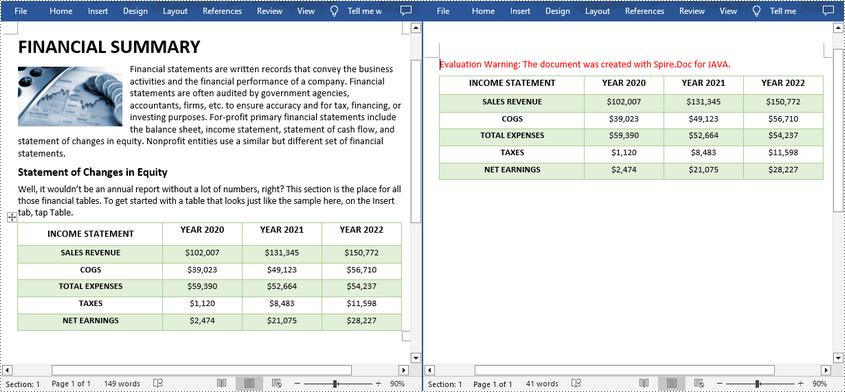
To remove all paragraphs, you need to loop through all sections in a document and then delete all paragraphs in each section using Section.getParagraphs().clear() method. The following are the detailed steps.
- Create a Document instance.
- Load a Word document using Document.loadFromFile() method.
- Traverse through each section of the document and then remove all paragraphs in the section using Section.getParagraphs().clear() method.
- Save the result document using Document.saveToFile() method.
- Java
import com.spire.doc.*;

public class removeAllParagraphs {
    public static void main(String[] args) {
        //Create a Document instance
        Document document = new Document();

        //Load a sample document from disk
        document.loadFromFile("E:\\Files\\test23.docx");

        //Remove paragraphs from every section in the document
        for ( Object sectionObj: document.getSections()) {
            Section section = (Section)sectionObj;
            section.getParagraphs().clear();
        }

        //Save the result document
        document.saveToFile("removeAllParagraphs.docx", FileFormat.Docx_2013);
    }
}
Remove a Specific Paragraph in a Word Document in Java
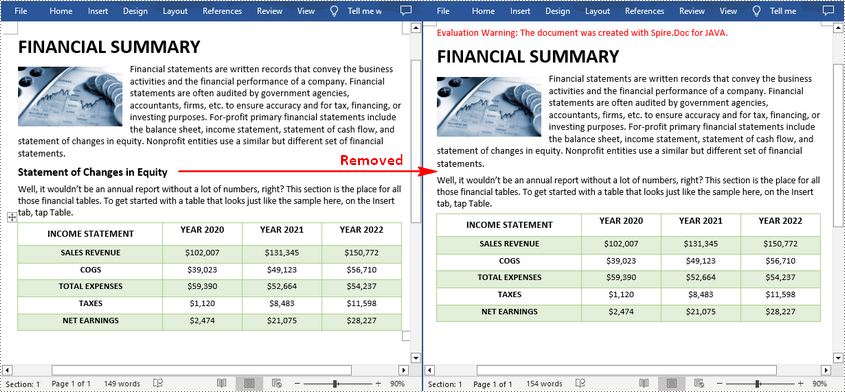
If you find a paragraph that contains duplicate or useless information, Spire.Doc for Java allows you to delete the specified paragraph using Section.getParagraphs().removeAt() method. The following are the detailed steps.
- Create a Document instance.
- Load a Word document using Document.loadFromFile() method.
- Get a specified section of the document using Document.getSections().get() method.
- Remove a specified paragraph in the section using Section.getParagraphs().removeAt() method.
- Save the result document using Document.saveToFile() method.
- Java
import com.spire.doc.*;

public class removeSpecificParagraph {
    public static void main(String[] args) {
        //Create a Document instance
        Document document = new Document();

        //Load a sample document from disk
        document.loadFromFile("E:\\Files\\test23.docx");

        //Get the first section of the document
        Section section = document.getSections().get(0);

        //Remove the third paragraph in the section
        section.getParagraphs().removeAt(2);

        //Save the result document
        document.saveToFile("removeSpecificParagraph.docx", FileFormat.Docx_2013);
    }
}
Remove Blank Paragraphs in a Word Document in Java
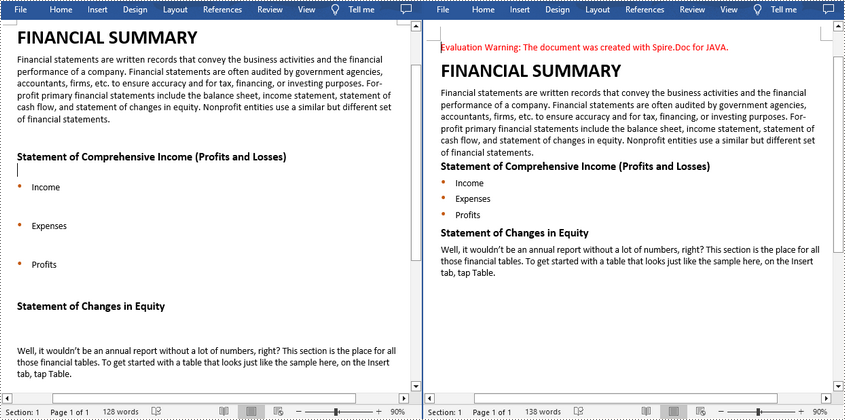
When there are many empty paragraphs/lines in a document, it's necessary to remove them to improve readability. The following are the steps to remove all blank paragraphs/lines in a Word document.
- Create a Document instance.
- Load a Word document using Document.loadFromFile() method.
- Traverse through all paragraphs in the document and determine whether the paragraph is a blank paragraph.
- Remove blank paragraphs from the document using Section.getBody().getChildObjects().remove() method.
- Save the result document using Document.saveToFile() method.
- Java
import com.spire.doc.*;
import com.spire.doc.documents.*;

public class removeEmptyLines {
    public static void main(String[] args) {
        //Create a Document instance
        Document document = new Document();

        //Load a sample document from disk
        document.loadFromFile("E:\\Files\\test230.docx");

        //Traverse each paragraph in the Word document
        for (Object sectionObj : document.getSections()) {
            Section section=(Section)sectionObj;
            for (int i = 0; i < section.getBody().getChildObjects().getCount(); i++) {
                if ((section.getBody().getChildObjects().get(i).getDocumentObjectType().equals(DocumentObjectType.Paragraph) )) {
                    String s= ((Paragraph)(section.getBody().getChildObjects().get(i))).getText().trim();

                    //Determine if the paragraph is a blank paragraph
                    if (s.isEmpty()) {

                        //Remove blank paragraphs
                        section.getBody().getChildObjects().remove(section.getBody().getChildObjects().get(i));
                        i--;
                    }
                }
            }
        }

        //Save the result document
        document.saveToFile("removeEmptyLines.docx", FileFormat.Docx_2013);
    }
}
Apply for a Temporary License
If you'd like to remove the evaluation message from the generated documents, or to get rid of the function limitations, please request a 30-day trial license for yourself.
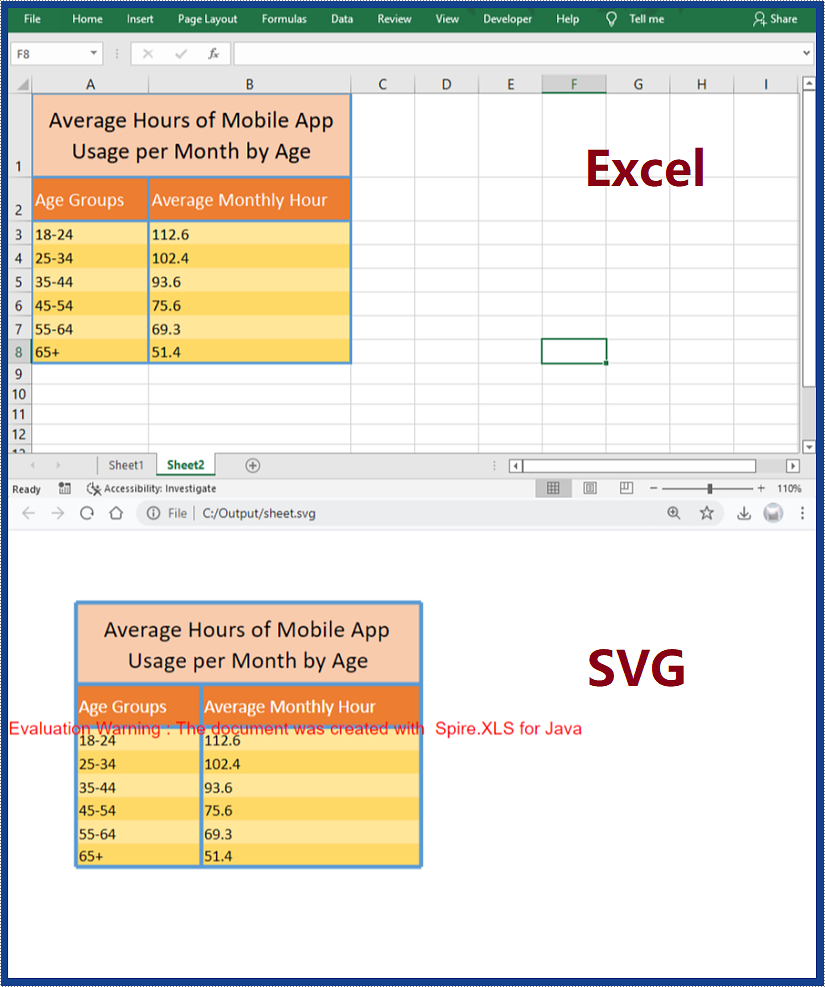
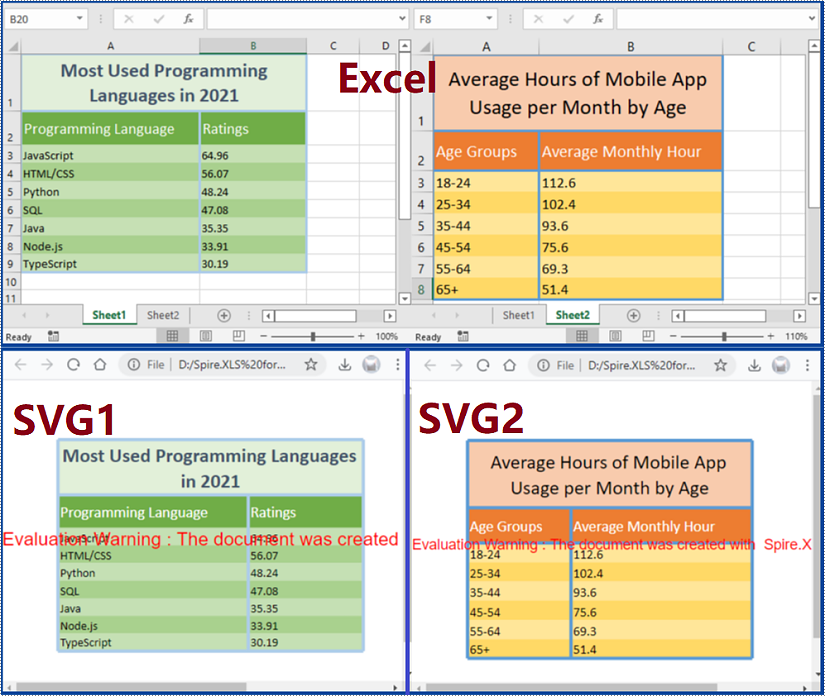
SVG is an XML-based scalable vector graphic format and an open standard make up language for describing graphics. SVG is now very common in webpage making because it works well with other web standards, including CSS, DOM, and JavaScript. To add office documents like Excel worksheets on webpages to display them directly is a real challenge, but this can be achieved easily by converting them to SVG images. This article will demonstrate how to convert Excel documents to SVG files with the help of Spire.XLS for Java.
- Convert a Specific Sheet of an Excel Document to an SVG File
- Convert Every Sheet of an Excel Document to an SVG File
Install Spire.XLS for Java
First of all, you're required to add the Spire.Xls.jar file as a dependency in your Java program. The JAR file can be downloaded from this link. If you use Maven, you can easily import the JAR file in your application by adding the following code to your project's pom.xml file.
<repositories>
    <repository>
        <id>com.e-iceblue</id>
        <name>e-iceblue</name>
        <url>https://repo.e-iceblue.com/nexus/content/groups/public/</url>
    </repository>
</repositories>
<dependencies>
    <dependency>
        <groupId>e-iceblue</groupId>
        <artifactId>spire.xls</artifactId>
        <version>16.7.3</version>
    </dependency>
</dependencies>
Convert a Specific Sheet of an Excel Document to an SVG File
The steps are as follows:
- Create an object of Workbook class.
- Load an Excel document from disk using Workbook.loadFromFile() method.
- Get the second sheet using Workbook.getWorksheets().get() method.
- Convert the sheet to an SVG file using Worksheet.toSVGStream() method.
- Java
import com.spire.xls.*;
import java.io.FileOutputStream;
import java.io.IOException;

public class ExcelToSVG {
    public static void main(String[] args) throws IOException {

        //Create an object of Workbook class
        Workbook workbook = new Workbook();

        //Load an Excel document from disk
        workbook.loadFromFile("C:/Samples/Sample.xlsx");

        //Get the second sheet
        Worksheet sheet = workbook.getWorksheets().get(1);

        //Convert the worksheet to an SVG file
        FileOutputStream stream = new FileOutputStream("heet.svg");
        sheet.toSVGStream(stream, sheet.getFirstRow(), sheet.getFirstColumn(), sheet.getLastRow(), sheet.getLastColumn());
        stream.flush();
        stream.close();

    }
}
Convert Every Sheet of an Excel Document to an SVG File
The steps are as follows:
- Create an object of Workbook class.
- Load an Excel document from disk using Workbook.loadFromFile() method.
- Loop through the document to get its sheets and convert every sheet to an SVG file using Worksheet.toSVGStream() method.
- Java
import com.spire.xls.*;
import java.io.FileOutputStream;
import java.io.IOException;

public class ExcelToSVG {
    public static void main(String[] args) throws IOException {

        //Create an object of Workbook class
        Workbook workbook = new Workbook();

        //Load an Excel document from disk
        workbook.loadFromFile("C:/Samples/Sample.xlsx");

        //Loop through the document to get its worksheets
        for (int i = 0; i < workbook.getWorksheets().size(); i++)
        {
            FileOutputStream stream = new FileOutputStream("sheet"+i+".svg");

            //Convert a worksheet to an SVG file
            Worksheet sheet = workbook.getWorksheets().get(i);
            sheet.toSVGStream(stream, sheet.getFirstRow(), sheet.getFirstColumn(), sheet.getLastRow(), sheet.getLastColumn());
            stream.flush();
            stream.close();
        }
    }
}
Apply for a Temporary License
If you'd like to remove the evaluation message from the generated documents, or to get rid of the function limitations, please request a 30-day trial license for yourself.
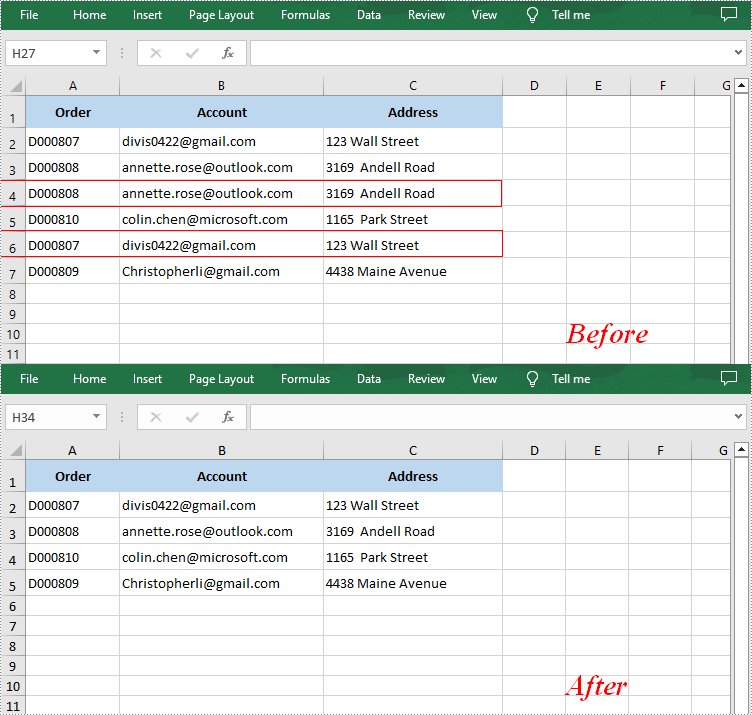
When merging datasets from different sources or copying data from other worksheets, duplicate rows may appear if the data are not properly matched. These duplicate rows may distort data analysis and calculations, leading to incorrect results. Therefore, removing duplicate rows is a frequently needed task, and this article demonstrates how to accomplish this task programmatically using Spire.XLS for .NET.
Install Spire.XLS for .NET
To begin with, you need to add the DLL files included in the Spire.XLS for .NET package as references in your .NET project. The DLL files can be either downloaded from this link or installed via NuGet.
PM> Install-Package Spire.XLS
Remove Duplicate Rows in Excel in C# and VB.NET
Removing duplicate rows manually is a very repetitive and time-consuming task. With Spire.XLS for .NET, you can identify and remove all duplicate rows at once. The following are the detailed steps.
- Create a Workbook instance.
- Load a sample Excel document using Workbook.LoadFromFile() method.
- Get a specified worksheet by its index using Workbook.Worksheets[sheetIndex] property.
- Specify the cell range where duplicate records need to be deleted using Worksheet.Range property.
- Get the rows that contain duplicate content in the specified cell range.
- Loop through all duplicated rows and delete them using Worksheet.DeleteRow() method.
- Save the result document using Workbook.SaveToFile() method.
- C#
- VB.NET
using Spire.Xls;
using System.Linq;

namespace RemoveDuplicateRows
{
    class Program
    {
        static void Main(string[] args)
        {
            //Create a Workbook instance
            Workbook workbook = new Workbook();

            //Load a sample Excel document
            workbook.LoadFromFile("Test.xlsx");

            //Get the first worksheet
            Worksheet sheet = workbook.Worksheets[0];

            //Specify the cell range where duplicate records need to be deleted
            var range = sheet.Range["A1:A" + sheet.LastRow];

            //Get the duplicate row numbers
            var duplicatedRows = range.Rows
                   .GroupBy(x => x.Columns[0].DisplayedText)
                   .Where(x => x.Count() > 1)
                   .SelectMany(x => x.Skip(1))
                   .Select(x => x.Columns[0].Row)
                   .ToList();

            //Remove the duplicate rows
            for (int i = 0; i < duplicatedRows.Count; i++)
            {
                sheet.DeleteRow(duplicatedRows[i] - i);
            }

            //Save the result document
            workbook.SaveToFile("RemoveDuplicateRows.xlsx");
        }
    }
}
Apply for a Temporary License
If you'd like to remove the evaluation message from the generated documents, or to get rid of the function limitations, please request a 30-day trial license for yourself.
