Knowledgebase (2370)
Children categories
Getting the coordinates of text or images in a PDF helps accurately identify elements, making it easier to extract content. This is especially important for data analysis, where specific information needs to be pulled from complicated layouts. Additionally, knowing these coordinates allows users to add notes, marks, or stamps in the right places, improving document interactivity and collaboration by letting them highlight important sections or add comments exactly where they're needed.
In this article, you will learn how to get coordinates of the specified text or image in a PDF document using Java and Spire.PDF for Java library.
Install Spire.PDF for Java
First of all, you're required to add the Spire.Pdf.jar file as a dependency in your Java program. The JAR file can be downloaded from this link. If you use Maven, you can easily import the JAR file in your application by adding the following code to your project's pom.xml file.
<repositories>
    <repository>
        <id>com.e-iceblue</id>
        <name>e-iceblue</name>
        <url>https://repo.e-iceblue.com/nexus/content/groups/public/</url>
    </repository>
</repositories>
<dependencies>
    <dependency>
        <groupId>e-iceblue</groupId>
        <artifactId>spire.pdf</artifactId>
        <version>12.7.0</version>
    </dependency>
</dependencies>
Coordinate System in Spire.PDF
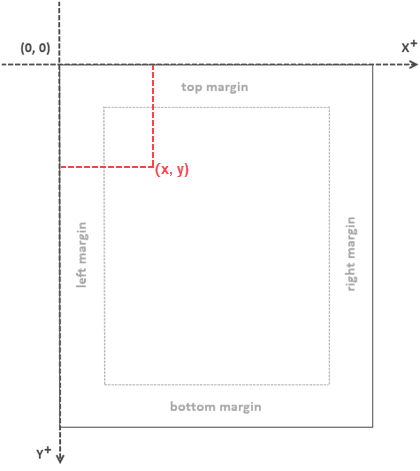
When utilizing Spire.PDF for Java to work with an existing PDF document, it's important to note that the coordinate system's origin is positioned at the top-left corner of the page. The x-axis extends to the right, and the y-axis extends downward, as illustrated below.
Get Coordinates of the Specified Text in PDF
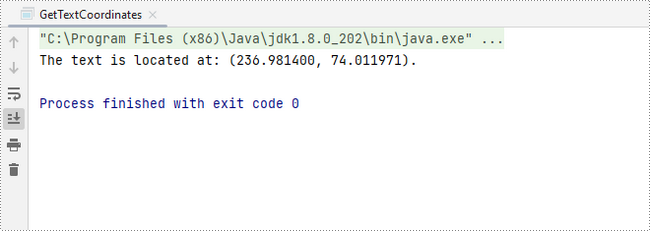
To start, you can use the PdfTextFinder.find() method to search for all occurrences of the specified text on the page, which results in a list of PdfTextFragment. After that, you can retrieve the coordinates of the first occurrence of the text using the PdfTextFragment.getPositions() method.
The steps to get coordinates of the specified text in PDF are as follows:
- Create a PdfDocument object.
- Load a PDF file using PdfDocument.loadFromFile() method.
- Get a specific page using PdfDocument.getPages().get() method.
- Search for all occurrences of the specified text on the page using PdfTextFinder.find() method and return results in a list of PdfTextFragment.
- Access a specific PdfTextFragment in the list, and get the coordinates of the fragment using PdfTextFragment.getPositions() method.
- Java
import com.spire.pdf.PdfDocument;
import com.spire.pdf.PdfPageBase;
import com.spire.pdf.texts.PdfTextFindOptions;
import com.spire.pdf.texts.PdfTextFinder;
import com.spire.pdf.texts.PdfTextFragment;
import com.spire.pdf.texts.TextFindParameter;

import java.awt.geom.Point2D;
import java.util.EnumSet;
import java.util.List;

public class GetTextCoordinates {

    public static void main(String[] args) {

        // Create a PdfDocument object
        PdfDocument doc = new PdfDocument();

        // Load a PDF file
        doc.loadFromFile("C:\\Users\\Administrator\\Desktop\\Input.pdf");

        // Get a specific page
        PdfPageBase page = doc.getPages().get(0);

        // Create a PdfTextFinder object
        PdfTextFinder finder = new PdfTextFinder(page);

        // Set the find options
        PdfTextFindOptions options = new PdfTextFindOptions();
        options.setTextFindParameter(EnumSet.of(TextFindParameter.IgnoreCase));
        finder.setOptions(options);

        // Find all instances of the text
        List fragments = finder.find("Personal Data");

        // Get a specific text fragment
        PdfTextFragment fragment = (PdfTextFragment)fragments.get(0);


        // Get the positions of the text (If the text spans multiple lines, there will be more than one position)
        Point2D[] positions = fragment.getPositions();

        // Get its first position
        double x = positions[0].getX();
        double y = positions[0].getY();

        // Print result
        System.out.println(String.format("The text is located at: (%f, %f).",x,y));
    }
}
Get Coordinates of the Specified Image in PDF
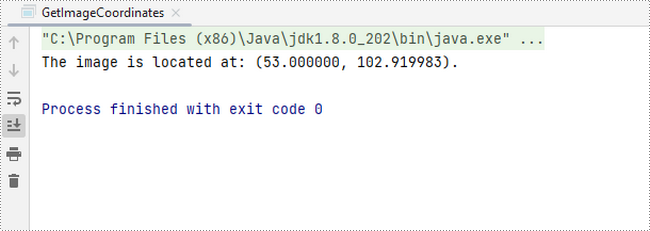
To begin, you can use the PdfImageHelper.getImagesInfo() method to retrieve information about all images on the specified page, storing the results in an array of PdfImageInfo. Next, you can obtain the X and Y coordinates of a specific image using the PdfImageInfo.getBounds().getX() and PdfImageInfo.getBounds().getY() methods.
The steps to get coordinates of the specified image in PDF are as follows:
- Create a PdfDocument object.
- Load a PDF file using PdfDocument.loadFromFile() method.
- Get a specific page using PdfDocument.getPages().get() method.
- Retrieve all the image information on the page using PdfImageHelper.getImagesInfo() method and return results in an array of PdfImageInfo.
- Get X and Y coordinates of a specific image using PdfImageInfo.getBounds().getX() and PdfImageInfo.getBounds().getY() methods
- Java
import com.spire.pdf.PdfDocument;
import com.spire.pdf.PdfPageBase;
import com.spire.pdf.utilities.PdfImageHelper;
import com.spire.pdf.utilities.PdfImageInfo;

public class GetImageCoordinates {

    public static void main(String[] args) {

        // Create a PdfDocument object
        PdfDocument doc = new PdfDocument();

        // Load a PDF file
        doc.loadFromFile("C:\\Users\\Administrator\\Desktop\\Input2.pdf");

        // Get a specific page
        PdfPageBase page = doc.getPages().get(0);

        // Create a PdfImageHelper object
        PdfImageHelper helper = new PdfImageHelper();

        // Get image information from the page
        PdfImageInfo[] imageInfo = helper.getImagesInfo(page);

        // Get X, Y coordinates of the first image
        double x = imageInfo[0].getBounds().getX();
        double y = imageInfo[0].getBounds().getY();

        // Print result
        System.out.println(String.format("The image is located at: (%f, %f).",x,y));
    }
}
Apply for a Temporary License
If you'd like to remove the evaluation message from the generated documents, or to get rid of the function limitations, please request a 30-day trial license for yourself.
PDF annotations are notes or markers added to documents, which are great for making comments, giving explanations, giving feedback, etc. Co-creators of documents often communicate with annotations. However, when the issues associated with the annotations have been dealt with or the document has been finalized, it is necessary to remove the annotations to make the document more concise and professional. This article shows how to delete PDF annotations programmatically using Spire.PDF for Java.
- Remove the Specified Annotation
- Remove All Annotations from a Page
- Remove All Annotations from a PDF Document
Install Spire.PDF for Java
First of all, you're required to add the Spire.Pdf.jar file as a dependency in your Java program. The JAR file can be downloaded from this link. If you use Maven, you can easily import the JAR file in your application by adding the following code to your project's pom.xml file.
<repositories>
    <repository>
        <id>com.e-iceblue</id>
        <name>e-iceblue</name>
        <url>https://repo.e-iceblue.com/nexus/content/groups/public/</url>
    </repository>
</repositories>
<dependencies>
    <dependency>
        <groupId>e-iceblue</groupId>
        <artifactId>spire.pdf</artifactId>
        <version>12.7.0</version>
    </dependency>
</dependencies>
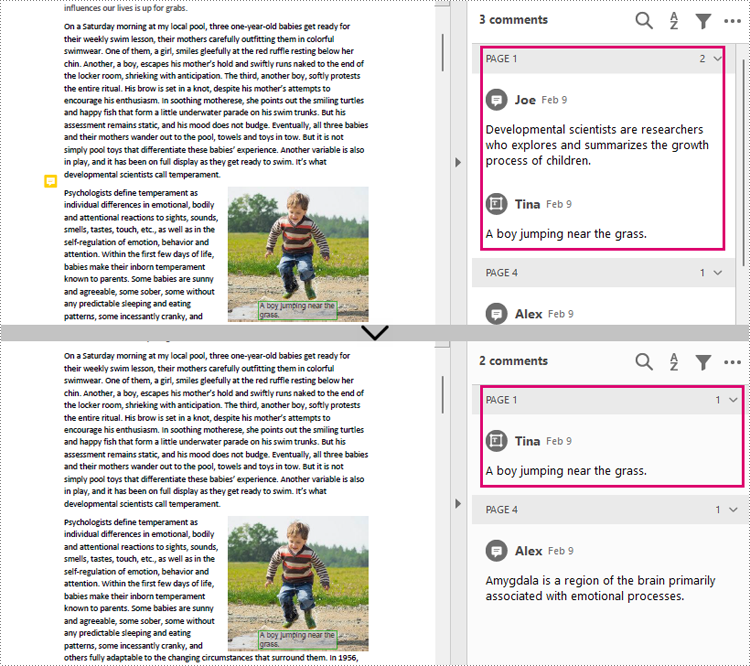
Remove the Specified Annotation
Annotations are page-level document elements. Therefore, deleting an annotation requires getting the page where the annotation is located first, and then you can use the PdfPageBase.getAnnotationsWidget().removeAt() method to delete the annotation. The detailed steps are as follows.
- Create a PdfDocument instance.
- Load a PDF document using PdfDocument.loadFromFile() method.
- Get the first page using PdfDocument.getPages().get() method.
- Remove the first annotation from this page using PdfPageBase.getAnnotationsWidget().removeAt() method.
- Save the document using PdfDocument.saveToFile() method.
- Java
import com.spire.pdf.PdfDocument;
import com.spire.pdf.PdfPageBase;

public class RemoveAnnotation {
    public static void main(String[] args) {

        //Create an object of PdfDocument
        PdfDocument pdf = new PdfDocument();

        //Load a PDF document
        pdf.loadFromFile("C:/Annotations.pdf");

        //Get the first page
        PdfPageBase page = pdf.getPages().get(0);

        //Remove the first annotation
        page.getAnnotationsWidget().removeAt(0);

        //Save the document
        pdf.saveToFile("RemoveOneAnnotation.pdf");
    }
}
Remove All Annotations from a Page
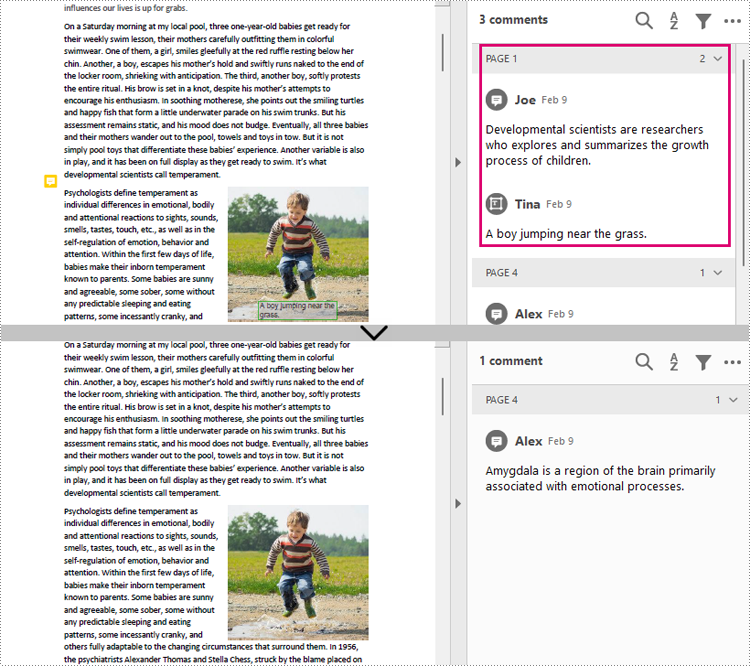
Spire.PDF for Java also provides PdfPageBase.getAnnotationsWidget().clear() method to remove all annotations in the specified page. The detailed steps are as follows.
- Create a PdfDocument instance.
- Load a PDF document using PdfDocument.loadFromFile() method.
- Get the first page using PdfDocument.getPages().get() method.
- Remove all annotations from the page using PdfPageBase.getAnnotationsWidget().clear() method.
- Save the document using PdfDocument.saveToFile() method.
- Java
import com.spire.pdf.PdfDocument;
import com.spire.pdf.PdfPageBase;

public class RemoveAllAnnotationPage {
    public static void main(String[] args) {

        //Create an object of PdfDocument
        PdfDocument pdf = new PdfDocument();

        //Load a PDF document
        pdf.loadFromFile("C:/Annotations.pdf");

        //Get the first page
        PdfPageBase page = pdf.getPages().get(0);

        //Remove all annotations in the page
        page.getAnnotationsWidget().clear();

        //Save the document
        pdf.saveToFile("RemoveAnnotationsPage.pdf");
    }
}
Remove All Annotations from a PDF Document
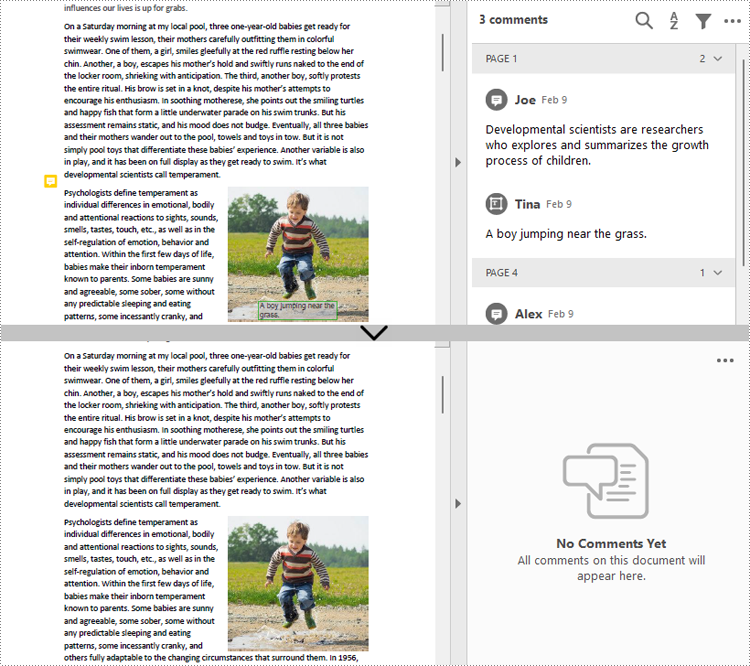
To remove all annotations from a PDF document, we need to loop through all pages in the document and delete all annotations from each page. The detailed steps are as follows.
- Create a PdfDocument instance.
- Load a PDF document using PdfDocument.loadFromFile() method.
- Loop through all pages to delete annotations.
- Delete annotations in each page using PdfPageBase.getAnnotationsWidget().clear() method.
- Save the document using PdfDocument.saveToFile() method.
- Java
import com.spire.pdf.PdfDocument;
import com.spire.pdf.PdfPageBase;

public class RemoveAllAnnotations {
    public static void main(String[] args) {

        //Create an object of PdfDocument
        PdfDocument pdf = new PdfDocument();

        //Load a PDF document
        pdf.loadFromFile("C:/Users/Sirion/Desktop/Annotations.pdf");

        //Loop through the pages in the document
        for (Object page : (Iterable) pdf.getPages()) {
            PdfPageBase pageBase = (PdfPageBase) page;
            //Remove annotations in each page
            pageBase.getAnnotationsWidget().clear();
        }


        //Save the document
        pdf.saveToFile("RemoveAllAnnotations.pdf");
    }
}
Apply for a Temporary License
If you'd like to remove the evaluation message from the generated documents, or to get rid of the function limitations, please request a 30-day trial license for yourself.
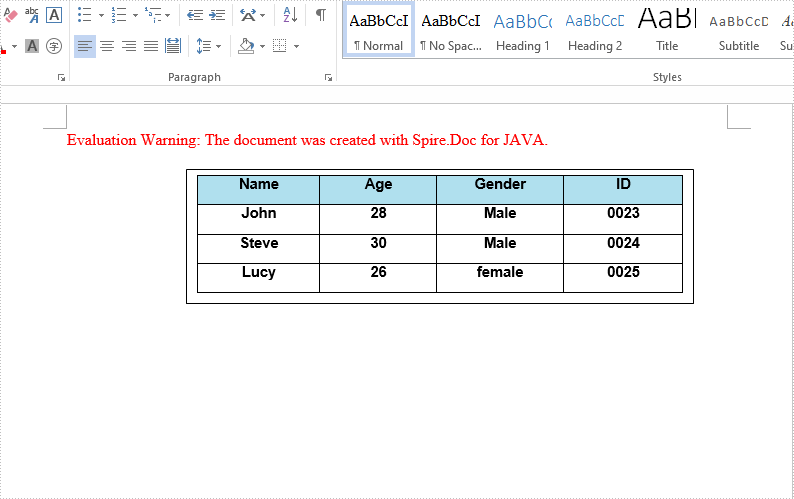
We have demonstrated how to insert text and image to textbox in a Word document by using Spire.Doc for Java. This article will demonstrate how to insert table to textbox in Word.
import com.spire.doc.*;
import com.spire.doc.documents.*;
import com.spire.doc.fields.*;

import java.awt.*;

public class insertTableIntoTextBox {
    public static void main(String[] args) throws Exception{
        //Create a new document; add a section and paragraph
        Document doc = new Document();
        Section section = doc.addSection();
        Paragraph paragraph = section.addParagraph();
        //Add a textbox to the paragraph
        TextBox textbox = paragraph.appendTextBox(380, 100);
        //Set the position of the textbox
        textbox.getFormat().setHorizontalOrigin(HorizontalOrigin.Page);
        textbox.getFormat().setHorizontalPosition(140);
        textbox.getFormat().setVerticalOrigin(VerticalOrigin.Page);
        textbox.getFormat().setVerticalPosition(50);
        //Insert table to the textbox
        Table table = textbox.getBody().addTable(true);
        //Specify the number of rows and columns of the table
        table.resetCells(4, 4);
        //Define the data
        String[][] data = new String[][]
                {
                        {"Name", "Age", "Gender", "ID"},
                        {"John", "28", "Male", "0023"},
                        {"Steve", "30", "Male", "0024"},
                        {"Lucy", "26", "female", "0025"}
                };
        //Add data to the table
        for (int i = 0; i < 4; i++) {
            TableRow dataRow = table.getRows().get(i);
            dataRow.getCells().get(i).setCellWidth(70,CellWidthType.Point);
            dataRow.setHeight(22);
            dataRow.setHeightType(TableRowHeightType.Exactly);
            for (int j = 0; j < 4; j++) {
                TextRange tableRange = table.getRows().get(i).getCells().get(j).addParagraph().appendText(data[i][j]);
                tableRange.getCharacterFormat().setFontName("Arial");
                tableRange.getCharacterFormat().setFontSize(11f);
                tableRange.getOwnerParagraph().getFormat().setHorizontalAlignment(HorizontalAlignment.Center);
                tableRange.getCharacterFormat().setBold(true);
            }
        }
        //Set the background color for the first row
        TableRow row = table.getRows().get(0);
        for (int z = 0; z < row.getCells().getCount(); z++) {
            row.getCells().get(z).getCellFormat().getShading().setBackgroundPatternColor(new Color(176,224,238));
        }
        //Apply style to the table
        table.applyStyle(DefaultTableStyle.Table_Grid_5);
        //Save the document
        String output = "output/insertTableIntoTextBox1.docx";
        doc.saveToFile(output, FileFormat.Docx_2013);
    }
}
The effective screenshot after insert table to Textbox in Word: