
Knowledgebase (2370)
Children categories
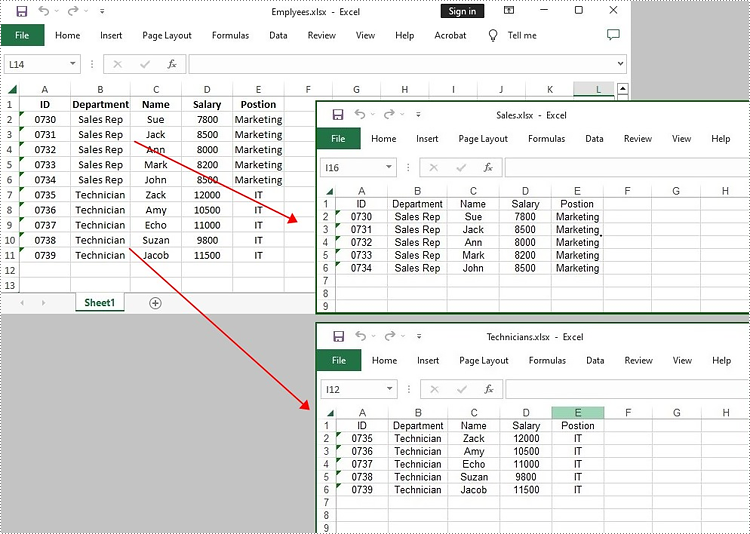
Splitting a worksheet can be beneficial when you have a large amount of data and want to organize it into separate files for easier management and sharing. By using this approach, you can organize and distribute your data in a more organized and structured manner. In this tutorial, we will demonstrate how to split a worksheet into multiple Excel documents by using Spire.XLS for Java.
Install Spire.XLS for Java
First of all, you're required to add the Spire.Xls.jar file as a dependency in your Java program. The JAR file can be downloaded from this link. If you use Maven, you can easily import the JAR file in your application by adding the following code to your project's pom.xml file.
<repositories>
    <repository>
        <id>com.e-iceblue</id>
        <name>e-iceblue</name>
        <url>https://repo.e-iceblue.com/nexus/content/groups/public/</url>
    </repository>
</repositories>
<dependencies>
    <dependency>
        <groupId>e-iceblue</groupId>
        <artifactId>spire.xls</artifactId>
        <version>16.7.3</version>
    </dependency>
</dependencies>
Split a Worksheet into Several Excel Files
Spire.XLS for Java provides powerful features that enable us to achieve this task efficiently. The specific steps are as follows.
- Create a Workbook object.
- Load a sample Excel file using Workbook.loadFromFile() method.
- Get the specific sheet using Workbook.getWorksheets().get() method.
- Get the header row and cell ranges using Worksheet.getCellRange() method.
- Create a new workbook and copy the header row and range 1 to the new workbook using Worksheet.copy(CellRange sourceRange, Worksheet worksheet, int destRow, int destColumn, boolean copyStyle, boolean updateRerence) method.
- Copy the column width from the original workbook to the new workbook using Workbook.getWorksheets().get(0).setColumnWidth() method.
- Save the new workbook to an Excel file using Workbook.saveToFile() method.
- Repeat the above operation to copy the header row and range 2 to another new workbook, and save it to another Excel file.
- Java
import com.spire.xls.CellRange;
        import com.spire.xls.ExcelVersion;
        import com.spire.xls.Workbook;
        import com.spire.xls.Worksheet;

public class SplitWorksheet {

    public static void main(String[] args) {

        //Create a Workbook object to load the original Excel document
        Workbook bookOriginal = new Workbook();
        bookOriginal.loadFromFile("C:\\Users\\Administrator\\Desktop\\Emplyees.xlsx");

        //Get the first worksheet
        Worksheet sheet = bookOriginal.getWorksheets().get(0);

        //Get the header row
        CellRange headerRow = sheet.getCellRange(1, 1, 1, 5);

        //Get two cell ranges
        CellRange range1 = sheet.getCellRange(2, 1, 6, 5);
        CellRange range2 = sheet.getCellRange(7, 1, 11, 5);

        //Create a new workbook
        Workbook newBook1 = new Workbook();

        //Copy the header row and range 1 to the new workbook
        sheet.copy(headerRow, newBook1.getWorksheets().get(0), 1, 1, true, false);
        sheet.copy(range1, newBook1.getWorksheets().get(0), 2, 1, true, false);

        //Copy the column width from the original workbook to the new workbook
        for (int i = 0; i < sheet.getLastColumn(); i++) {
            newBook1.getWorksheets().get(0).setColumnWidth(i + 1, sheet.getColumnWidth(i + 1));
        }

        //Save the new workbook to an Excel file
        newBook1.saveToFile("Sales.xlsx", ExcelVersion.Version2016);

        //Create another new workbook
        Workbook newBook2 = new Workbook();

        //Copy the header row and range 2 to the new workbook
        sheet.copy(headerRow, newBook2.getWorksheets().get(0), 1, 1, true, false);
        sheet.copy(range2, newBook2.getWorksheets().get(0), 2, 1, true, false);

        //Copy the column width from the original workbook to another new workbook
        for (int i = 0; i < sheet.getLastColumn(); i++) {
            newBook2.getWorksheets().get(0).setColumnWidth(i + 1, sheet.getColumnWidth(i + 1));
        }

        //Save it to another new Excel file
        newBook2.saveToFile("Technicians.xlsx", ExcelVersion.Version2016);
    }
}
Apply for a Temporary License
If you'd like to remove the evaluation message from the generated documents, or to get rid of the function limitations, please request a 30-day trial license for yourself.
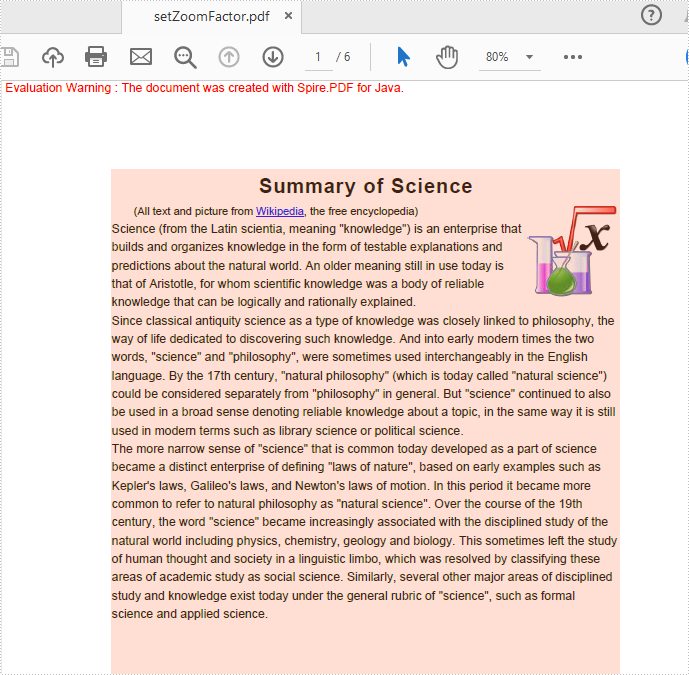
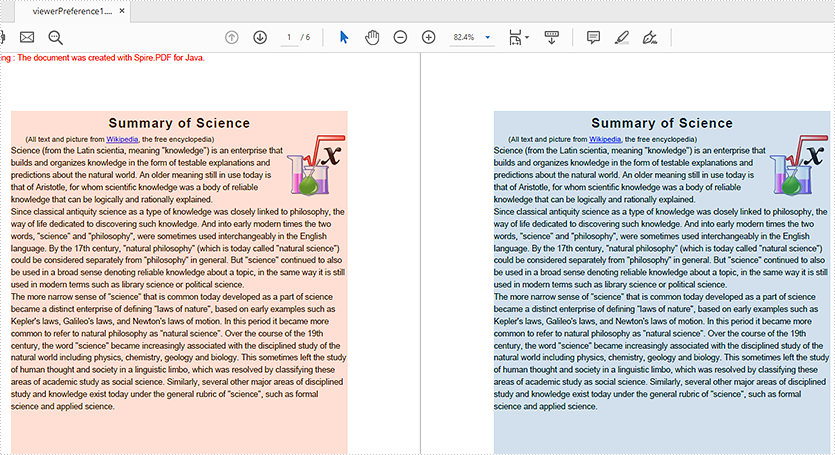
This article will demonstrate how to set the zoom factor/percentage (such as default, 100 percent or any other zoom factors as required) and the viewer preference by using Spire.PDF for Java in Java applications.
Set the zoom factor
import com.spire.pdf.*;
import com.spire.pdf.actions.*;
import com.spire.pdf.general.*;

import java.awt.geom.*;

public class setZoomFactor {
    public static void main(String[] args) {

        //Load the sample document
        PdfDocument doc = new PdfDocument();
        doc.loadFromFile("Sample.pdf");

        //Get the first page of PDF
        PdfPageBase page = doc.getPages().get(0);

        //Set pdf destination
        PdfDestination dest = new PdfDestination(page);
        dest.setMode(PdfDestinationMode.Location);
        dest.setLocation(new Point2D.Float(-40f, -40f));

        //Set zoom factor
        dest.setZoom(0.8f);

        //Set action
        PdfGoToAction gotoAction = new PdfGoToAction(dest);
        doc.setAfterOpenAction(gotoAction);

        //Save pdf document
        String output = "output/setZoomFactor.pdf";
        doc.saveToFile(output);
    }
}
Output:
Set the viewer preference
import com.spire.pdf.*;

public class viewerPreference {
    public static void main(String[] args) {

        //Load the sample document
        PdfDocument doc = new PdfDocument();
        doc.loadFromFile("Sample.pdf");

        //Set viewer reference
        doc.getViewerPreferences().setCenterWindow(true);
        doc.getViewerPreferences().setDisplayTitle(false);
        doc.getViewerPreferences().setFitWindow(false);
        doc.getViewerPreferences().setHideMenubar(true);
        doc.getViewerPreferences().setHideToolbar(true);
        doc.getViewerPreferences().setPageLayout(PdfPageLayout.Two_Column_Left);

        //Save pdf document
        String output = "output/viewerPreference.pdf";
        doc.saveToFile(output);
    }
}
Output:
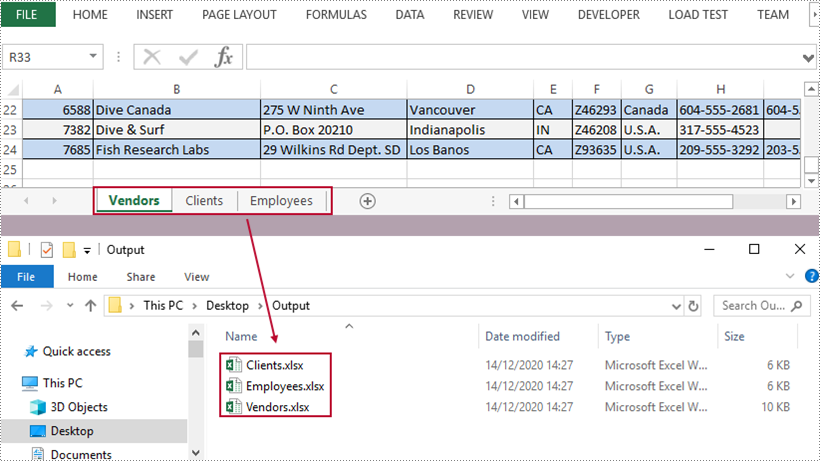
A workbook containing multiple worksheets helps to centrally manage relevant information, but sometimes we have to split the worksheets into separate Excel files so that individual worksheets can be distributed without disclosing other information. In this article, you will learn how to split Excel worksheets into separate workbooks in C# and VB.NET using Spire.XLS for .NET.
Install Spire.XLS for .NET
To begin with, you need to add the DLL files included in the Spire.XLS for .NET package as references in your .NET project. The DLL files can be either downloaded from this link or installed via NuGet.
PM> Install-Package Spire.XLS
Split Excel Sheets into Separate Files
The following are the main steps to split Excel sheets into separate workbooks using Spire.XLS for .NET.
- Create a Workbook object
- Load a sample Excel file using Workbook.LoadFromFile() method.
- Declare a new Workbook variable, which is used to create new Excel workbooks.
- Loop through the worksheets in the source document.
- Initialize the Workbook object, and add the copy of a specific worksheet of source document into it.
- Save the workbook to an Excel file using Workbook.SaveToFile() method.
- C#
- VB.NET
using Spire.Xls;
using System;

namespace SplitWorksheets
{
    class Program
    {
        static void Main(string[] args)
        {
            //Create a Workbook object
            Workbook wb = new Workbook();

            //Load an Excel document
            wb.LoadFromFile("C:\\Users\\Administrator\\Desktop\\data.xlsx");

            //Declare a new Workbook variable
            Workbook newWb;

            //Declare a String variable
            String sheetName;

            //Specify the folder path which is used to store the generated Excel files
            String folderPath = "C:\\Users\\Administrator\\Desktop\\Output\\";

            //Loop through the worksheets in the source file
            for (int i = 0; i < wb.Worksheets.Count; i++)
            {

                //Initialize the Workbook object
                newWb = new Workbook();

                //Remove the default sheets
                newWb.Worksheets.Clear();

                //Add the specific worksheet of the source document to the new workbook
                newWb.Worksheets.AddCopy(wb.Worksheets[i]);

                //Get the worksheet name
                sheetName = wb.Worksheets[i].Name;

                //Save the new workbook to the specified folder
                newWb.SaveToFile(folderPath + sheetName + ".xlsx", ExcelVersion.Version2013);
            }
        }
    }
}
Apply for a Temporary License
If you'd like to remove the evaluation message from the generated documents, or to get rid of the function limitations, please request a 30-day trial license for yourself.
