page 129

This article demonstrates how to add, count, retrieve and remove variables in a Word document in Java using Spire.Doc for Java library.

Add a Variable

The following example adds a document variable named "A1" with a value of 12 to a Word document.

import com.spire.doc.Document;
import com.spire.doc.FieldType;
import com.spire.doc.FileFormat;
import com.spire.doc.Section;
import com.spire.doc.documents.Paragraph;

public class AddVariables {
    public static void main(String[] args){
        //Create a Document instance
        Document document = new Document();
        //Add a section
        Section section = document.addSection();

        //Add a paragraph to the section
        Paragraph paragraph = section.addParagraph();

        //Add a DocVariable field to the paragraph
        paragraph.appendField("A1", FieldType.Field_Doc_Variable);

        //Add a document variable to the DocVariable field
        document.getVariables().add("A1", "12");

        //Update fields in the document
        document.isUpdateFields(true);
        
        //Save the result document
        document.saveToFile("AddVariables.docx", FileFormat.Docx_2013);
    }
}

Add, Count, Retrieve and Remove Variables in Word in Java

Count the number of Variables

import com.spire.doc.Document;

public class CountVariables {
    public static void main(String[] args){
        //Load the Word document
        Document document = new Document();
        document.loadFromFile("AddVariables.docx");

        //Get the number of variables in the document
        int number = document.getVariables().getCount();

        StringBuilder content = new StringBuilder();
        content.append("The number of variables is: " + number);

        System.out.println(content.toString());
    }
}

Add, Count, Retrieve and Remove Variables in Word in Java

Retrieve Name and Value of a Variable

import com.spire.doc.Document;

public class RetrieveVariables {
    public static void main(String[] args){
        //Load the Word document
        Document document = new Document();
        document.loadFromFile("AddVariables.docx");

        //Retrieve the name of a variable by index
        String s1 = document.getVariables().getNameByIndex(0);

        //Retrieve the value of a variable by index
        String s2 = document.getVariables().getValueByIndex(0);

        //Retrieve the value of a variable by name
        String s3 = document.getVariables().get("A1");

        System.out.println("The name of the variable retrieved by index 0 is: " + s1);
        System.out.println("The value of the variable retrieved by index 0 is: " + s2);
        System.out.println("The value of the variable retrieved by name \"A1\" is: " + s3);
    }
}

Add, Count, Retrieve and Remove Variables in Word in Java

Remove a specific Variable

import com.spire.doc.Document;
import com.spire.doc.FileFormat;

public class RemoveVariables {
    public static void main(String[] args){
        //Load the Word document
        Document document = new Document();
        document.loadFromFile("AddVariables.docx");

        //Remove a variable by name
        document.getVariables().remove("A1");
        
        //Update fields in the document
        document.isUpdateFields (true);
        
        //Save the result document
        document.saveToFile("RemoveVariables.docx", FileFormat.Docx_2013);
    }
}

Word document editing restrictions are password-protected limitations set on a Word document to restrict the type of editing that can be performed on the document. By setting restrictions on Word documents, users can exercise control over who can modify their documents and to what extent. This ensures that the important information remains unchanged while enabling smooth collaboration among multiple contributors and efficient information collection from a large number of people. On the other hand, it is also important to unsetting the editing restrictions to correct errors, update information, or accommodate changes. This article shows how to set or unset editing restrictions on Word documents using Spire.Doc for Java through Java programs.

Install Spire.Doc for Java

First of all, you're required to add the Spire.Doc.jar file as a dependency in your Java program. The JAR file can be downloaded from this link. If you use Maven, you can easily import the JAR file in your application by adding the following code to your project's pom.xml file.

<repositories>
    <repository>
        <id>com.e-iceblue</id>
        <name>e-iceblue</name>
        <url>https://repo.e-iceblue.com/nexus/content/groups/public/</url>
    </repository>
</repositories>
<dependencies>
    <dependency>
        <groupId>e-iceblue</groupId>
        <artifactId>spire.doc</artifactId>
        <version>14.1.3</version>
    </dependency>
</dependencies>

Set Editing Restrictions on Word Documents

Spire.Doc for Java supports setting four types of editing restrictions with a password on Word documents: no changes (read only), tracked changes, comments, and filling in forms. These editing restrictions can be set by using the Document.protect() method and some Enums.

Here is a list of the Enums to set the editing restrictions and their descriptions.

Enum Restriction Description
ProtectionType.Allow_Only_Reading No changes (read only) Allow reading only.
ProtectionType.Allow_Only_Revisions Tracked changes Allow tracked changes only.
ProtectionType.Allow_Only_Comments Comments Allow commenting only.
ProtectionType.Allow_Only_Form_Fields Filling in forms Allow filling in forms only.
ProtectionType.No_Protection No restriction Allow any editing.

The detailed step for setting editing restrictions with a password on a Word document are as follows:

  • Create an object of Document class.
  • Load a Word document using Document.loadFromFile() method.
  • Set the editing restrictions with a password using Document.protect() method.
  • Save the document using Document.saveToFIle() method.
  • Java
import com.spire.doc.Document;
import com.spire.doc.FileFormat;
import com.spire.doc.ProtectionType;

public class setEditingRestriction {
    public static void main(String[] args) {
        //Create an object of Document class
        Document doc = new Document();

        //Load a Word document
        doc.loadFromFile("Sample.docx");

        //Set the restriction type to read-only and add a password
        doc.protect(ProtectionType.Allow_Only_Reading, "password");

        //Set the restriction type to comment-only and add a password
        //doc.protect(ProtectionType.Allow_Only_Comments, "password");

        //Set the restriction type to form-filling-only and add a password
        //doc.protect(ProtectionType.Allow_Only_Form_Fields, "password");

        //Set the restriction type to revision-only and add a password
        //doc.protect(ProtectionType.Allow_Only_Revisions, "password");

        //Save the document
        doc.saveToFile("EditingRestrictions.docx", FileFormat.Auto);
    }
}

Java: Set or Unset Editing Restrictions on Word Documents

Add Exceptions While Setting Editing Restrictions on Word Documents

Users can add exceptions (unrestricted areas) when setting editing restrictions on Word documents by inserting permission starting and ending tags. The details steps are as follows:

  • Create an object of Document class.
  • Load a Word document using Document.loadFromFile() method.
  • Create an object of PermissionStart class and an object of PermissionEnd class.
  • Get the first section using Document.getSections().get() method.
  • Insert the permission starting and ending tags to the paragraphs to set unrestricted areas.
  • Set editing restrictions with a password on the other areas using Document.protect() method.
  • Save the document using Document.saveToFile() method.
  • Java
import com.spire.doc.*;

public class setRegionalEditingRestrictions {
    public static void main(String[] args) {
        //Create an object of Document class
        Document doc = new Document();

        //Load a Word document
        doc.loadFromFile("Sample.docx");

        //Create the permission starting and ending tags
        PermissionStart start = new PermissionStart(doc, "permission1");
        PermissionEnd end = new PermissionEnd(doc, "permission1");

        //Get the first section
        Section section = doc.getSections().get(0);

        //Insert the permission starting tag and the permission ending tag to the document
        section.getParagraphs().get(0).getChildObjects().insert(0,start);
        section.getParagraphs().get(5).getChildObjects().add(end);

        //Set the editing restrictions with a password
        doc.protect(ProtectionType.Allow_Only_Reading, "password");

        //Save the document
        doc.saveToFile("RestrictionExceptions.docx", FileFormat.Auto);
    }
}

Java: Set or Unset Editing Restrictions on Word Documents

Remove Editing Restrictions from Word Documents

Editing restrictions can be removed by setting the editing restrictions to allow any editing. The detailed steps are as follows:

  • Create an object of Document class.
  • Load a Word document using Document.loadFromFile() method.
  • Set the editing restrictions to allow any editing and remove the password using Document.protect() method.
  • If there are areas of exception, find the permission start tags and permission end tags and remove them.
  • Save the document using Document.saveToFile() method.
  • Java
import com.spire.doc.*;
import com.spire.doc.documents.Paragraph;

public class removeEditingRestriction {
    public static void main(String[] args) {
        //Create an object of Document class
        Document doc = new Document();

        //Load a Word document
        doc.loadFromFile("RegionalEditingRestrictions.docx");

        //Remove the editing restrictions
        doc.protect(ProtectionType.No_Protection);

        //Find permission starting tags and permission ending tags and remove them
        for(int j=0;j<doc.getSections().getCount();j++){
            //Get a section
            Section section=doc.getSections().get(j);
            for(int k=0;k<section.getParagraphs().getCount();k++){
                //Get a paragraph in a section
                Paragraph paragraph=section.getParagraphs().get(k);
                for(int i=0;i<paragraph.getChildObjects().getCount();){
                    //Get a child object of a paragraph
                    DocumentObject obj=paragraph.getChildObjects().get(i);
                    //Determine if a child object is an instance of PermissionStart or PermissionEnd class
                    if(obj instanceof PermissionStart||obj instanceof PermissionEnd){
                        //Remove the child object if it is
                        paragraph.getChildObjects().remove(obj);
                    }else{
                        i++;
                    }
                }
            }
        }

        //Save the document
        doc.saveToFile("NoRestrictions.docx", FileFormat.Auto);
    }
}

Java: Set or Unset Editing Restrictions on Word Documents

Apply for a Temporary License

If you'd like to remove the evaluation message from the generated documents, or to get rid of the function limitations, please request a 30-day trial license for yourself.

Java draw dash and solid line to PDF

2020-06-22 08:13:35 Written by Koohji

This article will show you how to draw dash and solid line in Java applications.

import com.spire.pdf.*;
import com.spire.pdf.graphics.*;
import java.awt.*;

public class DrawLines {
    public static void main(String[] args) {

        //Create a new PdfDocument instance and add a new page
        PdfDocument pdf = new PdfDocument();
        PdfPageBase page = pdf.getPages().add();

        //Set location and size
        float x = 150;
        float y = 100;
        float width = 300;


        //Create pens
        PdfPen pen = new PdfPen(new PdfRGBColor(Color.red), 3f);
        PdfPen pen1 = new PdfPen(new PdfRGBColor(Color.blue), 1f);

        //Set dash style and pattern
        pen.setDashStyle(PdfDashStyle.Dash);
        pen.setDashPattern(new float[]{1, 1, 1});

        //Draw lines to the PDF page
        page.getCanvas().drawLine(pen, x, y, x + width, y);
        page.getCanvas().drawLine(pen1, x, y+50, x + width, y+50);

        //Save the document
        pdf.saveToFile("output/drawLines_out.pdf");
    }
}

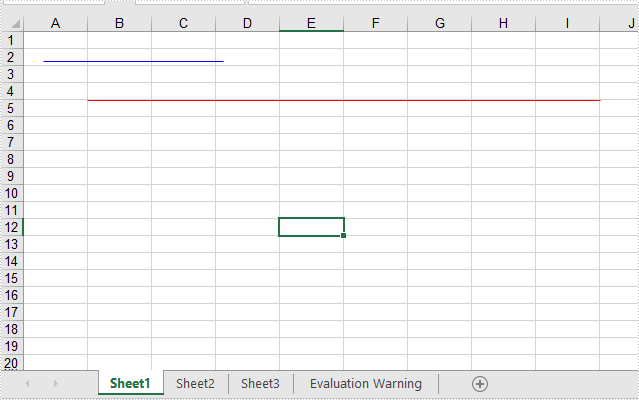
Effective screenshot after adding dash and solid lines to PDF:

Java draw dash and solid line to PDF

page 129