
Knowledgebase (2370)
Children categories
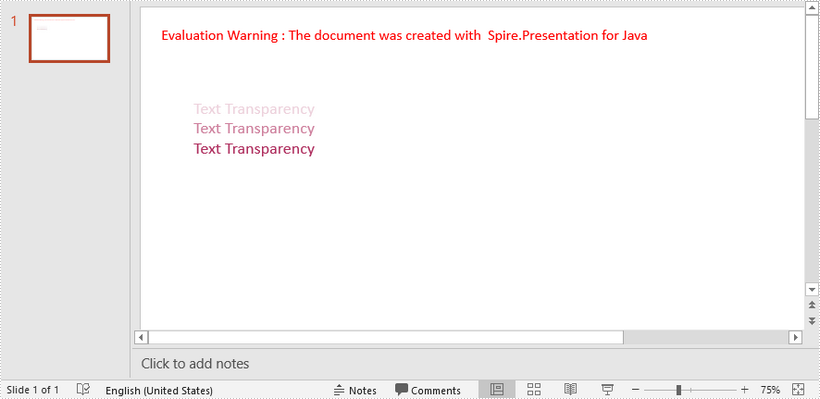
This article demonstrates how to apply transparency to text in PowerPoint using Spire.Presentation for Java.
import com.spire.presentation.*;
import com.spire.presentation.drawing.FillFormatType;

import java.awt.*;
import java.awt.geom.Rectangle2D;

public class ApplyTransparency {

    public static void main(String[] args) throws Exception {

        //Create a PowerPoint document
        Presentation presentation = new Presentation();
        presentation.getSlideSize().setType(SlideSizeType.SCREEN_16_X_9);

        //Add a shape
        IAutoShape textbox = presentation .getSlides().get(0).getShapes().appendShape(ShapeType.RECTANGLE,new Rectangle2D.Float(50, 70, 300, 120));
        textbox.getShapeStyle().getLineColor().setColor(new Color(1,1,1,0));
        textbox.getFill().setFillType(FillFormatType.NONE);

        //Remove default paragraphs
        textbox.getTextFrame().getParagraphs().clear();

        //Add three paragraphs and apply colors with different alpha values to the text
        int alpha = 55;
        for (int i = 0; i < 3; i++)
        {
            textbox.getTextFrame().getParagraphs().append(new ParagraphEx());
            textbox.getTextFrame().getParagraphs().get(i).getTextRanges().append(new PortionEx("Text Transparency"));
            textbox.getTextFrame().getParagraphs().get(i).getTextRanges().get(0).getFill().setFillType(FillFormatType.NONE);
            textbox.getTextFrame().getParagraphs().get(i).getTextRanges().get(0).getFill().setFillType(FillFormatType.SOLID);
            textbox.getTextFrame().getParagraphs().get(i).getTextRanges().get(0).getFill().getSolidColor().setColor(new Color(176, 48, 96, alpha));
            alpha += 100;
        }

        //Save to file
        presentation.saveToFile("TextTransparency.pptx", FileFormat.PPTX_2013);
    }
}
This article demonstrates the steps to use Spire.OCR for .NET in .NET Core applications.
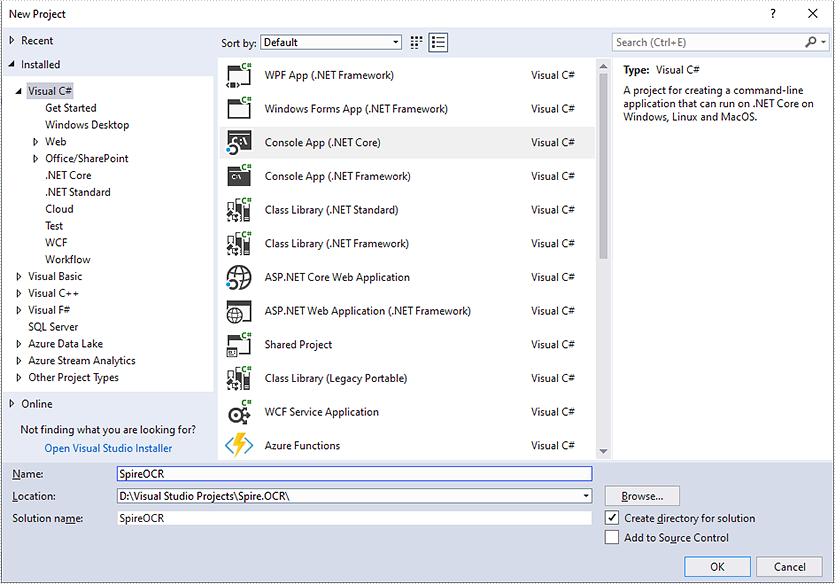
Step 1: Create a .NET Core project in Visual Studio.
Step 2: Add reference to Spire.OCR for .NET DLLs in your project.
You can add reference to Spire.OCR for .NET DLLs through one of the following two ways:
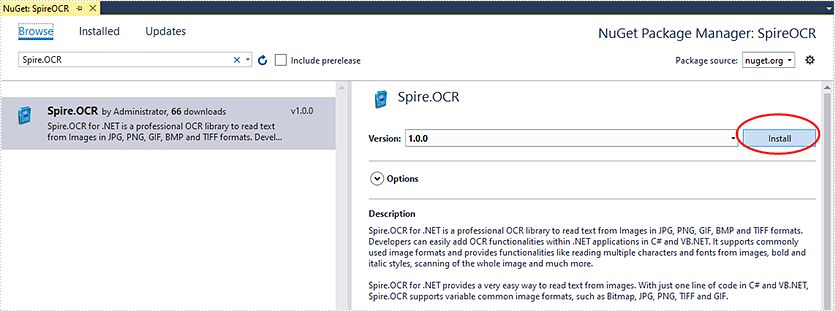
1. Install Spire.OCR for .NET through NuGet using NuGet Package Manager (recommended):
- In Solution Explorer, right-click the project or "Dependencies" and select "Manage NuGet Packages".
- Click "Browse" tab and search Spire.OCR.
- Install Spire.OCR.
2. Manually add reference to Spire.OCR for .NET DLLs.
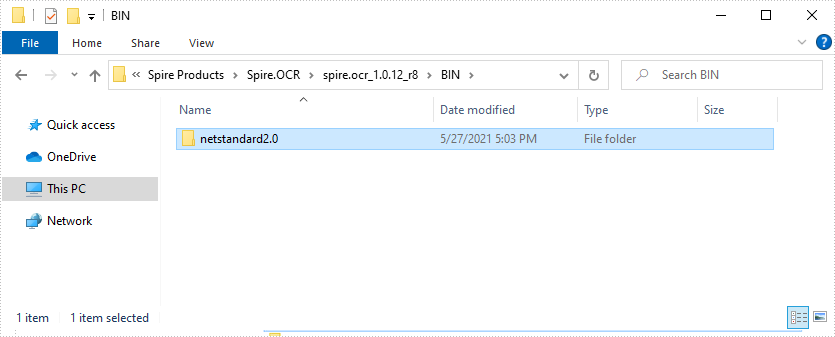
- Download Spire.OCR for .NET package from the following link, unzip it, you will get the DLLs from the "netstandard2.0" folder.
- Right-click the project or "Dependencies" – select "Add Reference" – click "Browse" – select all DLLs under "netstandard2.0" folder – click "Add".
- Install the other two packages: SkiaSharp and System.Text.Encoding.CodePages in your project via the NuGet Package Manager.
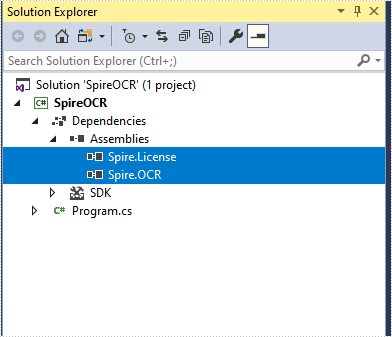
Right-click the project or "Dependencies" – select "Manage NuGet Packages" – click "Browse" – type the package name – select the package from the search results – click "Install".
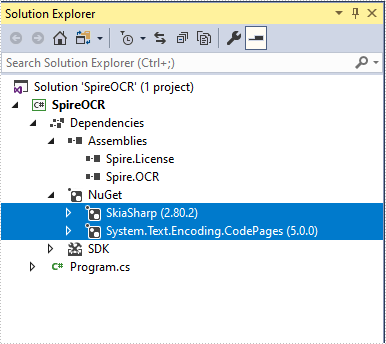
Step 3: Copy dependency DLLs to running directory of your project.
If you install Spire.OCR from NuGet and your project's target framework is .NET Core 3.0 or above, please build the project, then copy the 6 DLLs from bin\Debug\netcoreapp3.0\runtimes\win-x64\native folder to the running directory such as bin\Debug\netcoreapp3.0 or C:\Windows\System32 .

If your project's target framework is below .NET Core 3.0 or you download Spire.OCR from our website, please copy the 6 DLLs from Spire.OCR\Spire.OCR_Dependency\x64 folder to the running directory such as bin\Debug\netcoreapp2.1 or C:\Windows\System32.

Step 4: Now you have successfully included Spire.OCR in your project. You can refer the following code example to scan images using Spire.OCR.
- C#
using Spire.OCR;
using System.IO;

namespace SpireOCR
{
    class Program
    {
        static void Main(string[] args)
        {
            OcrScanner scanner = new OcrScanner();
            scanner.Scan("image.png");
            File.WriteAllText("output.txt", scanner.Text.ToString());
        }
    }
}
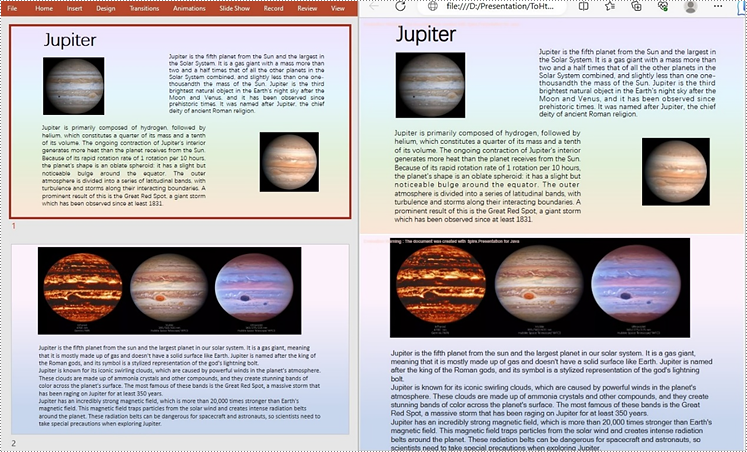
PowerPoint to HTML conversion opens up opportunities for wider accessibility and enhanced interactivity. By transforming your presentations into HTML format, you can effortlessly distribute them across various platforms and devices. Whether you aim to share slides online or integrate them seamlessly within a web page, converting PowerPoint to HTML provides a flexible and versatile solution. In this article, we will explore how to convert PowerPoint files to HTML in Java using Spire.Presentation for Java.
- Convert a PowerPoint Presentation to HTML in Java
- Convert a Specific PowerPoint Slide to HTML in Java
Install Spire.Presentation for Java
First, you're required to add the Spire.Presentation.jar file as a dependency in your Java program. The JAR file can be downloaded from this link. If you use Maven, you can easily import the JAR file in your application by adding the following code to your project's pom.xml file.
<repositories>
    <repository>
        <id>com.e-iceblue</id>
        <name>e-iceblue</name>
        <url>https://repo.e-iceblue.com/nexus/content/groups/public/</url>
    </repository>
</repositories>
<dependencies>
    <dependency>
        <groupId>e-iceblue</groupId>
        <artifactId>spire.presentation</artifactId>
        <version>11.7.2</version>
    </dependency>
</dependencies>
Convert a PowerPoint Presentation to HTML in Java
With Spire.Presentation for Java, you can convert PowerPoint files to HTML format in just three steps. The detailed steps are as follows:
- Initialize an instance of the Presentation class.
- Load a sample PowerPoint document using Presentation.loadFromFile() method.
- Save the PowerPoint presentation as HTML using Presentation.saveToFile() method.
- Java
import com.spire.presentation.FileFormat;
import com.spire.presentation.Presentation;

public class ToHtml {
    public static void main(String[] args) throws Exception {

        //Create a Presentation object
        Presentation presentation = new Presentation();

        //Load the sample document       presentation.loadFromFile("C:\\Users\\Administrator\\Desktop\\sample.pptx");

        //Save the document to HTML format       presentation.saveToFile("C:\\Users\\Administrator\\Desktop\\ToHtml.html", FileFormat.HTML);
        presentation.dispose();
   }
}
Convert a Specific PowerPoint Slide to HTML in Java
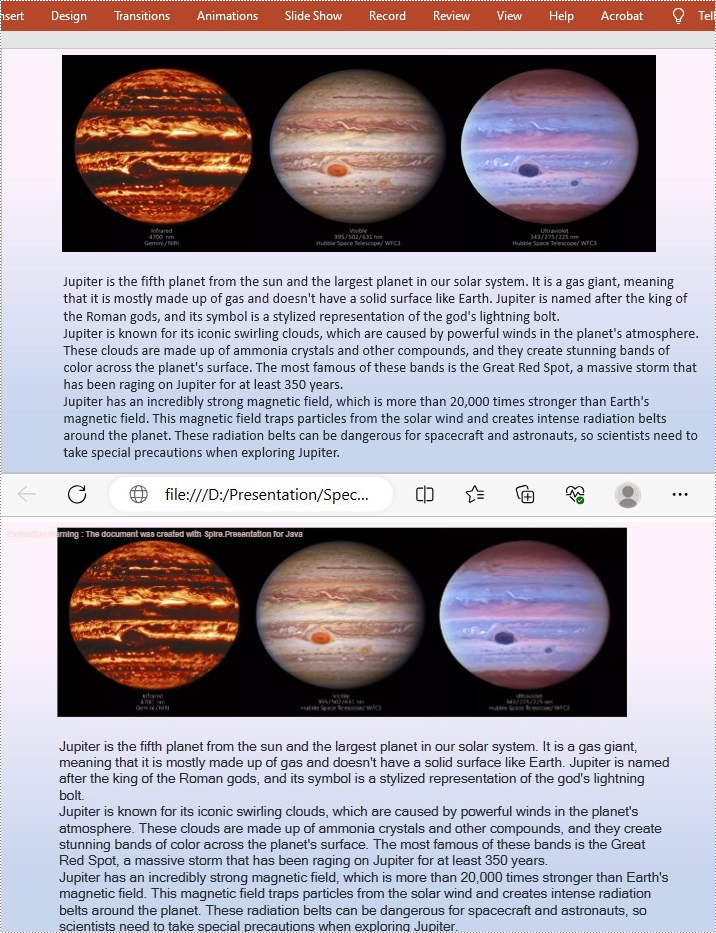
Sometimes, it may be necessary to convert a single slide rather than the entire presentation to HTML. In such cases, Spire.Presentation for Java provides the ISlide.saveToFile() method for converting a PowerPoint slide to HTML format. The following are the detailed steps:
- Initialize an instance of the Presentation class.
- Load a sample PowerPoint document using Presentation.loadFromFile() method.
- Get the specific slide using Presentation.getSlides().get() method.
- Save the PowerPoint slide to HTML using ISlide.saveToFile() method.
- Java
import com.spire.presentation.FileFormat;
import com.spire.presentation.Presentation;
import com.spire.presentation.ISlide;

public class ConvertSpecificSlideToHtml { public static void main(String[] args) throws Exception {
    // Create a Presentation object
    Presentation presentation = new Presentation();

    // Load the sample document  presentation.loadFromFile("C:\\Users\\Administrator\\Desktop\\sample.pptx");

    // Get the specific slide by index (e.g., index 0 for the second slide)
    ISlide slide = presentation.getSlides().get(1);

    // Save the specific slide to HTML format  slide.saveToFile("C:\\Users\\Administrator\\Desktop\\SpecificSlideToHtml.html", FileFormat.HTML);
    slide.dispose();
   }
}
Apply for a Temporary License
If you'd like to remove the evaluation message from the generated documents, or to get rid of the function limitations, please request a 30-day trial license for yourself.
