
Knowledgebase (2370)
Children categories
A digital signature is a type of electronic signature that can be used to verify the authenticity and integrity of digital documents. It can help recipients identify where the digital documents originate from and whether they have been changed by a third party after they were signed. In this article, we will demonstrate how to add or delete digital signatures in Excel in C# and VB.NET using Spire.XLS for .NET.
- Add a Digital Signature to Excel in C# and VB.NET
- Delete All Digital Signatures from Excel in C# and VB.NET
Install Spire.XLS for .NET
To begin with, you need to add the DLL files included in the Spire.XLS for .NET package as references in your .NET project. The DLL files can be either downloaded from this link or installed via NuGet.
PM> Install-Package Spire.XLS
Add a Digital Signature to Excel in C# and VB.NET
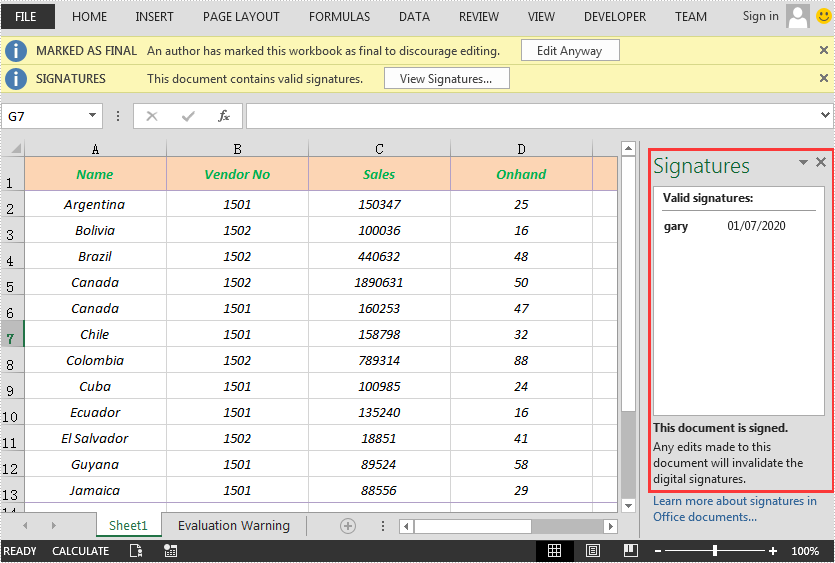
You can add a digital signature to protect the integrity of an Excel file. Once the digital signature is added, the file becomes read-only to discourage further editing. If someone makes changes to the file, the digital signature will become invalid immediately.
Spire.XLS for .NET provides the AddDigitalSignature method of Workbook class to add digital signatures to an Excel file. The detailed steps are as follows:
- Initialize an instance of the Workbook class.
- Load an Excel file using Workbook.LoadFromFile() method.
- Initialize an instance of the X509Certificate2 class with the specified certificate (.pfx) file path and the password of the .pfx file.
- Initialize an instance of the DateTime class.
- Add a digital signature to the file using Workbook.AddDigitalSignature(X509Certificate2, string, DateTime) method.
- Save the result file using Workbook.SaveToFile() method.
- C#
- VB.NET
using Spire.Xls;
using Spire.Xls.Core.MergeSpreadsheet.Interfaces;
using System;
using System.Security.Cryptography.X509Certificates;

namespace AddSignatureInExcel
{
    class Program
    {
        static void Main(string[] args)
        {
            //Create a Workbook instance
            Workbook workbook = new Workbook();

            //Load an Excel file
            workbook.LoadFromFile("Sample.xlsx");

            //Add digital signature to the file
            X509Certificate2 cert = new X509Certificate2("gary.pfx", "e-iceblue");

            // Define the path to the certificate file
            string certificatePath = "gary.pfx";

            DateTime certtime = new DateTime(2020, 7, 1, 7, 10, 36);

            // Add a digital signature to the workbook using the certificate
            IDigitalSignatures signature = workbook.AddDigitalSignature(certificatePath, "e-iceblue", "Signed by Gary Zhang", certtime);

            //Save the result file
            workbook.SaveToFile("AddDigitalSignature.xlsx", FileFormat.Version2013);
        }
    }
}
Delete All Digital Signatures from Excel in C# and VB.NET
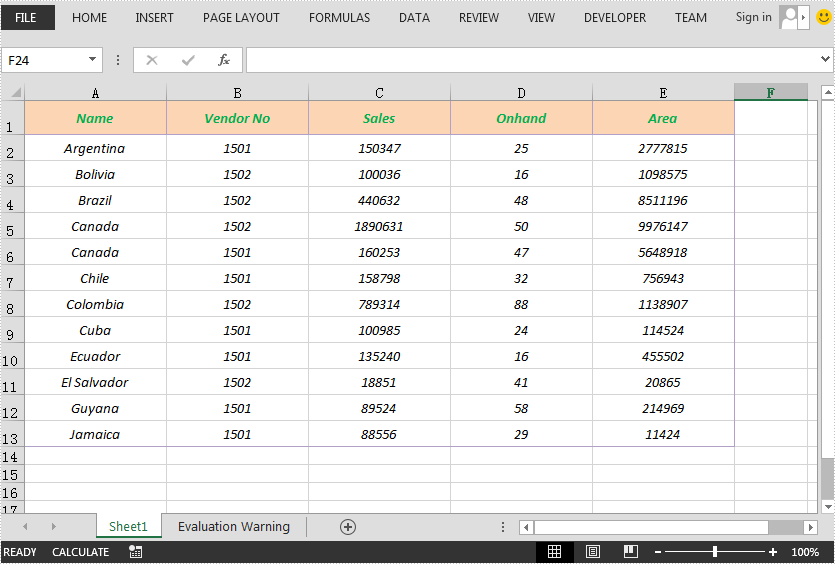
Spire.XLS for .NET provides the RemoveAllDigitalSignatures method of Workbook class for developers to remove digital signatures from an Excel file. The detailed steps are as follows:
- Initialize an instance of the Workbook class.
- Load an Excel file using Workbook.LoadFromFile() method.
- Remove all digital signatures from the file using Workbook.RemoveAllDigitalSignatures() method.
- Save the result file using Workbook.SaveToFile() method.
- C#
- VB.NET
using Spire.Xls;

namespace DeleteSignatureInExcel
{
    class Program
    {
        static void Main(string[] args)
        {
            //Create a Workbook instance
            Workbook workbook = new Workbook();
            //Load an Excel file
            workbook.LoadFromFile("AddDigitalSignature.xlsx");

            //Remove all the digital signatures in the file
            workbook.RemoveAllDigitalSignatures();

            //Save the result file
            workbook.SaveToFile("RemoveDigitalSignature.xlsx", FileFormat.Version2013);
        }
    }
}
Apply for a Temporary License
If you'd like to remove the evaluation message from the generated documents, or to get rid of the function limitations, please request a 30-day trial license for yourself.
Paragraph spacing and line spacing play a vital role in the readability and overall appearance of a document. If paragraphs are tightly packed together or lines are too closely spaced, it can strain the reader's eyes and make the content appear cluttered. Knowing how to set paragraph spacing and line spacing can help you create a visually pleasing and reader-friendly document. This article will demonstrate how to set paragraph spacing and line spacing in Word documents in Java using Spire.Doc for Java.
Install Spire.Doc for Java
First, you're required to add the Spire.Doc.jar file as a dependency in your Java program. The JAR file can be downloaded from this link. If you use Maven, you can easily import the JAR file in your application by adding the following code to your project's pom.xml file.
<repositories>
    <repository>
        <id>com.e-iceblue</id>
        <name>e-iceblue</name>
        <url>https://repo.e-iceblue.com/nexus/content/groups/public/</url>
    </repository>
</repositories>
<dependencies>
    <dependency>
        <groupId>e-iceblue</groupId>
        <artifactId>spire.doc</artifactId>
        <version>14.7.0</version>
    </dependency>
</dependencies>
Set Paragraph Spacing in Word in Java
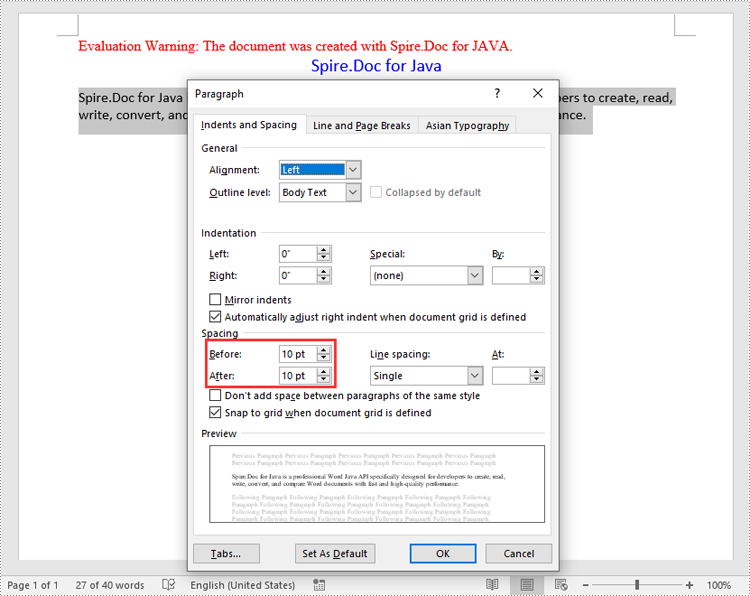
You can utilize the Paragraph.getFormat().setBeforeSpacing() and Paragraph.getFormat().setAfterSpacing() methods provided by Spire.Doc for Java to easily adjust the spacing before and after a paragraph. The detailed steps are as follows.
- Create an object of the Document class.
- Add a section to the document using Document.addSection() method.
- Add two paragraphs to the section using Section.addParagraph() methods.
- Set the spacing before and after the paragraphs using Paragraph.getFormat().setBeforeSpacing() and Paragraph.getFormat().setAfterSpacing() methods.
- Save the result document using Document.saveToFile() method.
- Java
import com.spire.doc.Document;
import com.spire.doc.FileFormat;
import com.spire.doc.Section;
import com.spire.doc.documents.HorizontalAlignment;
import com.spire.doc.documents.Paragraph;
import com.spire.doc.fields.TextRange;

import java.awt.*;

public class SetParagraphSpacing {
    public static void main(String[] args){
        // Create an object of the Document class
        Document document = new Document();
        // Add a section to the document
        Section section = document.addSection();

        // Add two paragraphs to the section
        Paragraph para1 = section.addParagraph();
        para1.getFormat().setHorizontalAlignment(HorizontalAlignment.Center);
        TextRange textRange1 = para1.appendText("Spire.Doc for Java");
        textRange1.getCharacterFormat().setTextColor(Color.BLUE);
        textRange1.getCharacterFormat().setFontName("Calibri");
        textRange1.getCharacterFormat().setFontSize(15);

        Paragraph para2 = section.addParagraph();
        TextRange textRange2 = para2.appendText("Spire.Doc for Java is a professional Word Java API specifically designed for developers to create, read, write, convert, and compare Word documents with fast and high-quality performance.");
        textRange2.getCharacterFormat().setFontName("Calibri");
        textRange2.getCharacterFormat().setFontSize(12);

        // Set the spacing after the first paragraph
        para1.getFormat().setAfterAutoSpacing(false);
        para1.getFormat().setAfterSpacing(10);

        // Set the spacing before and after the second paragraph
        para2.getFormat().setBeforeAutoSpacing(false);
        para2.getFormat().setBeforeSpacing(10);
        para2.getFormat().setAfterAutoSpacing(false);
        para2.getFormat().setAfterSpacing(10);

        // Save the result file
        document.saveToFile("SetParagraphSpacing.docx", FileFormat.Docx_2013);
        document.close();
    }
}
Set Line Spacing in Word in Java
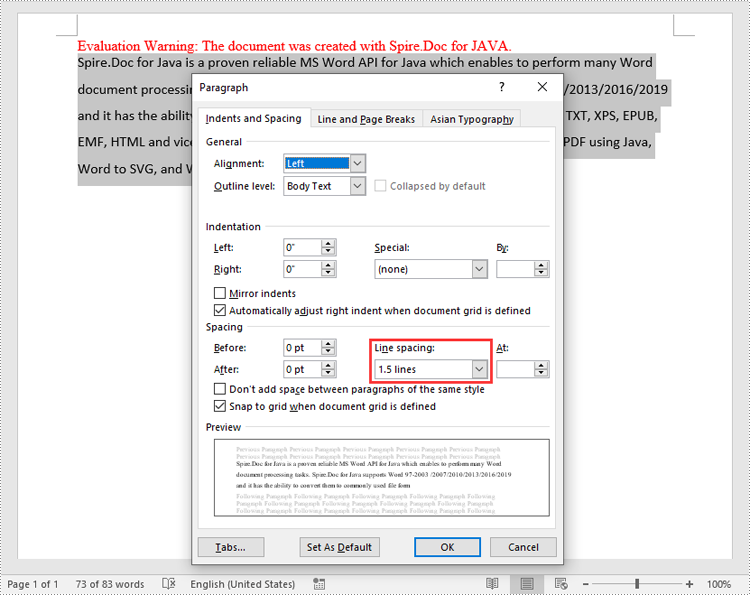
To set the pacing between lines in a paragraph, you can use the Paragraph.getFormat().setLineSpacing() method. The detailed steps are as follows.
- Create an object of the Document class.
- Add a section to the document using Document.addSection() method.
- Add a paragraph to the section using Section.addParagraph() methods.
- Set the spacing between lines in the paragraph using Paragraph.getFormat().setLineSpacing() method.
- Save the result document using Document.saveToFile() method.
- Java
import com.spire.doc.Document;
import com.spire.doc.FileFormat;
import com.spire.doc.LineSpacingRule;
import com.spire.doc.Section;
import com.spire.doc.documents.Paragraph;
import com.spire.doc.fields.TextRange;

public class SetLineSpacing {
    public static void main(String[] args) {
        // Create an object of the Document class
        Document document = new Document();
        // Add a section
        Section section = document.addSection();

        // Add a paragraph to the section
        Paragraph para = section.addParagraph();
        TextRange textRange = para.appendText("Spire.Doc for Java is a proven reliable MS Word API for Java which enables to perform many Word document processing tasks. Spire.Doc for Java supports Word 97-2003 /2007/2010/2013/2016/2019 and it has the ability to convert them to commonly used file formats like XML, RTF, TXT, XPS, EPUB, EMF, HTML and vice versa. Furthermore, it supports to convert Word Doc/Docx to PDF using Java, Word to SVG, and Word to PostScript in high quality.");
        textRange.getCharacterFormat().setFontName("Calibri");
        textRange.getCharacterFormat().setFontSize(12);

        // Set line spacing rule
        para.getFormat().setLineSpacingRule(LineSpacingRule.Multiple);
        // Set line spacing value (The line spacing rule "Multiple" with value 18 sets the line spacing to "1.5 lines", value 12 sets the line spacing to "Single")
        para.getFormat().setLineSpacing(18);

        // Save the result file
        document.saveToFile("SetLineSpacing.docx", FileFormat.Docx_2013);
        document.close();
    }
}
Apply for a Temporary License
If you'd like to remove the evaluation message from the generated documents, or to get rid of the function limitations, please request a 30-day trial license for yourself.
Headers and footers of Word documents are placed at the top and bottom of document pages respectively to show information such as page numbers, document titles, and author names. However, when the documents are printed or shared online, it may be desirable to delete this information to protect privacy. Moreover, headers and footers take up extra valuable space on printed pages and may interfere with the overall formatting of documents. Removing them can free up page space and ensure the document formatting doesn't become cluttered. This article will demonstrate how to delete headers and footers with Java programs using Spire.Doc for Java.
Install Spire.Doc for Java
First of all, you're required to add the Spire.Doc.jar file as a dependency in your Java program. The JAR file can be downloaded from this link. If you use Maven, you can easily import the JAR file in your application by adding the following code to your project's pom.xml file.
<repositories>
    <repository>
        <id>com.e-iceblue</id>
        <name>e-iceblue</name>
        <url>https://repo.e-iceblue.com/nexus/content/groups/public/</url>
    </repository>
</repositories>
<dependencies>
    <dependency>
        <groupId>e-iceblue</groupId>
        <artifactId>spire.doc</artifactId>
        <version>14.7.0</version>
    </dependency>
</dependencies>
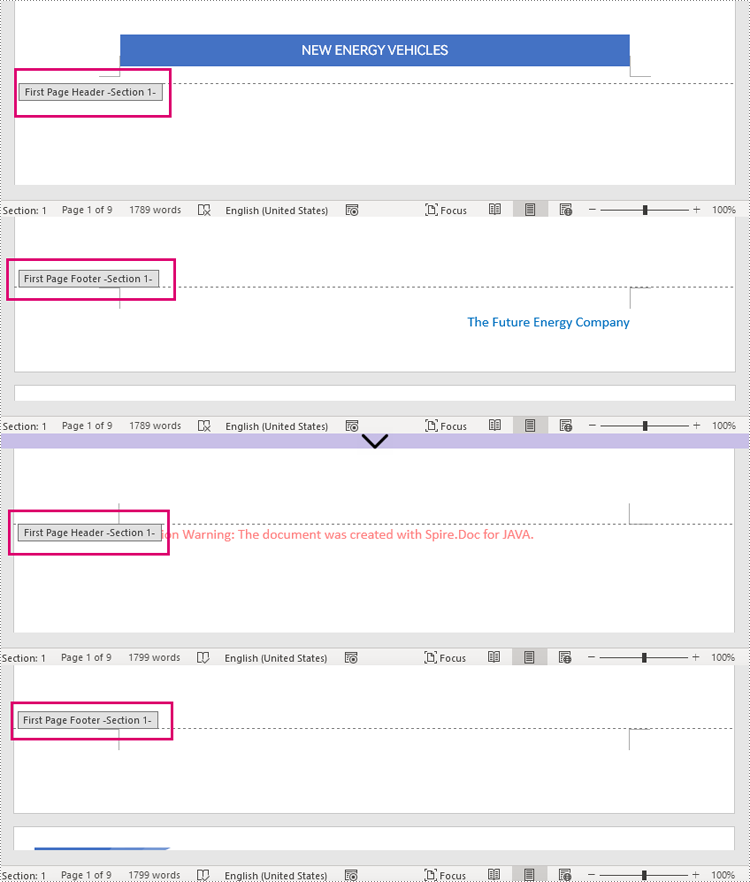
Remove Headers and Footers by Their Types
In Word documents, you can set different headers and footers for the first page, odd pages, and even pages. These types of headers and footers can be obtained through the HeaderFooter.getByHeaderFooterType(hfType) method and can be removed using the HeaderFooter.getChildObjects().clear() method.
Here is a list of the Enums and the types of headers and footers they represent.
| Enum | Description |
| HeaderFooterType.Header_First_Page | Represents first-page header |
| HeaderFooterType.Footer_First_Page | Represents first-page footer |
| HeaderFooterType.Header_Odd | Represents odd-page header |
| HeaderFooterType.Footer_Odd | Represents odd-page footer |
| HeaderFooterType.Header_Even | Represents even-page header |
| HeaderFooterType.Footer_Even | Represents even-page footer |
The detailed steps are as follows:
- Create an object of Document class.
- Load a Word document using Doucment.loadFromFile() method.
- Get the first section of the document using Document.getSections().get() method.
- Get the first-page header using Section.getHeadersFooters().getByHeaderFooterType() method and remove it using HeaderFooter.getChildObjects().clear() method.
- Remove the first-page footer using the same methods. The odd-page and even-page headers and footers can also be removed with these methods.
- Save the document using Document.saveToFile() method.
- Java
import com.spire.doc.Document;
import com.spire.doc.FileFormat;
import com.spire.doc.HeaderFooter;
import com.spire.doc.Section;
import com.spire.doc.documents.HeaderFooterType;

public class removeHeaderFooter {
    public static void main(String[] args) {
        //Create an object of Document class
        Document doc = new Document();

        //Load a Word document
        doc.loadFromFile("Sample.docx");

        //Get the first section of the document
        Section section = doc.getSections().get(0);

        //Get the header of the first page and remove it
        HeaderFooter header = section.getHeadersFooters().getByHeaderFooterType(HeaderFooterType.Header_First_Page);
        header.getChildObjects().clear();

        //Get the footer of the first page and remove it
        HeaderFooter footer = section.getHeadersFooters().getByHeaderFooterType(HeaderFooterType.Footer_First_Page);
        footer.getChildObjects().clear();

        //Get the headers and the footers of the odd pages and remove them
        //HeaderFooter header1 = section.getHeadersFooters().getByHeaderFooterType(HeaderFooterType.Header_Odd);
        //header1.getChildObjects().clear();
        //HeaderFooter footer1 = section.getHeadersFooters().getByHeaderFooterType(HeaderFooterType.Footer_Odd);
        //footer1.getChildObjects().clear();

        //Get the headers and the footers of the even pages and remove them
        //HeaderFooter header2 = section.getHeadersFooters().getByHeaderFooterType(HeaderFooterType.Header_Even);
        //header2.getChildObjects().clear();
        //HeaderFooter footer2 = section.getHeadersFooters().getByHeaderFooterType(HeaderFooterType.Footer_Even);
        //footer2.getChildObjects().clear();

        //Save the document
        doc.saveToFile("RemoveByType.docx", FileFormat.Auto);
        doc.dispose();
    }
}
Remove Headers and Footers by Sections
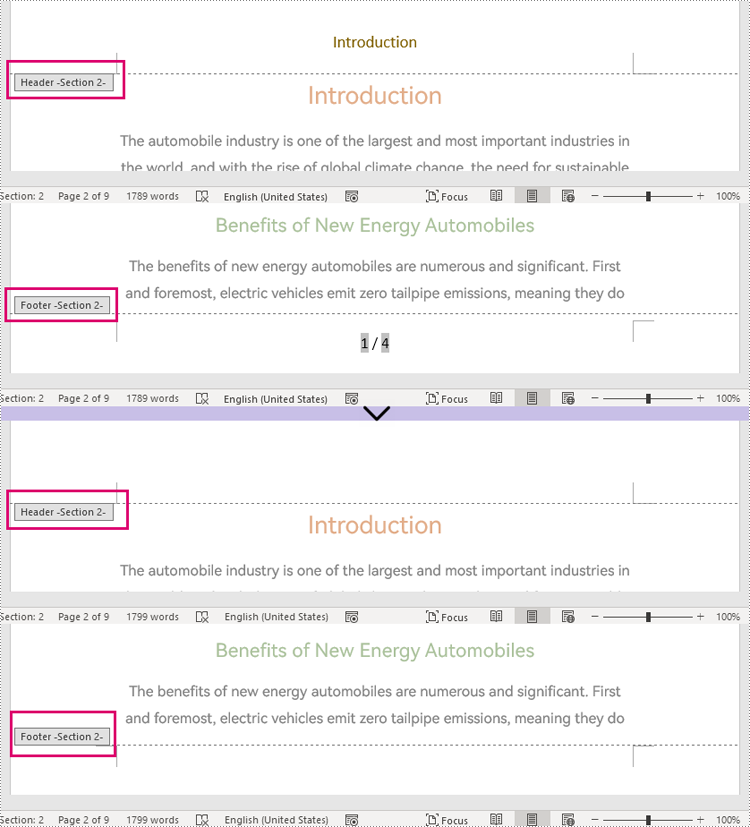
Different sections may have different headers and footers. To remove the headers and footers of a certain section, use Document.getSections().get() method to get the section and remove the headers and footers within it using HeaderFooter.getChildObjects().clear() method.
It is important to be aware that after deleting the content of the header and footer in a section, they will be automatically changed to those of the previous section. Therefore, it is necessary to add a blank paragraph to the header and footer after deleting them to prevent them from changing automatically.
The detailed steps are as follows:
- Create an object of Document class.
- Load a Word document using Doucment.loadFromFile() method.
- Get the second section of the document using Document.getSections().get() method.
- Get the header of the second section using Section.getHeadersFooters().getHeader() method, remove the content using HeaderFooter.getChildObjects().clear() method, and add an empty paragraph to it using HeaderFooter.addParagraph() method.
- Get the footer of the second section using Section.getHeadersFooters().getFooter() method, remove the content using HeaderFooter.getChildObjects().clear() method, and add an empty paragraph to it using HeaderFooter.addParagraph() method.
- Save the document using Document.saveToFile() method.
- Java
import com.spire.doc.Document;
import com.spire.doc.HeaderFooter;
import com.spire.doc.Section;

public class removeHeaderFooterSection {
    public static void main(String[] args) {
        //Create an object of Document class
        Document doc = new Document();

        //Load a Word document
        doc.loadFromFile("Sample1.docx");

        //Get the second section
        Section section = doc.getSections().get(1);

        //Get the header of the second section, remove the content, and add an empty paragraph
        HeaderFooter header1 = section.getHeadersFooters().getHeader();
        header1.getChildObjects().clear();
        header1.addParagraph();

        //Get the footer of the second section, remove the content, and add an empty paragraph
        HeaderFooter footer1 = section.getHeadersFooters().getFooter();
        footer1.getChildObjects().clear();
        footer1.addParagraph();

        //Save the document
        doc.saveToFile("RemoveBySection.docx");
        doc.dispose();
    }
}
Apply for a Temporary License
If you'd like to remove the evaluation message from the generated documents, or to get rid of the function limitations, please request a 30-day trial license for yourself.
