
Knowledgebase (2370)
Children categories
Finding and highlighting text within a PDF document is a crucial task for many individuals and organizations. Whether you're a student conducting research, a professional reviewing contracts, or an archivist organizing digital records, the ability to quickly locate and emphasize specific information is invaluable.
In this article, you will learn how to find and highlight text in a PDF document in Java using the Spire.PDF for Java library.
- Find and Highlight Text in a Specific Page in Java
- Find and Highlight Text in a Rectangular Area in Java
- Find and Highlight Text in an Entire PDF Document in Java
- Find and Highlight Text in PDF Using a Regular Expression in Java
Install Spire.PDF for Java
First of all, you're required to add the Spire.Pdf.jar file as a dependency in your Java program. The JAR file can be downloaded from this link. If you use Maven, you can easily import the JAR file in your application by adding the following code to your project's pom.xml file.
<repositories>
    <repository>
        <id>com.e-iceblue</id>
        <name>e-iceblue</name>
        <url>https://repo.e-iceblue.com/nexus/content/groups/public/</url>
    </repository>
</repositories>
<dependencies>
    <dependency>
        <groupId>e-iceblue</groupId>
        <artifactId>spire.pdf</artifactId>
        <version>12.7.0</version>
    </dependency>
</dependencies>
Find and Highlight Text in a Specific Page in Java
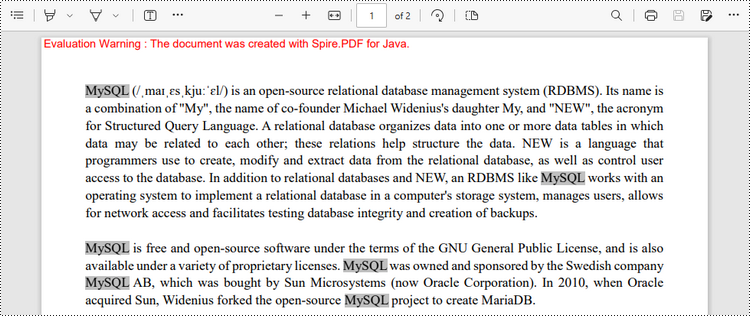
In Spire.PDF for Java, you can utilize the PdfTextFinder class to locate specific text within a page. Prior to executing the find operation, you can set the search options such as WholeWord and IgnoreCase by utilizing the PdfTextFinder.getOptions.setTextFindParameter() method. Once the text is located, you can apply highlighting to visually differentiate the text.
The following are the steps to find and highlight text in a specific page in PDF using Java.
- Create a PdfDocument object.
- Load a PDF file from a given path.
- Get a specific page from the document.
- Create a PdfTextFinder object based on the page.
- Specify search options using PdfTextFinder.getOptions().setTextFindParameter() method.
- Find all instance of searched text using PdfTextFinder.find() method.
- Iterate through the find results, and highlight each instance using PdfTextFragment.highlight() method.
- Save the document to a different PDF file.
- Java
import com.spire.ms.System.Collections.Generic.List;
import com.spire.pdf.FileFormat;
import com.spire.pdf.PdfDocument;
import com.spire.pdf.PdfPageBase;
import com.spire.pdf.texts.PdfTextFinder;
import com.spire.pdf.texts.PdfTextFragment;
import com.spire.pdf.texts.TextFindParameter;

import java.awt.*;
import java.util.EnumSet;

public class FindAndHighlightTextInPage {

    public static void main(String[] args) {

        // Create a PdfDocument object
        PdfDocument doc = new PdfDocument();

        // Load a PDF file
        doc.loadFromFile("C:\\Users\\Administrator\\Desktop\\Input.pdf");

        // Get a specific page
        PdfPageBase page = doc.getPages().get(0);

        // Create a PdfTextFinder object based on the page
        PdfTextFinder finder = new PdfTextFinder(page);

        // Specify the find options
        finder.getOptions().setTextFindParameter(EnumSet.of(TextFindParameter.WholeWord));
        finder.getOptions().setTextFindParameter(EnumSet.of(TextFindParameter.IgnoreCase));

        // Find the instances of the specified text
        List<PdfTextFragment> results = finder.find("MySQL");

        // Iterate through the find results
        for (PdfTextFragment textFragment: results)
        {
            // Highlight text
            textFragment.highLight(Color.LIGHT_GRAY);
        }

        // Save to a different PDF file
        doc.saveToFile("output/HighlightTextInPage.pdf", FileFormat.PDF);

        // Dispose resources
        doc.dispose();
    }
}
Find and Highlight Text in a Rectangular Area in Java
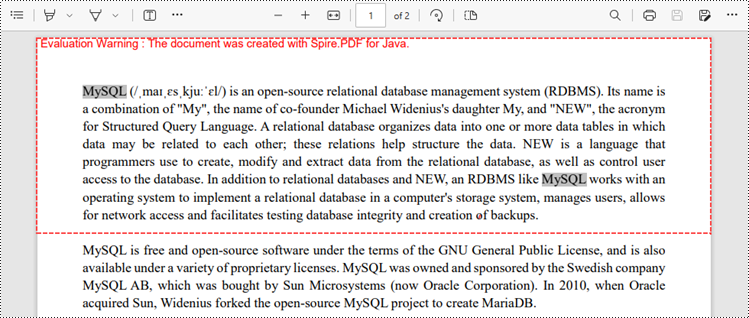
To draw attention to a specific section or piece of information within a document, users can find and highlight specified text within a rectangular area of a page. The rectangular region can be defined by utilizing the PdfTextFinder.getOptions().setFindArea() method.
The following are the steps to find and highlight text in a rectangular area of a PDF page using Java.
- Create a PdfDocument object.
- Load a PDF file from a given path.
- Get a specific page from the document.
- Create a PdfTextFinder object based on the page.
- Specify search options using PdfTextFinder.getOptions().setTextFindParameter() method.
- Find all instance of searched text within the rectangular area using PdfTextFinder.find() method.
- Iterate through the find results, and highlight each instance using PdfTextFragment.fighlight() method.
- Save the document to a different PDF file.
- Java
import com.spire.ms.System.Collections.Generic.List;
import com.spire.pdf.FileFormat;
import com.spire.pdf.PdfDocument;
import com.spire.pdf.PdfPageBase;
import com.spire.pdf.texts.PdfTextFinder;
import com.spire.pdf.texts.PdfTextFragment;
import com.spire.pdf.texts.TextFindParameter;

import java.awt.*;
import java.awt.geom.Rectangle2D;
import java.util.EnumSet;

public class FindAndHighlightTextInRectangle {

    public static void main(String[] args) {

        // Create a PdfDocument object
        PdfDocument doc = new PdfDocument();

        // Load a PDF file
        doc.loadFromFile("C:\\Users\\Administrator\\Desktop\\Input.pdf");

        // Get a specific page
        PdfPageBase page = doc.getPages().get(0);

        // Create a PdfTextFinder object based on the page
        PdfTextFinder finder = new PdfTextFinder(page);

        // Specify a rectangular area for searching text
        finder.getOptions().setFindArea(new Rectangle2D.Float(0,0,841,180));

        // Specify other options
        finder.getOptions().setTextFindParameter(EnumSet.of(TextFindParameter.WholeWord));
        finder.getOptions().setTextFindParameter(EnumSet.of(TextFindParameter.IgnoreCase));

        // Find the instances of the specified text in the rectangular area
        List<PdfTextFragment> results = finder.find("MySQL");

        // Iterate through the find results
        for (PdfTextFragment textFragment: results)
        {
            // Highlight text
            textFragment.highLight(Color.LIGHT_GRAY);
        }

        // Save to a different PDF file
        doc.saveToFile("output/HighlightTextInRectangle.pdf", FileFormat.PDF);

        // Dispose resources
        doc.dispose();
    }
}
Find and Highlight Text in an Entire PDF Document in Java
The first code example provides a demonstration of how to highlight text on a specific page. To highlight text throughout the entire document, you can traverse each page of the document, perform the search operation, and apply the highlighting to the identified text.
The steps to find and highlight text in an entire PDF document using Java are as follows.
- Create a PdfDocument object.
- Load a PDF file from a given path.
- Iterate through each page in the document.
- Create a PdfTextFinder object based on a certain page.
- Specify search options using PdfTextFinder.getOptions().setTextFindParameter() method.
- Find all instance of searched text using PdfTextFinder.find() method.
- Iterate through the find results, and highlight each instance using PdfTextFragment.fighlight() method.
- Save the document to a different PDF file.
- Java
import com.spire.ms.System.Collections.Generic.List;
import com.spire.pdf.FileFormat;
import com.spire.pdf.PdfDocument;
import com.spire.pdf.PdfPageBase;
import com.spire.pdf.texts.PdfTextFinder;
import com.spire.pdf.texts.PdfTextFragment;
import com.spire.pdf.texts.TextFindParameter;

import java.awt.*;
import java.util.EnumSet;

public class FindAndHighlightTextInDocument {

    public static void main(String[] args) {

        // Create a PdfDocument object
        PdfDocument doc = new PdfDocument();

        // Load a PDF file
        doc.loadFromFile("C:\\Users\\Administrator\\Desktop\\Input.pdf");

        // Iterate through the pages in the PDF file
        for (Object pageObj : doc.getPages()) {

            // Get a specific page
            PdfPageBase page = (PdfPageBase) pageObj;

            // Create a PdfTextFinder object based on the page
            PdfTextFinder finder = new PdfTextFinder(page);

            // Specify the find options
            finder.getOptions().setTextFindParameter(EnumSet.of(TextFindParameter.WholeWord));
            finder.getOptions().setTextFindParameter(EnumSet.of(TextFindParameter.IgnoreCase));

            // Find the instances of the specified text
            List<PdfTextFragment> results = finder.find("MySQL");

            // Iterate through the find results
            for (PdfTextFragment textFragment: results)
            {
                // Highlight text
                textFragment.highLight(Color.LIGHT_GRAY);
            }
        }

        // Save to a different PDF file
        doc.saveToFile("output/HighlightTextInDocument.pdf", FileFormat.PDF);

        // Dispose resources
        doc.dispose();
    }
}
Find and Highlight Text in PDF Using a Regular Expression in Java
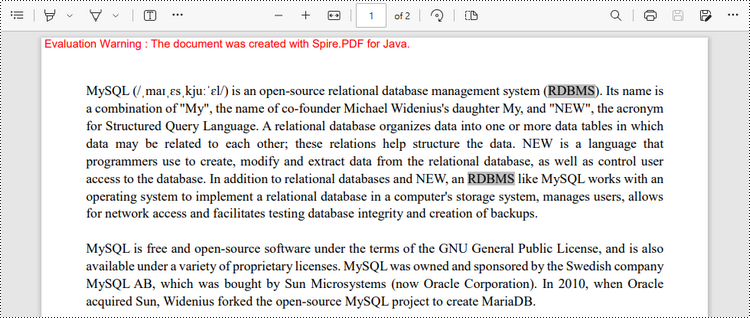
When you're looking for specific text within a document, regular expressions offer enhanced flexibility and control over the search criteria. To make use of a regular expression, you'll need to set the TextFindParameter as Regex and supply the desired regular expression pattern as input to the find()method.
The following are the steps to find and highlight text in PDF using a regular expression using Java.
- Create a PdfDocument object.
- Load a PDF file from a given path.
- Iterate through each page in the document.
- Create a PdfTextFinder object based on a certain page.
- Set the TextFindParameter as Regex using PdfTextFinder.getOptions().setTextFindParameter() method.
- Create a regular expression pattern that matches the specific text you are searching for.
- Find all instance of the searched text using PdfTextFinder.find() method.
- Iterate through the find results, and highlight each instance using PdfTextFragment.fighlight() method.
- Save the document to a different PDF file.
- Java
import com.spire.ms.System.Collections.Generic.List;
import com.spire.pdf.FileFormat;
import com.spire.pdf.PdfDocument;
import com.spire.pdf.PdfPageBase;
import com.spire.pdf.texts.PdfTextFinder;
import com.spire.pdf.texts.PdfTextFragment;
import com.spire.pdf.texts.TextFindParameter;

import java.awt.*;
import java.util.EnumSet;

public class FindAndHighlightTextUsingRegex {

    public static void main(String[] args) {

        // Create a PdfDocument object
        PdfDocument doc = new PdfDocument();

        // Load a PDF file
        doc.loadFromFile("C:\\Users\\Administrator\\Desktop\\Input.pdf");

        // Iterate through the pages in the PDF file
        for (Object pageObj : doc.getPages()) {

            // Get a specific page
            PdfPageBase page = (PdfPageBase) pageObj;

            // Create a PdfTextFinder object based on the page
            PdfTextFinder finder = new PdfTextFinder(page);

            // Specify the search model as Regex
            finder.getOptions().setTextFindParameter(EnumSet.of(TextFindParameter.Regex));

            // Define a regular expression pattern that matches a letter starting with 'R' and ending with 'S'
            String pattern = "\\bR\\w*S\\b";

            // Find the text that conforms to a regular expression
            List<PdfTextFragment> results = finder.find(pattern);

            // Iterate through the find results
            for (PdfTextFragment textFragment: results)
            {
                // Highlight text
                textFragment.highLight(Color.LIGHT_GRAY);
            }
        }

        // Save to a different PDF file
        doc.saveToFile("output/HighlightTextUsingRegex.pdf", FileFormat.PDF);

        // Dispose resources
        doc.dispose();
    }
}
Apply for a Temporary License
If you'd like to remove the evaluation message from the generated documents, or to get rid of the function limitations, please request a 30-day trial license for yourself.
By splitting PDF pages into separate files, you get smaller PDF documents that have one or some pages extracted from the original. A split file contains less information and is naturally smaller in size and easier to share over the internet. In this article, you will learn how to split PDF into single-page PDFs and how to split PDF by page ranges in Java using Spire.PDF for Java.
Install Spire.PDF for Java
First, you're required to add the Spire.Pdf.jar file as a dependency in your Java program. The JAR file can be downloaded from ;this link. If you use Maven, you can easily import the JAR file in your application by adding the following code to your project's pom.xml file.
<repositories>
    <repository>
        <id>com.e-iceblue</id>
        <name>e-iceblue</name>
        <url>https://repo.e-iceblue.com/nexus/content/groups/public/</url>
    </repository>
</repositories>
<dependencies>
    <dependency>
        <groupId>e-iceblue</groupId>
        <artifactId>spire.pdf</artifactId>
        <version>12.7.0</version>
    </dependency>
</dependencies>
Split a PDF File into Multiple Single-Page PDFs in Java
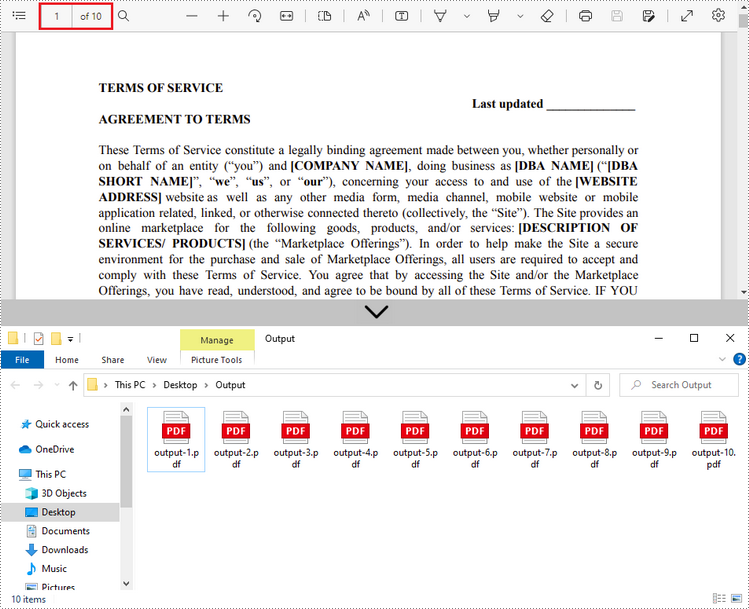
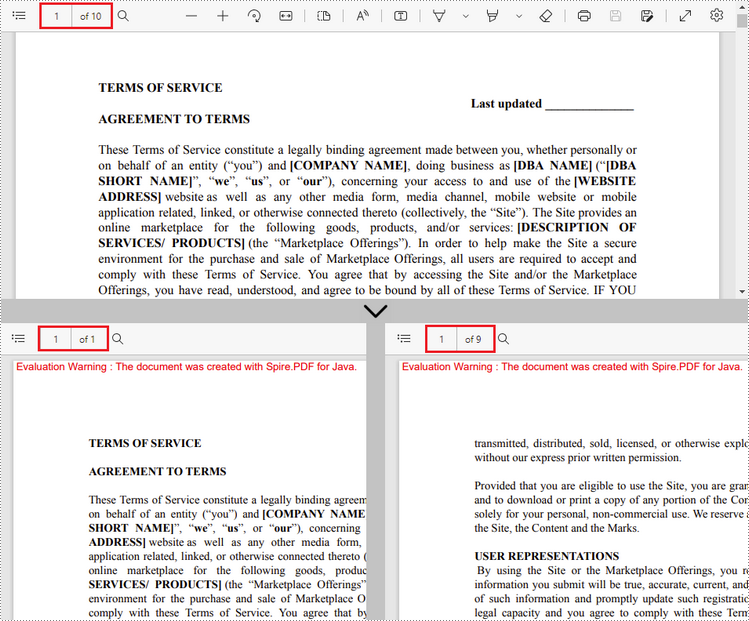
Spire.PDF for Java offers the split() method to divide a multipage PDF document into multiple single-page files. The following are the detailed steps.
- Create a PdfDcoument object.
- Load a PDF document using PdfDocument.loadFromFile() method.
- Split the document into one-page PDFs using PdfDocument.split(string destFilePattern, int startNumber) method.
- Java
import com.spire.pdf.PdfDocument;

public class SplitPdfByEachPage {

    public static void main(String[] args) {

        //Specify the input file path
        String inputFile = "C:\\Users\\Administrator\\Desktop\\Terms of Service.pdf";

        //Specify the output directory
        String outputDirectory = "C:\\Users\\Administrator\\Desktop\\Output\\";

        //Create a PdfDocument object
        PdfDocument doc = new PdfDocument();

        //Load a PDF file
        doc.loadFromFile(inputFile);

        //Split the PDF to one-page PDFs
        doc.split(outputDirectory + "output-{0}.pdf", 1);
    }
}
Split a PDF File by Page Ranges in Java
No straightforward method is offered for splitting PDF documents by page ranges. To do so, we create two or more new PDF documents and import the selected page or page range from the source document into them. Here are the detailed steps.
- Load the source PDF file while initialing the PdfDocument object.
- Create two additional PdfDocument objects.
- Import the first page from the source file to the first document using PdfDocument.insertPage() method.
- Import the remaining pages from the source file to the second document using PdfDocument.insertPageRange() method.
- Save the two documents as separate PDF files using PdfDocument.saveToFile() method.
- Java
import com.spire.pdf.PdfDocument;

public class SplitPdfByPageRange {

    public static void main(String[] args) {

        //Specify the input file path
        String inputFile = "C:\\Users\\Administrator\\Desktop\\Terms of Service.pdf";

        //Specify the output directory
        String outputDirectory = "C:\\Users\\Administrator\\Desktop\\Output\\";

        //Load the source PDF file while initialing the PdfDocument object
        PdfDocument sourceDoc = new PdfDocument(inputFile);

        //Create two additional PdfDocument objects
        PdfDocument newDoc_1 = new PdfDocument();
        PdfDocument newDoc_2 = new PdfDocument();

        //Insert the first page of source file to the first document
        newDoc_1.insertPage(sourceDoc, 0);

        //Insert the rest pages of source file to the second document
        newDoc_2.insertPageRange(sourceDoc, 1, sourceDoc.getPages().getCount() - 1);

        //Save the two documents as PDF files
        newDoc_1.saveToFile(outputDirectory + "output-1.pdf");
        newDoc_2.saveToFile(outputDirectory + "output-2.pdf");
    }
}
Apply for a Temporary License
If you'd like to remove the evaluation message from the generated documents, or to get rid of the function limitations, please request a 30-day trial license for yourself.
Java: Set the Background Color or Background Image for PDF
2023-06-19 09:11:00 Written by AdministratorProper backgrounds can make different content elements of PDF documents better matched and improve the visual impression and reading experience of PDF documents. Besides, it's important to add different backgrounds to PDF documents for different usage scenarios to enhance the professionalism of the documents. This article will show how to use Spire.PDF for Java to set the background color and background image for PDF documents.
Install Spire.PDF for Java
First, you're required to add the Spire.Pdf.jar file as a dependency in your Java program. The JAR file can be downloaded from this link. If you use Maven, you can easily import the JAR file in your application by adding the following code to your project's pom.xml file.
<repositories>
    <repository>
        <id>com.e-iceblue</id>
        <name>e-iceblue</name>
        <url>https://repo.e-iceblue.com/nexus/content/groups/public/</url>
    </repository>
</repositories>
<dependencies>
    <dependency>
        <groupId>e-iceblue</groupId>
        <artifactId>spire.pdf</artifactId>
        <version>12.7.0</version>
    </dependency>
</dependencies>
Add Background Color to PDF Documents in Java
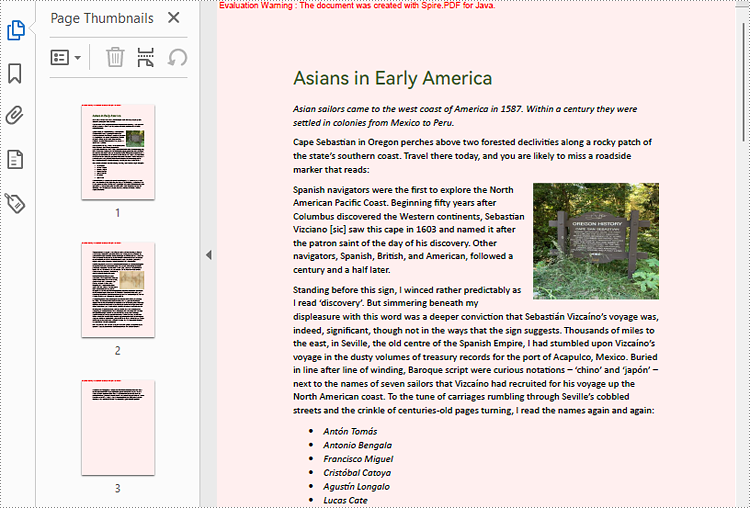
As setting the background of a PDF document needs to be done page by page, we can loop through all the pages in the document and use the PdfPageBase.setBackgroundColor() method to set the background color for each page. The following are the detailed steps:
- Create an object of PdfDocument.
- Load a PDF document using PdfDocument.loadFromFile() method.
- Loop through the pages in the PDF document and add a background color to each page using PdfPageBase.setBackgroundColor() method. You can also use the PdfPageBase.setBackgroudOpacity() method to set the opacity of the background.
- Save the document using PdfDocument.saveToFile() method.
- Java
import com.spire.pdf.PdfDocument;
import com.spire.pdf.PdfPageBase;

import java.awt.*;

public class SetPDFBackgroundColor {
    public static void main(String[] args) {

        //Create an object of PdfDocument
        PdfDocument pdf = new PdfDocument();

        //Load a PDF file
        pdf.loadFromFile("Sample.pdf");

        //Loop through the pages in the PDF file
        for(Object obj : (Iterable) pdf.getPages()) {
            PdfPageBase page = (PdfPageBase) obj;
            //Set the background color for each page
            page.setBackgroundColor(Color.PINK);
            //Set the opacity of the background
            page.setBackgroudOpacity(0.2f);
        }


        //Save the PDF file
        pdf.saveToFile("BackgroundColor.pdf");
    }
}
Add Background Picture to PDF Documents in Java
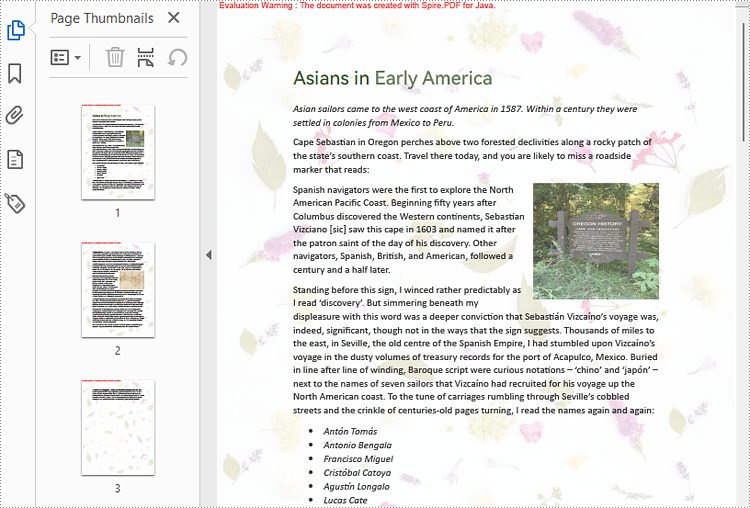
Spire.PDF for Java provides the PdfPageBase.setBackgroundImage() to set a picture as the PDF page background. The detailed steps for adding an image background to a PDF document are as follows:
- Create an object of PdfDocument.
- Load a PDF document using PdfDocument.loadFromFile() method.
- Loop through the pages in the PDF document and add a background picture to each page using PdfPageBase.setBackgroundImage() method. You can also use the PdfPageBase.setBackgroudOpacity() method to set the opacity of the background.
- Save the document using PdfDocument.saveToFile() method.
- Java
import com.spire.pdf.PdfDocument;
import com.spire.pdf.PdfPageBase;

import javax.imageio.ImageIO;
import java.awt.image.BufferedImage;
import java.io.File;
import java.io.IOException;

public class SetPDFBackgroundImage {
    public static void main(String[] args) throws IOException {

        //Create an object of PdfDocument
        PdfDocument pdf = new PdfDocument();

        //Load a PDF file
        pdf.loadFromFile("Sample.pdf");

        //Load an image
        BufferedImage background = ImageIO.read(new File("background.jpg"));

        //Loop through the pages in the PDF file
        for(Object obj : (Iterable) pdf.getPages()) {
            PdfPageBase page = (PdfPageBase) obj;
            //Set the background color for each page
            page.setBackgroundColor(Color.PINK);
            //Set the opacity of the background
            page.setBackgroudOpacity(0.2f);
        }

        //Save the PDF file
        pdf.saveToFile("BackgroundImage.pdf");
    }
}
Apply for a Temporary License
If you'd like to remove the evaluation message from the generated documents, or to get rid of the function limitations, please request a 30-day trial license for yourself.
