
Knowledgebase (2370)
Children categories
Merge PDF Files in Java: Full, Partial, and Stream-Based Merging
2022-06-09 07:47:00 Written by hayes Liu
Merging PDFs in Java is a critical requirement for document-intensive applications, from consolidating financial reports to automating archival systems. However, developers face significant challenges in preserving formatting integrity or managing resource efficiency across diverse PDF sources. Spire.PDF for Java provides a robust and straightforward solution to streamline the PDF merging task.
This comprehensive guide explores how to combine PDFs in Java, complete with practical examples to merge multiple files, selected pages, or stream-based merging.
- Setting Up the Java PDF Merge Library
- Merge Multiple PDF Files in Java
- Merge Specific Pages from Multiple PDFs in Java
- Merge PDF Files by Streams in Java
- Conclusion
- FAQs
Setting Up the Java PDF Merge Library
Why Choose Spire.PDF for Java?
- No External Dependencies: Pure Java implementation.
- Rich Features: Merge, split, encrypt, and annotate PDFs.
- Cross-Platform: Works on Windows, Linux, and macOS.
Installation
Before using Spire.PDF for Java, you need to add it to your project.
Option 1: Maven
Add the repository and dependency to pom.xml:
<repositories>
    <repository>
        <id>com.e-iceblue</id>
        <name>e-iceblue</name>
        <url>https://repo.e-iceblue.com/nexus/content/groups/public/</url>
    </repository>
</repositories>
<dependencies>
    <dependency>
        <groupId>e-iceblue</groupId>
        <artifactId>spire.pdf</artifactId>
        <version>12.7.0</version>
    </dependency>
</dependencies>
Option 2: Manual JAR
Download the JAR from the E-iceblue website and add it to your project's build path.
Merge Multiple PDF Files in Java
This example is ideal when you want to merge two or more PDF documents entirely. It’s simple, straightforward, and perfect for batch processing.
How It Works:
- Define File Paths: Create an array of strings containing the full paths to the source PDFs.
- Merge Files: The mergeFiles() method takes the array of paths, combines the PDFs, and returns a PdfDocumentBase object representing the merged file.
- Save the Result: The merged PDF is saved to a new file using the save() method.
Java code to combine PDFs:
import com.spire.pdf.FileFormat;
import com.spire.pdf.PdfDocument;
import com.spire.pdf.PdfDocumentBase;

public class MergePdfs {
    public static void main(String[] args) {

        // Get the paths of the PDF documents to be merged
        String[] files = new String[] {"sample-1.pdf", "sample-2.pdf", "sample-3.pdf"};

        // Merge these PDF documents
        PdfDocumentBase pdf = PdfDocument.mergeFiles(files);

        // Save the merged PDF file
        pdf.save("MergePDF.pdf", FileFormat.PDF);
    }
}
Best For:
- Merging entire PDFs stored locally.
- Simple batch operations where no page selection is needed.
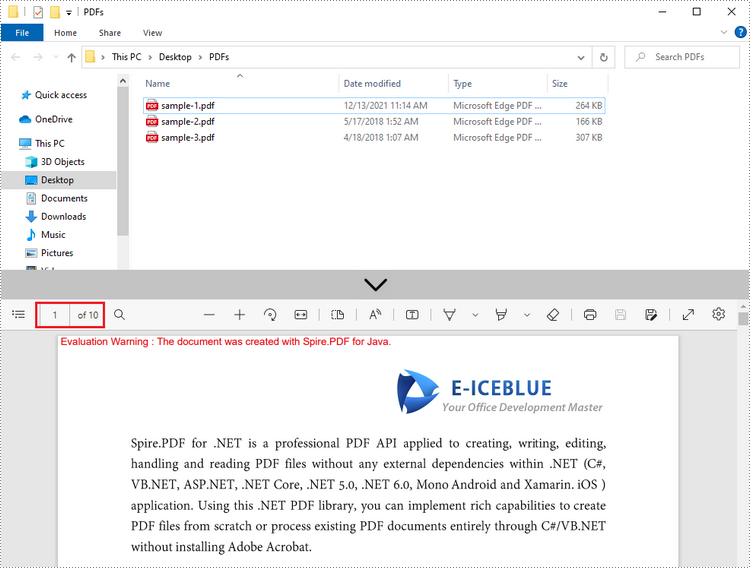
Result: Combine three PDF files (a total of 10 pages) into one PDF file.
Merging PDFs often results in large file sizes. To reduce the size, refer to: Compress PDF Files in Java.
Merge Specific Pages from Multiple PDFs in Java
Sometimes, you may only want to merge specific pages from different PDFs (e.g., pages 1-3 from File A and pages 2-5 from File B). This example gives you granular control over which pages to include from each source PDF.
How It Works:
- Load PDFs: Load each source PDF into a PdfDocument object and store them in an array.
- Create a New PDF: A blank PDF document is initialized to serve as the container for merged pages.
- Insert Specific Pages:
- insertPage(): Insert a specified page into the new PDF.
- insertPageRange(): Inserts a range of pages into the new PDF.
- Save the Result: The merged PDF is saved using the saveToFile() method.
Java code to combine selected PDF pages:
import com.spire.pdf.PdfDocument;

public class MergeSelectedPages {

    public static void main(String[] args) {

        // Get the paths of the PDF documents to be merged
        String[] files = new String[] {"sample-1.pdf", "sample-2.pdf", "sample-3.pdf"};

        // Create an array of PdfDocument
        PdfDocument[] pdfs = new PdfDocument[files.length];

        // Loop through the documents
        for (int i = 0; i < files.length; i++)
        {
            // Load a specific document
            pdfs[i] = new PdfDocument(files[i]);
        }

        // Create a new PDF document
        PdfDocument pdf = new PdfDocument();

        // Insert the selected pages from different PDFs to the new PDF
        pdf.insertPage(pdfs[0], 0);
        pdf.insertPageRange(pdfs[1], 1,3);
        pdf.insertPage(pdfs[2], 0);

        // Save the merged PDF
        pdf.saveToFile("MergePdfPages.pdf");
    }
}
Best For:
- Creating custom PDFs with selected pages (e.g., extracting key sections from reports).
- Scenarios where you need to exclude irrelevant pages from source documents.
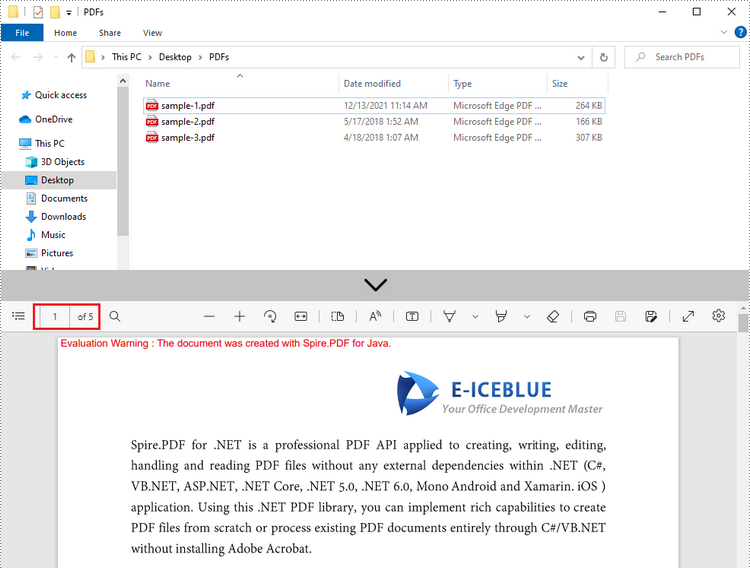
Result: Combine selected pages from three separate PDF files into a new PDF
Merge PDF Files by Streams in Java
In applications where PDFs are stored as streams (e.g., PDFs from network streams, in-memory data, or temporary files), Spire.PDF supports merging without saving files to disk.
How It Works:
- Create Input Streams: The FileInputStream objects read the raw byte data of each PDF file.
- Merge Streams: The mergeFiles() method accepts an array of streams, merges them, and returns a PdfDocumentBase object.
- Save and Clean Up: The merged PDF is saved, and all streams and documents are closed to free system resources (critical for preventing leaks).
Java code to merge PDFs via streams:
import com.spire.pdf.*;
import java.io.*;

public class mergePdfsByStream {
    public static void main(String[] args) throws IOException {
        // Create FileInputStream objects for each PDF document file
        FileInputStream stream1 = new FileInputStream(new File("Template_1.pdf"));
        FileInputStream stream2 = new FileInputStream(new File("Template_2.pdf"));
        FileInputStream stream3 = new FileInputStream(new File("Template_3.pdf"));

        // Initialize an array of InputStream objects containing the file input streams
        InputStream[] streams = new FileInputStream[]{stream1, stream2, stream3};

        // Merge the input streams into a single PdfDocumentBase object
        PdfDocumentBase pdf = PdfDocument.mergeFiles(streams);

        // Save the merged PDF file
        pdf.save("MergePdfsByStream.pdf", FileFormat.PDF);

        // Releases system resources used by the merged document
        pdf.close();
        pdf.dispose();

        // Closes all input streams to free up resources
        stream1.close();
        stream2.close();
        stream3.close();
    }
}
Best For:
- Merging PDFs from non-file sources (e.g., network downloads, in-memory generation).
- Environments where direct file path access is restricted.
Conclusion
Spire.PDF for Java simplifies complex PDF merging tasks through its intuitive, user-friendly API. Whether you need to merge entire documents, create custom page sequences, or combine PDFs from stream sources, these examples enable efficient PDF merging in Java to address diverse document processing requirements.
To explore more features (e.g., encrypting merged PDFs, adding bookmarks), refer to the official documentation.
Frequently Asked Questions (FAQs)
Q1: Why do merged PDFs show "Evaluation Warning" watermarks?
A: The commercial version adds watermarks. Solutions:
- Request a 30-day trial license to test without any restrictions.
- Use the free version for documents ≤10 pages
Q2: How do I control the order of pages in the merged PDF?
A: The order of pages in the merged PDF is determined by the order of input files (or streams) and the pages you select. For example:
- In full-document merging, files in the input array are merged in the order they appear.
- In selective page merging, use insertPage() or insertPageRange() in the sequence you want pages to appear.
Q3: Can I merge password-protected PDFs?
A: Yes. Spire.PDF for Java supports merging encrypted PDFs, but you must provide the password when loading the file. Use the overloaded loadFromFile() method with the password parameter:
PdfDocument pdf = new PdfDocument();
pdf.loadFromFile("sample.pdf", "userPassword"); // Decrypt with password
Q4: How to merge scanned/image-based PDFs?
A: Spire.PDF handles image-PDFs like regular PDFs, but file sizes may increase significantly.
Spire.PDF for Java is a PDF API that enables Java applications to read, write and save PDF documents without using Adobe Acrobat. Using this Java PDF component, developers and programmers can implement rich capabilities to create PDF files from scratch or process existing PDF documents entirely on Java applications (J2SE and J2EE).
Many rich features can be supported by Spire.PDF for Java, such as security settings, extracting text/images, merging/spliting PDF, drawing text/image/shape/barcode to the PDF, create/filling in form fields, adding/deleting layers, overlaying PDF, inserting text/image watermark, adding/updating/deleting bookmarks, adding tables, adding annotations, adding actions and compressing PDF document etc.


Barcodes are essential for automating data collection and processing. They can be used in a wide range of industries, from retail and manufacturing to healthcare and logistics. By adding barcodes to PDFs, you can create more dynamic and interactive documents that can be easily scanned and processed. In this article, you will learn how to add 1D barcodes or QR codes to PDF in Java using Spire.PDF for Java.
Install the Java Libraries
First of all, you need to download the Spire.PDF for Java and Spire.Barcode for Java libraries, and then add the corresponding JAR files as dependencies in your Java program. If you use Maven, you can easily import the JAR files in your application by adding the following codes to your project's pom.xml file.
<repositories>
    <repository>
        <id>com.e-iceblue</id>
        <name>e-iceblue</name>
        <url>https://repo.e-iceblue.com/nexus/content/groups/public/</url>
    </repository>
</repositories>
<dependencies>
    <dependency>
        <groupId>e-iceblue</groupId>
        <artifactId>spire.pdf</artifactId>
        <version>12.7.0</version>
    </dependency>
</dependencies>
<repositories>
    <repository>
        <id>com.e-iceblue</id>
        <name>e-iceblue</name>
        <url>https://repo.e-iceblue.com/nexus/content/groups/public/</url>
    </repository>
</repositories>
<dependencies>
    <dependency>
        <groupId>e-iceblue</groupId>
        <artifactId>spire.barcode</artifactId>
        <version>5.2.0</version>
    </dependency>
</dependencies>
Add Barcodes to PDF in Java
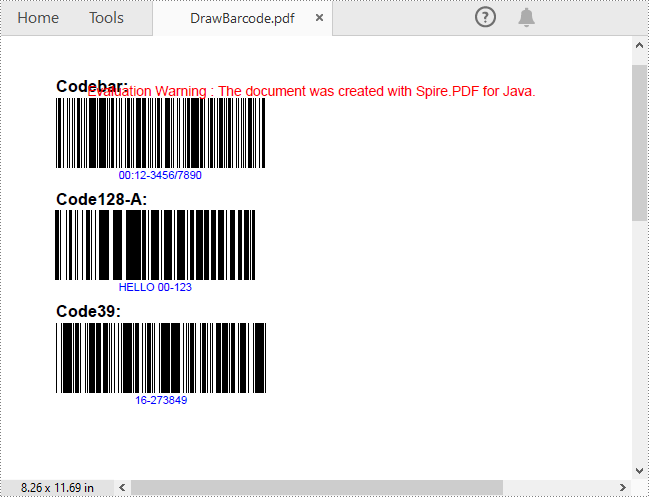
Spire.PDF for Java supports several 1D barcode types represented by different classes, such as PdfCodabarBarcode, PdfCode128ABarcode, PdfCode32Barcode, PdfCode39Barcode, PdfCode93Barcode.
Each class provides corresponding methods for setting the barcode text, size, color, etc. The following are the steps to draw the common Codabar, Code128 and Code39 barcodes at the specified locations on a PDF page.
- Create a PdfDocument object.
- Add a PDF page using PdfDocument.getPages().add() method.
- Create a PdfTextWidget object and draw text on the page using PdfTextWidget.draw() method.
- Create PdfCodabarBarcode, PdfCode128ABarcode, PdfCode39Barcode objects.
- Set the gap between the barcode and the displayed text using the setBarcodeToTextGapHeight() method of the corresponding classes.
- Sets the barcode text display location using the setTextDisplayLocation() method of the corresponding classes.
- Set the barcode text color using the setTextColor() method of the corresponding classes.
- Draw the barcodes at specified locations on the PDF page using the draw() method of the corresponding classes.
- Save the result PDF file using PdfDocument.saveToFile() method.
- Java
import com.spire.pdf.*;
import com.spire.pdf.barcode.*;
import com.spire.pdf.graphics.*;

import java.awt.*;
import java.awt.geom.Point2D;

public class DrawBarcode {
    public static void main(String[] args) {

        // Create a PDF document
        PdfDocument pdf = new PdfDocument();

        // Add a page
        PdfPageBase page = pdf.getPages().add();

        // Initialize y-coordinate
        double y = 15;

        // Create a true type font
        PdfTrueTypeFont font= new PdfTrueTypeFont(new Font("Arial", Font.BOLD, 12));

        // Draw text "Codebar:" on the page
        PdfTextWidget text = new PdfTextWidget();
        text.setFont(font);
        text.setText("Codebar:");
        PdfLayoutResult result = text.draw(page, 0, y);
        y =(float)(result.getBounds().getY()+ result.getBounds().getHeight() + 2);

        // Draw Codabar barcode on the page
        PdfCodabarBarcode codebar= new PdfCodabarBarcode("00:12-3456/7890");
        codebar.setBarcodeToTextGapHeight(1f);
        codebar.setBarHeight(50f);
        codebar.setTextDisplayLocation(TextLocation.Bottom);
        PdfRGBColor blue = new PdfRGBColor(Color.blue);
        codebar.setTextColor(blue);
        Point2D.Float point = new Point2D.Float();
        point.setLocation(0,y);
        codebar.draw(page,point);
        y = codebar.getBounds().getY()+ codebar.getBounds().getHeight() + 5;

        // Draw text "Code128-A:" on the page
        text.setText("Code128-A:");
        result = text.draw(page, 0, y);
        page = result.getPage();
        y =result.getBounds().getY()+ result.getBounds().getHeight() + 2;

        // Draw Code128-A barcode on the page
        PdfCode128ABarcode code128 = new PdfCode128ABarcode("HELLO 00-123");
        code128.setBarcodeToTextGapHeight(1f);
        code128.setBarHeight(50f);
        code128.setTextDisplayLocation(TextLocation.Bottom);
        code128.setTextColor(blue);
        point.setLocation(point.x,y);
        code128.draw(page, point);
        y =code128.getBounds().getY()+ code128.getBounds().getHeight() + 5;

        // Draw text "Code39:" on the page
        text.setText("Code39:");
        result = text.draw(page, 0, y);
        page = result.getPage();
        y =result.getBounds().getY()+ result.getBounds().getHeight() + 2;

        // Draw Code39 barcode on the page
        PdfCode39Barcode code39 = new PdfCode39Barcode("16-273849");
        code39.setBarcodeToTextGapHeight(1f);
        code39.setBarHeight(50f);
        code39.setTextDisplayLocation(TextLocation.Bottom);
        code39.setTextColor(blue);
        point.setLocation(point.x,y);
        code39.draw(page, point);

        // Save the document
        pdf.saveToFile("DrawBarcode.pdf");
    }
}
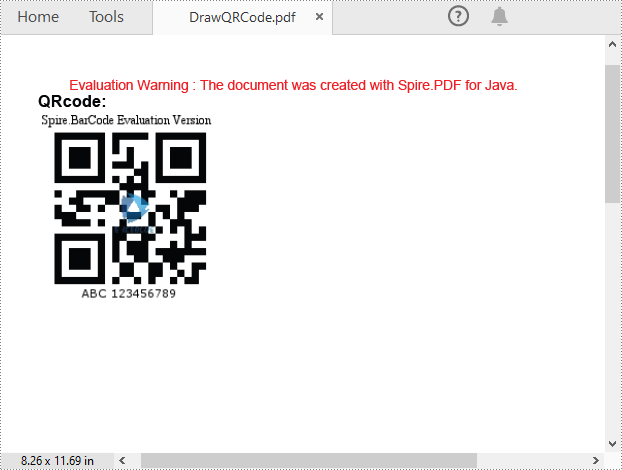
Add QR Codes to PDF in Java
To add 2D barcodes to a PDF file, the Spire.Barcode for Java library is required to generate QR code first, and then you can add the QR code image to the PDF file with the Spire.PDF for Java library. The following are the detailed steps.
- Create a PdfDocument object.
- Add a PDF page using PdfDocument.getPages().add() method.
- Create a BarcodeSettings object.
- Call the corresponding properties of the BarcodeSettings class to set the barcode type, data, error correction level and width, etc.
- Create a BarCodeGenerator object based on the settings.
- Generate QR code image using BarCodeGenerator.generateImage() method.
- Draw the QR code image at a specified location on the PDF page using PdfPageBase.getCanvas().drawImage() method.
- Save the result PDF file using PdfDocument.saveToFile() method.
- Java
import com.spire.pdf.*;
import com.spire.pdf.graphics.*;
import com.spire.barcode.*;

import java.awt.*;
import java.awt.image.BufferedImage;

public class DrawQRCode {
    public static void main(String[] args) {
        // Create a PDF document
        PdfDocument pdf = new PdfDocument();

        // Add a page
        PdfPageBase page = pdf.getPages().add();

        // Create a BarcodeSettings object
        BarcodeSettings settings = new BarcodeSettings();
        // Set the barcode type to QR Code
        settings.setType(BarCodeType.QR_Code);
        // Set the data of the QR code
        settings.setData("ABC 123456789");
        settings.setData2D("ABC 123456789");
        // Set to show QR code text at the bottom
        settings.setShowTextOnBottom(true);
        // Set the width of the QR code
        settings.setX(2);
        // Set the error correction level of the QR code
        settings.setQRCodeECL(QRCodeECL.M);

        // Generate QR code image based on the settings
        BarCodeGenerator barCodeGenerator = new BarCodeGenerator(settings);
        BufferedImage QRimage = barCodeGenerator.generateImage();

        // Initialize y-coordinate
        double y = 30;

        // Create a true type font
        PdfTrueTypeFont font= new PdfTrueTypeFont(new Font("Arial", Font.BOLD, 12));

        // Draw text on the PDF page
        PdfTextWidget text = new PdfTextWidget();
        text.setFont(font);
        text.setText("QRcode:");
        PdfLayoutResult result = text.draw(page, 0, y);
        y =(float)(result.getBounds().getY()+ result.getBounds().getHeight() + 2);

        // Draw text on the PDF page
        PdfImage pdfImage = PdfImage.fromImage(QRimage);
        page.getCanvas().drawImage(pdfImage, 0, y);

        // Save the document
        pdf.saveToFile("DrawQRCode.pdf");
    }
}
Apply for a Temporary License
If you'd like to remove the evaluation message from the generated documents, or to get rid of the function limitations, please request a 30-day trial license for yourself.
