
Knowledgebase (2370)
Children categories
Spire.XLS supports to hide or unhide certain shapes in Excel worksheet through IShape.Visible property. This article demonstrates the detail steps to hide or unhide a shape using Spire.XLS and C#.
Below is the screenshot of the example Excel file:

Detail steps:
Step 1: Instantiate a Workbook object and load the Excel file.
Workbook workbook = new Workbook();
workbook.LoadFromFile("Input.xlsx");
Step 2: Get the first worksheet.
Worksheet sheet = workbook.Worksheets[0];
Step 3: Hide the second shape in the worksheet.
//Hide the second shape in the worksheet
sheet.PrstGeomShapes[1].Visible = false;

//Show the second shape in the worksheet
//sheet.PrstGeomShapes[1].Visible = true;
Step 4: Save the file.
workbook.SaveToFile("HideShape.xlsx", ExcelVersion.Version2013);
Output:

Full code:
using Spire.Xls;
namespace HideShape
{
    class Program
    {
        static void Main(string[] args)
        {
            //Instantiate a Workbook object
            Workbook workbook = new Workbook();
            //Load the Excel file
            workbook.LoadFromFile("Input.xlsx");

            //Get the first worksheet
            Worksheet sheet = workbook.Worksheets[0];

            //Hide the second shape in the worksheet
            sheet.PrstGeomShapes[1].Visible = false;

            //Show the second shape in the worksheet
            sheet.PrstGeomShapes[1].Visible = true;

            //Save the file
            workbook.SaveToFile("HideShape.xlsx", ExcelVersion.Version2013);
        }
    }
}
We have demonstrated how to use Spire.Presentation to add text watermark and image watermark to the presentation slides. This article will show how to remove text and image watermarks in presentation slides in C#.
Firstly, view the sample document contains the text and image watermark.
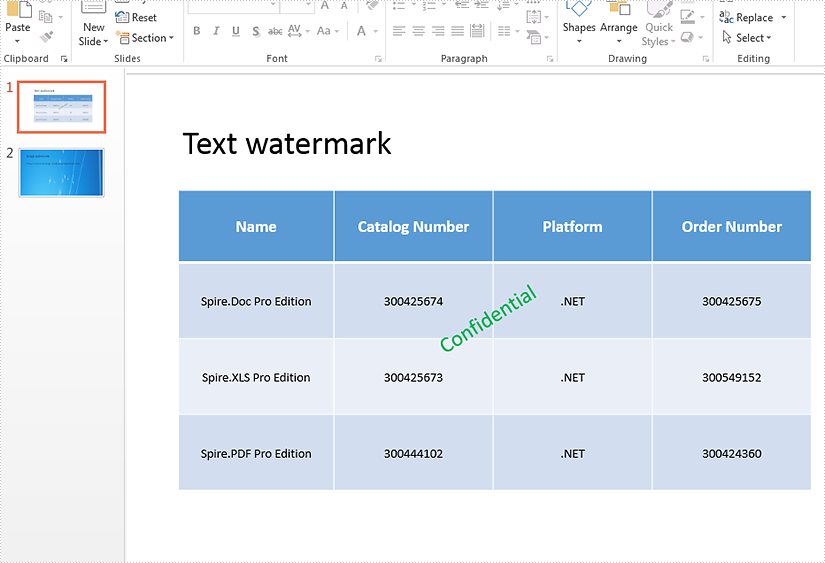
Step 1: Create a presentation document and load the document from the file
Presentation ppt = new Presentation();
ppt.LoadFromFile("Sample.pptx", FileFormat.Pptx2013);
Step 2: Remove the text and image watermark.
Remove text watermark by removing the shape with contains the text string "Confidential".
for (int i = 0; i < ppt.Slides.Count; i++)
{
    for (int j = 0; j < ppt.Slides[i].Shapes.Count; j++)
    {
        if (ppt.Slides[i].Shapes[j] is IAutoShape)
        {
            IAutoShape shape = ppt.Slides[i].Shapes[j] as IAutoShape;
            if (shape.TextFrame.Text.Contains("Confidential"))
            {
                ppt.Slides[i].Shapes.Remove(shape);
            }
        }
    }
}
Remove image watermark by setting SlideBackground.Fill.FillType as none.
for (int i = 0; i < ppt.Slides.Count; i++)
{
    ppt.Slides[i].SlideBackground.Fill.FillType = FillFormatType.None;
}
Step 3: Save the document to file.
ppt.SaveToFile("RemoveWartermark.pptx", FileFormat.Pptx2013);
Effective screenshot after removing the text and image watermark:
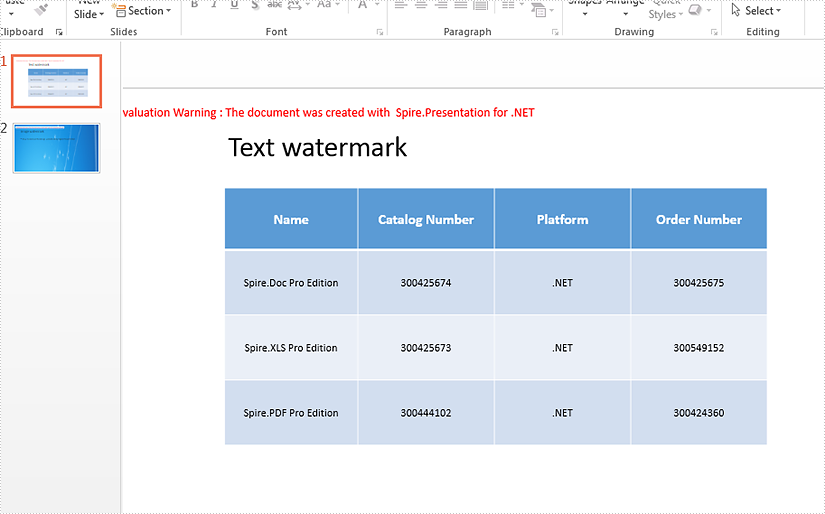
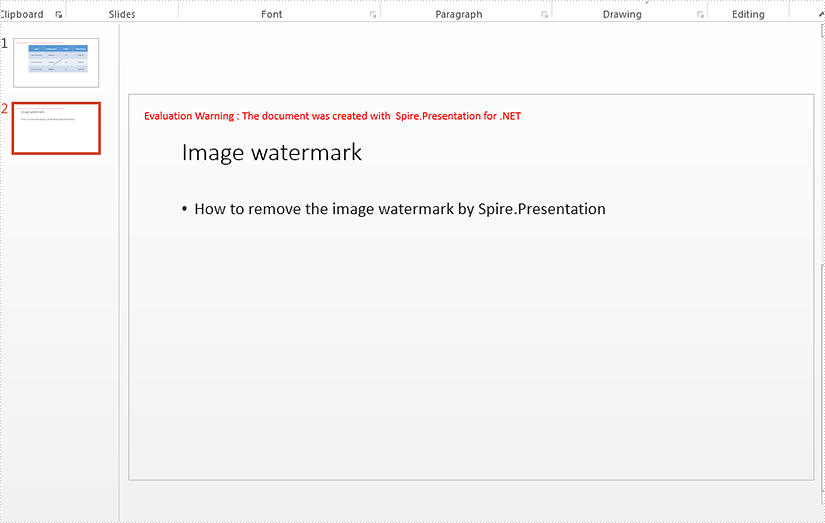
Full codes:
Remove text watermark in presentation slides:
using Spire.Presentation;
namespace RemoveWatermark
{

    class Program
    {

        static void Main(string[] args)
        {
            Presentation ppt = new Presentation();
            ppt.LoadFromFile("Sample.pptx", FileFormat.Pptx2013);

            for (int i = 0; i < ppt.Slides.Count; i++)
            {
                for (int j = 0; j < ppt.Slides[i].Shapes.Count; j++)
                {
                    if (ppt.Slides[i].Shapes[j] is IAutoShape)
                    {
                        IAutoShape shape = ppt.Slides[i].Shapes[j] as IAutoShape;
                        if (shape.TextFrame.Text.Contains("Confidential"))
                        {
                            ppt.Slides[i].Shapes.Remove(shape);
                        }
                    }
                }
            }
            ppt.SaveToFile("RemoveTextWartermark.pptx", FileFormat.Pptx2013);
        }
    }
Remove image watermark in presentation slides:
using Spire.Presentation;
using Spire.Presentation.Drawing;
namespace RemoveWatermark
{

    class Program
    {

        static void Main(string[] args)
        {
            Presentation ppt = new Presentation();
            ppt.LoadFromFile("Sample2.pptx", FileFormat.Pptx2013);

            for (int i = 0; i < ppt.Slides.Count; i++)
            {
                ppt.Slides[i].SlideBackground.Fill.FillType = FillFormatType.None;
            }

            ppt.SaveToFile("RemovePicWatermak.pptx", FileFormat.Pptx2013);

        }
    }
}
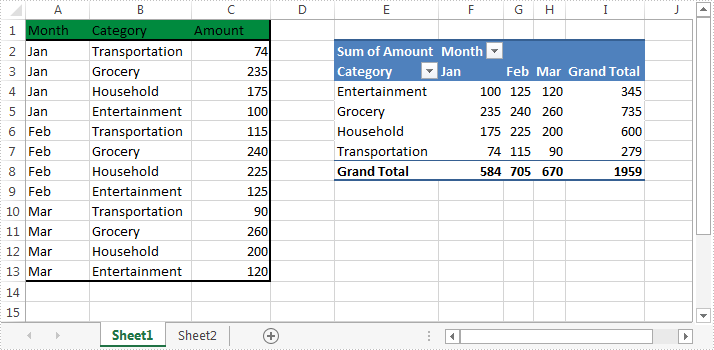
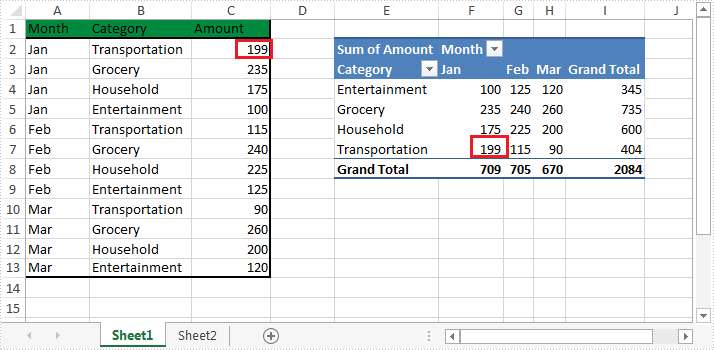
By default, the data source of PivotTable won't be refreshed automatically. If we update the data source of our PivotTable, the PivotTable that was built on that data source needs to be refreshed. This article is going to elaborate how to refresh PivotTable in Excel programmatically in c# using Spire.XLS.
Below is the screenshot of the example Excel file:
Detail steps:
Step 1: Instantiate a Workbook object and load the Excel file.
Workbook workbook = new Workbook();
workbook.LoadFromFile(@"Sample.xlsx");
Step 2: Get the first worksheet.
Worksheet sheet = workbook.Worksheets[0];
Step 3: update the data source of PivotTable.
sheet.Range["C2"].Value = "199";
Step 4: Get the PivotTable that was built on the data source.
XlsPivotTable pt = workbook.Worksheets[0].PivotTables[0] as XlsPivotTable;
Step 5: Refresh the data of PivotTable.
pt.Cache.IsRefreshOnLoad = true;
Step 6: Save the file.
workbook.SaveToFile("Output.xlsx", ExcelVersion.Version2013);
Output after updating data source and refreshing the PivotTable:
Full code:
using Spire.Xls;
using Spire.Xls.Core.Spreadsheet.PivotTables;

namespace Refresh_Pivot_Table_in_Excel
{
    class Program
    {
        static void Main(string[] args)
        {
            //Instantiate a Workbook object
            Workbook workbook = new Workbook();
            //Load the Excel file
            workbook.LoadFromFile(@"Sample.xlsx");

            //Get the first worksheet
            Worksheet sheet = workbook.Worksheets[0];

            //Update the data source of PivotTable
            sheet.Range["C2"].Value = "199";

            //Get the PivotTable that was built on the data source
            XlsPivotTable pt = workbook.Worksheets[0].PivotTables[0] as XlsPivotTable;

            //Refresh the data of PivotTable
            pt.Cache.IsRefreshOnLoad = true;

            //Save the file
            workbook.SaveToFile("Output.xlsx", ExcelVersion.Version2013);
        }
    }
}
