
Knowledgebase (2370)
Children categories
In PDF, an attachment is an additional file that is attached to a PDF document. There are many kinds of attachments, such as a document, an image file or other supported file types.
Spire.PDF, as a professional library, enables us to add various attachments as per our needs without having Adobe Acrobat been installed on system. This article demonstrates how to add attachments - a word document and an image to PDF in WPF applications using Spire.PDF for WPF.
Please see the following effective screenshot after adding attachments:
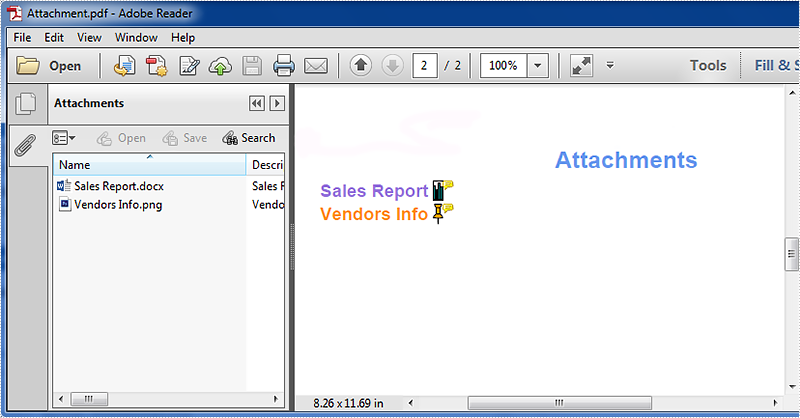
Double click the attachment icon, the attached file will be open automatically.
Detail steps:
Use following namespace:
using System;
using System.Drawing;
using System.IO;
using System.Windows;
using Spire.Pdf;
using Spire.Pdf.Annotations;
using Spire.Pdf.Graphics;
Step 1: Load the original PDF document and add a new page to it.
PdfDocument doc = new PdfDocument("Sales Report.pdf");
PdfPageBase page = section.Pages.Add();
Step 2: In the new page, draw a title for the attachments.
float y = 10;
PdfBrush brush1 = PdfBrushes.CornflowerBlue;
PdfTrueTypeFont font1 = new PdfTrueTypeFont(new Font("Arial", 16f, System.Drawing.FontStyle.Bold));
PdfStringFormat format1 = new PdfStringFormat(PdfTextAlignment.Center);
page.Canvas.DrawString("Attachments", font1, brush1, page.Canvas.ClientSize.Width / 2, y, format1);
Step 3: Load the file that needs to be attached using the File.ReadAllBytes(string path) method, then add the file to the specified page of the PDF document as attachment.
Add Word document attachment with attachment annotation:
PdfTrueTypeFont font2 = new PdfTrueTypeFont(new Font("Arial", 12f, System.Drawing.FontStyle.Bold));
PointF location = new PointF(50, y);
String label = "Sales Report";
byte[] data = File.ReadAllBytes("Sales Report.docx");
SizeF size = font2.MeasureString(label);
RectangleF bounds = new RectangleF(location, size);
page.Canvas.DrawString(label, font2, PdfBrushes.MediumPurple, bounds);
bounds = new RectangleF(bounds.Right + 3, bounds.Top, font2.Height / 2, font2.Height);
PdfAttachmentAnnotation annotation1 = new PdfAttachmentAnnotation(bounds, "Sales Report.docx", data);
annotation1.Color = Color.Teal;
annotation1.Flags = PdfAnnotationFlags.NoZoom;
annotation1.Icon = PdfAttachmentIcon.Graph;
annotation1.Text = "Sales Report.docx";
(page as PdfNewPage).Annotations.Add(annotation1);
Add image attachment is similar with adding Word attachment, refer to following codes:
location = new PointF(50, y);
label = "Vendors Info";
data = File.ReadAllBytes("Vendors Info.png");
size = font2.MeasureString(label);
bounds = new RectangleF(location, size);
page.Canvas.DrawString(label, font2, PdfBrushes.DarkOrange, bounds);
bounds = new RectangleF(bounds.Right + 3, bounds.Top, font2.Height / 2, font2.Height);
PdfAttachmentAnnotation annotation2 = new PdfAttachmentAnnotation(bounds, "Vendors Info.png", data);
annotation2.Color = Color.Orange;
annotation2.Flags = PdfAnnotationFlags.ReadOnly;
annotation2.Icon = PdfAttachmentIcon.PushPin;
annotation2.Text = "Vendors info image";
(page as PdfNewPage).Annotations.Add(annotation2);
Step 4: Save and launch the file.
doc.SaveToFile("Attachment.pdf");
System.Diagnostics.Process.Start("Attachment.pdf");
Full codes:
private void button1_Click(object sender, RoutedEventArgs e)
{
    //Load the original PDF document.
    PdfDocument doc = new PdfDocument("Sales Report.pdf");
    //Add a new page
    PdfPageBase page = doc.Pages.Add();

    float y = 10;
    //Set title text
    PdfBrush brush1 = PdfBrushes.CornflowerBlue;
    PdfTrueTypeFont font1 = new PdfTrueTypeFont(new Font("Arial", 16f,   System.Drawing.FontStyle.Bold));
    PdfStringFormat format1 = new PdfStringFormat(PdfTextAlignment.Center);
    page.Canvas.DrawString("Attachments", font1, brush1, page.Canvas.ClientSize.Width / 2, y, format1);
    y = y + font1.MeasureString("Attachments", format1).Height;
    y = y + 5;

    //Add Word document attachment
    PdfTrueTypeFont font2 = new PdfTrueTypeFont(new Font("Arial", 12f, System.Drawing.FontStyle.Bold));
    PointF location = new PointF(50, y);
    String label = "Sales Report";
    byte[] data = File.ReadAllBytes("Sales Report.docx");
    SizeF size = font2.MeasureString(label);
    RectangleF bounds = new RectangleF(location, size);
    page.Canvas.DrawString(label, font2, PdfBrushes.MediumPurple, bounds);
    bounds = new RectangleF(bounds.Right + 3, bounds.Top, font2.Height / 2, font2.Height);
    PdfAttachmentAnnotation annotation1 = new PdfAttachmentAnnotation(bounds, "Sales  Report.docx", data);
    annotation1.Color = Color.Teal;
    annotation1.Flags = PdfAnnotationFlags.NoZoom;
    annotation1.Icon = PdfAttachmentIcon.Graph;
    annotation1.Text = "Sales Report.docx";
    (page as PdfNewPage).Annotations.Add(annotation1);
    y = y + size.Height + 2;

    //Add image attachment
    location = new PointF(50, y);
    label = "Vendors Info";
    data = File.ReadAllBytes("Vendors Info.png");
    size = font2.MeasureString(label);
    bounds = new RectangleF(location, size);
    page.Canvas.DrawString(label, font2, PdfBrushes.DarkOrange, bounds);
    bounds = new RectangleF(bounds.Right + 3, bounds.Top, font2.Height / 2, font2.Height);
    PdfAttachmentAnnotation annotation2 = new PdfAttachmentAnnotation(bounds, "Vendors  Info.png", data);
    annotation2.Color = Color.Orange;
    annotation2.Flags = PdfAnnotationFlags.ReadOnly;
    annotation2.Icon = PdfAttachmentIcon.PushPin;
    annotation2.Text = "Vendors info image";
    (page as PdfNewPage).Annotations.Add(annotation2);

    //Save and launch the file.
    doc.SaveToFile("Attachment.pdf");
    System.Diagnostics.Process.Start("Attachment.pdf");
}
Usually, when you open a PDF document, the blank background looks a little drab. You might want to create background for your PDF document to make them more visually appealing through the using of a background image.
In the following sections, I will demonstrate how to insert PDF background image in WPF.
Here is the original PDF document without background image.

The code snippets are as followed:
Step 1: Initialize a new instance of PdfDocument class and load the PDF document from the file.
PdfDocument doc = new PdfDocument();
doc.LoadFromFile("To a Skylark.pdf");
Step 2: In this example, we choose the first page of PDF file to insert the background image.
PdfPageBase page = doc.Pages[0];
Step 3: Load the image from file and set it as background image.
System.Drawing.Image backgroundImage = System.Drawing.Image.FromFile("Sky.jpg");
page.BackgroundImage = backgroundImage;
Step 4: Save the PDF document and launch the file.
doc.SaveToFile("With Background Image.pdf");
System.Diagnostics.Process.Start("With Background Image.pdf");
Effective screenshot:

Full Codes:
using System.Windows;
using Spire.Pdf;

namespace Poetic_Works
{
    ///
    /// Interaction logic for MainWindow.xaml
    ///
    public partial class MainWindow : Window
    {
        public MainWindow()
        {
            InitializeComponent();
        }

        private void button2_Click(object sender, RoutedEventArgs e)
        {
            PdfDocument doc = new PdfDocument();
            doc.LoadFromFile("To a Skylark.pdf");
            PdfPageBase page = doc.Pages[0];
            System.Drawing.Image backgroundImage = System.Drawing.Image.FromFile("Sky.jpg");
            page.BackgroundImage = backgroundImage;
            doc.SaveToFile("With Background Image.pdf");
            System.Diagnostics.Process.Start("With Background Image.pdf");
        }
    }
}
Imports System.Windows
Imports Spire.Pdf

Namespace Poetic_Works
	'''
	''' Interaction logic for MainWindow.xaml
	'''
	Public Partial Class MainWindow
		Inherits Window
		Public Sub New()
			InitializeComponent()
		End Sub

		Private Sub button2_Click(sender As Object, e As RoutedEventArgs)
			Dim doc As New PdfDocument()
			doc.LoadFromFile("To a Skylark.pdf")
			Dim page As PdfPageBase = doc.Pages(0)

			Dim backgroundImage As System.Drawing.Image = System.Drawing.Image.FromFile("Sky.jpg")
			page.BackgroundImage = backgroundImage
			doc.SaveToFile("With Background Image.pdf")
			System.Diagnostics.Process.Start("With Background Image.pdf")
		End Sub
	End Class
End Namespace
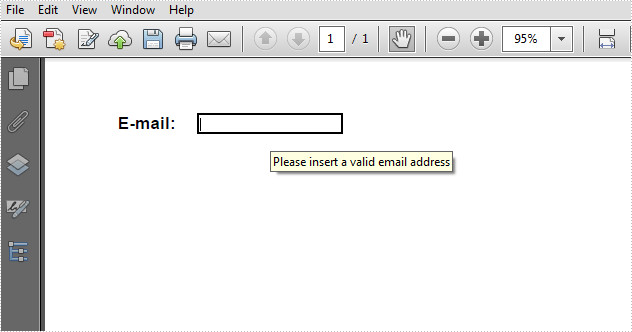
Tooltip is a message box that appears when users hover the pointer over the form field, providing users with instructions about the field, for instance, some extra information that users may find helpful in filling in the form field. This article presents how to add a tooltip to PDF form field using Spire.PDF in C# and VB.NET.
Code Snippet
Step 1: Initialize a new object of PdfDcoument class, add a page to it.
PdfDocument doc = new PdfDocument();
PdfPageBase page = doc.Pages.Add(PdfPageSize.A4, new PdfMargins(0));
Step 2: Add some text and a textbox on the PDF page.
PdfFont font = new PdfFont(PdfFontFamily.Helvetica, 12f,PdfFontStyle.Bold);
PdfBrush brush = PdfBrushes.Black;
float x = 50;
float y = 50;
float tempX = 0;
string text = "E-mail: ";
page.Canvas.DrawString(text, font, brush, x, y);
tempX = font.MeasureString(text).Width + x+15;
PdfTextBoxField textbox = new PdfTextBoxField(page, "TextBox");
textbox.Bounds = new RectangleF(tempX, y, 100, 15);
textbox.BorderWidth = 0.75f;
textbox.BorderStyle = PdfBorderStyle.Solid;
doc.Form.Fields.Add(textbox);
Step 3: The PdfDocument class provides a Fields collection which represents all form fields in the PDF document. You can get the specific field by its index or name, then set the value of ToolTip property to add a tooltip.
doc.Form.Fields["TextBox"].ToolTip = "Please insert a valid email address";
Step 4: Save and launch the file.
doc.SaveToFile("sample.pdf", FileFormat.PDF);
System.Diagnostics.Process.Start("sample.pdf");
Output:
Full Code:
using Spire.Pdf;
using Spire.Pdf.Fields;
using Spire.Pdf.Graphics;
using System.Drawing;


namespace AddTooltip
{
    class Program
    {
        static void Main(string []args)
        {
            PdfDocument doc = new PdfDocument();
            PdfPageBase page = doc.Pages.Add(PdfPageSize.A4, new PdfMargins(0));

            PdfFont font = new PdfFont(PdfFontFamily.Helvetica, 12f, PdfFontStyle.Bold);
            PdfBrush brush = PdfBrushes.Black;
            float x = 50;
            float y = 50;
            float tempX = 0;
            string text = "E-mail: ";
            page.Canvas.DrawString(text, font, brush, x, y);
            tempX = font.MeasureString(text).Width + x + 15;
            PdfTextBoxField textbox = new PdfTextBoxField(page, "TextBox");
            textbox.Bounds = new RectangleF(tempX, y, 100, 15);
            textbox.BorderWidth = 0.75f;
            textbox.BorderStyle = PdfBorderStyle.Solid;
            doc.Form.Fields.Add(textbox);

            doc.Form.Fields["TextBox"].ToolTip = "Please insert a valid email address";

            doc.SaveToFile("sample.pdf", FileFormat.PDF);
            System.Diagnostics.Process.Start("sample.pdf");
        }
    }
}
Imports Spire.Pdf
Imports Spire.Pdf.Fields
Imports Spire.Pdf.Graphics
Imports System.Drawing


Namespace AddTooltip
	Class Program
		Private Shared Sub Main(args As String())
			Dim doc As New PdfDocument()
			Dim page As PdfPageBase = doc.Pages.Add(PdfPageSize.A4, New PdfMargins(0))

			Dim font As New PdfFont(PdfFontFamily.Helvetica, 12F, PdfFontStyle.Bold)
			Dim brush As PdfBrush = PdfBrushes.Black
			Dim x As Single = 50
			Dim y As Single = 50
			Dim tempX As Single = 0
			Dim text As String = "E-mail: "
			page.Canvas.DrawString(text, font, brush, x, y)
			tempX = font.MeasureString(text).Width + x + 15
			Dim textbox As New PdfTextBoxField(page, "TextBox")
			textbox.Bounds = New RectangleF(tempX, y, 100, 15)
			textbox.BorderWidth = 0.75F
			textbox.BorderStyle = PdfBorderStyle.Solid
			doc.Form.Fields.Add(textbox)

			doc.Form.Fields("TextBox").ToolTip = "Please insert a valid email address"

			doc.SaveToFile("sample.pdf", FileFormat.PDF)
			System.Diagnostics.Process.Start("sample.pdf")
		End Sub
	End Class
End Namespace
