
Knowledgebase (2370)
Children categories
Creating, Writing and Saving Excel file are basic tasks in our daily life. This guide will demonstrate how to create an Excel file, insert some data and save the file with specified file format using Spire.XLS for WPF.
Apart from creating Excel from scratch, Spire.XLS also supports to load an existing Excel file, modify the data and do a large range of manipulations in Excel.
Code Snippets:
Step 1: Initialize a new instance of Workbook class. By default, three blank worksheets will be added into the workbook accordingly.
Workbook workbook = new Workbook();
Step 2: Get the first worksheet from workbook and rename the sheet as "Test”.
Worksheet sheet = workbook.Worksheets[0];
sheet.Name = "Test";
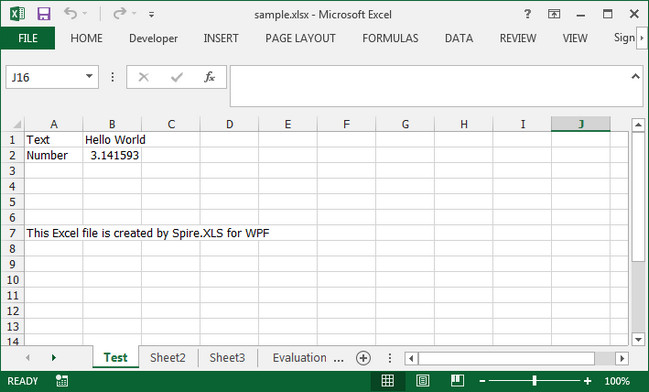
Step 3: Insert some text value and number value into the specified cells.
sheet.Range["A1"].Text = "Text";
sheet.Range["A2"].Text = "Number";
sheet.Range["B1"].Text = "Hello World";
sheet.Range["B2"].NumberValue = 3.1415926;
sheet.Range["A7"].Text = "This Excel file is created by Spire.XLS for WPF";
Step 4: Save the file in the format of Excel 2013.
workbook.SaveToFile("sample.xlsx",ExcelVersion.Version2013);
Output:
Full Code:
using Spire.Xls;
using System.Windows;

namespace WpfApplication1
{
    public partial class MainWindow : Window
    {
        public MainWindow()
        {
            InitializeComponent();
        }
        private void button1_Click(object sender, RoutedEventArgs e)
        {
            Workbook workbook = new Workbook();
            Worksheet sheet = workbook.Worksheets[0];
            sheet.Name = "Test";

            sheet.Range["A1"].Text = "Text";
            sheet.Range["A2"].Text = "Number";
            sheet.Range["B1"].Text = "Hello World";
            sheet.Range["B2"].NumberValue = 3.1415926;
            sheet.Range["A7"].Text = "This Excel file is created by Spire.XLS for WPF";

            workbook.SaveToFile("sample.xlsx", ExcelVersion.Version2013);
            System.Diagnostics.Process.Start("sample.xlsx");

        }
    }
}
Imports Spire.Xls
Imports System.Windows

Namespace WpfApplication1
	Public Partial Class MainWindow
		Inherits Window
		Public Sub New()
			InitializeComponent()
		End Sub
		Private Sub button1_Click(sender As Object, e As RoutedEventArgs)
			Dim workbook As New Workbook()
			Dim sheet As Worksheet = workbook.Worksheets(0)
			sheet.Name = "Test"

			sheet.Range("A1").Text = "Text"
			sheet.Range("A2").Text = "Number"
			sheet.Range("B1").Text = "Hello World"
			sheet.Range("B2").NumberValue = 3.1415926
			sheet.Range("A7").Text = "This Excel file is created by Spire.XLS for WPF"

			workbook.SaveToFile("sample.xlsx", ExcelVersion.Version2013)
			System.Diagnostics.Process.Start("sample.xlsx")

		End Sub
	End Class
End Namespace
With the help of Spire.XLS for WPF, developers can easily save the whole Excel Worksheet to Image for their WPF applications. Sometimes we don’t want to share the whole Excel file with data to others and only want to show some charts on the Excel. Spire.XLS for WPF offers a method of workbook.SaveChartAsImage(); to enable us to save the Excel chart to image easily. In the following section, we will demonstrate how to save the Excel chart as image in .png for example for WPF applications.
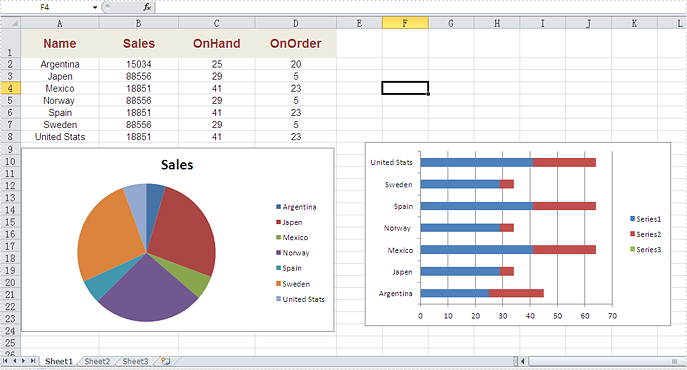
Firstly, please view the whole Excel worksheet with data and two charts, a pie chart and a bar chart:
Note: Before Start, please download the latest version of Spire.XLS and add Spire.Xls.Wpf.dll in the bin folder as the reference of Visual Studio.
Here comes to the code snippets of how to save excel chart as image:
Step 1: Create a new Excel workbook and load from file.
Workbook workbook = new Workbook();
workbook.LoadFromFile("Sample.xlsx", ExcelVersion.Version2010);
Step 2: Get the first worksheet from workbook.
Worksheet sheet = workbook.Worksheets[0];
Step 3: Save all the charts in the first worksheet as images.
System.Drawing.Image[] imgs = workbook.SaveChartAsImage(sheet);

for (int i = 0; i < imgs.Length; i++)
{

    imgs[i].Save(string.Format("img-{0}.png", i), ImageFormat.Png);

}
Effective screenshots:


Full codes:
using Spire.Xls;
using System.Drawing.Imaging;
using System.Windows;

namespace WpfApplication1
{
    public partial class MainWindow : Window
    {
        public MainWindow()
        {
            InitializeComponent();
        }
        private void button2_Click(object sender, RoutedEventArgs e)
        {
            Workbook workbook = new Workbook();
            workbook.LoadFromFile("Sample.xlsx", ExcelVersion.Version2010);

            Worksheet sheet = workbook.Worksheets[0];
            System.Drawing.Image[] imgs = workbook.SaveChartAsImage(sheet);

            for (int i = 0; i < imgs.Length; i++)
            {

                imgs[i].Save(string.Format("img-{0}.png", i), ImageFormat.Png);

            }
        }
    }
}
Using Spire.Doc for WPF, programmers can easily create, open, modify and save Word documents in WPF applications. In this article, we’ll introduce how to insert a paragraph to desired position in an existing Word document.
To begin with, you need to download Spire.Doc for WPF and add the Spire.Doc.Wpf.dll and Spire.License.dll as the references to your WPF project. Then add a button in MainWindow and double click the button to write code.
Here are code snippets in the button click event:
Step 1: Initialize a new instance of Document class and load the sample Word document.
Document document = new Document();
document.LoadFromFile("sample.docx", FileFormat.Docx);
Step 2: Initialize a new instance of Paragraph class and append some text to it.
Paragraph paraInserted = new Paragraph(document);
TextRange textRange1 = paraInserted.AppendText("Hello, this is a new paragraph.");
Step 3: Set the text formatting of the paragraph.
textRange1.CharacterFormat.TextColor = System.Drawing.Color.Purple;
textRange1.CharacterFormat.FontSize = 11;
textRange1.CharacterFormat.FontName = "Calibri Light";
Step 4: Insert the paragraph at the first section at index 1, which indicates the position of the second paragraph in the section.
document.Sections[0].Paragraphs.Insert(1, paraInserted);
Step 5: Save the file.
document.SaveToFile("result.docx", FileFormat.Docx);
Output:

Full Code:
using Spire.Doc;
using Spire.Doc.Documents;
using Spire.Doc.Fields;
using System.Windows;

namespace WpfApplication1
{
    public partial class MainWindow : Window
    {
        public MainWindow()
        {
            InitializeComponent();
        }
        private void button1_Click(object sender, RoutedEventArgs e)
        {
            Document document = new Document();
            document.LoadFromFile("sample.docx", FileFormat.Docx);

            Paragraph paraInserted = new Paragraph(document);
            TextRange textRange1 = paraInserted.AppendText("Hello, this is a new paragraph.");
            textRange1.CharacterFormat.TextColor = System.Drawing.Color.Purple;
            textRange1.CharacterFormat.FontSize = 11;
            textRange1.CharacterFormat.FontName = "Calibri Light";

            document.Sections[0].Paragraphs.Insert(1, paraInserted);
            document.SaveToFile("result.docx", FileFormat.Docx);
        }


    }
}
Imports Spire.Doc
Imports Spire.Doc.Documents
Imports Spire.Doc.Fields
Imports System.Windows

Namespace WpfApplication1
	Public Partial Class MainWindow
		Inherits Window
		Public Sub New()
			InitializeComponent()
		End Sub
		Private Sub button1_Click(sender As Object, e As RoutedEventArgs)
			Dim document As New Document()
			document.LoadFromFile("sample.docx", FileFormat.Docx)

			Dim paraInserted As New Paragraph(document)
			Dim textRange1 As TextRange = paraInserted.AppendText("Hello, this is a new paragraph.")
			textRange1.CharacterFormat.TextColor = System.Drawing.Color.Purple
			textRange1.CharacterFormat.FontSize = 11
			textRange1.CharacterFormat.FontName = "Calibri Light"

			document.Sections(0).Paragraphs.Insert(1, paraInserted)
			document.SaveToFile("result.docx", FileFormat.Docx)
		End Sub


	End Class
End Namespace
