
Knowledgebase (2370)
Children categories
Usually there are three kinds of alignment style for a word table: left aligned, centered and right aligned. On Microsoft word, we can go to table properties to set the alignment for the whole table. Spire.Doc also offers a property table.TableFormat.HorizontalAlignment to enable developers to set the table alignment style easily in C#. This article will demonstrate how to align a table in C#.
Firstly, view the how to align a table for Microsoft word:
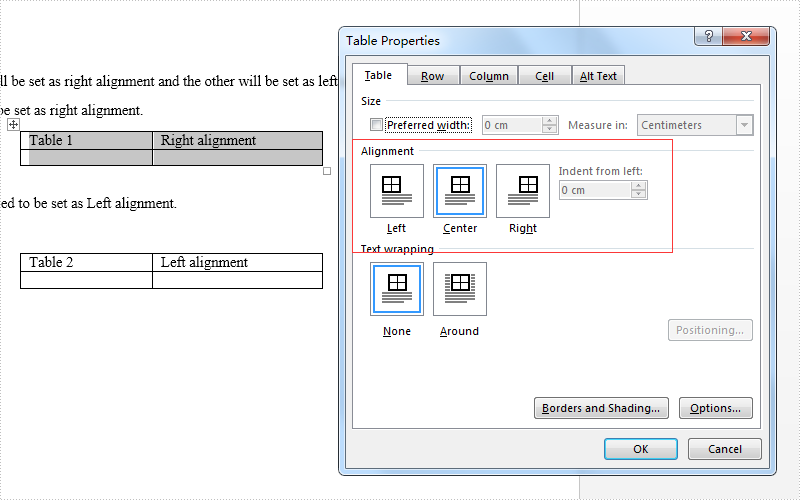
Here come to the code snippet of how Spire.Doc align a table.
Step 1: Create a word document and load from file.
Document doc = new Document();
doc.LoadFromFile("sample.docx");
Step 2: Get the first section and two tables from the word document.
Section section = doc.Sections[0];
Table table = section.Tables[0] as Table;
Table table1 = section.Tables[1] as Table;
Step 3: Set the different alignment properties for each table.
table.Format.HorizontalAlignment = RowAlignment.Right;
table.Format.LeftIndent = 34;

table1.Format.HorizontalAlignment = RowAlignment.Left;
table1.Format.LeftIndent = 34;
Step 4: Save the document to file:
doc.SaveToFile("result.docx", FileFormat.Docx);
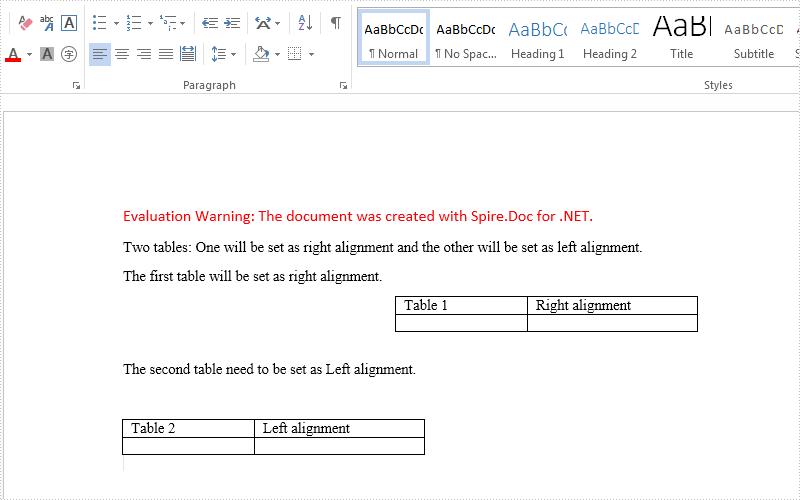
Effective screenshots after align the table format:
Full codes:
using Spire.Doc;
using Spire.Doc.Documents;
namespace AlignTable
{
    class Program
    {

        static void Main(string[] args)
        {

            Document doc = new Document();
            doc.LoadFromFile("sample.docx");

            Section section = doc.Sections[0];
            Table table = section.Tables[0] as Table;
            Table table1 = section.Tables[1] as Table;

            table.Format.HorizontalAlignment = RowAlignment.Right;
            table.Format.LeftIndent = 34;

            table1.Format.HorizontalAlignment = RowAlignment.Left;
            table1.Format.LeftIndent = 34;

            doc.SaveToFile("result.docx", FileFormat.Docx);
        }
    }
}
Adding layers can help us to make the information that we don't want others to view become invisible in a pdf file. Spire.PDF, as a powerful and independent pdf library, enables us to add layers to pdf files without having Adobe Acrobat been installed on system.
This article will introduce how to add different types of layers to a pdf file in WPF using Spire.PDF for WPF.
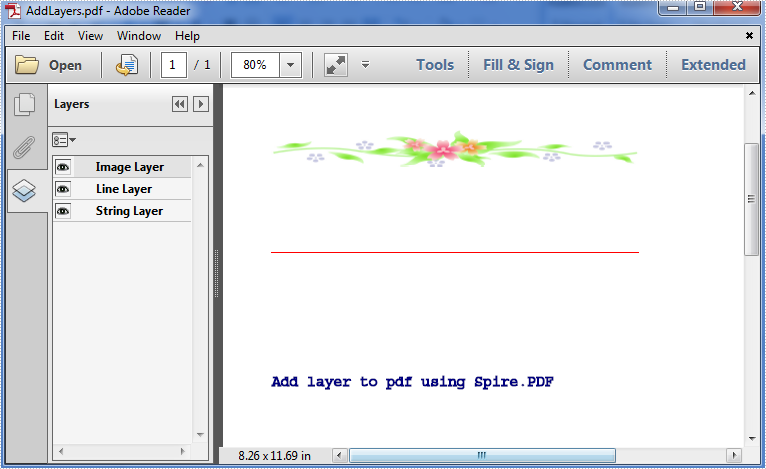
Below is the effective screenshot after adding layers:
Detail Steps and Code Snippets:
Use namespace:
using System.Drawing;
using System.Windows;
using Spire.Pdf;
using Spire.Pdf.Graphics;
Step 1: Create a new PDF file and add a new page to it.
PdfDocument doc = new PdfDocument();
PdfPageBase page = doc.Pages.Add();
Step 2: Add image layer.
Add a layer named Image Layer to the page, call DrawImage(PdfImage image, float x, float y, float width, float height) method to add an image to the layer.
PdfPageLayer layer = page.PageLayers.Add("Image Layer");
layer.Graphics.DrawImage(PdfImage.FromFile("image.jpg"), 0, 100, 300, 30);
Step 3: Add line layer.
Add a layer named Line Layer to the page, call DrawLine(PdfPen pen, PointF point1, PointF point2) method to draw a red line to the layer.
layer = page.PageLayers.Add("Line Layer");
layer.Graphics.DrawLine(new PdfPen(PdfBrushes.Red, 1), new PointF(0, 200), new PointF(300, 200));
Step 4: Add string layer.
Add a layer named String Layer to the page, call DrawString(string s, PdfFontBase font, PdfPen pen, float x, float y) method to draw some string to the layer.
layer = page.PageLayers.Add("String Layer");
layer.Graphics.DrawString("Add layer to pdf using Spire.PDF", new PdfFont(PdfFontFamily.Courier, 12), new PdfPen(PdfBrushes.Navy,1),0,300);
Step 5: Save and launch the file.
doc.SaveToFile("AddLayers.pdf", FileFormat.PDF);
System.Diagnostics.Process.Start("AddLayers.pdf");
Full codes:
private void button1_Click(object sender, RoutedEventArgs e)
{
    PdfDocument doc = new PdfDocument();
    PdfPageBase page = doc.Pages.Add();

    PdfPageLayer layer = page.PageLayers.Add("Image Layer");
    layer.Graphics.DrawImage(PdfImage.FromFile("image.jpg"), 0, 100, 300, 30);

    layer = page.PageLayers.Add("Line Layer");
    layer.Graphics.DrawLine(new PdfPen(PdfBrushes.Red, 1), new PointF(0, 200), new PointF(300, 200));

    layer = page.PageLayers.Add("String Layer");
    layer.Graphics.DrawString("Add layer to pdf using Spire.PDF", new PdfFont(PdfFontFamily.Courier, 12), new PdfPen(PdfBrushes.Navy,1),0,300);

    doc.SaveToFile("AddLayers.pdf", FileFormat.PDF);
    System.Diagnostics.Process.Start("AddLayers.pdf");
}
Change the color or remove underline from hyperlink in Word with C#
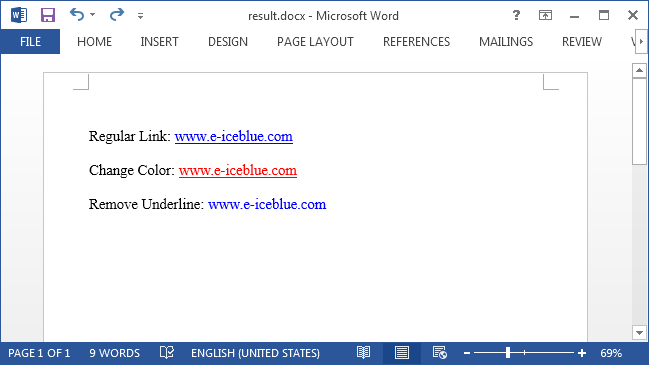
2016-05-12 08:14:23 Written by KoohjiBy default, hyperlink in Word shows up as blue and underlined. In some cases, users may want to modify the hyperlink style so as to get better looking with the whole document. This article is going to introduce how we can remove the underline or change the color of hyperlinks using Spire.Doc in C#.
Code Snippets:
Step 1: Create a new object of Document class, add a section to it.
Document document = new Document();
Section section = document.AddSection();
Step 2: Add a paragraph and append a hyperlink to the paragraph. In order to format the hyperlink, we return the value of hyperlink in a TextRange.
Paragraph para= section.AddParagraph();
TextRange txtRange = para1.AppendHyperlink("www.e-iceblue.com", "www.e-iceblue.com", HyperlinkType.WebLink);
Step 3: Format the hyperlink with the specified the font name, font size, color and underline style.
txtRange.CharacterFormat.FontName = "Times New Roman";
txtRange.CharacterFormat.FontSize = 12;
txtRange.CharacterFormat.TextColor = System.Drawing.Color.Red;
txtRange.CharacterFormat.UnderlineStyle = UnderlineStyle.None;
Step 4: Save the file.
document.SaveToFile("result.docx", FileFormat.Docx2013);
Output:
Full Code:
using Spire.Doc;
using Spire.Doc.Documents;
using Spire.Doc.Fields;

namespace FormatHyperlink
{
    class Program
    {
        static void Main(string[] args)
        {
            Document document = new Document();
            Section section = document.AddSection();

            Paragraph para1= section.AddParagraph();
            para1.AppendText("Regular Link: ");
            TextRange txtRange1 = para1.AppendHyperlink("www.e-iceblue.com", "www.e-iceblue.com", HyperlinkType.WebLink);
            txtRange1.CharacterFormat.FontName = "Times New Roman";
            txtRange1.CharacterFormat.FontSize = 12;
            Paragraph blankPara1 = section.AddParagraph();

            Paragraph para2 = section.AddParagraph();
            para2.AppendText("Change Color: ");
            TextRange txtRange2 = para2.AppendHyperlink("www.e-iceblue.com", "www.e-iceblue.com", HyperlinkType.WebLink);
            txtRange2.CharacterFormat.FontName = "Times New Roman";
            txtRange2.CharacterFormat.FontSize = 12;
            txtRange2.CharacterFormat.TextColor = System.Drawing.Color.Red;
            Paragraph blankPara2 = section.AddParagraph();

            Paragraph para3 = section.AddParagraph();
            para3.AppendText("Remove Underline: ");
            TextRange txtRange3 = para3.AppendHyperlink("www.e-iceblue.com", "www.e-iceblue.com", HyperlinkType.WebLink);
            txtRange3.CharacterFormat.FontName = "Times New Roman";
            txtRange3.CharacterFormat.FontSize = 12;
            txtRange3.CharacterFormat.UnderlineStyle = UnderlineStyle.None;

            document.SaveToFile("result.docx", FileFormat.Docx2013);
            System.Diagnostics.Process.Start("result.docx");
        }
    }
}
