
Knowledgebase (2370)
Children categories
Inserting paragraphs in Word is a fundamental skill for creating well-structured and organized documents. Paragraphs can break down large blocks of text, making it easier for readers to follow the flow of ideas and find specific information. In Word, you can add new paragraphs to represent new ideas or add additional information. This article will demonstrate how to insert a new paragraph in Word in C# using Spire.Doc for .NET.
- Add a Paragraph at the End of a Word Document in C#
- Insert a Paragraph at a Specified Location in Word in C#
Install Spire.Doc for .NET
To begin with, you need to add the DLL files included in the Spire.Doc for .NET package as references in your .NET project. The DLL files can be either downloaded from this link or installed via NuGet.
PM> Install-Package Spire.Doc
Add a Paragraph at the End of a Word Document in C#
To add a new paragraph at the end, you need to get the last section of the Word document through the Document.LastSection property, and then add a paragraph at the end of the section through the Section.AddParagraph() method. The following are the detailed steps:
- Create a Document instance.
- Load a Word document using Document.LoadFromFile() method.
- Get the last section of the document using Document.LastSection property.
- Add a paragraph at the end of the section using Section.AddParagraph() method, and then add text to it using Paragraph.AppendText() method.
- Create a ParagraphStyle object and set the font name, size, style of the paragraph text.
- Apply the paragraph style using Paragraph.ApplyStyle() method
- Save the result document using Document.SaveToFile() method.
- C#
using Spire.Doc;
using Spire.Doc.Documents;
using System.Drawing;

namespace AddParagraph
{
    class Program
    {
        static void Main(string[] args)
        {
            //Create a Document object
            Document doc = new Document();

            //Load a Word document
            doc.LoadFromFile("Test.docx");

            //Get the last section
            Section section = doc.LastSection;

            //Add a paragraph at the end and set its text content
            Paragraph para = section.AddParagraph();
            para.AppendText("Add a paragraph to the end of the document.");

            //Set the paragraph style
            ParagraphStyle style = new ParagraphStyle(doc);
            style.Name = "Style1";
            style.CharacterFormat.FontName = "Times New Roman";
            style.CharacterFormat.FontSize = 12;
            style.CharacterFormat.TextColor = Color.Blue;
            style.CharacterFormat.Bold = true;
            doc.Styles.Add(style);
            para.ApplyStyle("Style1");
            para.Format.BeforeSpacing = 10;

            //Save the result file
            doc.SaveToFile("AddParagraph.docx", FileFormat.Docx2016);
        }
    }
}

Insert a Paragraph at a Specified Location in Word in C#
You can also add a paragraph and then insert it to a specified position through the Section.Paragraphs.Insert(int index, IParagraph paragraph) method. The following are the detailed steps:
- Create a Document instance.
- Load a Word document using Document.LoadFromFile() method.
- Get a specified section using Document.Sections[] property.
- Add a paragraph using Section.AddParagraph() method, and then add text to it using Paragraph.AppendText() method.
- Set the font name, size, style of the paragraph text.
- Insert the newly added paragraph at a specified index using Section.Paragraphs.Insert(int index, IParagraph paragraph) method.
- Save the result document using Document.SaveToFile() method.
- C#
using Spire.Doc;
using Spire.Doc.Documents;
using Spire.Doc.Fields;
using System.Drawing;

namespace InsertParagraph
{
    class Program
    {
        static void Main(string[] args)
        {
            //Create a Document object
            Document doc = new Document();

            //Load a Word document
            doc.LoadFromFile("Test.docx");


            //Get the first section
            Section section = doc.Sections[0];

            //Add a paragraph and set its text content
            Paragraph para = section.AddParagraph();
            TextRange textRange = para.AppendText("Insert a paragraph at a specified location in the Word document.");

            //Set the font name, size, color and style
            textRange.CharacterFormat.TextColor = Color.Blue;
            textRange.CharacterFormat.FontName = "Times New Roman";
            textRange.CharacterFormat.FontSize = 14;
            textRange.CharacterFormat.UnderlineStyle = UnderlineStyle.Single;

            //Insert the paragraph as the third paragraph
            section.Paragraphs.Insert(2, para);

            //Set spacing after the paragraph
            para.Format.AfterSpacing = 10;

            //Save the result file
            doc.SaveToFile("InsertParagraph.docx", FileFormat.Docx2016);
        }
    }
}

Apply for a Temporary License
If you'd like to remove the evaluation message from the generated documents, or to get rid of the function limitations, please request a 30-day trial license for yourself.
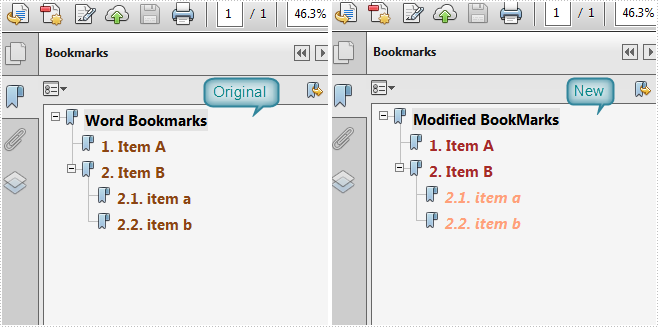
In order to distinguish nested bookmarks more clearly, you can set different font style and font color for parent and child bookmarks respectively. In this article, I’ll introduce how to modify bookmarks in the terms of font style, font color and text using Spire.PDF in C#, VB.NET.
Main Steps:
Step 1: Initialize a new object of PdfDocument and load the existing PDF file.
PdfDocument doc = new PdfDocument("Bookmark.Pdf");
Step 2: Get all bookmarks from the test file.
PdfBookmarkCollection bookmarks = doc.Bookmarks;
Step 3: Traverse very first-level bookmark in the bookmark tree. Change the properties of selected or all bookmarks, including title, color and display style.
foreach (PdfBookmark parentBookmark in bookmarks)
{
    //change "Word Bookmarks" to "M BookMark"
    bookmarks[0].Title = "Modified BookMarks";
    //set the color of the bookmark
    parentBookmark.Color = Color.Black;
    parentBookmark.DisplayStyle = PdfTextStyle.Bold;
    //edit child bookmark of parent bookmark
    EditChildBookmark(parentBookmark);
}
Step 4: In step 3, there is a nested method predefined as below. By invoking this method, we are able to modify child bookmarks of the upper level bookmark. In this example, we have two nested level bookmarks under the first-level bookmark.
static void EditChildBookmark(PdfBookmark parentBookmark)
{
   foreach (PdfBookmark childBookmark in parentBookmark)
   {
        childBookmark.Color = Color.Brown;
        childBookmark.DisplayStyle = PdfTextStyle.Regular;
        EditChild2Bookmark(childBookmark);
    }
}
static void EditChild2Bookmark(PdfBookmark childBookmark)
{
    foreach (PdfBookmark child2Bookmark in childBookmark)
    {
        child2Bookmark.Color = Color.LightSalmon;
        child2Bookmark.DisplayStyle = PdfTextStyle.Italic;
    }
}
Step 5: Save and launch the file.
doc.SaveToFile("Result.Pdf");
System.Diagnostics.Process.Start("Result.Pdf");
Screenshot of Effect:
Entire Code:
using Spire.Pdf;
using Spire.Pdf.Bookmarks;
using System.Drawing;


namespace ModifyBookmarks
{
    class Program
    {
        static void Main(string[] args)
        {
            PdfDocument doc = new PdfDocument("Bookmark.Pdf");
            PdfBookmarkCollection bookmarks = doc.Bookmarks;
            foreach (PdfBookmark parentBookmark in bookmarks)
            {
                //change "Word Bookmarks" to "M BookMark"
                bookmarks[0].Title = "Modified BookMarks";
                //set the color of the bookmark
                parentBookmark.Color = Color.Black;
                parentBookmark.DisplayStyle = PdfTextStyle.Bold;
                //edit child bookmark of parent bookmark
                EditChildBookmark(parentBookmark);
            }
            doc.SaveToFile("Result.Pdf");
            System.Diagnostics.Process.Start("Result.Pdf");
        }
        static void EditChildBookmark(PdfBookmark parentBookmark)
        {
            foreach (PdfBookmark childBookmark in parentBookmark)
            {
                childBookmark.Color = Color.Brown;
                childBookmark.DisplayStyle = PdfTextStyle.Regular;
                EditChild2Bookmark(childBookmark);
            }
        }
        static void EditChild2Bookmark(PdfBookmark childBookmark)
        {
            foreach (PdfBookmark child2Bookmark in childBookmark)
            {
                child2Bookmark.Color = Color.LightSalmon;
                child2Bookmark.DisplayStyle = PdfTextStyle.Italic;
            }
        }
    }
}
Imports Spire.Pdf
Imports Spire.Pdf.Bookmarks
Imports System.Drawing


Namespace ModifyBookmarks
	Class Program
		Private Shared Sub Main(args As String())
			Dim doc As New PdfDocument("Bookmark.Pdf")
			Dim bookmarks As PdfBookmarkCollection = doc.Bookmarks
			For Each parentBookmark As PdfBookmark In bookmarks
				'change "Word Bookmarks" to "M BookMark"
				bookmarks(0).Title = "Modified BookMarks"
				'set the color of the bookmark
				parentBookmark.Color = Color.Black
				parentBookmark.DisplayStyle = PdfTextStyle.Bold
				'edit child bookmark of parent bookmark
				EditChildBookmark(parentBookmark)
			Next
			doc.SaveToFile("Result.Pdf")
			System.Diagnostics.Process.Start("Result.Pdf")
		End Sub
		Private Shared Sub EditChildBookmark(parentBookmark As PdfBookmark)
			For Each childBookmark As PdfBookmark In parentBookmark
				childBookmark.Color = Color.Brown
				childBookmark.DisplayStyle = PdfTextStyle.Regular
				EditChild2Bookmark(childBookmark)
			Next
		End Sub
		Private Shared Sub EditChild2Bookmark(childBookmark As PdfBookmark)
			For Each child2Bookmark As PdfBookmark In childBookmark
				child2Bookmark.Color = Color.LightSalmon
				child2Bookmark.DisplayStyle = PdfTextStyle.Italic
			Next
		End Sub
	End Class
End Namespace
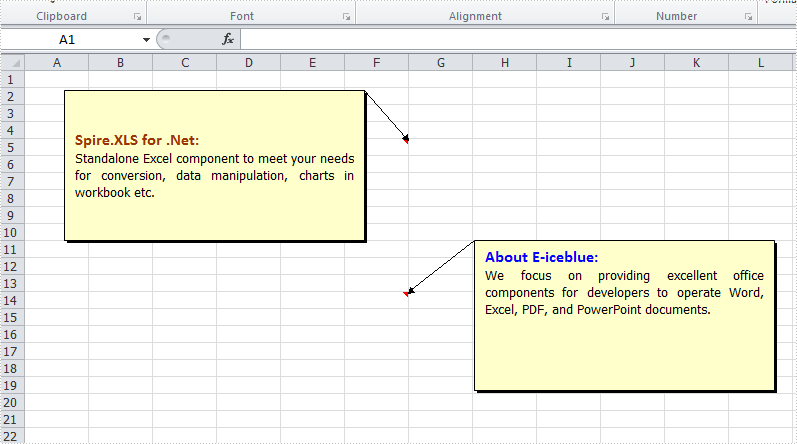
Excel comments are used to add notes to individual cells and it works well to give the reader extra information for the data in the cells. There are articles to show how to add, change comments in Excel using Spire.XLS. This article is going to introduce the method to set the position and text alignment of Excel comments in C# using Spire.XLS.
Note: before start, please download the latest version of Spire.XLS and add the reference in the bin folder as the reference of Visual Studio.
Step 1: Create a new workbook and add a sheet.
            Workbook workbook = new Workbook();
            Worksheet sheet = workbook.Worksheets[0];
Step 2: Set two font styles which will be used in comments.
            ExcelFont font1 = workbook.CreateFont();
            font1.FontName = "Calibri";
            font1.Color = Color.Firebrick;
            font1.IsBold = true;
            font1.Size = 12;
            ExcelFont font2 = workbook.CreateFont();
            font2.FontName = "Calibri";
            font2.Color = Color.Blue;
            font2.Size = 12;
            font2.IsBold = true;
Step 3: Add comment 1 and set its size, text, position and alignment.
            ExcelComment Comment1 = sheet.Range["F5"].Comment;
            Comment1.IsVisible = true;
            Comment1.Height = 150;
            Comment1.Width = 300;
            Comment1.RichText.Text = "Spire.XLS for .Net:\nStandalone Excel component to meet your needs for conversion, data manipulation, charts in workbook etc. ";
            Comment1.RichText.SetFont(0, 19, font1);
            Comment1.TextRotation = TextRotationType.LeftToRight;
            //set the position of Comment
            Comment1.Top = 20;
            Comment1.Left = 40;
            //set the alignment of text in Comment
            Comment1.VAlignment = CommentVAlignType.Center;
            Comment1.HAlignment = CommentHAlignType.Justified;
Step 4: Add comment2 and set its size, text, position and alignment for comparison.
            ExcelComment Comment2= sheet.Range["F14"].Comment;
            Comment2.IsVisible = true;
            Comment2.Height = 150;
            Comment2.Width = 300;
            Comment2.RichText.Text = "About E-iceblue: \nWe focus on providing excellent office components for developers to operate Word, Excel, PDF, and PowerPoint documents.";
            Comment2.TextRotation = TextRotationType.LeftToRight;
            Comment2.RichText.SetFont(0, 16, font2);
            Comment2.Top = 170;
            Comment2.Left = 450;
            Comment2.VAlignment = CommentVAlignType.Top;
            Comment2.HAlignment = CommentHAlignType.Justified;
Step 5: Save the document and launch to see effect.
            workbook.SaveToFile("S3.xlsx", ExcelVersion.Version2010);
            System.Diagnostics.Process.Start("S3.xlsx");
Effects:
Full Codes:
using System;
using System.Collections.Generic;
using System.Linq;
using System.Text;
using Spire.Xls;
using System.Drawing;

namespace How_to_set_Excel_margin_to_print
{
    class Program
    {
        static void Main(string[] args)
        {
            Workbook workbook = new Workbook();
            Worksheet sheet = workbook.Worksheets[0];

            ExcelFont font1 = workbook.CreateFont();
            font1.FontName = "Calibri";
            font1.Color = Color.Firebrick;
            font1.IsBold = true;
            font1.Size = 12;
            ExcelFont font2 = workbook.CreateFont();
            font2.FontName = "Calibri";
            font2.Color = Color.Blue;
            font2.Size = 12;
            font2.IsBold = true;

            ExcelComment Comment1 = sheet.Range["F5"].Comment;
            Comment1.IsVisible = true;
            Comment1.Height = 150;
            Comment1.Width = 300;
            Comment1.RichText.Text = "Spire.XLS for .Net:\nStandalone Excel component to meet your needs for conversion, data manipulation, charts in workbook etc. ";
            Comment1.RichText.SetFont(0, 19, font1);
            Comment1.TextRotation = TextRotationType.LeftToRight;
            Comment1.Top = 20;
            Comment1.Left = 40;
            Comment1.VAlignment = CommentVAlignType.Center;
            Comment1.HAlignment = CommentHAlignType.Justified;

            ExcelComment Comment2= sheet.Range["F14"].Comment;
            Comment2.IsVisible = true;
            Comment2.Height = 150;
            Comment2.Width = 300;
            Comment2.RichText.Text = "About E-iceblue: \nWe focus on providing excellent office components for developers to operate Word, Excel, PDF, and PowerPoint documents.";
            Comment2.TextRotation = TextRotationType.LeftToRight;
            Comment2.RichText.SetFont(0, 16, font2);
            Comment2.Top = 170;
            Comment2.Left = 450;
            Comment2.VAlignment = CommentVAlignType.Top;
            Comment2.HAlignment = CommentHAlignType.Justified;

            workbook.SaveToFile("S3.xlsx", ExcelVersion.Version2010);
            System.Diagnostics.Process.Start("S3.xlsx");
        }
    }
}
