
Knowledgebase (2370)
Children categories
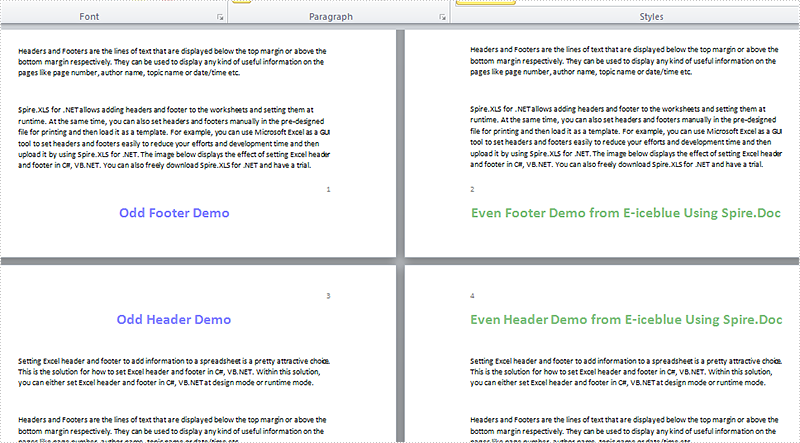
Headers and footers are widely used to show addition information such as chapter name, page numbers to keep the document organized. By default, MS Word sets the same headers and footers on each page, but sometimes we need to create different headers or footers for odd and even pages. This article is going to introduce the method to set different odd and even header/footer using Spire.Doc in C#.
Note: Before Start, please download the latest version of Spire.Doc and add Spire.Doc .dll in the bin folder as the reference of Visual Studio.
Step 1: Create a new document and load from file.
Document document = new Document();
document.LoadFromFile("T1.docx");
Step 2: Add a section and set the property true.
Section section = document.Sections[0];
section.PageSetup.DifferentOddAndEvenPagesHeaderFooter = true;
Step 3: Create odd and even footer, odd and even header, and set their format.
//add EvenFooter
Paragraph P1 = section.HeadersFooters.EvenFooter.AddParagraph();
TextRange EF = P1.AppendText("Even Footer Demo from E-iceblue Using Spire.Doc");
EF.CharacterFormat.FontName = "Calibri";
EF.CharacterFormat.FontSize = 20;
EF.CharacterFormat.TextColor = Color.Green;
EF.CharacterFormat.Bold = true;
P1.Format.HorizontalAlignment = HorizontalAlignment.Center;

//add OddFooter
Paragraph P2 = section.HeadersFooters.OddFooter.AddParagraph();
TextRange OF = P2.AppendText("Odd Footer Demo");
P2.Format.HorizontalAlignment = HorizontalAlignment.Center;
OF.CharacterFormat.FontName = "Calibri";
OF.CharacterFormat.FontSize = 20;
OF.CharacterFormat.Bold = true;
OF.CharacterFormat.TextColor = Color.Blue;

//add OddHeader
Paragraph P3 = section.HeadersFooters.OddHeader.AddParagraph();
TextRange OH = P3.AppendText("Odd Header Demo");
P3.Format.HorizontalAlignment = HorizontalAlignment.Center;
OH.CharacterFormat.FontName = "Calibri";
OH.CharacterFormat.FontSize = 20;
OH.CharacterFormat.Bold = true;
OH.CharacterFormat.TextColor = Color.Blue;

//add EvenHeader
Paragraph P4 = section.HeadersFooters.EvenHeader.AddParagraph();
TextRange EH = P4.AppendText("Even Header Demo from E-iceblue Using Spire.Doc");
P4.Format.HorizontalAlignment = HorizontalAlignment.Center;
EH.CharacterFormat.FontName = "Calibri";
EH.CharacterFormat.FontSize = 20;
EH.CharacterFormat.Bold = true;
EH.CharacterFormat.TextColor = Color.Green;
Step 4: Save the document and launch to see effects.
document.SaveToFile("R.docx", FileFormat.Docx2010);
System.Diagnostics.Process.Start("R.docx");
Effects:
Full code:
using System;
using System.Collections.Generic;
using System.Linq;
using System.Text;
using Spire.Doc;
using Spire.Doc.Documents;
using Spire.Doc.Fields;
using System.Drawing;

namespace Mirror_Margin
{
    class Program
    {
        static void Main(string[] args)
        {
            Document document = new Document();
            document.LoadFromFile("T1.docx");
            Section section = document.Sections[0];

            section.PageSetup.DifferentOddAndEvenPagesHeaderFooter = true;

            Paragraph P1 = section.HeadersFooters.EvenFooter.AddParagraph();
            TextRange EF = P1.AppendText("Even Footer Demo from E-iceblue Using Spire.Doc");
            EF.CharacterFormat.FontName = "Calibri";
            EF.CharacterFormat.FontSize = 20;
            EF.CharacterFormat.TextColor = Color.Green;
            EF.CharacterFormat.Bold = true;
            P1.Format.HorizontalAlignment = HorizontalAlignment.Center;


            Paragraph P2 = section.HeadersFooters.OddFooter.AddParagraph();
            TextRange OF = P2.AppendText("Odd Footer Demo");
            P2.Format.HorizontalAlignment = HorizontalAlignment.Center;
            OF.CharacterFormat.FontName = "Calibri";
            OF.CharacterFormat.FontSize = 20;
            OF.CharacterFormat.Bold = true;
            OF.CharacterFormat.TextColor = Color.Blue;

            Paragraph P3 = section.HeadersFooters.OddHeader.AddParagraph();
            TextRange OH = P3.AppendText("Odd Header Demo");
            P3.Format.HorizontalAlignment = HorizontalAlignment.Center;
            OH.CharacterFormat.FontName = "Calibri";
            OH.CharacterFormat.FontSize = 20;
            OH.CharacterFormat.Bold = true;
            OH.CharacterFormat.TextColor = Color.Blue;

            Paragraph P4 = section.HeadersFooters.EvenHeader.AddParagraph();
            TextRange EH = P4.AppendText("Even Header Demo from E-iceblue Using Spire.Doc");
            P4.Format.HorizontalAlignment = HorizontalAlignment.Center;
            EH.CharacterFormat.FontName = "Calibri";
            EH.CharacterFormat.FontSize = 20;
            EH.CharacterFormat.Bold = true;
            EH.CharacterFormat.TextColor = Color.Green;

            document.SaveToFile("R.docx", FileFormat.Docx2010);
            System.Diagnostics.Process.Start("R.docx");
        }
    }
}
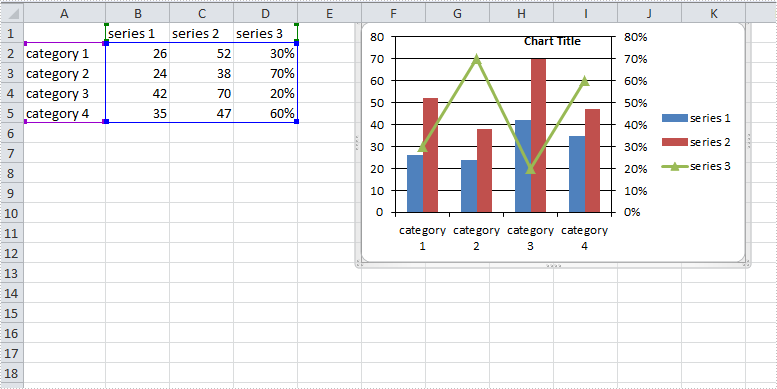
A combination chart that combines two or more chart types in a single chart is often used to emphasize different types of information in that chart. As is shown in the below Excel sheet, we have different type of data in series 3. To clearly display data of different types, it can be helpful to plot varying data sets either with different chart types or on different axes.
In this article, we will introduce how to combine different chart types in one chart and how to add a secondary axis to a chart using Spire.XLS in C#, VB.NET.
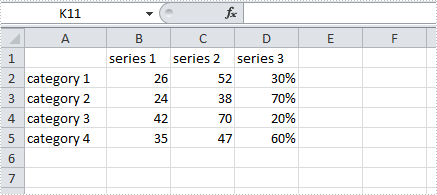
Code Snippet:
Step 1: Create a new instance of Workbook class and the load the sample Excel file.
Workbook workbook = new Workbook();
workbook.LoadFromFile("data.xlsx");
Step 2: Get the first worksheet from workbook.
Worksheet sheet=workbook.Worksheets[0];
Step 3: Add a chart to worksheet based on the data from A1 to D5.
Chart chart = sheet.Charts.Add();
chart.DataRange = sheet.Range["A1:D5"];
chart.SeriesDataFromRange = false;
Step 4: Set position of chart.
chart.LeftColumn = 6;
chart.TopRow = 1;
chart.RightColumn = 12;
chart.BottomRow = 13;
Step 5: Apply Column chart type to series 1 and series 2, apply Line chart type to series 3.
var cs1 = (ChartSerie)chart.Series[0];
cs1.SerieType = ExcelChartType.ColumnClustered;

var cs2 = (ChartSerie)chart.Series[1];
cs2.SerieType = ExcelChartType.ColumnClustered;

var cs3 = (ChartSerie)chart.Series[2];
cs3.SerieType = ExcelChartType.LineMarkers;
Step 6: Add a secondary axis to the chart, plot data of series 3 on the secondary axis.
chart.SecondaryCategoryAxis.IsMaxCross = true;
cs3.UsePrimaryAxis = false;
Step 7: Save and launch the file
workbook.SaveToFile("result.xlsx",ExcelVersion.Version2010);
System.Diagnostics.Process.Start("result.xlsx");
Result:
Full Code:
using Spire.Xls;
using Spire.Xls.Charts;
namespace CreateCombinationExcel
{
    class Program
    {

        static void Main(string[] args)
        {
            Workbook workbook = new Workbook();
            workbook.LoadFromFile("data.xlsx");
            Worksheet sheet = workbook.Worksheets[0];

            //add a chart based on the data from A1 to D5
            Chart chart = sheet.Charts.Add();
            chart.DataRange = sheet.Range["A1:D5"];
            chart.SeriesDataFromRange = false;

            //set position of chart
            chart.LeftColumn = 6;
            chart.TopRow = 1;
            chart.RightColumn = 12;
            chart.BottomRow = 13;

            //apply different chart type to different series
            var cs1 = (ChartSerie)chart.Series[0];
            cs1.SerieType = ExcelChartType.ColumnClustered;
            var cs2 = (ChartSerie)chart.Series[1];
            cs2.SerieType = ExcelChartType.ColumnClustered;
            var cs3 = (ChartSerie)chart.Series[2];
            cs3.SerieType = ExcelChartType.LineMarkers;

            //add a secondary axis to chart
            chart.SecondaryCategoryAxis.IsMaxCross = true;
            cs3.UsePrimaryAxis = false;

            //save and launch the file
            workbook.SaveToFile("result.xlsx", ExcelVersion.Version2010);
            System.Diagnostics.Process.Start("result.xlsx");
        }
    }
}
Imports Spire.Xls
Imports Spire.Xls.Charts
Namespace CreateCombinationExcel
	Class Program

		Private Shared Sub Main(args As String())
			Dim workbook As New Workbook()
			workbook.LoadFromFile("data.xlsx")
			Dim sheet As Worksheet = workbook.Worksheets(0)

			'add a chart based on the data from A1 to D5
			Dim chart As Chart = sheet.Charts.Add()
			chart.DataRange = sheet.Range("A1:D5")
			chart.SeriesDataFromRange = False

			'set position of chart
			chart.LeftColumn = 6
			chart.TopRow = 1
			chart.RightColumn = 12
			chart.BottomRow = 13

			'apply different chart type to different series
			Dim cs1 = DirectCast(chart.Series(0), ChartSerie)
			cs1.SerieType = ExcelChartType.ColumnClustered
			Dim cs2 = DirectCast(chart.Series(1), ChartSerie)
			cs2.SerieType = ExcelChartType.ColumnClustered
			Dim cs3 = DirectCast(chart.Series(2), ChartSerie)
			cs3.SerieType = ExcelChartType.LineMarkers

			'add a secondary axis to chart
			chart.SecondaryCategoryAxis.IsMaxCross = True
			cs3.UsePrimaryAxis = False

			'save and launch the file
			workbook.SaveToFile("result.xlsx", ExcelVersion.Version2010)
			System.Diagnostics.Process.Start("result.xlsx")
		End Sub
	End Class
End Namespace
How to save Chart and table on Presentation Slide as image in C#
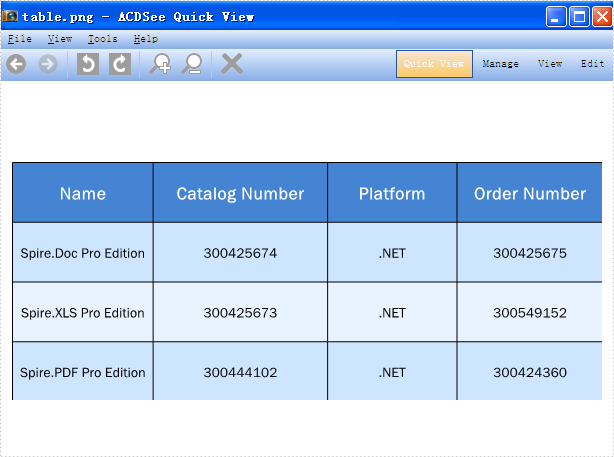
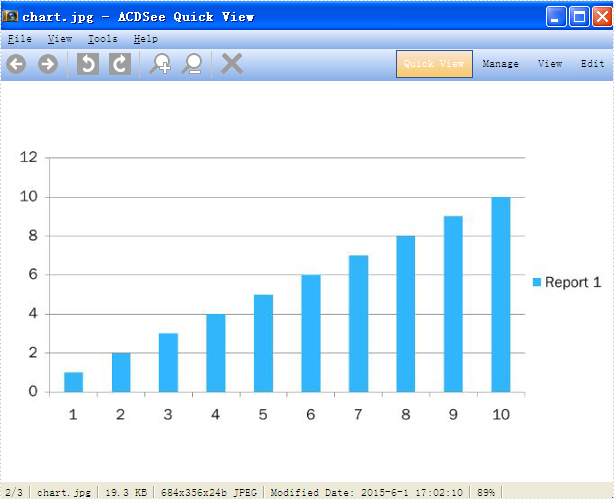
2015-06-02 07:40:40 Written by KoohjiSpire.Presentation enables developers to export the whole presentation slides with table, chart and shape to image. And it also supports to export the single element in the presentation slides, such as chart, table and shape into image. This article will show you how to save chart and table on Presentation Slide as image in C# and please check the steps as below:
Step 1: Create a presentation document and load from file.
Presentation ppt = new Presentation();
ppt.LoadFromFile("sample.pptx");
Step 2: Traverse every shape in the slide. Call ShapeList.SaveAsImage(int shapeIndex) to save table and chart as image.
//Save table as image in .Png format
Image image = ppt.Slides[0].Shapes.SaveAsImage(4);
image.Save("table.png", System.Drawing.Imaging.ImageFormat.Png);

//Save chart as image in .Jpeg format
image = ppt.Slides[1].Shapes.SaveAsImage(3);
image.Save("chart.jpg", System.Drawing.Imaging.ImageFormat.Jpeg);
You can use Shapes.SaveAsEMF method to save the chart and table to image in EMF format.
Effective screenshot:
Save Presentation table as image:
Save Presentation chart as image:
Full codes:
using Spire.Presentation;
using System.Drawing;

     namespace SaveTableChartasImage
{
    class Program
    {
        static void Main(string[] args)
        {
            Presentation ppt = new Presentation();
            ppt.LoadFromFile("sample.pptx");

            Image image = ppt.Slides[0].Shapes.SaveAsImage(4);
            image.Save("table.png", System.Drawing.Imaging.ImageFormat.Png);
            image = ppt.Slides[1].Shapes.SaveAsImage(3);
            image.Save("chart.jpg", System.Drawing.Imaging.ImageFormat.Jpeg);

            //ppt.Slides[1].Shapes.SaveAsEMF(3, "chart.emf");
        }
    }
}
