
Knowledgebase (2370)
Children categories
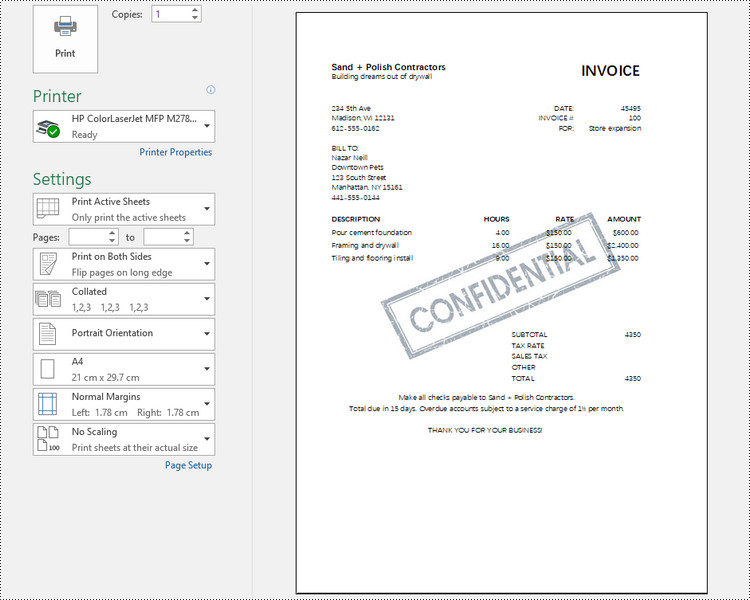
Adding a watermark to an Excel spreadsheet can be a useful way to brand your documents or indicate confidentiality. MS Excel does not provide a built-in feature to insert a watermark, however, there are ways to mimic the watermark effect by inserting an image into the header or footer of your Excel worksheet, or setting an image as the background of your spreadsheet.
In this article, you will learn how to add a header or background image watermark to Excel in C# using Spire.XLS for .NET.
Install Spire.XLS for .NET
To begin with, you need to add the DLL files included in the Spire.XLS for .NET package as references in your .NET project. The DLL files can be either downloaded from this link or installed via NuGet.
PM> Install-Package Spire.XLS
Header vs. Background Image Watermark
Header Image Watermark
Advantages:
- The watermark is preserved on the printed sheet, ensuring it appears in the final output.
Disadvantages:
- The watermark is invisible under the "Normal" view mode in Excel, only becoming visible in "Page Layout" or "Page Break Preview" views.
- To centrally position the watermark graphic on the Excel page, you need to carefully adjust the white margins, especially on the top and left sides of the image.
Background Image Watermark
Advantages:
- The watermark image covers the entire worksheet area, providing a consistent background appearance.
Disadvantages:
- The watermark is not preserved on the printed sheet, meaning it will not appear in the final printed output.
Add a Watermark to Excel Using a Header Image in C#
Spire.XLS for .NET provides the PageSetup class, which allows you to control various settings related to the appearance and layout of the printed worksheet. This class includes the CenterHeader and CenterHeaderImage properties, which enable you to set an image for the center section of the header.
Below are the steps to add a watermark to Excel using a header image in C#.
- Create a Workbook object.
- Load an Excel document from a give file path.
- Load an image using Image.FromFile() method.
- Get a specific worksheet from the workbook.
- Add an image field to the header center by setting Worksheet.PageSetup.CenterHeader property to "&G".
- Apply the image to the header center through Worksheet.PageSetup.CenterHeaderImage property.
- Save the workbook to a different Excel file.
- C#
using Spire.Xls;
using System.Drawing;

namespace AddWatermarkToExcelUsingHeader
{
    class Program
    {
        static void Main(string[] args)
        {
            // Create a Workbook object
            Workbook workbook = new Workbook();

            // Load an Excel document
            workbook.LoadFromFile("C:\\Users\\Administrator\\Desktop\\Input.xlsx");

            // Load an image file
            Image image = Image.FromFile("C:\\Users\\Administrator\\Desktop\\confidential.png");

            // Loop through all worksheets in the file
            for (int i = 0; i < workbook.Worksheets.Count; i++)
            {
                // Get a specific worksheet
                Worksheet worksheet = workbook.Worksheets[i];

                // Add an image field to the header center
                worksheet.PageSetup.CenterHeader = "&G";

                // Add the image to the header center
                worksheet.PageSetup.CenterHeaderImage = image;
            }

            // Save the result file
            workbook.SaveToFile("AddWatermark.xlsx", ExcelVersion.Version2016);

            // Dispose resources
            workbook.Dispose();
        }
    }
}
Add a Watermark to Excel Using a Background Image in C#
The PageSetup class also includes a property named BackgroundImage, which allows you to get or set the image used for the worksheet background.
Here are the steps to add a watermark to Excel using a background image in C#.
- Create a Workbook object.
- Load an Excel document from a give file path.
- Load an image file and convert it into a Bitmap image.
- Get a specific worksheet from the workbook.
- Apply the image to the worksheet as the background through Worksheet.PageSetup.BackgroundImage property.
- Save the workbook to a different Excel file.
- C#
using Spire.Xls;
using System.Drawing;

namespace AddWatermarkToExcelUsingBackground
{
    class Program
    {
        static void Main(string[] args)
        {
            // Create a Workbook object
            Workbook workbook = new Workbook();

            // Load an Excel document
            workbook.LoadFromFile("C:\\Users\\Administrator\\Desktop\\Input.xlsx");

            // Load an image file
            Bitmap bitmapImage = new Bitmap(Image.FromFile("C:\\Users\\Administrator\\Desktop\\sample.png"));

            // Loop through all worksheets in the file
            for (int i = 0; i < workbook.Worksheets.Count; i++)
            {
                // Get a specific worksheet
                Worksheet worksheet = workbook.Worksheets[i];

                // Set the image as the background of the worksheet
                worksheet.PageSetup.BackgoundImage = bitmapImage;
            }

            // Save the result file
            workbook.SaveToFile("AddWatermark.xlsx", ExcelVersion.Version2016);

            // Dispose resources
            workbook.Dispose();
        }
    }
}

Apply for a Temporary License
If you'd like to remove the evaluation message from the generated documents, or to get rid of the function limitations, please request a 30-day trial license for yourself.
We have already demonstrated how to insert single bookmark to word document by using Spire.Doc. When you need to insert many bookmarks to long word document, you can also use Spire.Doc to add multiple levels bookmarks and set different colors for them. Spire.Doc Version 5.5.71 adds a new method of BookmarkLayout to enable developers to set the different color for the different levels of bookmarks. This article will show you how to set the different color for the different levels of bookmarks.
Here comes to the code snippet:
Step 1: Create a new word document and load a file with nested level bookmarks.
Document document = new Document();
document.LoadFromFile("sample.docx");
Step 2: Save the word document into PDF to view the effects clearly and add the event of BookmarkLayout before saving to PDF.
ToPdfParameterList toPdf = new ToPdfParameterList();
toPdf.CreateWordBookmarks = true;
toPdf.WordBookmarksTitle = "Changed bookmark";
toPdf.WordBookmarksColor = Color.Gray;

//the event of BookmarkLayout occurs when draw a bookmark
document.BookmarkLayout += new Spire.Doc.Documents.Rendering.BookmarkLevelHandler(document_BookmarkLayout);

document.SaveToFile("result.pdf", toPdf);
Step 3: Call the method of BookmarkLayout to set the different color for the different levels of bookmarks.
static void document_BookmarkLayout(object sender, Spire.Doc.Documents.Rendering.BookmarkLevelEventArgs args)
{

    //set the different color for different levels of bookmarks
    if (args.BookmarkLevel.Level == 2)
    {
        args.BookmarkLevel.Color = Color.Red;
        args.BookmarkLevel.Style = BookmarkTextStyle.Bold;
    }
    else if (args.BookmarkLevel.Level == 3)
    {
        args.BookmarkLevel.Color = Color.Gray;
        args.BookmarkLevel.Style = BookmarkTextStyle.Italic;
    }
    else
    {
        args.BookmarkLevel.Color = Color.Green;
        args.BookmarkLevel.Style = BookmarkTextStyle.Regular;
    }
Please check the effective screenshot of multiple levels bookmarks with different colors:

Full codes:
using Spire.Doc;
using System.Drawing;
namespace SetColor
{
    class Program
    {

        static void Main(string[] args)
        {

            Document document = new Document();
            document.LoadFromFile("sample.docx");

            ToPdfParameterList toPdf = new ToPdfParameterList();
            toPdf.CreateWordBookmarks = true;
            toPdf.WordBookmarksTitle = "Changed bookmark";
            toPdf.WordBookmarksColor = Color.Gray;

            //the event of BookmarkLayout occurs when draw a bookmark
            document.BookmarkLayout += new Spire.Doc.Documents.Rendering.BookmarkLevelHandler(document_BookmarkLayout);

            document.SaveToFile("result.pdf", toPdf);
        }
        static void document_BookmarkLayout(object sender, Spire.Doc.Documents.Rendering.BookmarkLevelEventArgs args)
        {

            if (args.BookmarkLevel.Level == 2)
            {
                args.BookmarkLevel.Color = Color.Red;
                args.BookmarkLevel.Style = BookmarkTextStyle.Bold;
            }
            else if (args.BookmarkLevel.Level == 3)
            {
                args.BookmarkLevel.Color = Color.Gray;
                args.BookmarkLevel.Style = BookmarkTextStyle.Italic;
            }
            else
            {
                args.BookmarkLevel.Color = Color.Green;
                args.BookmarkLevel.Style = BookmarkTextStyle.Regular;
            }
        }
    }
}
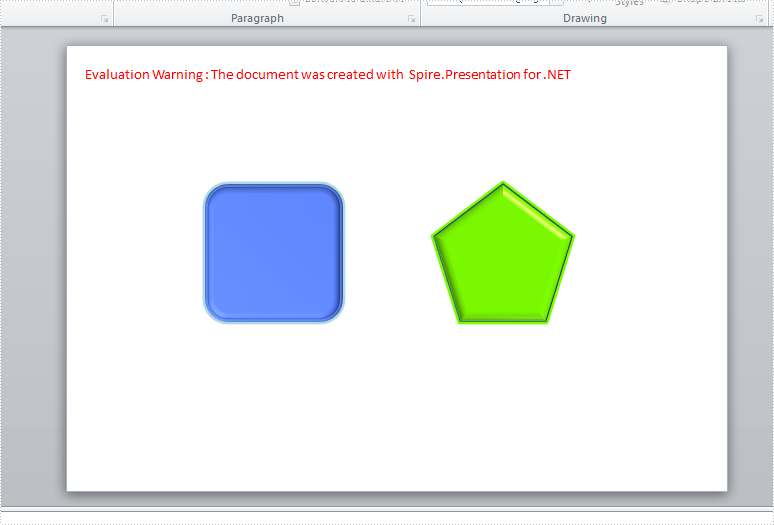
3-D is the abbreviation for three-dimensional. After adding a shape into the slide, we could set its format as 3-D, which looks more fresh and attractive. We could use options like Bevel, Contours, and Surface Material to customize 3-D shapes. This article is going to introduce the method to set 3-D shapes in C# using Spire.Presentation.
Note: before start, please download the latest version of Spire.Presentation and add the .dll in the bin folder as the reference of Visual Studio.
Step 1: Create a new presentation document.
Presentation presentation = new Presentation();
Step 2: Add shape1 and fill it with color.
IAutoShape shape1 = presentation.Slides[0].Shapes.AppendShape(ShapeType.RoundCornerRectangle, new RectangleF(150, 150, 150, 150));
shape1.Fill.FillType = FillFormatType.Solid;
shape1.Fill.SolidColor.KnownColor = KnownColors.RoyalBlue;
Step 3: Initialize a new instance of the 3-D class for shape1 and set its properties.
            ShapeThreeD Demo1 = shape1.ThreeD.ShapeThreeD;
            Demo1.PresetMaterial = PresetMaterialType.Powder;
            Demo1.TopBevel.PresetType = BevelPresetType.ArtDeco;
            Demo1.TopBevel.Height = 4;
            Demo1.TopBevel.Width = 12;
            Demo1.BevelColorMode = BevelColorType.Contour;
            Demo1.ContourColor.KnownColor = KnownColors.LightBlue;
            Demo1.ContourWidth = 3.5;
Step 4: Set 3-D format for shape2 as comparison.
IAutoShape shape2 = presentation.Slides[0].Shapes.AppendShape(ShapeType.Pentagon, new RectangleF(400, 150, 150, 150));
           shape2.Fill.FillType = FillFormatType.Solid;
           shape2.Fill.SolidColor.KnownColor = KnownColors.LawnGreen;
           ShapeThreeD Demo2 = shape2.ThreeD.ShapeThreeD;
           Demo2.PresetMaterial = PresetMaterialType.SoftEdge;
           Demo2.TopBevel.PresetType = BevelPresetType.SoftRound;
           Demo2.TopBevel.Height = 12;
           Demo2.TopBevel.Width = 12;
           Demo2.BevelColorMode = BevelColorType.Contour;
           Demo2.ContourColor.KnownColor = KnownColors.LawnGreen;
           Demo2.ContourWidth = 5;
Step 5: Save the document and launch to see effects.
           presentation.SaveToFile("result.pptx", FileFormat.Pptx2010);
           System.Diagnostics.Process.Start("result.pptx");
Effects:
Full Codes:
using System;
using System.Collections.Generic;
using System.Linq;
using System.Text;
using Spire.Presentation;
using Spire.Presentation.Drawing;
using System.Drawing;

namespace test
{
    class Program
    {
        static void Main(string[] args)
        {

            Presentation presentation = new Presentation();

            IAutoShape shape1 = presentation.Slides[0].Shapes.AppendShape(ShapeType.RoundCornerRectangle, new RectangleF(150, 150, 150, 150));
            shape1.Fill.FillType = FillFormatType.Solid;
            shape1.Fill.SolidColor.KnownColor = KnownColors.RoyalBlue;
            ShapeThreeD Demo1 = shape1.ThreeD.ShapeThreeD;
            Demo1.PresetMaterial = PresetMaterialType.Powder;
            Demo1.TopBevel.PresetType = BevelPresetType.ArtDeco;
            Demo1.TopBevel.Height = 4;
            Demo1.TopBevel.Width = 12;
            Demo1.BevelColorMode = BevelColorType.Contour;
            Demo1.ContourColor.KnownColor = KnownColors.LightBlue;
            Demo1.ContourWidth = 3.5;

            IAutoShape shape2 = presentation.Slides[0].Shapes.AppendShape(ShapeType.Pentagon, new RectangleF(400, 150, 150, 150));
            shape2.Fill.FillType = FillFormatType.Solid;
            shape2.Fill.SolidColor.KnownColor = KnownColors.LawnGreen;
            ShapeThreeD Demo2 = shape2.ThreeD.ShapeThreeD;
            Demo2.PresetMaterial = PresetMaterialType.SoftEdge;
            Demo2.TopBevel.PresetType = BevelPresetType.SoftRound;
            Demo2.TopBevel.Height = 12;
            Demo2.TopBevel.Width = 12;
            Demo2.BevelColorMode = BevelColorType.Contour;
            Demo2.ContourColor.KnownColor = KnownColors.LawnGreen;
            Demo2.ContourWidth = 5;

            presentation.SaveToFile("result.pptx", FileFormat.Pptx2010);
            System.Diagnostics.Process.Start("result.pptx");
        }
    }
}
