
Knowledgebase (2370)
Children categories
Set position of table in Word Document as outside via Spire.Doc
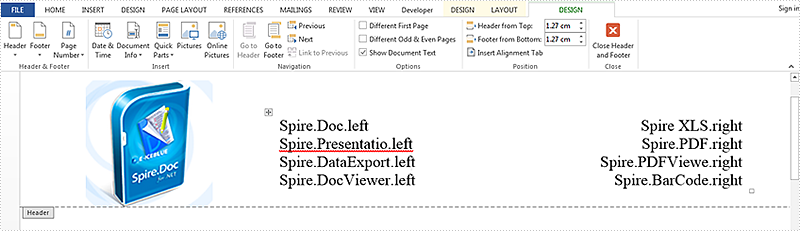
2015-05-22 08:57:03 Written by KoohjiTable in word document can make your data more logical and uncluttered, this article is talk about set absolute position of table in word document via Spire.Doc. Here try to realize placing a table on the right of an image on header.
Here are the steps:
Step 1: Create a new word document and add new section.
Document doc = new Document();
Section sec = doc.AddSection();
Step 2: Create header on Section[0].
HeaderFooter header = doc.Sections[0].HeadersFooters.Header;
Step 3: Add new paragraph on header and set HorizontalAlignment of the paragraph as left.
Paragraph paragraph = header.AddParagraph();
paragraph.Format.HorizontalAlignment = HorizontalAlignment.Left;
Step 4: Load an image for the paragraph.
DocPicture headerimage = paragraph.AppendPicture(Image.FromFile(@"1.png"));
Step 5: Add a table of 4 rows and 2 columns.
Table table = header.AddTable();
table.ResetCells(4, 2);
Step 6: Set the position of the table to the right of the image. Set WrapTextAround is true, HorizPositionAbs is outside, VertRelationTo is margin, and VertPosition is 43 to fit the height of the image.
table.TableFormat.WrapTextAround = true;
table.TableFormat.Positioning.HorizPositionAbs = HorizontalPosition.Outside;
table.TableFormat.Positioning.VertRelationTo = VerticalRelation.Margin;
table.TableFormat.Positioning.VertPosition = 43;
Step 7: Then add contents for the table, first column alignment set as left ,second column alignment set as right.
String[][] data = {
                    new string[] {"Spire.Doc.left","Spire XLS.right"},
                    new string[] {"Spire.Presentatio.left","Spire.PDF.right"},
                    new string[] {"Spire.DataExport.left","Spire.PDFViewe.right"},
                    new string []{"Spire.DocViewer.left","Spire.BarCode.right"}
                              };

            for (int r = 0; r < 4; r++)
            {
                TableRow dataRow = table.Rows[r];
                for (int c = 0; c < 2; c++)
                {
                    if (c == 0)
                    {
                        Paragraph par = dataRow.Cells[c].AddParagraph();
                        par.AppendText(data[r][c]);
                        par.Format.HorizontalAlignment = HorizontalAlignment.Left;
                        dataRow.Cells[c].Width = 180;
                    }
                    else
                    {
                        Paragraph par = dataRow.Cells[c].AddParagraph();
                        par.AppendText(data[r][c]);
                        par.Format.HorizontalAlignment = HorizontalAlignment.Right;
                        dataRow.Cells[c].Width = 180;
                    }
                }
            }
Step 8: Save the file and review it.
doc.SaveToFile("result.docx", FileFormat.Docx);
System.Diagnostics.Process.Start("result.docx");
Here is the screenshot:
Full Code:
using Spire.Doc;
using Spire.Doc.Documents;
using Spire.Doc.Fields;
using System;
using System.Drawing;
namespace SetPosition
{
    class Program
    {

        static void Main(string[] args)
        {

            Document doc = new Document();
            Section sec = doc.AddSection();

            HeaderFooter header = doc.Sections[0].HeadersFooters.Header;

            Paragraph paragraph = header.AddParagraph();
            paragraph.Format.HorizontalAlignment = HorizontalAlignment.Left;
            DocPicture headerimage = paragraph.AppendPicture(Image.FromFile(@"1.png"));

            Table table = header.AddTable();
            table.ResetCells(4, 2);

            table.TableFormat.WrapTextAround = true;
            table.TableFormat.Positioning.HorizPositionAbs = HorizontalPosition.Outside;
            table.TableFormat.Positioning.VertRelationTo = VerticalRelation.Margin;
            table.TableFormat.Positioning.VertPosition = 43;


            String[][] data = {
                    new string[] {"Spire.Doc.left","Spire XLS.right"},
                    new string[] {"Spire.Presentatio.left","Spire.PDF.right"},
                    new string[] {"Spire.DataExport.left","Spire.PDFViewe.right"},
                    new string []{"Spire.DocViewer.left","Spire.BarCode.right"}
                              };

            for (int r = 0; r < 4; r++)
            {
                TableRow dataRow = table.Rows[r];
                for (int c = 0; c < 2; c++)
                {
                    if (c == 0)
                    {
                        Paragraph par = dataRow.Cells[c].AddParagraph();
                        par.AppendText(data[r][c]);
                        par.Format.HorizontalAlignment = HorizontalAlignment.Left;
                        dataRow.Cells[c].Width = 180;
                    }
                    else
                    {
                        Paragraph par = dataRow.Cells[c].AddParagraph();
                        par.AppendText(data[r][c]);
                        par.Format.HorizontalAlignment = HorizontalAlignment.Right;
                        dataRow.Cells[c].Width = 180;
                    }
                }
            }
            doc.SaveToFile("result.docx",Spire.Doc.FileFormat.Docx);
            System.Diagnostics.Process.Start("result.docx");
        }
    }
}
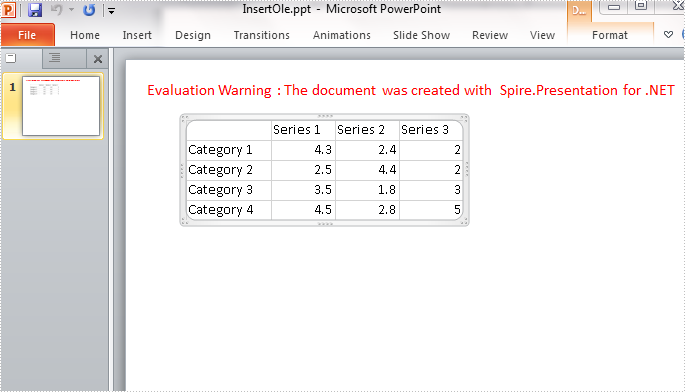
To display Excel data in a PowerPoint presentation, we can copy and paste the data to a slide as a PowerPoint table, a worksheet object, a picture, or plain text. This article introduces how to insert an Excel sheet in PowerPoint as an OLE object in C# and VB.NET.
In this solution, you'll need to use Spire.XLS to load the Excel file and get the data, and then create OEL object using Spire.Presentation. So, please download Spire.Office and reference the related DLLs in your project.
Workbook book = new Workbook();
book.LoadFromFile(@"data.xlsx");
Step 2: Select the cell range from the first worksheet and save it as image.
Image image = book.Worksheets[0].ToImage(1, 1, 5, 4);
Step 3: Initialize a new instance of Presentation class, add the image to presentation.
Presentation ppt = new Presentation();
IImageData oleImage = ppt.Images.Append(image);
Step 4: Insert an OLE object to presentation based on the Excel data.
Rectangle rec = new Rectangle(60,60,image.Width,image.Height);
using (MemoryStream ms = new MemoryStream())
{
    book.SaveToStream(ms);
    ms.Position = 0;
    Spire.Presentation.IOleObject oleObject = ppt.Slides[0].Shapes.AppendOleObject("excel", ms.ToArray(), rec);
    oleObject.SubstituteImagePictureFillFormat.Picture.EmbedImage = oleImage;
    oleObject.ProgId = "Excel.Sheet.12";
}
Step 5: Save the PowerPoint file with the specified format.
ppt.SaveToFile("InsertOle.pptx", Spire.Presentation.FileFormat.Pptx2007);
Output:
Entire Code:
using Spire.Presentation;
using Spire.Presentation.Drawing;
using Spire.Xls;
using System.Drawing;
using System.IO;
namespace ExceltoPPT
{

    class Program
    {

        static void Main(string[] args)
        {
            Workbook book = new Workbook();
            book.LoadFromFile(@"data.xlsx");
            Image image = book.Worksheets[0].ToImage(1, 1, 5, 4);

            Presentation ppt = new Presentation();
            IImageData oleImage = ppt.Images.Append(image);
            Rectangle rec = new Rectangle(60, 60, image.Width, image.Height);
            using (MemoryStream ms = new MemoryStream())
            {
                book.SaveToStream(ms);
                ms.Position = 0;
                Spire.Presentation.IOleObject oleObject = ppt.Slides[0].Shapes.AppendOleObject("excel", ms.ToArray(), rec);
                oleObject.SubstituteImagePictureFillFormat.Picture.EmbedImage = oleImage;
                oleObject.ProgId = "Excel.Sheet.12";
            }

            ppt.SaveToFile("InsertOle.pptx", Spire.Presentation.FileFormat.Pptx2007);


        }
    }
}
Imports Spire.Presentation
Imports Spire.Presentation.Drawing
Imports Spire.Xls
Imports System.Drawing
Imports System.IO
Namespace ExceltoPPT

	Class Program

		Private Shared Sub Main(args As String())
			Dim book As New Workbook()
			book.LoadFromFile("data.xlsx")
			Dim image As Image = book.Worksheets(0).ToImage(1, 1, 5, 4)

			Dim ppt As New Presentation()
			Dim oleImage As IImageData = ppt.Images.Append(image)
			Dim rec As New Rectangle(60, 60, image.Width, image.Height)
			Using ms As New MemoryStream()
				book.SaveToStream(ms)
				ms.Position = 0
				Dim oleObject As Spire.Presentation.IOleObject = ppt.Slides(0).Shapes.AppendOleObject("excel", ms.ToArray(), rec)
				oleObject.SubstituteImagePictureFillFormat.Picture.EmbedImage = oleImage
				oleObject.ProgId = "Excel.Sheet.12"
			End Using

			ppt.SaveToFile("InsertOle.pptx", Spire.Presentation.FileFormat.Pptx2007)


		End Sub
	End Class
End Namespace
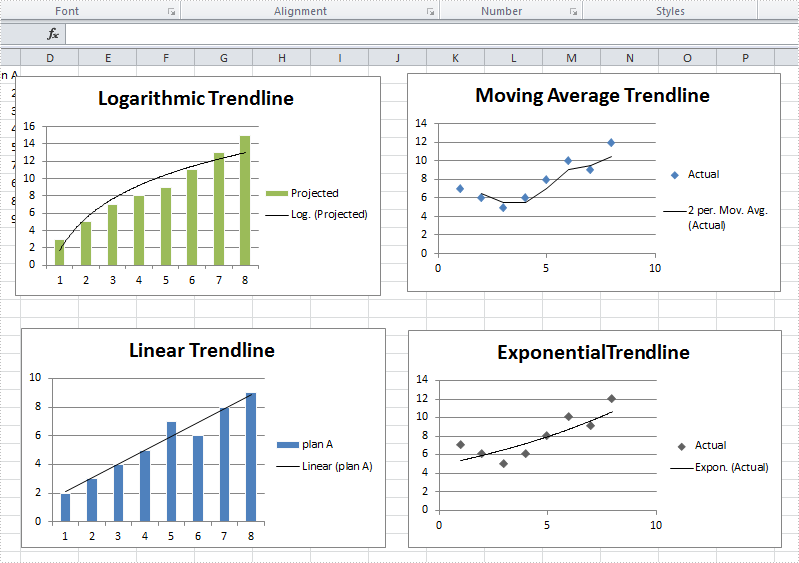
A trendline is used to show the trend of data series and predict future tendency. Totally, there are six different types: linear trendline, logarithmic trendline, polynomial trendline, power trendline, exponential trendline, and moving average trendline. We may choose different trendline based on the data type we have for different trendline has different advantages to show trend.
For example, a linear trendline works well to show the increase or decrease of data at a steady rate while a logarithmic trendline is often used to show the rate of change in the data increases or decreases quickly and then levels out.
Spire.XLS supports to add all of those six trendlines in charts. This article is going to show how to add trendlines in visual studio.
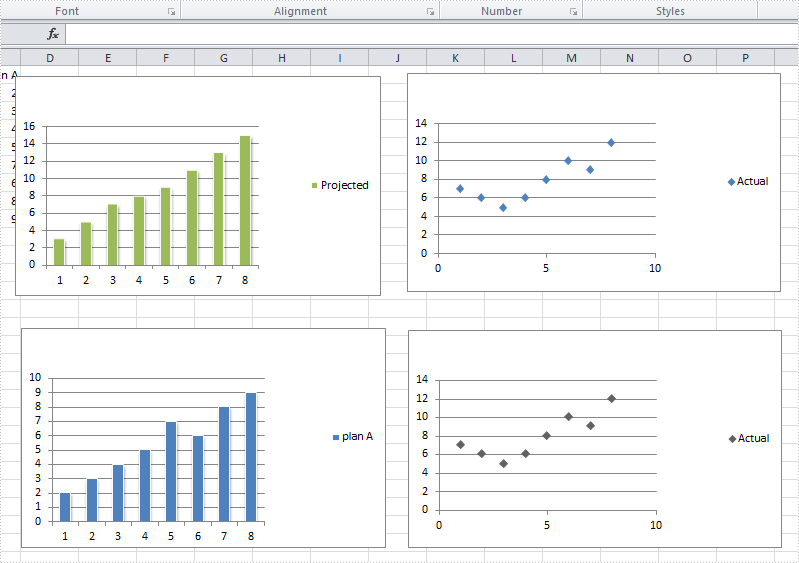
Before adding trendlines
After adding trendlines
Step 1: Load the workbook and create a sheet
Workbook workbook = new Workbook();
workbook.LoadFromFile("S2.xlsx");
Worksheet sheet = workbook.Worksheets[0];
Step 2: Select targeted chart, add trendline and set its type
//select chart and set logarithmic trendline
Chart chart = sheet.Charts[0];
chart.Series[0].TrendLines.Add(TrendLineType.Logarithmic);
//select chart and set moving_average trendline
Chart chart1 = sheet.Charts[1];
chart1.Series[0].TrendLines.Add(TrendLineType.Moving_Average);
//select chart and set linear trendline
Chart chart2 = sheet.Charts[2];
chart2.Series[0].TrendLines.Add(TrendLineType.Linear);
//select chart and set exponential trendline
Chart chart3 = sheet.Charts[3];
chart3.Series[0].TrendLines.Add(TrendLineType.Exponential);
Step 3: Save and launch the document
workbook.SaveToFile("S3.xlsx", ExcelVersion.Version2010);
System.Diagnostics.Process.Start("S3.xlsx");
Full code:
using System;
using System.Collections.Generic;
using System.Linq;
using System.Text;
using Spire.Xls;

namespace TradeLine
{
    class Program
    {
        static void Main(string[] args)
        {
            Workbook workbook = new Workbook();
            workbook.LoadFromFile("S2.xlsx");
            Worksheet sheet = workbook.Worksheets[0];


            Chart chart = sheet.Charts[0];
            chart.Series[0].TrendLines.Add(TrendLineType.Logarithmic);

            Chart chart1 = sheet.Charts[1];
            chart1.Series[0].TrendLines.Add(TrendLineType.Moving_Average);

            Chart chart2 = sheet.Charts[2];
            chart2.Series[0].TrendLines.Add(TrendLineType.Linear);

            Chart chart3 = sheet.Charts[3];
            chart3.Series[0].TrendLines.Add(TrendLineType.Exponential);

            workbook.SaveToFile("S3.xlsx", ExcelVersion.Version2010);
            System.Diagnostics.Process.Start("S3.xlsx");

        }
    }
}
Please note that we cannot add a trendline to data series in a stacked, 3-D, radar, pie, surface, or doughnut chart because those types of chart don't support trendline.
