
Knowledgebase (2370)
Children categories
Python: Save Shapes as Image Files in PowerPoint Presentations
2024-10-21 01:03:20 Written by KoohjiExtracting and repurposing elements from PowerPoint presentations is a valuable skill for cross-platform content sharing. By converting shapes from slides into standalone image files, users can seamlessly integrate them into documents, web pages, or design projects without losing their original formatting and visual effects. With Python, this process becomes straightforward. In this article, we'll explore how to use Spire.Presentation for Python to save shapes from presentation slides as image files with simple Python code.
- Save Shapes from Slides as Image Files with Python
- Save Images from Slides with Formatting as Images Files
Install Spire.Presentation for Python
This scenario requires Spire.Presentation for Python and plum-dispatch v1.7.4. They can be easily installed in your Windows through the following pip command.
pip install Spire.Presentation
If you are unsure how to install, please refer to: How to Install Spire.Presentation for Python on Windows
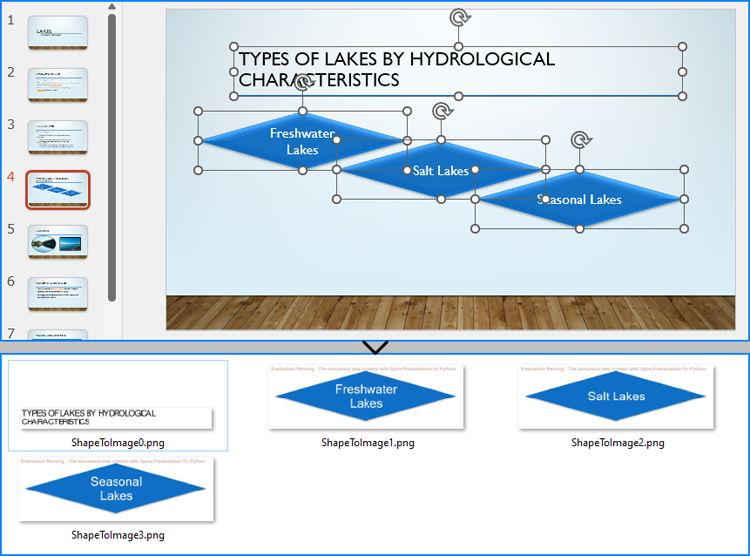
Save Shapes from Slides as Image Files with Python
Spire.Presentation for Python provides the Slide.Shapes.SaveAsImage(shapIndex: int, dpiX: int, dpiY: int) method to save shapes in presentation slides as images with the specified DPI(optional). With this method, developers can save either a specific shape or all shapes in a PowerPoint presentation. The detailed steps are as follows:
- Create an instance of Presentation class.
- Load a PowerPoint presentation using Presentation.LoadFromFile() method.
- Get a slide using Presentation.Slides.get_Item() method.
- Iterate through the shapes in the slide:
- Save each shape as an image stream using Slide.Shapes.SaveAsImage() method.
- Save the image stream as an image file using Stream.Save() method.
- Python
from spire.presentation import *

# Create an instance of Presentation
presentation = Presentation()

# Load a PowerPoint file
presentation.LoadFromFile("Sample.pptx")

# Get the first slide
slide = presentation.Slides.get_Item(3)

# Save the shape as an image stream
for i in range(slide.Shapes.Count):
  imageStream = slide.Shapes.SaveAsImage(i, 256, 256)
  # Save the image
  imageStream.Save(f"output/Shapes/ShapeToImage{i}.png")

# Release resources
presentation.Dispose()
Save Images from Slides with Formatting as Images Files
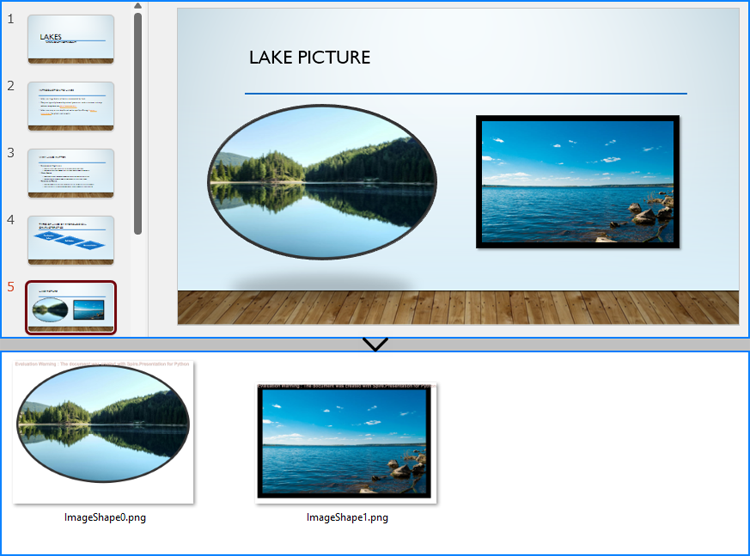
By using the methods provided by Spire.Presentation for Python, developers can also save images from slides as image files while preserving the edits and formatting applied to them. This requires first checking if the shape is an object of SlidePicture class, and if so, the shape can be saved as an image file. The detailed steps are as follows:
- Create an instance of Presentation class.
- Load a PowerPoint presentation using Presentation.LoadFromFile() method.
- Get a slide using Presentation.Slides.get_Item() method.
- Iterate through the shapes in the slide:
- Check if each shape is an object of SlidePicture class.
- If it is, save the shape as an image stream using Slide.Shapes.SaveAsImage() method.
- Save the image stream to a file using Stream.Save() method.
- Python
from spire.presentation import *

# Create an instance of Presentation
presentation = Presentation()

# Load a PowerPoint file
presentation.LoadFromFile("Sample.pptx")

# Get a slide
slide = presentation.Slides.get_Item(4)

# Iterate through all shapes in the slide
i = 0
for shape in slide.Shapes:
  # Check if the shape is an object of SlidePicture
  if isinstance(shape, SlidePicture):
    # Save the shape as an image
    shape = shape if isinstance(shape, SlidePicture) else None
    image = slide.Shapes.SaveAsImage(slide.Shapes.IndexOf(shape), 256, 256)
    image.Save(f"output/Images/ImageShape{i}.png")
    i += 1

# Release resources
presentation.Dispose()
Apply for a Temporary License
If you'd like to remove the evaluation message from the generated documents, or to get rid of the function limitations, please request a 30-day trial license for yourself.
Using Python to manipulate text formatting in PDFs provides a powerful way to automate and customize documents. With the Spire.PDF for Python library, developers can efficiently find text with advanced search options to retrieve and modify text properties like font, size, color, and style, enabling users to find and update text formatting across large document sets, saving time and reducing manual work. This article will demonstrate how to use Spire.PDF for Python to retrieve and modify text formatting in PDF documents with Python code.
- Find Text and Retrieve the Font Information in PDFs
- Find and Modify Text Formatting in PDF Documents
Install Spire.PDF for Python
This scenario requires Spire.PDF for Python and plum-dispatch v1.7.4. They can be easily installed in your Windows through the following pip command.
pip install Spire.PDF
If you are unsure how to install, please refer to: How to Install Spire.PDF for Python on Windows
Find Text and Retrieve Formatting Information in PDFs
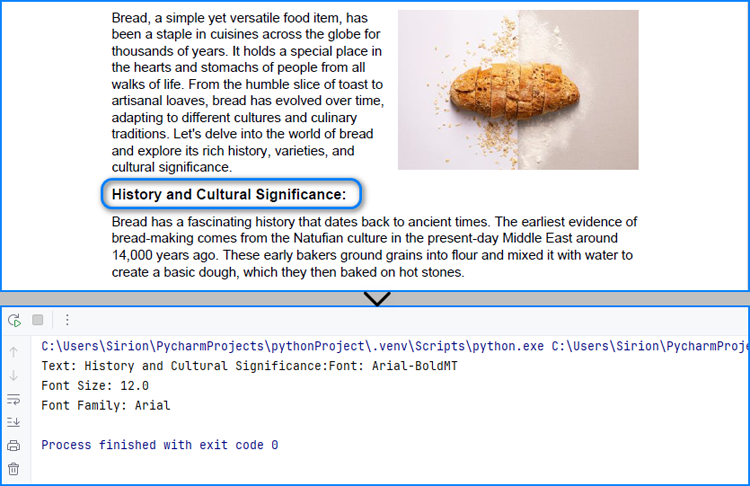
Developers can use the PdfTextFinder and PdfTextFindOptions classes provided by Spire.PDF for Python to precisely search for specific text in a PDF document and obtain a collection of PdfTextFragment objects representing the search results. Then, developers can access the format information of the specified search result text through properties such as FontName, FontSize, and FontFamily, under PdfTextFragment.TextStates[] property.
The detailed steps for finding text in PDF and retrieving its font information are as follows:
- Create an instance of PdfDocument class and load a PDF document using PdfDocument.LoadFromFile() method.
- Get a page using PdfDocument.Pages.get_Item() method.
- Create a PdfTextFinder object using the page.
- Create a PdfTextFindOptions object, set the search options, and apply the search options through PdfTextFinder.Options property.
- Find specific text on the page using PdfTextFinder.Find() method and get a collection of PdfTextFragment objects.
- Get the formatting of the first finding result through PdfTextFragment.TextStates property.
- Get the font name, font size, and font family of the result through PdfTextStates[0].FontName, PdfTextStates[0].FontSize, and PdfTextStates[0].FontFamily properties.
- Print the result.
- Python
from spire.pdf import *

# Create a PdfDocument instance
pdf = PdfDocument()
# Load a PDF file
pdf.LoadFromFile("Sample.pdf")

# Get the first page
page = pdf.Pages.get_Item(0)

# Create a PdfTextFinder instance
finder = PdfTextFinder(page)

# Create a PdfTextFindOptions instance and set the search options
options = PdfTextFindOptions()
options.CaseSensitive = True
options.WholeWords = True

# Apply the options
finder.Options = options

# Find the specified text
fragments = finder.Find("History and Cultural Significance:")

# Get the formatting of the first fragment
formatting = fragments[0].TextStates

# Get the formatting information
fontInfo = ""
fontInfo += "Text: " + fragments[0].Text
fontInfo += "Font: " + formatting[0].FontName
fontInfo += "\nFont Size: " + str(formatting[0].FontSize)
fontInfo += "\nFont Family: " + formatting[0].FontFamily

# Output font information
print(fontInfo)

# Release resources
pdf.Dispose()
Find and Modify Text Formatting in PDF Documents
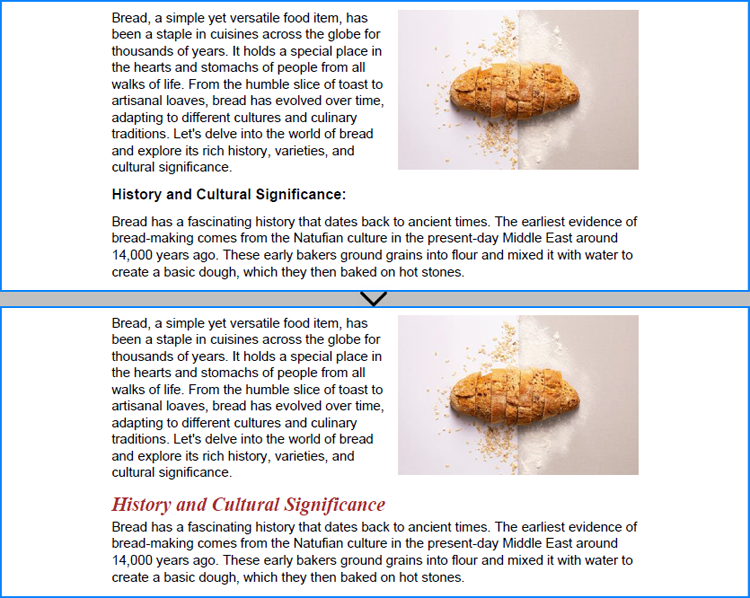
After finding specific text, developers can overlay it with a rectangle in the same color as the background and then redraw the text in a new format at the same position, thus achieving text format modification of simple PDF text fragments on solid color pages. The detailed steps are as follows:
- Create an instance of PdfDocument class and load a PDF document using PdfDocument.LoadFromFile() method.
- Get a page using PdfDocument.Pages.get_Item() method.
- Create a PdfTextFinder object using the page.
- Create a PdfTextFindOptions object, set the search options, and apply the search options through PdfTextFinder.Options property.
- Find specific text on the page using PdfTextFinder.Find() method and get the first result.
- Get the color of the page background through PdfPageBase.BackgroundColor property and change the color to white if the background is empty.
- Draw rectangles with the obtained color in the position of the found text using PdfPageBase.Canvas.DrawRectangle() method.
- Create a new font, brush, and string format and calculate the text frame.
- Draw the text in the new format in the same position using PdfPageBase.Canvas.DrawString() method.
- Save the document using PdfDocument.SaveToFile() method.
- Python
from spire.pdf import *

# Create a PdfDocument instance
pdf = PdfDocument()
# Load a PDF file
pdf.LoadFromFile("Sample.pdf")

# Get the first page
page = pdf.Pages.get_Item(0)

# Create a PdfTextFinder instance
finder = PdfTextFinder(page)

# Create a PdfTextFindOptions instance and set the search options
options = PdfTextFindOptions()
options.CaseSensitive = True
options.WholeWords = True
finder.Options = options

# Find the specified text
fragments = finder.Find("History and Cultural Significance:")
# Get the first result
fragment = fragments[0]

# Get the background color and change it to white if its empty
backColor = page.BackgroundColor
if backColor.ToArgb() == 0:
    backColor = Color.get_White()
# Draw a rectangle with the background color to cover the text
for i in range(len(fragment.Bounds)):
    page.Canvas.DrawRectangle(PdfSolidBrush(PdfRGBColor(backColor)), fragment.Bounds[i])

# Create a new font and a new brush
font = PdfTrueTypeFont("Times New Roman", 16.0, 3, True)
brush = PdfBrushes.get_Brown()
# Create a PdfStringFormat instance
stringFormat = PdfStringFormat()
stringFormat.Alignment = PdfTextAlignment.Left
# Calculate the rectangle that contains the text
point = fragment.Bounds[0].Location
size = SizeF(fragment.Bounds[-1].Right, fragment.Bounds[-1].Bottom)
rect = RectangleF(point, size)

# Draw the text with the specified format in the same rectangle
page.Canvas.DrawString("History and Cultural Significance", font, brush, rect, stringFormat)

# Save the document
pdf.SaveToFile("output/FindModifyTextFormat.pdf")

# Release resources
pdf.Close()
Apply for a Temporary License
If you'd like to remove the evaluation message from the generated documents, or to get rid of the function limitations, please request a 30-day trial license for yourself.
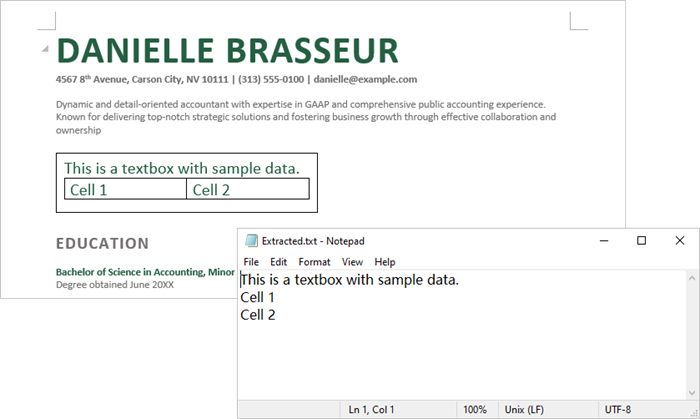
Text boxes in Microsoft Word are flexible elements that improve the layout and design of documents. They enable users to place text separately from the main text flow, facilitating the creation of visually attractive documents. At times, you might need to extract text from these text boxes for reuse, or update the content within them to maintain clarity and relevance. This article demonstrates how to extract or update textboxes in a Word document using Java with Spire.Doc for Java.
Install Spire.Doc for Java
First of all, you're required to add the Spire.Doc.jar file as a dependency in your Java program. The JAR file can be downloaded from this link. If you use Maven, you can easily import the JAR file in your application by adding the following code to your project's pom.xml file.
<repositories>
    <repository>
        <id>com.e-iceblue</id>
        <name>e-iceblue</name>
        <url>https://repo.e-iceblue.com/nexus/content/groups/public/</url>
    </repository>
</repositories>
<dependencies>
    <dependency>
        <groupId>e-iceblue</groupId>
        <artifactId>spire.doc</artifactId>
        <version>14.7.0</version>
    </dependency>
</dependencies>
Extract Text from a Textbox in Word in Java
With Spire.Doc for Java, you can access a specific text box in a document using the Document.getTextBoxes().get() method. You can then iterate through the child objects of the text box to check if each one is a paragraph or a table. For paragraphs, retrieve the text using the Paragraph.getText() method. For tables, loop through the cells to extract text from each cell.
Here are the steps to extract text from a text box in a Word document:
- Create a Document object.
- Load a Word file using Document.loadFromFile() method.
- Access a specific text box using Document.getTextBoxes().get() method.
- Iterate through the child objects of the text box.
- Check if a child object is a paragraph. If so, use Paragraph.getText() method to get the text.
- Check if a child object is a table. If so, use extractTextFromTable() method to retrieve the text from the table.
- Java
import com.spire.doc.*;
import com.spire.doc.documents.DocumentObjectType;
import com.spire.doc.documents.Paragraph;
import com.spire.doc.fields.TextBox;

import java.io.FileWriter;
import java.io.IOException;

public class ExtractTextFromTextbox {

    public static void main(String[] args) throws IOException {

        // Create a Document object
        Document document = new Document();

        // Load a Word file
        document.loadFromFile("C:\\Users\\Administrator\\Desktop\\Input.docx");

        // Get a specific textbox
        TextBox textBox = document.getTextBoxes().get(0);

        // Create a FileWriter to write extracted text to a txt file
        FileWriter fileWriter = new FileWriter("Extracted.txt");

        // Iterate though child objects of the textbox
        for (Object object: textBox.getChildObjects()) {

            // Determine if the child object is a paragraph
            if (((DocumentObject) object).getDocumentObjectType() == DocumentObjectType.Paragraph) {

                // Write paragraph text to the txt file
                fileWriter.write(((Paragraph)object).getText() + "\n");
            }

            // Determine if the child object is a table
            if (((DocumentObject) object).getDocumentObjectType() == DocumentObjectType.Table) {

                // Extract text from table to the txt file
                extractTextFromTable((Table)object, fileWriter);
            }
        }

        // Close the stream
        fileWriter.close();
    }

    // Extract text from a table
    static void extractTextFromTable(Table table, FileWriter fileWriter) throws IOException {
        for (int i = 0; i < table.getRows().getCount(); i++) {
            TableRow row = table.getRows().get(i);
            for (int j = 0; j < row.getCells().getCount(); j++) {
                TableCell cell = row.getCells().get(j);
                for (Object paragraph: cell.getParagraphs()) {
                    fileWriter.write(((Paragraph) paragraph).getText() + "\n");
                }
            }
        }
    }
}
Update a Textbox in Word in Java
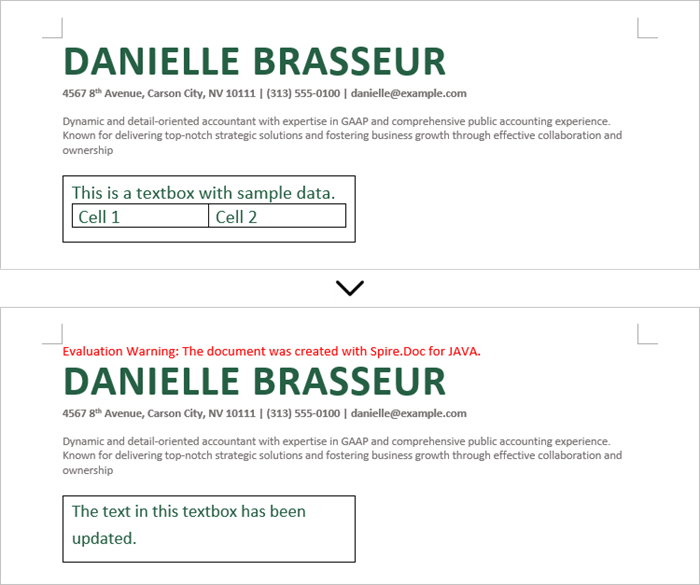
To modify a text box, first remove its existing content using TextBox.getChildObjects.clear() method. Then, create a new paragraph and assign the desired text to it.
Here are the steps to update a text box in a Word document:
- Create a Document object.
- Load a Word file using Document.loadFromFile() method.
- Get a specific textbox using Document.getTextBoxes().get() method.
- Remove existing content of the textbox using TextBox.getChildObjects().clear() method.
- Add a paragraph to the textbox using TextBox.getBody().addParagraph() method.
- Add text to the paragraph using Paragraph.appendText() method.
- Save the document to a different Word file.
- Java
import com.spire.doc.Document;
import com.spire.doc.FileFormat;
import com.spire.doc.documents.Paragraph;
import com.spire.doc.fields.TextBox;
import com.spire.doc.fields.TextRange;

public class UpdateTextbox {

    public static void main(String[] args) {

        // Create a Document object
        Document document = new Document();

        // Load a Word file
        document.loadFromFile("C:\\Users\\Administrator\\Desktop\\Input.docx");

        // Get a specific textbox
        TextBox textBox = document.getTextBoxes().get(0);

        // Remove child objects of the textbox
        textBox.getChildObjects().clear();

        // Add a new paragraph to the textbox
        Paragraph paragraph = textBox.getBody().addParagraph();

        // Set line spacing
        paragraph.getFormat().setLineSpacing(15f);

        // Add text to the paragraph
        TextRange textRange = paragraph.appendText("The text in this textbox has been updated.");

        // Set font size
        textRange.getCharacterFormat().setFontSize(15f);

        // Save the document to a different Word file
        document.saveToFile("UpdateTextbox.docx", FileFormat.Docx_2019);

        // Dispose resources
        document.dispose();
    }
}
Apply for a Temporary License
If you'd like to remove the evaluation message from the generated documents, or to get rid of the function limitations, please request a 30-day trial license for yourself.
