
Knowledgebase (2370)
Children categories
Adding, modifying, and removing Word table borders can enhance the readability, aesthetics, and organization of data. Adding borders makes the content of the table clearer, distinguishing between different cells, which helps readers quickly identify information. Modifying border styles (such as line thickness, color, or pattern) can emphasize key data, guide visual flow, or conform to specific document styles and design requirements. Removing borders, in some cases, reduces visual clutter, making the content more compact and minimalist, especially suitable for data presentation where strict divisions are not needed or when you wish to downplay structural visibility. This article will introduce how to add, modify, or remove Word table borders in C# projects using Spire.Doc for .NET.
Install Spire.Doc for .NET
To begin with, you need to add the DLL files included in the Spire.Doc for .NET package as references in your .NET project. The DLL files can be either downloaded from this link or installed via NuGet.
PM> Install-Package Spire.Doc
C# Add Word Table Borders
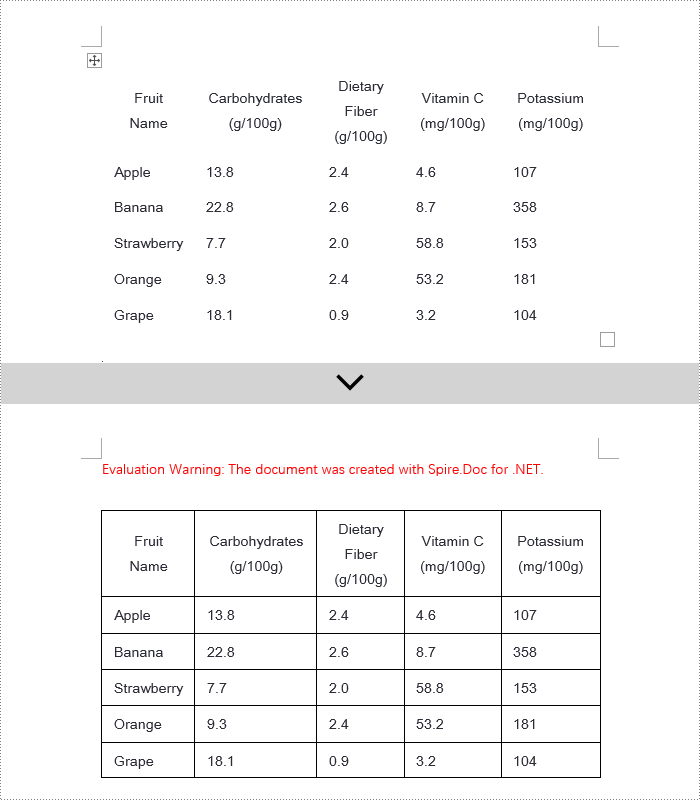
To set borders for all cells in an entire Word table, you need to iterate over each cell and set its visual border properties. Here are the detailed steps:
- Create a Document object.
- Use the Document.LoadFromFile() method to load a document.
- Retrieve the first section of the document using Document.Sections[0].
- Get the first table in that section by using Section.Tables[0].
- Use a for loop to iterate through all the cells in the table.
- Set TableCell.CellFormat.Borders.BorderType to BorderStyle.Single, which sets the cell border to a single line style.
- Set TableCell.CellFormat.Borders.LineWidth to 1.5, defining the border width to be 1.5 points.
- Set TableCell.CellFormat.Borders.Color to Color.Black, setting the border color to black.
- Save the changes to the Word document using the Document.SaveToFile() method.
- C#
using Spire.Doc;

namespace SpireDocDemo
{
    internal class Program
    {
        static void Main(string[] args)
        {
            // Create a new Document object
            Document doc = new Document();

            // Load the document from a file
            doc.LoadFromFile("TableExample1.docx");

            // Get the first section of the document
            Section section = doc.Sections[0];

            // Get the first table in that section
            Table table = (Table)section.Tables[0];

            // Declare TableRow and TableCell variables for use within loops
            TableRow tableRow;
            TableCell tableCell;

            // Iterate through all rows in the table
            for (int i = 0; i < table.Rows.Count; i++)
            {
                // Get the current row
                tableRow = table.Rows[i];

                // Iterate through all cells in the current row
                for (int j = 0; j < tableRow.Cells.Count; j++)
                {
                    // Get the current cell
                    tableCell = tableRow.Cells[j];

                    // Set the border style of the current cell to single line
                    tableCell.CellFormat.Borders.BorderType = Spire.Doc.Documents.BorderStyle.Single;
                }
            }

            // Save the modified document as a new file
            doc.SaveToFile("AddBorders.docx", FileFormat.Docx2016);

            // Close the document to release resources
            doc.Close();
        }
    }
}
C# Modify Word Table Borders
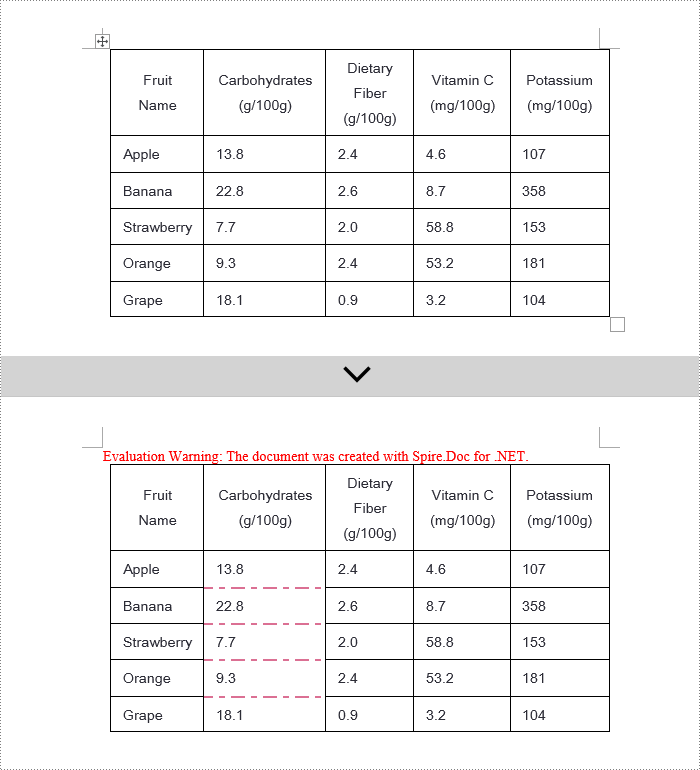
Spire.Doc offers a range of border properties such as the border style TableCell.CellFormat.Borders.BorderType, border width TableCell.CellFormat.Borders.LineWidth, and border color TableCell.CellFormat.Borders.Color, among others. You can customize these properties to achieve the desired effects. Below are the detailed steps:
- Create a Document object.
- Load a document using the Document.LoadFromFile() method.
- Retrieve the first section of the document using Document.Sections[0].
- Get the first table in the section using Section.Tables[0].
- Use a for loop to iterate over the cells in the table whose border styles you wish to change.
- Change the bottom border color of the cell by setting TableCell.CellFormat.Borders.Bottom.Color to Color.PaleVioletRed.
- Change the bottom border style of the cell by setting TableCell.CellFormat.Borders.Bottom.BorderType to BorderStyle.DotDash.
- Change the bottom border width of the cell by setting TableCell.CellFormat.Borders.Bottom.LineWidth to 2 points.
- Save the changes to the document using the Document.SaveToFile() method.
- C#
using Spire.Doc;
using Spire.Doc.Documents;
using System.Drawing;

namespace SpireDocDemo
{
    internal class Program
    {
        static void Main(string[] args)
        {
            // Create a new Document object
            Document doc = new Document();

            // Load the document from a file
            doc.LoadFromFile("TableExample2.docx");

            // Get the first section of the document
            Section section = doc.Sections[0];

            // Get the first table in that section
            Table table = (Table)section.Tables[0];

            // Declare a TableRow to use within the loop
            TableRow tableRow;

            // Iterate through all rows of the table
            for (int i = 1; i < table.Rows.Count - 1; i++)
            {
                tableRow = table.Rows[i];

                // Set the border color of the current cell
                tableRow.Cells[1].CellFormat.Borders.Bottom.Color = Color.PaleVioletRed;

                // Set the border style of the current cell to DotDash
                tableRow.Cells[1].CellFormat.Borders.Bottom.BorderType = Spire.Doc.Documents.BorderStyle.DotDash;

                // Set the width of the border
                tableRow.Cells[1].CellFormat.Borders.Bottom.LineWidth = 2;
            }

            // Save the modified document as a new file
            doc.SaveToFile("ModifiedBorders.docx", FileFormat.Docx2016);

            // Close the document and release resources
            doc.Close();
        }
    }
}
C# Remove Word Table Borders
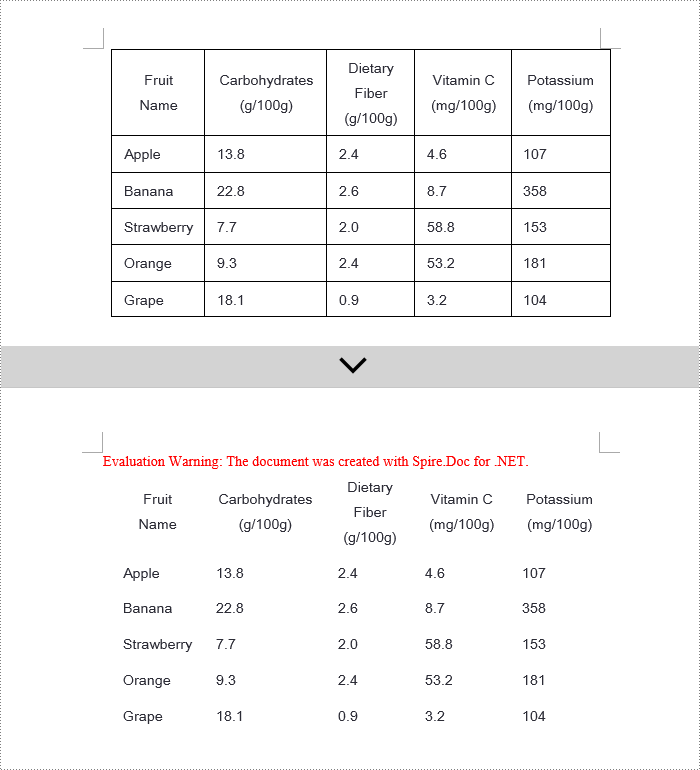
During the process of handling Word documents, not only can border styles be applied to entire tables, but customization can also be extended to individual cells. To completely remove all borders from a table, it is recommended to follow a two-step strategy: First, apply border removal settings to the table itself; second, visit each cell within the table individually to clear their border styles. Here are the detailed steps:
- Create a Document object.
- Load a document using the Document.LoadFromFile() method.
- Retrieve the first table in the section using Section.Tables[0].
- Use a for loop to iterate over all cells in the table.
- Set Table.TableFormat.Borders.BorderType = BorderStyle.None to remove borders from the table.
- Set TableCell.CellFormat.Borders.BorderType = BorderStyle.None to remove borders from each cell.
- Save the changes to the Word document using the Document.SaveToFile() method.
- C#
using Spire.Doc;
using Spire.Doc.Documents;
using System.Drawing;

namespace SpireDocDemo
{
    internal class Program
    {
        static void Main(string[] args)
        {
            // Create a new Document object
            Document doc = new Document();

            // Load the document from file
            doc.LoadFromFile("TableExample2.docx");

            // Get the first section of the document
            Section section = doc.Sections[0];

            // Get the first table in that section
            Table table = (Table)section.Tables[0];

            // Remove the borders set on the table
            table.Format.Borders.BorderType = BorderStyle.None;

            // Declare a TableRow to use in the loop
            TableRow tableRow;

            // Iterate through all rows in the table
            for (int i = 0; i < table.Rows.Count; i++)
            {
                tableRow = table.Rows[i];
                for (int j = 0; j < tableRow.Cells.Count; j++)
                {
                    // Remove all borders set on the cell
                    tableRow.Cells[j].CellFormat.Borders.BorderType = BorderStyle.None;
                }
            }

            // Save the modified document as a new file
            doc.SaveToFile("RemoveBorders.docx", FileFormat.Docx2016);

            // Close the document to release resources
            doc.Close();
        }
    }
}
Apply for a Temporary License
If you'd like to remove the evaluation message from the generated documents, or to get rid of the function limitations, please request a 30-day trial license for yourself.
In Word documents, the ability to add, modify, and remove table borders flexibly can significantly enhance readability and professionalism. Firstly, customizing border styles highlights important information, helping readers quickly locate key data or paragraphs and enhancing visual impact. Secondly, by adjusting the thickness, color, and style of border lines, finer design control can be achieved, ensuring a uniform and aesthetically pleasing document style. Lastly, removing unnecessary borders helps reduce visual clutter, making page layouts cleaner and more comprehensible, improving the reading experience. This article will introduce how to add, modify, or remove Word table borders in Java projects using Spire.Doc for Java.
Install Spire.Doc for Java
First, you're required to add the Spire.Doc.jar file as a dependency in your Java program. The JAR file can be downloaded from this link. If you use Maven, you can easily import the JAR file in your application by adding the following code to your project's pom.xml file.
<repositories>
    <repository>
        <id>com.e-iceblue</id>
        <name>e-iceblue</name>
        <url>https://repo.e-iceblue.com/nexus/content/groups/public/</url>
    </repository>
</repositories>
<dependencies>
    <dependency>
        <groupId>e-iceblue</groupId>
        <artifactId>spire.doc</artifactId>
        <version>14.7.0</version>
    </dependency>
</dependencies>
Java Add Word Table Borders
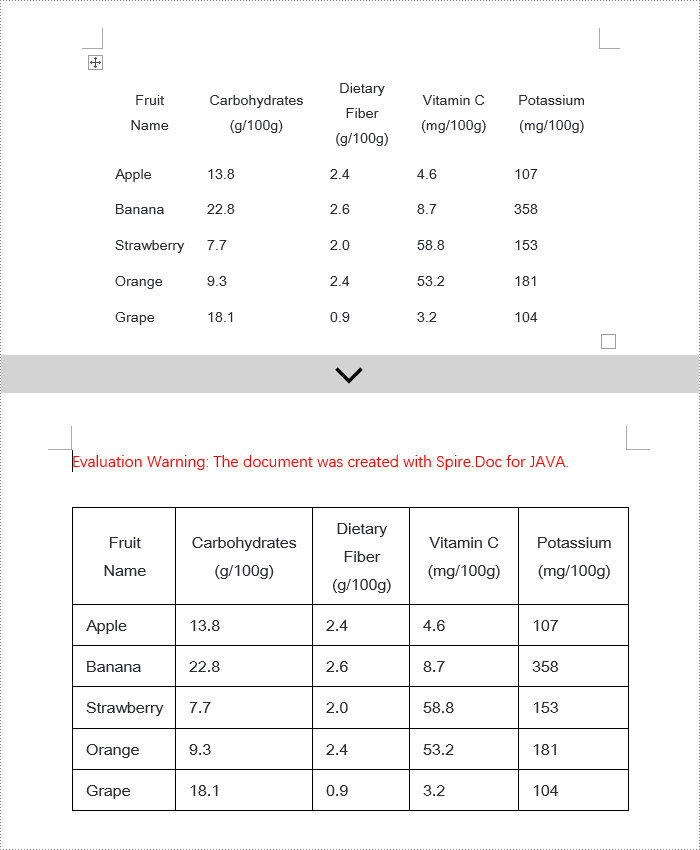
To uniformly add borders to all cells in a table, you need to visit each cell individually and visually set its border properties. Here are the detailed steps:
- Create a Document object.
- Load a document using the Document.loadFromFile() method.
- Retrieve the first section of the document using Document.getSections().get(0).
- Get the first table within the section using Section.getTables().get(0).
- Use a for loop to iterate through all cells in the table.
- Set the cell border to a single line style by using TableCell.getCellFormat().getBorders().setBorderType(BorderStyle.Single).
- Define the border width to 1 point by using TableCell.getCellFormat().getBorders().setLineWidth(1f).
- Set the border color to black by using TableCell.getCellFormat().getBorders().setColor(Color.black).
- Save the changes to the document using the Document.saveToFile() method.
- Java
import com.spire.doc.*;
import com.spire.doc.documents.*;
import java.awt.*;

public class AddBorder {
    public static void main(String[] args) throws Exception{
        // Create a new Document object
        Document doc = new Document();

        // Load the document from file
        doc.loadFromFile("TableExample1.docx");

        // Get the first section of the document
        Section section = doc.getSections().get(0);

        // Get the first table in the section
        Table table = section.getTables().get(0);

        // Declare TableRow and TableCell variables for use in the loop
        TableRow tableRow;
        TableCell tableCell;

        // Iterate through all rows of the table
        for (int i = 0; i < table.getRows().getCount(); i++) {
            // Get the current row
            tableRow = table.getRows().get(i);

            // Iterate through all cells in the current row
            for (int j = 0; j < tableRow.getCells().getCount(); j++) {
                // Get the current cell
                tableCell = tableRow.getCells().get(j);

                // Set the border style of the current cell to single line
                tableCell.getCellFormat().getBorders().setBorderType(BorderStyle.Single);

                // Set the width of the border
                tableCell.getCellFormat().getBorders().setLineWidth(1f);

                // Set the color of the border
                tableCell.getCellFormat().getBorders().setColor(Color.black);
            }
        }

        // Save the modified document as a new file
        doc.saveToFile("AddBorders.docx", FileFormat.Docx);

        // Close the document to release resources
        doc.close();
    }
}
Java Modify Word Table Borders
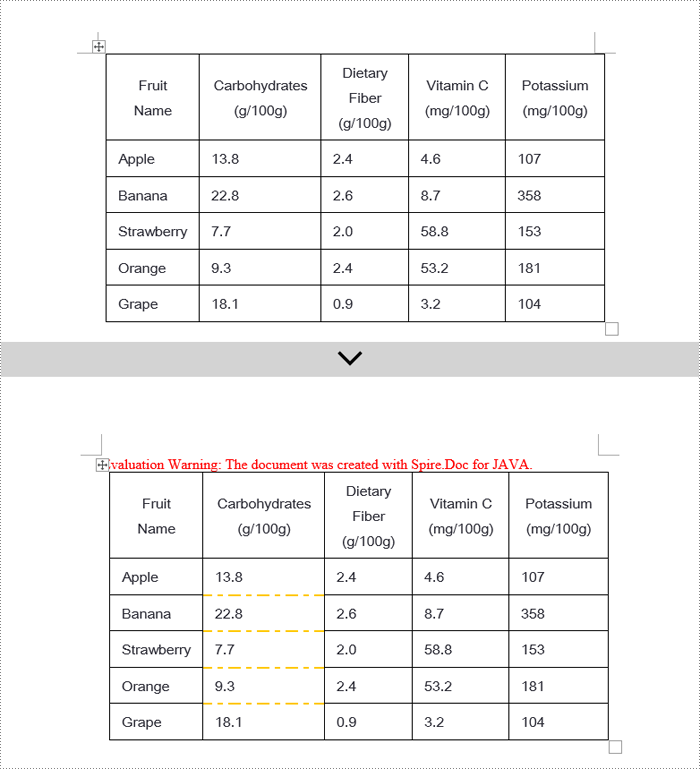
Spire.Doc empowers users with extensive customization options for borders, allowing adjustments such as selecting border styles through TableCell.getCellFormat().getBorders().getBottom().setBorderType(), setting border thickness via TableCell.getCellFormat().getBorders().getBottom().setLineWidth(), and specifying border colors with TableCell.getCellFormat().getBorders().getBottom().setColor(). This enables fine-tuned design of table borders within documents according to personal or project needs. Below are the detailed steps:
- Instantiate a Document object.
- Load a document using the Document.loadFromFile() method.
- Retrieve the first section of the document by calling Document.getSections().get(0).
- Get the first table within the section using Section.getTables().get(0).
- Iterate over the cells in the table that require border style changes using a for loop.
- Change the color of the bottom border to orange by invoking TableCell.getCellFormat().getBorders().getBottom ().setColor(Color.ORANGE).
- Alter the style of the bottom border to a dashed line by calling TableCell.getCellFormat().getBorders().getBottom ().setBorderType(BorderStyle.Dot_Dash).
- Modify the width of the bottom border to 2 points by executing TableCell.getCellFormat().getBorders().getBottom ().setLineWidth(2).
- Save the document using the Document.saveToFile() method.
- Java
import com.spire.doc.*;
import com.spire.doc.documents.*;
import java.awt.*;

public class ModifyBorder {
    public static void main(String[] args) {
        // Create a new Document object
        Document doc = new Document();

        // Load the document from a file
        doc.loadFromFile("TableExample2.docx");

        // Get the first section of the document
        Section section = doc.getSections().get(0);

        // Get the first table in that section
        Table table = section.getTables().get(0);

        // Declare a TableRow to use within the loop
        TableRow tableRow;

        // Iterate through all rows of the table
        for (int i = 1; i < table.getRows().getCount() - 1; i++) {
            tableRow = table.getRows().get(i);

            // Set the border color of the current cell     tableRow.getCells().get(1).getCellFormat().getBorders().getBottom().setColor(Color.ORANGE);
            // Set the border style of the current cell to dotted line
tableRow.getCells().get(1).getCellFormat().getBorders().getBottom().setBorderType(BorderStyle.Dot_Dash);

            // Set the width of the border
tableRow.getCells().get(1).getCellFormat().getBorders().getBottom().setLineWidth(2);
        }

        // Save the modified document as a new file
        doc.saveToFile("ModifyBorder.docx", FileFormat.Docx);

        // Close the document to release resources
        doc.close();
    }
}
Java Remove Word Table Borders
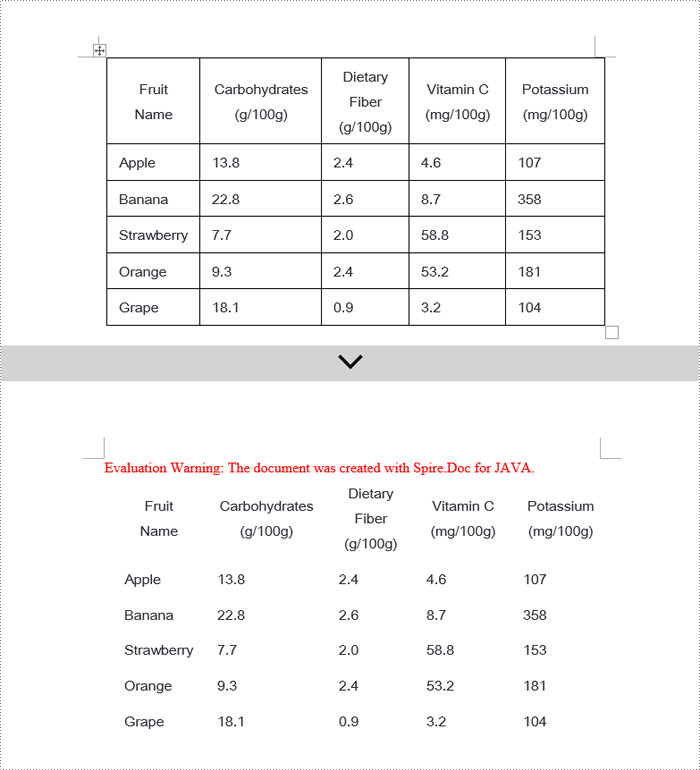
When editing Word documents, the flexibility of border design extends beyond the entire table level, allowing for meticulous personalized adjustments at the individual cell level. To comprehensively remove all traces of borders both inside and outside of tables, a phased approach is recommended: Firstly, address the macro-level by clearing the overall border style of the table; subsequently, enter the micro-adjustment phase where each cell within the table is iterated over to revoke its unique border settings. Below are the detailed steps:
- Instantiate a Document object.
- Load a document using the Document.loadFromFile() method.
- Retrieve the first section of the document by calling Document.getSections().get(0).
- Access the first table within the section using Section.getTables().get(0).
- Iterate over all cells in the table using a for loop.
- Remove the border of the table by invoking Table.getTableFormat().getBorders().setBorderType(BorderStyle.None).
- Eliminate the borders of each cell individually by applying TableCell.getCellFormat().getBorders().setBorderType(BorderStyle.None).
- Save the modified document using the Document.saveToFile() method.
- Java
import com.spire.doc.*;
import com.spire.doc.documents.BorderStyle;

public class RemoveBorder {
    public static void main(String[] args) {
        // Create a new Document object
        Document doc = new Document();

        // Load the document from a file
        doc.loadFromFile("TableExample2.docx");

        // Get the first section of the document
        Section section = doc.getSections().get(0);

        // Get the first table in the section
        Table table = section.getTables().get(0);

        // Remove the borders set on the table
        table.getTableFormat().getBorders().setBorderType(BorderStyle.None);

        // Declare a TableRow to use in the loop
        TableRow tableRow;

        // Iterate through all rows of the table
        for (int i = 0; i < table.getRows().getCount(); i++) {
            tableRow = table.getRows().get(i);
            for (int j = 0; j < tableRow.getCells().getCount(); j++) {
                // Remove all borders set on the cell          tableRow.getCells().get(j).getCellFormat().getBorders().setBorderType(BorderStyle.None);
            }
        }

        // Save the modified document as a new file
        doc.saveToFile("RemoveBorder.docx", FileFormat.Docx);

        // Close the document and release resources
        doc.close();
    }
}
Apply for a Temporary License
If you'd like to remove the evaluation message from the generated documents, or to get rid of the function limitations, please request a 30-day trial license for yourself.
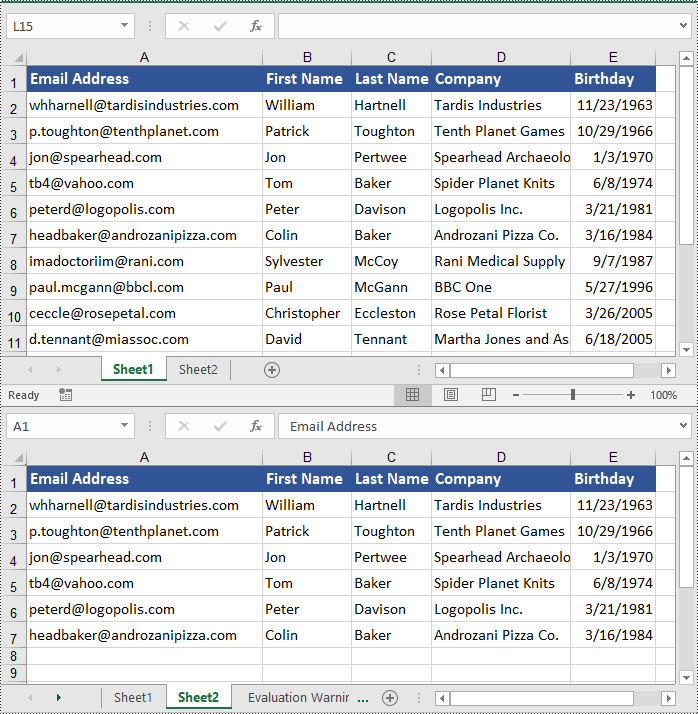
Copying data in Excel is a fundamental feature that allows you to quickly and efficiently reproduce data. It can be especially valuable when building spreadsheets with similar structures, or needing to propagate the same information across multiple areas of your workbook. By mastering the art of copying in Excel, you can boost your productivity and reduce the risk of manual data entry errors. In this article, we will explain how to copy rows, columns and cells in Excel in Python using Spire.XLS for Python.
Install Spire.XLS for Python
This scenario requires Spire.XLS for Python and plum-dispatch v1.7.4. They can be easily installed in your Windows through the following pip command.
pip install Spire.XLS
If you are unsure how to install, please refer to this tutorial: How to Install Spire.XLS for Python on Windows
Copy Rows in Excel in Python
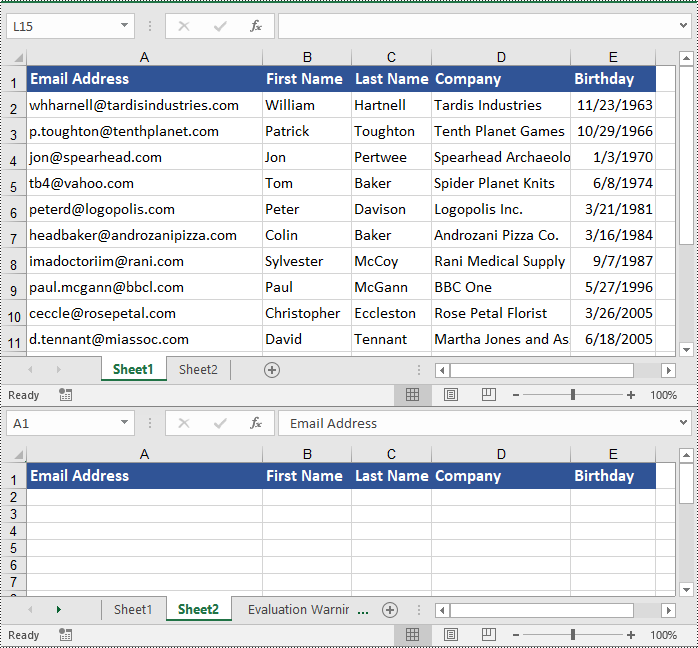
You can use the Worksheet.CopyRow(sourceRow, destSheet, destRowIndex, copyOptions) method provided by Spire.XLS for Python to easily copy a row in the same or between different worksheets in Excel. The detailed steps are as follows.
- Create an object of the Workbook class.
- Load an Excel file using the Workbook.LoadFromFile() method.
- Get the source worksheet and the destination worksheet using the Workbook.Worksheets[index] property.
- Get the desired row that you want to copy using the Worksheet.Rows[index] property.
- Copy the row and its format from the source worksheet to the destination worksheet using the Worksheet.CopyRow(sourceRow, destSheet, destRowIndex, copyOptions) method.
- Copy the column widths of cells in the source row to the corresponding cells in the destination row.
- Save the workbook to a file using the Workbook.SaveToFile() method.
- Python
from spire.xls import *
from spire.xls.common import *

# Create a Workbook object
workbook = Workbook()
# Load an Excel file
workbook.LoadFromFile("ContactList.xlsx")

# Get the source worksheet
sheet1 = workbook.Worksheets[0]
# Get the destination worksheet
sheet2 = workbook.Worksheets[1]

# Get the desired row that you want to copy
row = sheet1.Rows[0]

# Copy the row from the source worksheet to the first row of the destination worksheet
sheet1.CopyRow(row, sheet2, 1, CopyRangeOptions.All)

columns = sheet1.Columns.Length
# Copy the column widths of the cells in the source row to the corresponding cells in the destination row
for i in range(columns):
    column_width = row.Columns[i].ColumnWidth
    sheet2.Rows[0].Columns[i].ColumnWidth = column_width

# Save the workbook to a file
workbook.SaveToFile("CopyRow.xlsx", ExcelVersion.Version2016)
workbook.Dispose()
Copy Columns in Excel in Python
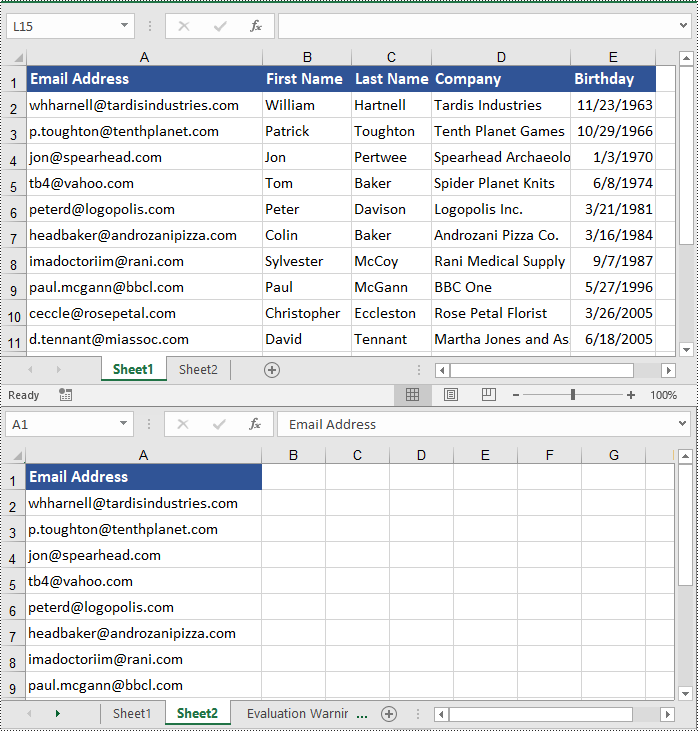
To copy a column in an Excel worksheet, you can use the Worksheet.CopyColumn(sourceColumn, destSheet, destColIndex, copyOptions) method. The detailed steps are as follows.
- Create an object of the Workbook class.
- Load an Excel file using the Workbook.LoadFromFile() method.
- Get the source worksheet and the destination worksheet using the Workbook.Worksheets[index] property.
- Get the desired column that you want to copy using the Worksheet.Columns[index] property.
- Copy the column and its format from the source worksheet to the destination worksheet using the Worksheet.CopyColumn(sourceColumn, destSheet, destColIndex, copyOptions) method.
- Copy the row heights of cells in the source column to the corresponding cells in the destination column.
- Save the workbook to a file using the Workbook.SaveToFile() method.
- Python
from spire.xls import *
from spire.xls.common import *

# Create a Workbook object
workbook = Workbook()
# Load an Excel file
workbook.LoadFromFile("ContactList.xlsx")

# Get the source worksheet
sheet1 = workbook.Worksheets[0]
# Get the destination worksheet
sheet2 = workbook.Worksheets[1]

# Get the desired column that you want to copy
column = sheet1.Columns[0]

# Copy the column from the source worksheet to the first column of the destination worksheet
sheet1.CopyColumn(column, sheet2, 1, CopyRangeOptions.All)

rows = column.Rows.Length
# Copy the row heights of cells in the source column to the corresponding cells in the destination column
for i in range(rows):
    row_height = column.Rows[i].RowHeight
    sheet2.Columns[0].Rows[i].RowHeight = row_height

# Save the workbook to a file
workbook.SaveToFile("CopyColumn.xlsx", ExcelVersion.Version2016)
workbook.Dispose()
Copy Cells in Excel in Python
In addition to copying entire rows and columns, you are also able to copy an individual cell or a range of cells using the CellRange.Copy(destRange, copyOptions) method. The detailed steps are as follows.
- Create an object of the Workbook class.
- Load an Excel file using the Workbook.LoadFromFile() method.
- Get the source worksheet and the destination worksheet using the Workbook.Worksheets[index] property.
- Get the source cell range and the destination cell range using the Worksheet.Range[] property.
- Copy the source cell range and its format from the source worksheet to the destination cell range in the destination worksheet using the CellRange.Copy(destRange, copyOptions) method.
- Copy the row heights and column widths of the source cell range to the destination cell range.
- Save the workbook to a file using the Workbook.SaveToFile() method.
- Python
from spire.xls import *
from spire.xls.common import *

# Create a Workbook object
workbook = Workbook()
# Load an Excel file
workbook.LoadFromFile("ContactList.xlsx")

# Get the source worksheet
sheet1 = workbook.Worksheets[0]
# Get the destination worksheet
sheet2 = workbook.Worksheets[1]

# Get the source cell range
range1 = sheet1.Range["A1:E7"]
# Get the destination cell range
range2 = sheet2.Range["A1:E7"]

# Copy the source cell range from the source worksheet to the destination cell range in the destination worksheet
range1.Copy(range2, CopyRangeOptions.All)

# Copy the row heights and column widths of the source cell range to the destination cell range
for i, row in enumerate(range1.Rows):
    for j, column in enumerate(row.Columns):
        range2.Rows[i].Columns[j].ColumnWidth = column.ColumnWidth
        range2.Rows[i].RowHeight = row.RowHeight

# Save the workbook to a file
workbook.SaveToFile("CopyCells.xlsx", ExcelVersion.Version2016)
workbook.Dispose()
Apply for a Temporary License
If you'd like to remove the evaluation message from the generated documents, or to get rid of the function limitations, please request a 30-day trial license for yourself.
