
Knowledgebase (2370)
Children categories
Adding gutters on Word document pages can enhance the professionalism and aesthetics of the document. Gutters not only make the document appear neater and more organized but also serve as a guide when printing the document, making it easier for readers to navigate and browse through the content. By adding gutters on the document pages, you can simulate the common binding line effect found in physical documents, giving the document a more printed quality. This article will explain how to use Spire.Doc for .NET to add gutters on Word document pages within a C# project.
- Add a Gutter at the Top of a Word Document Page using C#
- Add a Gutter at the Left of a Word Document Page using C#
Install Spire.Doc for .NET
To begin with, you need to add the DLL files included in the Spire.Doc for .NET package as references in your .NET project. The DLL files can be either downloaded from this link or installed via NuGet.
PM> Install-Package Spire.Doc
Add a Gutter at the Top of a Word Document Page using C#
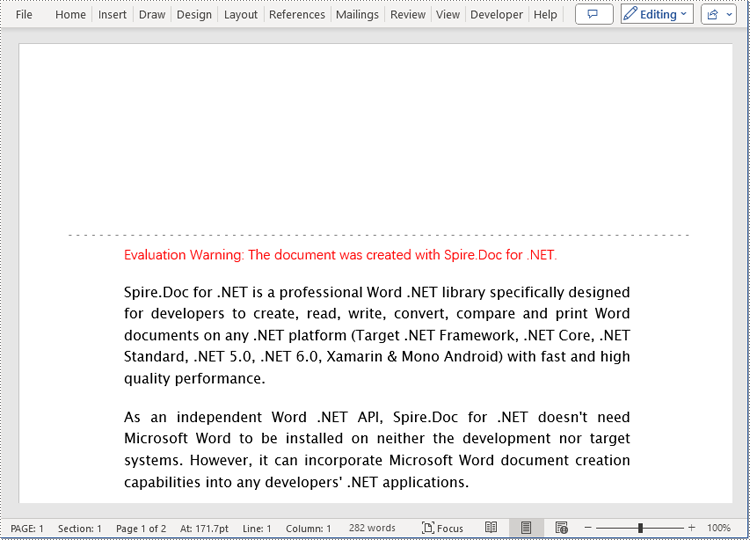
To enable the top gutter on a page, you can set the section.PageSetup.IsTopGutter = true. The default gutter area displays blank without content, and this example also includes how to add text within the gutter area. Here are the detailed steps:
- Create a Document object.
- Load a document using the Document.LoadFromFile() method.
- Iterate through all sections of the document using a for loop over the Document.Sections collection.
- Set Section.PageSetup.IsTopGutter to true to display the gutter at the top of the page.
- Use the Section.PageSetup.Gutter property to set the width of the gutter.
- Call the custom AddTopGutterText() method to add text to the gutter area.
- Save the document using the Document.SaveToFile() method.
- C#
using Spire.Doc;
using Spire.Doc.Documents;
using Spire.Doc.Fields;
using Spire.Doc.Formatting;
using System.Drawing;
using System.Text;

namespace SpireDocDemo
{
	internal class Program
	{
		static void Main(string[] args)
		{
			// Create a document object
			Document document = new Document();

			// Load the document
			document.LoadFromFile("Sample1.docx");

			// Iterate through all sections of the document
			for (int i = 0; i < document.Sections.Count; i++)
			{
				// Get the current section
				Section section = document.Sections[i];

				// Set whether to add a gutter at the top of the page to true
				section.PageSetup.IsTopGutter = true;

				// Set the width of the gutter to 100f
				section.PageSetup.Gutter = 100f;

				// Call a method to add text on the top gutter
				AddTopGutterText(section);
			}

			// Save the modified document to a file
			document.SaveToFile("Add Gutter Line at the Top of the Page.docx", FileFormat.Docx2016);

			// Release document resources
			document.Dispose();
		}
		// Method to add text on the top gutter
		static void AddTopGutterText(Section section)
		{
			// Get the header of the section
			HeaderFooter header = section.HeadersFooters.Header;

			// Set the width of the text box to the page width
			float width = section.PageSetup.PageSize.Width;

			// Set the height of the text box to 40
			float height = 40;

			// Add a text box in the header
			TextBox textBox = header.AddParagraph().AppendTextBox(width, height);

			// Set the text box without border
			textBox.Format.NoLine = true;

			// Set the vertical starting position of the text box to the top margin area
			textBox.VerticalOrigin = VerticalOrigin.TopMarginArea;

			// Set the vertical position of the text box
			textBox.VerticalPosition = 140;

			// Set the horizontal alignment of the text box to left
			textBox.HorizontalAlignment = ShapeHorizontalAlignment.Left;

			// Set the horizontal starting position of the text box to the left margin area
			textBox.HorizontalOrigin = HorizontalOrigin.LeftMarginArea;

			// Set the text anchor to bottom
			textBox.Format.TextAnchor = ShapeVerticalAlignment.Bottom;

			// Set the text wrapping style to in front of text
			textBox.Format.TextWrappingStyle = TextWrappingStyle.InFrontOfText;

			// Set the text wrapping type to both sides
			textBox.Format.TextWrappingType = TextWrappingType.Both;

			// Create a paragraph object
			Paragraph paragraph = new Paragraph(section.Document);

			// Set the paragraph to be horizontally centered
			paragraph.Format.HorizontalAlignment = HorizontalAlignment.Center;

			// Create a font object
			Font font = new Font("Times New Roman", 8);

			// Create a drawing object
			Graphics graphics = Graphics.FromImage(new Bitmap(1, 1));
			string text1 = " - ";
			SizeF size1 = graphics.MeasureString(text1, font);
			float textWidth1 = size1.Width / 96 * 72;
			int count = (int)(textBox.Width / textWidth1);
			StringBuilder stringBuilder = new StringBuilder();
			for (int i = 1; i < count; i++)
			{
				stringBuilder.Append(text1);
			}

			// Create a character format object
			CharacterFormat characterFormat = new CharacterFormat(section.Document);
			characterFormat.FontName = font.Name;
			characterFormat.FontSize = font.Size;
			TextRange textRange = paragraph.AppendText(stringBuilder.ToString());
			textRange.ApplyCharacterFormat(characterFormat);

			// Add the paragraph to the text box
			textBox.ChildObjects.Add(paragraph);
		}
	}
}
Add a Gutter at the Left of a Word Document Page using C#
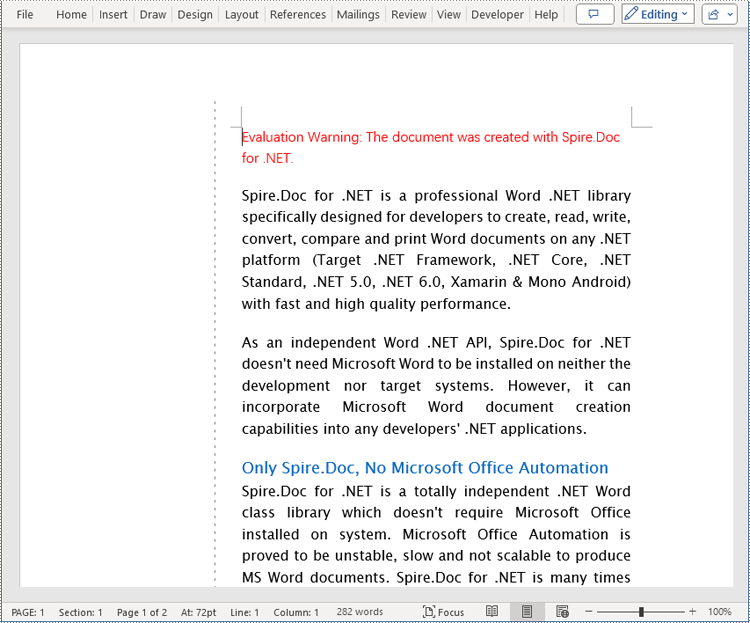
To set the left-side gutter on the page, ensure that you set the Section.PageSetup.IsTopGutter property to false. Here are the detailed steps:
- Create a Document object.
- Load a document using the Document.LoadFromFile() method.
- Iterate through all sections of the document using a for loop over the Document.Sections collection.
- Set Section.PageSetup.IsTopGutter to false to display the gutter on the left side of the page.
- Use the Section.PageSetup.Gutter property to set the width of the gutter.
- Call the custom AddLeftGutterText() method to add text to the gutter area.
- Save the document using the Document.SaveToFile() method.
- C#
using Spire.Doc;
using Spire.Doc.Documents;
using Spire.Doc.Fields;
using Spire.Doc.Formatting;
using System.Drawing;
using System.Text;

namespace SpireDocDemo
{
	internal class Program
	{
		static void Main(string[] args)
		{
			// Create a document object
			Document document = new Document();

			// Load the document
			document.LoadFromFile("Sample1.docx");

			// Iterate through all sections of the document
			for (int i = 0; i < document.Sections.Count; i++)
			{
				// Get the current section
				Section section = document.Sections[i];

				// Set whether to add a gutter at the top of the page to false, it will be added to the left side of the page
				section.PageSetup.IsTopGutter = false;

				// Set the width of the gutter to 100f
				section.PageSetup.Gutter = 100f;

				// Call a method to add text on the left gutter
				AddLeftGutterText(section);
			}

			// Save the modified document to a file
			document.SaveToFile("Add Gutter Line on the Left Side of the Page.docx", FileFormat.Docx2016);

			// Release document resources
			document.Dispose();
		}
		// Method to add text on the left gutter
		static void AddLeftGutterText(Section section)
		{
			// Get the header of the section
			HeaderFooter header = section.HeadersFooters.Header;

			// Set the width of the text box to 40
			float width = 40;

			// Get the page height
			float height = section.PageSetup.PageSize.Height;

			// Add a text box in the header
			TextBox textBox = header.AddParagraph().AppendTextBox(width, height);

			// Set the text box without border
			textBox.Format.NoLine = true;

			// Set the text direction in the text box from right to left
			textBox.Format.LayoutFlowAlt = TextDirection.RightToLeft;

			// Set the horizontal starting position of the text box
			textBox.HorizontalOrigin = HorizontalOrigin.LeftMarginArea;

			// Set the horizontal position of the text box
			textBox.HorizontalPosition = 140;

			// Set the vertical alignment of the text box to top
			textBox.VerticalAlignment = ShapeVerticalAlignment.Top;

			// Set the vertical starting position of the text box to the top margin area
			textBox.VerticalOrigin = VerticalOrigin.TopMarginArea;

			// Set the text anchor to top
			textBox.Format.TextAnchor = ShapeVerticalAlignment.Top;

			// Set the text wrapping style to in front of text
			textBox.Format.TextWrappingStyle = TextWrappingStyle.InFrontOfText;

			// Set the text wrapping type to both sides
			textBox.Format.TextWrappingType = TextWrappingType.Both;

			// Create a paragraph object
			Paragraph paragraph = new Paragraph(section.Document);

			// Set the paragraph to be horizontally centered
			paragraph.Format.HorizontalAlignment = HorizontalAlignment.Center;

			// Create a font object
			Font font = new Font("Times New Roman", 8);

			// Create a drawing object
			Graphics graphics = Graphics.FromImage(new Bitmap(1, 1));
			string text1 = " - ";

			// Measure the size of the text
			SizeF size1 = graphics.MeasureString(text1, font);
			float textWidth1 = size1.Width / 96 * 72;

			int count = (int)(textBox.Height / textWidth1);
			StringBuilder stringBuilder = new StringBuilder();
			for (int i = 1; i < count; i++)
			{
				stringBuilder.Append(text1);
			}

			// Create a character format object
			CharacterFormat characterFormat = new CharacterFormat(section.Document);
			characterFormat.FontName = font.Name;
			characterFormat.FontSize = font.Size;
			TextRange textRange = paragraph.AppendText(stringBuilder.ToString());
			textRange.ApplyCharacterFormat(characterFormat);

			// Add the paragraph to the text box
			textBox.ChildObjects.Add(paragraph);
		}
	}
}
Apply for a Temporary License
If you'd like to remove the evaluation message from the generated documents, or to get rid of the function limitations, please request a 30-day trial license for yourself.
Efficiently managing Word documents often requires the task of splitting them into smaller sections. However, manually performing this task can be time-consuming and labor-intensive. Fortunately, Spire.Doc for Python provides a convenient and efficient way to programmatically segment Word documents, helping users to extract specific parts of a document, split lengthy documents into smaller chunks, and streamline data extraction. This article demonstrates how to use Spire.Doc for Python to split a Word document into multiple documents in Python.
The splitting of a Word document is typically done by page breaks and section breaks due to the dynamic nature of document content. Therefore, this article focuses on the following two parts:
- Split a Word Document by Page Breaks with Python
- Split a Word Document by Section Breaks with Python
Install Spire.Doc for Python
This scenario requires Spire.Doc for Python and plum-dispatch v1.7.4. They can be easily installed in your Windows through the following pip command.
pip install Spire.Doc
If you are unsure how to install, please refer to: How to Install Spire.Doc for Python on Windows
Split a Word Document by Page Breaks with Python
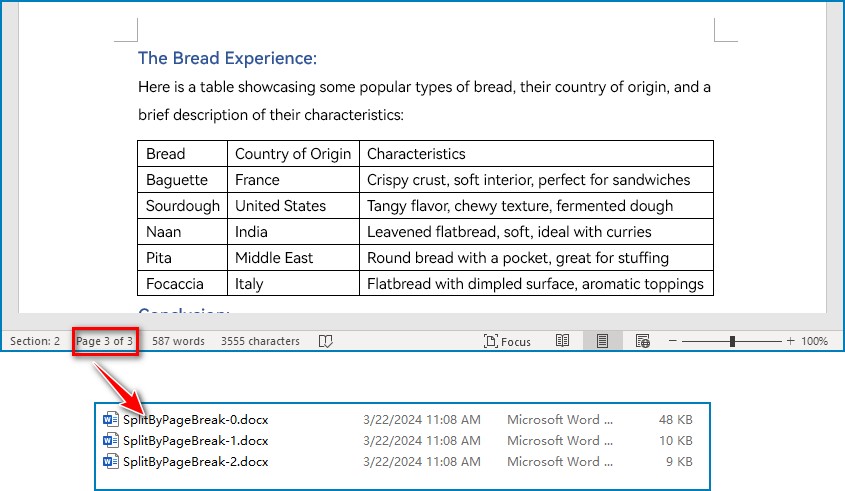
Page breaks allow for the forced pagination of a document, thereby achieving a fixed division of content. By using page breaks as divisions, we can split a Word document into smaller content-related documents. The detailed steps for splitting a Word document by page breaks are as follows:
- Create an instance of Document class and load a Word document using Document.LoadFromFile() method.
- Create a new document, add a section to it using Document.AddSection() method.
- Iterate through all body child objects in each section in the original document and check if the child object is a paragraph or a table.
- If the child object is a table, add it to the section in the new document using Section.Body.ChildObjects.Add() method.
- If the child object is a paragraph, add the paragraph object to the section in the new document. Then, iterate through all child objects of the paragraph and check if a child object is a page break.
- If the child object in the paragraph is a page break, get its index using Paragraph.ChildObjects.IndexOf() method and remove it from the paragraph by its index.
- Save the new document using Document.SaveToFile() method and repeat the above process.
- Python
from spire.doc import *
from spire.doc.common import *

inputFile = "Sample.docx"
outputFolder = "output/SplitDocument/"

# Create an instance of Document
original = Document()
# Load a Word document
original.LoadFromFile(inputFile)

# Create a new word document and add a section to it
newWord = Document()
section = newWord.AddSection()
original.CloneDefaultStyleTo(newWord)
original.CloneThemesTo(newWord)
original.CloneCompatibilityTo(newWord)

index = 0
# Iterate through all sections of original document
for m in range(original.Sections.Count):
    sec = original.Sections.get_Item(m)
    # Iterate through all body child objects of each section
    for k in range(sec.Body.ChildObjects.Count):
        obj = sec.Body.ChildObjects.get_Item(k)
        if isinstance(obj, Paragraph):
            para = obj if isinstance(obj, Paragraph) else None
            sec.CloneSectionPropertiesTo(section)
            # Add paragraph object in original section into section of new document
            section.Body.ChildObjects.Add(para.Clone())
            for j in range(para.ChildObjects.Count):
                parobj = para.ChildObjects.get_Item(j)
                if isinstance(parobj, Break) and ( parobj if isinstance(parobj, Break) else None).BreakType == BreakType.PageBreak:
                    # Get the index of page break in paragraph
                    i = para.ChildObjects.IndexOf(parobj)
                    # Remove the page break from its paragraph
                    section.Body.LastParagraph.ChildObjects.RemoveAt(i)
                    # Save the new document
                    resultF = outputFolder
                    resultF += "SplitByPageBreak-{0}.docx".format(index)
                    newWord.SaveToFile(resultF, FileFormat.Docx)
                    index += 1
                    # Create a new document and add a section
                    newWord = Document()
                    section = newWord.AddSection()
                    original.CloneDefaultStyleTo(newWord)
                    original.CloneThemesTo(newWord)
                    original.CloneCompatibilityTo(newWord)
                    sec.CloneSectionPropertiesTo(section)
                    # Add paragraph object in original section into section of new document
                    section.Body.ChildObjects.Add(para.Clone())
                    if section.Paragraphs[0].ChildObjects.Count == 0:
                        # Remove the first blank paragraph
                        section.Body.ChildObjects.RemoveAt(0)
                    else:
                        # Remove the child objects before the page break
                        while i >= 0:
                            section.Paragraphs[0].ChildObjects.RemoveAt(i)
                            i -= 1
        if isinstance(obj, Table):
            # Add table object in original section into section of new document
            section.Body.ChildObjects.Add(obj.Clone())

# Save the document
result = outputFolder+"SplitByPageBreak-{0}.docx".format(index)
newWord.SaveToFile(result, FileFormat.Docx2013)
newWord.Close()
Split a Word Document by Section Breaks with Python
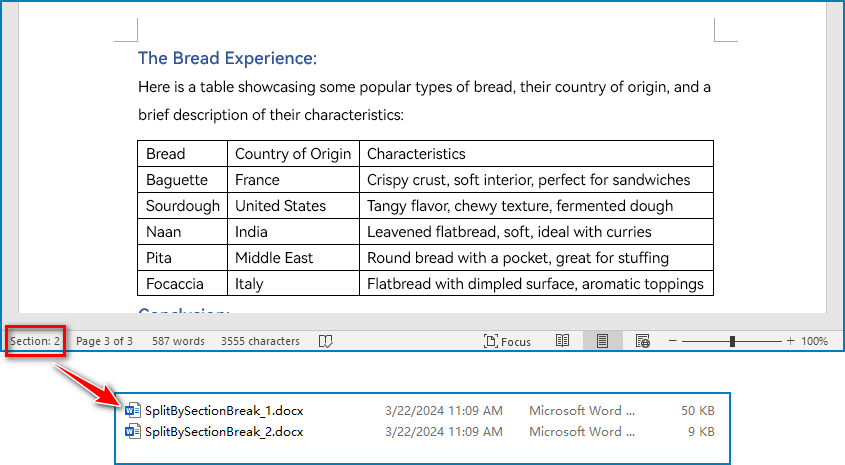
Sections divide a Word document into different logical parts and allow for independent formatting for each section. By splitting a Word document into sections, we can obtain multiple documents with relatively independent content and formatting. The detailed steps for splitting a Word document by section breaks are as follows:
- Create an instance of Document class and load a Word document using Document.LoadFromFile() method.
- Iterate through each section in the document.
- Get a section using Document.Sections.get_Item() method.
- Create a new Word document and copy the section in the original document to the new document using Document.Sections.Add() method.
- Save the new document using Document.SaveToFile() method.
- Python
from spire.doc import *
from spire.doc.common import *

# Create an instance of Document class
document = Document()
# Load a Word document
document.LoadFromFile("Sample.docx")

# Iterate through all sections
for i in range(document.Sections.Count):
    section = document.Sections.get_Item(i)
    result = "output/SplitDocument/" + "SplitBySectionBreak_{0}.docx".format(i+1)
    # Create a new Word document
    newWord = Document()
    # Add the section to the new document
    newWord.Sections.Add(section.Clone())
    #Save the new document
    newWord.SaveToFile(result)
    newWord.Close()
Apply for a Temporary License
If you'd like to remove the evaluation message from the generated documents, or to get rid of the function limitations, please request a 30-day trial license for yourself.
Excel files often contain sensitive and confidential information, such as financial data, personal information, trade secrets, or proprietary formulas. When sharing these files over the internet or between organizations, there might be a risk of data leaks, theft, or unauthorized modifications. To address this concern, Excel provides a comprehensive set of protection features, such as password-protecting workbooks, restricting editing on worksheets, and locking cells, which enable users to establish multiple layers of security to control data access and maintain the integrity of their Excel files. In this article, you will learn how to protect and unprotect Excel workbooks and worksheets in Python using Spire.XLS for Python.
- Password Protect an Entire Workbook
- Protect a Worksheet with a Specific Protection Type
- Allow Users to Edit Ranges in a Protected Worksheet
- Unprotect a Password Protected Worksheet
- Remove or Reset the Password of an Encrypted Workbook
Install Spire.XLS for Python
This scenario requires Spire.XLS for Python and plum-dispatch v1.7.4. They can be easily installed in your Windows through the following pip commands.
pip install Spire.XLS
If you are unsure how to install, please refer to this tutorial: How to Install Spire.XLS for Python on Windows
Password Protect an Entire Workbook in Python
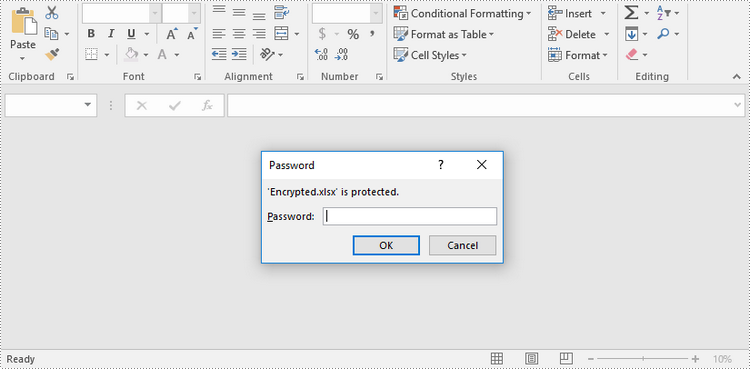
By encrypting an Excel document with a password, you ensure that the data within the document remains secure and inaccessible to unauthorized individuals. The following are the steps to password-protect a workbook using Spire.XLS for Python.
- Create a Workbook object.
- Load an Excel file using Workbook.LoadFromFile() method.
- Protect the workbook with a password using Workbook.Protect() method.
- Save the workbook to another Excel file using Workbook.SaveToFile() method.
- Python
from spire.xls import *
from spire.xls.common import *

# Create a Workbook object
workbook = Workbook()

# Load an Excel workbook
workbook.LoadFromFile("Sample.xlsx")

# Protect the workbook with a password
workbook.Protect("psd-123")

# Save the workbook to another Excel file
workbook.SaveToFile("Encrypted.xlsx", ExcelVersion.Version2016)
workbook.Dispose()
Protect a Worksheet with a Specific Protection Type in Python
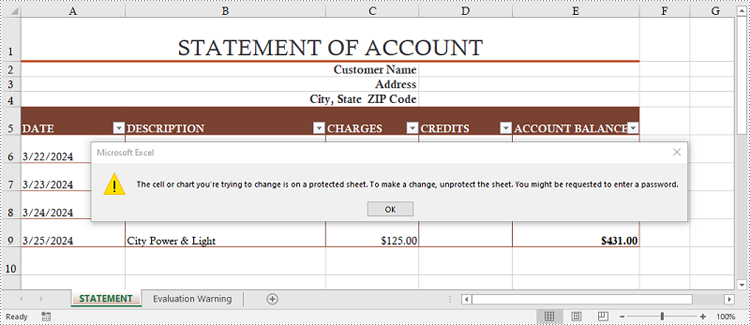
If you want to authorize others to view your Excel document while limiting the types of changes they can make to a worksheet, you can protect the worksheet with a specific protection type. The table below lists a variety of pre-defined protection types under the SheetProtectionType enumeration.
| Protection Type | Allow users to |
| Content | Modify or insert content. |
| DeletingColumns | Delete columns. |
| DeletingRows | Delete rows. |
| Filtering | Set filters. |
| FormattingCells | Format cells. |
| FormattingColumns | Format columns. |
| FormattingRows | Format rows. |
| InsertingColumns | Insert columns. |
| InsertingRows | Insert rows. |
| InsertingHyperlinks | Insert hyperlinks . |
| LockedCells | Select locked cells. |
| UnlockedCells | Select unlocked cells. |
| Objects | Modify drawing objects. |
| Scenarios | Modify saved scenarios. |
| Sorting | Sort data. |
| UsingPivotTables | Use pivot table and pivot chart. |
| All | Do any operations listed above on the protected worksheet. |
| none | Do nothing on the protected worksheet. |
The following steps show you how to protect a worksheet with a specific protection type using Spire.XLS for Python.
- Create a Workbook object.
- Load an Excel file using Workbook.LoadFromFile() method.
- Get a specific worksheet through Workbook.Worksheets[index] property.
- Protect the worksheet with a password and a specific protection type using Worksheet.Protect(password:str, options:SheetProtectionType) method.
- Save the workbook to another Excel file using Workbook.SaveToFile() method.
- Python
from spire.xls import *
from spire.xls.common import *

# Create a Workbook object
workbook = Workbook()

# Load an Excel workbook
workbook.LoadFromFile("Sample.xlsx")

# Get the first worksheet
worksheet = workbook.Worksheets[0]

# Protect the worksheet with a password and a specific protection type
worksheet.Protect("psd-permission", SheetProtectionType.none)

# Save the workbook to another Excel file
workbook.SaveToFile("ProtectWorksheet.xlsx", ExcelVersion.Version2016)
workbook.Dispose()
Allow Users to Edit Ranges in a Protected Worksheet in Python
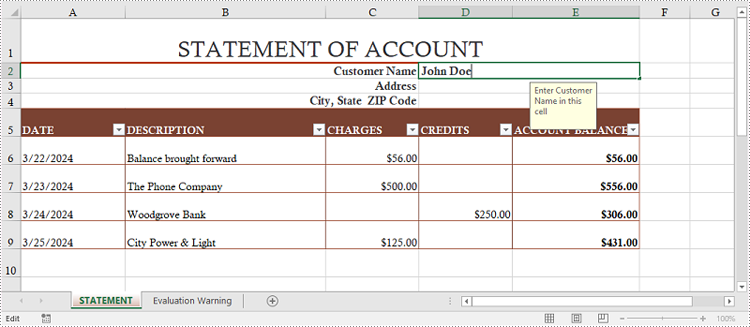
In certain cases, you may want to allow users to edit certain ranges of a worksheet while preserving the integrity of other data. The following steps demonstrate how to accomplish this feature using Spire.XLS for Python.
- Create a Workbook object.
- Load an Excel file using Workbook.LoadFromFile() method.
- Get a specific worksheet through Workbook.Worksheets[index] property.
- Specify editable cell ranges using Worksheet.AddAllowEditRange() method.
- Protect the worksheet with a password and a specific protection type using Worksheet.Protect(password:str, options:SheetProtectionType) method.
- Save the workbook to another Excel file using Workbook.SaveToFile() method.
- Python
from spire.xls import *
from spire.xls.common import *

# Create a Workbook object
workbook = Workbook()

# Load an Excel workbook
workbook.LoadFromFile("Sample.xlsx")

# Get the first worksheet
sheet = workbook.Worksheets[0]

# Add ranges that allow editing
sheet.AddAllowEditRange("Range One", sheet.Range["A5:A6"])
sheet.AddAllowEditRange("Range Two", sheet.Range["A8:B11"])

# Protect the worksheet with a password and a protection type
sheet.Protect("psd-permission", SheetProtectionType.All)

# Save the workbook to another Excel file
workbook.SaveToFile("AllowEditRange.xlsx", ExcelVersion.Version2016)
workbook.Dispose()
Unprotect a Password Protected Worksheet in Python
To remove the protection of a password-protected worksheet, you need to invoke the Worksheet.Unprotect() method and pass the original password to the method as a parameter. The detailed steps are as follows.
- Create a Workbook object.
- Load an Excel file using Workbook.LoadFromFile() method.
- Get a specific worksheet through Workbook.Worksheets[index] property.
- Remove the password protection using Worksheet.Unprotect(password:str) method.
- Save the workbook to another Excel file using Workbook.SaveToFile() method.
- Python
from spire.xls import *
from spire.xls.common import *

# Create a Workbook object
workbook = Workbook()

# Load an Excel workbook containing protected worksheet
workbook.LoadFromFile("ProtectWorksheet.xlsx")

# Get the first worksheet
sheet = workbook.Worksheets[0]

# Unprotect the worksheet using the specified password
sheet.Unprotect("psd-permission")

# Save the workbook to another Excel file
workbook.SaveToFile("UnprotectWorksheet.xlsx", ExcelVersion.Version2016)
workbook.Dispose()
Remove or Reset the Password of an Encrypted Workbook in Python
To remove or reset password of an encrypted workbook, you can use the Workbook.Unprotect() or the Workbook.Protect() method. The following steps show you how to load an encrypted Excel document and delete or change the password of it.
- Create a Workbook object.
- Specify the open password through Workbook.OpenPassword property.
- Load the encrypted Excel file using Workbook.LoadFromFile() method.
- Remove the encryption using Workbook.Unprotect() method. Or change the password using Workbook.Protect() method.
- Save the workbook to another Excel file using Workbook.SaveToFile() method.
- Python
from spire.xls import *
from spire.xls.common import *

# Create a Workbook object
workbook = Workbook()

# Specify the open password
workbook.OpenPassword = "psd-123"

# Load an encrypted Excel workbook
workbook.LoadFromFile("Encrypted.xlsx")

# Unprotect the workbook
workbook.UnProtect()

# Reset password
# workbook.Protect("newpassword")

# Save the workbook to another Excel file
workbook.SaveToFile("UnprotectWorkbook.xlsx", ExcelVersion.Version2016)
workbook.Dispose()
Apply for a Temporary License
If you'd like to remove the evaluation message from the generated documents, or to get rid of the function limitations, please request a 30-day trial license for yourself.
