
Knowledgebase (2370)
Children categories
In a Word document, content controls are special elements that can be used to add interactivity and dynamic content, making the document more interactive and functional. Through content controls, users can easily insert, delete, or modify content in specific sections without altering the overall structure of the document, making it easier to create various types of documents and improve efficiency. This article will introduce how to use Spire.Doc for Java to modify content controls in Word documents within a Java project.
- Modify Content Controls in the Body using Java
- Modify Content Controls within Paragraphs using Java
- Modify Content Controls Wrapping Table Rows using Java
- Modify Content Controls Wrapping Table Cells using Java
- Modify Content Controls within Table Cells using Java
Install Spire.Doc for Java
First, you're required to add the Spire.Doc.jar file as a dependency in your Java program. The JAR file can be downloaded from this link. If you use Maven, you can easily import the JAR file in your application by adding the following code to your project's pom.xml file.
<repositories>
    <repository>
        <id>com.e-iceblue</id>
        <name>e-iceblue</name>
        <url>https://repo.e-iceblue.com/nexus/content/groups/public/</url>
    </repository>
</repositories>
<dependencies>
    <dependency>
        <groupId>e-iceblue</groupId>
        <artifactId>spire.doc</artifactId>
        <version>14.7.0</version>
    </dependency>
</dependencies>
Modify Content Controls in the Body using Java
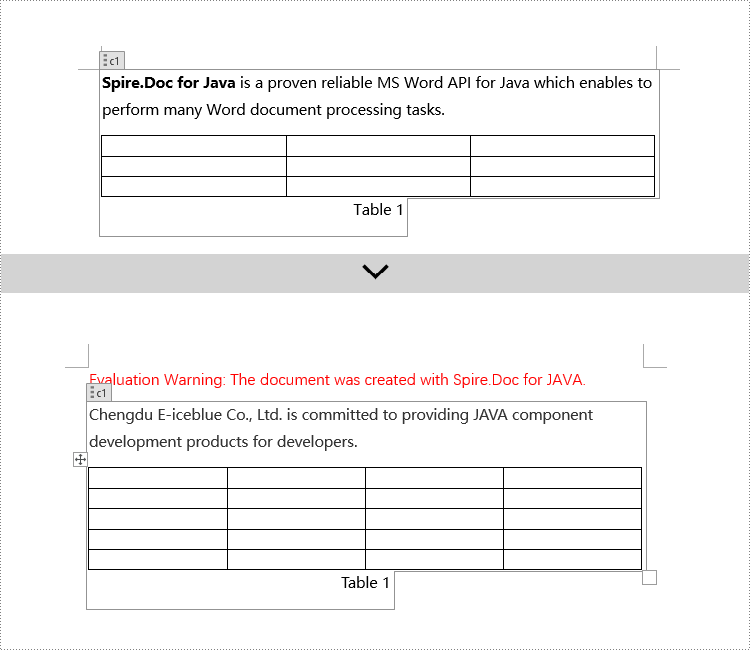
In Spire.Doc, to modify content controls in the body, you need to work with objects of the StructureDocumentTag type. By iterating through the collection of child objects in Section.getBody(), you can find objects of type StructureDocumentTag and make the necessary changes. Here are the detailed steps:
- Create a Document object.
- Load a document using the Document.loadFromFile() method.
- Get the body of a section in the document using Section.getBody().
- Iterate through the collection of child objects in the body using Body.getChildObjects() to find objects of type StructureDocumentTag.
- Access the collection of child objects in StructureDocumentTag.getChildObjects() and perform the required modifications based on the type of the child objects.
- Save the document using the Document.saveToFile() method.
- Java
import com.spire.doc.*;
import com.spire.doc.documents.*;
import java.util.*;

public class ModifyContentControlInBody {
    public static void main(String[] args) {
        // Create a new document object
        Document doc = new Document();

        // Load document content from file
        doc.loadFromFile("Sample1.docx");

        // Get the body of the document
        Body body = doc.getSections().get(0).getBody();

        // Create lists for paragraphs and tables
        List<Paragraph> paragraphs = new ArrayList<>();
        List<Table> tables = new ArrayList<>();
        for (int i = 0; i < body.getChildObjects().getCount(); i++) {

            // Get the document object
            DocumentObject documentObject = body.getChildObjects().get(i);

            // If it is a StructureDocumentTag object
            if (documentObject instanceof StructureDocumentTag) {
                StructureDocumentTag structureDocumentTag = (StructureDocumentTag) documentObject;

                // If the tag is "c1" or the alias is "c1"
                if (structureDocumentTag.getSDTProperties().getTag().equals("c1") || structureDocumentTag.getSDTProperties().getAlias().equals("c1")) {
                    for (int j = 0; j < structureDocumentTag.getChildObjects().getCount(); j++) {
                        // If it is a paragraph object
                        if (structureDocumentTag.getChildObjects().get(j) instanceof Paragraph) {
                            Paragraph paragraph = (Paragraph) structureDocumentTag.getChildObjects().get(j);
                            paragraphs.add(paragraph);
                        }

                        // If it is a table object
                        if (structureDocumentTag.getChildObjects().get(j) instanceof Table) {
                            Table table = (Table) structureDocumentTag.getChildObjects().get(j);
                            tables.add(table);
                        }
                    }
                }
            }
        }

        // Modify the text content of the first paragraph
        paragraphs.get(0).setText("Chengdu E-iceblue Co., Ltd. is committed to providing JAVA component development products for developers.");

        // Reset the cells of the first table to 5 rows and 4 columns
        tables.get(0).resetCells(5, 4);

        // Save the modified document to a file
        doc.saveToFile("Modify Content Controls in Word Document Body.docx", FileFormat.Docx_2016);

        // Close the document and release document resources
        doc.close();
        doc.dispose();
    }
}
Modify Content Controls within Paragraphs using Java
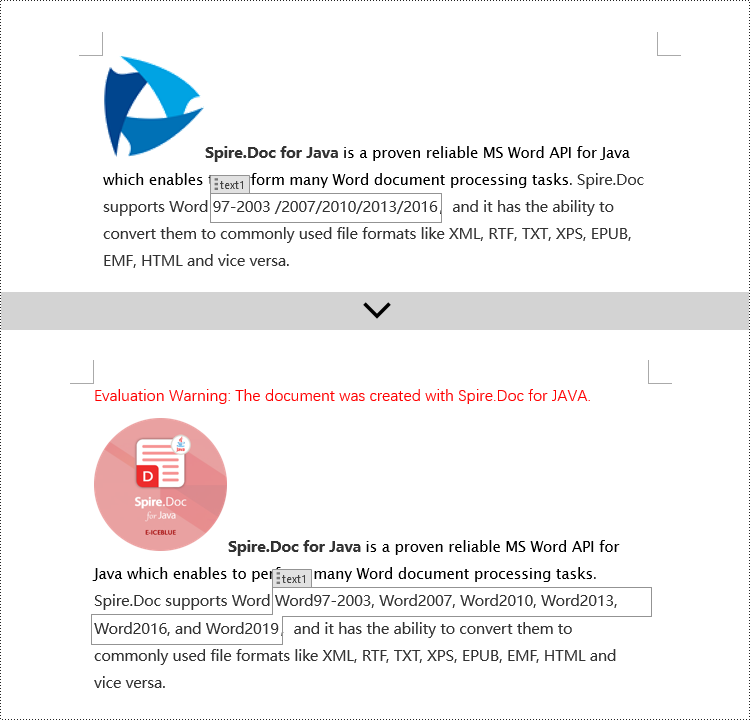
In Spire.Doc, to modify content controls within a paragraph, you need to use objects of type StructureDocumentTagInline. The specific steps involve iterating through the collection of child objects in a paragraph, finding objects of type StructureDocumentTagInline, and then making the necessary modifications. Here are the detailed steps:
- Create a Document object.
- Load a document using the Document.loadFromFile() method.
- Get the body of a section using Section.getBody().
- Retrieve the first paragraph of the body using Body.getParagraphs().get(0).
- Iterate through the collection of child objects in the paragraph using Paragraph.getChildObjects() to find objects of type StructureDocumentTagInline.
- Access the collection of child objects in StructureDocumentTagInline using StructureDocumentTagInline.getChildObjects() and perform the necessary modifications based on the type of child objects.
- Save the document using the Document.saveToFile() method.
- Java
import com.spire.doc.*;
import com.spire.doc.documents.*;
import com.spire.doc.fields.*;

public class ModifyContentControlInParagraph {
    public static void main(String[] args) {
        // Create a new Document object
        Document doc = new Document();

        // Load document content from a file
        doc.loadFromFile("Sample2.docx");

        // Get the body of the document
        Body body = doc.getSections().get(0).getBody();

        // Get the first paragraph of the body
        Paragraph paragraph = body.getParagraphs().get(0);

        // Iterate through the child objects in the paragraph
        for (int i = 0; i < paragraph.getChildObjects().getCount(); i++) {

            // Check if the child object is of type StructureDocumentTagInline
            if (paragraph.getChildObjects().get(i) instanceof StructureDocumentTagInline) {

                // Convert the child object to StructureDocumentTagInline type
                StructureDocumentTagInline structureDocumentTagInline = (StructureDocumentTagInline) paragraph.getChildObjects().get(i);

                // Check if the Tag or Alias property of the document tag is "text1"
                if (structureDocumentTagInline.getSDTProperties().getTag().equals("text1") || structureDocumentTagInline.getSDTProperties().getAlias().equals("text1")) {

                    // Iterate through the child objects in the StructureDocumentTagInline object
                    for (int j = 0; j < structureDocumentTagInline.getChildObjects().getCount(); j++) {

                        // Check if the child object is a TextRange object
                        if (structureDocumentTagInline.getChildObjects().get(j) instanceof TextRange) {

                            // Convert the child object to TextRange type
                            TextRange range = (TextRange) structureDocumentTagInline.getChildObjects().get(j);

                            // Set the text content to the specified content
                            range.setText("Word97-2003, Word2007, Word2010, Word2013, Word2016, and Word2019");
                        }
                    }
                }

                // Check if the Tag or Alias property of the document tag is "logo1"
                if (structureDocumentTagInline.getSDTProperties().getTag().equals("logo1") || structureDocumentTagInline.getSDTProperties().getAlias().equals("logo1")) {

                    // Iterate through the child objects in the StructureDocumentTagInline object
                    for (int j = 0; j < structureDocumentTagInline.getChildObjects().getCount(); j++) {

                        // Check if the child object is an image
                        if (structureDocumentTagInline.getChildObjects().get(j) instanceof DocPicture) {

                            // Convert the child object to DocPicture type
                            DocPicture docPicture = (DocPicture) structureDocumentTagInline.getChildObjects().get(j);

                            // Load the specified image
                            docPicture.loadImage("Doc-Java.png");

                            // Set the width and height of the image
                            docPicture.setWidth(100);
                            docPicture.setHeight(100);
                        }
                    }
                }
            }
        }

        // Save the modified document to a new file
        doc.saveToFile("Modified Content Controls in Paragraphs of a Word Document.docx", FileFormat.Docx_2016);

        // Close the document and release document resources
        doc.close();
        doc.dispose();
    }
}
Modify Content Controls Wrapping Table Rows using Java
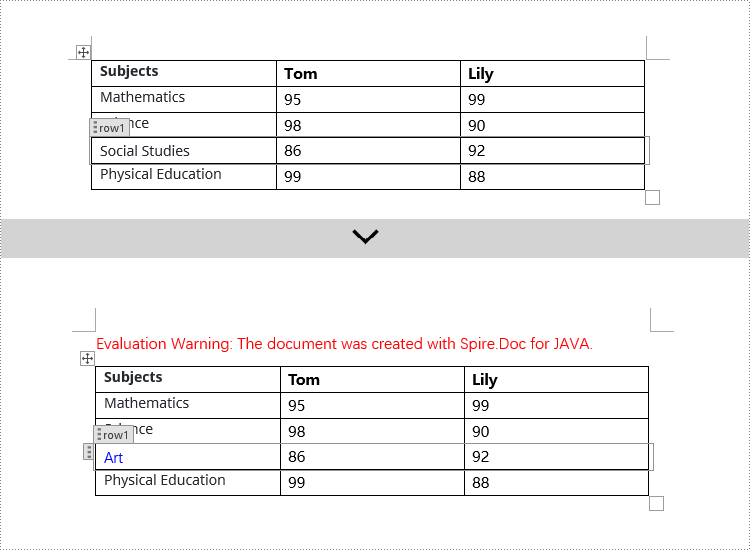
In Spire.Doc, to modify content controls in table rows, you need to iterate through the collection of table's child objects, find objects of type StructureDocumentTagRow, and then make the necessary changes. Here are the detailed steps:
- Create a Document object.
- Load a document using the Document.loadFromFile() method.
- Get the body of a section in the document using Section.getBody().
- Get the first table in the body using Body.getTables().get(0).
- Iterate through the table's child objects collection using Table.getChildObjects() to find objects of type StructureDocumentTagRow.
- Access the cell collection of the table row content controls using StructureDocumentTagRow.getCells(), and then perform the required modifications on the cell contents.
- Save the document using Document.saveToFile() method.
- Java
import com.spire.doc.*;
import com.spire.doc.documents.*;
import com.spire.doc.fields.*;
import java.awt.*;

public class ModifyTextContentControlInTableRow {
    public static void main(String[] args) {
        // Create a new document object
        Document doc = new Document();

        // Load a document from a file
        doc.loadFromFile("Sample3.docx");

        // Get the body of the document
        Body body = doc.getSections().get(0).getBody();

        // Get the first table
        Table table = body.getTables().get(0);

        // Iterate through the child objects in the table
        for (int i = 0; i < table.getChildObjects().getCount(); i++) {

            // Check if the child object is of type StructureDocumentTagRow
            if (table.getChildObjects().get(i) instanceof StructureDocumentTagRow) {

                // Convert the child object to a StructureDocumentTagRow object
                StructureDocumentTagRow structureDocumentTagRow = (StructureDocumentTagRow) table.getChildObjects().get(i);

                // Check if the Tag or Alias property of the StructureDocumentTagRow is "row1"
                if (structureDocumentTagRow.getSDTProperties().getTag().equals("row1") || structureDocumentTagRow.getSDTProperties().getAlias().equals("row1")) {

                    // Clear the paragraphs in the cell
                    structureDocumentTagRow.getCells().get(0).getParagraphs().clear();

                    // Add a paragraph in the cell and set the text
                    TextRange textRange = structureDocumentTagRow.getCells().get(0).addParagraph().appendText("Art");
                    textRange.getCharacterFormat().setTextColor(Color.BLUE);
                }
            }
        }

        // Save the modified document to a file
        doc.saveToFile("ModifiedTableRowContentControl.docx", FileFormat.Docx_2016);

        // Close the document and release the document resources
        doc.close();
        doc.dispose();
    }
}
Modify Content Controls Wrapping Table Cells using Java
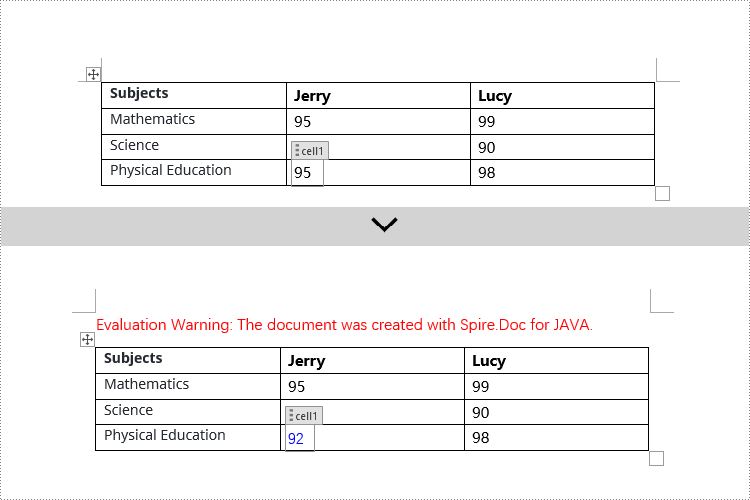
In Spire.Doc, to manipulate content control objects in table cells, you need to use a specific type of object called StructureDocumentTagCell. This can be done by examining the collection of child objects in TableRow.getChildObjects(), finding objects of type StructureDocumentTagCell, and then performing the necessary operations. Here are the detailed steps:
- Create a Document object.
- Load a document using the Document.loadFromFile() method.
- Get the body of a section in the document using Section.getBody().
- Get the first table in the body using Body.getTables().get(0).
- Iterate through the collection of table rows using Table.getRows() and access each TableRow object.
- Iterate through the collection of child objects in the table row using TableRow.getChildObjects() to find objects of type StructureDocumentTagCell.
- Access the collection of paragraphs in StructureDocumentTagCell.getParagraphs() for the content control in the table cell and perform the necessary modifications on the content.
- Save the document using the Document.saveToFile() method.
- Java
import com.spire.doc.*;
import com.spire.doc.documents.*;
import com.spire.doc.fields.*;
import java.awt.*;

public class ModifyTextContentControlInTableCell {
    public static void main(String[] args) {
        // Create a new document object
        Document doc = new Document();

        // Load the document from a file
        doc.loadFromFile("Sample4.docx");

        // Get the body of the document
        Body body = doc.getSections().get(0).getBody();

        // Get the first table in the document
        Table table = body.getTables().get(0);

        // Iterate through the rows of the table
        for (int i = 0; i < table.getRows().getCount(); i++) {

            // Iterate through the child objects in each row
            for (int j = 0; j < table.getRows().get(i).getChildObjects().getCount(); j++) {

                // Check if the child object is a StructureDocumentTagCell
                if (table.getRows().get(i).getChildObjects().get(j) instanceof StructureDocumentTagCell) {

                    // Convert the child object to StructureDocumentTagCell type
                    StructureDocumentTagCell structureDocumentTagCell = (StructureDocumentTagCell) table.getRows().get(i).getChildObjects().get(j);

                    // Check if the Tag or Alias property of structureDocumentTagCell is "cell1"
                    if (structureDocumentTagCell.getSDTProperties().getTag().equals("cell1") || structureDocumentTagCell.getSDTProperties().getAlias().equals("cell1")) {

                        // Clear the paragraphs in the cell
                        structureDocumentTagCell.getParagraphs().clear();

                        // Add a new paragraph and append text to it
                        TextRange textRange = structureDocumentTagCell.addParagraph().appendText("92");
                        textRange.getCharacterFormat().setTextColor(Color.BLUE);
                    }
                }
            }
        }

        // Save the modified document to a new file
        doc.saveToFile("ModifiedTableCellContentControl.docx", FileFormat.Docx_2016);

        // Close the document and release the document resources
        doc.close();
        doc.dispose();
    }
}
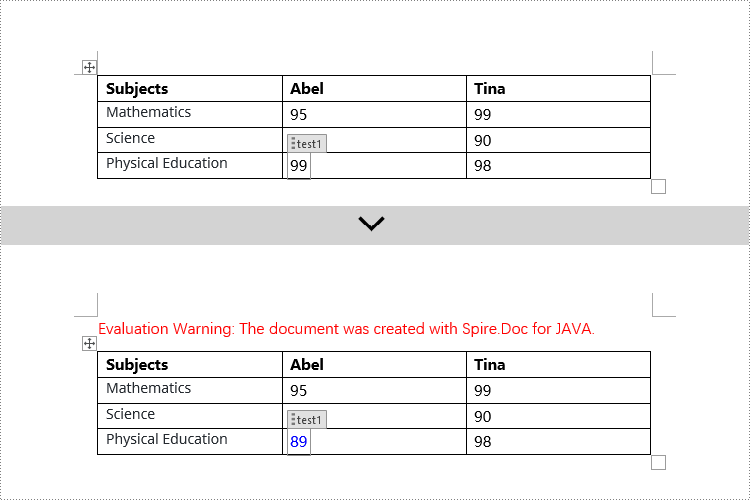
Modify Content Controls within Table Cells using Java
This example demonstrates how to modify content controls in paragraphs within table cells. Firstly, you need to access the collection of paragraphs in a cell using TableCell.getParagraphs(), then iterate through the child objects collection of each paragraph using Paragraph.getChildObjects(), and search for objects of type StructureDocumentTagInline within it for modification.
- Create a Document object.
- Load a document using Document.loadFromFile() method.
- Get the body of a section in the document using Section.getBody().
- Get the first table in the body using Body.getTables().get(0).
- Iterate through the collection of table rows using Table.getRows(), accessing each TableRow object.
- Iterate through the collection of cells in a row using TableRow.getCells(), accessing each TableCell object.
- Iterate through the collection of paragraphs in a cell using TableCell.getParagraphs(), accessing each Paragraph object.
- Iterate through the collection of child objects in a paragraph using Paragraph.getChildObjects(), looking for objects of type StructureDocumentTagInline.
- Access the collection of child objects in StructureDocumentTagInline using StructureDocumentTagInline.getChildObjects(), and perform the necessary modification based on the type of child object.
- Save the document using Document.saveToFile() method.
- Java
import com.spire.doc.*;
import com.spire.doc.documents.*;
import com.spire.doc.fields.*;
import java.awt.*;

public class ModifyTextContentControlInParagraphOfTableCell {
    public static void main(String[] args) {
        // Create a new Document object
        Document doc = new Document();

        // Load document content from a file
        doc.loadFromFile("Sample5.docx");

        // Get the body of the document
        Body body = doc.getSections().get(0).getBody();

        // Get the first table
        Table table = body.getTables().get(0);

        // Iterate through the rows of the table
        for (int r = 0; r < table.getRows().getCount(); r++) {

            // Iterate through the cells in the table row
            for (int c = 0; c < table.getRows().get(r).getCells().getCount(); c++) {

                // Iterate through the paragraphs in the cell
                for (int p = 0; p < table.getRows().get(r).getCells().get(c).getParagraphs().getCount(); p++) {

                    // Get the paragraph object
                    Paragraph paragraph = table.getRows().get(r).getCells().get(c).getParagraphs().get(p);

                    // Iterate through the child objects in the paragraph
                    for (int i = 0; i < paragraph.getChildObjects().getCount(); i++) {

                        // Check if the child object is of type StructureDocumentTagInline
                        if (paragraph.getChildObjects().get(i) instanceof StructureDocumentTagInline) {

                            // Convert it to a StructureDocumentTagInline object
                            StructureDocumentTagInline structureDocumentTagInline = (StructureDocumentTagInline) paragraph.getChildObjects().get(i);

                            // Check if the Tag or Alias property of StructureDocumentTagInline is "test1"
                            if (structureDocumentTagInline.getSDTProperties().getTag().equals("test1") || structureDocumentTagInline.getSDTProperties().getAlias().equals("test1")) {

                                // Iterate through the child objects of StructureDocumentTagInline
                                for (int j = 0; j < structureDocumentTagInline.getChildObjects().getCount(); j++) {

                                    // Check if the child object is of type TextRange
                                    if (structureDocumentTagInline.getChildObjects().get(j) instanceof TextRange) {

                                        // Convert it to a TextRange object
                                        TextRange textRange = (TextRange) structureDocumentTagInline.getChildObjects().get(j);

                                        // Set the text content
                                        textRange.setText("89");

                                        // Set the text color
                                        textRange.getCharacterFormat().setTextColor(Color.BLUE);
                                    }
                                }
                            }
                        }
                    }
                }
            }
        }

        // Save the modified document to a new file
        doc.saveToFile("ModifiedContentControlInParagraphsOfTableCell.docx", FileFormat.Docx_2016);

        // Close the document and release document resources
        doc.close();
        doc.dispose();
    }
}
Apply for a Temporary License
If you'd like to remove the evaluation message from the generated documents, or to get rid of the function limitations, please request a 30-day trial license for yourself.
Java: Create a Table Of Contents for a Newly Created Word Document
2024-05-06 01:12:30 Written by KoohjiCreating a table of contents in a Word document can help readers quickly understand the structure and content of the document, thereby enhancing its readability. The creation of a table of contents also aids authors in organizing the document's content, ensuring a clear structure and strong logical flow. When modifications or additional content need to be made to the document, the table of contents can help authors quickly locate the sections that require editing. This article will explain how to use Spire.Doc for Java to create a table of contents for a newly created Word document in a Java project.
- Java Create a Table Of Contents Using Heading Styles
- Java Create a Table Of Contents Using Outline Level Styles
- Java Create a Table Of Contents Using Image Captions
- Java Create a Table Of Contents Using Table Captions
Install Spire.Doc for Java
First, you're required to add the Spire.Doc.jar file as a dependency in your Java program. The JAR file can be downloaded from this link. If you use Maven, you can easily import the JAR file in your application by adding the following code to your project's pom.xml file.
<repositories>
    <repository>
        <id>com.e-iceblue</id>
        <name>e-iceblue</name>
        <url>https://repo.e-iceblue.com/nexus/content/groups/public/</url>
    </repository>
</repositories>
<dependencies>
    <dependency>
        <groupId>e-iceblue</groupId>
        <artifactId>spire.doc</artifactId>
        <version>14.7.0</version>
    </dependency>
</dependencies>
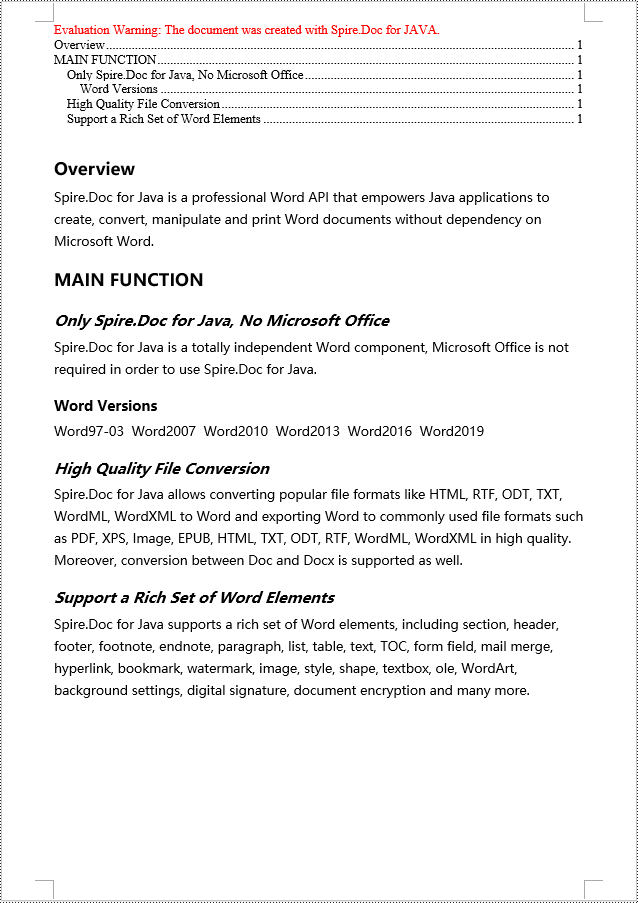
Java Create a Table Of Contents Using Heading Styles
In Spire.Doc, creating a table of contents using heading styles is the default method for generating a table of contents. By applying different levels of heading styles to sections and subsections in the document, the table of contents is automatically generated. Here are the detailed steps:
- Create a Document object.
- Add a section using the Document.addSection() method.
- Add a paragraph using the Section.addParagraph() method.
- Create a table of contents object using the Paragraph.appendTOC(int lowerLevel, int upperLevel) method.
- Create a CharacterFormat character format object and set the font.
- Apply a heading style to the paragraph using the Paragraph.applyStyle(BuiltinStyle.Heading_1) method.
- Add text content using the Paragraph.appendText() method.
- Set character formatting for the text using the TextRange.applyCharacterFormat() method.
- Update the table of contents using the Document.updateTableOfContents() method.
- Save the document using the Document.saveToFile() method.
- Java
import com.spire.doc.*;
import com.spire.doc.documents.*;
import com.spire.doc.fields.*;
import com.spire.doc.formatting.*;

public class CreateTOCByHeadingStyle {
    public static void main(String[] args) {
        // Create a new Document object
        Document doc = new Document();

        // Add a section to the document
        Section section = doc.addSection();

        // Add a table of contents paragraph
        Paragraph TOCparagraph = section.addParagraph();
        TOCparagraph.appendTOC(1, 3);

        // Create a character format object and set the font
        CharacterFormat characterFormat1 = new CharacterFormat(doc);
        characterFormat1.setFontName("Microsoft YaHei");

        // Create another character format object and set the font and font size
        CharacterFormat characterFormat2 = new CharacterFormat(doc);
        characterFormat2.setFontName("Microsoft YaHei");
        characterFormat2.setFontSize(12);

        // Add a paragraph with Heading 1 style
        Paragraph paragraph = section.getBody().addParagraph();
        paragraph.applyStyle(BuiltinStyle.Heading_1);

        // Add text and apply character format
        TextRange textRange1 = paragraph.appendText("Overview");
        textRange1.applyCharacterFormat(characterFormat1);

        // Add regular content
        paragraph = section.getBody().addParagraph();
        TextRange textRange2 = paragraph.appendText("Spire.Doc for Java is a professional Word API that empowers Java applications to create, convert, manipulate and print Word documents without dependency on Microsoft Word.");
        textRange2.applyCharacterFormat(characterFormat2);

        // Add a paragraph with Heading 1 style
        paragraph = section.getBody().addParagraph();
        paragraph.applyStyle(BuiltinStyle.Heading_1);
        textRange1 = paragraph.appendText("MAIN FUNCTION");
        textRange1.applyCharacterFormat(characterFormat1);

        // Add a paragraph with Heading 2 style
        paragraph = section.getBody().addParagraph();
        paragraph.applyStyle(BuiltinStyle.Heading_2);
        textRange1 = paragraph.appendText("Only Spire.Doc for Java, No Microsoft Office");
        textRange1.applyCharacterFormat(characterFormat1);

        // Add regular content
        paragraph = section.getBody().addParagraph();
        textRange2 = paragraph.appendText("Spire.Doc for Java is a totally independent Word component, Microsoft Office is not required in order to use Spire.Doc for Java.");
        textRange2.applyCharacterFormat(characterFormat2);

        // Add a paragraph with Heading 3 style
        paragraph = section.getBody().addParagraph();
        paragraph.applyStyle(BuiltinStyle.Heading_3);
        textRange1 = paragraph.appendText("Word Versions");
        textRange1.applyCharacterFormat(characterFormat1);
        paragraph = section.getBody().addParagraph();
        textRange2 = paragraph.appendText("Word97-03  Word2007  Word2010  Word2013  Word2016  Word2019");
        textRange2.applyCharacterFormat(characterFormat2);

        // Add a paragraph with Heading 2 style
        paragraph = section.getBody().addParagraph();
        paragraph.applyStyle(BuiltinStyle.Heading_2);
        textRange1 = paragraph.appendText("High Quality File Conversion");
        textRange1.applyCharacterFormat(characterFormat1);

        // Add regular content
        paragraph = section.getBody().addParagraph();
        textRange2 = paragraph.appendText("Spire.Doc for Java allows converting popular file formats like HTML, RTF, ODT, TXT, WordML, WordXML to Word and exporting Word to commonly used file formats such as PDF, XPS, Image, EPUB, HTML, TXT, ODT, RTF, WordML, WordXML in high quality. Moreover, conversion between Doc and Docx is supported as well.");
        textRange2.applyCharacterFormat(characterFormat2);

        // Add a paragraph with Heading 2 style
        paragraph = section.getBody().addParagraph();
        paragraph.applyStyle(BuiltinStyle.Heading_2);
        textRange1 = paragraph.appendText("Support a Rich Set of Word Elements");
        textRange1.applyCharacterFormat(characterFormat1);

        // Add regular content
        paragraph = section.getBody().addParagraph();
        textRange2 = paragraph.appendText("Spire.Doc for Java supports a rich set of Word elements, including section, header, footer, footnote, endnote, paragraph, list, table, text, TOC, form field, mail merge, hyperlink, bookmark, watermark, image, style, shape, textbox, ole, WordArt, background settings, digital signature, document encryption and many more.");
        textRange2.applyCharacterFormat(characterFormat2);

        // Update the table of contents
        doc.updateTableOfContents();

        // Save the document
        doc.saveToFile("Table of Contents Created Using Heading Styles.docx", FileFormat.Docx_2016);

        // Dispose of resources
        doc.dispose();
    }
}
Java Create a Table Of Contents Using Outline Level Styles
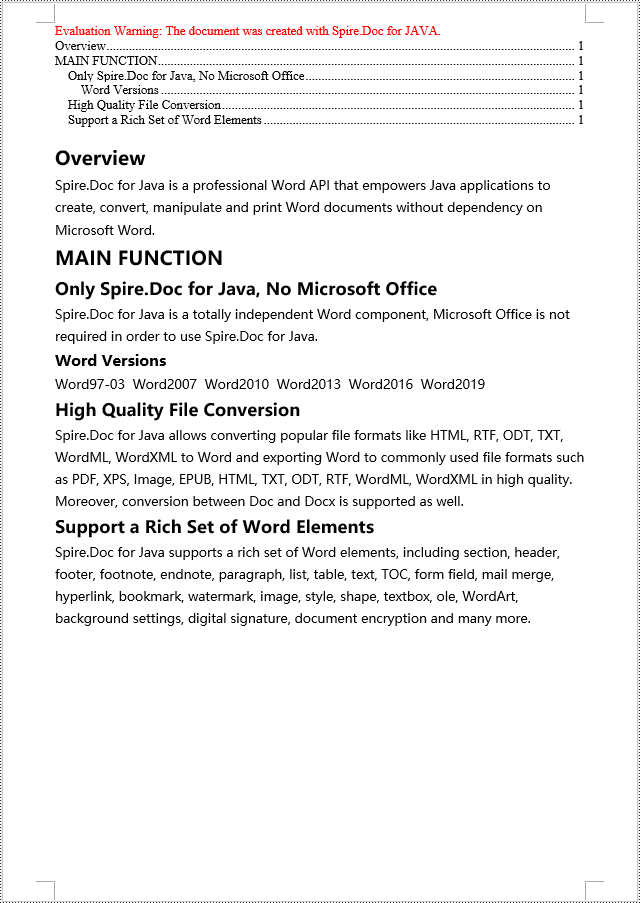
You can also use outline level styles to create a table of contents in a Word document. In Spire.Doc, by setting the OutlineLevel property of a paragraph, you can specify the hierarchical style of the paragraph in the outline. Then, by calling the TableOfContent.setTOCLevelStyle() method, you can apply these outline level styles to the generation rules of the table of contents. Here are the detailed steps:
- Create a Document object.
- Add a section using the Document.addSection() method.
- Create a ParagraphStyle object and set the outline level using ParagraphStyle.getParagraphFormat().setOutlineLevel(OutlineLevel.Level_1).
- Add the created ParagraphStyle object to the document using Document.getStyles().add() method.
- Add a paragraph using Section.addParagraph() method.
- Create a table of contents object using Paragraph.appendTOC(int lowerLevel, int upperLevel) method.
- Set the default setting for creating the table of contents using heading styles to false, TableOfContent.setUseHeadingStyles(false).
- Apply the outline level styles to the table of contents rules using TableOfContent.setTOCLevelStyle(int levelNumber, string styleName) method.
- Create a CharacterFormat object and set the font.
- Apply the style to the paragraph using Paragraph.applyStyle(ParagraphStyle.getName()) method.
- Add text content using Paragraph.appendText() method.
- Apply character formatting to the text using TextRange.applyCharacterFormat() method.
- Update the table of contents using Document.updateTableOfContents() method.
- Save the document using Document.saveToFile() method.
- Java
import com.spire.doc.*;
import com.spire.doc.documents.*;
import com.spire.doc.fields.*;
import com.spire.doc.formatting.*;

public class CreateTOCByOutlineLevelStyle {
    public static void main(String[] args) {
        // Create a new Document object
        Document doc = new Document();
        Section section = doc.addSection();

        // Define Outline Level 1
        ParagraphStyle titleStyle1 = new ParagraphStyle(doc);
        titleStyle1.setName("T1S");
        titleStyle1.getParagraphFormat().setOutlineLevel(OutlineLevel.Level_1);
        titleStyle1.getCharacterFormat().setBold(true);
        titleStyle1.getCharacterFormat().setFontName("Microsoft YaHei");
        titleStyle1.getCharacterFormat().setFontSize(18f);
        titleStyle1.getParagraphFormat().setHorizontalAlignment(HorizontalAlignment.Left);
        doc.getStyles().add(titleStyle1);

        // Define Outline Level 2
        ParagraphStyle titleStyle2 = new ParagraphStyle(doc);
        titleStyle2.setName("T2S");
        titleStyle2.getParagraphFormat().setOutlineLevel(OutlineLevel.Level_2);
        titleStyle2.getCharacterFormat().setBold(true);
        titleStyle2.getCharacterFormat().setFontName("Microsoft YaHei");
        titleStyle2.getCharacterFormat().setFontSize(16f);
        titleStyle2.getParagraphFormat().setHorizontalAlignment(HorizontalAlignment.Left);
        doc.getStyles().add(titleStyle2);

        // Define Outline Level 3
        ParagraphStyle titleStyle3 = new ParagraphStyle(doc);
        titleStyle3.setName("T3S");
        titleStyle3.getParagraphFormat().setOutlineLevel(OutlineLevel.Level_3);
        titleStyle3.getCharacterFormat().setBold(true);
        titleStyle3.getCharacterFormat().setFontName("Microsoft YaHei");
        titleStyle3.getCharacterFormat().setFontSize(14f);
        titleStyle3.getParagraphFormat().setHorizontalAlignment(HorizontalAlignment.Left);
        doc.getStyles().add(titleStyle3);

        // Add Table of Contents paragraph
        Paragraph TOCparagraph = section.addParagraph();
        TableOfContent toc = TOCparagraph.appendTOC(1, 3);
        toc.setUseHeadingStyles(false);
        toc.setUseHyperlinks(true);
        toc.setUseTableEntryFields(false);
        toc.setRightAlignPageNumbers(true);
        toc.setTOCLevelStyle(1, titleStyle1.getName());
        toc.setTOCLevelStyle(2, titleStyle2.getName());
        toc.setTOCLevelStyle(3, titleStyle3.getName());

        // Define Character Format
        CharacterFormat characterFormat = new CharacterFormat(doc);
        characterFormat.setFontName("Microsoft YaHei");
        characterFormat.setFontSize(12);

        // Add paragraph and apply Outline Level Style 1
        Paragraph paragraph = section.getBody().addParagraph();
        paragraph.applyStyle(titleStyle1.getName());
        paragraph.appendText("Overview");

        // Add paragraph and set text content
        paragraph = section.getBody().addParagraph();
        TextRange textRange = paragraph.appendText("Spire.Doc for Java is a professional Word API that empowers Java applications to create, convert, manipulate and print Word documents without dependency on Microsoft Word.");
        textRange.applyCharacterFormat(characterFormat);

        // Add paragraph and apply Outline Level Style 1
        paragraph = section.getBody().addParagraph();
        paragraph.applyStyle(titleStyle1.getName());
        paragraph.appendText("MAIN FUNCTION");

        // Add paragraph and apply Outline Level Style 2
        paragraph = section.getBody().addParagraph();
        paragraph.applyStyle(titleStyle2.getName());
        paragraph.appendText("Only Spire.Doc for Java, No Microsoft Office");

        // Add paragraph and set text content
        paragraph = section.getBody().addParagraph();
        textRange = paragraph.appendText("Spire.Doc for Java is a totally independent Word component, Microsoft Office is not required in order to use Spire.Doc for Java.");
        textRange.applyCharacterFormat(characterFormat);

        // Add paragraph and apply Outline Level Style 3
        paragraph = section.getBody().addParagraph();
        paragraph.applyStyle(titleStyle3.getName());
        paragraph.appendText("Word Versions");

        // Add paragraph and set text content
        paragraph = section.getBody().addParagraph();
        textRange = paragraph.appendText("Word97-03  Word2007  Word2010  Word2013  Word2016  Word2019");
        textRange.applyCharacterFormat(characterFormat);

        // Add paragraph and apply Outline Level Style 2
        paragraph = section.getBody().addParagraph();
        paragraph.applyStyle(titleStyle2.getName());
        paragraph.appendText("High Quality File Conversion");

        // Add paragraph and set text content
        paragraph = section.getBody().addParagraph();
        textRange = paragraph.appendText("Spire.Doc for Java allows converting popular file formats like HTML, RTF, ODT, TXT, WordML, WordXML to Word and exporting Word to commonly used file formats such as PDF, XPS, Image, EPUB, HTML, TXT, ODT, RTF, WordML, WordXML in high quality. Moreover, conversion between Doc and Docx is supported as well.");
        textRange.applyCharacterFormat(characterFormat);

        // Add paragraph and apply Outline Level Style 2
        paragraph = section.getBody().addParagraph();
        paragraph.applyStyle(titleStyle2.getName());
        paragraph.appendText("Support a Rich Set of Word Elements");

        // Add paragraph and set text content
        paragraph = section.getBody().addParagraph();
        textRange = paragraph.appendText("Spire.Doc for Java supports a rich set of Word elements, including section, header, footer, footnote, endnote, paragraph, list, table, text, TOC, form field, mail merge, hyperlink, bookmark, watermark, image, style, shape, textbox, ole, WordArt, background settings, digital signature, document encryption and many more.");
        textRange.applyCharacterFormat(characterFormat);

        // Update the table of contents
        doc.updateTableOfContents();

        // Save the document
        doc.saveToFile("Creating Table of Contents with Outline Level Styles.docx", FileFormat.Docx_2016);

        // Dispose of resources
        doc.dispose();
    }
}
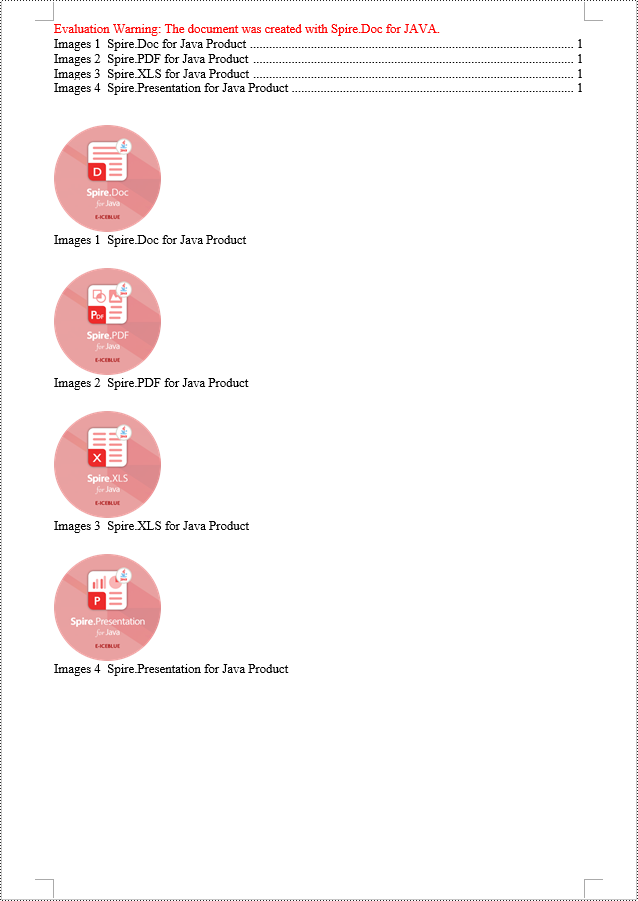
Java Create a Table Of Contents Using Image Captions
Using the Spire.Doc library, you can create a table of contents based on image titles using the TableOfContent tocForImage = new TableOfContent(Document, " \\h \\z \\c \"Image\"") method. Here are the detailed steps:
- Create a Document object.
- Add a section using the Document.addSection() method.
- Create a table of contents object TableOfContent tocForImage = new TableOfContent(Document, " \\h \\z \\c \"Image\"") and specify the style of the table of contents.
- Add a paragraph using the Section.addParagraph() method.
- Add the table of contents object to the paragraph using the Paragraph.getItems().add(tocForImage) method.
- Add a field separator using the Paragraph.appendFieldMark(FieldMarkType.Field_Separator) method.
- Add the text content "TOC" using the Paragraph.appendText("TOC") method.
- Add a field end mark using the Paragraph.appendFieldMark(FieldMarkType.Field_End) method.
- Add an image using the Paragraph.appendPicture() method.
- Add a paragraph for the image title, including product information and formatting, using the DocPicture.addCaption() method.
- Update the table of contents to reflect changes in the document using the Document.updateTableOfContents(tocForImage) method.
- Save the document using the Document.saveToFile() method.
- Java
import com.spire.doc.*;
import com.spire.doc.documents.*;
import com.spire.doc.fields.*;

public class CreateTOCByImageCaption {
    public static void main(String[] args) {
        // Create a new document object
        Document doc = new Document();

        // Add a section to the document
        Section section = doc.addSection();

        // Create a table of content object for images
        TableOfContent tocForImage = new TableOfContent(doc, " \\h \\z \\c \"Images\"");

        // Add a paragraph to the section
        Paragraph tocParagraph = section.getBody().addParagraph();

        // Add the table of content object to the paragraph
        tocParagraph.getItems().add(tocForImage);

        // Add a field separator
        tocParagraph.appendFieldMark(FieldMarkType.Field_Separator);

        // Add text content
        tocParagraph.appendText("TOC");

        // Add a field end mark
        tocParagraph.appendFieldMark(FieldMarkType.Field_End);

        // Add a blank paragraph to the section
        section.getBody().addParagraph();

        // Add a paragraph to the section
        Paragraph paragraph = section.getBody().addParagraph();

        // Add an image
        DocPicture docPicture = paragraph.appendPicture("images/Doc-Java.png");
        docPicture.setWidth(100);
        docPicture.setHeight(100);

        // Add a paragraph for the image caption
        Paragraph pictureCaptionParagraph = (Paragraph) docPicture.addCaption("Images", CaptionNumberingFormat.Number, CaptionPosition.Below_Item);
        pictureCaptionParagraph.appendText("  Spire.Doc for Java Product ");
        pictureCaptionParagraph.getFormat().setAfterSpacing(20);

        // Continue adding paragraphs to the section
        paragraph = section.getBody().addParagraph();
        docPicture = paragraph.appendPicture("images/PDF-Java.png");
        docPicture.setWidth(100);
        docPicture.setHeight(100);
        pictureCaptionParagraph = (Paragraph) docPicture.addCaption("Images", CaptionNumberingFormat.Number, CaptionPosition.Below_Item);
        pictureCaptionParagraph.appendText("  Spire.PDF for Java Product ");
        pictureCaptionParagraph.getFormat().setAfterSpacing(20);
        paragraph = section.getBody().addParagraph();
        docPicture = paragraph.appendPicture("images/XLS-Java.png");
        docPicture.setWidth(100);
        docPicture.setHeight(100);
        pictureCaptionParagraph = (Paragraph) docPicture.addCaption("Images", CaptionNumberingFormat.Number, CaptionPosition.Below_Item);
        pictureCaptionParagraph.appendText("  Spire.XLS for Java Product ");
        pictureCaptionParagraph.getFormat().setAfterSpacing(20);
        paragraph = section.getBody().addParagraph();
        docPicture = paragraph.appendPicture("images/PPT-Java.png");
        docPicture.setWidth(100);
        docPicture.setHeight(100);
        pictureCaptionParagraph = (Paragraph) docPicture.addCaption("Images", CaptionNumberingFormat.Number, CaptionPosition.Below_Item);
        pictureCaptionParagraph.appendText("  Spire.Presentation for Java Product ");

        // Update the table of contents
        doc.updateTableOfContents(tocForImage);

        // Save the document to a file
        doc.saveToFile("CreateTOCWithImageCaptions.docx", FileFormat.Docx_2016);

        // Dispose of the document object
        doc.dispose();
    }
}
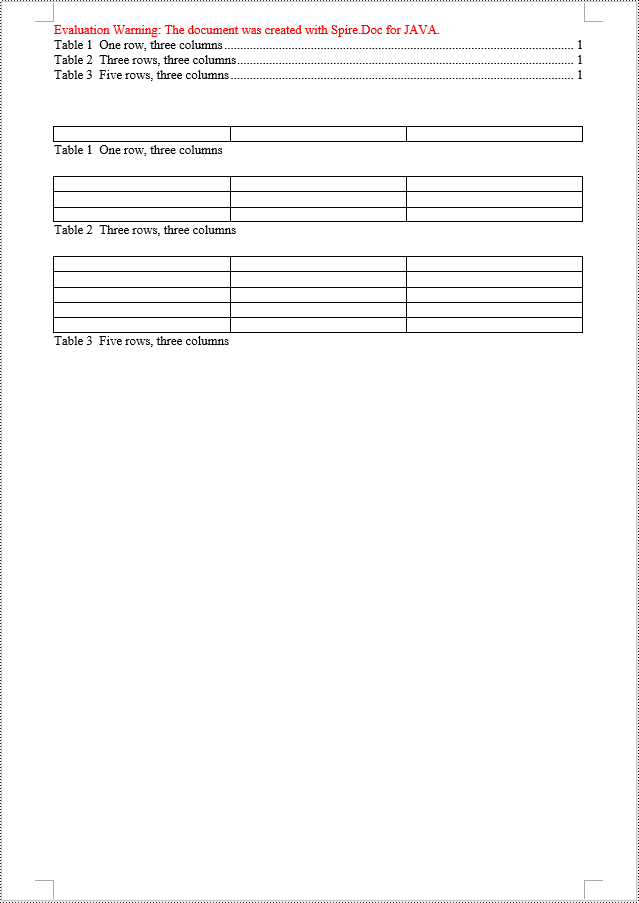
Java Create a Table Of Contents Using Table Captions
You can also create a table of contents using table titles by the method TableOfContent tocForImage = new TableOfContent(Document, " \\h \\z \\c \"Table\""). Here are the detailed steps:
- Create a Document object.
- Add a section using the Document.addSection() method.
- Create a table of contents object TableOfContent tocForTable = new TableOfContent(Document, " \\h \\z \\c \"Table\"") and specify the style of the table of contents.
- Add a paragraph using the Section.addParagraph() method.
- Add the table of contents object to the paragraph using the Paragraph.getItems().add(tocForTable) method.
- Add a field separator using the Paragraph.appendFieldMark(FieldMarkType.Field_Separator) method.
- Add the text "TOC" using the Paragraph.appendText("TOC") method.
- Add a field end mark using the Paragraph.appendFieldMark(FieldMarkType.Field_End) method.
- Add a table using the Section.addTable() method and set the number of rows and columns using the Table.resetCells(int rowsNum, int columnsNum) method.
- Add a caption paragraph to the table using the Table.addCaption() method, including product information and formatting.
- Update the table of contents to reflect changes in the document using the Document.updateTableOfContents(tocForTable) method.
- Save the document using the Document.saveToFile() method.
- Java
import com.spire.doc.*;
import com.spire.doc.documents.*;
import com.spire.doc.fields.*;

public class CreateTOCByTableCaption {
    public static void main(String[] args) {
        // Create a new document
        Document doc = new Document();

        // Add a section to the document
        Section section = doc.addSection();

        // Create a table of content object
        TableOfContent tocForTable = new TableOfContent(doc, " \\h \\z \\c \"Table\"");

        // Add a paragraph in the section to place the table of content
        Paragraph tocParagraph = section.getBody().addParagraph();
        tocParagraph.getItems().add(tocForTable);
        tocParagraph.appendFieldMark(FieldMarkType.Field_Separator);
        tocParagraph.appendText("TOC");
        tocParagraph.appendFieldMark(FieldMarkType.Field_End);

        // Add two empty paragraphs in the section
        section.getBody().addParagraph();
        section.getBody().addParagraph();

        // Add a table in the section
        Table table = section.getBody().addTable(true);
        table.resetCells(1, 3);

        // Add a title for the table
        Paragraph tableCaptionParagraph = (Paragraph) table.addCaption("Table", CaptionNumberingFormat.Number, CaptionPosition.Below_Item);
        tableCaptionParagraph.appendText("  One row, three columns");
        tableCaptionParagraph.getFormat().setAfterSpacing(18);

        // Add a new table in the section
        table = section.getBody().addTable(true);
        table.resetCells(3, 3);

        // Add a title for the second table
        tableCaptionParagraph = (Paragraph) table.addCaption("Table", CaptionNumberingFormat.Number, CaptionPosition.Below_Item);
        tableCaptionParagraph.appendText("  Three rows, three columns");
        tableCaptionParagraph.getFormat().setAfterSpacing(18);

        // Add another new table in the section
        table = section.getBody().addTable(true);
        table.resetCells(5, 3);

        // Add a title for the third table
        tableCaptionParagraph = (Paragraph) table.addCaption("Table", CaptionNumberingFormat.Number, CaptionPosition.Below_Item);
        tableCaptionParagraph.appendText("  Five rows, three columns");

        // Update the table of contents
        doc.updateTableOfContents(tocForTable);

        // Save the document to a specified file
        doc.saveToFile("CreateTableOfContentsUsingTableCaptions.docx", FileFormat.Docx_2016);

        // Dispose of resources
        doc.dispose();
    }
}
Apply for a Temporary License
If you'd like to remove the evaluation message from the generated documents, or to get rid of the function limitations, please request a 30-day trial license for yourself.
C#: Count Words, Characters, Paragraphs, Lines, and Pages in Word Documents
2024-04-30 07:38:58 Written by KoohjiAccurate counting of words, characters, paragraphs, lines, and pages is essential in achieving precise document analysis. By meticulously tracking these metrics, writers can gain valuable insights into the length, structure, and overall composition of their work. In this article, we will explain how to count words, characters, paragraphs, lines, and pages in Word documents in C# using Spire.Doc for .NET.
- Count Words, Characters, Paragraphs, Lines, and Pages in a Word Document in C#
- Count Words and Characters in a Specific Paragraph of a Word Document in C#
Install Spire.Doc for .NET
To begin with, you need to add the DLL files included in the Spire.Doc for .NET package as references in your .NET project. The DLL files can be either downloaded from this link or installed via NuGet.
PM> Install-Package Spire.Doc
Count Words, Characters, Paragraphs, Lines, and Pages in a Word Document in C#
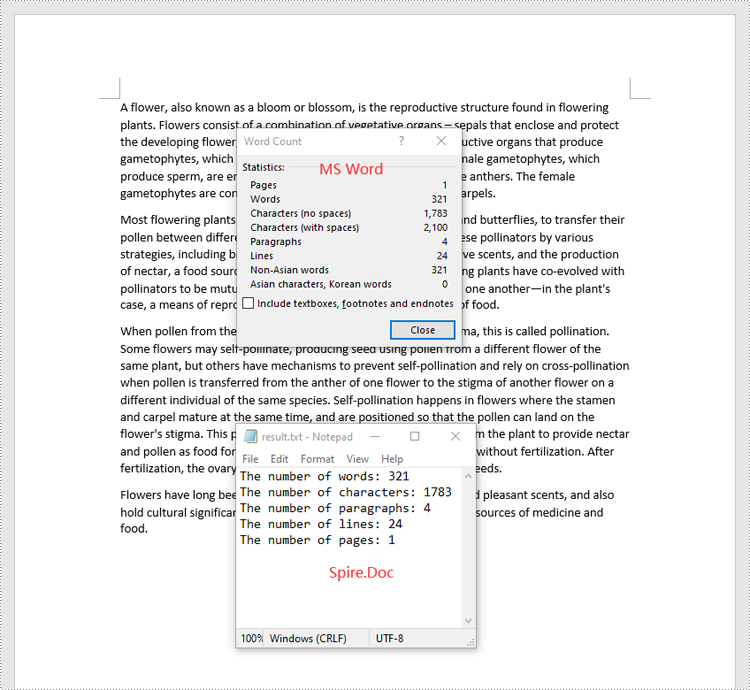
Spire.Doc for .NET provides the BuiltinDocumentProperties class that enables you to retrieve crucial information from your Word documents. By using this class, you can access a wealth of details, including both the built-in and custom properties, as well as the precise counts of words, characters, paragraphs, lines, and pages contained within the document. The detailed steps are as follows.
- Initialize an object of the Document class.
- Load a sample Word document using the Document.LoadFromFile() method.
- Get the BuiltinDocumentProperties object using the Document.BuiltinDocumentProperties property.
- Get the numbers of words, characters, paragraphs, lines, and pages in the document using the WordCount, CharCount, ParagraphCount, LinesCount and PageCount properties of the BuiltinDocumentProperties class.
- Initialize an object of the StringBuilder class and append the results to it using the StringBuilder.AppendLine() method.
- Write the content in the StringBuilder to a text file using the File.WriteAllText() method.
- C#
using Spire.Doc;
using System.IO;
using System.Text;

namespace CountWordsCharactersEtcInWord
{
    internal class Program
    {
        static void Main(string[] args)
        {
            //Initialize an object of the Document class
            Document document = new Document();
            //Load a sample Word document
            document.LoadFromFile("Input.docx");

            //Get the BuiltinDocumentProperties object
            BuiltinDocumentProperties properties = document.BuiltinDocumentProperties;

            //Get the numbers of words, characters, paragraphs, lines, and pages in the document
            int wordCount = properties.WordCount;
            int charCount = properties.CharCount;
            int paraCount = properties.ParagraphCount;
            int lineCount = properties.LinesCount;
            int pageCount = properties.PageCount;

            //Initialize an object of the StringBuilder class
            StringBuilder sb = new StringBuilder();
            //Append the results to the StringBuilder
            sb.AppendLine("The number of words: " + wordCount);
            sb.AppendLine("The number of characters: " + charCount);
            sb.AppendLine("The number of paragraphs: " + paraCount);
            sb.AppendLine("The number of lines: " + lineCount);
            sb.AppendLine("The number of pages: " + pageCount);

            //Write the content of the StringBuilder to a text file
            File.WriteAllText("result.txt", sb.ToString());
            document.Close();
        }
    }
}
Count Words and Characters in a Specific Paragraph of a Word Document in C#
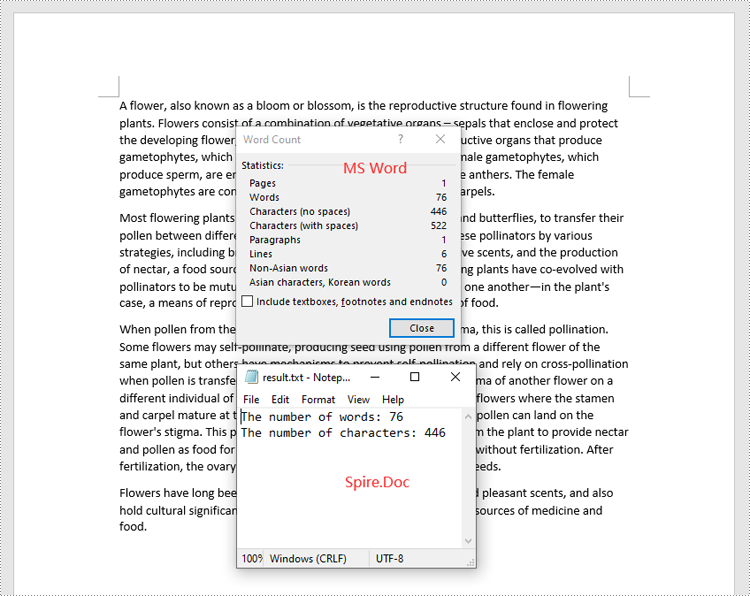
In addition to counting the words and characters in an entire Word document, Spire.Doc for .NET enables you to count the words and characters of a specific paragraph by using the Paragraph.WordCount and Paragraph.CharCount properties. The detailed steps are as follows.
- Initialize an object of the Document class.
- Load a sample Word document using the Document.LoadFromFile() method.
- Get a specific paragraph using the Document.Sections[sectionindex].Paragraphs[paragraphIndex] property.
- Get the numbers of words and characters in the paragraph using the Paragraph.WordCount and Paragraph.CharCount properties.
- Initialize an object of the StringBuilder class and append the results to it using the StringBuilder.AppendLine() method.
- Write the content in the StringBuilder to a text file using the File.WriteAllText() method.
- C#
using Spire.Doc;
using Spire.Doc.Documents;
using System.IO;
using System.Text;

namespace CountWordsAndCharactersForParagraph
{
    internal class Program
    {
        static void Main(string[] args)
        {
            //Initialize an object of the Document class
            Document document = new Document();
            //Load a sample Word document
            document.LoadFromFile("Input.docx");

            //Get a specific paragraph
            Paragraph paragraph = document.Sections[0].Paragraphs[0];

            //Get the numbers of words and characters in the paragraph
            int wordCount = paragraph.WordCount;
            int charCount = paragraph.CharCount;


            //Initialize an object of the StringBuilder class
            StringBuilder sb = new StringBuilder();
            //Append the results to the StringBuilder
            sb.AppendLine("The number of words: " + wordCount);
            sb.AppendLine("The number of characters: " + charCount);

            //Write the content of the StringBuilder to a text file
            File.WriteAllText("result.txt", sb.ToString());
            document.Close();
        }
    }
}
Apply for a Temporary License
If you'd like to remove the evaluation message from the generated documents, or to get rid of the function limitations, please request a 30-day trial license for yourself.
