Color documents burn ink when printed, and once filed away that color is of no use; a PDF also stores its objects in the order they were written, so a reader has to download the whole file before it can render the first page — open a manual that runs to tens of megabytes and you stare at a blank screen first. Both jobs used to need desktop software, one file at a time, with no way into a web workflow.
This article uses Spire.PDF for JavaScript to convert PDF documents into grayscale and into linearized PDF files. Grayscaling changes the colors on the page, while linearization only changes how the objects are arranged inside the file, so the two do not affect each other. The library is built on WebAssembly and loads, modifies and saves PDF documents directly in the browser, reading and writing files through a virtual file system (VFS) with no backend service required.
This article covers two core features:
For installation and project configuration, refer to Integrating Spire.PDF for JavaScript in a React Project. The following examples assume Spire.PDF is installed and the WebAssembly module has been initialized.
Convert PDF to Grayscale
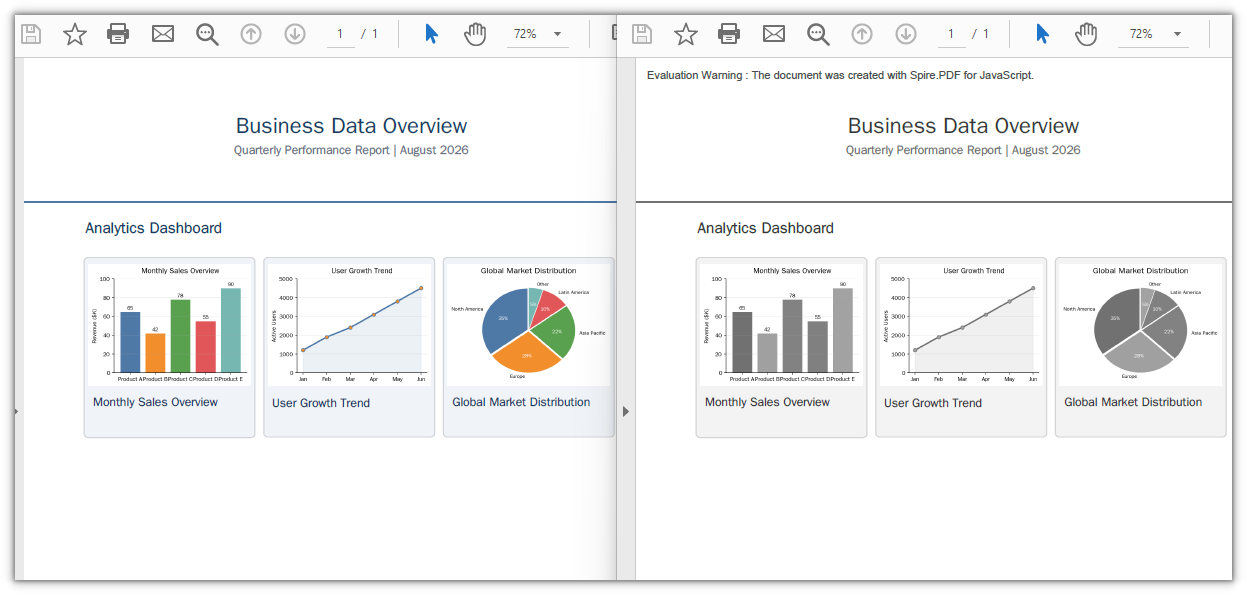
Grayscaling a document before printing or archiving saves color ink. Pass the input file to the PdfGrayConverter constructor and call ToGrayPdf to write out the grayscale document — the color images on the page are re-encoded as grayscale, and the text stays searchable.
function App() {
  const convertToGrayscale = async () => {
    // Get the Spire.PDF WASM module
    const pdfModule = window.wasmModule?.spirepdf;

    // Check whether the module is ready
    if (!pdfModule) {
      alert('Spire.PDF is not ready yet');
      return;
    }

    // Load the PDF file to be converted into the VFS
    const inputFileName = 'Business_Data_Overview.pdf';
    await window.spire.FetchFileToVFS(inputFileName, "", `${process.env.PUBLIC_URL}/data/`);

    // Define the output file name
    const outputFileName = 'GrayscaleDocument.pdf';

    // Construct the grayscale converter from the input file and write out the grayscale document
    const converter = new pdfModule.PdfGrayConverter({ filePath: inputFileName });
    converter.ToGrayPdf({ filePath: outputFileName });
    converter.Dispose();

    // Read the generated file from the VFS and trigger the download
    const fileArray = window.dotnetRuntime.Module.FS.readFile(outputFileName);
    const blob = new Blob([fileArray], { type: 'application/pdf' });
    const url = URL.createObjectURL(blob);
    const a = document.createElement('a');
    a.href = url;
    a.download = outputFileName;
    a.click();
    URL.revokeObjectURL(url);
  };

  return (
    <div style={{ textAlign: 'center', height: '300px' }}>
      <h1>Convert PDF to Grayscale</h1>
      <button onClick={convertToGrayscale}>
        Start Converting
      </button>
    </div>
  );
}

export default App;
The sample document after grayscaling, with the color charts turned to grayscale
Linearize a PDF
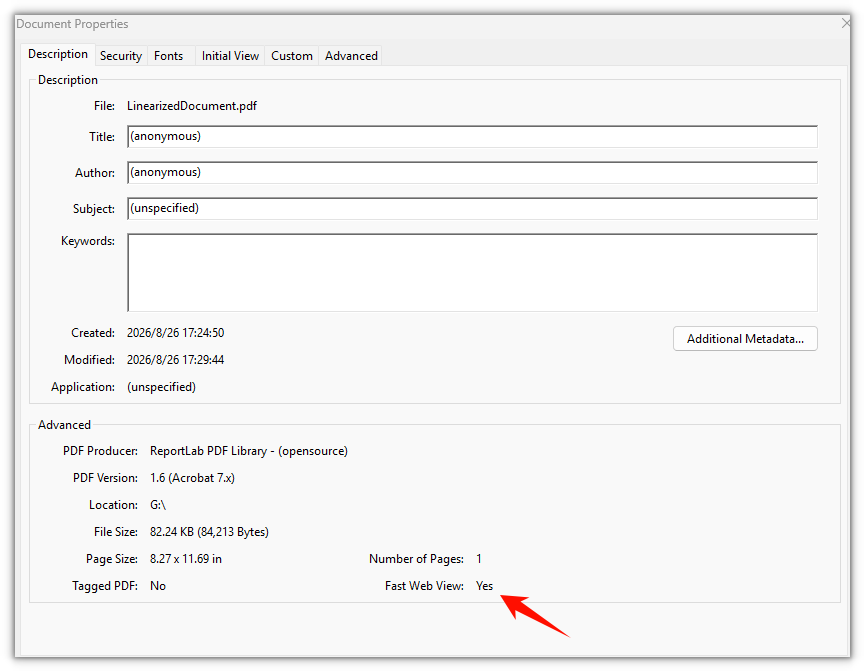
Linearization is what fast web view is built on: a reader does not have to wait for the whole file to arrive before it renders the first page. The usage is the same as in the first feature — pass the input file to the PdfToLinearizedPdfConverter constructor and call ToLinearizedPdf to write out the result, and the document keeps its appearance and content unchanged.
function App() {
  const convertToLinearized = async () => {
    // Get the Spire.PDF WASM module
    const pdfModule = window.wasmModule?.spirepdf;

    // Check whether the module is ready
    if (!pdfModule) {
      alert('Spire.PDF is not ready yet');
      return;
    }

    // Load the PDF file to be converted into the VFS
    const inputFileName = 'Business_Data_Overview.pdf';
    await window.spire.FetchFileToVFS(inputFileName, "", `${process.env.PUBLIC_URL}/data/`);

    // Define the output file name
    const outputFileName = 'LinearizedDocument.pdf';

    // Construct the linearization converter from the input file and write out the linearized document
    const converter = new pdfModule.PdfToLinearizedPdfConverter({ filePath: inputFileName });
    converter.ToLinearizedPdf({ filePath: outputFileName });
    converter.Dispose();

    // Read the generated file from the VFS and trigger the download
    const fileArray = window.dotnetRuntime.Module.FS.readFile(outputFileName);
    const blob = new Blob([fileArray], { type: 'application/pdf' });
    const url = URL.createObjectURL(blob);
    const a = document.createElement('a');
    a.href = url;
    a.download = outputFileName;
    a.click();
    URL.revokeObjectURL(url);
  };

  return (
    <div style={{ textAlign: 'center', height: '300px' }}>
      <h1>Linearize a PDF</h1>
      <button onClick={convertToLinearized}>
        Start Converting
      </button>
    </div>
  );
}

export default App;
The linearized document looks no different on the page, the change is inside the file structure
FAQ
Why does the converted document contain an extra Evaluation Warning line
Reason: An unlicensed Spire.PDF inserts a line Evaluation Warning : The document was created with Spire.PDF for JavaScript. into the output document. It is appended per call — convert the same file twice and the warning appears twice.
Solution: Request a temporary 30-day license and the output document no longer carries the warning. See "Get a Free License" at the end of this article.
Why is the grayscale file smaller
Reason: Grayscaling works by re-encoding color images as single-channel DeviceGray images, and the space they take drops along with the channel count. The color images in the sample document were 3-channel PNGs totaling about 66 KB, and come out at about 31 KB; the whole file went from 82 KB down to 44 KB.
Solution: This is the normal result of image re-encoding and needs no extra handling. The page count and the text content are unchanged, the text is still searchable and copyable, and only the colors are rewritten.
Get a Free License
If you wish to remove the evaluation message from the result document or remove feature limitations, please contact sales to obtain a temporary license valid for 30 days.
