Cards, buttons and labels on a slide are often drawn as rounded rectangles: a softly rounded outline looks gentler than sharp corners and separates content from the page more clearly. Drawing each shape by hand and tuning the corner arc is hard to keep consistent once there are many shapes, and every color change means repeating the work.
This article uses Spire.Presentation for JavaScript to add rounded rectangles to PowerPoint presentations in the browser. The whole process runs locally on the user's device through WebAssembly, requires no Office installation and no back-end service, and keeps the presentation from leaving the browser.
This article covers two core features:
For installation and project configuration, see Integrating Spire.Presentation for JavaScript in a React Project. The examples below assume that Spire.Presentation for JavaScript is installed and the WebAssembly module has been initialized.
Add a Rounded Rectangle to a PowerPoint Slide
The rounded rectangle is one of the most common emphasis shapes, well suited to holding titles, buttons or quotes. To add one to a slide, give its position and size, then set the corner radius, and finally adjust the fill and outline so the shape lands where intended and matches the page colors.
| Syntax | Result |
|---|---|
slide.Shapes.AppendShape({ shapeType, rectangle }) |
Adds a rounded rectangle inside the given rectangle |
ShapeType.RoundCornerRectangle |
A rectangle whose four corners are rounded |
shape.SetRoundRadius(radius) |
Sets the corner radius of the rounded rectangle |
shape.Fill.FillType and shape.Fill.SolidColor.Color |
Switches the fill to a solid color and sets the fill color |
shape.Line.FillType and shape.Line.SolidFillColor.Color |
Switches the outline to a solid line and sets the outline color |
The steps are:
- Get the Spire.Presentation WASM module and make sure it is ready, then create a
Presentationobject and get the first slide. - Use
Shapes.AppendShape()withShapeType.RoundCornerRectangleand a rectangle to add a rounded rectangle. - Call
shape.SetRoundRadius()to set the corner radius as a proportion of the shape width. - Set the fill through
Fill.FillTypeandFill.SolidColor.Color, and the outline throughLine.FillTypeandLine.SolidFillColor.Color. - Call
Presentation.SaveToFile()to save the result, release the presentation withDispose(), then read the file from the VFS to trigger the download.
The following code adds a rounded rectangle to a PowerPoint slide:
function App() {
  const addRoundedRectangle = async () => {
    // Get the Spire.Presentation WASM module
    const pptModule = window.wasmModule?.spirepresentation;

    // Check whether the module is ready
    if (!pptModule) {
      alert('Spire.Presentation is not ready yet');
      return;
    }

    // Create a presentation, which comes with a blank slide by default
    const ppt = new pptModule.Presentation();
    const slide = ppt.Slides.get_Item(0);

    // Append a four-corner rounded rectangle within the given rectangle
    const shape = slide.Shapes.AppendShape({
      shapeType: pptModule.ShapeType.RoundCornerRectangle,
      rectangle: pptModule.RectangleF.FromLTRB(210, 150, 510, 330),
    });

    // Set the corner radius to one third of the width
    shape.SetRoundRadius(shape.Width / 3);

    // Set the solid fill and the outline color
    shape.Fill.FillType = pptModule.FillFormatType.Solid;
    shape.Fill.SolidColor.Color = pptModule.Color.get_LightBlue();
    shape.Line.FillType = pptModule.FillFormatType.Solid;
    shape.Line.SolidFillColor.Color = pptModule.Color.get_SkyBlue();
    shape.Line.Width = 3;

    // Save the resulting file
    const outputFileName = 'AddRoundedRectangle.pptx';
    ppt.SaveToFile({ file: outputFileName, fileFormat: pptModule.FileFormat.Pptx2013 });
    ppt.Dispose();

    // Read the generated file from the VFS to trigger the download
    const fileArray = window.dotnetRuntime.Module.FS.readFile(outputFileName);
    const blob = new Blob([fileArray], { type: 'application/vnd.openxmlformats-officedocument.presentationml.presentation' });
    const url = URL.createObjectURL(blob);
    const a = document.createElement('a');
    a.href = url;
    a.download = outputFileName;
    a.click();
    URL.revokeObjectURL(url);
  };

  return (
    <div style={{ textAlign: 'center', height: '300px' }}>
      <h1>Add Rounded Rectangle</h1>
      <button onClick={addRoundedRectangle}>
        Add Rounded Rectangle
      </button>
    </div>
  );
}

export default App;
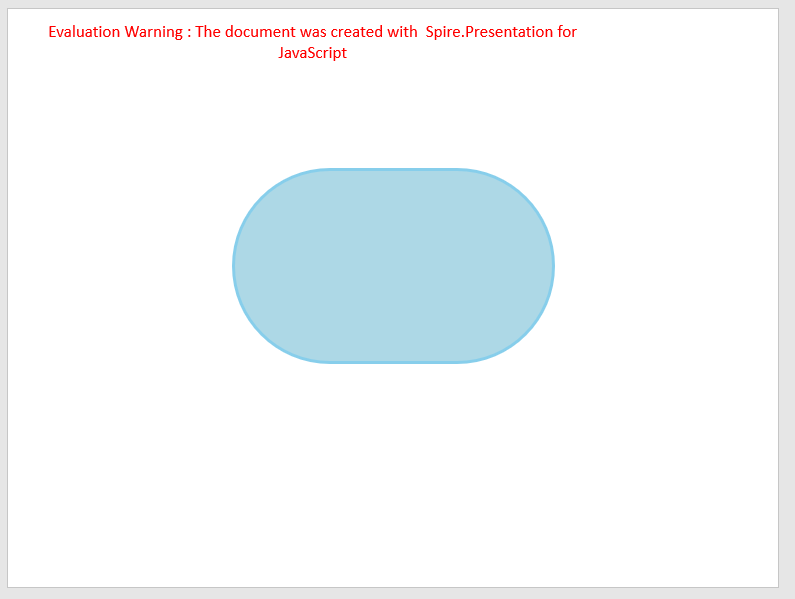
The presentation after adding a rounded rectangle to a blank slide:
Draw Rectangles with Different Corner Combinations
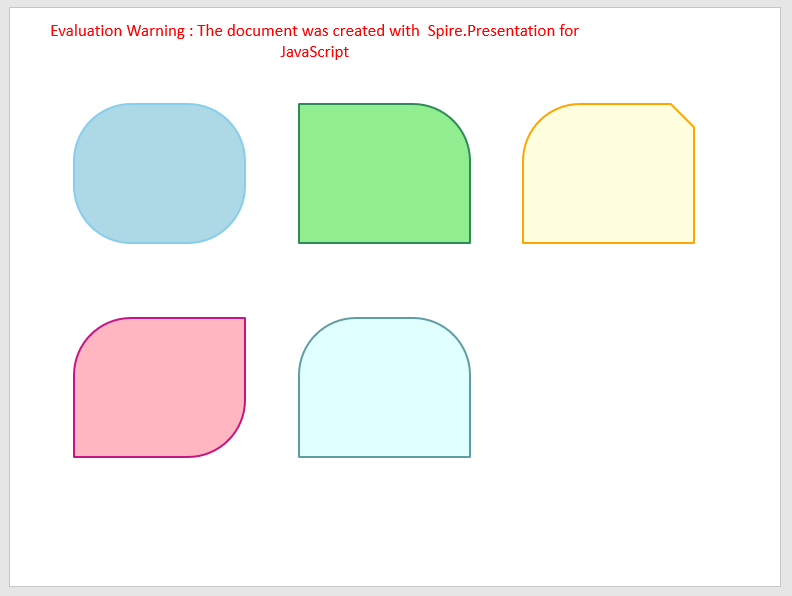
Not every rounded rectangle rounds all four corners equally. Process arrows need a single rounded side, tabs often use diagonal corners, and connector blocks in diagrams tend to use two corners on one side. Spire.Presentation for JavaScript ships several corner-combination shape types; add them one by one and set a consistent radius so a group of shapes shares the same curve.
| Syntax | Result |
|---|---|
ShapeType.RoundCornerRectangle |
All four corners rounded |
ShapeType.OneRoundCornerRectangle |
Only one corner rounded |
ShapeType.OneSnipOneRoundCornerRectangle |
One rounded corner and one snipped corner |
ShapeType.TwoDiagonalRoundCornerRectangle |
Two rounded corners on a diagonal |
ShapeType.TwoSamesideRoundCornerRectangle |
Two rounded corners on the same side |
shape.SetRoundRadius(radius) |
Sets a consistent corner radius for each shape |
The steps are:
- Get the Spire.Presentation WASM module and make sure it is ready, then create a
Presentationobject and get the first slide. - Add the five corner-combination rectangles one by one with
Shapes.AppendShape(). - Call
shape.SetRoundRadius()on each shape to set the corner radius. - Give each shape a different fill and outline color so the corner styles are easy to tell apart.
- Call
Presentation.SaveToFile()to save the result, release the presentation withDispose(), then read the file from the VFS to trigger the download.
The following code draws rectangles with different corner combinations:
function App() {
  const addRoundedVariants = async () => {
    // Get the Spire.Presentation WASM module
    const pptModule = window.wasmModule?.spirepresentation;

    // Check whether the module is ready
    if (!pptModule) {
      alert('Spire.Presentation is not ready yet');
      return;
    }

    // Create a presentation, which comes with a blank slide by default
    const ppt = new pptModule.Presentation();
    const slide = ppt.Slides.get_Item(0);

    // Five corner-combination rectangles, each added explicitly with its own colors
    const shape1 = slide.Shapes.AppendShape({
      shapeType: pptModule.ShapeType.RoundCornerRectangle,
      rectangle: pptModule.RectangleF.FromLTRB(60, 90, 220, 220),
    });
    shape1.SetRoundRadius(shape1.Width / 3);
    shape1.Fill.FillType = pptModule.FillFormatType.Solid;
    shape1.Fill.SolidColor.Color = pptModule.Color.get_LightBlue();
    shape1.Line.FillType = pptModule.FillFormatType.Solid;
    shape1.Line.SolidFillColor.Color = pptModule.Color.get_SkyBlue();
    shape1.Line.Width = 2;

    // One rounded corner: light green fill, sea green outline
    const shape2 = slide.Shapes.AppendShape({
      shapeType: pptModule.ShapeType.OneRoundCornerRectangle,
      rectangle: pptModule.RectangleF.FromLTRB(270, 90, 430, 220),
    });
    shape2.SetRoundRadius(shape2.Width / 3);
    shape2.Fill.FillType = pptModule.FillFormatType.Solid;
    shape2.Fill.SolidColor.Color = pptModule.Color.get_LightGreen();
    shape2.Line.FillType = pptModule.FillFormatType.Solid;
    shape2.Line.SolidFillColor.Color = pptModule.Color.get_SeaGreen();
    shape2.Line.Width = 2;

    // One rounded and one snipped corner: light yellow fill, orange outline
    const shape3 = slide.Shapes.AppendShape({
      shapeType: pptModule.ShapeType.OneSnipOneRoundCornerRectangle,
      rectangle: pptModule.RectangleF.FromLTRB(480, 90, 640, 220),
    });
    shape3.SetRoundRadius(shape3.Width / 3);
    shape3.Fill.FillType = pptModule.FillFormatType.Solid;
    shape3.Fill.SolidColor.Color = pptModule.Color.get_LightYellow();
    shape3.Line.FillType = pptModule.FillFormatType.Solid;
    shape3.Line.SolidFillColor.Color = pptModule.Color.get_Orange();
    shape3.Line.Width = 2;

    // Two diagonal rounded corners: light pink fill, violet red outline
    const shape4 = slide.Shapes.AppendShape({
      shapeType: pptModule.ShapeType.TwoDiagonalRoundCornerRectangle,
      rectangle: pptModule.RectangleF.FromLTRB(60, 290, 220, 420),
    });
    shape4.SetRoundRadius(shape4.Width / 3);
    shape4.Fill.FillType = pptModule.FillFormatType.Solid;
    shape4.Fill.SolidColor.Color = pptModule.Color.get_LightPink();
    shape4.Line.FillType = pptModule.FillFormatType.Solid;
    shape4.Line.SolidFillColor.Color = pptModule.Color.get_MediumVioletRed();
    shape4.Line.Width = 2;

    // Two same-side rounded corners: light cyan fill, cadet blue outline
    const shape5 = slide.Shapes.AppendShape({
      shapeType: pptModule.ShapeType.TwoSamesideRoundCornerRectangle,
      rectangle: pptModule.RectangleF.FromLTRB(270, 290, 430, 420),
    });
    shape5.SetRoundRadius(shape5.Width / 3);
    shape5.Fill.FillType = pptModule.FillFormatType.Solid;
    shape5.Fill.SolidColor.Color = pptModule.Color.get_LightCyan();
    shape5.Line.FillType = pptModule.FillFormatType.Solid;
    shape5.Line.SolidFillColor.Color = pptModule.Color.get_CadetBlue();
    shape5.Line.Width = 2;

    // Save the resulting file
    const outputFileName = 'RoundedRectangleVariants.pptx';
    ppt.SaveToFile({ file: outputFileName, fileFormat: pptModule.FileFormat.Pptx2013 });
    ppt.Dispose();

    // Read the generated file from the VFS to trigger the download
    const fileArray = window.dotnetRuntime.Module.FS.readFile(outputFileName);
    const blob = new Blob([fileArray], { type: 'application/vnd.openxmlformats-officedocument.presentationml.presentation' });
    const url = URL.createObjectURL(blob);
    const a = document.createElement('a');
    a.href = url;
    a.download = outputFileName;
    a.click();
    URL.revokeObjectURL(url);
  };

  return (
    <div style={{ textAlign: 'center', height: '300px' }}>
      <h1>Rounded Rectangle Variants</h1>
      <button onClick={addRoundedVariants}>
        Draw Corner Variants
      </button>
    </div>
  );
}

export default App;
The presentation after drawing the five corner variants:
Frequently Asked Questions
How to add text to a rounded rectangle and center it
Cause: Rounded rectangles often hold a title or button label; after adding the shape you need to write text and set paragraph alignment so the text sits centered horizontally within the shape.
Solution: Use AppendTextFrame() to write the text, then set the first paragraph's alignment to TextAlignmentType.Center:
shape.AppendTextFrame('Rounded rectangle text');
shape.TextFrame.Paragraphs.get_Item(0).Alignment = pptModule.TextAlignmentType.Center;
How to modify a rounded rectangle in an existing presentation
Cause: When working with an existing file, the rounded rectangle usually sits among other shapes on a slide, so you need to locate it before changing it.
Solution: Open the presentation with LoadFromFile(), iterate over slide.Shapes, check shape.ShapeType for RoundCornerRectangle, then change its fill or corner radius:
const ppt = new pptModule.Presentation();
ppt.LoadFromFile('Sample.pptx');
const slide = ppt.Slides.get_Item(0);
for (let i = 0; i < slide.Shapes.Count; i++) {
  const shape = slide.Shapes.get_Item(i);
  if (shape.ShapeType === pptModule.ShapeType.RoundCornerRectangle) {
    shape.Fill.FillType = pptModule.FillFormatType.Solid;
    shape.Fill.SolidColor.Color = pptModule.Color.get_LightGreen();
    shape.SetRoundRadius(shape.Width / 4);
  }
}
ppt.SaveToFile({ file: 'Modified.pptx', fileFormat: pptModule.FileFormat.Pptx2013 });
ppt.Dispose();
How to delete a rounded rectangle from a presentation
Cause: If you remove an element while iterating by index, the index shifts forward and you can skip shapes or run past the end.
Solution: Take the shape object first, remove it with slide.Shapes.Remove(shape), and step the loop index back by one:
for (let i = 0; i < slide.Shapes.Count; i++) {
  const shape = slide.Shapes.get_Item(i);
  if (shape.ShapeType === pptModule.ShapeType.RoundCornerRectangle) {
    slide.Shapes.Remove(shape);
    i--;
  }
}
Get a Free License
If you wish to delete the evaluation message from the resulting documents, or to get rid of function limitations, please contact sales to obtain a valid 30-day temporary license.
