Once a presentation is finalized and distributed, the diagrams, title backgrounds and badges on its slides are easily dragged or resized by mistake, and the text may drift away from the original design. Adding restrictions to the shapes keeps these elements in place; when taking over an existing presentation or reusing someone else's layout, it is also necessary to find out which shapes are already restricted before deciding what to adjust. Checking them one by one by hand is slow and easy to miss on individual shapes.
This article uses Spire.Presentation for JavaScript to perform these operations in the browser. The whole process runs locally on the user's device through WebAssembly, requires no Office installation and no back-end service, and keeps the presentation from leaving the browser.
This article covers two core features:
For installation and project configuration, see Integrating Spire.Presentation for JavaScript in a React Project. The examples below assume that Spire.Presentation for JavaScript is installed and the WebAssembly module has been initialized.
Lock the Layout of Shapes
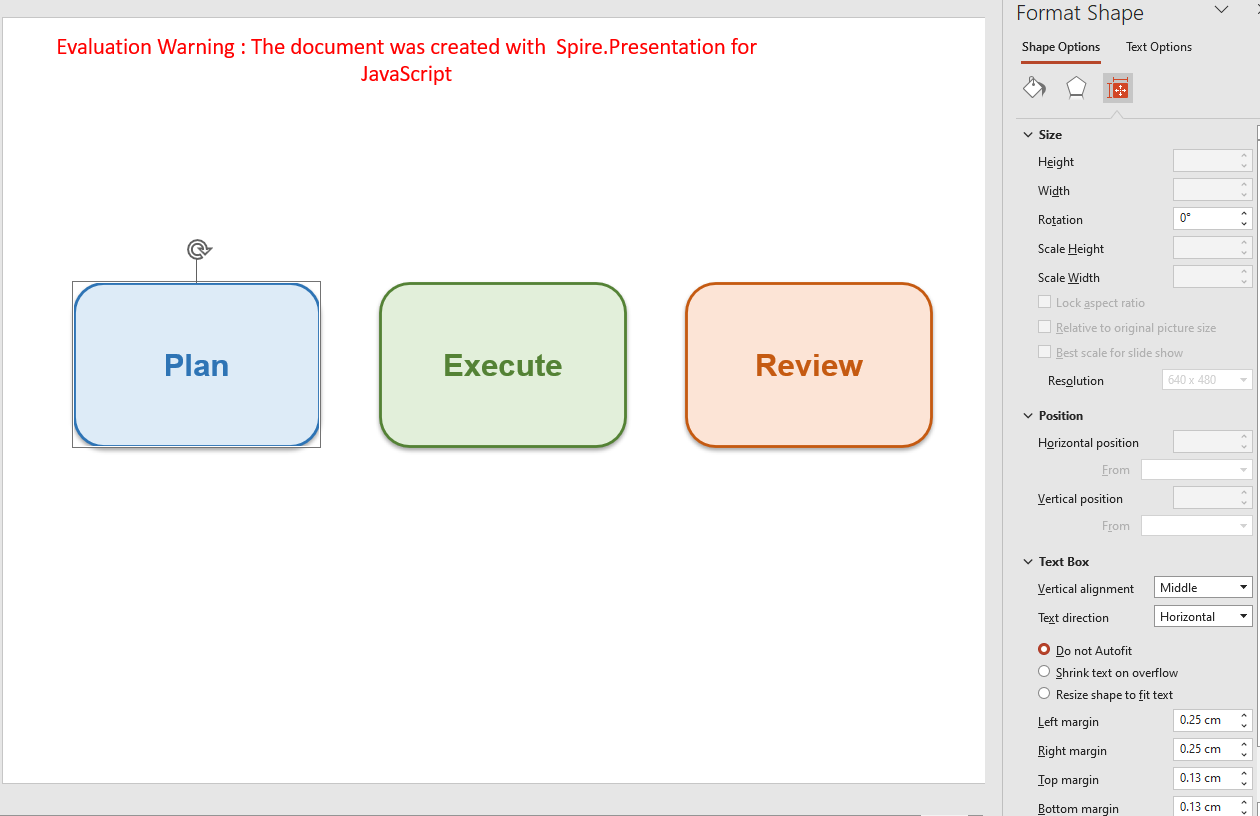
The position and size of a finished layout are the result of repeated adjustments, and any offset spoils the overall look. Restricting a shape item by item pins its position, size, type and aspect ratio, forbids rewriting the text inside it and dragging its adjustment handles. Rotation and selection stay enabled, so the angle or the layout can still be fine-tuned while working.
| Code | Result |
|---|---|
Presentation.LoadFromFile(fileName) |
Load the presentation from the VFS |
slide.Shapes.get_Item(i) |
Get the shape at the given index |
shape.Locking.PositionProtection |
Set to true to forbid moving the shape |
shape.Locking.ResizeProtection |
Set to true to forbid resizing the shape |
shape.Locking.ShapeTypeProtection |
Set to true to forbid changing the shape type |
shape.Locking.AspectRatioProtection |
Set to true to forbid changing the aspect ratio |
shape.Locking.RotationProtection |
Set to false to keep rotating the shape |
shape.Locking.SelectionProtection |
Set to false to keep selecting the shape |
shape.Locking.TextEditingProtection |
Set to true to forbid editing the text |
shape.Locking.AdjustHandlesProtection |
Set to true to forbid dragging the adjustment handles |
The steps are:
- Get the Spire.Presentation WASM module and check that it is ready, load the presentation into the VFS, then open it with
Presentation.LoadFromFile()and take its first slide. - Walk
slide.Shapesand take each shape withget_Item(i). - Set
PositionProtection,ResizeProtection,ShapeTypeProtection,AspectRatioProtection,TextEditingProtectionandAdjustHandlesProtectionunderLockingtotrueto restrict moving, size, type, aspect ratio, text editing and the adjustment handles. - Set
RotationProtectionandSelectionProtectiontofalseto keep rotation and selection available. - Call
Presentation.SaveToFile()to save the result file, release the presentation withDispose(), then read the file from the VFS and start the download.
The following code shows how to lock the layout of shapes:
function App() {
  const preventShapeChanges = async () => {
    // Get the Spire.Presentation WASM module
    const pptModule = window.wasmModule?.spirepresentation;

    // Check that the module is ready
    if (!pptModule) {
      alert('Spire.Presentation is not ready yet');
      return;
    }

    // Load the presentation into the VFS
    const inputFileName = 'en_Shapes.pptx';
    await window.spire.FetchFileToVFS(inputFileName, '', `${process.env.PUBLIC_URL}data/`);

    // Load the presentation and take its first slide
    const ppt = new pptModule.Presentation();
    ppt.LoadFromFile(inputFileName);
    const slide = ppt.Slides.get_Item(0);

    // Walk the shapes and forbid moving, resizing, editing the text and dragging the adjustment handles, keeping rotation and selection
    for (let i = 0; i < slide.Shapes.Count; i++) {
      const shape = slide.Shapes.get_Item(i);
      shape.Locking.RotationProtection = false;
      shape.Locking.SelectionProtection = false;
      shape.Locking.ResizeProtection = true;
      shape.Locking.PositionProtection = true;
      shape.Locking.ShapeTypeProtection = true;
      shape.Locking.AspectRatioProtection = true;
      shape.Locking.TextEditingProtection = true;
      shape.Locking.AdjustHandlesProtection = true;
    }

    // Save the result file
    const outputFileName = 'PreventShapeChanges.pptx';
    ppt.SaveToFile({ file: outputFileName, fileFormat: pptModule.FileFormat.Pptx2013 });
    ppt.Dispose();

    // Read the generated file from the VFS and start the download
    const fileArray = window.dotnetRuntime.Module.FS.readFile(outputFileName);
    const blob = new Blob([fileArray], { type: 'application/vnd.openxmlformats-officedocument.presentationml.presentation' });
    const url = URL.createObjectURL(blob);
    const a = document.createElement('a');
    a.href = url;
    a.download = outputFileName;
    a.click();
    URL.revokeObjectURL(url);
  };

  return (
    <div style={{ textAlign: 'center', height: '300px' }}>
      <h1>Prevent shape changes</h1>
      <button onClick={preventShapeChanges}>
        Prevent shape changes
      </button>
    </div>
  );
}

export default App;
The presentation after moving, resizing and text editing are forbidden:
Read and Check the Lock Status of Shapes
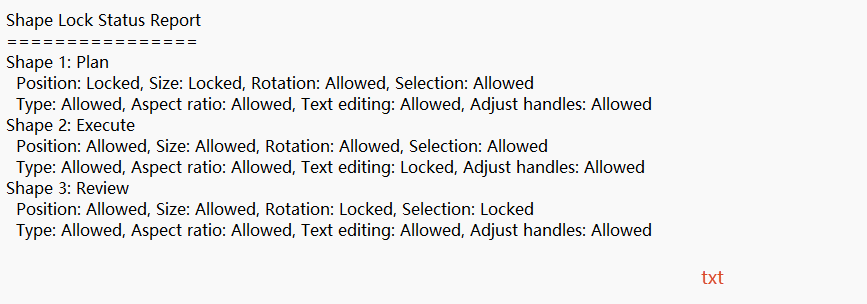
When an existing presentation arrives, there is usually no way to tell which shapes have been restricted or which items were locked. Opening each shape's formatting pane is slow, and a shape whose selection is forbidden cannot even be selected. Reading the locking properties of every shape and collecting them into a text report makes the whole state visible at a glance, which helps decide what to adjust next. The steps are:
- Get the Spire.Presentation WASM module and check that it is ready, load the presentation with locked shapes into the VFS, then open it with
Presentation.LoadFromFile()and take its first slide. - Walk
slide.Shapes, take each shape withget_Item(i), and read the shape text withTextFrame.Textas its label. - Read the eight properties under
Locking, turn each one into "Locked" or "Allowed", and build a few lines of text per shape. - Write the report to a text file in the VFS with
FS.writeFile(), then release the presentation withDispose(). - Read the text file from the VFS and start the download.
The code for reading and checking the lock status of shapes is shown below:
function App() {
  const readShapeLocks = async () => {
    // Get the Spire.Presentation WASM module
    const pptModule = window.wasmModule?.spirepresentation;

    // Check that the module is ready
    if (!pptModule) {
      alert('Spire.Presentation is not ready yet');
      return;
    }

    // Load the presentation with locked shapes into the VFS
    const inputFileName = 'en_LockedShapes.pptx';
    await window.spire.FetchFileToVFS(inputFileName, '', `${process.env.PUBLIC_URL}data/`);

    // Load the presentation and take its first slide
    const ppt = new pptModule.Presentation();
    ppt.LoadFromFile(inputFileName);
    const slide = ppt.Slides.get_Item(0);

    // Read the locking properties of every shape and build a text report
    const state = (flag) => (flag ? 'Locked' : 'Allowed');
    const lines = ['Shape Lock Status Report', '================'];
    for (let i = 0; i < slide.Shapes.Count; i++) {
      const shape = slide.Shapes.get_Item(i);
      let text = '';
      try {
        text = shape.TextFrame.Text;
      } catch (err) {
        text = '';
      }
      const locking = shape.Locking;
      lines.push(`Shape ${i + 1}: ${text}`);
      lines.push(`  Position: ${state(locking.PositionProtection)}, Size: ${state(locking.ResizeProtection)}, Rotation: ${state(locking.RotationProtection)}, Selection: ${state(locking.SelectionProtection)}`);
      lines.push(`  Type: ${state(locking.ShapeTypeProtection)}, Aspect ratio: ${state(locking.AspectRatioProtection)}, Text editing: ${state(locking.TextEditingProtection)}, Adjust handles: ${state(locking.AdjustHandlesProtection)}`);
    }

    // Write the report to a text file in the VFS
    const outputFileName = 'ShapeLockStatus.txt';
    window.dotnetRuntime.Module.FS.writeFile(outputFileName, lines.join('\n'));
    ppt.Dispose();

    // Read the text file and start the download
    const fileArray = window.dotnetRuntime.Module.FS.readFile(outputFileName);
    const blob = new Blob([fileArray], { type: 'text/plain;charset=utf-8' });
    const url = URL.createObjectURL(blob);
    const a = document.createElement('a');
    a.href = url;
    a.download = outputFileName;
    a.click();
    URL.revokeObjectURL(url);
  };

  return (
    <div style={{ textAlign: 'center', height: '300px' }}>
      <h1>Read lock status</h1>
      <button onClick={readShapeLocks}>
        Read lock status
      </button>
    </div>
  );
}

export default App;
The text report generated by reading the lock states:
FAQ
Can tables be locked as well
Cause: A table is another shape type in a presentation, and the way it is adjusted is similar to ordinary shapes.
Solution: Test the shape with instanceof to see whether it is a table, then use ShapeLocking to set the matching protection, for example to fix the aspect ratio:
if (shape instanceof pptModule.ITable) {
  shape.ShapeLocking.AspectRatioProtection = true;
}
How is locking different from document encryption
Cause: Both restrict what can be changed in a presentation, so they are easily confused; but locking constrains how shapes behave in an editor, and only for the shapes it was applied to.
Solution: The lock items only affect dragging, resizing, rotating and text editing in editors such as PowerPoint. They require no password and do not stop Spire.Presentation from reading or changing shape properties. To control who may open the file, use document encryption or an open password instead.
Do new shapes inherit the lock settings
Cause: The lock items are written shape by shape and are not stored in the slide master or layout, so a newly added shape does not carry them automatically.
Solution: After the shape collection changes, run the same traversal again and set the same Locking properties on the new shapes. If the new shape follows the same layout as the existing ones, reuse the same set of lock items.
Get a Free License
If you wish to delete the evaluation message from the resulting documents, or to get rid of function limitations, please contact sales to obtain a valid 30-day temporary license.
