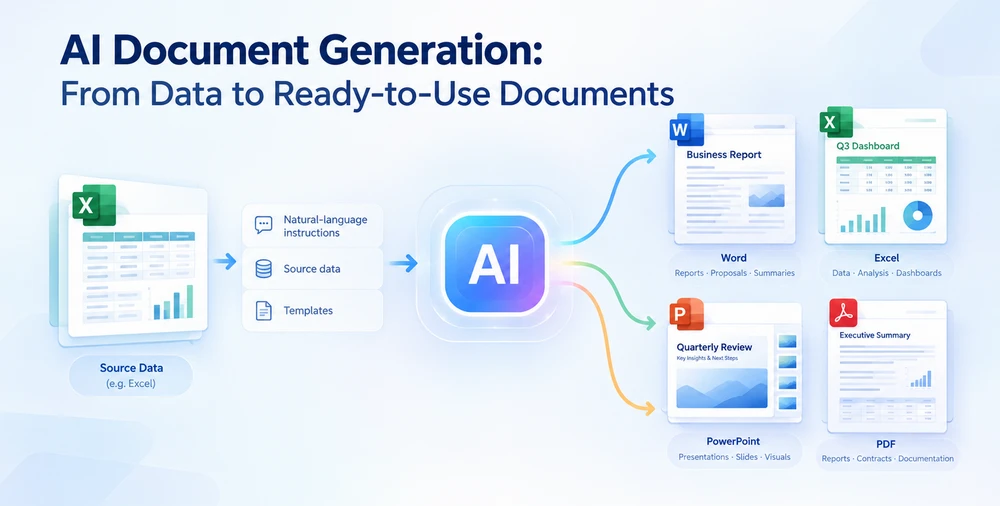
AI document generation uses natural-language instructions, source data, and templates to create structured Word, Excel, PowerPoint, and PDF files — not just text, but formatted documents with sections, tables, charts, and styling. Unlike simple AI text generation, it produces complete, ready-to-use files that comply with Office formatting standards. This article covers what AI document generation is, how it works, online tools you can try right now, and a C# implementation with Spire.Agent.Office.
Quick Navigation
- What is it? — definition and how it differs from AI text generation
- What can it create? — format × document-type matrix with use cases
- How it works — the generation pipeline and three architecture patterns
- Try it online — no-code document generation with CloudXDocs
- For developers — C# integration with Spire.Agent.Office
- One data source → four documents — a quarterly business review demo
- AI vs. traditional automation — side-by-side comparison
- When to use it — decision guide
- FAQ
1. What Is AI Document Generation?
AI document generation is the process of using artificial intelligence to create formatted business documents — Word, Excel, PowerPoint, and PDF files — from inputs such as natural-language descriptions, structured data, templates, or existing documents. The AI reads the input, determines the document structure, fills in content, applies formatting, and produces a finished file.
How it differs from AI text generation
AI text generation (ChatGPT, Claude, Gemini) produces text — paragraphs, answers, code snippets. AI document generation goes further: it produces structured, formatted files with headings, tables, charts, page layouts, and styling that comply with Office standards. The distinction matters:
| Dimension | AI Text Generation | AI Document Generation |
|---|---|---|
| Output | Plain text or markdown | Formatted .docx, .xlsx, .pptx, .pdf files |
| Structure | Linear text | Sections, tables, charts, headers, page breaks |
| Formatting | None | Fonts, styles, margins, cell formats, slide layouts |
| Use case | Drafting content | Creating deliverable business documents |
Four input patterns
AI document generation typically works with one or more of these input patterns:
- Prompt → document: Describe what you want; the AI builds the entire document from scratch.
- Data → document: Provide a spreadsheet, database export, or JSON; the AI structures a document around the data.
- Template + data → document: Load a template with placeholder fields; the AI fills and adapts it with data.
- Existing document → regenerated document: Load an existing file; the AI rewrites, reformats, or converts it.
Most real workflows combine these — for example, providing a data file and a natural-language instruction that references it.
2. What Can AI Document Generators Create?
AI document generation commonly includes Word, Excel, PowerPoint, and PDF workflows. The table below maps each format to the document types it produces and a representative instruction.
| Format | Document Types | Example Instruction |
|---|---|---|
| Word (.docx) | Executive reports, business letters, memos, contracts, proposals, policies | "Generate a quarterly business review report with sections for revenue performance, top products, regional comparison, and risk indicators." |
| Excel (.xlsx) | Financial dashboards, data summaries, budget worksheets, analysis reports | "Create a sales dashboard with pivot tables showing revenue by region and product, charts comparing Q3 vs Q2, and conditional formatting for targets." |
| PowerPoint (.pptx) | Board presentations, pitch decks, training slides, all-hands decks, project updates | "Build a 10-slide presentation for the all-hands meeting covering Q3 highlights, revenue growth, top performers, challenges, and Q4 priorities." |
| PDF (.pdf) | One-page summaries, formal reports, fillable forms, compliance documents | "Generate a one-page PDF summary of Q3 results for regional managers including total revenue, growth percentage, top 3 regions, and action items." |
Common use cases across formats
| Use Case | Typical Format | Who Needs It |
|---|---|---|
| Quarterly business reviews | Word + PPT + PDF | Executives, board members |
| Sales proposals and quotes | Word + PDF | Sales teams |
| Financial reports and dashboards | Excel + PDF | Finance teams |
| Training materials and onboarding | PPT + Word | HR, training teams |
| Invoice and contract generation | Word + PDF | Operations, legal |
| Project status updates | PPT + Word | Project managers |
| Marketing collateral | PPT + PDF | Marketing teams |
3. How AI Document Generation Works
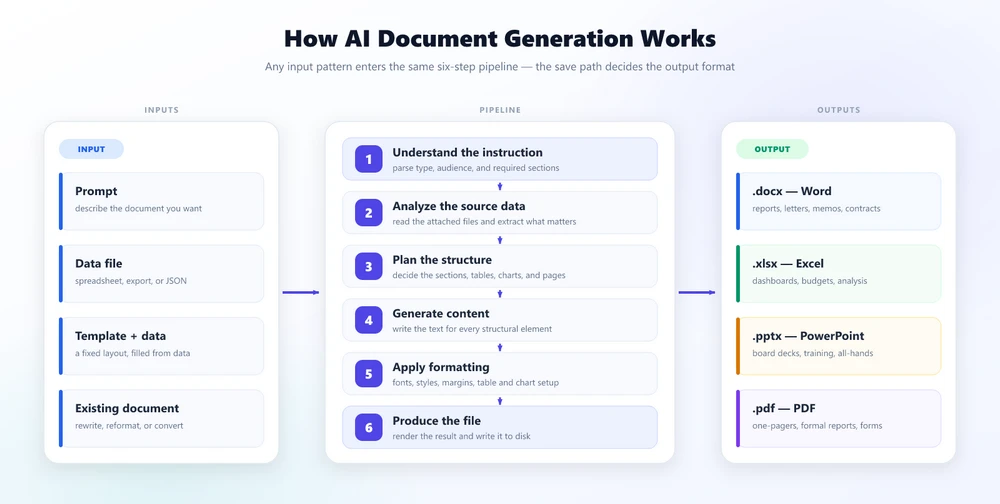
Regardless of the specific tool or SDK, AI document generation follows one common pipeline: Instruction + Data/Template → AI Agent → Document Structure → Formatting → Output File. An instruction plus a data file or a template goes in; the agent plans the structure, generates the content, and applies formatting; a formatted document comes out.
The AI agent does not simply "write text into a file." It performs several steps:
- Understand the instruction — parse the natural-language request to determine the document type, audience, and required sections.
- Analyze the source data — read the attached data file(s) and extract relevant information.
- Plan the structure — decide how to organize the content: which sections, tables, charts, and pages the document needs.
- Generate content — write or fill in the text for each structural element.
- Apply formatting — set fonts, styles, colors, margins, table layouts, and chart configurations.
- Produce the file — render the result as a .docx, .xlsx, .pptx, or .pdf file.
Three architecture patterns
Different tools implement AI document generation in different ways:
| Pattern | How It Works | Best For |
|---|---|---|
| Template + AI fill | A fixed template defines the layout; the AI fills in content fields | High-volume documents with consistent structure (invoices, contracts) |
| AI content generation + SDK rendering | The AI generates structured content (JSON/Markdown); a document SDK renders it into a formatted file | Developer workflows where you control both AI and rendering |
| Fully agentic | An AI agent handles the entire pipeline — reading data, planning structure, generating content, and producing the file — in one call | Flexible, data-driven documents where the structure varies |
Spire.Agent.Office uses an agentic document-generation workflow where one ExecuteInstruction call handles the entire pipeline. Online tools such as CloudXDocs provide a browser-based agent workflow for the same general use case.
4. Try AI Document Generation Online
Not everyone who needs AI document generation is a developer. If you want to generate documents without writing code, browser-based AI document agents can turn prompts, notes, and source files into formatted Word, Excel, PowerPoint, or PDF files.
CloudXDocs is an online AI agent that handles document processing and generation across all four Office formats. It targets business users in marketing, sales, finance, consulting, and operations — no technical background required.
How it works
- Upload a source file — or start from a prompt with no source
- Describe the document you want — in natural language
- Review and download the result — as .docx, .xlsx, .pptx, or .pdf
Example
A finance manager uploads a monthly sales spreadsheet and types:
"Generate a monthly financial performance report. Include an executive summary, a financial highlights table with month-over-month and year-over-year changes, a revenue breakdown by business segment, and an expense analysis. Format it as a professional PDF."
The result can be a multi-page PDF with formatted tables, charts, and styled sections. As with any AI-generated business document, review the output before formal distribution.
For application-side automation — generating documents programmatically in your own software — the next section covers the developer approach with Spire.Agent.Office.
5. AI Document Generation for Developers
If you need to integrate AI document generation into a .NET application, Spire.Agent.Office provides a document AI SDK that handles the full generation pipeline in-process. Add it via NuGet:
dotnet add package Spire.Agent.Office
The core pattern
Every document generation task follows the same three-step pattern:
using Spire.Doc;
using Spire.Agent.Office.AI;
using Spire.Agent.Office.Extensions;

AIOptions options = new AIOptions
{
    SpireToken = "sk-YourSpireToken",
    TimeoutMs = 600000
};

using (Document doc = new Document())
{
    AIResult result = doc.AI(options).ExecuteInstruction(
        doc,
        "Generate an executive summary report from the attached sales data. "
        + "Include sections for revenue, top products, and risk indicators.",
        @"C:\output\q3-report.docx",
        new[] { @"C:\data\q3-sales-data.xlsx" },  // source files via attachmentPaths
        autonomousOutput: true, maxTurns: null);

    Console.WriteLine(result.Success ? "Done" : result.ErrorMessage);
}
Key API calls
| Step | Method | Purpose |
|---|---|---|
| Configure | new AIOptions { SpireToken, WorkDir, TimeoutMs } |
Set API key and working directory |
| Instruct | doc.AI(options).ExecuteInstruction(doc, instruction, savePath, attachmentPaths) |
Send instruction with source files |
| Check |
result.Success / result.ErrorMessage
|
Verify completion |
The attachmentPaths parameter (IEnumerable<string> of file paths) is how cross-format data flows in — you pass an Excel file, a PDF, or a Markdown file as a source, and the agent reads it automatically. The output format is determined by the savePath extension (.docx, .xlsx, .pptx, .pdf). One practical detail: the agent writes the finished file into its working directory as output_<fileName>, not straight to savePath, so copy it across once the call returns.
6. From One Data Source, Four Document Types
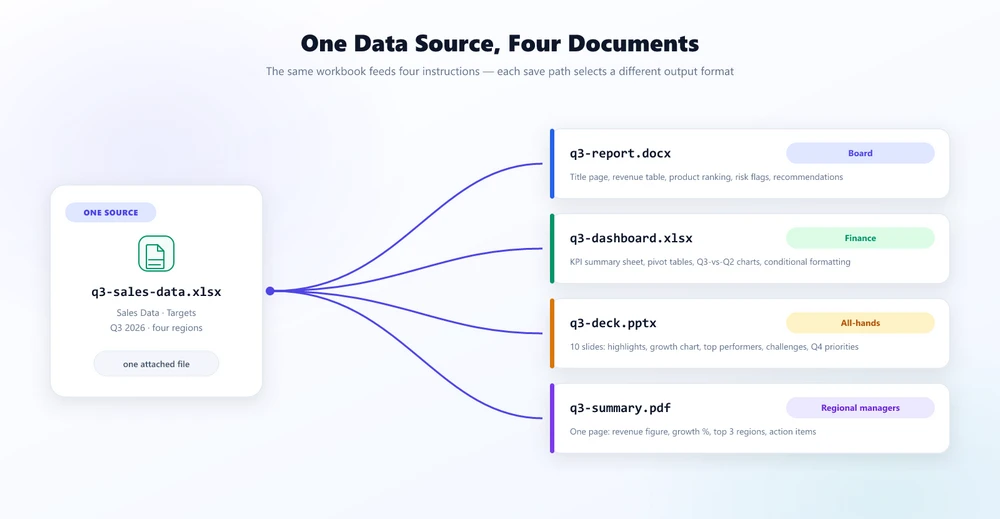
One practical use case for AI document generation is multi-format output from a single data source. Instead of writing four separate code paths, you write four instructions and let the agent handle the rest.
The scenario
A sales VP has Q3 2026 data in an Excel workbook (q3-sales-data.xlsx) and needs four deliverables for different audiences.
The code
using Spire.Doc;
using Spire.Xls;
using Spire.Presentation;
using Spire.Agent.Office.AI;
using Spire.Agent.Office.Extensions;

string[] sources = new[] { @"C:\data\q3-sales-data.xlsx" };
AIOptions options = new AIOptions { SpireToken = "sk-YourToken", TimeoutMs = 600000 };

// 1. Word executive report (for the board)
using (Document doc = new Document())
{
    doc.AI(options).ExecuteInstruction(doc,
        "Generate an executive summary report with sections for revenue, top products, "
        + "regional comparison, and risk indicators.",
        @"C:\output\q3-report.docx", sources, autonomousOutput: true, maxTurns: null);
}

// 2. Excel dashboard (for finance)
using (Workbook wb = new Workbook())
{
    wb.AI(options).ExecuteInstruction(wb,
        "Create a sales dashboard with KPI summary, pivot tables, charts comparing "
        + "Q3 vs Q2, and conditional formatting for targets.",
        @"C:\output\q3-dashboard.xlsx", sources, autonomousOutput: true, maxTurns: null);
}

// 3. PowerPoint deck (for all-hands)
using (Presentation ppt = new Presentation())
{
    ppt.AI(options).ExecuteInstruction(ppt,
        "Build a 10-slide all-hands presentation covering Q3 highlights, revenue growth, "
        + "top performers, challenges, and Q4 priorities.",
        @"C:\output\q3-deck.pptx", sources, autonomousOutput: true, maxTurns: null);
}

// 4. PDF one-pager (for regional managers)
using (Document pdfDoc = new Document())
{
    pdfDoc.AI(options).ExecuteInstruction(pdfDoc,
        "Generate a one-page PDF summary with total revenue, growth rate, "
        + "top 3 regions, and Q4 action items.",
        @"C:\output\q3-summary.pdf", sources, autonomousOutput: true, maxTurns: null);
}
Four documents, four formats, four audiences — one data source. All four calls follow the same pattern: attach the source data, describe the desired output in an instruction, and let the agent build the file; the savePath extension determines the output format.
One parameter carries the load: autonomousOutput: true. Leave it out (the default is false) and the engine looks for an output_* file the agent never wrote, returns with nothing saved, and reports an error beginning "The AI did not produce any output file". maxTurns is spelled out here only because the same call form accepts a turn cap; null — no cap — is already the default.
Because each call is a long-running generation rather than a quick transformation, TimeoutMs needs headroom too: at 300 seconds both the deck and the PDF were cut off mid-build, before the agent had finished writing them. The finished document lands in the working directory as output_<fileName>, mirroring the name you passed in savePath — copy it to the path you want to keep. Read that name rather than AIResult.OutputFiles: the agent converts a binary source to Markdown before parsing it and writes that intermediate file into the same directory, so a list of output_* files can hold both the document you asked for and the data it was built from — and the generated document may cite that intermediate .md name as its source.
What each instruction produces
| Output | Audience | Key Content |
|---|---|---|
q3-report.docx |
Board | Title page, revenue table, product ranking, risk flags, recommendations |
q3-dashboard.xlsx |
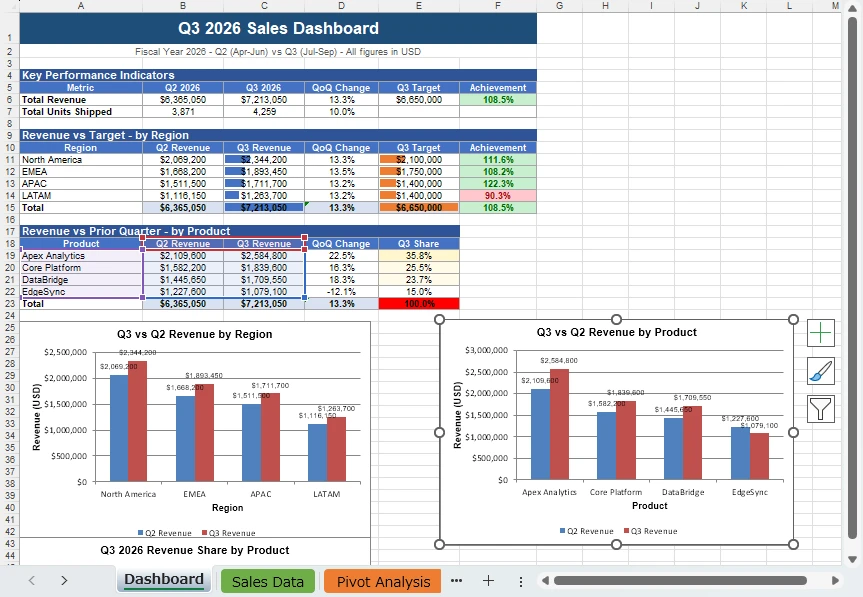
Finance | KPI summary sheet, pivot tables, Q3-vs-Q2 charts, conditional formatting |
q3-deck.pptx |
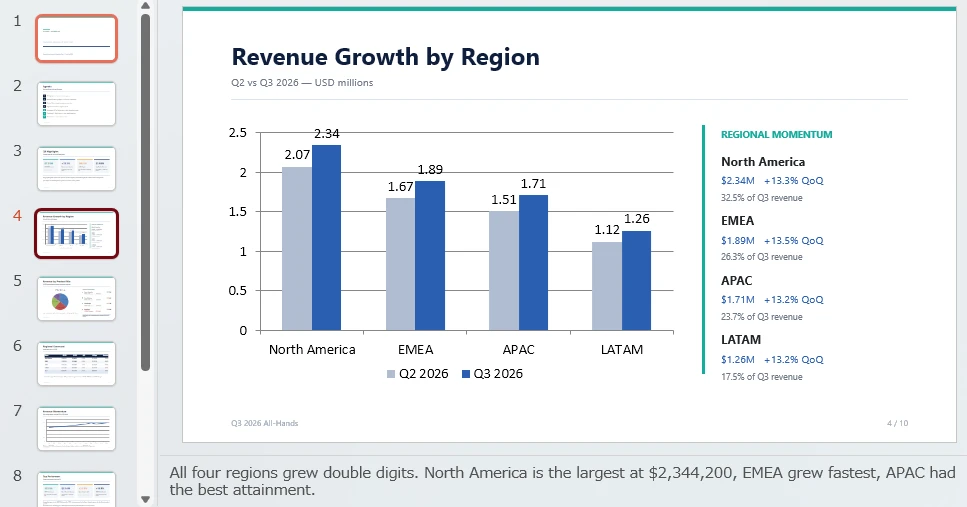
All-hands | 10 slides: highlights, growth chart, top performers, challenges, Q4 priorities |
q3-summary.pdf |
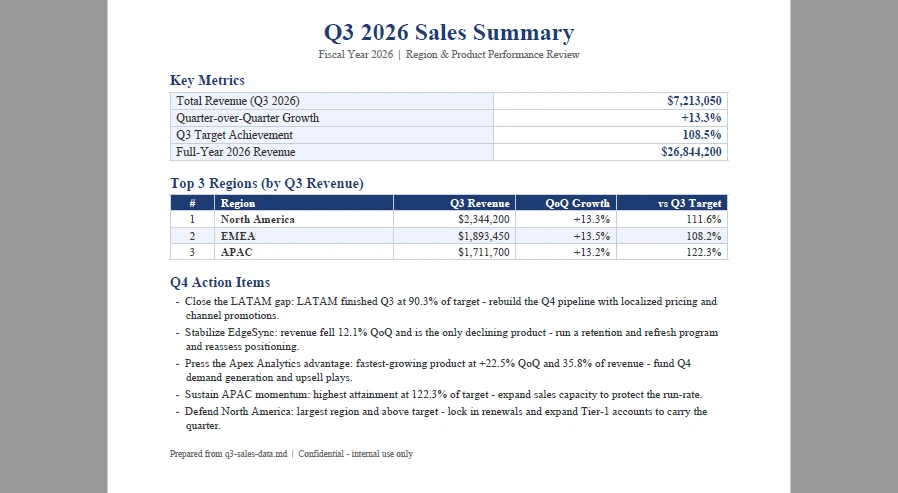
Regional managers | One page: revenue figure, growth %, top 3 regions, action items |
Three of the four outputs, exactly as the agent wrote them — the Excel dashboard, the deck, and the PDF one-pager:
7. AI Generation vs. Traditional Document Automation
Why use AI document generation instead of templates, mail merge, or document SDK code? Consider one task: create a Word report from Excel data with a summary table, a chart, and formatted headings.
Traditional approach
Writing this with a document SDK requires: loading the Excel data, creating a Word document, adding a title paragraph with font and alignment, creating a section heading, building a table with the right dimensions, looping through data to populate cells, applying header styling and alternating row shading, setting column widths, adding a chart shape and configuring its data source, adding remaining sections, setting page margins, and saving. The amount of code grows with the complexity of the layout — and this is for one format only.
AI agent approach
using (Document doc = new Document())
{
    doc.AI(options).ExecuteInstruction(doc,
        "Generate an executive summary report with a revenue summary table, "
        + "a growth chart, and formatted section headings.",
        @"C:\output\report.docx", new[] { @"C:\data\sales.xlsx" },
        autonomousOutput: true, maxTurns: null);
}
The instruction describes the output; the agent handles all the layout steps internally. The implementation stays compact across all four formats.
The trade-off
| Dimension | Traditional SDK / Templates | AI Document Generation |
|---|---|---|
| Code structure | Format-specific API calls and layout logic | Natural-language instruction plus agent orchestration |
| Learning curve | Must learn each format's API | One shared high-level pattern across formats |
| Control | Fine-grained, element-by-element | Instruction-based, through specificity |
| Predictability | Typically more deterministic and repeatable | High, but can vary across runs |
| Best for | Fixed templates, compliance docs, exact layouts | Data-driven reports, multi-format output, prototyping |
8. When to Use AI Document Generation
| Scenario | AI Generation | Traditional SDK |
|---|---|---|
| Prototyping a new document type | ✅ Iterate via instruction changes | Slow — each layout change means code changes |
| Reports from evolving data schemas | ✅ Agent adapts structure to data | Template-based workflows may require template changes when the data schema changes |
| Multi-format output from one source | ✅ Same pattern for every format | Separate code path per format |
| One-off or ad-hoc documents | ✅ Describe what you need | Overkill to write layout code for one use |
| Non-technical users creating documents | ✅ Online tools (CloudXDocs) | Not applicable |
| Pixel-perfect layout with exact positioning | ✅ Full control over coordinates and sizes | |
| High-volume batch with fixed template | ✅ Deterministic, no AI latency per document | |
| Compliance documents with strict formatting | ✅ Typically more deterministic and repeatable |
Online tool vs. developer SDK
| If you... | Use |
|---|---|
| Want to generate documents without code | CloudXDocs — browser-based AI agent |
| Need to integrate generation into an application | Spire.Agent.Office — .NET SDK |
| Want both — let users generate online and automate in code | Both compose naturally: CloudXDocs for ad-hoc, SDK for pipeline |
9. Frequently Asked Questions
What is the difference between AI document generation and AI text generation?
AI text generation produces plain text or markdown — paragraphs, answers, code snippets. AI document generation produces formatted files (.docx, .xlsx, .pptx, .pdf) with structure: sections, tables, charts, styling, and page layout. The output is a deliverable document, not just text.
Can I generate multiple documents from a single instruction?
Not with one call: in the SDK each output format requires its own ExecuteInstruction call, but those calls can share one source file — that is the pattern in Section 6. To apply several instructions to a single document instead, ExecuteInstructionsAsync accepts a string[] of instructions and runs them in order.
How do I control specific formatting like margins, fonts, or table styles?
Include formatting details in the instruction: "use 1-inch margins, 12pt Calibri body text, and a banded table with a dark blue header row." The agent applies these specifications. For requirements that must be exact (e.g., a regulatory margin), generate with AI first, then adjust specific properties with SDK calls.
Can I use my own templates as a starting point?
Yes. Load a template file with LoadFromFile, then send an instruction like "fill in the placeholder sections with data from the attached Excel file." The agent treats the loaded template as the starting document and modifies it. You can also pass template files as attachments alongside data files.
What file formats are supported for input and output?
Input: .docx, .xlsx, .pptx, .pdf, and Markdown (.md) — the underlying Spire engines also read legacy .doc, .xls, and .ppt. Output format is determined by the save path extension — change .docx to .pdf in the save path and the same instruction produces a PDF instead.
Does the online tool require a subscription?
CloudXDocs offers free access to try document generation. For production use, check their pricing page. The Spire.Agent.Office SDK requires a SpireToken, available from the e-iceblue website.
Ready to Try AI Document Generation?
- No code: Try CloudXDocs — upload a file, describe what you want, download the result.
- In your app: Install the Spire.Agent.Office NuGet package, configure your SpireToken, and run the examples above.
Further Reading
- AI Agent for Document Processing: What It Is and How It Works -- the conceptual overview of AI agents for documents
- Generate Word Documents from Excel Data in C# -- deep dive on Excel-to-Word generation with mail merge comparison
- Turn Documents into PowerPoint with AI in C# -- multi-source PPT generation tutorial
- Automate Excel Report Generation with an AI Agent in C# -- Excel report automation patterns
- AI Agent vs. Raw LLM API: Document Layer in .NET -- why a document layer matters between LLM and file output