A white background works well for most Word documents, but it's not always the best choice. Whether you're creating a brochure, invitation, classroom handout, branded report, or document for on-screen reading, a carefully chosen background color can support the document’s visual style and improve reading comfort.
In this guide, you will learn four practical ways to change background color in Word. Whether you are editing a single document or processing a large number of files, you can choose an approach that matches your workflow.
Methods Overview: Choose the Right One for Your Workflow
The ideal method depends on your technical setup and the volume of documents you need to process. Review the comparison table below to determine which approach fits your project requirements:
| Method | Best For | Advantages | Limitations |
|---|---|---|---|
| Microsoft Word (Desktop) | Individual documents | Full feature set, easy to use | Requires manual editing |
| Word for the Web | Quick browser editing | No desktop installation needed | Fewer advanced fill options |
| Modify Word XML Package | Advanced users making a controlled file-level change | Does not require Word or a third-party library | Manual edits can invalidate the file if performed incorrectly |
| C# Automation | Repeated or batch document processing | Applies consistent settings across multiple files | Requires C# programming knowledge |
Method 1: Change Page Background Color in Microsoft Word (Desktop)
The desktop version of Microsoft Word provides the most complete set of page background options. You can apply solid colors, gradients, textures, or patterns to the entire document or use a full-page shape when only one page needs a different visual background.
Add Background Color for the Entire Document
-
Open your Word document.
-
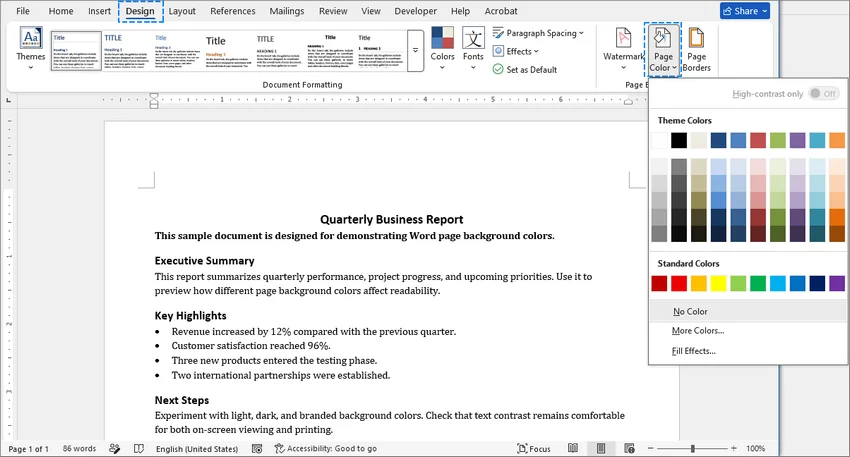
Go to the Design tab on the top ribbon.
-
Select Page Color from the Page Background group.
-
Choose a Theme Color or Standard Color from the grid.
-
Advanced Fill Options (Optional):
- To use a custom color: Click More Colors, choose or enter the required color values, and click OK.
- To use a gradient, texture, or pattern: Select Fill Effects from the drop-down menu to apply multi-color gradients, pre-made textures, or geometric patterns, then click OK.
Result: Word immediately applies the selected color or effect to every page in the document.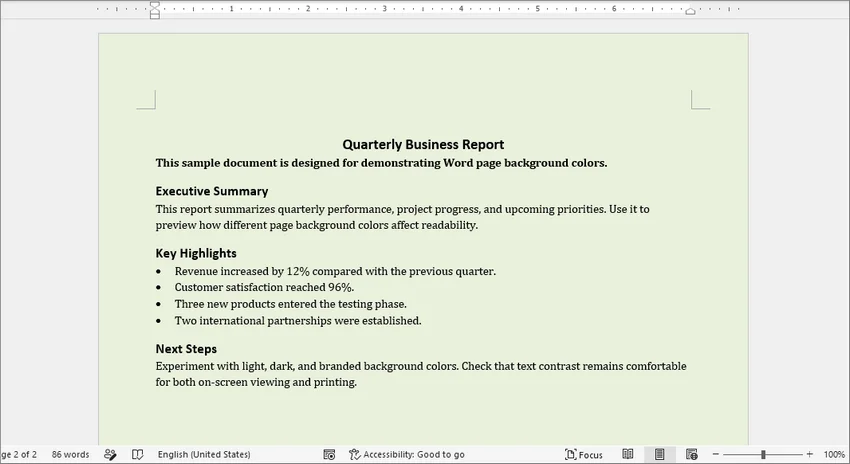
Add Background Color to a Single Page
By default, using the "Page Color" tool applies the background to every page in the document. If you only want to change the background color of a specific page (such as a cover page or section divider), use a full-page shape as the background:
-
Scroll to the page you want to modify.
-
Click the Insert tab on the top ribbon.
-
Select Shapes and choose the Rectangle tool.

-
Click and drag the rectangle to completely cover the entire page edge-to-edge.
-
Navigate to the newly opened Shape Format tab.
-
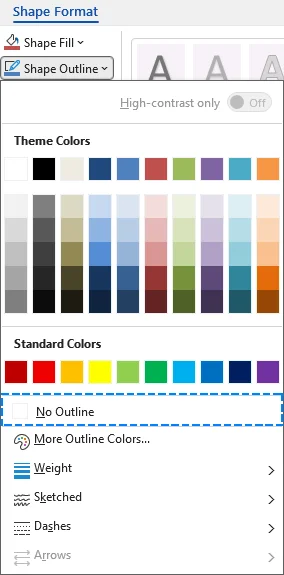
Click Shape Outline and select No Outline.
-
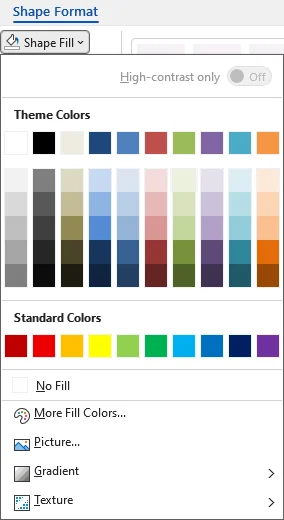
Click Shape Fill and choose the required color.
-
Click the arrow next to Send Backward and select Send Behind Text.

Result: The background color only applies to the selected page, while the other pages remain intact.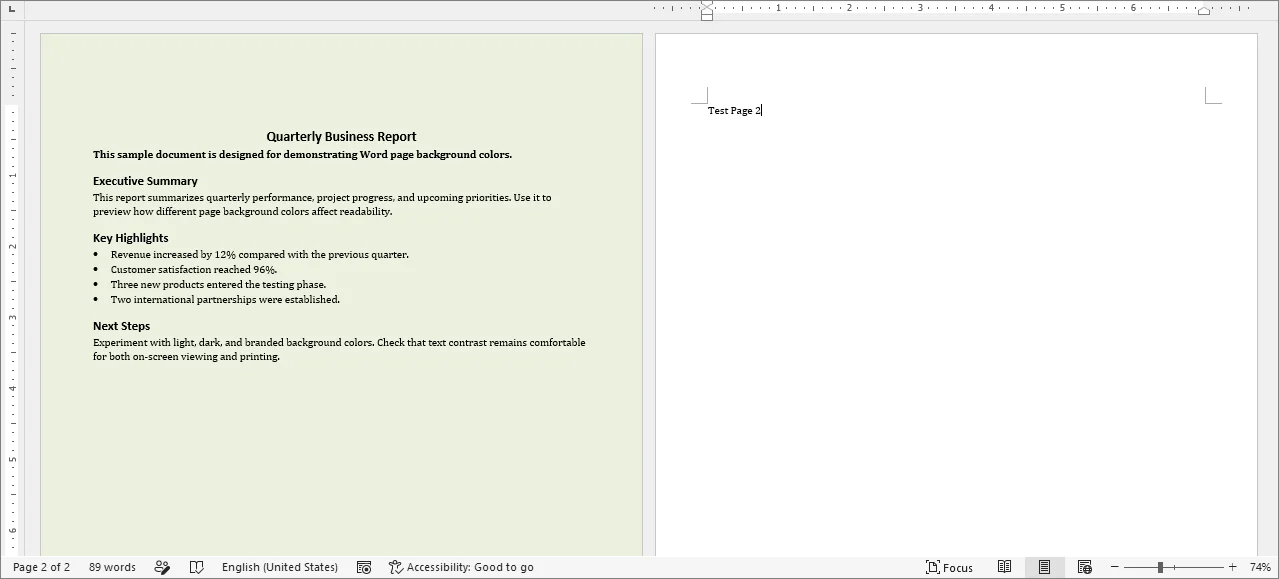
Important Tip: Keep the Background Shape in Position
Word treats a floating shape as an object anchored to a paragraph. As surrounding content changes, the shape may move unless its position is configured carefully.
To keep the background rectangle fixed relative to the page:
- Right-click the inserted shape and choose More Layout Options.
- Navigate to the Position tab.
- Change the reference points of the horizontal and vertical absolute positions to Page.
- Check the Lock anchor box at the bottom to prevent the anchor from being accidentally moved to another paragraph.
- Click OK to apply the changes.
For additional page formatting, you can also add a watermark or apply page borders, depending on the document’s purpose and design.
Method 2: Change Background Color in Word for the Web
If you're working on a Chromebook, using a machine without desktop Office, or collaborating in real time, you can adjust page background colors directly in your browser using Word for the Web (Microsoft 365 Online).
Steps to Change Background Color Online
- Upload and open your document in Word for the Web.
- Go to Layout > Page Color.
- Choose a color under Page Colors or Standard Colors.
- If you don't see the color you want, select More Colors, and then choose a color from the opened Color Picker Dialog.
⚠️ Limitations of Word for the Web:
- No Advanced Fills: Gradients, patterns, textures, and background images cannot be added online.
- Display Inconsistencies: Documents with complex desktop-created backgrounds may not render accurately in the browser. Use the desktop app for high-fidelity preview and editing.
Method 3: Modify the XML Package of the Word Document
If you need to change the background color of a .docx file without opening Microsoft Word or writing code, you can modify the underlying Open XML file structure directly. A .docx file is actually a ZIP package that contains XML files and related resources.
Step-by-Step Guide
-
Create a backup copy of the original Word document.
-
Rename your file extension from
.docxto.zip. -
Extract the ZIP package into a new folder.
-
Open the word/document.xml file inside that folder using a text editor such as Notepad++ or Visual Studio Code.
-
Locate the
<w:document ...>opening element and insert the following element after its opening tag but before<w:body>:<w:background w:color="F0F0F0"/>(Replace
F0F0F0with your required six-digit RGB hexadecimal color value. Do not include the#symbol.)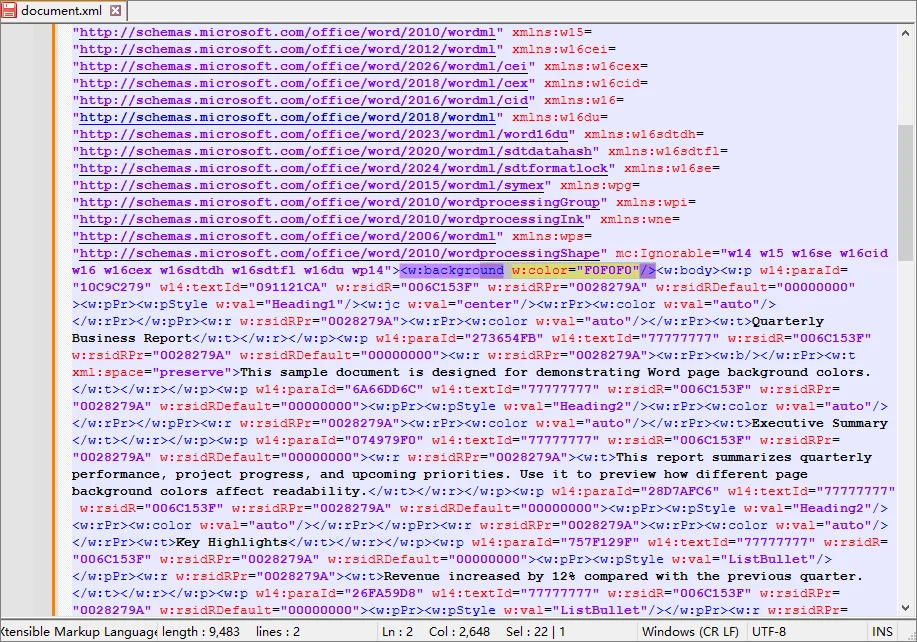
-
Save and close document.xml.
-
Open word/settings.xml and make sure the following element appears inside the
<w:settings>element:<w:displayBackgroundShape/> -
Select all files and folders inside the extracted package (
[Content_Types].xml,_rels,docProps,word), and compress them into a new ZIP archive. Do not compress the outer folder itself. -
Rename the new archive extension from
.zipback to.docx. -
Open the document in Word and verify that the background color is displayed correctly.
⚠️ Important Considerations
Manual XML edits can easily corrupt your document. If elements are misplaced, syntax is malformed, or the folder structure changes during recompression, Word will report unreadable content. Always work on a backup copy of your original file.
Method 4: Change Background Color Programmatically with C#
For document-generation systems, recurring reports, or folders containing many Word files, changing the background color manually is inefficient and can lead to inconsistent results. A C# solution is more suitable when the same formatting rule needs to be applied repeatedly or integrated into an existing workflow.
The following example uses Free Spire.Doc for .NET to apply background colors to Word documents programmatically without requiring Microsoft Word to be installed.
Note: Free Spire.Doc for .NET is limited to 500 paragraphs and 25 tables per document when reading or writing files. Documents that exceed those limits should be tested carefully or processed with an edition that supports the required document size.
Step 1: Install Free Spire.Doc
Open the NuGet Package Manager Console in Visual Studio and run:
Install-Package FreeSpire.Doc
Alternatively, search for FreeSpire.Doc under Manage NuGet Packages and install it into your project.
Step 2: Write C# Automation Code
The following example loops through the .docx files in a specified folder, applies a solid background color, and saves the modified documents to a separate output folder:
using System;
using System.Drawing;
using System.IO;
using Spire.Doc;
using Spire.Doc.Documents;

class Program
{
    static void Main()
    {
        // Define separate folders for source files and processed files.
        string inputFolder = @"C:\Documents\Input";
        string outputFolder = @"C:\Documents\Output";

        // Create the output folder if it does not already exist.
        Directory.CreateDirectory(outputFolder);

        // Retrieve all DOCX files from the input folder.
        string[] files = Directory.GetFiles(
            inputFolder,
            "*.docx",
            SearchOption.TopDirectoryOnly);

        foreach (string inputPath in files)
        {
            // Skip temporary lock files created while a document is open in Word.
            if (Path.GetFileName(inputPath).StartsWith("~$"))
            {
                continue;
            }

            // Preserve the original file name in the output folder.
            string outputPath = Path.Combine(
                outputFolder,
                Path.GetFileName(inputPath));

            try
            {
                // Create and automatically dispose of the Document instance.
                using (Document document = new Document())
                {
                    // Load the current Word document.
                    document.LoadFromFile(inputPath);

                    // Apply a solid light gray background to the document.
                    document.Background.Type = BackgroundType.Color;
                    document.Background.Color = Color.LightGray;

                    // Save the modified copy without overwriting the source file.
                    document.SaveToFile(outputPath, FileFormat.Docx);
                }

                // Report successful processing.
                Console.WriteLine(
                    $"Processed: {Path.GetFileName(inputPath)}");
            }
            catch (Exception ex)
            {
                // Record the error and continue processing the remaining files.
                Console.WriteLine(
                    $"Failed: {Path.GetFileName(inputPath)} - {ex.Message}");
            }
        }
    }
}
Developer Tips:
-
In this example,
Color.LightGrayapplies a light gray background. You can also define a custom RGB color:// Apply a custom RGB background color. document.Background.Color = Color.FromArgb(240, 240, 240); -
The
Document.Backgroundsetting applies to the entire document. For page-specific backgrounds, add a full-page shape and place it behind the text.
Troubleshooting Common Word Background Color Issues
1. Why is My Word Background Color Not Printing?
By default, Microsoft Word hides background colors to save printer ink. If your background appears white in your print preview or physical print, use the quick steps below to fix it:
- Go to File > Options.
- Select Display from the left-hand menu.
- Scroll down to the Printing Options section.
- Check the box for "Print background colors and images".
- Click OK to save your changes.
2. Why Does the Page Color Look Different in Dark Mode?
Word’s Dark Mode can change how the document canvas appears while you are editing. This display change does not necessarily mean that the saved page background has changed. To see the page background color in the light document canvas without turning off Dark Mode:
- Go to the View tab.
- Click Switch Modes in the Dark Mode group to toggle between the light and dark document canvas views.
3. Why Are There White Borders Around My Page Background?
Most printers cannot print to the very edge of the paper. As a result, a background that fills the page on screen may still have white borders when printed.
If your printer supports borderless printing:
- Open File > Print.
- Select Printer Properties or Preferences.
- Enable Borderless Printing, if available.
- Select a paper size supported by the printer’s borderless mode.
- Review the print preview before printing.
If the printer does not support borderless printing for the selected paper size, the white borders cannot be eliminated through Word settings alone. You may need to print on larger paper and trim it, or use a professional printing service.
Frequently Asked Questions
Q1: How do I remove the background color in Word?
To remove a page background color:
- Open the Design tab.
- Click Page Color.
- Select No Color.
The document background will return to the default white color.
Q2: Does changing the Word background color affect printing?
Not always. Word may display background colors on screen but not print them unless background printing is enabled.
Q3: Can I change the background color of multiple Word files automatically?
Yes. A programming approach, such as using C# with Spire.Doc, can process multiple Word documents in a batch and apply the same background settings automatically.
Conclusion
You now know several ways to change the background color in Word, from quick manual editing to batch automation with C#. Whichever method you choose, make sure the color suits the document and provides enough contrast with the text to keep the content easy to read.