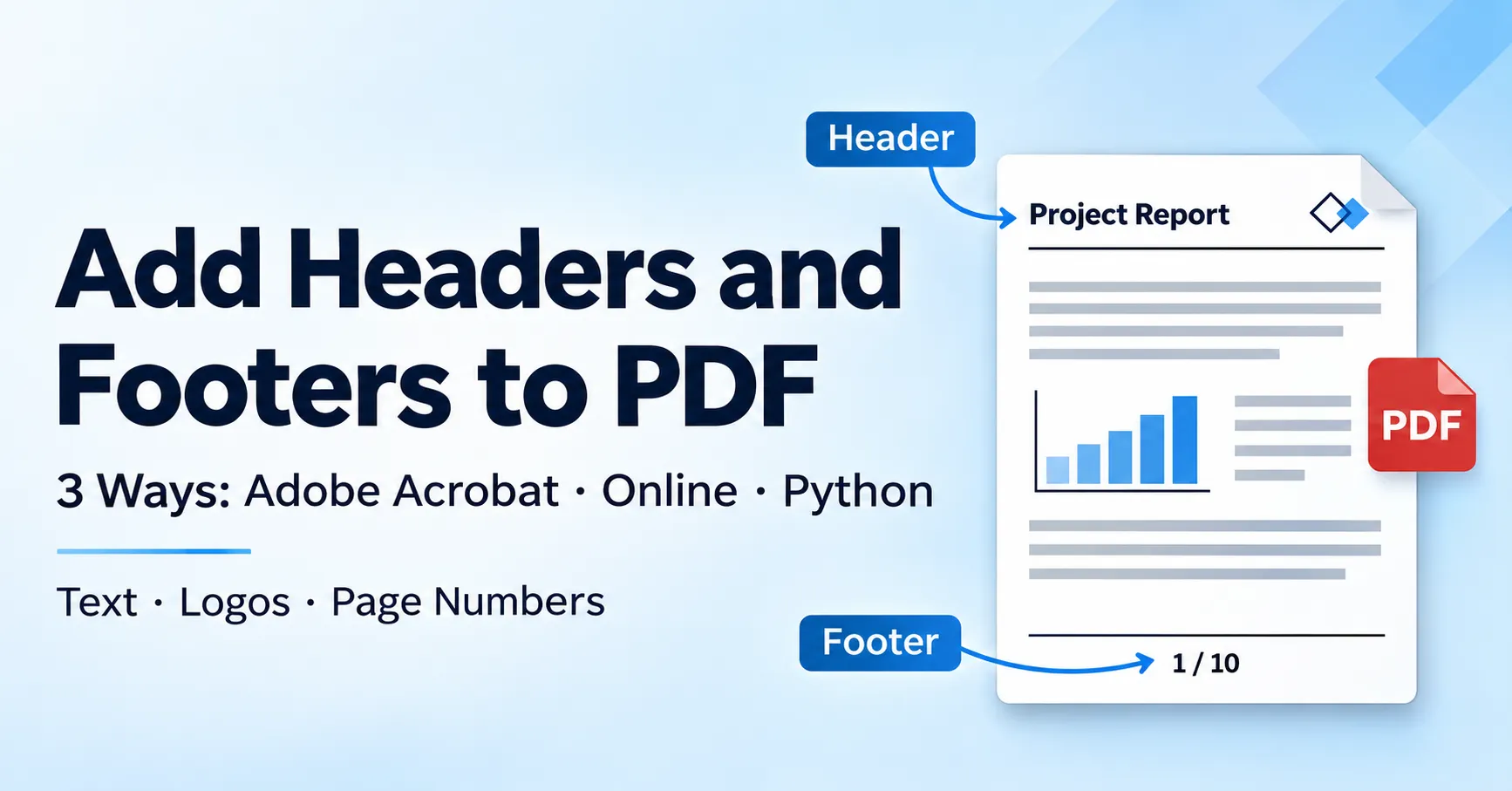
Headers and footers give readers useful context without interrupting the main content of a document. A report title or company logo helps identify the document, while page numbers make longer PDFs easier to navigate and reference.
When you need to add headers and footers to a PDF, placing the same elements consistently across multiple pages can be challenging. You may also want to combine text with a logo, adjust the distance from page edges, or use different font styles for the header and footer. The available controls vary between tools.
This guide introduces three practical methods using Adobe Acrobat, the Sejda online tool, and Python. It walks through each workflow, explains its limitations, and includes a Python example that adds a text label, logo, and page numbers in a single run with consistent positioning and independent text styles.
Add Headers and Footers with Adobe Acrobat
Adobe Acrobat includes a dedicated feature for adding text, dates, and page numbers to multiple pages. The instructions below use the classic desktop interface; the feature is part of the Edit PDF toolset.
Steps
- Open your PDF in Adobe Acrobat.
- Go to Tools > Edit PDF.
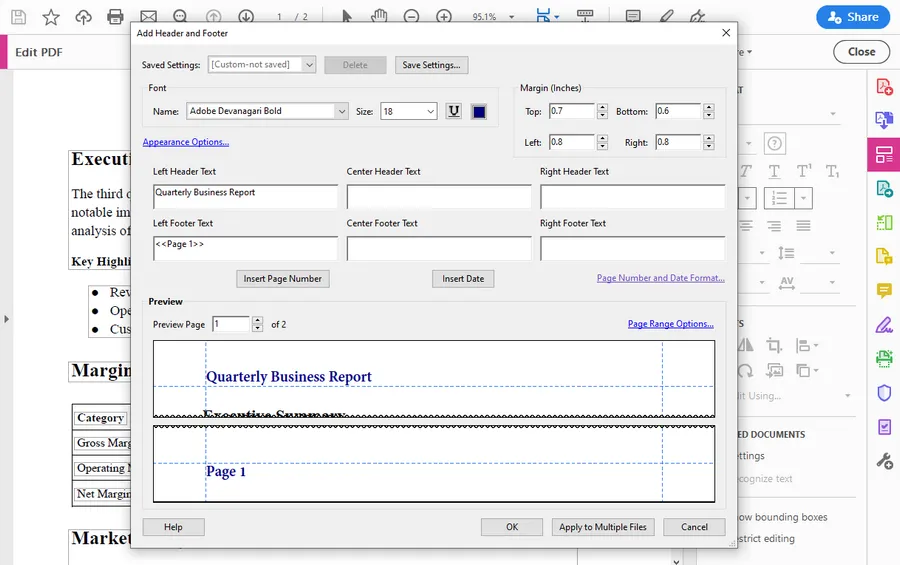
- In the editing toolbar, select Header & Footer > Add.
- Enter your text in one of the three header fields: Left Header Text, Center Header Text, or Right Header Text. For example, enter
Quarterly Business Reportin the left header field. - Click a footer field, then open Page Number and Date Format to choose the numbering format. Click Insert Page Number afterward, as format changes do not update an already inserted field.
- Set the font, size, and color in the Font section.
- Adjust the top, bottom, left, and right values in Margin to refine the placement. These controls provide more precision than simply choosing a left, center, or right position.
- Use Page Range Options if you want to apply the settings to selected pages.
- Check the preview, click OK, and save the result as a separate PDF.
Practical limitations
In the tested classic interface, the font settings apply to all text entered during the same Add Header and Footer operation. If you want a large, bold header and smaller page numbers, add them in separate operations. When adding the second set, choose to add a new header/footer rather than replace the existing one.
The dialog also does not directly insert images. To repeat a logo at the top or bottom of pages, use Edit PDF > Watermark > Add, select a file source, and adjust its size and position. For a normal logo appearance, set rotation to 0 degrees and opacity to 100%.
Acrobat is therefore useful for visual placement and margin adjustments, although a layout with independently styled text and a logo requires additional steps.
Add Headers and Footers Online with Sejda
If you prefer a browser-based workflow, Sejda’s Header & Footer tool can apply text labels or page numbers across a PDF without installing desktop software.
Steps
- Open the Sejda Header & Footer page and upload your PDF.
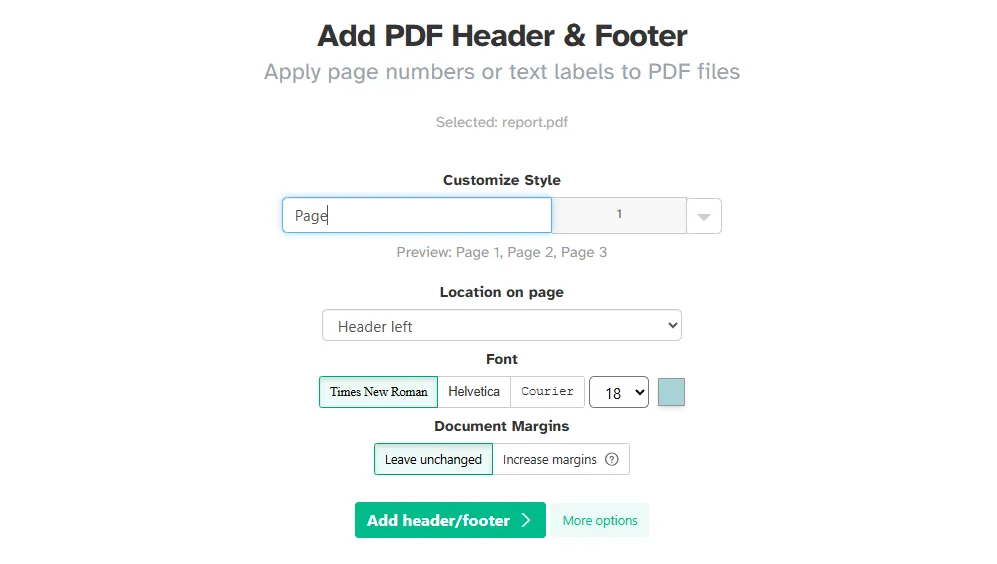
- Choose the content you want to add: a text label or a page-number style.
- Enter your label or configure the numbering options.
- Select a position from Location on page, such as a left-aligned or centered header or footer.
- Choose a font and adjust the available appearance settings.
- Under More options, specify a page range if required. When adding page numbers, adjust the starting number as needed.
- Click Add header/footer, then download the processed PDF.
Practical limitations
In the workflow tested for this article, Sejda offers text labels and page numbering as alternatives within a single operation. Adding a report title and page numbers therefore requires separate passes.
Positioning is based on presets rather than separate numeric offsets for each element. The font choices are also limited to Times New Roman, Helvetica, and Courier.
Sejda includes a Document Margins option to leave margins unchanged or increase them. This should be distinguished from Acrobat’s numeric header/footer margin controls: it is not the same interface for fine-tuning the position of individual header and footer elements.
The tool is suitable for simple, repeated labels or page numbers. More detailed layouts—such as a title on the left, a logo on the right, and separately styled numbering below—are better handled with a workflow that offers individual element control.
General online PDF editors provide another option: place text boxes near the top or bottom of each page. However, in a manual copy-and-paste workflow, maintaining the same position across many pages becomes cumbersome. A dedicated header/footer tool is generally more practical for repeated page elements.
For confidential documents, consider whether uploading them to an online service fits your requirements before using this method.
Add a Text Header, Logo, and Page Numbers Using Python
Python lets you define the layout once and apply it to every page. Each element can have its own position and appearance, so the header title does not need to share its font settings with the footer page numbers.
The following example uses Spire.PDF for Python to add:
- A bold, dark-blue report title at the upper left.
- A logo at the upper right, scaled without changing its aspect ratio.
- Horizontal rules below the header and above the footer.
- Page numbers in the form
X / Y, using a smaller, black font.
Install the Library and Prepare the Files
Install Spire.PDF for Python:
pip install Spire.PDF
Place these files in the script’s working directory, or replace the paths in the code with absolute paths:
-
Report.pdf: the source document. -
Logo.png: the logo image.
The example uses Times New Roman. Make sure this font is available in the environment where the script runs. Spire.PDF is a commercial library; evaluation use may add a watermark or impose restrictions, so check the applicable license when preparing production output.
Complete Python Example
from spire.pdf import *
from spire.pdf.common import *

# Input/output files
input_path = "Report.pdf"
output_path = "WithHeaderFooter.pdf"
logo_path = "Logo.png"

# Header settings (unit: points)
header_text = "Quarterly Business Report"
side_margin = 54.0
text_y = 26.0
logo_y = 18.0
logo_width = 130.0

# Footer settings (unit: points)
line_bottom_offset = 50.0
text_bottom_offset = 38.0

# Load the PDF
document = PdfDocument()
document.LoadFromFile(input_path)

# Create fonts, brushes, and pens used for drawing
header_font = PdfTrueTypeFont("Times New Roman", 18.0, 1, True)
footer_font = PdfTrueTypeFont("Times New Roman", 14.0, 0, True)
header_brush = PdfBrushes.get_DarkBlue()
footer_brush = PdfBrushes.get_Black()
line_pen = PdfPen(PdfBrushes.get_Black(), 0.5)
footer_line_pen = PdfPen(footer_brush, 0.5)

# Calculate the display size of the logo while preserving its aspect ratio
logo = PdfImage.FromFile(logo_path)
logo_height = logo_width * logo.Height / logo.Width
line_y = max(54.0, logo_y + logo_height + 8.0)

# Combine the current page number and total page count
page_number = PdfPageNumberField()
page_count = PdfPageCountField()
footer_field = PdfCompositeField(
    footer_font, footer_brush,
    "{0} / {1}",
    [page_number, page_count]
)

# Draw the header and footer on every page
for page_index in range(document.Pages.Count):
    page = document.Pages[page_index]
    page_width = page.ActualSize.Width
    page_height = page.ActualSize.Height

    # Draw the header
    page.Canvas.DrawString(
        header_text, header_font, header_brush,
        side_margin, text_y
    )

    page.Canvas.DrawImage(
        logo,
        page_width - side_margin - logo_width,
        logo_y,
        logo_width,
        logo_height
    )

    page.Canvas.DrawLine(
        line_pen,
        side_margin, line_y,
        page_width - side_margin, line_y
    )

    # Draw the footer
    page.Canvas.DrawLine(
        footer_line_pen,
        side_margin, page_height - line_bottom_offset,
        page_width - side_margin, page_height - line_bottom_offset
    )

    footer_field.Location = PointF(
        side_margin,
        page_height - text_bottom_offset
    )
    footer_field.Draw(page.Canvas, 0.0, 0.0)

# Save as a separate PDF
document.SaveToFile(output_path)
document.Dispose()

How the Layout Stays Consistent
The script draws onto each existing page using a common set of measurements. The coordinates used here are measured from the upper-left of the page canvas, with the vertical coordinate increasing downward. Dimensions are in points: 72 points equal one inch.
The title starts at the same left offset on every page. The logo’s horizontal position is calculated from the current page width, keeping its right edge at side_margin. Footer positions are calculated from the current page height, preserving their distance from the bottom edge.
The header and footer use separate font and brush objects. In this example, the title is 18-point bold dark blue, while the numbering is 14-point regular black. Changing one does not change the other.
PdfPageNumberField and PdfPageCountField provide the current page number and total page count. PdfCompositeField combines them using "{0} / {1}", so the numbering changes with each page without manually building a separate string.
Settings You Can Adjust
| Setting | Purpose |
|---|---|
header_text |
Changes the report label |
side_margin |
Sets the left inset and the logo’s right inset |
text_y |
Moves the header title up or down |
logo_y and logo_width
|
Set the logo’s top position and display width |
line_bottom_offset |
Sets the footer divider’s distance from the bottom |
text_bottom_offset |
Sets the page-number drawing position relative to the bottom |
header_font and footer_font
|
Control the two text styles separately |
header_brush and footer_brush
|
Control the two text colors separately |
The script adds content to the existing page canvas; it does not automatically create blank space or move the original body content. Check that the source PDF has enough room above and below its content. A long title, a tall logo, or a narrow page may require different measurements. Rotated or unusually cropped pages should also be checked before processing a large collection.
For repeated processing, the same logic can be placed in a function and called for each PDF in a folder, with a separate output path for every document.
Read Further: Add Headers and Footers to an Existing PDF Document with Python
Compare the Three Methods
All three methods can apply content across multiple pages, but they differ in how many operations are needed and how precisely you can control the layout.
| Requirement | Adobe Acrobat | Sejda Online | Python |
|---|---|---|---|
| Add header text and footer page numbers together | Yes , in one operation | No —add text and page numbers in separate passes | Yes , in one script run |
| Give the header and footer different text styles | Not in one operation —add the header first, then add the footer separately with different settings | Not in one operation —apply each element separately with its own settings | Yes —set each element’s font, size, and color independently |
| Precisely adjust placement | Good control through numeric margin settings | Limited control through preset positions | Precise control through coordinates and alignment calculations |
| Add a logo alongside header text | Requires another tool — add the logo through the watermark feature | Requires another tool — add the logo through the watermark feature | Supported directly in the same script |
| Choose fonts | Fonts available through Acrobat | Only Times New Roman, Helvetica, and Courier | Customizable, subject to font availability and support |
| Keep placement consistent across pages | Automatically applies the configured positions | Automatically applies the selected preset position | Applies the same positioning rules to every page |
| Main drawback | Different text styles and logos require additional operations | Restricted positioning, font choices, and content combinations | Requires a Python environment and layout measurements |
Adobe Acrobat is a good choice when you want visual previews and precise margin adjustments. It can add a title and page numbers together, but different header/footer styles require separate additions, and a logo requires the watermark tool.
Sejda is convenient for adding a simple label or page numbers online. However, combining independently styled header text and footer numbering requires repeated processing, and its preset positions offer less control over placement.
Python handles the complete layout in one run: header text, a logo, and footer page numbers can each have their own settings. This makes it useful for repeatable document formatting, although you must configure the environment and choose measurements that fit the source PDF.
Frequently Asked Questions
Can I add headers and footers to selected pages only?
Acrobat provides page-range options, and Sejda includes an “Apply only to pages” setting. In Python, you can restrict the page loop to the indices you want to process. Remember that collection indices start at zero, while the page numbers readers see usually start at one.
Can I give the header and footer different font styles?
Yes. In the tested Acrobat interface, this requires separate additions because one operation shares its font settings. In Python, create separate font and brush objects, as shown in the example.
Can I add a logo and page numbers together?
The Python example does both in a single run. Acrobat can achieve a similar visible layout by combining its header/footer and image watermark features.
Will adding headers and footers move the original PDF content?
The Python code shown here draws onto existing pages without reflowing the body content. Use available blank space and inspect the result to make sure the new elements do not overlap the document.
Conclusion
You can add headers and footers to a PDF using Adobe Acrobat, Sejda, or Python, depending on your layout requirements. Acrobat provides visual controls and adjustable margins, while Sejda offers a simple online workflow. For a report title, logo, and page numbers with independent styles and consistent placement, the Python example brings these elements together in one script.