
Images are an essential part of many PowerPoint presentations, helping explain ideas, highlight important information, and make slides more visually appealing. Whether you are creating a business report, marketing presentation, or educational material, knowing how to add images efficiently can improve your workflow.
PowerPoint offers several ways to insert images, from simple manual operations to automated solutions for large-scale tasks. In this article, we will explore six practical methods to add images in PowerPoint, including built-in features, VBA automation, and Python programming.
Method 1: Insert an Image from Your Computer
The most common way to add images in PowerPoint is by using the built-in Insert Pictures feature. This method is suitable when you only need to add a few images and manually adjust their size, position, or appearance.
PowerPoint allows you to insert local images directly into slides and customize them using built-in editing tools, such as cropping, resizing, and adjusting transparency. If you need the same image to appear in the same position across multiple slides, such as a company logo, watermark, or footer graphic, you can add the image to the slide master instead of inserting it manually on each slide.
Steps to insert an image:
- Open your PowerPoint presentation.
- Select the slide where you want to add an image.
- Go to Insert > Pictures > This Device.
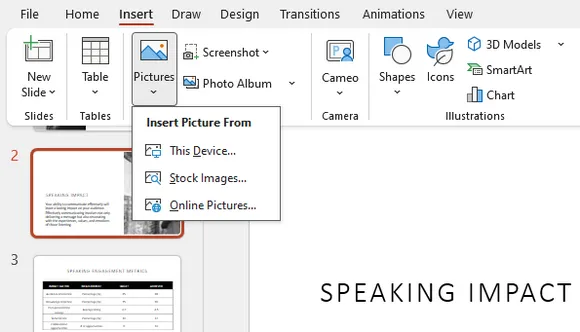
- Select an image file from your computer.
- Click Insert.
The image will be added to the selected slide. You can then resize it, move it to the desired position, or apply PowerPoint's built-in formatting options.
More Image Sources in PowerPoint
Besides adding images from your computer, PowerPoint also provides built-in image sources that allow you to quickly find and insert visual content.
Stock Images provides a collection of royalty-free photos, illustrations, icons, and other visual assets directly inside PowerPoint. It is useful when you need professional-looking graphics without searching for external resources.
Online Pictures allows you to search for images from online sources and insert them directly into your presentation. This option is convenient when you need to quickly find visual materials without downloading files separately.
Method 2: Add Images to PowerPoint Using Drag and Drop
Dragging images directly into PowerPoint is one of the fastest ways to add visual content during presentation editing. Instead of browsing through menus, you can simply move an image file from a folder and place it on the target slide.
This method works especially well when preparing presentations with only a few images because it requires minimal steps. However, manually dragging many images can become time-consuming when working with image-heavy presentations.
Steps:
- Open the folder containing your images.
- Launch your PowerPoint presentation.
- Drag an image file into the target slide.
- Adjust the image size and position if necessary.
For occasional editing, drag and drop is usually the quickest workflow. For larger projects, consider using batch insertion or automation methods.
Method 3: Insert Multiple Images into PowerPoint at Once
When creating photo presentations, product showcases, or image collections, adding pictures individually can slow down the editing process. PowerPoint allows you to select multiple images and insert them into a presentation at the same time.
This approach is useful when you already have a group of images prepared and want to quickly build slides from existing visual assets. For photo-based presentations, the built-in Photo Album feature can also help organize images automatically.
Insert multiple images:
- Open your PowerPoint presentation.
- Select the target slide.
- Go to Insert > Pictures > This Device.
- Hold the Ctrl key and select multiple images.
- Click Insert.
All selected images will be added to the slide together.
Create a Photo Album:
- Go to Insert > Photo Album.
- Click File/Disk.
- Select the images you want to use.
- Click Create.
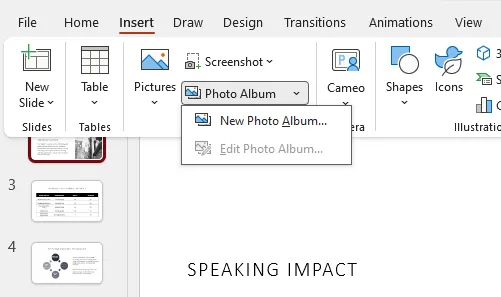
PowerPoint will generate slides containing the selected pictures automatically.
Method 4: Add an Image as PowerPoint Background
Sometimes an image is not meant to be a separate object but the main visual element of a slide. In this case, you can add an image as a PowerPoint background and use it as the foundation of the entire slide layout.
Using a background image is common for presentation covers, branded templates, and full-screen visual designs. Unlike regular inserted pictures, background images stay behind other slide elements, reducing the chance of accidental movement during editing.
Steps to add an image as background:
- Right-click the slide.
- Select Format Background.
- Choose Picture or texture fill.
- Click Insert and select your image.
- Apply the background to the current slide or all slides.
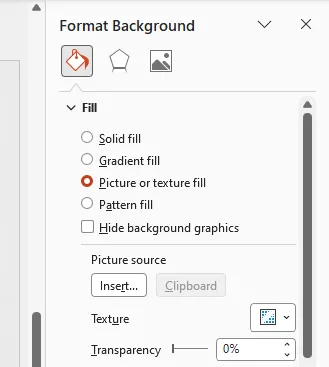
This method is especially useful when creating visually consistent presentations with custom themes or full-page graphics.
Method 5: Add Images to PowerPoint Using VBA
For users who repeatedly perform the same image insertion tasks, VBA can automate the workflow directly inside PowerPoint. Instead of manually adding images and adjusting their positions each time, a macro can complete the process automatically.
VBA is useful for tasks such as inserting company logos, generating image-based reports, or creating presentations from predefined image collections. It is a practical option for Office users who need automation without switching to external programming tools.
Steps to run VBA code:
- Open your PowerPoint presentation.
- Press Alt + F11 to open the VBA editor.
- Click Insert > Module.
- Paste the following code.
- Press F5 to run the macro.
Sub InsertImage()

    Dim slide As Slide
    Dim imgPath As String

    imgPath = "C:\Images\sample.jpg"

    Set slide = ActivePresentation.Slides(1)

    slide.Shapes.AddPicture _
        FileName:=imgPath, _
        LinkToFile:=msoFalse, _
        SaveWithDocument:=msoTrue, _
        Left:=100, _
        Top:=100, _
        Width:=300, _
        Height:=200

End Sub
The macro inserts the specified image into the first slide and places it at the defined location and size.
Method 6: Insert Images into PowerPoint Using Python
For developers building automated presentation workflows, Python provides more flexibility than manual editing or Office macros. A programming approach allows you to control image insertion, positioning, and presentation generation through code.
This method is suitable for batch processing, automated report creation, and applications that need to modify PowerPoint files programmatically. In the following example, we use Spire.Presentation for Python to insert an image into an existing PowerPoint presentation.
Install Spire.Presentation for Python
pip install spire.presentation
Add an Image to a PowerPoint Slide
from spire.presentation.common import *
from spire.presentation import *
import math

# Create a Presentation object
presentation = Presentation()

# Load a PowerPoint presentation
presentation.LoadFromFile("Input.pptx")

# Get the first slide
slide = presentation.Slides[0]

# Image file path
imageFile = "Image.png"

# Calculate image position
left = math.trunc(presentation.SlideSize.Size.Width / float(2)) - 280

# Define image position and size
rect1 = RectangleF.FromLTRB(left, 140, 120 + left, 260)

# Insert image into the slide
image = slide.Shapes.AppendEmbedImageByPath(
    ShapeType.Rectangle,
    imageFile,
    rect1
)

# Remove image border
image.Line.FillType = FillFormatType.none

# Save the presentation
presentation.SaveToFile(
    "AddImageToSlide.pptx",
    FileFormat.Pptx2010
)

presentation.Dispose()
The code loads an existing PowerPoint file, selects a slide, inserts an image at the specified location, and saves the updated presentation.
Compared with manual editing, Python automation is more suitable for workflows that require repeatable image processing or large-scale presentation generation.
Comparison of the 6 Methods
| Method | Difficulty | Best For |
|---|---|---|
| Insert Picture | Easy | Adding individual images manually |
| Drag and Drop | Easy | Quickly adding a few images |
| Insert Multiple Images | Easy | Creating photo-based presentations |
| Background Image | Easy | Full-slide visual designs |
| VBA | Medium | Office automation |
| Python | Advanced | Batch processing and automation |
Conclusion
PowerPoint provides different approaches for adding images depending on the complexity of your workflow. For everyday presentations, built-in features such as Insert Pictures, drag and drop, and Photo Album are usually sufficient.
When working with repetitive tasks or large numbers of images, VBA and Python automation can significantly improve efficiency. Choosing the right method allows you to create presentations faster while maintaining consistent image layouts.
FAQs
1. How do I insert a picture into PowerPoint?
You can insert a picture by selecting a slide and choosing Insert > Pictures > This Device. After selecting an image file, PowerPoint will add it to the current slide.
2. Can I add multiple images to PowerPoint at once?
Yes. You can select multiple image files while using the Insert Pictures option. PowerPoint also provides the Photo Album feature for creating presentations from collections of images.
3. What image formats does PowerPoint support?
PowerPoint supports common image formats including JPG, JPEG, PNG, GIF, BMP, and SVG. Available formats may vary depending on your PowerPoint version.
4. How can I automatically insert images into PowerPoint?
You can use VBA macros or Python libraries to automate image insertion. These approaches are useful for batch processing and generating presentations automatically.
5. How do I set a picture as a PowerPoint background?
You can set an image as a background by opening Format Background , selecting Picture or texture fill , and choosing your image file.