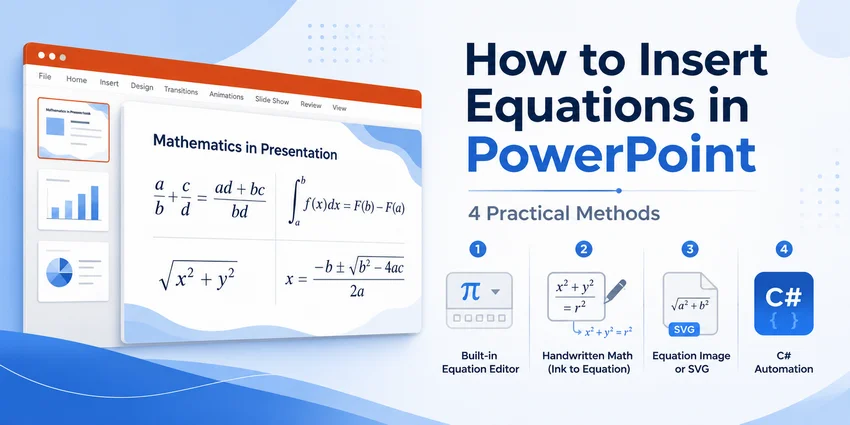
Mathematical equations are common in presentations about science, engineering, finance, statistics, and education. A simple formula such as E = mc² may be easy to type, but fractions, matrices, integrals, and expressions with several levels of superscripts can quickly become difficult to format in an ordinary text box.
This guide covers four practical ways to insert equations in PowerPoint:
- Use PowerPoint's built-in Equation tool
- Convert handwritten formulas with Ink to Math
- Insert an equation as an image
- Insert equations programmatically with C#
Quick Comparison
The best way to insert an equation in PowerPoint depends on whether it must remain editable, how it was created, and whether you are working on one slide or generating many presentations automatically.
| Method | Best For | Editable as an Equation? | Main Limitation |
|---|---|---|---|
| PowerPoint Equation tool | Creating a few editable equations manually | Yes | Complex formulas take longer to build |
| Ink to Math | Stylus and touch-screen users | Yes, after conversion | Handwriting recognition may require correction |
| Insert as an image | Preserving an equation created elsewhere | No | The image must be recreated when the formula changes |
| C# with Free Spire.Presentation | Batch generation and automated reporting | Yes | Requires basic C# knowledge |
Method 1: Insert an Equation Using PowerPoint's Equation Tool
For most users, PowerPoint's built-in equation editor is the best place to start. It creates native equation objects that can be resized, repositioned, and edited directly in the presentation.
Insert a Built-in Equation
PowerPoint includes several common equations (like the Quadratic Formula or Pythagorean Theorem) that can be inserted directly.
-
Open your PowerPoint presentation and select the slide you want.
-
Go to the Insert tab on the top ribbon.
-
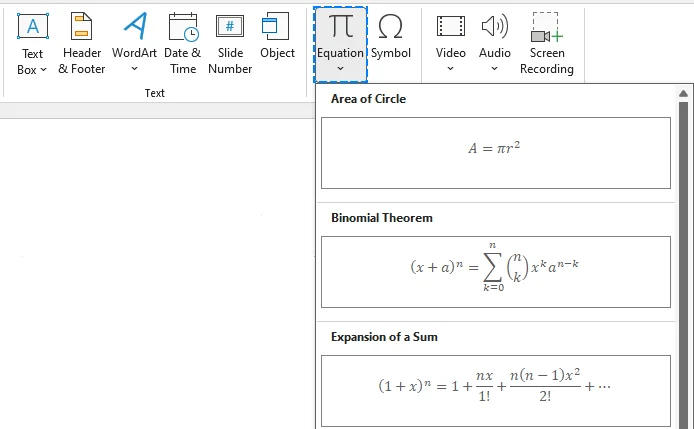
In the Symbols group, click the dropdown arrow next to Equation.
-
Select one of the built-in equations from the gallery.
-
Click inside the equation box on your slide to edit its values, symbols, or structure.
Create a New Equation from Scratch
To build a custom equation:
-
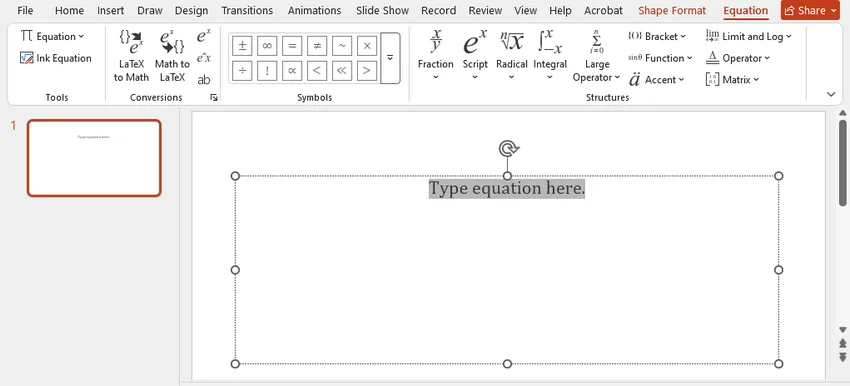
Go to Insert > Equation > Insert New Equation (or press Alt + = on Windows) to insert a new equation box.
-
The ribbon will automatically switch to the Equation tab.
-
Click the category you need (such as Fraction, Script, Radical, Integral, or Matrix) in the Structures group to insert standard empty templates.
-
Click into the dashed square placeholders inside the formula and type your variables or numbers.
Type an Equation in Linear Format
For advanced users, entering formulas in linear syntax is much faster than clicking ribbon icons.
PowerPoint in Microsoft 365 supports converting supported LaTeX and UnicodeMath notation into professionally formatted equations. Available commands and conversion options may vary by version.
-
Insert a blank equation box (Alt + = on Windows).
-
Type your expression inside the box using linear syntax. Examples:
- UnicodeMath:
(a+b)/(c+d),x^2, ory_1 - LaTeX:
\int_0^\infty e^{-x} dx
- UnicodeMath:
-
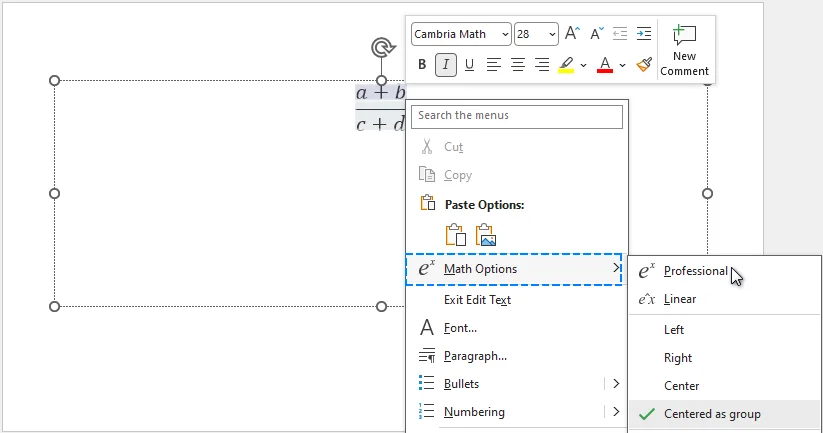
Right-click inside the equation box, hover over Math Options, and select Professional (or click Conversions > Professional on the Equation ribbon) to render the full linear formula into standard visual math notation.
What to Do If the Equation Does Not Convert
If PowerPoint leaves the notation as plain text:
- Confirm that the text is inside an equation box rather than a normal text box.
- Select the entire expression before choosing the conversion command.
- Simplify unsupported commands or package-specific features.
- Check for missing braces, unmatched delimiters, or case-sensitive commands.
- Update PowerPoint if the expected conversion options are unavailable.
For an equation that PowerPoint still cannot convert correctly, consider inserting it as an image (method 3) or generating it programmatically (method 4).
Method 2: Write an Equation by Hand with Ink to Math
If you are using a tablet, Microsoft Surface, or a touchscreen laptop, typing equations can feel restrictive. PowerPoint’s Ink to Math feature allows you to draw formulas naturally and converts them into editable digital math text.
Insert a Handwritten Equation
-
Go to the Draw tab and click the Ink to Math button to open the math input panel.

-
Use your stylus, finger, or mouse to write your formula in the grid area.
-
Preview the real-time digital conversion at the top of the panel.
-
If a character is misread, use the Select and Correct tool from the bottom menu, click the incorrect symbol, and choose the right one from the pop-up suggestions.
-
Click Insert to push the equation onto your slide.
Note: Available Ink to Math options may vary by PowerPoint version. In Microsoft 365 for Windows, you can also write an equation directly on the slide, select the ink with Lasso Select, and choose Draw > Ink to Math. This direct conversion feature requires Microsoft 365 connected experiences to be enabled. For more details, see Microsoft support documentation.
Method 3: Insert an Equation as an Image
If an equation has already been created in a LaTeX editor, scientific application, or online equation renderer, it can be exported as an SVG or PNG image and inserted into PowerPoint.
This is often the simplest solution when the equation is already finalized and does not need to be edited later.
SVG or PNG: Which Format to Choose
- Use SVG when possible. It is a vector format, so the equation remains sharp when resized.
- Use PNG when SVG is unavailable. Export it at a sufficiently high resolution and use a transparent background when possible.
Insert the Equation Image
-
Export the equation as an SVG or PNG file from an equation editor or renderer.
-
Open the target slide.
-
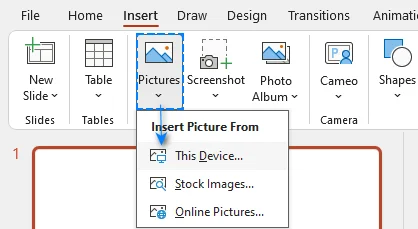
Select Insert > Pictures > This Device.
-
Choose the equation image file.
-
Resize and position it without changing its aspect ratio.
Important Limitation
An equation inserted as an image cannot be edited as mathematical content. Keep the original source file so that the formula can be regenerated if it changes.
For accessibility, add alternative text that describes the formula rather than simply labeling it as an image. For example:
Quadratic formula: x equals negative b plus or minus the square root of b squared minus four a c, divided by two a.
Use This Method When
- The equation was created in another application.
- Exact visual appearance matters more than editability.
- PowerPoint does not render a complex formula correctly.
- The equation is final and unlikely to change.
Method 4: Insert Equations Programmatically in C#
Manual equation entry is suitable for a few slides. It becomes inefficient when equations must be added repeatedly to report templates, training materials, financial presentations, or question banks.
In those cases, a .NET library can generate PowerPoint math content from LaTeX code without opening PowerPoint manually. The following example uses Free Spire.Presentation. The library can create and modify PowerPoint files without requiring Microsoft PowerPoint to be installed.
- *Note: The free edition is designed for small-scale tasks and allows processing up to 10 slides per file. If your presentation exceeds this limit, you can switch to the full edition and apply for a free trial license for an unrestricted test.
Step 1: Install the Required Package
Install Free Spire.Presentation through the NuGet Package Manager Console:
Install-Package FreeSpire.Presentation
Alternatively, use the .NET CLI:
dotnet add package FreeSpire.Presentation
Step 2: Write C# Code
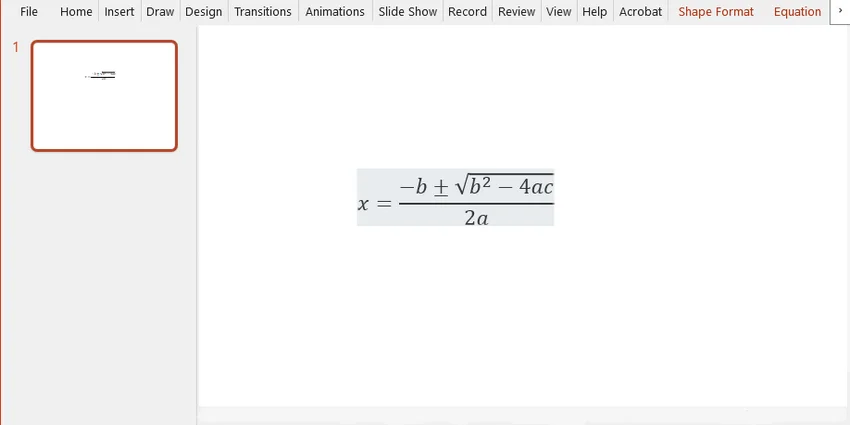
The following code creates a presentation, adds a shape to the first slide, generates an equation from LaTeX code, and saves the result as a PPTX file:
using Spire.Presentation;
using Spire.Presentation.Drawing;
using System;
using System.Drawing;
using System.IO;

namespace EquationDemo
{
    internal class Program
    {
        static void Main(string[] args)
        {
            string outputFolder = "generated-slides";
            string outputFile = Path.Combine(outputFolder, "QuadraticFormula.pptx");
            Directory.CreateDirectory(outputFolder);

            using (Presentation deck = new Presentation())
            {
                try
                {
                    ISlide firstSlide = deck.Slides[0];

                    // A transparent rectangle acts as a container for the equation text
                    IAutoShape equationBox = firstSlide.Shapes.AppendShape(
                        ShapeType.Rectangle,
                        new RectangleF(60, 120, 560, 90)
                    );
                    equationBox.Fill.FillType = FillFormatType.None;
                    equationBox.Line.FillType = FillFormatType.None;
                    equationBox.TextFrame.Paragraphs.Clear();

                    // Quadratic formula, written in LaTeX
                    string quadraticFormula = @"x=\frac{-b\pm\sqrt{b^{2}-4ac}}{2a}";
                    equationBox.TextFrame.Paragraphs.AddParagraphFromLatexMathCode(quadraticFormula);

                    deck.SaveToFile(outputFile, FileFormat.Pptx2019);
                    Console.WriteLine($"Saved: {outputFile}");
                }
                catch (Exception ex)
                {
                    Console.WriteLine($"Could not generate the slide: {ex.Message}");
                }
            }
        }
    }
}
Result:
Notes for Developers:
- Processing existing presentations: This example builds a new presentation. To insert equations into an existing file instead, load it first with deck.LoadFromFile("your_file_path.pptx"), then use the same shape/equation methods shown above.
- Batch generation: Wrap the equation-insertion logic in a loop (e.g. reading LaTeX strings from a CSV or database) to process many slides or files automatically.
- Test uncommon equations first: Less common commands and complex matrices should be tested before they are used in a production workflow.
- Free edition limits: Free Spire.Presentation supports up to 10 slides per presentation. If the source presentation exceeds this limit, split it beforehand using PowerPoint or another unrestricted tool, or use the commercial edition.
Tips for Creating Clear Equations in PowerPoint
Use a Readable Size
An equation that looks acceptable on a laptop may be difficult to read on a projector. Preview the slide in presentation mode and check it from a reasonable viewing distance.
Keep Formatting Consistent
Use a consistent equation size, alignment, and spacing throughout the presentation. Avoid mixing screenshots, native equations, and add-in equations unless their visual appearance is similar.
Avoid Overcrowding
When a derivation contains several steps, reveal them across multiple slides or use animation carefully. A single slide filled with dense notation is difficult for an audience to follow.
Check Font Compatibility
Use a standard math font such as Cambria Math, and test the presentation on the computer used for playback. Missing fonts may change equation spacing or appearance. To reduce compatibility issues, embed supported fonts through File > Options > Save > Embed fonts in the file, or export the final presentation to PDF.
Summary: Which Method Should You Choose for Inserting Equations?
For most users, PowerPoint’s built-in Equation tool is the best choice because it is simple and keeps formulas editable. Use Ink to Math for handwritten input, SVG or PNG image for equations created elsewhere, and C# with Free Spire.Presentation for repeated or automated generation.
Frequently Asked Questions about Inserting Equations in PowerPoint
What is the quickest way to insert an equation in PowerPoint?
On Windows, press Alt + = to insert a new equation box, then type or paste the formula. You can also select Insert > Equation and choose a built-in formula.
Can PowerPoint convert LaTeX code into an equation?
Yes. Microsoft 365 applications, including PowerPoint, can convert supported LaTeX notation into Office Math content when the expression is entered in a math zone. However, PowerPoint may not support every command or package available in a full LaTeX installation.
Can equations be edited after they are inserted?
Equations created with PowerPoint’s Equation tool or converted through Ink to Math remain editable. Equations generated as PowerPoint math content with C# can also be edited. An equation inserted as an SVG or PNG image cannot be edited as mathematical content.
Why does a LaTeX equation look different in PowerPoint?
PowerPoint supports a defined subset of LaTeX rather than a complete LaTeX typesetting system. Unsupported commands or package-specific features may appear as literal text or render differently. Simplify the expression or insert it as an SVG image when exact formatting is required.
Can I copy an equation from Word into PowerPoint?
Yes. Equations created with Microsoft Office’s equation editor can usually be copied from Word and pasted into PowerPoint while remaining editable. After pasting, check the size, alignment, and line spacing on the slide.
Can I insert equations into multiple PowerPoint files automatically?
Yes. You can use C# with libraries like Free Spire.Presentation to batch insert equations into multiple PowerPoint presentations.