
Hyperlinks can make PowerPoint presentations easier to navigate and more engaging for audiences. Instead of creating text-heavy slides, adding hyperlinks helps keep your layout clean while allowing viewers to access external resources instantly. In this guide, you’ll learn how to insert hyperlinks in PowerPoint, covering both manual operations in Microsoft PowerPoint and automation using Python for text, images, and other visual elements.
- How to Insert Hyperlinks in PowerPoint
- Practical Scenarios: Linking Pictures and Online Videos
- Insert a Hyperlink in PowerPoint Presentations with Python
- FAQs
How to Insert Hyperlinks in PowerPoint
In PowerPoint, hyperlinks typically point to external files, web pages, or specific slides within the presentation. Fortunately, the core steps are the same regardless of the target type. With Microsoft PowerPoint, you can add a hyperlink into text or images in just three simple steps.
Follow these steps to insert hyperlinks in PowerPoint:
- Step 1: Select the object by clicking to highlight the text word, picture, shape, or icon you want to make clickable.
- Step 2: Go to the top ribbon and click Insert > Links > Link.
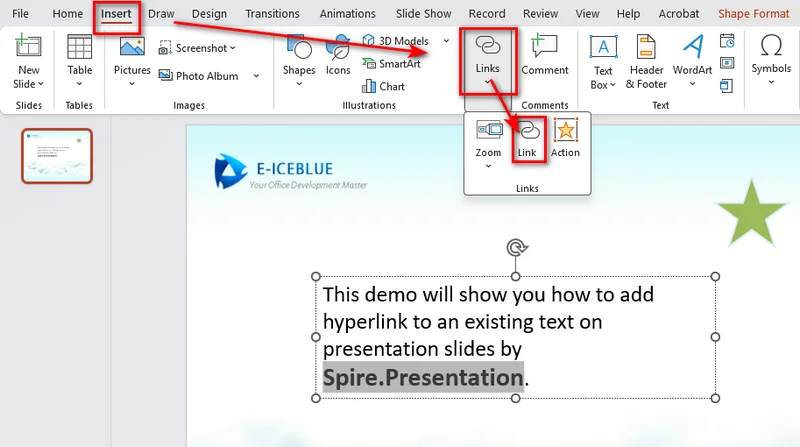
- Step 3: In the pop-up dialog box, set your target destination:
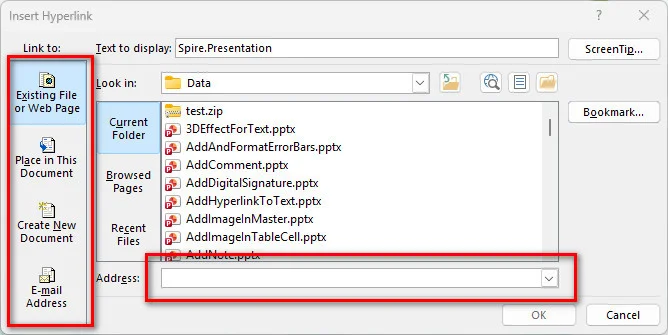
- Existing File or Web Page: Paste an external URL (e.g., https://example.com) or select a local file on your computer.
- Place in This Document: Choose a specific slide number or title inside your current presentation.
- Email Address: Configure an automatic mailto: link for quick email responses.
Practical Scenarios: Linking Pictures and Online Videos
Beyond basic links, hyperlinks are also useful for creating interactive logos, navigation buttons, and lightweight video presentations.
1: Interactive Logos and Navigation Icons
Adding hyperlinks to logos and graphics transforms them from visuals into functional navigation tools, enhancing brand identity while keeping the PowerPoint presentation interactive.
- Brand Authority: Link your company logo directly to the official website, product landing page, or online store so viewers can explore your brand instantly.
- Custom Navigation: Link home, menu, or back-to-top icons to Slide 1 or an index page for fast, flexible jumping during live Q&A sessions.
2: Lightweight Online Video Sharing
Inserting video files directly into PowerPoint often inflates file sizes, making presentations difficult to email or run smoothly on older hardware.
To keep your presentation lightweight:
- Insert a play-button image or text callout (e.g., "Watch Full Demo").
- Apply a hyperlink pointing to your video URL on YouTube, Vimeo, or cloud storage.
Tip: Hyperlinked vs. Embedded Videos
When sharing video in PowerPoint, you can either link to an external video or embed the video file directly. Choosing the right method depends on your file size limits and presentation setup:
- Hyperlinked Video: Links directly to a web URL (e.g., YouTube) or local file path. It opens in a web browser, keeping the presentation's size minimal and easy to email.
- Embedded Video: Integrates the actual video file into the presentation. It plays directly inside the slide frame without internet dependency but significantly increases file size.
Insert a Hyperlink in PowerPoint Presentations Effortlessly with Python
Manual hyperlink insertion works well for small presentations. However, when processing hundreds of slides or generating presentations dynamically, automation becomes more efficient. To streamline workflows, developers can use Free Spire.Presentation for Python to add hyperlinks automatically. Free Spire.Presentation provides APIs for adding hyperlinks to text, images, and shapes programmatically, making it easier to automate large-scale presentation processing.
Adding Hyperlinks to Text
Text hyperlinks are applied at the TextRange level within a shape's text frame. By iterating through paragraphs and text ranges, you can locate specific keywords and set their target URL via ClickAction.Address.
Adding Hyperlinks to Pictures or Shapes
For visual elements like shapes or embedded images, hyperlinks are applied at the shape object level. You can instantiate a ClickHyperlink object with your destination URL and directly assign it to the image's .Click property.
Complete Python Code Example
This code example shows how to insert hyperlinks for text and an image in a PowerPoint presentation:
from spire.presentation import *
from spire.presentation.common import *

# Create a new Presentation object and load a PowerPoint file
presentation = Presentation()
presentation.LoadFromFile("/sample.pptx")

# Get the first slide
slide = presentation.Slides[0]

# Insert hyperlink to text
for shape in slide.Shapes:
    if isinstance(shape, IAutoShape):
        for para in shape.TextFrame.Paragraphs:
            for tr in para.TextRanges:
                # Find the specified text keyword
                if "Spire.Presentation" in tr.Text:
                    # Add hyperlink to the text
                    tr.ClickAction.Address = "https://www.e-iceblue.com"

# Create a rectangle shape and define image position and size
rect = RectangleF.FromLTRB(400, 380, 660, 450)

# Append an image to the slide and set its position and size
image = slide.Shapes.AppendEmbedImageByPath(ShapeType.Rectangle, "/Logo1.png", rect)

# Insert a hyperlink to the image
hyperlink = ClickHyperlink("https://www.e-iceblue.com")
image.Click = hyperlink

# Save the modified presentation
presentation.SaveToFile("/output/AddHyperlinks_Output.pptx", FileFormat.Pptx2013)
presentation.Dispose()
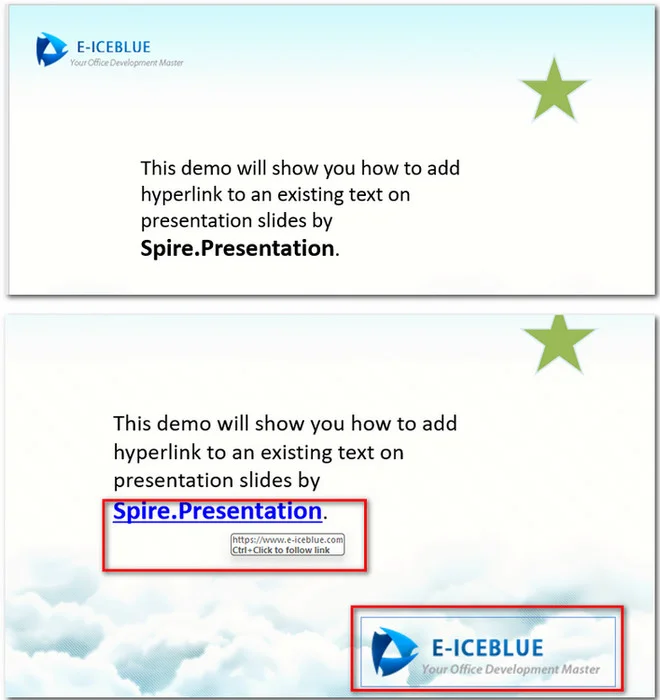
The following image shows the resulting PowerPoint file with inserted hyperlinks:
FAQs about Inserting Hyperlinks in PowerPoint
How do I edit or remove a hyperlink in PowerPoint?
Right-click the linked text, picture, or shape. Select Edit Link to change the target URL, or click Remove Link to convert the element back into static content.
Will hyperlinks still work after converting PowerPoint to PDF?
Most web hyperlinks are preserved during PowerPoint-to-PDF conversion. Internal slide navigation links depend on the conversion tool and PDF viewer compatibility.
Why does PowerPoint show a security warning when clicking a video link?
PowerPoint triggers default security alerts whenever an element attempts to launch external web browsers or local executables. You can safely click Yes to proceed, or adjust your settings under File > Options > Trust Center > Trust Center Settings to customize link warnings.
To Wrap Up
Adding hyperlinks in PowerPoint helps create more interactive and user-friendly presentations. For simple tasks, you can use PowerPoint’s built-in tools to link text, images, videos, or slides. When working with large presentations, Free Spire.Presentation provides a programmatic way to automate hyperlink creation. Before sharing your presentation, remember to test all links in slideshow mode to ensure they work as expected.