
Knowledgebase (2370)
Children categories
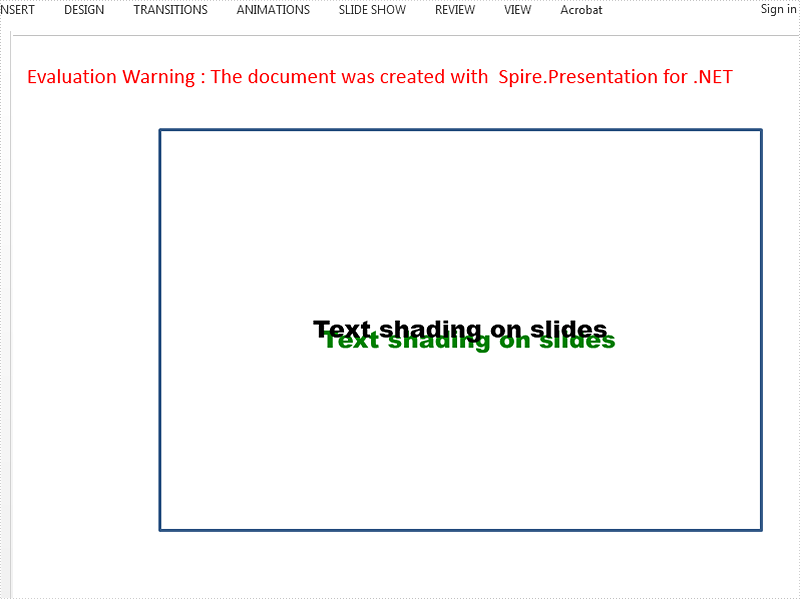
Spire.Presentation for .NET offers classes of InnerShadowEffect and OuterShadowEffect to enable developers to set the shadow effects for the Text on the presentation slides. This article will focus on how to apply the Font outer shadow effects for the Text in C#.
Firstly, view the effective screenshot for the Text after apply the outer shadow effects via Spire.Presentation.
Step 1: Create an instance of Presentation class.
Presentation presentation = new Presentation();
Step 2: Get reference of the slide.
ISlide slide = presentation.Slides[0];
Step 3: Add a new rectangle shape to the first slide.
IAutoShape shape = slide.Shapes.AppendShape(ShapeType.Rectangle, new RectangleF(120, 70, 450, 300));
shape.Fill.FillType = Spire.Presentation.Drawing.FillFormatType.None;
Step 4: Add the text to the shape and set the font for the text.
shape.AppendTextFrame("Text shading on slides");
shape.TextFrame.Paragraphs[0].TextRanges[0].LatinFont = new TextFont("Arial Black");
shape.TextFrame.Paragraphs[0].TextRanges[0].Fill.FillType = FillFormatType.Solid;
shape.TextFrame.Paragraphs[0].TextRanges[0].Fill.SolidColor.Color = Color.Black;
Step 5: Add outer shadow and set all necessary parameters.
Spire.Presentation.Drawing.OuterShadowEffect Shadow = new Spire.Presentation.Drawing.OuterShadowEffect();

Shadow.BlurRadius = 0;
Shadow.Direction = 50;
Shadow.Distance = 10;
Shadow.ColorFormat.Color = Color.Green;
Step 6: Apply the shadow effects to the shape.
shape.TextFrame.TextRange.EffectDag.OuterShadowEffect = Shadow;
Step 7: Save the document.
presentation.SaveToFile("Result.pptx", FileFormat.Pptx2010);
We can also use the code as below to set the inner shadow for the text font. It is almost the same as how to set the outer shadow effects.
Spire.Presentation.Drawing.InnerShadowEffect Shadow = new Spire.Presentation.Drawing.InnerShadowEffect();
Full codes of how to apply the shadow effects for the text font:
using Spire.Presentation;
using Spire.Presentation.Drawing;
using System.Drawing;
namespace SetShadowEffect
{
    class Program
    {
        static void Main(string[] args)
        {
            Presentation presentation = new Presentation();
            ISlide slide = presentation.Slides[0];

            IAutoShape shape = slide.Shapes.AppendShape(ShapeType.Rectangle, new RectangleF(120, 70, 450, 300));
            shape.Fill.FillType = Spire.Presentation.Drawing.FillFormatType.None;

            shape.AppendTextFrame("Text shading on slides");
            shape.TextFrame.Paragraphs[0].TextRanges[0].LatinFont = new TextFont("Arial Black");
            shape.TextFrame.Paragraphs[0].TextRanges[0].Fill.FillType = FillFormatType.Solid;
            shape.TextFrame.Paragraphs[0].TextRanges[0].Fill.SolidColor.Color = Color.Black;

            //Spire.Presentation.Drawing.InnerShadowEffect Shadow = new Spire.Presentation.Drawing.InnerShadowEffect();

            //Add Outer shadow and set all necessary parameters
            Spire.Presentation.Drawing.OuterShadowEffect Shadow = new Spire.Presentation.Drawing.OuterShadowEffect();

            Shadow.BlurRadius = 0;
            Shadow.Direction = 50;
            Shadow.Distance = 10;
            Shadow.ColorFormat.Color = Color.Green;

            shape.TextFrame.TextRange.EffectDag.OuterShadowEffect = Shadow;

            presentation.SaveToFile("Result.pptx", FileFormat.Pptx2010);

        }
    }
}
Using Spire.XLS, the password of an encrypted workbook can be removed or modified in case you know the open password. This article presents how to load a password protected Excel workbook, remove the protection or reset the password and then save the changes to the original file.
Step 1: Initialize an instance of Workbook class.
Workbook wb = new Workbook();
Step 2: Specify the open password and then load the encrypted Excel file.
wb.OpenPassword = "oldpassword";
wb.LoadFromFile(@"C:\Users\Administrator\Desktop\Encrypted.xlsx");
Step 3: Remove the password protection with UnProtect() method or reset the password by Protect() method.
//unprotect workbook
wb.UnProtect();

//reset password
wb.Protect("newpassword");
Step 4: Save the changes to file.
wb.SaveToFile(@"C:\Users\Administrator\Desktop\Encrypted.xlsx, ExcelVersion.Version2010");
Full Code:
using Spire.Xls;
namespace RemovePassword
{
    class Program
    {

        static void Main(string[] args)
        {
            Workbook wb = new Workbook();
            wb.OpenPassword = "oldpassword";
            wb.LoadFromFile(@"C:\Users\Administrator\Desktop\Encrypted.xlsx");

            ////unprotect workbook
            //wb.UnProtect();
            //reset password
            wb.Protect("newpassword");
            wb.SaveToFile(@"C:\Users\Administrator\Desktop\Encrypted.xlsx", ExcelVersion.Version2010);
        }
    }
}
Imports Spire.Xls
Namespace RemovePassword
	Class Program

		Private Shared Sub Main(args As String())
			Dim wb As New Workbook()
			wb.OpenPassword = "oldpassword"
			wb.LoadFromFile("C:\Users\Administrator\Desktop\Encrypted.xlsx")

			'''/unprotect workbook
			'wb.UnProtect();
			'reset password
			wb.Protect("newpassword")
			wb.SaveToFile("C:\Users\Administrator\Desktop\Encrypted.xlsx", ExcelVersion.Version2010)
		End Sub
	End Class
End Namespace
Excel document properties, also known as metadata, are essential for understanding the content and context of an Excel file. They provide valuable information about the document's content, authorship, and creation/revision history, which can facilitate the efficient organization and retrieval of files. In addition to adding document properties to Excel, this article will show you how to read or remove document properties from Excel in C# using Spire.XLS for .NET.
- Read Standard and Custom Document Properties from Excel in C#
- Remove Standard and Custom Document Properties from Excel in C#
Install Spire.XLS for .NET
To begin with, you need to add the DLL files included in the Spire.XLS for .NET package as references in your .NET project. The DLL files can be either downloaded from this link or installed via NuGet.
PM> Install-Package Spire.XLS
Read Standard and Custom Document Properties from Excel in C#
Excel properties are divided into two main categories:
- Standard Properties: These are predefined properties that are built into Excel files. They typically include basic details about the file such as title, subject, author, keywords, etc.
- Custom Properties: These are user-defined attributes that can be added to Excel to track additional information about the file based on your specific needs.
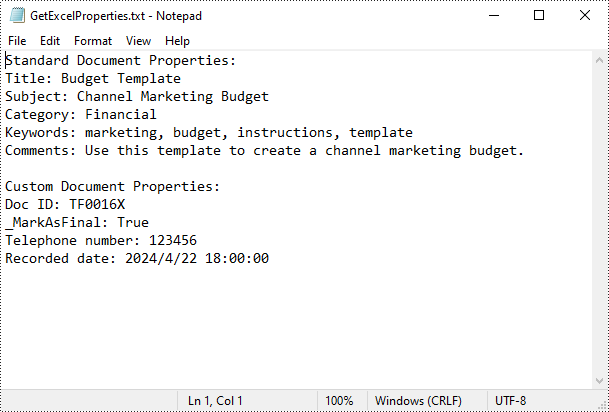
Spire.XLS for .NET allows to read both the standard and custom document properties of an Excel file. The following are the detailed steps:
- Create a Workbook instance.
- Load an Excel file using Workbook.LoadFromFile() method.
- Create a StringBuilder instance.
- Get a collection of all standard document properties using Workbook.DocumentProperties property.
- Get specific standard document properties using the properties of the BuiltInDocumentProperties class and append them to the StringBuilder instance.
- Get a collection of all custom document properties using Workbook.CustomDocumentProperties property.
- Iterate through the collection.
- Get the name and value of each custom document property using IDocumentProperty.Name and IDocumentProperty.Value properties and append them to the StringBuilder instance.
- Write the content of the StringBuilder instance into a txt file.
- C#
using Spire.Xls;
using Spire.Xls.Collections;
using Spire.Xls.Core;
using System.IO;
using System.Text;

namespace GetExcelProperties
{
    class Program
    {

        static void Main(string[] args)
        {
            {
                //Create a Workbook instance
                Workbook workbook = new Workbook();

                //Load a sample Excel file
                workbook.LoadFromFile("Budget Template.xlsx");

                //Create a StringBuilder instance
                StringBuilder sb = new StringBuilder();

                //Get a collection of all standard document properties
                BuiltInDocumentProperties standardProperties = workbook.DocumentProperties;

                //Get specific standard properties and append them to the StringBuilder instance
                sb.AppendLine("Standard Document Properties:");
                sb.AppendLine("Title: " + standardProperties.Title);
                sb.AppendLine("Subject: " + standardProperties.Subject);
                sb.AppendLine("Category: " + standardProperties.Category);
                sb.AppendLine("Keywords: " + standardProperties.Keywords);
                sb.AppendLine("Comments: " + standardProperties.Comments);
                sb.AppendLine();

                //Get a collection of all custom document properties
                ICustomDocumentProperties customProperties = workbook.CustomDocumentProperties;

                sb.AppendLine("Custom Document Properties:");
                //Iterate through the collection
                for (int i = 0; i < customProperties.Count; i++)
                {
                    //Get the name and value of each custom document property and append them to the StringBuilder instance
                    string name = customProperties[i].Name;
                    string value = customProperties[i].Value.ToString();
                    sb.AppendLine(name + ": " + value);
                }

                //Write the content of the StringBuilder instance into a text file
                File.WriteAllText("GetExcelProperties.txt", sb.ToString());
            }
        }
    }
}
Remove Standard and Custom Document Properties from Excel in C#
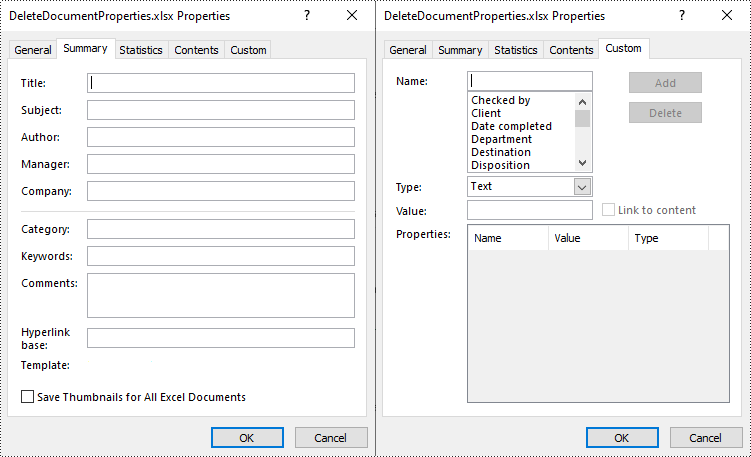
You can easily delete standard document properties from an Excel file by setting their values as empty. For custom document properties, you can use the ICustomDocumentProperties.Remove() method to delete them. The following are the detailed steps:
- Create a Workbook instance.
- Load a sample Excel file using Workbook.LoadFromFile() method.
- Get a collection of all standard document properties using Workbook.DocumentProperties property.
- Set the values of specific standard document properties as empty through the corresponding properties of the BuiltInDocumentProperties class.
- Get a collection of all custom document properties using Workbook.CustomDocumentProperties property.
- Iterate through the collection.
- Delete each custom property from the collection by its name using ICustomDocumentProperties.Remove(string strName) method.
- Save the result file using Workbook.SaveToFile() method.
- C#
using Spire.Xls;
using Spire.Xls.Collections;
using Spire.Xls.Core;

namespace DeleteExcelProperties
{
    class Program
    {

        static void Main(string[] args)
        {
            {
                //Create a Workbook instance
                Workbook workbook = new Workbook();

                //Load a sample Excel file
                workbook.LoadFromFile("Budget Template.xlsx");

                //Get a collection of all standard document properties
                BuiltInDocumentProperties standardProperties = workbook.DocumentProperties;

                //Set the value of each standard document property as empty
                standardProperties.Title = "";
                standardProperties.Subject = "";
                standardProperties.Category = "";
                standardProperties.Keywords = "";
                standardProperties.Comments = "";

                //Get a collection of all custom document properties
                ICustomDocumentProperties customProperties = workbook.CustomDocumentProperties;

                //Iterate through the collection
                for (int i = customProperties.Count -1; i >=0; i--)
                {
                    //Delete each custom document property from the collection by its name
                    customProperties.Remove(customProperties[i].Name);

                }

                //Save the result file
                workbook.SaveToFile("DeleteDocumentProperties.xlsx", ExcelVersion.Version2016);
            }
        }
    }
}
Apply for a Temporary License
If you'd like to remove the evaluation message from the generated documents, or to get rid of the function limitations, please request a 30-day trial license for yourself.
