
Knowledgebase (2370)
Children categories
Working with Tick-mark Labels on the Category Axis in C#, VB.NET
2016-11-16 08:24:51 Written by KoohjiIn charts, each category on the category axis is identified by a tick-mark label and separated from other categories by tick marks. The tick-mark label text comes from the name of the associated category and is usually placed next to the axis.
In this article, we will introduce how we can custom the tick-mark labels by changing the labels' position, rotating labels and specifying interval between labels in C#, VB.ENT.

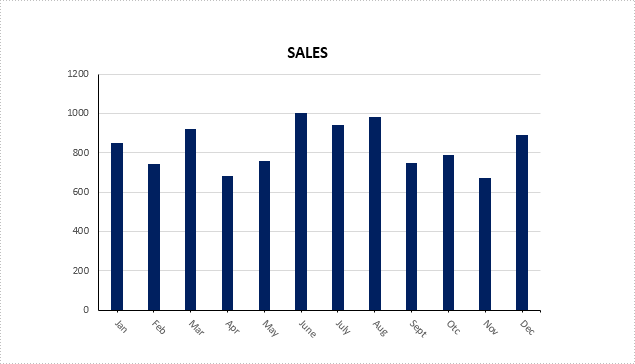
Figure 1 – Chart in Example File
To facilitate the introduction, we prepared a PowerPoint document that contains a column chart looks like the screenshot in Figure 1 and used below code to get the chart from the PowerPoint slide. Then we're able to custom the labels through the following ways.
Presentation ppt = new Presentation(@"C:\Users\Administrator\Desktop\ColumnChart.pptx",FileFormat.Pptx2013);
IChart chart = ppt.Slides[0].Shapes[0] as IChart;
Rotate tick labels
chart.PrimaryCategoryAxis.TextRotationAngle = 45;
Specify interval between labels
To change the number of unlabeled tick marks, we must set IsAutomaticTickLabelSpacing property as false and change the TickLabelSpacing property to any number between 1 - 255.
chart.PrimaryCategoryAxis.IsAutomaticTickLabelSpacing = false;
chart.PrimaryCategoryAxis.TickLabelSpacing = 2;

Change tick labels' position
chart.PrimaryCategoryAxis.TickLabelPosition = TickLabelPositionType.TickLabelPositionHigh;

Full Code:
using Spire.Presentation;
using Spire.Presentation.Charts;

namespace TickMarkLabel
{
    class Program
    {
        static void Main(string[] args)
        {
            Presentation ppt = new Presentation(@"C:\Users\Administrator\Desktop\ColumnChart.pptx", FileFormat.Pptx2013);
            IChart chart = ppt.Slides[0].Shapes[0] as IChart;

            //rotate tick labels
            chart.PrimaryCategoryAxis.TextRotationAngle = 45;

            //specify interval between labels
            chart.PrimaryCategoryAxis.IsAutomaticTickLabelSpacing = false;
            chart.PrimaryCategoryAxis.TickLabelSpacing = 2;

            ////change position
            //chart.PrimaryCategoryAxis.TickLabelPosition = TickLabelPositionType.TickLabelPositionHigh;

            ppt.SaveToFile("result.pptx", FileFormat.Pptx2013);

        }
    }
}
Imports Spire.Presentation
Imports Spire.Presentation.Charts

Namespace TickMarkLabel
	Class Program
		Private Shared Sub Main(args As String())
			Dim ppt As New Presentation("C:\Users\Administrator\Desktop\ColumnChart.pptx", FileFormat.Pptx2013)
			Dim chart As IChart = TryCast(ppt.Slides(0).Shapes(0), IChart)

			'rotate tick labels
			chart.PrimaryCategoryAxis.TextRotationAngle = 45

			'specify interval between labels
			chart.PrimaryCategoryAxis.IsAutomaticTickLabelSpacing = False
			chart.PrimaryCategoryAxis.TickLabelSpacing = 2

			'''/change position
			'chart.PrimaryCategoryAxis.TickLabelPosition = TickLabelPositionType.TickLabelPositionHigh;

			ppt.SaveToFile("result.pptx", FileFormat.Pptx2013)

		End Sub
	End Class
End Namespace
We have already had an article of showing how to replace the image on the existing PDF file. Starts from Spire.PDF V3.8.45, it newly supports to update the image on button field via the method of field.SetButtonImage(PdfImage.FromFile(@"")). This article will focus on demonstrate how to replace the image on the button field in C#.
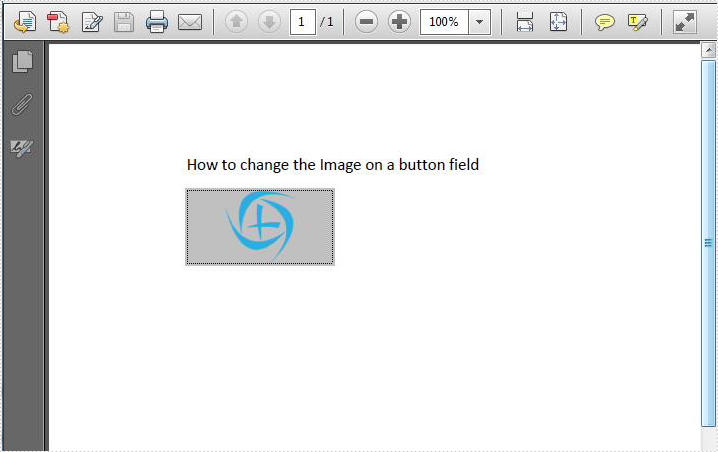
Firstly, check the original PDF file with the button field.
Step 1: Create a PDF document and load from file.
PdfDocument pdf = new PdfDocument();
pdf.LoadFromFile("Sample.PDF", FileFormat.PDF);
Step 2: Get the form from the loaded PDF document.
PdfFormWidget form = pdf.Form as PdfFormWidget;
Step 3: Find the button field named "Image" and then set a new image for this button field.
for (int i = 0; i < form.FieldsWidget.Count; i++)
{
    if (form.FieldsWidget[i] is PdfButtonWidgetFieldWidget)
    {
        PdfButtonWidgetFieldWidget field = form.FieldsWidget[i] as PdfButtonWidgetFieldWidget;
        if (field.Name == "Image")
        { field.SetButtonImage(PdfImage.FromFile("logo.png")); }
    }
}
Step 4: Save the document to file.
pdf.SaveToFile("result.pdf");
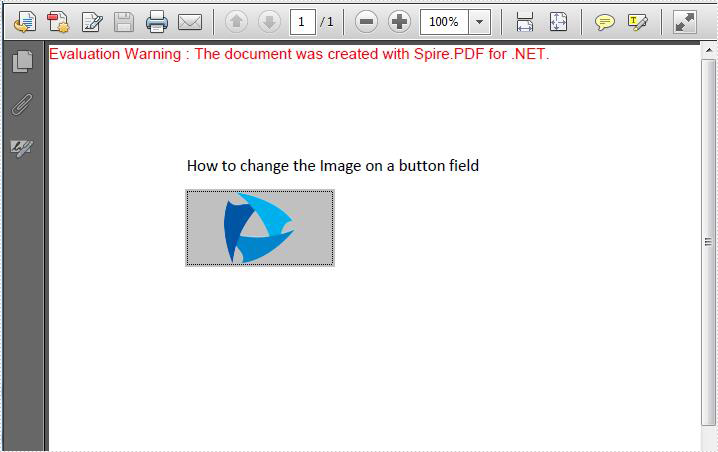
Effective screenshot after replace the image on the button field.
Full codes:
using Spire.Pdf;
using Spire.Pdf.Graphics;
using Spire.Pdf.Widget;


namespace ImageButton
{
    class Program
    {
        static void Main(string[] args)
        {
            PdfDocument pdf = new PdfDocument();
            pdf.LoadFromFile("Sample.PDF", FileFormat.PDF);

            PdfFormWidget form = pdf.Form as PdfFormWidget;

            for (int i = 0; i < form.FieldsWidget.Count; i++)
            {
                if (form.FieldsWidget[i] is PdfButtonWidgetFieldWidget)
                {
                    PdfButtonWidgetFieldWidget field = form.FieldsWidget[i] as PdfButtonWidgetFieldWidget;
                    if (field.Name == "Image")
                    { field.SetButtonImage(PdfImage.FromFile("logo.png")); }

                }
            }

            pdf.SaveToFile("result.pdf");
        }
    }
}
Embed private font into Word document when save as .docx file format
2016-11-09 08:49:02 Written by KoohjiNow Spire.Doc supports to embed private fonts from font files into Word document when save as .docx file format. This article will show you the detail steps of how to accomplish this task by using Spire.Doc.
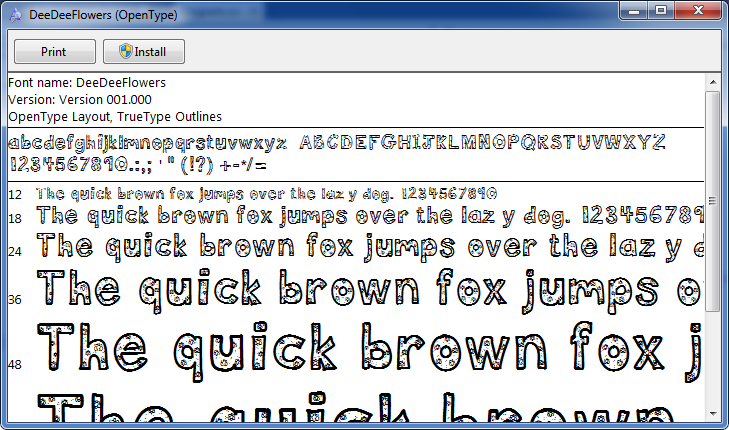
For demonstration, we used a font file DeeDeeFlowers.ttf.
In the following part, we will embed font from above file into a Word document and use it to create text.
Step 1: Create a blank Word document.
Document document = new Document();
Step 2: Add a section and a paragraph to the document.
Section section = document.AddSection();
Paragraph p = section.AddParagraph();
Step 3: Append text to the paragraph, then set the font name and font size for the text.
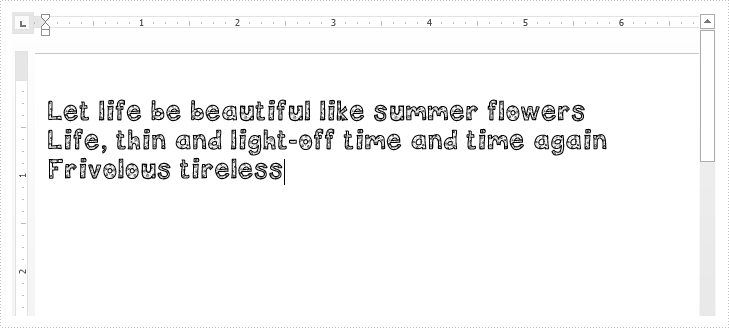
TextRange range = p.AppendText("Let life be beautiful like summer flowers\n"
    +"Life, thin and light-off time and time again\n"
    + "Frivolous tireless");
range.CharacterFormat.FontName = "DeeDeeFlowers";
range.CharacterFormat.FontSize = 20;
Step 4: Allow embedding font in document by setting the Boolean value of EmbedFontsInFile property to true.
document.EmbedFontsInFile = true;
Step 5: Embed private font from font file into the document.
document.PrivateFontList.Add(new PrivateFontPath("DeeDeeFlowers", @"E:\Program Files\DeeDeeFlowers.ttf"));
Step 6: Save as .docx file format.
document.SaveToFile("result.docx", FileFormat.Docx);
After running the code, we'll get the following output:
Full code:
using Spire.Doc;
using Spire.Doc.Documents;
using Spire.Doc.Fields;

namespace Embed_private_font_into_Word
{
    class Program
    {
        static void Main(string[] args)
        {
            Document document = new Document();
            Section section = document.AddSection();
            Paragraph p = section.AddParagraph();

            TextRange range = p.AppendText("Let life be beautiful like summer flowers\n"
                +"Life, thin and light-off time and time again\n"
                + "Frivolous tireless");
            range.CharacterFormat.FontName = "DeeDeeFlowers";
            range.CharacterFormat.FontSize = 20;

            document.EmbedFontsInFile = true;
            document.PrivateFontList.Add(new PrivateFontPath("DeeDeeFlowers", @"E:\Program Files\DeeDeeFlowers.ttf"));

            document.SaveToFile("result.docx", FileFormat.Docx);
        }
    }
}
