
Knowledgebase (2370)
Children categories
How to remove a specific node by position from SmartArt in PowerPoint
2016-07-14 08:41:05 Written by KoohjiSpire.Presentation for .NET provides two flexible methods: RemoveNode() and RemoveNodeByPosition() for developers to remove nodes from SmartArt. In this article, we will learn how to remove a specific node by position from SmartArt in PowerPoint using the RemoveNodeByPosition() method.
Below is the screenshot of the original SmartArt:
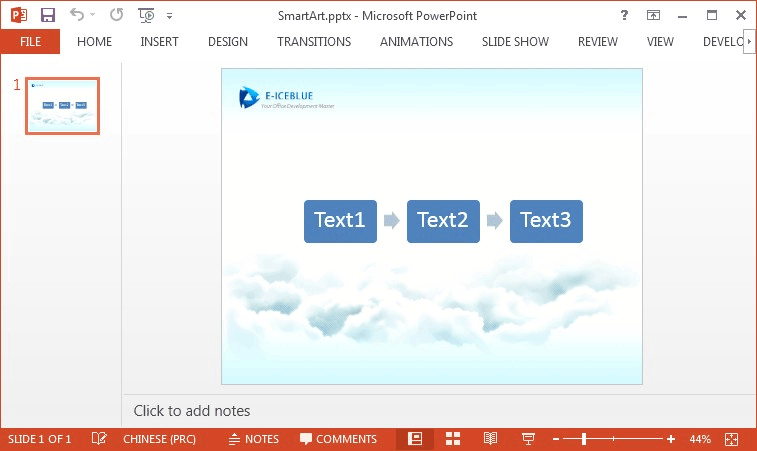
Detail steps:
Step 1: Create a new instance of Presentation class and load the PPT file.
Presentation presentation = new Presentation();
presentation.LoadFromFile("SmartArt.pptx");
Step 2: Get the SmartArt and collect nodes.
ISmartArt smartart = presentation.Slides[0].Shapes[0] as ISmartArt;
ISmartArtNodeCollection nodes = smartart.Nodes;
Step 3: Call nodes.RemoveNodeByPosition(int position) method to remove the specific node by position.
nodes.RemoveNodeByPosition(0);
Step 4: Save the file to disk.
presentation.SaveToFile("RemoveNodes.pptx", FileFormat.Pptx2010);
Running the project, we'll get the following result SmartArt:
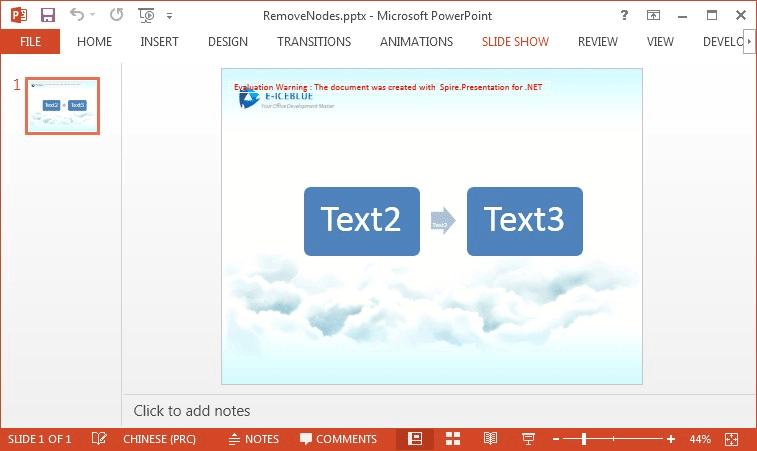
Full codes:
using Spire.Presentation;
using Spire.Presentation.Diagrams;

namespace Remove_Node_from_SmartArt_in_PowerPoint
{
    class Program
    {
        static void Main(string[] args)
        {
            Presentation presentation = new Presentation();
            presentation.LoadFromFile("SmartArt.pptx");

            ISmartArt smartart = presentation.Slides[0].Shapes[0] as ISmartArt;
            ISmartArtNodeCollection nodes = smartart.Nodes;

            nodes.RemoveNodeByPosition(0);

            presentation.SaveToFile("RemoveNodes.pptx", FileFormat.Pptx2010);
        }
    }
}
Imports Spire.Presentation
Imports Spire.Presentation.Diagrams

Namespace Remove_Node_from_SmartArt_in_PowerPoint
	Class Program
		Private Shared Sub Main(args As String())
			Dim presentation As New Presentation()
			presentation.LoadFromFile("SmartArt.pptx")

			Dim smartart As ISmartArt = TryCast(presentation.Slides(0).Shapes(0), ISmartArt)
			Dim nodes As ISmartArtNodeCollection = smartart.Nodes

			nodes.RemoveNodeByPosition(0)

			presentation.SaveToFile("RemoveNodes.pptx", FileFormat.Pptx2010)
		End Sub
	End Class
End Namespace
Spire.PDF supports to save the PDF files into different image file formats, such as BMP, JPG, PNG, GIF and TIFF. It also supports to save the PDF files as the Enhanced Metafile (EMF) image file format. This article will demonstrate how to save the PDF file as the EMF image file format in C#. With the help of Spire.PDF, we only need three lines of codes to finish the conversion function.
Note: Before Start, please download the latest version of Spire.PDF and add Spire.Pdf.dll in the bin folder as the reference of Visual Studio.
Here comes to the steps of how to export the PDF file to EMF in C#:
Step 1: Create a new PDF document and load from file.
PdfDocument doc = new PdfDocument();
doc.LoadFromFile("sample.pdf");
Step 2: Call to use the SaveAsImage method to save all the PDF pages as System.Drawing.Imaging.ImageFormat.Emf file format.
for (int i = 0; i < doc.Pages.Count; i++)
{
    String fileName = String.Format("Sample-img-{0}.emf", i);
    using (Image image = doc.SaveAsImage(i, Spire.Pdf.Graphics.PdfImageType.Bitmap, 300, 300))
     {
       image.Save(fileName, System.Drawing.Imaging.ImageFormat.Emf);
     }

}
Effective screenshot:
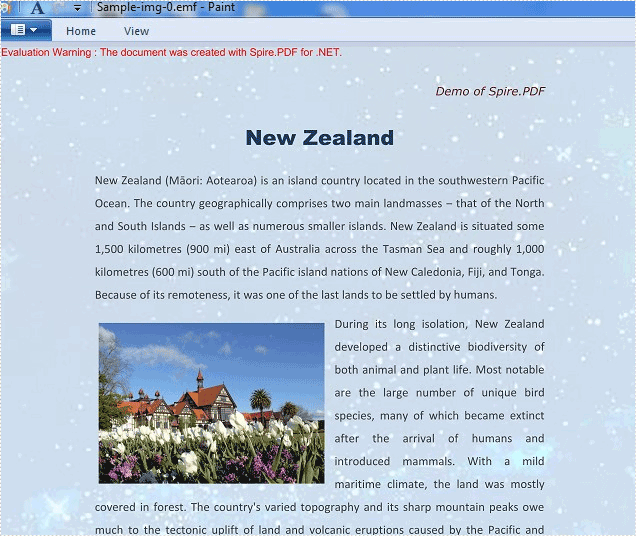
Full codes:
using Spire.Pdf;
using System;
using System.Drawing;

namespace ConvertPDFtoEMF
{
    class Program
    {
        static void Main(string[] args)
        {
            PdfDocument doc = new PdfDocument();
            doc.LoadFromFile("sample.pdf");

            for (int i = 0; i < doc.Pages.Count; i++)
            {
              using (Image image = doc.SaveAsImage(i, Spire.Pdf.Graphics.PdfImageType.Bitmap, 300, 300))
               {
                 image.Save(fileName, System.Drawing.Imaging.ImageFormat.Emf);
               }

            }
        }
    }
}
Open a PDF file at a specific zoom factor/percentage in C#/VB.NET
2016-07-08 02:46:34 Written by KoohjiSometimes, we may need to change the zoom factor when displaying a PDF file to fulfil our requirements. In this article, we will demonstrate how to open a PDF file at a specific zoom factor/percentage (such as default, 100 percent or any other zoom factors as required) by using Spire.PDF for .NET.
Now, please check the original zoom factor of the PDF file as below picture:
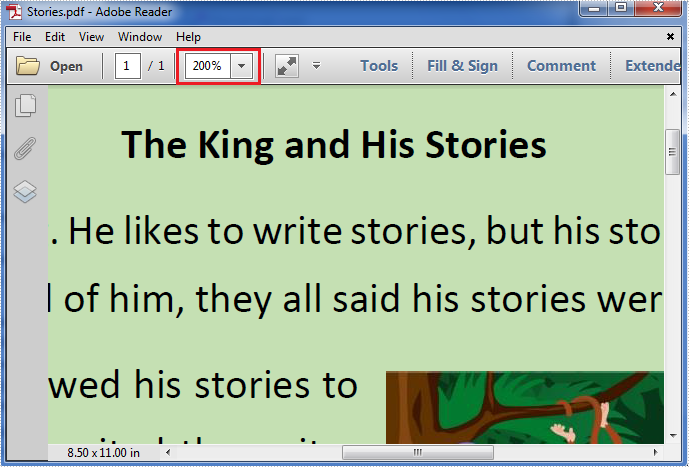
Then refer to the following detail steps:
Step 1: Create a new instance of PdfDocument class, load the original PDF file and get its first page.
PdfDocument pdf = new PdfDocument("Stories.pdf");
PdfPageBase page = pdf.Pages[0];
Step 2: Create a new PdfDestination object using the PdfDestination(PdfPageBase page, PointF location) class which has two parameters: the page and the page display location. Then set the value of its zoom property to the specific zoom factor/percentage.
PdfDestination dest = new PdfDestination(page, new PointF(-40f, -40f));
// Here we set its zoom factor to 100%. If you want to set the zoom factor to default, please set the value of zoom property to 0f.
dest.Zoom = 1f;
Step 3: Create a new instance of PdfGoToAction class and enable the zoom factor resetting action to be executed when the PDF file is opened.
PdfGoToAction gotoaction = new PdfGoToAction(dest);
pdf.AfterOpenAction = gotoaction;
Step 4: Save the PDF file.
pdf.SaveToFile("result.pdf");
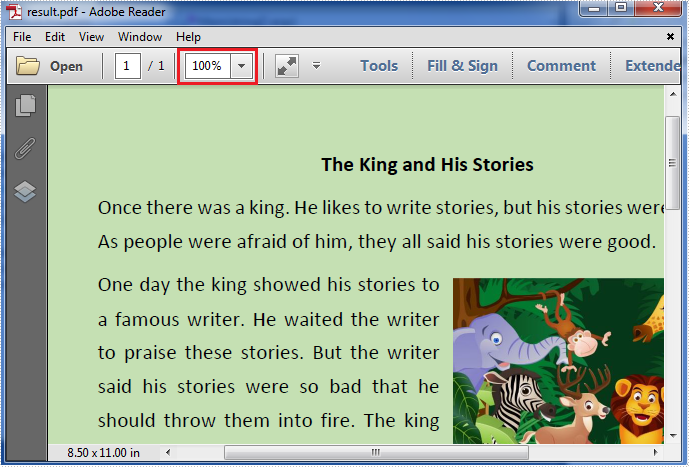
The result zoom factor of the PDF file:
Full codes:
using Spire.Pdf;
using Spire.Pdf.Actions;
using Spire.Pdf.General;
using System.Drawing;

namespace Set_the_zoom_factor
{
    class Program
    {
        static void Main(string[] args)
        {
            PdfDocument pdf = new PdfDocument("Stories.pdf");
            PdfPageBase page = pdf.Pages[0];
            PdfDestination dest = new PdfDestination(page, new PointF(-40f, -40f));
            dest.Zoom = 1f;
            PdfGoToAction gotoaction = new PdfGoToAction(dest);
            pdf.AfterOpenAction = gotoaction;
            pdf.SaveToFile("result.pdf");
        }
    }
}
Imports Spire.Pdf
Imports Spire.Pdf.Actions
Imports Spire.Pdf.General
Imports System.Drawing

Namespace Set_the_zoom_factor
	Class Program
		Private Shared Sub Main(args As String())
			Dim pdf As New PdfDocument("Stories.pdf")
			Dim page As PdfPageBase = pdf.Pages(0)
			Dim dest As New PdfDestination(page, New PointF(-40F, -40F))
			dest.Zoom = 1F
			Dim gotoaction As New PdfGoToAction(dest)
			pdf.AfterOpenAction = gotoaction
			pdf.SaveToFile("result.pdf")
		End Sub
	End Class
End Namespace
