
Knowledgebase (2370)
Children categories
In some circumstance where we need to create a copy of the existing pages in our PDF document instead of copying the entire file, in particular, if we have to create hundreds copies of a certain page, it can be tedious to copy the page one after another. This article demonstrates a solution for how to duplicate a page in a PDF document and create multiple copies at a time using Spire.PDF.
In this example, I prepare a sample PDF file that only contains one page and eventually I’ll create ten copies of this page in the same document. Main method would be as follows:
Code Snippet:
Step 1: Create a new PDF document and load the sample file.
PdfDocument pdf = new PdfDocument("Sample.pdf");
Step 2: Get the first page from PDF, get the size of the page. Create a new instance of Pdf Template object based on the content and appearance of the first page.
PdfPageBase page = pdf.Pages[0];
SizeF size = page.Size;
PdfTemplate template = page.CreateTemplate();
Step 3: Create a new PDF page with the method Pages.Add() based on the size of the first page, draw the template on the new page at the specified location. Use a for loops to get more copies of this page.
for (int i = 0; i < 10; i++)
{
    page = pdf.Pages.Add(size, new PdfMargins(0));
    page.Canvas.DrawTemplate(template, new PointF(0, 0));
}
Step 4: Save the file.
pdf.SaveToFile("Result.pdf");
Output:
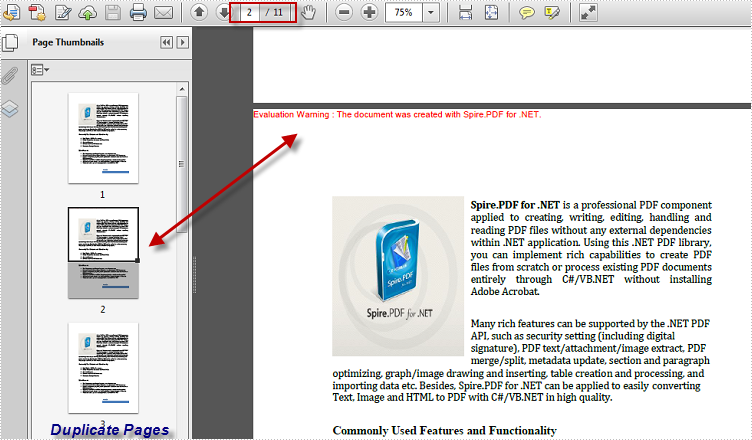
Ten copies of the first page have been created in the sample PDF document.
Full Code:
using Spire.Pdf;
using Spire.Pdf.Graphics;
using System.Drawing;

namespace DuplicatePage
{
    class Program
    {
        static void Main(string[] args)
        {
            PdfDocument pdf = new PdfDocument("Sample.pdf");

            PdfPageBase page = pdf.Pages[0];
            SizeF size = page.Size;
            PdfTemplate template = page.CreateTemplate();

            for (int i = 0; i < 10; i++)
            {
                page = pdf.Pages.Add(size, new PdfMargins(0));
                page.Canvas.DrawTemplate(template, new PointF(0, 0));
            }
            pdf.SaveToFile("Result.pdf");
        }
    }
}
Imports Spire.Pdf
Imports Spire.Pdf.Graphics
Imports System.Drawing

Namespace DuplicatePage
	Class Program
		Private Shared Sub Main(args As String())
			Dim pdf As New PdfDocument("Sample.pdf")

			Dim page As PdfPageBase = pdf.Pages(0)
			Dim size As SizeF = page.Size
			Dim template As PdfTemplate = page.CreateTemplate()

			For i As Integer = 0 To 9
				page = pdf.Pages.Add(size, New PdfMargins(0))
				page.Canvas.DrawTemplate(template, New PointF(0, 0))
			Next
			pdf.SaveToFile("Result.pdf")
		End Sub
	End Class
End Namespace
How to Apply Conditional Formatting to a Data Range in C#
2015-03-13 07:22:54 Written by AdministratorConditional formatting in Microsoft Excel has a number of presets that enables users to apply predefined formatting such as colors, icons and data bars, to a range of cells based on the value of the cell or the value of a formula. Conditional formatting usually reveals the data trends or highlights the data that meets one or more formulas.
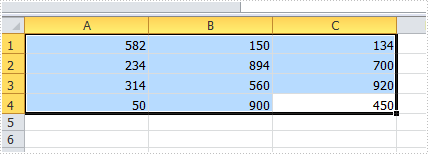
In this article, I made an example to explain how these conditional formatting types can be achieved programmatically using Spire.XLS in C#. First of all, let's see the worksheet that contains a group of data in selected range as below, we’d like see which cells’ value is bigger than 800. In order to quickly figure out similar things like this, we can create a conditional formatting rule by formula: “If the value is bigger than 800, color the cell with Red” to highlight the qualified cells.
Code Snippet for Creating Conditional Formatting Rules:
Step 1: Create a worksheet and insert data to cell range from A1 to C4.
Workbook workbook = new Workbook();
Worksheet sheet = workbook.Worksheets[0];

sheet.Range["A1"].NumberValue = 582;
sheet.Range["A2"].NumberValue = 234;
sheet.Range["A3"].NumberValue = 314;
sheet.Range["A4"].NumberValue = 50;
sheet.Range["B1"].NumberValue = 150;
sheet.Range["B2"].NumberValue = 894;
sheet.Range["B3"].NumberValue = 560;
sheet.Range["B4"].NumberValue = 900;
sheet.Range["C1"].NumberValue = 134;
sheet.Range["C2"].NumberValue = 700;
sheet.Range["C3"].NumberValue = 920;
sheet.Range["C4"].NumberValue = 450;
sheet.AllocatedRange.RowHeight = 15;
sheet.AllocatedRange.ColumnWidth = 17;
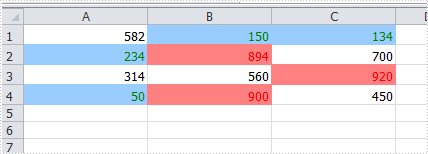
Step 2: To highlight cells based on their values, we create two conditional formatting rules: one for cells greater than 800, and another for cells less than 300.
XlsConditionalFormats xcfs1 = sheet.ConditionalFormats.Add();
xcfs1.AddRange(sheet.AllocatedRange);

IConditionalFormat cf1 = xcfs1.AddCondition();
cf1.FormatType = ConditionalFormatType.CellValue;
cf1.FirstFormula = "800";
cf1.Operator = ComparisonOperatorType.Greater;
cf1.FontColor = Color.Red;
cf1.BackColor = Color.LightSalmon;

Apply Data Bars:
IConditionalFormat cf3 = xcfs1.AddCondition();
cf3.FormatType = ConditionalFormatType.DataBar;
cf3.DataBar.BarColor = Color.CadetBlue;

Apply Icon Sets:
IConditionalFormat cf4 = xcfs1.AddCondition();
cf4.FormatType = ConditionalFormatType.IconSet;

Apply Color Scales:
IConditionalFormat cf5 = xcfs1.AddCondition();
cf5.FormatType = ConditionalFormatType.ColorScale;
Step 3: Save and launch the file
workbook.SaveToFile("sample.xlsx", ExcelVersion.Version2010);
System.Diagnostics.Process.Start("sample.xlsx");
Result:
The cells with value bigger than 800 and smaller than 300, have been highlighted with defined text color and background color.
Apply the Other Three Conditional Formatting Types:
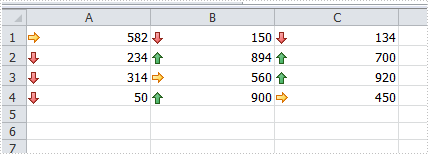
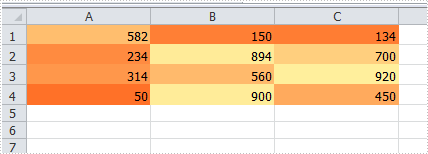
Spire.XLS also supports applying some other conditional formatting types which were predefined in MS Excel. Use the following code snippets to get more formatting effects.
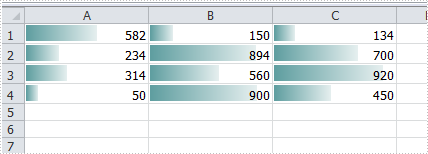
Apply Data Bars:
ConditionalFormatWrapper format = sheet.AllocatedRange.ConditionalFormats.AddCondition();
format.FormatType = ConditionalFormatType.DataBar;
format.DataBar.BarColor = Color.CadetBlue;
Apply Icon Sets:
ConditionalFormatWrapper format = sheet.AllocatedRange.ConditionalFormats.AddCondition();
format.FormatType = ConditionalFormatType.IconSet;
Apply Color Scales:
ConditionalFormatWrapper format = sheet.AllocatedRange.ConditionalFormats.AddCondition();
format.FormatType = ConditionalFormatType.ColorScale;
Full Code:
using Spire.Xls;
using Spire.Xls.Core;
using Spire.Xls.Core.Spreadsheet.Collections;
using System.Drawing;

namespace ApplyConditionalFormatting
{
    class Program
    {
        static void Main(string[] args)
        {
            // Create a new workbook and get the first worksheet
            Workbook workbook = new Workbook();
            Worksheet sheet = workbook.Worksheets[0];

            // Populate sample data in cells A1:C4
            sheet.Range["A1"].NumberValue = 582;
            sheet.Range["A2"].NumberValue = 234;
            sheet.Range["A3"].NumberValue = 314;
            sheet.Range["A4"].NumberValue = 50;
            sheet.Range["B1"].NumberValue = 150;
            sheet.Range["B2"].NumberValue = 894;
            sheet.Range["B3"].NumberValue = 560;
            sheet.Range["B4"].NumberValue = 900;
            sheet.Range["C1"].NumberValue = 134;
            sheet.Range["C2"].NumberValue = 700;
            sheet.Range["C3"].NumberValue = 920;
            sheet.Range["C4"].NumberValue = 450;
            sheet.AllocatedRange.RowHeight = 15;
            sheet.AllocatedRange.ColumnWidth = 17;

            // Create a conditional formatting rule set applied to the entire used range
            XlsConditionalFormats xcfs1 = sheet.ConditionalFormats.Add();
            xcfs1.AddRange(sheet.AllocatedRange);

            // Rule 1: Highlight cells with values greater than 800 in red text and light salmon background
            IConditionalFormat cf1 = xcfs1.AddCondition();
            cf1.FormatType = ConditionalFormatType.CellValue;
            cf1.FirstFormula = "800";
            cf1.Operator = ComparisonOperatorType.Greater;
            cf1.FontColor = Color.Red;
            cf1.BackColor = Color.LightSalmon;

            // Rule 2: Highlight cells with values less than 300 in green text and light blue background
            IConditionalFormat cf2 = xcfs1.AddCondition();
            cf2.FormatType = ConditionalFormatType.CellValue;
            cf2.FirstFormula = "300";
            cf2.Operator = ComparisonOperatorType.Less;
            cf2.FontColor = Color.Green;
            cf2.BackColor = Color.LightBlue;

            //// Rule 3: Add data bars
            //IConditionalFormat cf3 = xcfs1.AddCondition();
            //cf3.FormatType = ConditionalFormatType.DataBar;
            //cf3.DataBar.BarColor = Color.CadetBlue;

            //// Rule 4: Apply icon set
            //IConditionalFormat cf4 = xcfs1.AddCondition();
            //cf4.FormatType = ConditionalFormatType.IconSet;

            //// Rule 5: Apply color scale
            //IConditionalFormat cf5 = xcfs1.AddCondition();
            //cf5.FormatType = ConditionalFormatType.ColorScale;

            workbook.SaveToFile("sample.xlsx", ExcelVersion.Version2010);
            System.Diagnostics.Process.Start("sample.xlsx");
        }
    }
}
In the previous topic, we discussed about how to insert hyperlink into PowerPoint presentation. In this topic, we will show you how to remove the hyperlink on a slide in the presentation by using the Spire.Presentation in C#.
Firstly, view the hyperlinks on a slide that we need to remove later.

Here comes to the steps of how to remove the hyperlinks in the PowerPoint presentation in C#.
Step 1: Create Presentation instance and load file.
Presentation ppt = new Presentation();
ppt.LoadFromFile("Sample.pptx", FileFormat.Pptx2010);
Step 2: Get the shape and its text with hyperlink.
IAutoShape shape = ppt.Slides[0].Shapes[1] as IAutoShape;
Step 3: Set the ClickAction property into null to remove the hyperlink.
shape.TextFrame.TextRange.ClickAction = null;
Step 4: Save the document to file.
ppt.SaveToFile("Result.pptx", FileFormat.Pptx2010);
Effective screenshot after removing the first hyperlink:

Full codes:
using Spire.Presentation;
namespace RemoveHyperlink
{

    class Program
    {

        static void Main(string[] args)
        {
            Presentation ppt = new Presentation();
            ppt.LoadFromFile("Sample.pptx", FileFormat.Pptx2010);

            IAutoShape shape = ppt.Slides[0].Shapes[1] as IAutoShape;
            shape.TextFrame.TextRange.ClickAction = null;

            ppt.SaveToFile("Result.pptx", FileFormat.Pptx2010);

        }
    }
}
