
Knowledgebase (2370)
Children categories
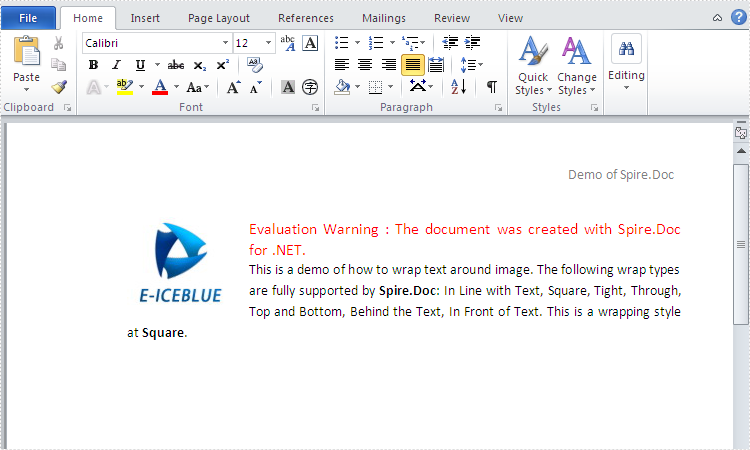
When we add image into word document, of course we want to move it exactly where we want to make our page tidy and beautiful. With the help of Spire.Doc, we can set the wrapping style to adjust the position of the image. Usually there are seven kinds of wrapping styles: In Line with Text, Square, Tight, Through, Top and Bottom, Behind the Text, In Front of Text and Spire.Doc supports all of them. This article will show you how to wrap text around image in C#. Here comes to the steps:
Step 1: Create a new word document and load the document from the file.
Document document = new Document();
document.LoadFromFile("Sample.docx");
Step 2: Add a paragraph for the first section.
Paragraph paragraph = document.Sections[0].AddParagraph();
Step 3: Add a picture in the paragraph.
DocPicture picture = paragraph.AppendPicture(Image.FromFile("image.jpg"));
Step 4: Set text wrapping style to Square.
picture.TextWrappingStyle = TextWrappingStyle.Square;
Step 5: Set text wrapping type to both.
picture.TextWrappingType = TextWrappingType.Both;
Step 6: Save the document to file and process it.
document.SaveToFile(output,FileFormat.Docx);
System.Diagnostics.Process.Start(output);
Effective screenshot of warp text around image:
Full codes:
using Spire.Doc;
using Spire.Doc.Documents;
using Spire.Doc.Fields;
using System.Drawing;

namespace wrap_text_around_image
{
    class Program
    {
        static void Main(string[] args)
        {
            Document document = new Document();
            document.LoadFromFile("Sample.docx");
            Paragraph paragraph = document.Sections[0].AddParagraph();

            DocPicture picture = paragraph.AppendPicture(Image.FromFile("image.jpg"));
            picture.TextWrappingStyle = TextWrappingStyle.Square;
            picture.TextWrappingType = TextWrappingType.Both;
            string output = "output.docx";
            document.SaveToFile(output,FileFormat.Docx);
            System.Diagnostics.Process.Start(output);

        }

    }
}
PDF format is the best choice in many cases, but Word is more flexible when editing or modification is needed. PDF files are typically used for online sharing, printing and archiving, while Word documents are used for creating, editing and formatting documents. Converting a PDF to Word is a good option if you want to re-edit the PDF document. In this article, you will learn how to programmatically convert PDF to Word in C# and VB.NET using Spire.PDF for .NET.
Install Spire.PDF for .NET
To begin with, you need to add the DLL files included in the Spire.PDF for.NET package as references in your .NET project. The DLL files can be either downloaded from this link or installed via NuGet.
PM> Install-Package Spire.PDF
Background Knowledge
Spire.PDF for .NET provides two modes of conversion. The advantages and disadvantages of these two modes are as follows:
- Fixed Layout Mode: The fixed layout mode has fast conversion speed and is conducive to maintaining the original appearance of PDF files to the greatest extent. However, the editability of the resulting document will be limited since each line of text in PDF will be presented in a separate frame in the generated Word document.
- Flow Recognition Mode: The flow recognition mode is a full recognition mode. The converted content will not be presented in frames, and the structure of the resulting document is flowable. The generated Word document is easy to re-edit but may look different from the original PDF file.
Convert PDF to Fixed-Layout Doc/Docx in C#, VB.NET
By default, the PdfDcoument.SaveToFile() method will convert PDF to Word with fixed layout. The following are the detailed steps.
- Create a PdfDocument object.
- Load a PDF file using PdfDocument.LoadFromFile() method.
- Convert the PDF document to a Doc or Docx format file using PdfDocument.SaveToFile(String fileName, FileFormat fileFormat) method.
- C#
- VB.NET
using Spire.Pdf;

namespace ConvertPdfToFixedLayoutWord
{
    class Program
    {
        static void Main(string[] args)
        {
            //Create a PdfDocument object
            PdfDocument doc = new PdfDocument();

            //Load a PDF document
            doc.LoadFromFile("C:\\Users\\Administrator\\Desktop\\sample.pdf");

            //Convert PDF to Doc and save it to a specified path
            doc.SaveToFile("output/ToDoc.doc", FileFormat.DOC);

            //Convert PDF to Docx and save it to a specified path
            doc.SaveToFile("output/ToDocx.docx", FileFormat.DOCX);
            doc.Close();
        }
    }
}

Convert PDF to Flexible-Structured Doc/Docx in C#, VB.NET
In addition to the default conversion engine, Spire.PDF for .NET provides another engine called Ps mode, which works better with the flow recognition mode. To enable Ps conversion engine and flow recognition mode, pass (true, true) as the parameters of the PdfDocument.ConvertOptions.SetPdfToDocOptions(bool usePsMode, bool useFlowRecognitionMode) method. The entire steps are as follows.
- Create a PdfDocument object.
- Load a PDF file using PdfDocument.loadFromFile() method.
- Enable Ps conversion engine and flow recognition mode using PdfDocument.ConvertOptions.SetPdfToDocOptions(true, true) method.
- Convert the PDF document to a Doc or Docx format file using PdfDocument.SaveToFile() method.
- C#
- VB.NET
using Spire.Pdf;

namespace ConvertPdfToFlexibleLayoutWord
{
    class Program
    {
        static void Main(string[] args)
        {
            //Create a PdfDocument object
            PdfDocument doc = new PdfDocument();

            //Load a PDF document
            doc.LoadFromFile("C:\\Users\\Administrator\\Desktop\\sample.pdf");

            //Specify the PDF to Word conversion options
            doc.ConvertOptions.SetPdfToDocOptions(true, true);

            //Convert PDF to Doc
            doc.SaveToFile("output/ToDoc.doc", FileFormat.DOC);

            //Convert PDF to Docx
            doc.SaveToFile("output/ToDocx.docx", FileFormat.DOCX);
            doc.Close();
        }
    }
}

Apply for a Temporary License
If you'd like to remove the evaluation message from the generated documents, or to get rid of the function limitations, please request a 30-day trial license for yourself.
It is pretty easy in MS PowerPoint to export a certain shape as image with following two steps:
- 1. Select the object shape
- 2. From the right-click menu select Save as Picture
However, Spire.Presentation also provides easy method for programmers to save shapes out of slides. In the following section, we’ll introduce how to export shapes as images via Spire.Presentation with an example.
Test File:
As is shown in the screenshot, the sample file for testing contains several shapes on the first slide.

Code Snippet for Exporting Shape as Image:
Step 1: Initialize a new instance of Presentation class and load the test file from disk.
Presentation ppt = new Presentation();
ppt.LoadFromFile("test.pptx");
Step 2: Use for loop to traverse every shape in the slide. Call ShapeList.SaveAsImage(int shapeIndex) to save shape as image, then save this image to the specified file in the specified format.
for (int i = 0; i < ppt.Slides[0].Shapes.Count; i++)
{
    Image image = ppt.Slides[0].Shapes.SaveAsImage(i);
    image.Save(String.Format("Picture-{0}.png", i), System.Drawing.Imaging.ImageFormat.Png);
}
Output:
Picture-0

Picture-1

Entire Code:
using Spire.Presentation;
using System.Drawing;

namespace ExportShape
{

    class Program
    {

        static void Main(string[] args)
        {
            //create PPT document
            Presentation ppt = new Presentation();
            ppt.LoadFromFile("test.pptx");

            for (int i = 0; i < ppt.Slides[0].Shapes.Count; i++)
            {
                Image image = ppt.Slides[0].Shapes.SaveAsImage(i);
                image.Save(System.String.Format("Picture-{0}.png", i), System.Drawing.Imaging.ImageFormat.Png);
            }


        }
    }
}
Imports Spire.Presentation
Imports System.Drawing

Namespace ExportShape

	Class Program

		Private Shared Sub Main(args As String())
			'create PPT document
			Dim ppt As New Presentation()
			ppt.LoadFromFile("test.pptx")

			For i As Integer = 0 To ppt.Slides(0).Shapes.Count - 1
				Dim image As Image = ppt.Slides(0).Shapes.SaveAsImage(i)
				image.Save(System.[String].Format("Picture-{0}.png", i), System.Drawing.Imaging.ImageFormat.Png)
			Next


		End Sub
	End Class
End Namespace
