
Knowledgebase (2370)
Children categories
In PDF documents, the functionality to expand or collapse bookmarks helps provide a more organized and easier to navigate layout. When bookmarks are expanded, the entire hierarchy of bookmarks is visible at once, giving a comprehensive view of the document's structure and aiding in comprehension of its flow. Conversely, the option to collapse bookmarks is beneficial for users who prefer a less detailed view, as it allows them to focus on a specific part of the document without being distracted by the entire hierarchy. This article will introduce how to expand or collapse bookmarks in PDF in C# using Spire.PDF for .NET.
Install Spire.PDF for .NET
To begin with, you need to add the DLL files included in the Spire.PDF for.NET package as references in your .NET project. The DLL files can be either downloaded from this link or installed via NuGet.
PM> Install-Package Spire.PDF
Expand or Collapse a Specific Bookmark in PDF in C#
Spire.PDF for .NET provides the PdfBookmark.ExpandBookmark property to expand or collapse a specified bookmark in PDF. The following are the detailed steps.
- Create a PdfDocument object.
- Load a PDF file using PdfDocument.LoadFromFile() method.
- Get a specified bookmark in the PDF file using PdfDocument.Bookmarks[] property.
- Expand the bookmark by setting the PdfBookmark.ExpandBookmark property to true. Or set it to false to collapses the bookmark.
- Save the result PDF file using PdfDocument.SaveToFile() method.
- C#
using Spire.Pdf;
using Spire.Pdf.Bookmarks;

namespace ExpandOrCollapseABookmark
{
    class Program
    {
        static void Main(string[] args)
        {
            //Create a PdfDocument object
            PdfDocument pdf = new PdfDocument();

            //Load a PDF file
            pdf.LoadFromFile("AnnualReport.pdf");

            //Get a specified bookmark
            PdfBookmark bookmarks = pdf.Bookmarks[3];

            //Expand the bookmark
            bookmarks.ExpandBookmark = true;
            //collapse the bookmark
            //bookmarks.ExpandBookmark = false;


            //Save the result file
            pdf.SaveToFile("ExpandSpecifiedBookmark.pdf");
        }
    }
}

Expand or Collapse All Bookmarks in PDF in C#
You can also iterate through all the bookmarks in a PDF file, and then expand or collapse each bookmark through the PdfBookmark.ExpandBookmark property. The following are the detailed steps.
- Create a PdfDocument object.
- Load a PDF file using PdfDocument.LoadFromFile() method.
- Iterate through all bookmarks in the PDF file.
- Expand each bookmark by setting the PdfBookmark.ExpandBookmark property to true. Or set it to false to collapses each bookmark.
- Save the result PDF file using PdfDocument.SaveToFile() method.
- C#
using Spire.Pdf;
using Spire.Pdf.Bookmarks;

namespace ExpandOrCollapsePDFBookmarks
{
    class Program
    {
        static void Main(string[] args)
        {
            //Create a PdfDocument object
            PdfDocument pdf = new PdfDocument();

            //Load a PDF file
            pdf.LoadFromFile("AnnualReport.pdf");

            //Loop through all bookmarks and expand them
            foreach (PdfBookmark bookmark in pdf.Bookmarks)
            {
               bookmark.ExpandBookmark = true;
            }
            //Save the result file
            pdf.SaveToFile("ExpandAllBookmarks.pdf");
        }
    }
}

Apply for a Temporary License
If you'd like to remove the evaluation message from the generated documents, or to get rid of the function limitations, please request a 30-day trial license for yourself.
PDF document thumbnails, appearing in the left-hand corner of a PDF reader, provide miniature previews of document pages. The 'Thumbnail View' pane allows you to view page thumbnails of all the pages included in the PDF document and you can simply click on the thumbnail to quickly travel to that page.
This article presents how to create a PDF document thumbnail view in your own .NET PDF viewer via Spire.PDFViewer. Detailed steps are as below:
Step 1: Create a new project in Windows Forms Application.
Step 2: Add Spire.PDFViewer control to VS Toolbox.
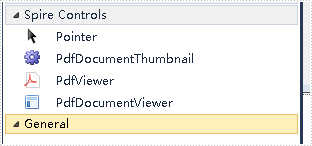
Step 3: Design Form1.
- Add a ToolStrip to Form1. Insert two Buttons, one TextBox and one Label to ToolStrip.
- Drag PdfDocumentThumbnail and PdfDocumentViewer control from Toolbox to Form1.
- Set properties of the Buttons, Labels, TextBox, PdfDocumentThumbnail and PdfDocumentViewer as below.
Tools |
Properties |
As |
| ToolStripButton1 | Name | btnOpen |
| DisplayStyle | Image | |
| ToolStripButton2 | Name | btnThumbnailRatio |
| DisplayStyle | Image | |
| ToolStripLabel1 | Name | toolStripLabel1 |
| DisplayStyle | Text | |
| Text | Ratio | |
| ToolStripTextBox | Name | txtThumbnailRatio |
| PdfDocumentThumbnail | Name | pdfDocumentThumbnail1 |
| Dock | Fill | |
| PdfDocumentViewer | Name | pdfDocumentViewer1 |
| Dock | Full |
Step 4: Set code for btnOpen and btnThumbnailRatio.
1) Create a OpenFileDailog in btnOpen click event which enables you to open a file with correct type.
    private void btnOpen_Click(object sender, EventArgs e)
 {
     OpenFileDialog dialog = new OpenFileDialog();
     dialog.Filter = "PDF document(*.pdf)|*.pdf";
     DialogResult result = dialog.ShowDialog();
     if (result == DialogResult.OK)
     {
         string pdfDocument = dialog.FileName;
         this.pdfDocumentViewer1.LoadFromFile(pdfDocument);
     }

 }
2) Set zoom ratio for thumbnail view mode.
  private void btnThumbnailRatio_Click(object sender, EventArgs e)
  {
      if (this.pdfDocumentViewer1.IsDocumentLoaded)
     {
          int percent = 0;
          bool isNumeric = int.TryParse(this.txtThumbnailRatio.Text, out percent);
          if (isNumeric)
          {
              this.pdfDocumentThumbnail1.ZoomPercent =Math.Abs(percent);
          }
      }
  }
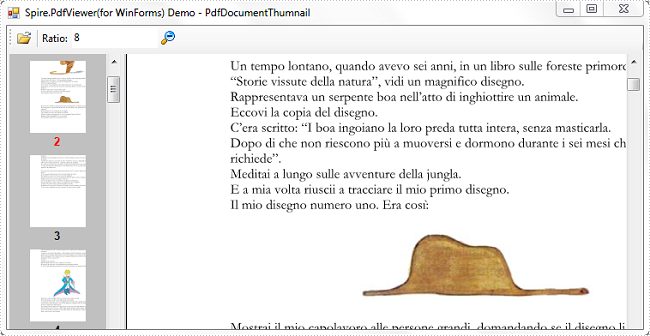
Run this program and open an existing PDF document, you'll get following output:
Spire.XLS can help developers to write rich text into the spreadsheet easily, such as set the text in bold, italic, and set the colour and font for them. We have already shown you how to set Subscript and Superscript in Excel files by using Spire.XLS. This article will focus on demonstrate how to formatting text in Excel sheet in C#.
Spire.Xls offers ExcelFont class and developers can format the text of cells easily. By using RichText, we can add the text into cells and set font for it. Here comes to the steps of how to write rich text into excel cells.
Step 1: Create an excel document and get its first worksheet.
Workbook workbook = new Workbook();
Worksheet sheet = workbook.Worksheets[0];
Step 2: Create the fonts and sent the format for each font.
//create a font and set the format to bold.
ExcelFont fontBold = workbook.CreateFont();
fontBold.IsBold = true;

//create a font and set the format to underline.
ExcelFont fontUnderline = workbook.CreateFont();
fontUnderline.Underline = FontUnderlineType.Single;

//create a font and set the format to italic.
ExcelFont fontItalic = workbook.CreateFont();
fontItalic.IsItalic = true;

//create a font and set the color to green.
ExcelFont fontColor = workbook.CreateFont();
fontColor.KnownColor = ExcelColors.Green;
Step 3: Set the font for specified cell range.
RichText richText = sheet.Range["A1"].RichText;
richText.Text="It is in Bold";
richText.SetFont(0, richText.Text.Length-1, fontBold);

richText = sheet.Range["A2"].RichText;
richText.Text = "It is underlined";
richText.SetFont(0, richText.Text.Length-1, fontUnderline);

richText = sheet.Range["A3"].RichText;
richText.Text = "It is Italic";
richText.SetFont(0, richText.Text.Length - 1, fontItalic);

richText = sheet.Range["A4"].RichText;
richText.Text = "It is Green";
richText.SetFont(0, richText.Text.Length - 1, fontColor);
Step 4: Save the document to file.
workbook.SaveToFile("Sample.xls",ExcelVersion.Version97to2003);
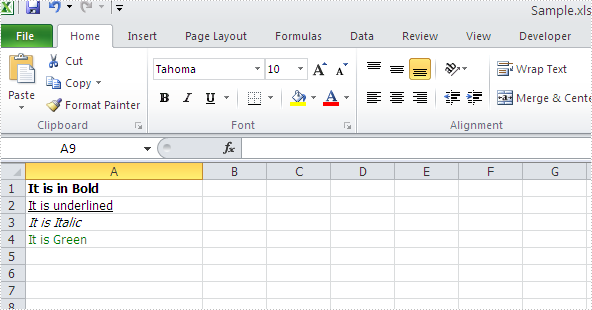
Effective screenshot of writing rich text into excel worksheet:
Full codes:
using Spire.Xls;
namespace WriteRichtextinExcel
{
    class Program
    {
        static void Main(string[] args)
        {
            Workbook workbook = new Workbook();
            Worksheet sheet = workbook.Worksheets[0];

            ExcelFont fontBold = workbook.CreateFont();
            fontBold.IsBold = true;

            ExcelFont fontUnderline = workbook.CreateFont();
            fontUnderline.Underline = FontUnderlineType.Single;

            ExcelFont fontItalic = workbook.CreateFont();
            fontItalic.IsItalic = true;

            ExcelFont fontColor = workbook.CreateFont();
            fontColor.KnownColor = ExcelColors.Green;

            RichText richText = sheet.Range["A1"].RichText;
            richText.Text = "It is in Bold";
            richText.SetFont(0, richText.Text.Length - 1, fontBold);

            richText = sheet.Range["A2"].RichText;
            richText.Text = "It is underlined";
            richText.SetFont(0, richText.Text.Length - 1, fontUnderline);

            richText = sheet.Range["A3"].RichText;
            richText.Text = "It is Italic";
            richText.SetFont(0, richText.Text.Length - 1, fontItalic);

            richText = sheet.Range["A4"].RichText;
            richText.Text = "It is Green";
            richText.SetFont(0, richText.Text.Length - 1, fontColor);

            workbook.SaveToFile("Sample.xls", ExcelVersion.Version97to2003);

        }
    }
}
