
Knowledgebase (2370)
Children categories
Sometimes, the values in a chart vary widely from data series to data series, so it is difficult for us to compare the data only based on the primary vertical axis. To make the chart easier to read, you can plot one or more data series on a secondary axis. This article presents how to add secondary value axis to PowerPoint chart using Spire.Presentation in C# and VB.NET.
As is shown in the following combination chart, we can hardly learn the information of Series 3 since it contains different type of data compared with Series 1 and Series 2. In such cases, it is necessary to add a secondary axis to display the value of Series 3.
Test File:

Code Snippet:
Step 1: Create a new PowerPoint document and load the test file.
Presentation ppt = new Presentation("Test.pptx", FileFormat.Pptx2010);
Step 2: Get the chat from the PowerPoint file.
IChart chart = ppt.Slides[0].Shapes[0] as IChart;
Step 3: Add a secondary axis to display the value of Series 3.
chart.Series[2].UseSecondAxis = true;
Step 4: Set the grid line of secondary axis as invisible.
chart.SecondaryValueAxis.MajorGridTextLines.FillType=FillFormatType.None;
Step 5: Save the file.
ppt.SaveToFile("Result.pptx", FileFormat.Pptx2010);
Result:

Entire Code:
using Spire.Presentation;
using Spire.Presentation.Charts;
using Spire.Presentation.Drawing;

namespace AddValue
{

    class Program
    {
        static void Main(string[] args)
        {

            Presentation ppt = new Presentation("Test.pptx", FileFormat.Pptx2010);
            IChart chart = ppt.Slides[0].Shapes[0] as IChart;
            chart.Series[2].UseSecondAxis = true;
            chart.SecondaryValueAxis.MajorGridTextLines.FillType = FillFormatType.None;
            ppt.SaveToFile("Result.pptx", FileFormat.Pptx2010);

        }
    }
}
Imports Spire.Presentation
Imports Spire.Presentation.Charts
Imports Spire.Presentation.Drawing

Namespace AddValue

	Class Program
		Private Shared Sub Main(args As String())

			Dim ppt As New Presentation("Test.pptx", FileFormat.Pptx2010)
			Dim chart As IChart = TryCast(ppt.Slides(0).Shapes(0), IChart)
			chart.Series(2).UseSecondAxis = True
			chart.SecondaryValueAxis.MajorGridTextLines.FillType = FillFormatType.None
			ppt.SaveToFile("Result.pptx", FileFormat.Pptx2010)

		End Sub
	End Class
End Namespace
A table of contents, usually shorten as 'Contents' and abbreviated as TOC, is one of the most common function used in the professional documents. It gives readers clear and brief information of the document. This How To Guide for developers will explain the steps of create table of contents in C# with the help of a .NET word API Spire.Doc for .NET.
Firstly, view the screenshot of the table of contents created by the Spire.Doc in C#.

In this example, we call the method of AppendTOC to add the table of contents directly and use ApplyStyle to set the styles. Here comes to the steps of how to create TOC in C#.
Name Space we will use:
using Spire.Doc;
using Spire.Doc.Documents;
Step 1: Create a new document and add section and paragraph to the document.
Document doc = new Document();
Section section = doc.AddSection();
Paragraph para = section.AddParagraph();
Step 2: Add the Table of Contents and add the text that you want to appear in the table of contents.
para.AppendTOC(1, 3);
//Add a new paragraph to the section
Paragraph para1 = section.AddParagraph();
//Add text to the paragraph
para1.AppendText("Head1");
Step 3: Set the style for the paragraph.
para1.ApplyStyle(BuiltinStyle.Heading1);
Step 4: Add the second paragraph and set the style.
Paragraph para2 = section.AddParagraph();
para2.AppendText("Head2");
para2.ApplyStyle(BuiltinStyle.Heading2);
Step 5: Update the table of contents and save the document to file.
doc.UpdateTableOfContents();
doc.SaveToFile("CreateTableOfContent.docx", FileFormat.Docx);
Full codes:
using Spire.Doc;
using Spire.Doc.Documents;

namespace TableofContents
{
    class Program
    {
        static void Main(string[] args)
        {
            Document doc = new Document();
            Section section = doc.AddSection();
            Paragraph para = section.AddParagraph();

            para.AppendTOC(1, 3);
            Paragraph para1 = section.AddParagraph();
            para1.AppendText("Head1");

            para1.ApplyStyle(BuiltinStyle.Heading1);

            Paragraph para2 = section.AddParagraph();
            para2.AppendText("Head2");
            para2.ApplyStyle(BuiltinStyle.Heading2);

            doc.UpdateTableOfContents();
            doc.SaveToFile("CreateTableOfContent.docx", FileFormat.Docx);

        }
    }
}
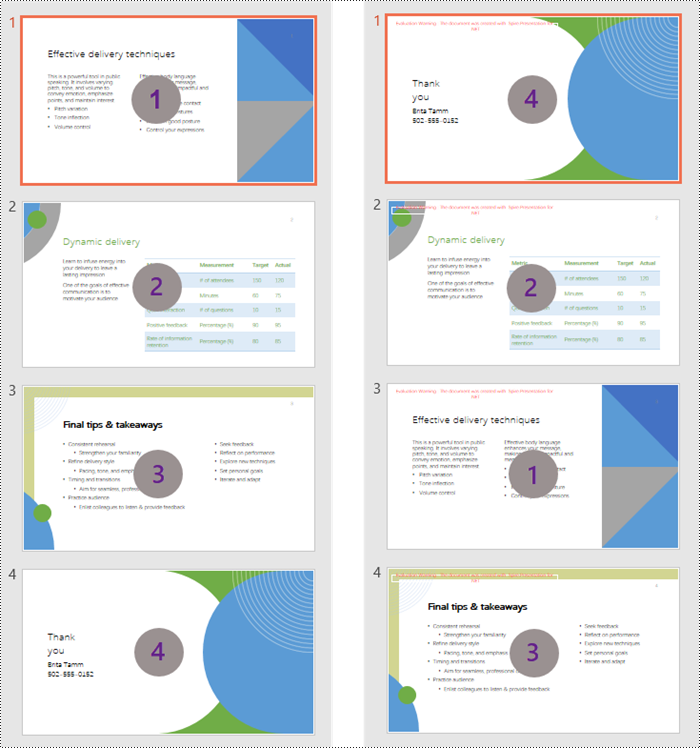
Optimizing the order of slides in a PowerPoint presentation is a simple skill. By rearranging slides, you can refine the logic and flow of your presentation, group related points together, or move slides to more impactful locations. This flexibility enables you to create a cohesive, engaging narrative that captivates your audience.
This article demonstrates how to programmatically change the slide order in a PowerPoint document in C# by using the Spire.Presentation for .NET library.
Install Spire.Presentation for .NET
To begin with, you need to add the DLL files included in the Spire.Presentation for .NET package as references in your .NET project. The DLL files can be either downloaded from this link or installed via NuGet.
PM> Install-Package Spire.Presentation
Change the Slide Order in a PowerPoint Document in C#
To reorder slides in a PowerPoint presentation, create two Presentation objects - one to load the original document and another to create a new document. By copying the slides from the original document to the new one in the desired sequence, you can easily rearrange the slide order.
The steps to rearrange slides in a PowerPoint document using C# are as follows.
- Create a Presentation object.
- Load a PowerPoint document using Presentation.LoadFromFile() method.
- Specify the slide order within an array.
- Create another Presentation object for creating a new presentation.
- Add the slides from the original document to the new presentation in the specified order using Presentation.Slides.Append() method.
- Save the new presentation to a PPTX file using Presentation.SaveToFile() method.
- C#
using Spire.Presentation;

namespace ChangeSlideOrder
{
    class Program
    {
        static void Main(string[] args)
        {
            // Create a Presentation object
            Presentation presentation = new Presentation();

            // Load a PowerPoint file
            presentation.LoadFromFile("C:\\Users\\Administrator\\Desktop\\input.pptx");

            // Specify the new slide order within an array
            int[] newSlideOrder = new int[] { 4, 2, 1, 3 };

            // Create another Presentation object
            Presentation new_presentation = new Presentation();

            // Remove the default slide
            new_presentation.Slides.RemoveAt(0);

            // Iterate through the array
            for (int i = 0; i < newSlideOrder.Length; i++)
            {
                // Add the slides from the original PowerPoint file to the new PowerPoint document in the new order
                new_presentation.Slides.Append(presentation.Slides[newSlideOrder[i] - 1]);
            }

            // Save the new presentation to file
            new_presentation.SaveToFile("NewOrder.pptx", FileFormat.Pptx2019);

            // Dispose resources
            presentation.Dispose();
            new_presentation.Dispose();
        }
    }
}
Apply for a Temporary License
If you'd like to remove the evaluation message from the generated documents, or to get rid of the function limitations, please request a 30-day trial license for yourself.
