
Knowledgebase (2370)
Children categories
A chart filled with an image of company logo or propaganda is more impressive than a plain chart; adding a proper image into a chart as background will dramatically draw attention from your readers. As is similar to MS Excel, Spire.XLS enables users to insert pictures to specific chart elements such as chart area, bar area and plot area. In this article, I'll introduce how to enhance your chart by inserting image in chart area and plot area in C#, VB.NET.
Test File:
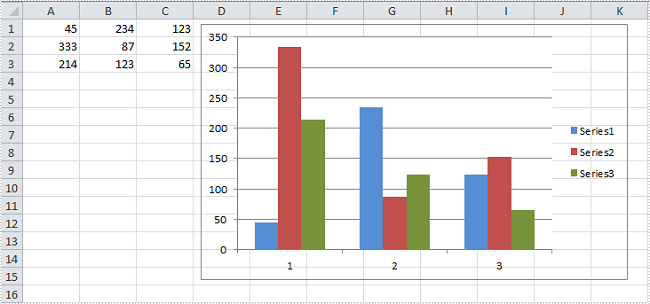
Code Snippet for Inserting Background Image:
Step 1: Create a new workbook and load the test file
Workbook workbook = new Workbook();
workbook.LoadFromFile("test.xlsx");
Step 2: Get the first worksheet from workbook, get the first chart from worksheet.
Worksheet ws = workbook.Worksheets[0];
Chart chart = ws.Charts[0];
Step 3:
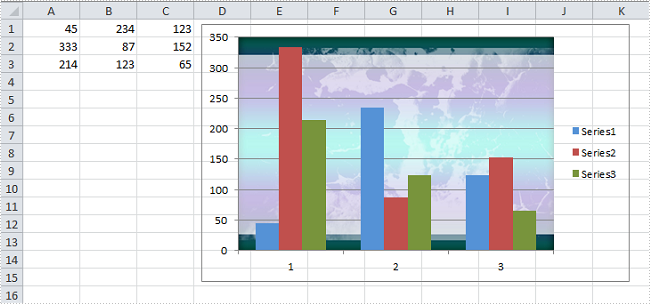
A) Insert chart area with a custom picture and set the transparency of plot area as 0.9. If you don't make plot area transparent, it will cover up the background image filled in chart area. Anyway, it all depends on your own needs.
chart.ChartArea.Fill.CustomPicture(Image.FromFile("05.jpg"), "None");
chart.PlotArea.Fill.Transparency = 0.9;
B) Insert plot area with a custom picture
chart.PlotArea.Fill.CustomPicture(Image.FromFile("01.jpg"), "None");
Step 4: Save the file
workbook.SaveToFile("Sample.xlsx",ExcelVersion.Version2010);
Result:
A) Fill chart area with image

B) Fill plot area with image
Full Code:
using Spire.Xls;
using System.Drawing;
namespace FillChartElement
{
    class Program
    {

        static void Main(string[] args)
        {

            Workbook workbook = new Workbook();
            workbook.LoadFromFile("test.xlsx");

            Worksheet ws = workbook.Worksheets[0];
            Chart chart = ws.Charts[0];

            // A. Fill chart area with image
            chart.ChartArea.Fill.CustomPicture(Image.FromFile("05.jpg"), "None");
            chart.PlotArea.Fill.Transparency = 0.9;

            //// B.Fill plot area with image
            //chart.PlotArea.Fill.CustomPicture(Image.FromFile("05.jpg"), "None");

            workbook.SaveToFile("Sample.xlsx", ExcelVersion.Version2010);
        }
    }
}
Imports Spire.Xls
Imports System.Drawing
Namespace FillChartElement
	Class Program

		Private Shared Sub Main(args As String())

			Dim workbook As New Workbook()
			workbook.LoadFromFile("test.xlsx")

			Dim ws As Worksheet = workbook.Worksheets(0)
			Dim chart As Chart = ws.Charts(0)

			' A. Fill chart area with image
			chart.ChartArea.Fill.CustomPicture(Image.FromFile("05.jpg"), "None")
			chart.PlotArea.Fill.Transparency = 0.9

			'''/ B.Fill plot area with image
			'chart.PlotArea.Fill.CustomPicture(Image.FromFile("05.jpg"), "None");

			workbook.SaveToFile("Sample.xlsx", ExcelVersion.Version2010)
		End Sub
	End Class
End Namespace
Inserting text watermarks into PowerPoint presentations is an effective way to protect intellectual property and ensure content authenticity of these documents. Spire.Presentation for .NET provides a powerful and flexible way to programmatically add text watermarks to PowerPoint slides. Unlike PowerPoint's built-in features, this approach allows for batch processing, precise control over watermark placement and appearance, and integration into larger .NET applications.
This article will demonstrate how to insert text watermarks to PowerPoint presentations with C# using the Spire.Presentation for .NET library.
Install Spire.Presentation for .NET
To begin with, you need to add the DLL files included in the Spire.Presentation for.NET package as references in your .NET project. The DLL files can be either downloaded from this link or installed via NuGet.
PM> Install-Package Spire.Presentation
Insert a Single Watermark into PowerPoint Slides
Using Spire.Presentation for .NET, developers can add a single text watermark to a PowerPoint presentation by creating a locked transparent text box with the watermark in a custom style on each page. The detailed steps are as follows:
- Create an instance of Presentation class and load a PowerPoint file using Presentation.LoadFromFile() method.
- Define the watermark text, create a Font object, and measure the size of the text.
- Get the size of the slides in the presentation through Presentation.SlideSize.Size property.
- Create a RectangleF object based on the text size and the slide size.
- Iterate through the slides in the presentation:
- Create an IAutoShape object on each slide at the position of the rectangle using ISlide.Shapes.AppendShape() method.
- Set the style of the shape using the properties under IAutoShape class.
- Add the watermark text to the shape through IAutoShape.TextFrame.Text property.
- Get the watermark text as a TextRange object through IAutoShape.TextFrame.TextRange property.
- Set the format of the watermark text through the properties under TextRange class.
- Save the presentation using Presentation.SaveToFile() method.
- C#
using Spire.Presentation;
using Spire.Presentation.Drawing;
using System.Drawing;

namespace SingleTextWatermarkPowerPoint
{
    class Program
    {
        static void Main(string[] args)
        {
            // Create an instance of Presentation
            Presentation presentation = new Presentation();

            // Load a PowerPoint file
            presentation.LoadFromFile("Sample.pptx");

            // Define the watermark text and create a font for it
            string text = "Example";
            // Create a font object
            Font font = new Font("Arial", 50);
            // Measure the size of the watermark text
            Graphics graphics = Graphics.FromImage(new Bitmap(1, 1));
            SizeF size = graphics.MeasureString(text, font);

            // Get the slide size
            SizeF slideSize = presentation.SlideSize.Size;

            // Create a retangle based on the text size and page size
            RectangleF rect = new RectangleF((slideSize.Width - size.Width) / 2, (slideSize.Height - size.Height) /2, size.Width, size.Height);

            // Iterate through the slides in the presentation
            foreach (ISlide slide in presentation.Slides)
            {
                // Create a shape of watermark on each slide
                IAutoShape watermark = slide.Shapes.AppendShape(ShapeType.Rectangle, rect);
                // Set the style of the watermark
                watermark.Fill.FillType = FillFormatType.None;
                watermark.ShapeStyle.LineColor.Color = Color.Empty;
                watermark.Rotation = -45;
                watermark.Locking.SelectionProtection = true;
                watermark.Line.FillType = FillFormatType.None;
                // Add the watermark text to the shape
                watermark.TextFrame.Text = text;
                // Set the style of the watermark text
                TextRange textRange = watermark.TextFrame.TextRange;
                textRange.Fill.FillType = FillFormatType.Solid;
                textRange.Fill.SolidColor.Color = Color.FromArgb(120, Color.HotPink);
                textRange.FontHeight = 50;
            }

            // Save the presentation
            presentation.SaveToFile("output/PowerPointSingleTextWatermark.pptx", FileFormat.Auto);
            presentation.Dispose();
        }
    }
}
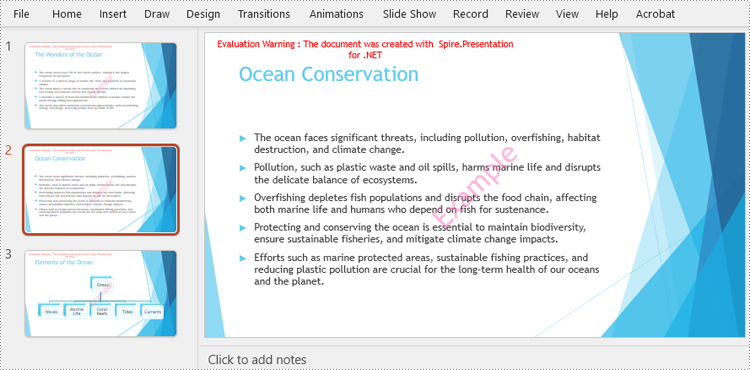
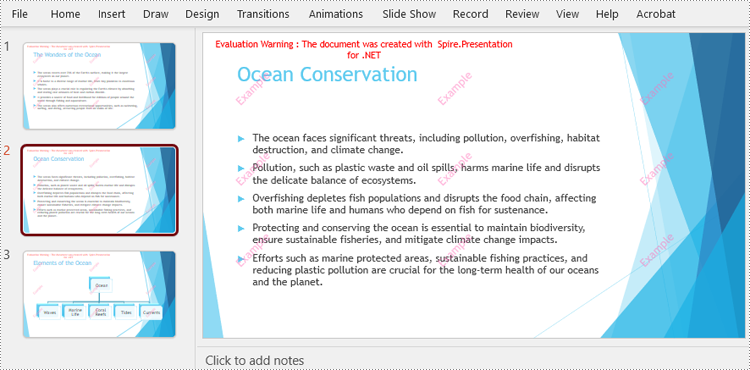
Insert Repeated Watermarks into PowerPoint Slides
Developers can insert repeated text watermarks into slides by drawing multiple identical text watermarks at specified intervals on the slides. Here are the detailed steps:
- Create an instance of Presentation class and load a PowerPoint file using Presentation.LoadFromFile() method.
- Define the watermark text, create a Font object, and measure the size of the text.
- Get the size of the slides in the presentation through Presentation.SlideSize.Size property.
- Iterate through the slides in the presentation:
- Define the start position and the intervals.
- Add watermark shapes and text and set their format.
- Move the lateral position to the next interval on the row after finishing adding a watermark.
- Move the vertical position to the next row after finishing adding the watermarks of each row.
- Save the presentation using Presentation.SaveToFile() method.
- C#
using Spire.Presentation.Drawing;
using Spire.Presentation;
using System.Drawing;

namespace RepeatedTextWatermarkPowerPoint
{
    class Program
    {
        static void Main(string[] args)
        {
            // Create an instance of Presentation
            Presentation presentation = new Presentation();

            // Load a PowerPoint file
            presentation.LoadFromFile("Sample.pptx");

            // Define the watermark text and create a font for it
            string text = "Example";
            // Create a font object
            Font font = new Font("Arial", 20);
            // Measure the size of the watermark text
            Graphics graphics = Graphics.FromImage(new Bitmap(1, 1));
            SizeF size = graphics.MeasureString(text, font);

            // Get the slide size
            SizeF slideSize = presentation.SlideSize.Size;

            // Iterate through the slides in the presentation
            foreach (ISlide slide in presentation.Slides)
            {
                float x = 30;
                float y = 80;
                for (int i = 0; i < 3; i++)
                {
                    for (int j = 0; j < 3; j++)
                    {
                        // Create a rectangle
                        RectangleF rect = new RectangleF(x, y, size.Width, size.Height);
                        IAutoShape watermark = slide.Shapes.AppendShape(ShapeType.Rectangle, rect);
                        // Set the style of the watermark
                        watermark.Fill.FillType = FillFormatType.None;
                        watermark.ShapeStyle.LineColor.Color = Color.Empty;
                        watermark.Rotation = -45;
                        watermark.Locking.SelectionProtection = true;
                        watermark.Line.FillType = FillFormatType.None;
                        // Add the watermark text to the shape
                        watermark.TextFrame.Text = text;
                        // Set the style of the watermark text
                        TextRange textRange = watermark.TextFrame.TextRange;
                        textRange.Fill.FillType = FillFormatType.Solid;
                        textRange.Fill.SolidColor.Color = Color.FromArgb(120, Color.HotPink);
                        textRange.FontHeight = 20;
                        x += ((slideSize.Width - 60) / 3 + size.Width / 2);
                    }
                    x = 30;
                    y += ((slideSize.Height - 160) / 3 + size.Height / 2);
                }
            }

            // Save the presentation
            presentation.SaveToFile("output/PowerPointRepeatedTextWatermark.pptx", FileFormat.Auto);
            presentation.Dispose();
        }
    }
}
Apply for a Temporary License
If you'd like to remove the evaluation message from the generated documents, or to get rid of the function limitations, please request a 30-day trial license for yourself.
How to set word bullet style by appending the HTML code in C#
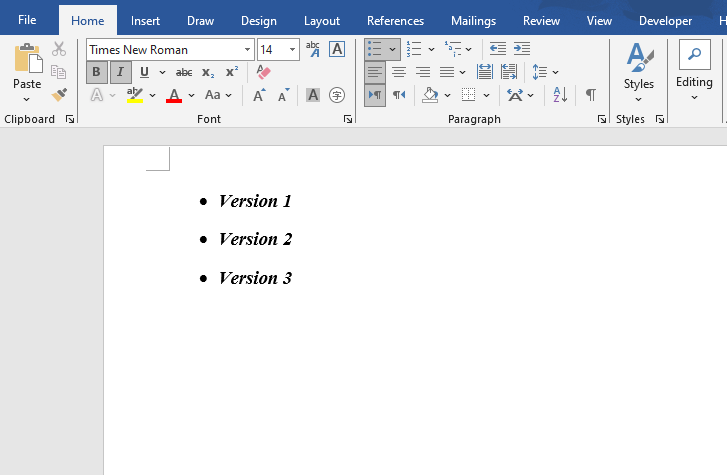
2015-01-21 07:02:29 Written by hayes LiuWith the help of Spire.Doc for .NET, developers can easily set bullet style for the existing word documents via invoke p.ListFormat.ApplyBulletStyle() method to format. This article will show you how to convert HTML list into word and set the bullet style for the word list in C#.
Firstly, please view the effective screenshot for the result word document:
Here comes to the steps:
Step 1: Create a new document and add a section to the document.
Document document = new Document();
Section section=document.AddSection();
Step 2: Add word list to the paragraph by appending HTML.
Paragraph paragraph = section.AddParagraph();
paragraph.AppendHTML("<ol><li>Version 1</li><li>Version 2</li><li>Version 3</li></ol>");
Step 3: Set the bullet style for the paragraph.
foreach (Paragraph p in section.Paragraphs)
{
    p.ApplyStyle(BuiltinStyle.Heading2);

    if (p.ListFormat.CurrentListLevel != null)
    {
        p.ListFormat.ApplyBulletStyle();
    }
}
Step 4: Save the document to file
document.SaveToFile("result.docx",FileFormat.Docx);
Full codes:
// Create a new Word document object
Document document = new Document();
// Add a section to the document
Section section = document.AddSection();
// Add a paragraph to the section
Paragraph paragraph = section.AddParagraph();
// Append HTML content to the paragraph
paragraph.AppendHTML("- Version 1
- Version 2
- Version 3
");
// Loop through all paragraphs in the section
foreach (Paragraph p in section.Paragraphs)
{
// Apply "Heading 2" built-in style to the paragraph
p.ApplyStyle(BuiltinStyle.Heading2);
// Check if the paragraph has listformat
if (p.ListFormat.CurrentListLevel != null)
{
// Apply bullet style
p.ListFormat.ApplyBulletStyle();
}
}
// Save the document to a file in DOCX format
document.SaveToFile("result.docx", FileFormat.Docx);
// Dispose
document.Dispose();
