
Knowledgebase (2370)
Children categories
How to Convert Embedded Excel Sheet to Word Table in C#, VB.NET
2015-02-11 01:04:49 Written by KoohjiIn our daily work, we may receive Word documents that will sometimes contain embedded Excel object (sheet) and we need to convert embedded Excel sheet to Word table so that we can easily change the date or format the table with style. In this article, you will learn how to convert embedded Excel sheet to Word table using Spire.Doc and Spire.XLS in C#, VB.NET.
Firstly, you need to download Spire.Office because Spire.Doc and Spire.XLS will be used in the same program. Add Spire.Doc.dll and Spire.XLS.dll as references in your VS project. Then follow the program guidance below to finish this work.
Step 1: Create a new Word document, load the sample file. Get the paragraph that contains the Excel object from the section. Initialize a new datatable.
Document doc = new Document("Sample.docx", Spire.Doc.FileFormat.Docx2010);
Section section = doc.Sections[0];
Paragraph para = section.Paragraphs[2];
DataTable dt = new DataTable();
Step 2: Traverse every DocumentObject in the paragraph, use IF statement to test if DocumentObject is OLE object, use another IF statement to test if OLE object type is Excel.Sheet.12. If yes, save the data of OLE object to a workbook through LoadFromStrem(). Then export data from worksheet to datatable.
foreach (DocumentObject obj in para.ChildObjects)
{
    if (DocumentObjectType.OleObject == obj.DocumentObjectType)
    {
        DocOleObject dObj = obj as DocOleObject;
        if (dObj.ObjectType == "Excel.Sheet.12")
        {
            Workbook wb = new Workbook();
            wb.LoadFromStream(new MemoryStream(dObj.NativeData));
            Worksheet ws = wb.Worksheets[0];
            dt = ws.ExportDataTable(ws.AllocatedRange, false);
        }
    }
}
Step 3: Create a new Word table and set row number and column number according to rows and columns of datatable. Export data from datatable to Word table.
Table table = section.AddTable(true);
 table.ResetCells(dt.Rows.Count, dt.Columns.Count);

 for (int i = 0; i < dt.Rows.Count; i++)
 {
     for (int j = 0; j < dt.Columns.Count; j++)
     {
         string text = dt.Rows[i][j] as string;
         table.Rows[i].Cells[j].AddParagraph().AppendText(text);
     }
 }
Step 4: Save the file.
doc.SaveToFile("Result.docx", Spire.Doc.FileFormat.Docx2010);
Result:
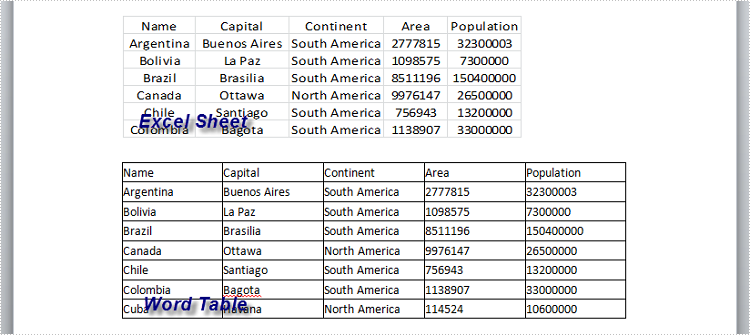
Full Code:
using Spire.Doc;
using Spire.Doc.Documents;
using Spire.Doc.Fields;
using Spire.Xls;
using System.Data;
using System.IO;
namespace ApplyTableStyles
{
    class Program
    {

        static void Main(string[] args)
        {

            Document doc = new Document("Sample.docx", Spire.Doc.FileFormat.Docx2010);
            Section section = doc.Sections[0];
            Paragraph para = section.Paragraphs[2];
            DataTable dt = new DataTable();

            foreach (DocumentObject obj in para.ChildObjects)
            {
                if (DocumentObjectType.OleObject == obj.DocumentObjectType)
                {
                    DocOleObject dObj = obj as DocOleObject;
                    if (dObj.ObjectType == "Excel.Sheet.12")
                    {
                        Workbook wb = new Workbook();
                        wb.LoadFromStream(new MemoryStream(dObj.NativeData));
                        Worksheet ws = wb.Worksheets[0];
                        dt = ws.ExportDataTable(ws.AllocatedRange, false);
                    }
                }
            }

            Table table = section.AddTable(true);
            table.ResetCells(dt.Rows.Count, dt.Columns.Count);

            for (int i = 0; i < dt.Rows.Count; i++)
            {
                for (int j = 0; j < dt.Columns.Count; j++)
                {
                    string text = dt.Rows[i][j] as string;
                    table.Rows[i].Cells[j].AddParagraph().AppendText(text);
                }
            }

            doc.SaveToFile("Result.docx", Spire.Doc.FileFormat.Docx2010);
        }
    }
}
Imports Spire.Doc
Imports Spire.Doc.Documents
Imports Spire.Doc.Fields
Imports Spire.Xls
Imports System.Data
Imports System.IO
Namespace ApplyTableStyles
	Class Program

		Private Shared Sub Main(args As String())

			Dim doc As New Document("Sample.docx", Spire.Doc.FileFormat.Docx2010)
			Dim section As Section = doc.Sections(0)
			Dim para As Paragraph = section.Paragraphs(2)
			Dim dt As New DataTable()

			For Each obj As DocumentObject In para.ChildObjects
				If DocumentObjectType.OleObject = obj.DocumentObjectType Then
					Dim dObj As DocOleObject = TryCast(obj, DocOleObject)
					If dObj.ObjectType = "Excel.Sheet.12" Then
						Dim wb As New Workbook()
						wb.LoadFromStream(New MemoryStream(dObj.NativeData))
						Dim ws As Worksheet = wb.Worksheets(0)
						dt = ws.ExportDataTable(ws.AllocatedRange, False)
					End If
				End If
			Next

			Dim table As Table = section.AddTable(True)
			table.ResetCells(dt.Rows.Count, dt.Columns.Count)

			For i As Integer = 0 To dt.Rows.Count - 1
				For j As Integer = 0 To dt.Columns.Count - 1
					Dim text As String = TryCast(dt.Rows(i)(j), String)
					table.Rows(i).Cells(j).AddParagraph().AppendText(text)
				Next
			Next

			doc.SaveToFile("Result.docx", Spire.Doc.FileFormat.Docx2010)
		End Sub
	End Class
End Namespace
Speaker notes in PowerPoint are specific contents that appear only on the presenter's monitor when presenting the slideshow. They can remind the presenter of the important points that he needs to explain to the audience. In this article, we will demonstrate how to add, read or delete speaker notes in PowerPoint in C# and VB.NET using Spire.Presentation for .NET.
Install Spire.Presentation for .NET
To begin with, you need to add the DLL files included in the Spire.Presentation for.NET package as references in your .NET project. The DLL files can be either downloaded from this link or installed via NuGet.
PM> Install-Package Spire.Presentation
Add Speaker Notes in PowerPoint in C# and VB.NET
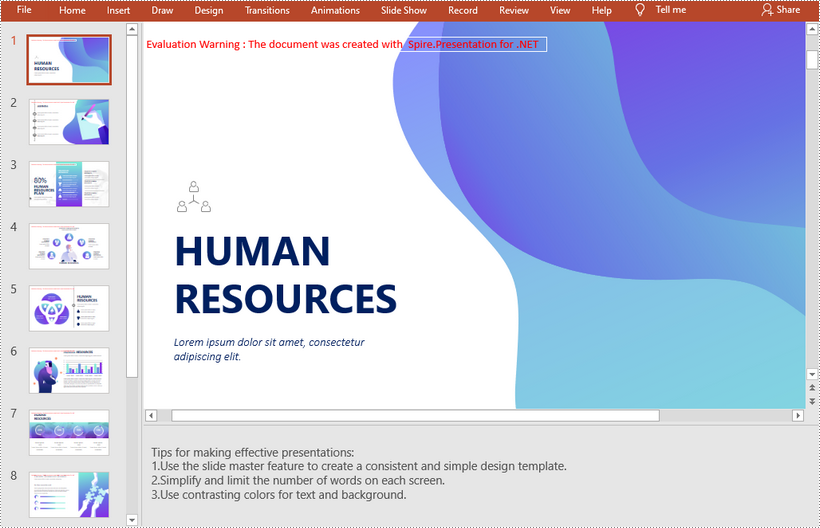
The following are the main steps to add speaker notes to a PowerPoint document:
- Create a Presentation instance and load a PowerPoint document using Presentation.LoadFromFile() method.
- Get the desired slide that you want to add speaker notes to through Presentation.Slides[slideIndex] property.
- Add a notes slide to the slide using ISlide.AddNotesSlides() method.
- Create a TextParagraph instance.
- Set text for the paragraph through TextParagraph.Text property, then append the paragraph to the notes slide using NotesSlide.NotesTextFrame.Paragraphs.Append() method.
- Save the result document using Presentation.SaveToFile() method.
- C#
- VB.NET
using Spire.Presentation;

namespace AddSpeakerNotes
{
    internal class Program
    {
        static void Main(string[] args)
        {
            //Load a PowerPoint document
            Presentation ppt = new Presentation();
            ppt.LoadFromFile("Sample.pptx");

            //Get the first slide
            ISlide slide = ppt.Slides[0];
            //Add a notes slide
            NotesSlide notesSlide = slide.AddNotesSlide();

            //Add a paragraph to the notes slide
            TextParagraph paragraph = new TextParagraph();
            paragraph.Text = "Tips for making effective presentations:";
            notesSlide.NotesTextFrame.Paragraphs.Append(paragraph);

            //Add a paragraph to the notes slide
            paragraph = new TextParagraph();
            paragraph.Text = "Use the slide master feature to create a consistent and simple design template.";
            notesSlide.NotesTextFrame.Paragraphs.Append(paragraph);

            //Add a paragraph to the notes slide
            paragraph = new TextParagraph();
            paragraph.Text = "Simplify and limit the number of words on each screen.";
            notesSlide.NotesTextFrame.Paragraphs.Append(paragraph);

            //Add a paragraph to the notes slide
            paragraph = new TextParagraph();
            paragraph.Text = "Use contrasting colors for text and background.";
            notesSlide.NotesTextFrame.Paragraphs.Append(paragraph);

            //Set the bullet type and bullet style for specific paragraphs on the notes slide
            for (int i = 2; i < notesSlide.NotesTextFrame.Paragraphs.Count;i++)
            {
                notesSlide.NotesTextFrame.Paragraphs[i].BulletType = TextBulletType.Numbered;
                notesSlide.NotesTextFrame.Paragraphs[i].BulletStyle = NumberedBulletStyle.BulletArabicPeriod;
            }

            //Save the result document
            ppt.SaveToFile("SpeakerNotes.pptx", FileFormat.Pptx2013);
        }
    }
}
Read Speaker Notes in PowerPoint in C# and VB.NET
The following are the steps to read the speaker notes on a PowerPoint slide:
- Create a Presentation instance and load the PowerPoint document using Presentation.LoadFromFile() method.
- Get the desired slide that you want to read speaker notes from through Presentation.Slides[slideIndex] property.
- Get the notes slide from the slide through ISlide.NotesSlide property.
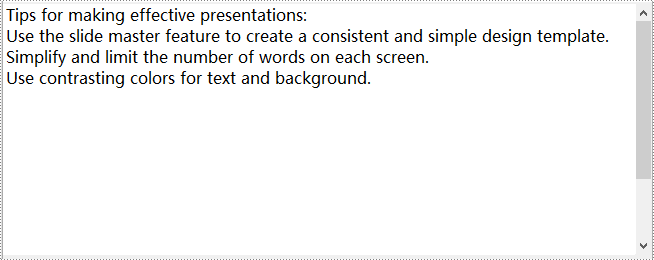
- Get the speaker notes from the notes slide through NotesSlide.NotesTextFrame.Text property.
- Create a StringBuilder instance.
- Append the speaker notes to the string builder, then write them into a .txt file.
- C#
- VB.NET
using Spire.Presentation;
using System.Text;
using System.IO;

namespace ReadSpeakerNotes
{
    internal class Program
    {
        static void Main(string[] args)
        {
            //Load the PowerPoint document
            Presentation ppt = new Presentation();
            ppt.LoadFromFile("SpeakerNotes.pptx");

            //Get the first slide
            ISlide slide = ppt.Slides[0];

            //Get the notes slide from the first slide
            NotesSlide notesSlide = slide.NotesSlide;
            //Get the speaker notes from the notes slide
            string notes = notesSlide.NotesTextFrame.Text;
            //Create a StringBuilder instance
            StringBuilder sb = new StringBuilder();
            //Append the speaker notes to the string builder
            sb.AppendLine(notes);

            //Save to .txt file
            File.WriteAllText("SpeakerNotes.txt", sb.ToString());
        }
    }
}
Delete Speaker Notes in PowerPoint in C# and VB.NET
The following are the steps to delete speaker notes from a PowerPoint slide:
- Create a Presentation instance and load the PowerPoint document using Presentation.LoadFromFile() method.
- Get the desired slide that you want to delete speaker notes from through Presentation.Slides[slideIndex] property.
- Get the notes slide from the slide through ISlide.NotesSlide property.
- Delete a specific speaker note from the notes slide using NotesSlide.NotesTextFrame.Paragraphs.RemoveAt(paragraphIndex) method or delete all the speaker notes from the notes slide using NotesSlide.NotesTextFrame.Paragraphs.Clear() method.
- Save the result document using Presentation.SaveToFile() method.
- C#
- VB.NET
using Spire.Presentation;
using System.Text;
using System.IO;

namespace DeleteSpeakerNotes
{
    internal class Program
    {
        static void Main(string[] args)
        {
            //Load the PowerPoint document
            Presentation ppt = new Presentation();
            ppt.LoadFromFile("SpeakerNotes.pptx");

            //Get the first slide
            ISlide slide = ppt.Slides[0];
            //Get the notes slide from the slide
            NotesSlide notesSlide = slide.NotesSlide;

            //Remove a specific speaker note from notes slide
            //notesSlide.NotesTextFrame.Paragraphs.RemoveAt(1);

            //Remove all the speaker notes from notes slide
            notesSlide.NotesTextFrame.Paragraphs.Clear();

            //Save the result document
            ppt.SaveToFile("DeleteSpeakerNotes.pptx", FileFormat.Pptx2013);

        }
    }
}
Apply for a Temporary License
If you'd like to remove the evaluation message from the generated documents, or to get rid of the function limitations, please request a 30-day trial license for yourself.
The transition of Slide can make presentation of PPT files more attractive. Spire.Presentation for .NET allows developers to manage or customize the slide transition of the slides. Developers can not only apply different slide transitions on the slides, but also customize the behavior of these transition.
To create simple slide transition and set speed and sound mode for transition, follow the steps below:
Step 1: Download Spire.Presentation and add references in VS.
Step 2: Create an instance of Presentation and add a new presentation file.
Presentation ppt = new Presentation();
ppt.LoadFromFile(fp.TestPath + "first_quarter_business_upd.ppt");
Step 3: There are 23 transition types can be set by Spire.Presentation, such as Circle, Cover, Plus, Push, etc. These transitions can be found in TransitionType enum.
ppt.Slides[0].SlideShowTransition.Type = TransitionType.Push;

Step 4: We just applied a simple transition on the slide. Now, to make that even better and controlled, we can set the speed of the transition to create a more customized effect. Spire.Presentation offers Fast, Medium, None, Slow 4 options.
ppt.Slides[0].SlideShowTransition.Speed = TransitionSpeed.Slow;
Step 5: Set the transition sound mode such as None, StartSound, StopPreviousSound.
ppt.Slides[0].SlideShowTransition.SoundMode = TransitionSoundMode.StartSound;
Step 6: Finally write the modified presentation as a PPTX file.
ppt.SaveToFile("setTransitons.pptx", FileFormat.Pptx2010);
