
Knowledgebase (2370)
Children categories
In the realm of document management, the ability to add headers and footers to PDFs has become an essential feature. This functionality allows individuals and businesses to enhance the visual appeal, branding, and organization of their PDF documents.
By incorporating headers and footers, users can customize their PDFs with important contextual information, such as document titles, page numbers, logos, dates, copyright notices, or confidentiality disclaimers. This not only helps establish a professional look but also improves document navigation and ensures compliance with legal requirements.
In this article, we will delve into the process of seamlessly integrating headers and footers into existing PDF files by using the Spire.PDF for Python library.
Install Spire.PDF for Python
This scenario requires Spire.PDF for Python and plum-dispatch v1.7.4. They can be easily installed in your Windows through the following pip command.
pip install Spire.PDF
If you are unsure how to install, please refer to this tutorial: How to Install Spire.PDF for Python on Windows
Coordinate System in an Existing PDF
When using Spire.PDF for Python to manipulate an existing PDF document, the coordinate system's origin is positioned at the top left corner of the page. The x-axis extends to the right, while the y-axis extends downward.
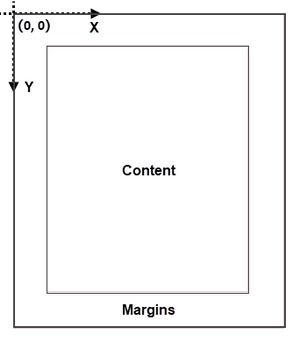
Understanding coordinate system is crucial for us, as nearly all newly added elements on a PDF page need to be positioned using specified coordinates. The process of creating headers and footers on PDF pages involves adding text, images, shapes, automatic fields, or other elements to the upper or lower margins of the page at designated coordinates.
Classes and Methods for Creating Header and Footer
In Spire.PDF for Python, there are several methods available for drawing elements on a PDF page. The PdfCanvas class provides the methods DrawString(), DrawImage(), and DrawLine(), which allow users to draw strings, images, and lines respectively, at specific coordinates on the page.
Additionally, Spire.PDF for Python offers specialized classes such as PdfPageNumberField, PdfPageCountField, and PdfSectionNumberField. These classes enable automatic access to the current page number, page count, and section number. Moreover, these classes include the Draw() method, which facilitates the easy addition of dynamic information to the header or footer section of the PDF document.
Add Header to an Existing PDF Document in Python
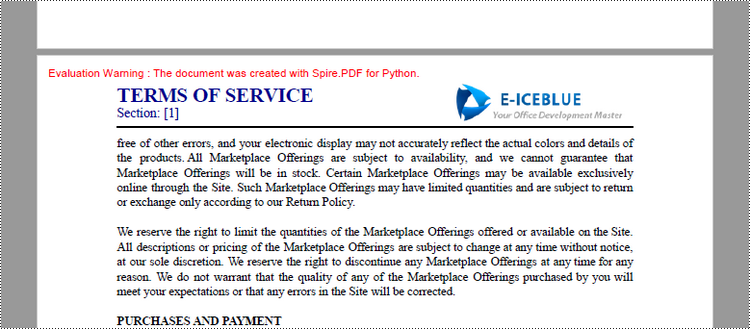
A header refers to a section that appears at the top of each page. The header typically contains information such as a logo, document title, date, or any other relevant details that provide context or branding to the document.
To add a header consisting of text, an image, a line and a section number to a PDF document, you can follow these steps:
- Create a PdfDocuemnt object.
- Load an existing PDF document from the specified path.
- Define the header content:
- Specify the text to be added to the header.
- Load an image for the header.
- Create a PdfSectionNumberField object to get the current section number, and create a PdfCompositeField object to combine text and the section number in a single field.
- Add the header to each page: Iterate through each page of the PDF document and add the header content at the designated position by using the Canvas.DrawString(), Canvas.DrawImage(), Canvas.DrawLine(), and PdfCompositeField.Draw() methods. When calling these methods, you need to consider the page size and margins when determining the position.
- Save the modified PDF to a new file or overwrite the existing file.
- Python
from spire.pdf.common import *
from spire.pdf import *

# Create a PdfDocument object
doc = PdfDocument()

# Load a PDF file
doc.LoadFromFile("C:\\Users\\Administrator\\Desktop\\Terms of service.pdf")

# Load an image
headerImage = PdfImage.FromFile("C:\\Users\\Administrator\\Desktop\\Logo-Small.png")

# Get the image width in pixel
width = headerImage.Width

# Get the image width in point
unitCvtr = PdfUnitConvertor()
pointWidth = unitCvtr.ConvertUnits(width, PdfGraphicsUnit.Pixel, PdfGraphicsUnit.Point)

# Create font, brush and pen
firstFont = PdfTrueTypeFont("Times New Roman", 18.0, PdfFontStyle.Bold, True)
secondFont = PdfTrueTypeFont("Times New Roman", 12.0, PdfFontStyle.Regular, True)
brush = PdfBrushes.get_DarkBlue()
pen = PdfPen(PdfBrushes.get_Black(), 1.5)

# Specify text to add to header
headerText = "TERMS OF SERVICE"

# Create a PdfSectionNumberField object
sectionField = PdfSectionNumberField(firstFont, brush)

# Create a PdfCompositeField object
compositeField = PdfCompositeField(secondFont, brush, "Section: [{0}]", [sectionField])

# Set the location of the composite field
compositeField.Location = PointF(72.0, 45.0)

# Iterate throuh the pages in the document
for i in range(doc.Pages.Count):

    # Get a specific page
    page = doc.Pages[i]

    # Draw an image at the specified position
    page.Canvas.DrawImage(headerImage, page.ActualSize.Width - pointWidth - 72.0, 20.0)

    # Draw a string at the specified position
    page.Canvas.DrawString(headerText, firstFont, brush, 72.0, 25.0)

    # Draw a line at the specified position
    page.Canvas.DrawLine(pen, 72.0, 65.0, page.ActualSize.Width - 72.0, 65.0)

    # Draw composite on the page
    compositeField.Draw(page.Canvas, 0.0, 0.0)

# Save the changes to a different PDF file
doc.SaveToFile("Output/AddHeader.pdf")

# Dispose resources
doc.Dispose()
Add Footer to an Existing PDF Document in Python
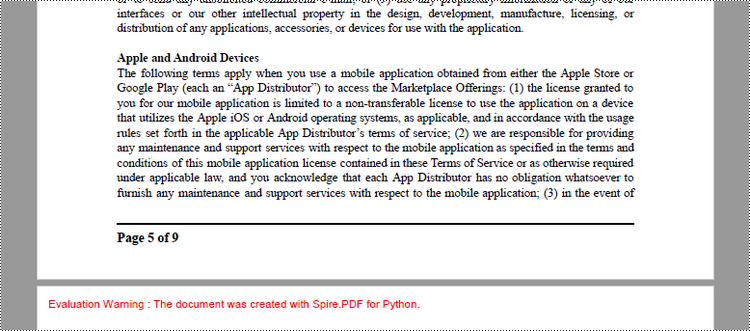
A footer refers to a section that appears at the bottom of each page. The footer may contain information such as page numbers, copyright information, author name, date, or any other relevant details that provide additional context or navigation aids to the reader.
To add a footer which includes a line and "Page X of Y" to a PDF document, follow the steps below.
- Create a PdfDocuemnt object.
- Load an existing PDF document from the specified path.
- Define the footer content: Create a PdfPageNumberField object to get the current page number, and a PdfPageCountField object to get the total page count. In order to create a "Page X of Y" format, you can utilize a PdfCompositeField object to combine text and these two automatic fields in a single field.
- Add the footer to each page: Iterate through each page of the PDF document and add a line using the Canvas.DrawLine() method. Add the page number and page count to the footer space using the PdfCompositeField.Draw() method. When calling these methods, you need to consider the page size and margins when determining the position.
- Save the modified PDF to a new file or overwrite the existing file.
- Python
from spire.pdf.common import *
from spire.pdf import *

# Create a PdfDocument object
doc = PdfDocument()

# Load a PDF file
doc.LoadFromFile("C:\\Users\\Administrator\\Desktop\\Terms of service.pdf")

# Create font, brush and pen
font = PdfTrueTypeFont("Times New Roman", 12.0, PdfFontStyle.Bold, True)
brush = PdfBrushes.get_Black()
pen = PdfPen(brush, 1.5)

# Create a PdfPageNumberField object and a PdfPageCountField object
pageNumberField = PdfPageNumberField()
pageCountField = PdfPageCountField()

# Create a PdfCompositeField object to combine page count field and page number field in a single string
compositeField = PdfCompositeField(font, brush, "Page {0} of {1}", [pageNumberField, pageCountField])

# Get the page size
pageSize = doc.Pages[0].Size

# Set the location of the composite field
compositeField.Location = PointF(72.0, pageSize.Height - 45.0)

# Iterate through the pages in the document
for i in range(doc.Pages.Count):

    # Get a specific page
    page = doc.Pages[i]

    # Draw a line at the specified position
    page.Canvas.DrawLine(pen, 72.0, pageSize.Height - 50.0, pageSize.Width - 72.0, pageSize.Height - 50.0)

    # Draw the composite field on the page
    compositeField.Draw(page.Canvas, 0.0, 0.0)

# Save to a different PDF file
doc.SaveToFile("Output/AddFooter.pdf")

# Dispose resources
doc.Dispose()
Apply for a Temporary License
If you'd like to remove the evaluation message from the generated documents, or to get rid of the function limitations, please request a 30-day trial license for yourself.
Efficient document organization and navigability are crucial for lengthy Word documents. One powerful way to streamline document readability and accessibility is by incorporating a table of contents (TOC) into a Word document, which allows readers to quickly locate specific sections and jump to relevant content. By harnessing the capabilities of Python, users can effortlessly generate a table of contents that dynamically updates as the document evolves. This article provides a step-by-step guide and code examples for inserting a table of contents into a Word document in Python programs using Spire.Doc for Python, empowering users to create professional-looking documents with ease.
- Insert the Default Table of Contents into a Word Document
- Insert a Custom Table of Contents into a Word Document
Install Spire.Doc for Python
This scenario requires Spire.Doc for Python and plum-dispatch v1.7.4. They can be easily installed in your Windows through the following pip command.
pip install Spire.Doc
If you are unsure how to install, please refer to: How to Install Spire.Doc for Python on Windows
Insert the Default Table of Contents into a Word Document
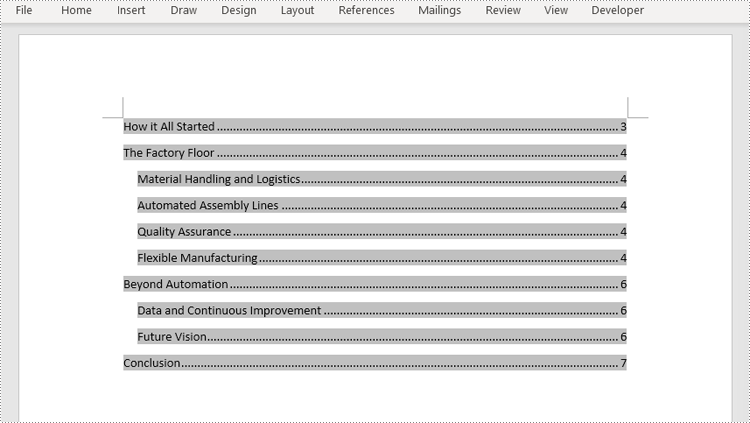
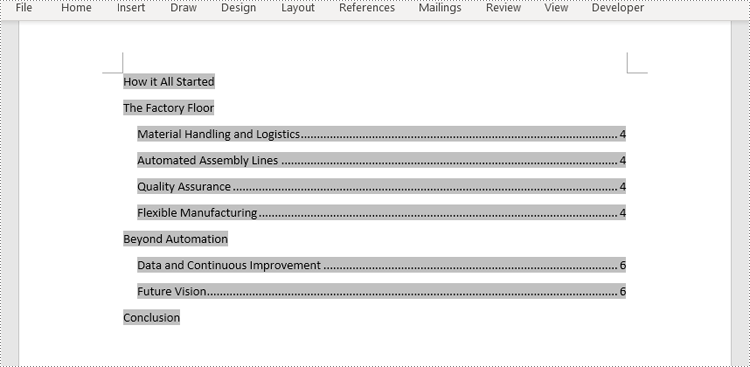
Spire.Doc for Python supports inserting a table of contents in a Word document based on the headings of different levels. If the document does not have heading levels set, developers can set the heading levels using the Paragraph.ApplyStyle(BuiltinStyle) method before inserting a table of contents.
By using the Paragraph.AppendTOC(lowerLevel: int, upperLevel: int) method, developers can insert a table of contents at any paragraph and specify the titles to be displayed. It is important to note that after inserting the table of contents, developers need to use the Document.UpdateTableOfContents() method to update the table of contents so that its contents are displayed correctly.
- Create an object of Document class and load a Word document using Document.LoadFromFile() method.
- Add a section using Document.AddSection() method, add a paragraph to the section using Section.AddParagraph() method, and insert the new section after the cover section using Document.Sections.Insert(index: int, entity: Section) method.
- Update the table of contents using Document.UpdateTableOfContents() method.
- Save the document using Document.SaveToFile() method.
- Python
from spire.doc import *
from spire.doc.common import *

# Create an object of Document class
doc = Document()

# Load a Word document
doc.LoadFromFile("Sample.docx")

# Create a section for the table of contents
section = doc.AddSection()

# Add a paragraph in the section
paragraph = section.AddParagraph()

# Append a table of contents in the paragraph
paragraph.AppendTOC(1, 2)

# Insert the section after the cover section
doc.Sections.Insert(1, section)

# Update the table of contents
doc.UpdateTableOfContents()

# Save the document
doc.SaveToFile("output/DefaultTOC.docx")
doc.Close()
Insert a Custom Table of Contents into a Word Document
Developers can also create a table of contents by initializing a TableOfContent object, and customize it through switches. For example, the switch "{\\o \"1-2\" \\n 1-1}" indicates showing headings from level one to level three in the table of contents and omitting the page numbers of level one headings. The detailed steps for inserting a customized table of contents into a Word document are as follows:
- Create an object of Document class and load a Word document using Document.LoadFromFile() method.
- Add a section to the document using Document.AddSecction() method, add a paragraph to the section using Section.AddParagraph() method, and insert the section after the cover section using Document.Sections.Insert() method.
- Create an object of TableOfContents class and insert it into the added paragraph using Paragraph.Items.Add() method.
- Append field separator and field end mark to end the TOC filed using Paragraph.AppendFieldMark() method.
- Set the created table of contents as the table of contents of the document through Document.TOC property.
- Save the document using Document.SaveToFile() method.
- Python
from spire.doc import *
from spire.doc.common import *

# Create an object of Document class and load a Word document
doc = Document()
doc.LoadFromFile("Sample.docx")

# Add a section and a paragraph and insert the section after the cover section
section = doc.AddSection()
paragraph = section.AddParagraph()
doc.Sections.Insert(1, section)

# Customize a table of contents with switches
toc = TableOfContent(doc, "{\\o \"1-2\" \\n 1-1}")

# Insert the TOC to the paragraph
paragraph.Items.Add(toc)

# Insert field separator and filed end mark to end the TOC field
paragraph.AppendFieldMark(FieldMarkType.FieldSeparator)
paragraph.AppendFieldMark(FieldMarkType.FieldEnd)

# Set the TOC field as the table of contents of the document
doc.TOC = toc

# Update the TOC
doc.UpdateTableOfContents()

# Save the document
doc.SaveToFile("output/CustomizedTOC.docx")
doc.Close()
Apply for a Temporary License
If you'd like to remove the evaluation message from the generated documents, or to get rid of the function limitations, please request a 30-day trial license for yourself.
Adding, inserting, and deleting pages in a Word document are crucial steps in managing and presenting content. By adding or inserting new pages, you can expand the document to accommodate more content, making it more organized and readable. Deleting pages helps simplify the document by removing unnecessary or erroneous information. These operations can enhance the overall quality and clarity of the document. This article will demonstrate how to use Spire.Doc for Java to add, insert, and delete pages in a Word document within a Java project.
- Add a Page in a Word Document in Java
- Insert a Page in a Word Document in Java
- Delete a Page from a Word Document in Java
Install Spire.Doc for Java
First, you're required to add the Spire.Doc.jar file as a dependency in your Java program. The JAR file can be downloaded from this link. If you use Maven, you can easily import the JAR file in your application by adding the following code to your project's pom.xml file.
<repositories>
    <repository>
        <id>com.e-iceblue</id>
        <name>e-iceblue</name>
        <url>https://repo.e-iceblue.com/nexus/content/groups/public/</url>
    </repository>
</repositories>
<dependencies>
    <dependency>
        <groupId>e-iceblue</groupId>
        <artifactId>spire.doc</artifactId>
        <version>14.7.0</version>
    </dependency>
</dependencies>
Add a Page in a Word Document in Java
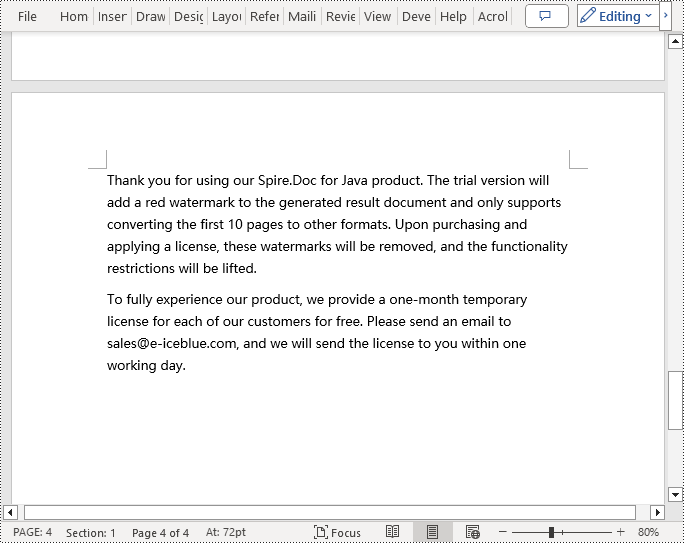
The steps to add a new page at the end of a Word document include locating the last section, and then inserting a page break at the end of that section's last paragraph. This way ensures that any content added subsequently will start displaying on a new page, maintaining the clarity and coherence of the document structure. The detailed steps are as follows:
- Create a Document object.
- Load a Word document using the Document.loadFromFile() method.
- Get the body of the last section of the document using Document.getLastSection().getBody().
- Add a page break by calling Paragraph.appendBreak(BreakType.Page_Break) method.
- Create a new paragraph style ParagraphStyle object.
- Add the new paragraph style to the document's style collection using Document.getStyles().add(paragraphStyle) method.
- Create a new paragraph Paragraph object and set the text content.
- Apply the previously created paragraph style to the new paragraph using Paragraph.applyStyle(paragraphStyle.getName()) method.
- Add the new paragraph to the document using Body.getChildObjects().add(paragraph) method.
- Save the resulting document using the Document.saveToFile() method.
- Java
import com.spire.doc.*;
import com.spire.doc.documents.*;

public class AddOnePage {
    public static void main(String[] args) {
        // Create a new document object
        Document document = new Document();

        // Load a sample document from a file
        document.loadFromFile("Sample.docx");

        // Get the body of the last section of the document
        Body body = document.getLastSection().getBody();

        // Insert a page break after the last paragraph in the body
        body.getLastParagraph().appendBreak(BreakType.Page_Break);

        // Create a new paragraph style
        ParagraphStyle paragraphStyle = new ParagraphStyle(document);
        paragraphStyle.setName("CustomParagraphStyle1");
        paragraphStyle.getParagraphFormat().setLineSpacing(12);
        paragraphStyle.getParagraphFormat().setAfterSpacing(8);
        paragraphStyle.getCharacterFormat().setFontName("Microsoft YaHei");
        paragraphStyle.getCharacterFormat().setFontSize(12);

        // Add the paragraph style to the document's style collection
        document.getStyles().add(paragraphStyle);

        // Create a new paragraph and set the text content
        Paragraph paragraph = new Paragraph(document);
        paragraph.appendText("Thank you for using our Spire.Doc for Java product. The trial version will add a red watermark to the generated result document and only supports converting the first 10 pages to other formats. Upon purchasing and applying a license, these watermarks will be removed, and the functionality restrictions will be lifted.");

        // Apply the paragraph style
        paragraph.applyStyle(paragraphStyle.getName());

        // Add the paragraph to the body's content collection
        body.getChildObjects().add(paragraph);

        // Create another new paragraph and set the text content
        paragraph = new Paragraph(document);
        paragraph.appendText("To fully experience our product, we provide a one-month temporary license for each of our customers for free. Please send an email to sales@e-iceblue.com, and we will send the license to you within one working day.");

        // Apply the paragraph style
        paragraph.applyStyle(paragraphStyle.getName());

        // Add the paragraph to the body's content collection
        body.getChildObjects().add(paragraph);

        // Save the document to a specified path
        document.saveToFile("Add a Page.docx", FileFormat.Docx);

        // Close the document
        document.close();

        // Dispose of the document object's resources
        document.dispose();
    }
}
Insert a Page in a Word Document in Java
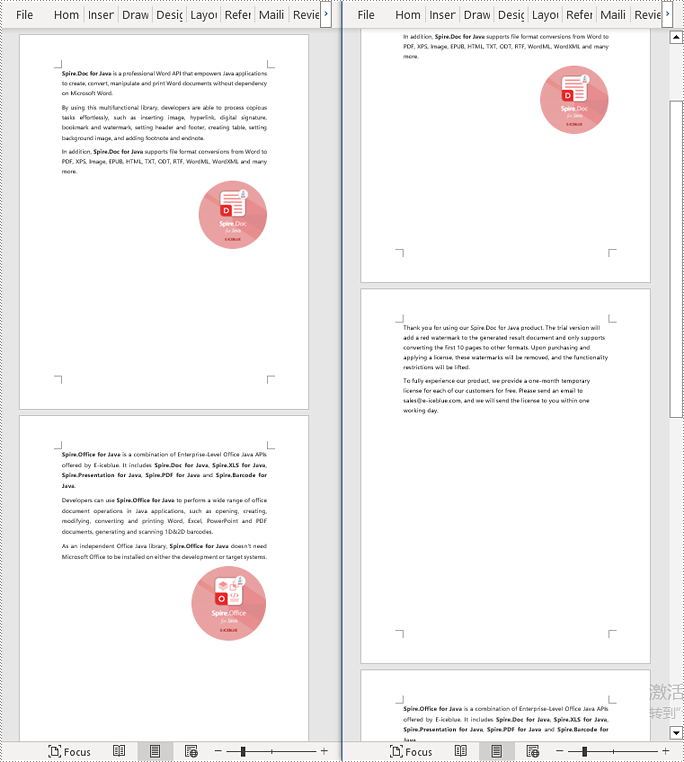
Before inserting a new page, it is necessary to determine the ending position index of the specified page content within the section, and then add the content of the new page to the document one by one. To ensure that the content is separated from the subsequent pages, page breaks need to be inserted at appropriate positions. The detailed steps are as follows:
- Create a Document object.
- Load a Word document using the Document.loadFromFile() method.
- Create a FixedLayoutDocument object.
- Obtain the FixedLayoutPage object of a page in the document.
- Get the index position of the last paragraph on the page within the section.
- Create a new paragraph style ParagraphStyle object.
- Add the new paragraph style to the document using the Document.getStyles().add(paragraphStyle) method.
- Create a new paragraph Paragraph object and set the text content.
- Apply the previously created paragraph style to the new paragraph using the Paragraph.applyStyle(paragraphStyle.getName()) method.
- Insert the new paragraph at the specified position using the Body.getChildObjects().insert(index, Paragraph) method.
- Create another new paragraph object, set its text content, add a page break by calling the Paragraph.appendBreak(BreakType.Page_Break) method, apply the previously created paragraph style, and finally insert this paragraph into the document.
- Save the resulting document using the Document.saveToFile() method.
- Java
import com.spire.doc.*;
import com.spire.doc.pages.*;
import com.spire.doc.documents.*;

public class InsertOnePage {
    public static void main(String[] args) {
        // Create a new document object
        Document document = new Document();

        // Load a sample document from a file
        document.loadFromFile("Sample.docx");

        // Create a fixed layout document object
        FixedLayoutDocument layoutDoc = new FixedLayoutDocument(document);

        // Get the first page
        FixedLayoutPage page = layoutDoc.getPages().get(0);

        // Get the body of the document
        Body body = page.getSection().getBody();

        // Get the paragraph at the end of the current page
        Paragraph paragraphEnd = page.getColumns().get(0).getLines().getLast().getParagraph();

        // Initialize the end index
        int endIndex = 0;
        if (paragraphEnd != null) {
            // Get the index of the last paragraph
            endIndex = body.getChildObjects().indexOf(paragraphEnd);
        }

        // Create a new paragraph style
        ParagraphStyle paragraphStyle = new ParagraphStyle(document);
        paragraphStyle.setName("CustomParagraphStyle1");
        paragraphStyle.getParagraphFormat().setLineSpacing(12);
        paragraphStyle.getParagraphFormat().setAfterSpacing(8);
        paragraphStyle.getCharacterFormat().setFontName("Microsoft YaHei");
        paragraphStyle.getCharacterFormat().setFontSize(12);

        // Add the style to the document
        document.getStyles().add(paragraphStyle);

        // Create a new paragraph and set the text content
        Paragraph paragraph = new Paragraph(document);
        paragraph.appendText("Thank you for using our Spire.Doc for Java product. The trial version will add a red watermark to the generated result document and only supports converting the first 10 pages to other formats. Upon purchasing and applying a license, these watermarks will be removed, and the functionality restrictions will be lifted.");

        // Apply the paragraph style
        paragraph.applyStyle(paragraphStyle.getName());

        // Insert the paragraph at the specified position
        body.getChildObjects().insert(endIndex + 1, paragraph);

        // Create another new paragraph and set the text content
        paragraph = new Paragraph(document);
        paragraph.appendText("To fully experience our product, we provide a one-month temporary license for each of our customers for free. Please send an email to sales@e-iceblue.com, and we will send the license to you within one working day.");

        // Apply the paragraph style
        paragraph.applyStyle(paragraphStyle.getName());

        // Add a page break
        paragraph.appendBreak(BreakType.Page_Break);

        // Insert the paragraph at the specified position
        body.getChildObjects().insert(endIndex + 2, paragraph);

        // Save the document to a specified path
        document.saveToFile("Insert a New Page after a Specified Page.docx", FileFormat.Docx);

        // Close and dispose of the document object's resources
        document.close();
        document.dispose();
    }
}
Delete a Page from a Word Document in Java
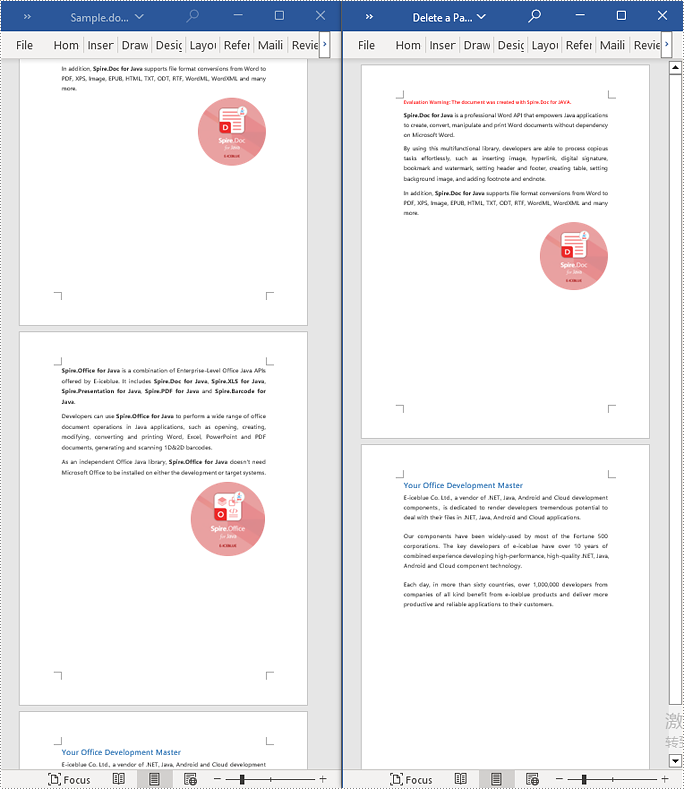
To delete the content of a page, you first need to find the position index of the starting and ending elements of that page in the document. Then, by looping through, you can remove these elements one by one to delete the entire content of the page. The detailed steps are as follows:
- Create a Document object.
- Load a Word document using the Document.loadFromFile() method.
- Create a FixedLayoutDocument object.
- Obtain the FixedLayoutPage object of the first page in the document.
- Use the FixedLayoutPage.getSection() method to get the section where the page is located.
- Get the index position of the first paragraph on the page within the section.
- Get the index position of the last paragraph on the page within the section.
- Use a for loop to remove the content of the page one by one.
- Save the resulting document using the Document.saveToFile() method.
- Java
import com.spire.doc.*;
import com.spire.doc.pages.*;
import com.spire.doc.documents.*;

public class RemoveOnePage {
    public static void main(String[] args) {
        // Create a new document object
        Document document = new Document();

        // Load a sample document from a file
        document.loadFromFile("Sample.docx");

        // Create a fixed layout document object
        FixedLayoutDocument layoutDoc = new FixedLayoutDocument(document);

        // Get the second page
        FixedLayoutPage page = layoutDoc.getPages().get(1);

        // Get the section of the page
        Section section = page.getSection();

        // Get the first paragraph on the first page
        Paragraph paragraphStart = page.getColumns().get(0).getLines().getFirst().getParagraph();
        int startIndex = 0;
        if (paragraphStart != null) {
            // Get the index of the starting paragraph
            startIndex = section.getBody().getChildObjects().indexOf(paragraphStart);
        }

        // Get the last paragraph on the last page
        Paragraph paragraphEnd = page.getColumns().get(0).getLines().getLast().getParagraph();

        int endIndex = 0;
        if (paragraphEnd != null) {
            // Get the index of the ending paragraph
            endIndex = section.getBody().getChildObjects().indexOf(paragraphEnd);
        }

        // Remove paragraphs within the specified range
        for (int i = 0; i <= (endIndex - startIndex); i++) {
            section.getBody().getChildObjects().removeAt(startIndex);
        }

        // Save the document to a specified path
        document.saveToFile("Delete a Page.docx", FileFormat.Docx);

        // Close and dispose of the document object's resources
        document.close();
        document.dispose();
    }
}
Apply for a Temporary License
If you'd like to remove the evaluation message from the generated documents, or to get rid of the function limitations, please request a 30-day trial license for yourself.
