
Python (365)
SVG files are commonly used for web graphics and vector-based illustrations because they can be scaled and adjusted easily. PDF, on the other hand, is a versatile format widely supported across different devices and operating systems. Converting SVG to PDF allows for easy sharing of graphics and illustrations, ensuring that recipients can open and view the files without requiring specialized software or worrying about browser compatibility issues. In this article, we will demonstrate how to convert SVG files to PDF format in Python using Spire.PDF for Python.
Install Spire.PDF for Python
This scenario requires Spire.PDF for Python and plum-dispatch v1.7.4. They can be easily installed in your Windows through the following pip command.
pip install Spire.PDF
If you are unsure how to install, please refer to this tutorial: How to Install Spire.PDF for Python on Windows
Convert SVG to PDF in Python
Spire.PDF for Python provides the PdfDocument.LoadFromSvg() method, which allows users to load an SVG file. Once loaded, users can use the PdfDocument.SaveToFile() method to save the SVG file as a PDF file. The detailed steps are as follows.
- Create an object of the PdfDocument class.
- Load an SVG file using PdfDocument.LoadFromSvg() method.
- Save the SVG file to PDF format using PdfDocument.SaveToFile() method.
- Python
from spire.pdf.common import *
from spire.pdf import *

# Create a PdfDocument object
doc = PdfDocument()
# Load an SVG file
doc.LoadFromSvg("Sample.svg")

# Save the SVG file to PDF format
doc.SaveToFile("ConvertSvgToPdf.pdf", FileFormat.PDF)
# Close the PdfDocument object
doc.Close()
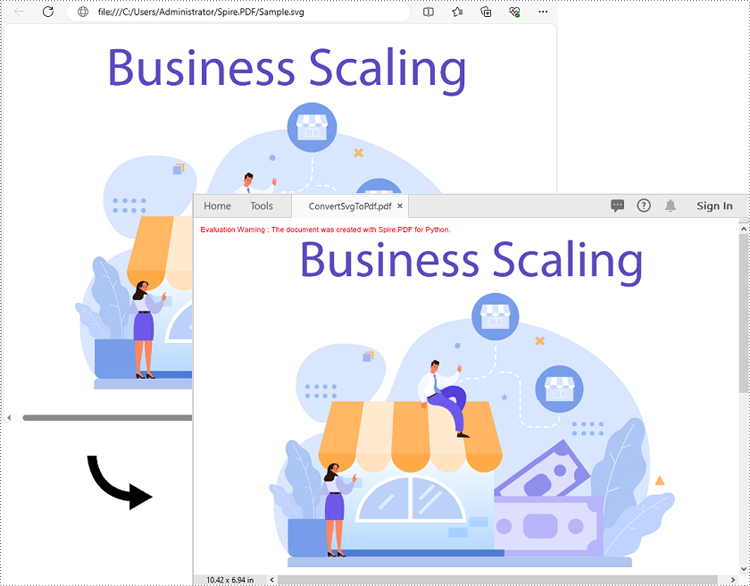
Add SVG to PDF in Python
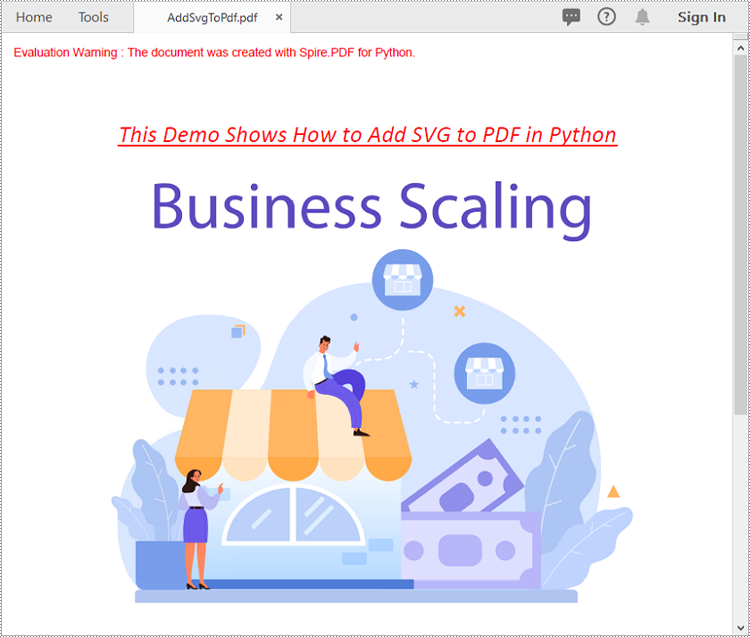
In addition to converting SVG to PDF directly, Spire.PDF for Python also supports adding SVG files to specific locations in PDF. The detailed steps are as follows.
- Create an object of the PdfDocument class.
- Load an SVG file using PdfDocument.LoadFromSvg() method.
- Create a template based on the content of the SVG file using PdfDocument. Pages[].CreateTemplate() method.
- Get the width and height of the template.
- Create another object of the PdfDocument class and load a PDF file using PdfDocument.LoadFromFile() method.
- Draw the template with a custom size at a specific location in the PDF file using PdfDocument.Pages[].Canvas.DrawTemplate() method.
- Save the result file using PdfDocument.SaveToFile() method.
- Python
from spire.pdf.common import *
from spire.pdf import *

# Create a PdfDocument object
doc1 = PdfDocument()
# Load an SVG file
doc1.LoadFromSvg("Sample.svg")

# Create a template based on the content of the SVG
template = doc1.Pages.get_Item(0).CreateTemplate()

# Get the width and height of the template
width = template.Width
height = template.Height

# Create another PdfDocument object
doc2 = PdfDocument()
# Load a PDF file
doc2.LoadFromFile(""Sample.pdf"")

# Draw the template with a custom size at a specific location on the first page of the loaded PDF file
doc2.Pages.get_Item(0).Canvas.DrawTemplate(template, PointF(10.0, 100.0), SizeF(width*0.8, height*0.8))


# Save the result file
doc2.SaveToFile("AddSvgToPdf.pdf", FileFormat.PDF)
# Close the PdfDocument objects
doc2.Close()
doc1.Close()
Apply for a Temporary License
If you'd like to remove the evaluation message from the generated documents, or to get rid of the function limitations, please request a 30-day trial license for yourself.
In the context of Excel, Open XML refers to the underlying file format used by Excel to store spreadsheet data, formatting, formulas, and other related information. It provides a powerful and flexible basis for working with Excel files programmatically.
By converting Excel to Open XML, developers gain greater control and automation when working with spreadsheet-related tasks. In turn, you can also generate Excel files from Open XML to take advantage of Excel's built-in capabilities to perform advanced data operations. In this article, you will learn how to convert Excel to Open XML or Open XML to Excel in Python using Spire.XLS for Python.
Install Spire.XLS for Python
This scenario requires Spire.XLS for Python and plum-dispatch v1.7.4. They can be easily installed in your Windows through the following pip command.
pip install Spire.XLS
If you are unsure how to install, please refer to this tutorial: How to Install Spire.XLS for Python on Windows
Convert Excel to Open XML in Python
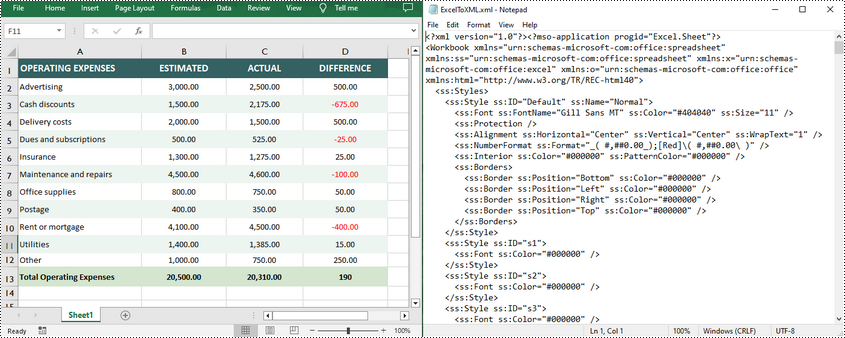
Spire.XLS for Python offers the Workbook.SaveAsXml() method to save an Excel file in Open XML format. The following are the detailed steps.
- Create a Workbook object.
- Load an Excel file using Workbook.LoadFromFile() method.
- Save the Excel file in Open XML format using Workbook.SaveAsXml() method.
- Python
from spire.xls import *
from spire.xls.common import *

# Create a Workbook object
workbook = Workbook()

# Load an Excel file
workbook.LoadFromFile("sample.xlsx")

# Save the Excel file in Open XML file format
workbook.SaveAsXml("ExcelToXML.xml")
workbook.Dispose()
Convert Open XML to Excel in Python
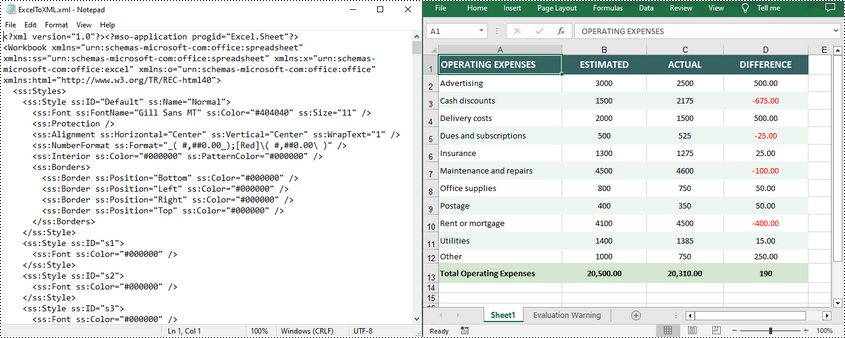
To convert an Open XML file to Excel, you need to load the Open XML file through the Workbook.LoadFromXml() method, and then call the Workbook.SaveToFile() method to save it as an Excel file. The following are the detailed steps.
- Create a Workbook object.
- Load an Open XML file using Workbook.LoadFromXml() method.
- Save the Open XML file to Excel using Workbook.SaveToFile() method.
- Python
from spire.xls import *
from spire.xls.common import *

# Create a Workbook object
workbook = Workbook()

# Load an Open XML file
workbook.LoadFromXml("ExcelToXML.xml")

# Save the Open XML file to Excel XLSX format
workbook.SaveToFile("XMLToExcel.xlsx", ExcelVersion.Version2016)
workbook.Dispose()
Apply for a Temporary License
If you'd like to remove the evaluation message from the generated documents, or to get rid of the function limitations, please request a 30-day trial license for yourself.
Comment in Excel is primarily used to add additional instructions or notes to cells. With this feature, users can add relevant content next to a specific cell to explain the data, provide contextual information, or give instructions. It also helps users to better organize and manage the data in the Excel workbook and improve the understanding and readability of the data. Spire.XLS for Python supports adding comments to Excel files. If necessary, you can also use this library to edit the content of the comments or delete unnecessary comments. In this article, we will show you how to edit or remove existing comments in Excel on Python platforms using Spire.XLS for Python.
Install Spire.XLS for Python
This scenario requires Spire.XLS for Python and plum-dispatch v1.7.4. They can be easily installed in your Windows through the following pip commands.
pip install Spire.XLS
If you are unsure how to install, please refer to this tutorial: How to Install Spire.XLS for Python on Windows
Edit Existing Comments in Excel Using Python
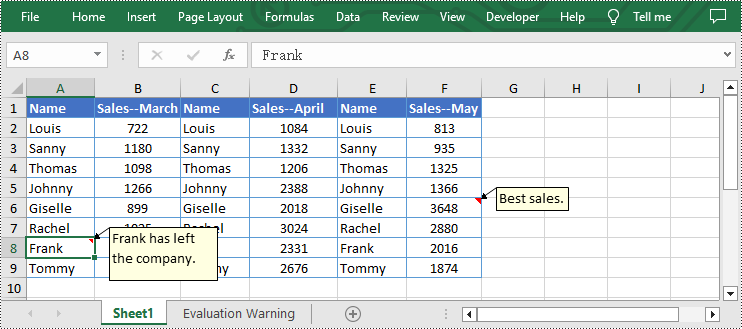
Spire.XLS for Python allows users to edit existing comments in Excel, including setting new text or changing comment box size. The following are detailed steps.
- Create a Workbook instance.
- Load an Excel file from disk using Workbook.LoadFromFile() method.
- Get the first worksheet of the Excel file using Workbook.Worksheets[] property.
- Set new text for the existing comments using Worksheet.Range[].Comment.Text property.
- Set the height and width of the existing comment by using Worksheet.Range[].Comment.Height and Worksheet.Range[].Comment.Width properties.
- Automatically adapt to the size of the comment by setting the Worksheet.Range.Comment.AutoSize property to "True".
- Save the result file using Workbook.SaveToFile() method.
- Python
from spire.xls import *
from spire.xls.common import *

inputFile = "C:/Users/Administrator/Desktop/Sample.xlsx"
outputFile = "C:/Users/Administrator/Desktop/EditExcelComment.xlsx"

# Create a Workbook instance
workbook = Workbook()

# Load an Excel file from disk
workbook.LoadFromFile(inputFile)

# Get the first worksheet of this file
sheet = workbook.Worksheets[0]

# Set new text for the existing comments
sheet.Range["A8"].Comment.Text = "Frank has left the company."
sheet.Range["F6"].Comment.Text = "Best sales."

# Set the height and width of the comment of A8
sheet.Range["A8"].Comment.Height = 60
sheet.Range["A8"].Comment.Width = 100

# Automatically adapt to the size of the comment of F6
sheet.Range["F6"].Comment.AutoSize = True

# Save the result file
workbook.SaveToFile(outputFile, ExcelVersion.Version2013)
workbook.Dispose()
Remove Existing Comments from Excel Using Python
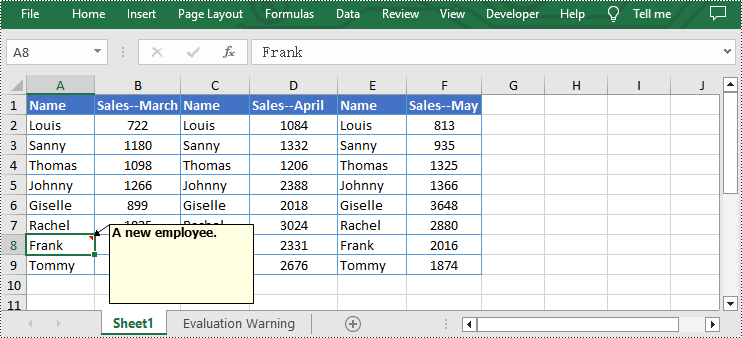
The Worksheet.Range[].Comment.Remove() method offered by Spire.XLS for Python allows users to remove a specified comment easily. The detailed steps are as follows.
- Create a Workbook instance.
- Load an Excel file from disk using Workbook.LoadFromFile() method.
- Get the first worksheet of the Excel file using Workbook.Worksheets[] property.
- Remove the comment by using Worksheet.Range[].Comment.Remove() method.
- Save the document to another file using Workbook.SaveToFile() method.
- Python
from spire.xls import *
from spire.xls.common import *

inputFile = "C:/Users/Administrator/Desktop/Sample.xlsx"
outputFile = "C:/Users/Administrator/Desktop/RemoveExcelComment.xlsx"

# Create a Workbook instance
workbook = Workbook()

# Load an Excel file from disk
workbook.LoadFromFile(inputFile)

# Get the first worksheet of this file
sheet = workbook.Worksheets[0]

# Remove the comment from the sheet
sheet.Range["F6"].Comment.Remove()

# Save the result file
workbook.SaveToFile(outputFile, ExcelVersion.Version2013)
workbook.Dispose()
Apply for a Temporary License
If you'd like to remove the evaluation message from the generated documents, or to get rid of the function limitations, please request a 30-day trial license for yourself.
A bar chart is a type of graph that represents categorical data using rectangular bars. It is somewhat like a column chart, but with bars that extend horizontally from the Y-axis. The length of each bar corresponds to the value represented by a particular category or group, and changes, trends, or rankings can be quickly identified by comparing the lengths of the bars. In this article, you will learn how to create a clustered or stacked bar chart in Excel in Python using Spire.XLS for Python.
Install Spire.XLS for Python
This scenario requires Spire.XLS for Python and plum-dispatch v1.7.4. They can be easily installed in your Windows through the following pip command.
pip install Spire.XLS
If you are unsure how to install, please refer to this tutorial: How to Install Spire.XLS for Python on Windows
Create a Clustered Bar Chart in Excel in Python
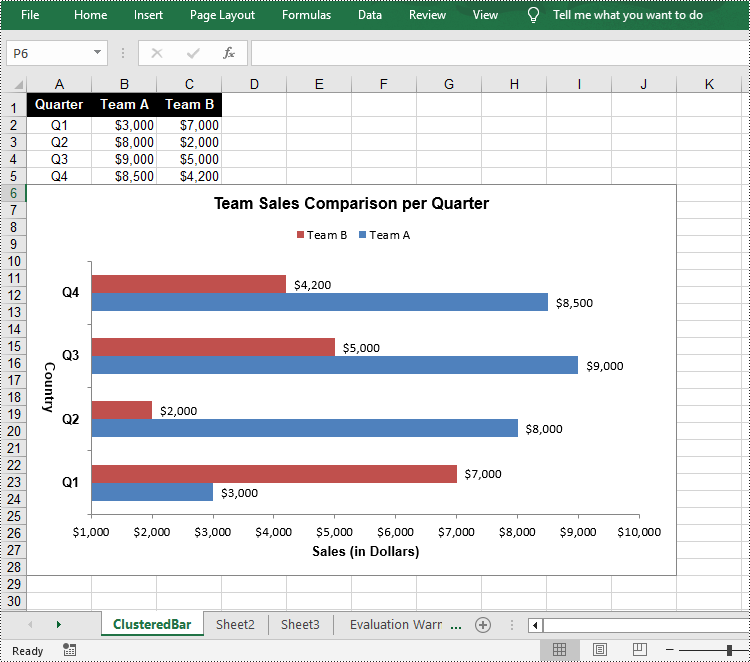
The Worksheet.Chart.Add(ExcelChartType chartType) method provided by Spire.XLS for Python allows to add a chart to a worksheet. To add a clustered bar chart in Excel, you can set the chart type to BarClustered. The following are the steps.
- Create a Workbook object.
- Get a specific worksheet using Workbook.Worksheets[index] property.
- Add chart data to specified cells and set the cell styles.
- Add a clustered bar char to the worksheet using Worksheet.Chart.Add(ExcelChartType.BarClustered) method.
- Set data range for the chart using Chart.DataRange property.
- Set position, title, category axis and value axis for the chart.
- Save the result file using Workbook.SaveToFile() method.
- Python
from spire.xls import *

# Create a Workbook instance
workbook = Workbook()

# Get the first sheet and set its name
sheet = workbook.Worksheets[0]
sheet.Name = "ClusteredBar"

# Add chart data to specified cells
sheet.Range["A1"].Value = "Quarter"
sheet.Range["A2"].Value = "Q1"
sheet.Range["A3"].Value = "Q2"
sheet.Range["A4"].Value = "Q3"
sheet.Range["A5"].Value = "Q4"
sheet.Range["B1"].Value = "Team A"
sheet.Range["B2"].NumberValue = 3000
sheet.Range["B3"].NumberValue = 8000
sheet.Range["B4"].NumberValue = 9000
sheet.Range["B5"].NumberValue = 8500
sheet.Range["C1"].Value = "Team B"
sheet.Range["C2"].NumberValue = 7000
sheet.Range["C3"].NumberValue = 2000
sheet.Range["C4"].NumberValue = 5000
sheet.Range["C5"].NumberValue = 4200

# Set cell style
sheet.Range["A1:C1"].RowHeight = 18
sheet.Range["A1:C1"].Style.Color = Color.get_Black()
sheet.Range["A1:C1"].Style.Font.Color = Color.get_White()
sheet.Range["A1:C1"].Style.Font.IsBold = True
sheet.Range["A1:C1"].Style.VerticalAlignment = VerticalAlignType.Center
sheet.Range["A1:C1"].Style.HorizontalAlignment = HorizontalAlignType.Center
sheet.Range["A2:A5"].Style.HorizontalAlignment = HorizontalAlignType.Center
sheet.Range["B2:C5"].Style.NumberFormat = "\"$\"#,##0"

# Add a clustered bar chart to the sheet
chart = sheet.Charts.Add(ExcelChartType.BarClustered)

# Set data range of the chart
chart.DataRange = sheet.Range["A1:C5"]
chart.SeriesDataFromRange = False

# Set position of the chart
chart.LeftColumn = 1
chart.TopRow = 6
chart.RightColumn = 11
chart.BottomRow = 29

# Set and format chart title
chart.ChartTitle = "Team Sales Comparison per Quarter"
chart.ChartTitleArea.IsBold = True
chart.ChartTitleArea.Size = 12

# Set and format category axis
chart.PrimaryCategoryAxis.Title = "Country"
chart.PrimaryCategoryAxis.Font.IsBold = True
chart.PrimaryCategoryAxis.TitleArea.IsBold = True
chart.PrimaryCategoryAxis.TitleArea.TextRotationAngle = 90

# Set and format value axis
chart.PrimaryValueAxis.Title = "Sales (in Dollars)"
chart.PrimaryValueAxis.HasMajorGridLines = False
chart.PrimaryValueAxis.MinValue = 1000
chart.PrimaryValueAxis.TitleArea.IsBold = True

# Show data labels for data points
for cs in chart.Series:
    cs.Format.Options.IsVaryColor = True
    cs.DataPoints.DefaultDataPoint.DataLabels.HasValue = True

# Set legend position
chart.Legend.Position = LegendPositionType.Top

#Save the result file
workbook.SaveToFile("ClusteredBarChart.xlsx", ExcelVersion.Version2016)
workbook.Dispose()
Create a Stacked Bar Chart in Excel in Python
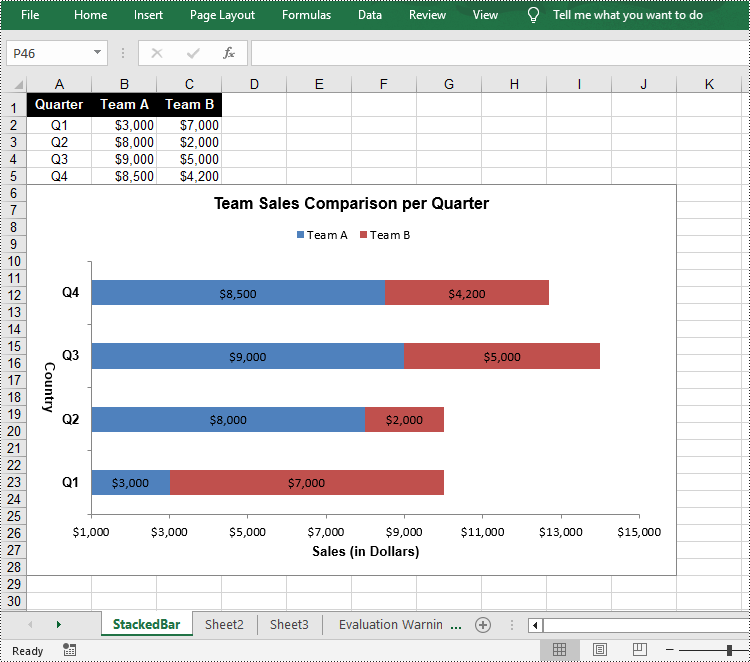
To create a stacked bar chart, you just need to change the Excel chart type to BarStacked. The following are the steps.
- Create a Workbook object.
- Get a specific worksheet using Workbook.Worksheets[index] property.
- Add chart data to specified cells and set the cell styles.
- Add a clustered bar char to the worksheet using Worksheet.Chart.Add(ExcelChartType.BarStacked) method.
- Set data range for the chart using Chart.DataRange property.
- Set position, title, category axis and value axis for the chart.
- Save the result file using Workbook.SaveToFile() method.
- Python
from spire.xls import *

# Create a Workbook instance
workbook = Workbook()

# Get the first sheet and set its name
sheet = workbook.Worksheets[0]
sheet.Name = "StackedBar"

# Add chart data to specified cells
sheet.Range["A1"].Value = "Quarter"
sheet.Range["A2"].Value = "Q1"
sheet.Range["A3"].Value = "Q2"
sheet.Range["A4"].Value = "Q3"
sheet.Range["A5"].Value = "Q4"
sheet.Range["B1"].Value = "Team A"
sheet.Range["B2"].NumberValue = 3000
sheet.Range["B3"].NumberValue = 8000
sheet.Range["B4"].NumberValue = 9000
sheet.Range["B5"].NumberValue = 8500
sheet.Range["C1"].Value = "Team B"
sheet.Range["C2"].NumberValue = 7000
sheet.Range["C3"].NumberValue = 2000
sheet.Range["C4"].NumberValue = 5000
sheet.Range["C5"].NumberValue = 4200

# Set cell style
sheet.Range["A1:C1"].RowHeight = 18
sheet.Range["A1:C1"].Style.Color = Color.get_Black()
sheet.Range["A1:C1"].Style.Font.Color = Color.get_White()
sheet.Range["A1:C1"].Style.Font.IsBold = True
sheet.Range["A1:C1"].Style.VerticalAlignment = VerticalAlignType.Center
sheet.Range["A1:C1"].Style.HorizontalAlignment = HorizontalAlignType.Center
sheet.Range["A2:A5"].Style.HorizontalAlignment = HorizontalAlignType.Center
sheet.Range["B2:C5"].Style.NumberFormat = "\"$\"#,##0"

# Add a clustered bar chart to the sheet
chart = sheet.Charts.Add(ExcelChartType.BarStacked)

# Set data range of the chart
chart.DataRange = sheet.Range["A1:C5"]
chart.SeriesDataFromRange = False

# Set position of the chart
chart.LeftColumn = 1
chart.TopRow = 6
chart.RightColumn = 11
chart.BottomRow = 29

# Set and format chart title
chart.ChartTitle = "Team Sales Comparison per Quarter"
chart.ChartTitleArea.IsBold = True
chart.ChartTitleArea.Size = 12

# Set and format category axis
chart.PrimaryCategoryAxis.Title = "Country"
chart.PrimaryCategoryAxis.Font.IsBold = True
chart.PrimaryCategoryAxis.TitleArea.IsBold = True
chart.PrimaryCategoryAxis.TitleArea.TextRotationAngle = 90

# Set and format value axis
chart.PrimaryValueAxis.Title = "Sales (in Dollars)"
chart.PrimaryValueAxis.HasMajorGridLines = False
chart.PrimaryValueAxis.MinValue = 1000
chart.PrimaryValueAxis.TitleArea.IsBold = True

# Show data labels for data points
for cs in chart.Series:
    cs.Format.Options.IsVaryColor = True
    cs.DataPoints.DefaultDataPoint.DataLabels.HasValue = True

# Set legend position
chart.Legend.Position = LegendPositionType.Top

#Save the result file
workbook.SaveToFile("StackedBarChart.xlsx", ExcelVersion.Version2016)
workbook.Dispose()
Apply for a Temporary License
If you'd like to remove the evaluation message from the generated documents, or to get rid of the function limitations, please request a 30-day trial license for yourself.
RTF (Rich Text Format) is a versatile file format that can be opened and viewed by various word processing software. It supports a wide range of text formatting options, such as font style, size, color, tables, images, and more. When working with RTF files, you may sometimes need to convert them to PDF files for better sharing and printing, or to HTML format for publishing on the web. In this article, you will learn how to convert RTF to PDF or HTML with Python using Spire.Doc for Python.
Install Spire.Doc for Python
This scenario requires Spire.Doc for Python and plum-dispatch v1.7.4. They can be easily installed in your Windows through the following pip commands.
pip install Spire.Doc
If you are unsure how to install, please refer to this tutorial: How to Install Spire.Doc for Python on Windows
Convert RTF to PDF in Python
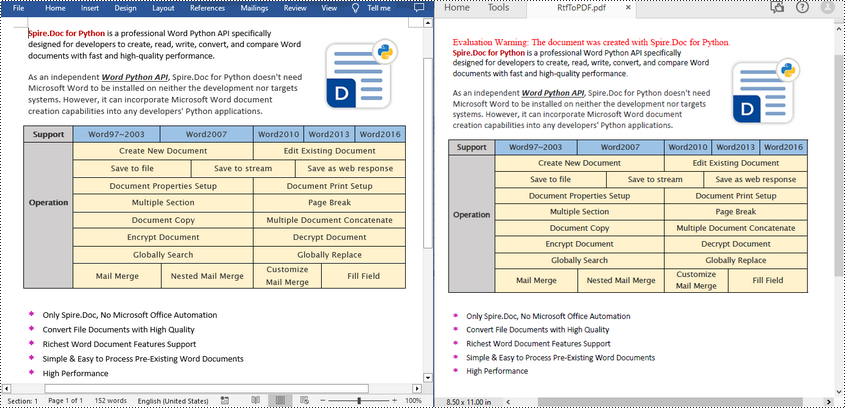
To convert an RTF file to PDF, simply load a file with .rtf extension and then save it as a PDF file using Document.SaveToFile(fileName, FileFormat.PDF) method. The following are the detailed steps.
- Create a Document object.
- Load an RTF file using Document.LoadFromFile() method.
- Save the RTF file as a PDF file using Document.SaveToFile(fileName, FileFormat.PDF) method.
- Python
from spire.doc import *
from spire.doc.common import *

inputFile = "input.rtf"
outputFile = "RtfToPDF.pdf"

# Create a Document object
doc = Document()

# Load an RTF file from disk
doc.LoadFromFile(inputFile)

# Save the RTF file as a PDF file
doc.SaveToFile(outputFile, FileFormat.PDF)
doc.Close()
Convert RTF to HTML in Python
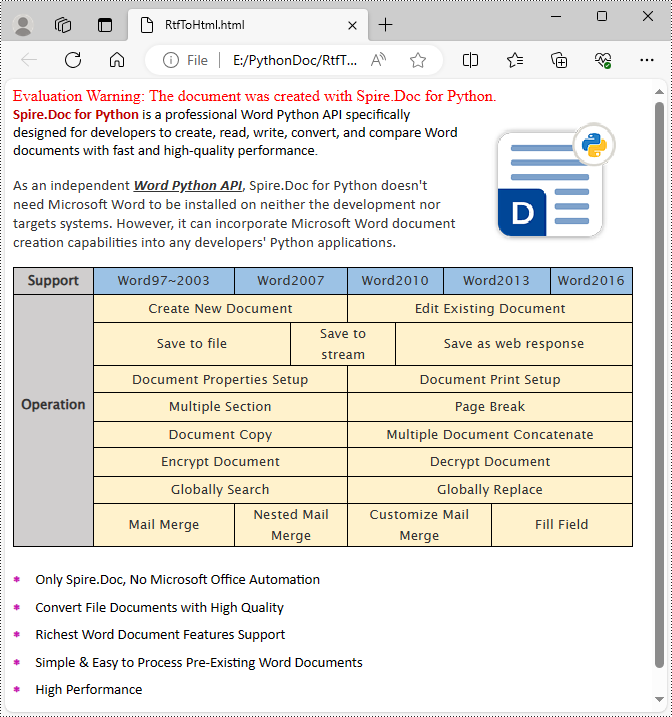
Spire.Doc for Python also allows you to use the Document.SaveToFile(fileName, FileFormat.Html) method to convert the loaded RTF file to HTML format. The following are the detailed steps.
- Create a Document object.
- Load an RTF file using Document.LoadFromFile() method.
- Save the RTF file in HTML format using Document.SaveToFile(fileName, FileFormat.Html) method.
- Python
from spire.doc import *
from spire.doc.common import *

inputFile = "input.rtf"
outputFile = "RtfToHtml.html"

# Create a Document object
doc = Document()

# Load an RTF file from disk
doc.LoadFromFile(inputFile)

# Save the RTF file in HTML format
doc.SaveToFile(outputFile, FileFormat.Html)
doc.Close()
Get a Free License
To fully experience the capabilities of Spire.Doc for Python without any evaluation limitations, you can request a free 30-day trial license.
PDF/A is a specialized format designed specifically for long-term archiving and preservation of electronic documents. It guarantees that the content, structure, and visual appearance of the documents remain unchanged over time. By converting PDF files to PDF/A format, you ensure the long-term accessibility of the documents, regardless of software, operating systems, or future technological advancements. Conversely, converting PDF/A files to standard PDF format makes it easier to edit, share, and collaborate on the documents, ensuring better compatibility across different applications, devices, and platforms. In this article, we will explain how to convert PDF to PDF/A and vice versa in Python using Spire.PDF for Python.
Install Spire.PDF for Python
This scenario requires Spire.PDF for Python and plum-dispatch v1.7.4. They can be easily installed in your Windows through the following pip command.
pip install Spire.PDF
If you are unsure how to install, please refer to this tutorial: How to Install Spire.PDF for Python on Windows
Convert PDF to PDF/A in Python
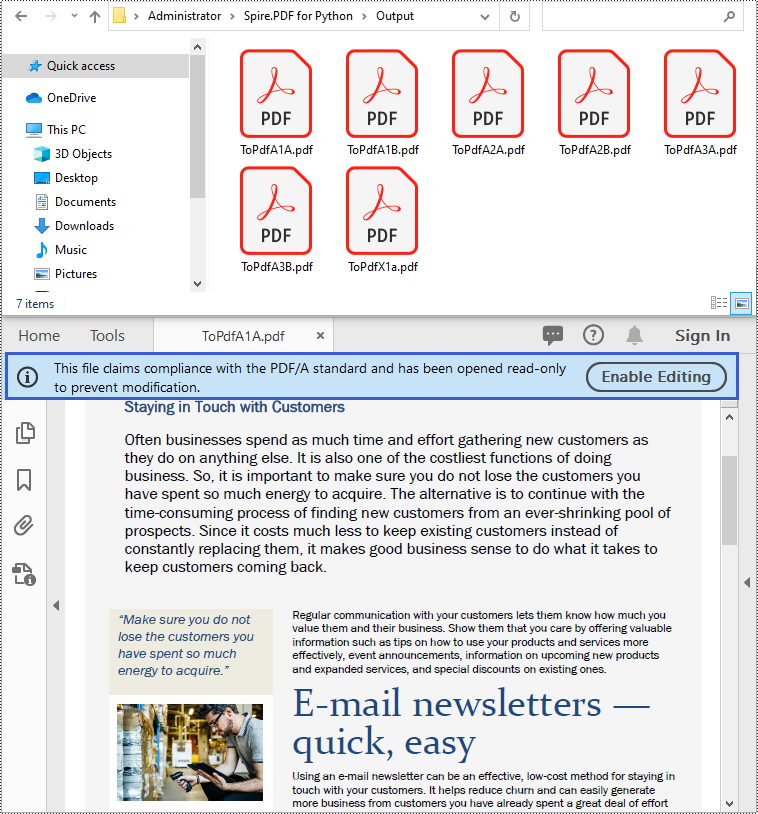
The PdfStandardsConverter class provided by Spire.PDF for Python supports converting PDF to various PDF/A formats, including PDF/A-1a, 2a, 3a, 1b, 2b and 3b. Moreover, it also supports converting PDF to PDF/X-1a:2001. The detailed steps are as follows.
- Specify the input file path and output folder.
- Create a PdfStandardsConverter object and pass the input file path to the constructor of the class as a parameter.
- Convert the input file to a Pdf/A-1a conformance file using PdfStandardsConverter.ToPdfA1A() method.
- Convert the input file to a Pdf/A-1b file using PdfStandardsConverter.ToPdfA1B() method.
- Convert the input file to a Pdf/A-2a file using PdfStandardsConverter.ToPdfA2A() method.
- Convert the input file to a Pdf/A-2b file using PdfStandardsConverter.ToPdfA2B() method.
- Convert the input file to a Pdf/A-3a file using PdfStandardsConverter.ToPdfA3A() method.
- Convert the input file to a Pdf/A-3b file using PdfStandardsConverter.ToPdfA3B() method.
- Convert the input file to a PDF/X-1a:2001 file using PdfStandardsConverter.ToPdfX1A2001() method.
- Python
from spire.pdf.common import *
from spire.pdf import *

# Specify the input file path and output folder
inputFile = "Sample.pdf"
outputFolder = "Output/"

# Create an object of the PdfStandardsConverter class
converter = PdfStandardsConverter(inputFile)

# Convert the input file to PdfA1A
converter.ToPdfA1A(outputFolder + "ToPdfA1A.pdf")

# Convert the input file to PdfA1B
converter.ToPdfA1B(outputFolder + "ToPdfA1B.pdf")

# Convert the input file to PdfA2A
converter.ToPdfA2A(outputFolder + "ToPdfA2A.pdf")

# Convert the input file to PdfA2B
converter.ToPdfA2B(outputFolder + "ToPdfA2B.pdf")

# Convert the input file to PdfA3A
converter.ToPdfA3A(outputFolder + "ToPdfA3A.pdf")

# Convert the input file to PdfA3B
converter.ToPdfA3B(outputFolder + "ToPdfA3B.pdf")

# Convert the input file to PDF/X-1a:2001
converter.ToPdfX1A2001(outputFolder + "ToPdfX1a.pdf")
Convert PDF/A to PDF in Python
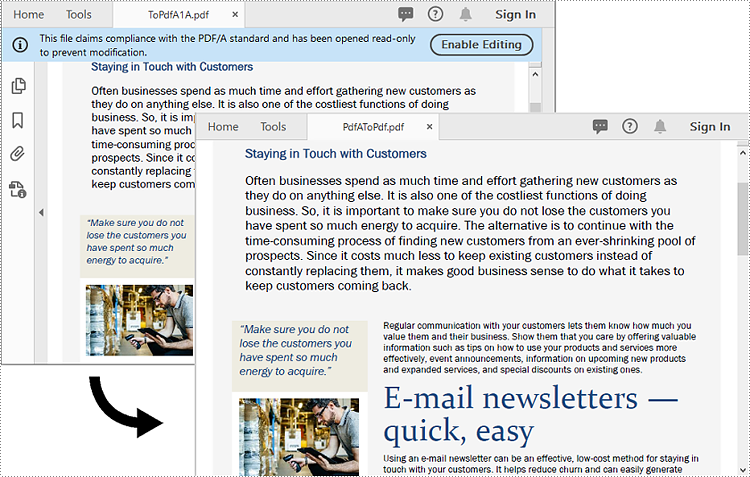
To convert a PDF/A file back to a standard PDF format, you need to create a new standard PDF file, and then draw the page content of the PDF/A file to the newly created PDF file. The detailed steps are as follows.
- Create a PdfDocument object.
- Load a PDF/A file using PdfDocument.LoadFromFile() method.
- Create a PdfNewDocument object and set its compression level as none.
- Loop through the pages in the original PDF/A file.
- Add pages to the newly created PDF using PdfDocumentBase.Pages.Add() method.
- Draw the page content of the original PDF/A file to the corresponding pages of the newly created PDF using PdfPageBase.CreateTemplate.Draw() method.
- Create a Stream object and then save the new PDF to the stream using PdfNewDocument.Save() method.
- Python
from spire.pdf.common import *
from spire.pdf import *

# Specify the input and output file paths
inputFile = "Output/ToPdfA1A.pdf"
outputFile = "PdfAToPdf.pdf"

# Create an object of the PdfDocument class
doc = PdfDocument()
# Load a PDF file
doc.LoadFromFile(inputFile)

# Create a new standard PDF file
newDoc = PdfNewDocument()
newDoc.CompressionLevel = PdfCompressionLevel.none

# Add pages to the newly created PDF and draw the page content of the loaded PDF onto the corresponding pages of the newly created PDF
for i in range(doc.Pages.Count):
    page = doc.Pages.get_Item(i)
    size = page.Size
    p = newDoc.Pages.Add(size, PdfMargins(0.0))
    page.CreateTemplate().Draw(p, 0.0, 0.0)

# Save the new PDF to a PDF file
fileStream = Stream(outputFile)
newDoc.Save(fileStream)
fileStream.Close()
newDoc.Close(True)
Apply for a Temporary License
If you'd like to remove the evaluation message from the generated documents, or to get rid of the function limitations, please request a 30-day trial license for yourself.
Making PDF content accessible on the web enhances usability, searchability, and compatibility across devices. Whether you're developing a PDF viewer, automating document workflows, or republishing content online, converting PDF to HTML using Python can significantly improve the user experience.
This comprehensive guide demonstrates how to convert PDF to HTML using Python. It covers everything from basic conversions and advanced customization to stream-based output—each section includes practical, easy-to-follow code snippets to help you get started quickly.
Table of Contents
- Why Export PDF as HTML
- Install Python PDF to HTML Converter Library
- Basic PDF to HTML Conversion in Python
- Customize the HTML Output
- Save PDF to HTML Stream
- Conclusion
- FAQs
Why Export PDF as HTML?
HTML (HyperText Markup Language) is the foundation of web content. By exporting PDFs into HTML, you enable seamless viewing, editing, and indexing of document content online. Key advantages include:
- Improved Web Accessibility: HTML renders natively in all browsers.
- Search Engine Optimization (SEO): Search engines can index content better than in PDFs.
- Responsive Layouts: HTML adjusts to different screen sizes.
- Interactive Enhancements: HTML allows for styling, scripts, and better user interaction.
- Plugin-Free Viewing: No need for third-party PDF viewers.
Install Python PDF to HTML Converter Library
To start exporting PDFs to HTML using Python, you’ll need a reliable library that supports PDF processing and HTML export. For this tutorial, we’re using Spire.PDF for Python, a high-performance PDF library that supports reading, editing, and converting PDF files in various formats, including HTML, with minimal effort.
Installation
The library can be installed easily via pip. Open your terminal and run the following command:
pip install Spire.PDF
This will download and install the latest version of the package along with its dependencies.
Need help with the installation? Follow this step-by-step guide: How to Install Spire.PDF for Python on Windows
Basic PDF to HTML Conversion in Python
Spire.PDF makes it easy to export an entire PDF document to HTML using the SaveToFile() method.
from spire.pdf.common import *
from spire.pdf import *

# Initialize a PdfDocument object
doc = PdfDocument()

# Load your PDF file
doc.LoadFromFile("Sample.pdf")

# Convert and save it as HTML
doc.SaveToFile("PdfToHtml.html", FileFormat.HTML)

# Close the document
doc.Close()
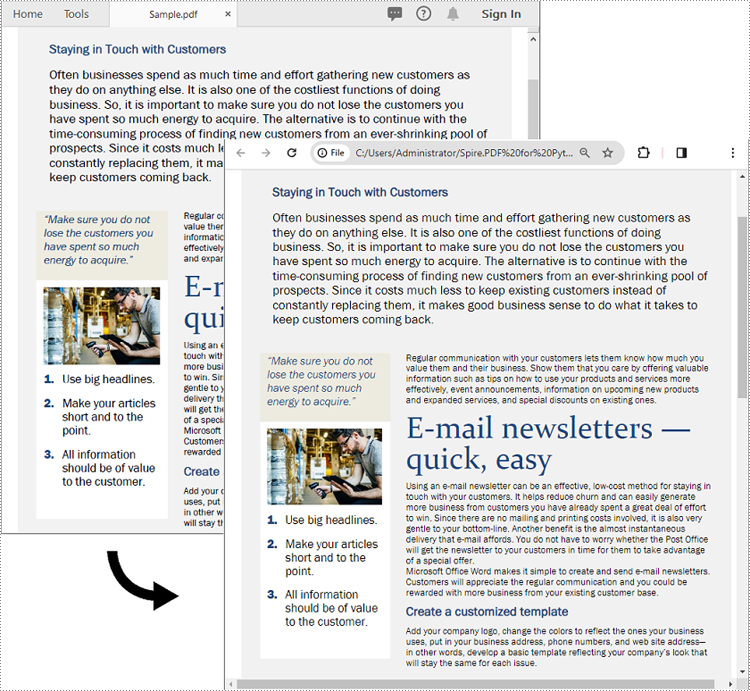
This approach generates a single HTML file that preserves the layout and structure of the original PDF.
The screenshot below showcases the input PDF and the output HTML file:
Customize the HTML Output
If you need more control over the conversion process, the SetPdfToHtmlOptions() method lets you fine-tune the HTML output.
You can customize various aspects of the conversion—such as image embedding, page splitting, and SVG quality—using the following parameters:
| Parameter | Type | Description |
|---|---|---|
| useEmbeddedSvg | bool | If True, embeds SVG for vector content. |
| useEmbeddedImg | bool | If True, embeds images. Effective only if useEmbeddedSvg is False. |
| maxPageOneFile | bool | Limits HTML output to one page per file (if not using SVG). |
| useHighQualityEmbeddedSvg | bool | Enables high-resolution SVG (only when useEmbeddedSvg is True). |
Example Code
from spire.pdf.common import *
from spire.pdf import *

# Initialize a PdfDocument object
doc = PdfDocument()
# Load your PDF file
doc.LoadFromFile("Sample.pdf")

# Access conversion settings
options = doc.ConvertOptions

# Customize conversion: use image embedding, one page per file
options.SetPdfToHtmlOptions(False, True, 1, False)

# Save the PDF to HTML with the custom options
doc.SaveToFile("PdfToHtmlWithOptions.html", FileFormat.HTML)
# Close the document
doc.Close()
This configuration disables SVG and instead embeds images, outputting each page as a separate HTML file.
Save PDF to HTML Stream
In web or cloud-based applications, you might prefer to write the HTML output to a stream (e.g., for serving over HTTP) instead of saving directly to the file system. This can be achieved with the SaveToStream() method.
Example Code
from spire.pdf.common import *
from spire.pdf import *

# Initialize a PdfDocument object
doc = PdfDocument()
# Load your PDF file
doc.LoadFromFile("Sample.pdf")

# Create a stream to save the HTML output
fileStream = Stream("PdfToHtmlStream.html")

# Save the PDF to HTML stream
doc.SaveToStream(fileStream, FileFormat.HTML)

# Close the stream and the document
fileStream.Close()
doc.Close()
This approach is ideal for web servers, APIs, or any application that handles files dynamically in memory or over the network.
Conclusion
Converting PDF to HTML using Python is an effective way to make your documents web-compatible and more interactive. With Spire.PDF for Python, you get full control over the conversion process, from simple exports to advanced configurations like embedded images or SVGs and stream output.
Ready to transform your PDFs into interactive web content? Give Spire.PDF for Python a try and streamline your document-to-HTML workflow today.
FAQs
Q1: Can I convert password-protected PDFs to HTML?
A1: Yes, Spire.PDF allows you to open encrypted PDFs using doc.LoadFromFile("file.pdf", "password").
Q2: Does this method support multi-page PDFs?
A2: Yes. By default, it converts all pages. You can control how many pages appear per HTML file using the maxPageOneFile parameter.
Q3: Are images and fonts preserved in HTML output?
A3: Yes, depending on the conversion settings (e.g., embedding images or SVGs), visual fidelity is preserved as closely as possible.
Get a Free License
To fully experience the capabilities of Spire.PDF for Python without any evaluation limitations, you can request a free 30-day trial license.
RTF is a flexible file format that preserves formatting and basic styling while offering compatibility with various word processing software. Converting Word to RTF enables users to retain document structure, fonts, hyperlinks, and other essential elements without the need for specialized software. Similarly, converting RTF back to Word format provides the flexibility to edit and enhance documents using the powerful features of Microsoft Word. In this article, you will learn how to convert Word to RTF and vice versa in Python using Spire.Doc for Python.
Install Spire.Doc for Python
This scenario requires Spire.Doc for Python and plum-dispatch v1.7.4. They can be easily installed in your Windows through the following pip command.
pip install Spire.Doc
If you are unsure how to install, please refer to this tutorial: How to Install Spire.Doc for Python on Windows
Convert Word to RTF in Python
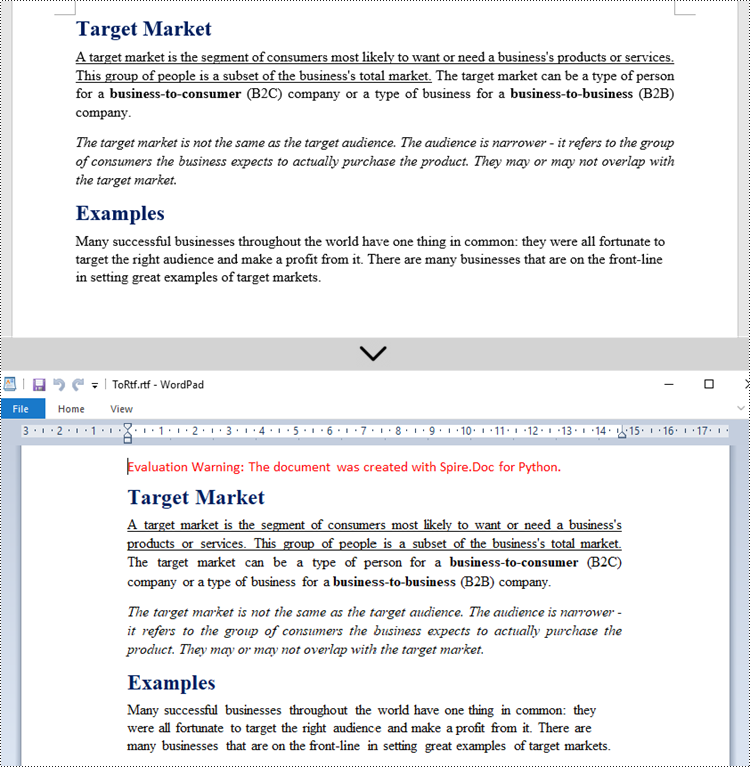
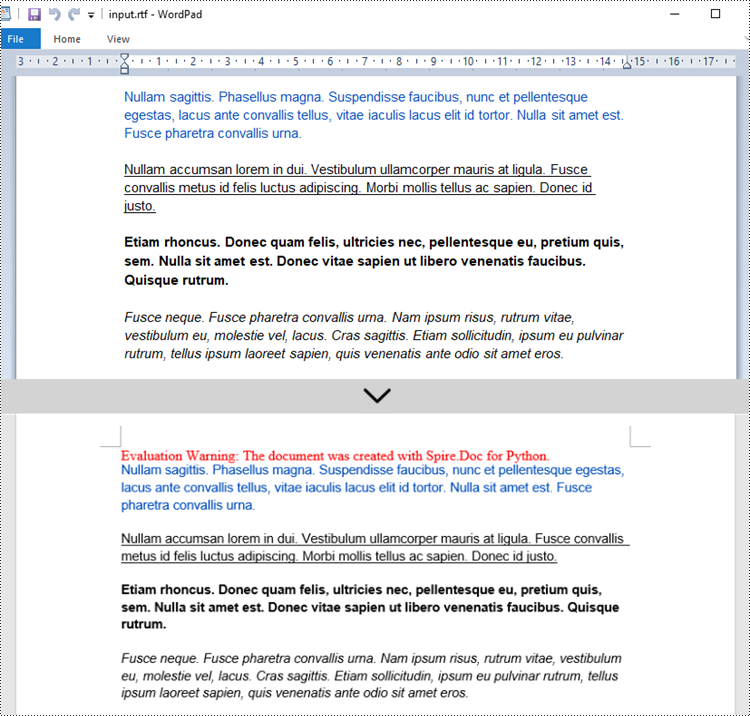
With Spire.Doc for Python, you can load a Word file using the Document.LoadFromFile() method and convert it to a different format, such as RTF, using the Document.SaveToFile() method; Conversely, you can load an RTF file in the same way and save it as a Word file.
The following are the steps to convert Word to RTF using Spire.Doc for Python.
- Create a Document object.
- Load a Word file using Document.LoadFromFile() method.
- Convert it to an RTF file using Document.SaveToFile() method.
- Python
from spire.doc import *
from spire.doc.common import *

# Create a Document object
document = Document()

# Load a Word file
document.LoadFromFile("C:\\Users\\Administrator\\Desktop\\input.docx")

# Convert to a RTF file
document.SaveToFile("output/ToRtf.rtf", FileFormat.Rtf)
document.Close()
Convert RTF to Word in Python
The code for converting RTF to Word is quite simply, too. Follow the steps below.
- Create a Document object.
- Load an RTF file using Document.LoadFromFile() method.
- Convert it to a Word file using Document.SaveToFile() method.
- Python
from spire.doc import *
from spire.doc.common import *

# Create a Document object
document = Document()

# Load a Rtf file
document.LoadFromFile("C:\\Users\\Administrator\\Desktop\\input.rtf")

# Convert to a Word file
document.SaveToFile("output/ToWord.docx", FileFormat.Docx2019)
document.Close()
Get a Free License
To fully experience the capabilities of Spire.Doc for Python without any evaluation limitations, you can request a free 30-day trial license.
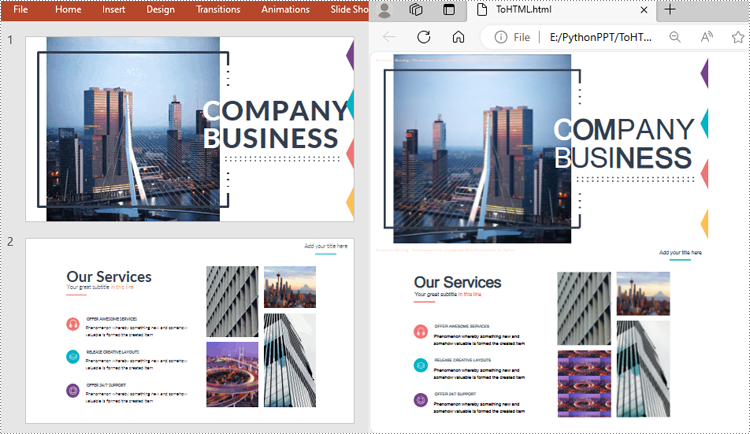
Converting PowerPoint to Html is a way to share your presentations with others online. By converting to Html, you can publish the document content on a web page, making it universally accessible and appealing to diverse audiences. In this article, you will learn how to convert PowerPoint presentations to HTML format in Python using Spire.Presentation for Python.
Install Spire.Presentation for Python
This scenario requires Spire.Presentation for Python and plum-dispatch v1.7.4. They can be easily installed in your Windows through the following pip command.
pip install Spire.Presentation
If you are unsure how to install, please refer to this tutorial: How to Install Spire.Presentation for Python on Windows
Convert a PowerPoint Presentation to HTML in Python
The Presentation.SaveToFile() method offered by Spire.Presentation for Python supports converting a PowerPoint presentation to HTML format. The following are the detailed steps:
- Create a Presentation instance.
- Load a PowerPoint document using Presentation.LoadFromFile() method.
- Save the PowerPoint document to HTML format using Presentation.SaveToFile() method.
- Python
from spire.presentation.common import *
from spire.presentation import *

inputFile ="Input.pptx"
outputFile = "ToHTML.html"

# Create a Presentation instance
ppt = Presentation()

# Load a PowerPoint document
ppt.LoadFromFile(inputFile)

#Save the document to HTML format
ppt.SaveToFile(outputFile, FileFormat.Html)
ppt.Dispose()
Convert a Specific PowerPoint Slide to HTML in Python
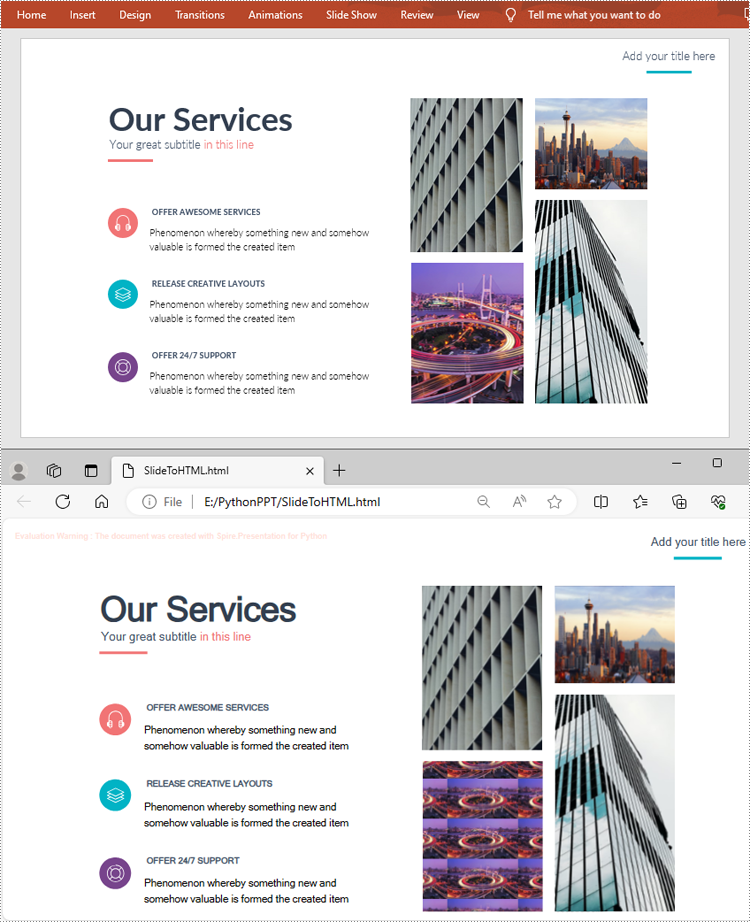
If you only need to convert a specific presentation slide to HTML, you can use the ISlide.SaveToFile(String, FileFormat) method. The following are the detailed steps.
- Create a Presentation instance.
- Load a PowerPoint document using Presentation.LoadFromFile() method.
- Get a specific slide by its index using Presentation.Slides[] property.
- Save the presentation slide to HTML format using ISlide.SaveToFile() method.
- Python
from spire.presentation.common import *
from spire.presentation import *

inputFile ="Input.pptx"
outputFile = "SlideToHTML.html"

# Create a Presentation instance
ppt = Presentation()

# Load a PowerPoint document
ppt.LoadFromFile(inputFile)

# Get the second slide
slide = ppt.Slides[1]

# Save the slide to HTML format
slide.SaveToFile(outputFile, FileFormat.Html)
ppt.Dispose()
Apply for a Temporary License
If you'd like to remove the evaluation message from the generated documents, or to get rid of the function limitations, please request a 30-day trial license for yourself.
In PDF, you can change the page size to make the document meet different needs. For example, a smaller page size is required when creating handouts or compact versions of documents, while a larger page size could be useful for designing posters or graphics-intensive materials. In some cases, you may also need to get the page dimensions (width and height) to determine if the document is resized optimally. In this article, you will learn how to change or get PDF page size programmatically in Python using Spire.PDF for Python.
- Change PDF Page Size to a Standard Paper Size with Python
- Change PDF Page Size to a Custom Paper Size with Python
- Get PDF Page Size with Python
Install Spire.PDF for Python
This scenario requires Spire.PDF for Python and plum-dispatch v1.7.4. They can be easily installed in your Windows through the following pip command.
pip install Spire.PDF
If you are unsure how to install, please refer to this tutorial: How to Install Spire.PDF for Python on Windows
Change PDF Page Size to a Standard Paper Size with Python
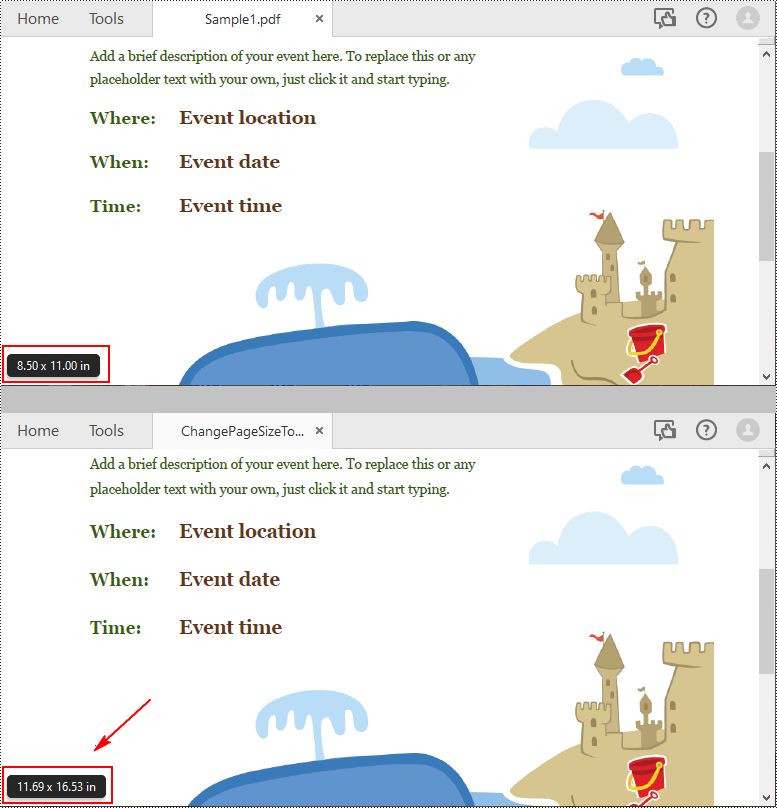
The way to change the page size of a PDF file is to create a new PDF file and add pages of the desired size to it, then create templates based on the pages in the original PDF file and draw the templates onto the pages in the new PDF file. This process will preserve text, images, and other elements present in the original PDF file.
Spire.PDF for Python supports a variety of standard paper size, such as letter, legal, A0, A1, A2, A3, A4, B0, B1, B2, B3, B4 and so on. The following are the steps to change the page size of a PDF file to a standard paper size:
- Initialize a PdfDocument instance and load the original PDF file using PdfDocument.LoadFromFile() method.
- Initialize another PdfDocument instance to create a new PDF file.
- Loop through the pages in the original PDF.
- Add pages of the desired size to the new PDF file using PdfDocument.Pages.Add() method.
- Initialize a PdfTextLayout instance and set the text layout as one page through PdfTextLayout.Layout property.
- Create templates based on the pages in the original PDF using PdfPageBase.CreateTemplate() method.
- Draw the templates onto the pages in the new PDF file with the specified text layout using PdfTemplate.Draw() method.
- Save the result file using PdfDocument.SaveToFile() method.
- Python
from spire.pdf.common import *
from spire.pdf import *

inputFile = "Sample1.pdf"
outputFile = "ChangePageSizeToA3.pdf"

# Create a PdfDocument instance
originalPdf = PdfDocument()

# Load the original PDF document
originalPdf.LoadFromFile(inputFile)

# Create a new PDF document
newPdf = PdfDocument()

# Loop through the pages in the original PDF
for i in range(originalPdf.Pages.Count):
    page = originalPdf.Pages.get_Item(i)

    # Add pages of size A3 to the new PDF
    newPage = newPdf.Pages.Add(PdfPageSize.A3(), PdfMargins(0.0))

    # Create a PdfTextLayout instance
    layout = PdfTextLayout()

    # Set text layout as one page (if not set the content will not scale to fit page size)
    layout.Layout = PdfLayoutType.OnePage

    # Create templates based on the pages in the original PDF
    template = page.CreateTemplate()

    # Draw the templates onto the pages in the new PDF
    template.Draw(newPage, PointF.Empty(), layout)

# Save the result document
newPdf.SaveToFile(outputFile)
newPdf.Close()
Change PDF Page Size to a Custom Paper Size with Python
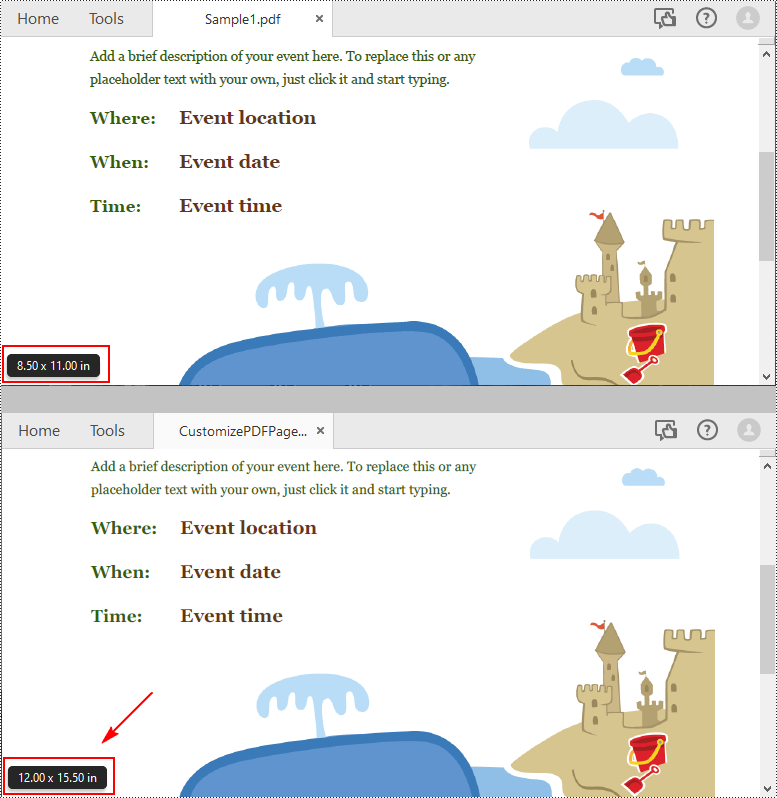
Spire.PDF for Python uses point (1/72 of an inch) as the unit of measure. If you need to change the page size of a PDF to a custom paper size in other units of measure like inches or millimeters, you can use the PdfUnitConvertor class to convert them to points.
The following are steps to change the page size of a PDF file to a custom paper size in inches:
- Initialize a PdfDocument instance and load the original PDF file using PdfDocument.LoadFromFile() method.
- Initialize another PdfDocument instance to create a new PDF file.
- Initialize a PdfUnitConvertor instance, then convert the custom size in inches to points using PdfUnitConvertor.ConvertUnits() method.
- Initialize a SizeF instance from the custom size.
- Loop through the pages in the original PDF.
- Add pages of the custom size to the new PDF file using PdfDocument.Pages.Add() method.
- Initialize a PdfTextLayout instance and set the text layout as one page through PdfTextLayout.Layout property.
- Create templates based on the pages in the original PDF using PdfPageBase.CreateTemplate() method.
- Draw the templates onto the pages in the new PDF file with the specified text layout using PdfTemplate.Draw() method.
- Save the result file using PdfDocument.SaveToFile() method.
- Python
from spire.pdf.common import *
from spire.pdf import *

inputFile = "Sample1.pdf"
outputFile = "CustomizePdfPageSize.pdf"

# Create a PdfDocument instance
originalPdf = PdfDocument()

# Load the original PDF document
originalPdf.LoadFromFile(inputFile)

# Create a new PDF document
newPdf = PdfDocument()

# Create a PdfUnitConvertor instance
unitCvtr = PdfUnitConvertor()

# Convert the custom size in inches to points
width = unitCvtr.ConvertUnits(12.0, PdfGraphicsUnit.Inch, PdfGraphicsUnit.Point)
height = unitCvtr.ConvertUnits(15.5, PdfGraphicsUnit.Inch, PdfGraphicsUnit.Point)

#Create a new SizeF instance from the custom size, then it will be used as the page size of the new PDF
size = SizeF(width, height)

# Loop through the pages in the original PDF
for i in range(originalPdf.Pages.Count):
    page = originalPdf.Pages.get_Item(i)

    # Add pages of the custom size (12.0*15.5 inches) to the new PDF
    newPage = newPdf.Pages.Add(size, PdfMargins(0.0))

    # Create a PdfTextLayout instance
    layout = PdfTextLayout()

    # Set text layout as one page (if not set the content will not scale to fit page size)
    layout.Layout = PdfLayoutType.OnePage

    # Create templates based on the pages in the original PDF
    template = page.CreateTemplate()

    # Draw the templates onto the pages in the new PDF
    template.Draw(newPage, PointF.Empty(), layout)

# Save the result document
newPdf.SaveToFile(outputFile)
newPdf.Close()
Get PDF Page Size with Python
Spire.PDF for Python offers the PdfPageBase.Size.Width and PdfPageBase.Size.Height properties to get the width and height of a PDF page in points. If you want to convert the default unit of measure to other units, you can use the PdfUnitConvertor class.
The following are the steps to get the PDF page size:
- Initialize a PdfDocument instance.
- Load a PDF file using PdfDocument.LoadFromFile() method.
- Get a specified page using PdfDocument.Pages[] property.
- Get the width and height of the PDF page using PdfPageBase.Size.Width and PdfPageBase.Size.Height properties.
- Initialize a PdfUnitConvertor instance, and then convert the size units from points to other units of measure using PdfUnitConvertor.ConvertUnits() method.
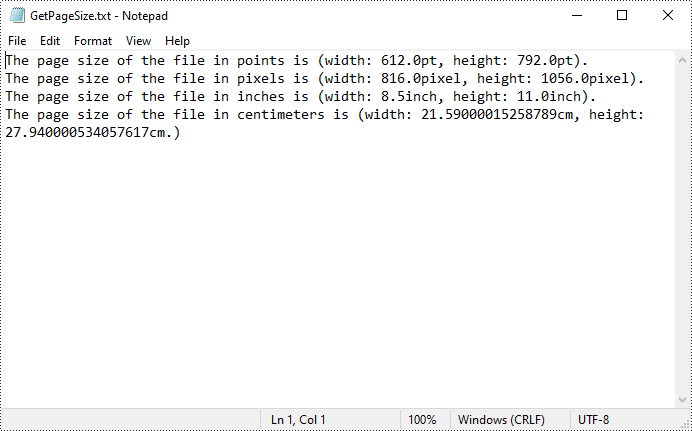
- Add the size information to a StringBuilder instance, and then save the result to a TXT file.
- Python
from spire.pdf.common import *
from spire.pdf import *

def AppendAllText(fname: str, text: List[str]):
    fp = open(fname, "w")
    for s in text:
        fp.write(s + "\n")
    fp.close()

inputFile = "Sample1.pdf"
outputFile = "GetPageSize.txt"

# Create a PdfDocument instance
pdf = PdfDocument()

# Load a sample PDF from disk
pdf.LoadFromFile(inputFile)

# Get the first page of the file
page = pdf.Pages[0]

# Get the width and height of page based on "point"
pointWidth = page.Size.Width
pointHeight = page.Size.Height

# Create PdfUnitConvertor to convert the unit
unitCvtr = PdfUnitConvertor()

# Convert size units from points to pixels
pixelWidth = unitCvtr.ConvertUnits(pointWidth, PdfGraphicsUnit.Point, PdfGraphicsUnit.Pixel)
pixelHeight = unitCvtr.ConvertUnits(pointHeight, PdfGraphicsUnit.Point, PdfGraphicsUnit.Pixel)

# Convert size units from points to inches
inchWidth = unitCvtr.ConvertUnits(pointWidth, PdfGraphicsUnit.Point, PdfGraphicsUnit.Inch)
inchHeight = unitCvtr.ConvertUnits(pointHeight, PdfGraphicsUnit.Point, PdfGraphicsUnit.Inch)

# Convert size units from points to centimeters
centimeterWidth = unitCvtr.ConvertUnits(pointWidth, PdfGraphicsUnit.Point, PdfGraphicsUnit.Centimeter)
centimeterHeight = unitCvtr.ConvertUnits(pointHeight, PdfGraphicsUnit.Point, PdfGraphicsUnit.Centimeter)

# Add the size information to a StringBuilder instance
content = []
content.append("The page size of the file in points is (width: " +
               str(pointWidth) + "pt, height: " + str(pointHeight) + "pt).")
content.append("The page size of the file in pixels is (width: " +
               str(pixelWidth) + "pixel, height: " + str(pixelHeight) + "pixel).")
content.append("The page size of the file in inches is (width: " +
               str(inchWidth) + "inch, height: " + str(inchHeight) + "inch).")
content.append("The page size of the file in centimeters is (width: " +
               str(centimeterWidth) + "cm, height: " + str(centimeterHeight) + "cm.)")

# Save to a txt file
AppendAllText(outputFile, content)
pdf.Close()
Apply for a Temporary License
If you'd like to remove the evaluation message from the generated documents, or to get rid of the function limitations, please request a 30-day trial license for yourself.
